> ## Documentation Index
> Fetch the complete documentation index at: https://sitespeak.ai/docs/llms.txt
> Use this file to discover all available pages before exploring further.
# Convert CSV to SQLite for Your Chatbot
> Convert your CSV or Excel data to a SQLite database that your chatbot can query for accurate responses.
The best way to improve the accuracy of your chatbot's responses when dealing with structured data in CSV or Excel format is to import the data into a SQLite database. Your chatbot can then query this database directly using the [SQLite Database action](/tools-and-actions/sqlite-database).
## Why Use SQLite Instead of CSV?
| Feature | CSV Training | SQLite Action |
| ----------------- | --------------------- | -------------------- |
| Data accuracy | May misinterpret rows | Precise SQL queries |
| Large datasets | Limited | Handles large tables |
| Updates | Retrain required | Just upload new DB |
| Complex queries | Not supported | Full SQL support |
| Filtering/sorting | Basic | Advanced |
## Creating the SQLite Database
Ensure you have `sqlite3` installed on your system. It comes pre-installed on macOS and most Linux distributions.
Open your terminal and run:
```bash theme={null}
sqlite3 my_data.db
```
Replace `my_data.db` with your preferred database name.
## Importing Your CSV Data
In the SQLite prompt that opens, run the following commands:
```sql theme={null}
-- Enable CSV import mode
.mode csv
-- Import your CSV file into a table
.import /path/to/your/data.csv table_name
```
Each CSV file will become a separate table in your database. You can import multiple CSV files to create multiple tables.
### Example
```sql theme={null}
-- Import products data
.mode csv
.import /Users/me/products.csv products
-- Import orders data
.import /Users/me/orders.csv orders
```
## Verify Your Data
Check that the table was created correctly:
```sql theme={null}
-- View the table schema
.schema products
-- Preview the data
SELECT * FROM products LIMIT 5;
```
### Check Column Types
It's important to verify that columns have the correct data types, especially for numeric fields used in sorting or calculations.
```sql theme={null}
-- Check if price is being treated as a number
SELECT typeof(price) FROM products LIMIT 1;
```
If columns have wrong types, you may need to recreate the table with explicit types:
```sql theme={null}
-- Create table with correct types
CREATE TABLE products_new (
id INTEGER PRIMARY KEY,
name TEXT,
price REAL,
stock INTEGER
);
-- Copy data
INSERT INTO products_new SELECT * FROM products;
-- Replace old table
DROP TABLE products;
ALTER TABLE products_new RENAME TO products;
```
## Add the SQLite Action to Your Chatbot
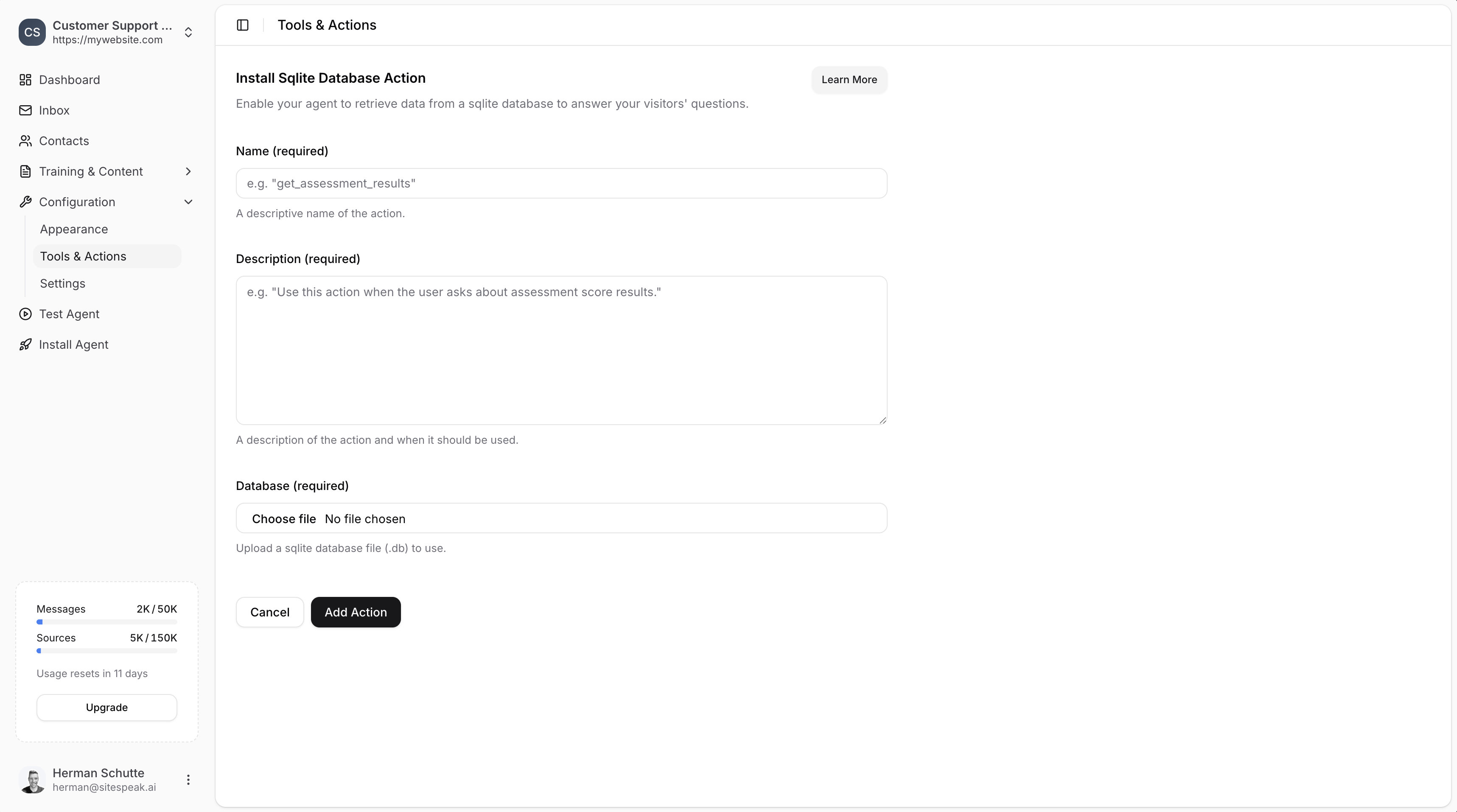
In your chatbot dashboard, click **Configuration** then **Tools & Actions**.
Click **+ Add Action** and select **SQLite Database**.
* Give it a descriptive **Name** (e.g., `product_database`)
* Add a **Description** explaining what data it contains and when to use it
* Upload your `.db` file
Click **Add Action** to enable it.
 Your chatbot will now use the database to answer visitor questions about your data.
Add specific instructions in the Description field, such as: "Use this database when users ask about product availability, pricing, or specifications. The `products` table contains columns: id, name, price, stock, category."
## Updating Your Database
When your data changes, simply:
1. Update your local SQLite database file
2. Go to **Tools & Actions** in your chatbot dashboard
3. Edit the SQLite Database action
4. Upload the new database file
You can use a GUI tool like [TablePlus](https://tableplus.com/) or [DB Browser for SQLite](https://sqlitebrowser.org/) to edit your database visually.
## Best Practices
### Use Clear Column Names
```sql theme={null}
-- Good: Clear, descriptive names
CREATE TABLE products (
product_id INTEGER,
product_name TEXT,
unit_price REAL,
in_stock INTEGER
);
-- Avoid: Ambiguous names
CREATE TABLE products (
id INTEGER,
n TEXT,
p REAL,
s INTEGER
);
```
### Add Helpful Descriptions
In your action description, tell the chatbot about:
* What tables exist
* What each column means
* How to handle common queries
* Any business rules (e.g., "prices are in USD")
### Test Common Queries
Before going live, test that your chatbot can answer typical questions:
* "What products do you have under \$50?"
* "Is \[product name] in stock?"
* "What's your most expensive item?"
***
Join over 1000+ businesses, websites and startups automating their customer service and other tasks with a custom trained AI agent.
Your chatbot will now use the database to answer visitor questions about your data.
Add specific instructions in the Description field, such as: "Use this database when users ask about product availability, pricing, or specifications. The `products` table contains columns: id, name, price, stock, category."
## Updating Your Database
When your data changes, simply:
1. Update your local SQLite database file
2. Go to **Tools & Actions** in your chatbot dashboard
3. Edit the SQLite Database action
4. Upload the new database file
You can use a GUI tool like [TablePlus](https://tableplus.com/) or [DB Browser for SQLite](https://sqlitebrowser.org/) to edit your database visually.
## Best Practices
### Use Clear Column Names
```sql theme={null}
-- Good: Clear, descriptive names
CREATE TABLE products (
product_id INTEGER,
product_name TEXT,
unit_price REAL,
in_stock INTEGER
);
-- Avoid: Ambiguous names
CREATE TABLE products (
id INTEGER,
n TEXT,
p REAL,
s INTEGER
);
```
### Add Helpful Descriptions
In your action description, tell the chatbot about:
* What tables exist
* What each column means
* How to handle common queries
* Any business rules (e.g., "prices are in USD")
### Test Common Queries
Before going live, test that your chatbot can answer typical questions:
* "What products do you have under \$50?"
* "Is \[product name] in stock?"
* "What's your most expensive item?"
***
Join over 1000+ businesses, websites and startups automating their customer service and other tasks with a custom trained AI agent.