> ## Documentation Index
> Fetch the complete documentation index at: https://sitespeak.ai/docs/llms.txt
> Use this file to discover all available pages before exploring further.
# How to add a ChatGPT AI support agent to b12.io
> How to add your custom ChatGPT trained AI support agent to your b12.io website.
You want to embed your custom trained AI support agent in your **b12.io** website page. Here's how to add an AI support agent to b12.io with SiteSpeakAI.
**b12.io** is a platform that helps you **easily create and manage beautiful, branded email newsletters and landing pages.** Think of it as a simplified way to build professional-looking emails and sign-up forms without needing to be a coding expert. It focuses on making email marketing accessible to small businesses, creators, and anyone who wants to build an email list.
**Website URL:** [b12.io](https://b12.io/)
## Add your AI support agent to your **b12.io** website
### In SiteSpeakAI
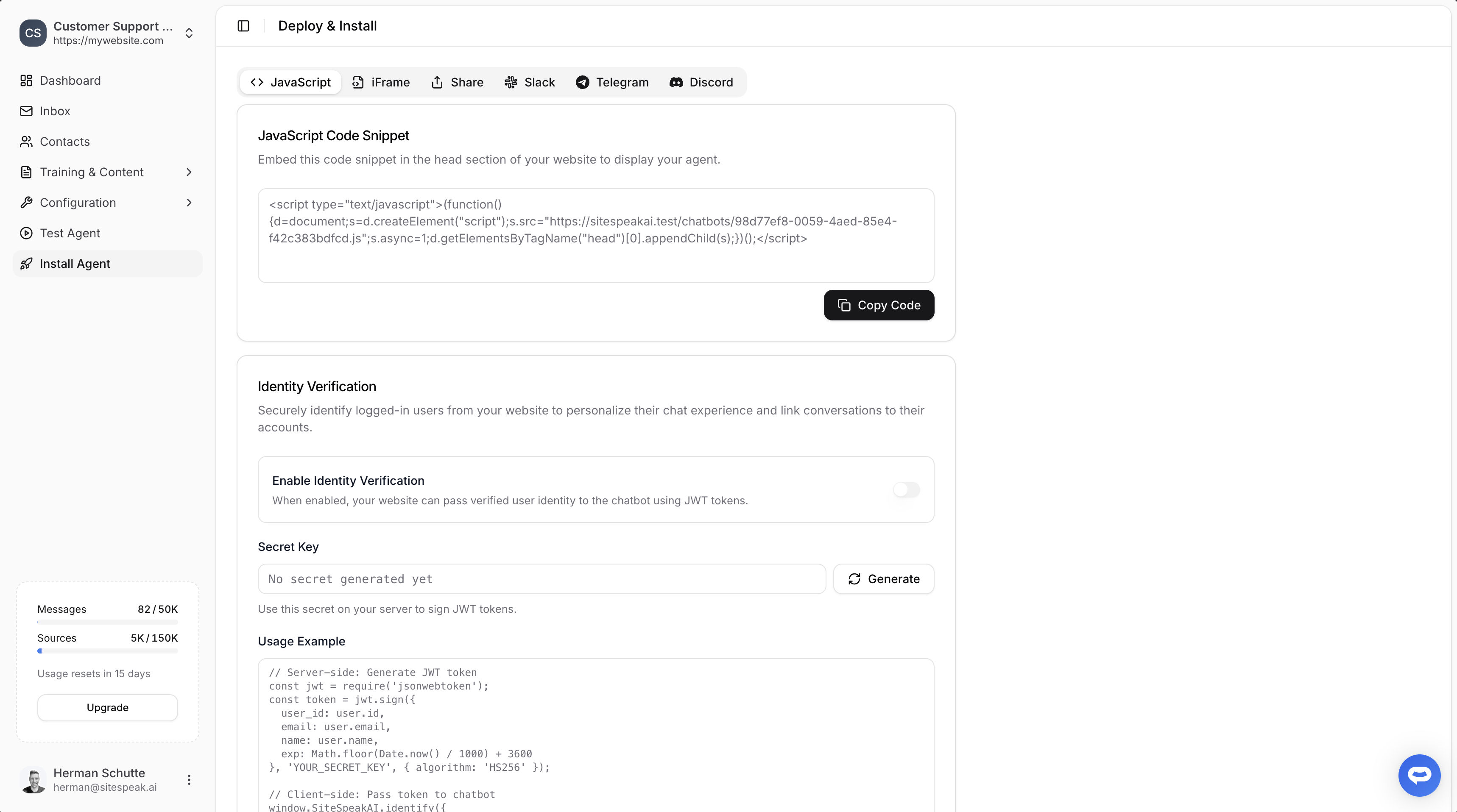
Select your chatbot from the dropdown menu at the top, click on the **Install Agent** section in the sidebar, then click on the **Copy Code** button to copy your code snippet.
 ### In b12.io
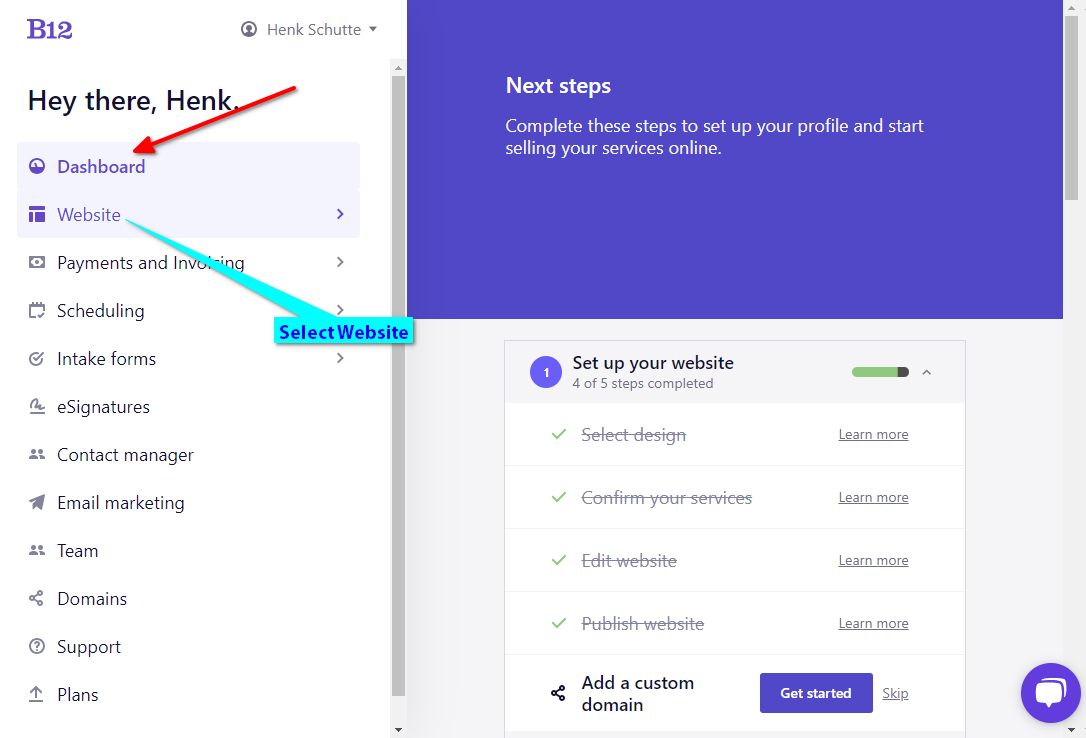
1. Log in to your **b12.io** website builder dashboard and select **Website**
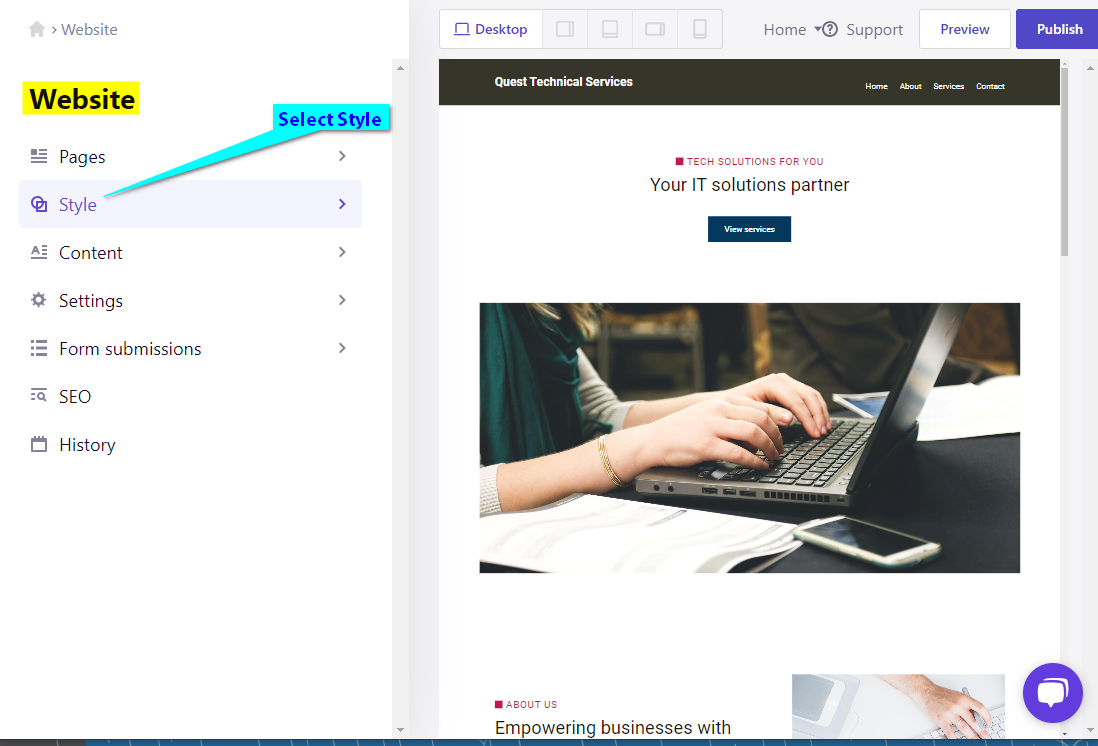
2. Select **Style** under **Website**
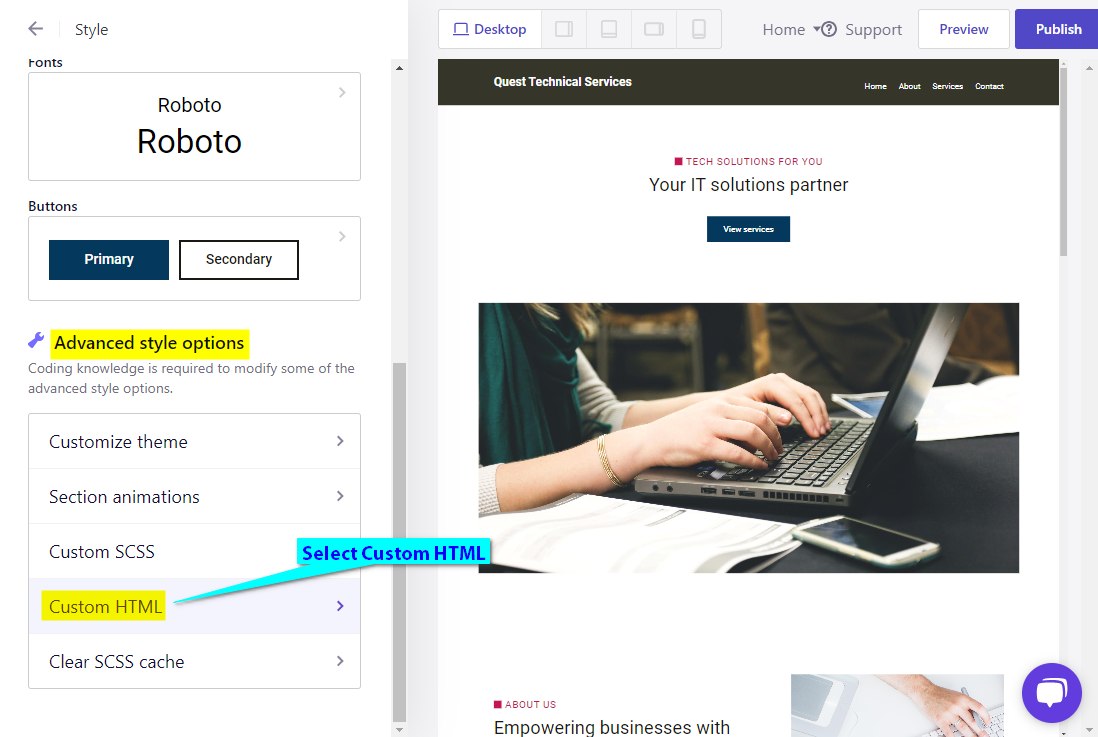
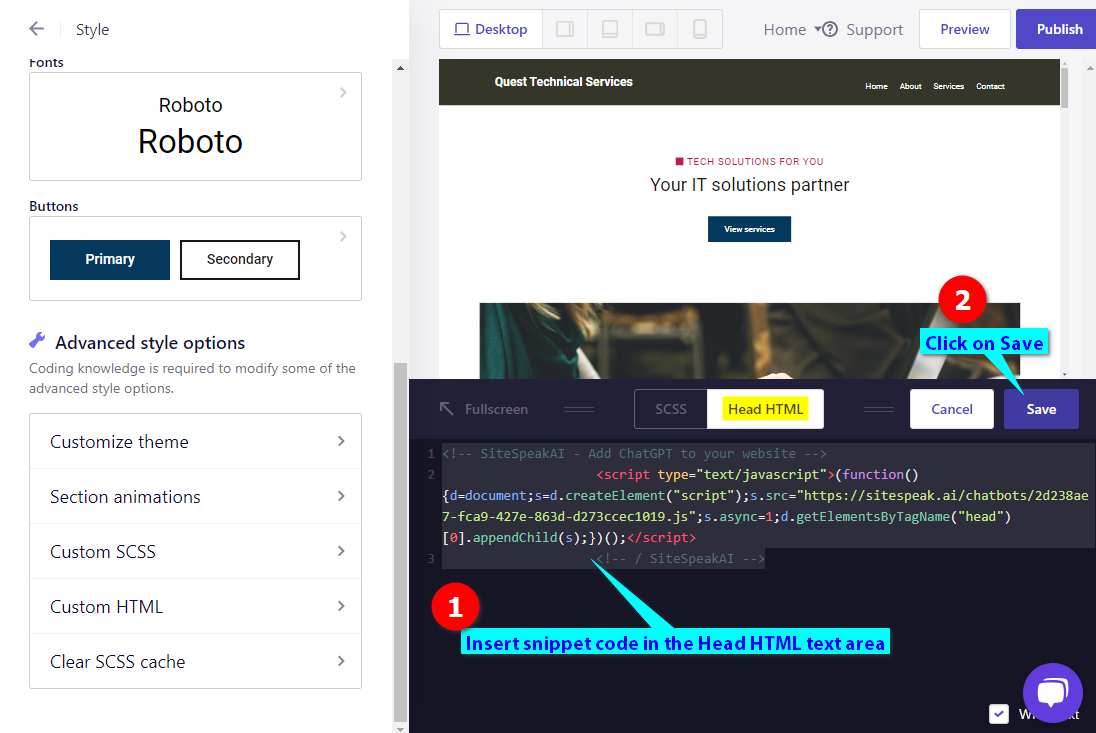
3. Select **Custom HTML** under **Advanced style Options**
4. Insert your snippet code under **Head HTML** and click on **Save**
5. Click on **Preview** or **Publish** to preview your page edits or publish them to your website
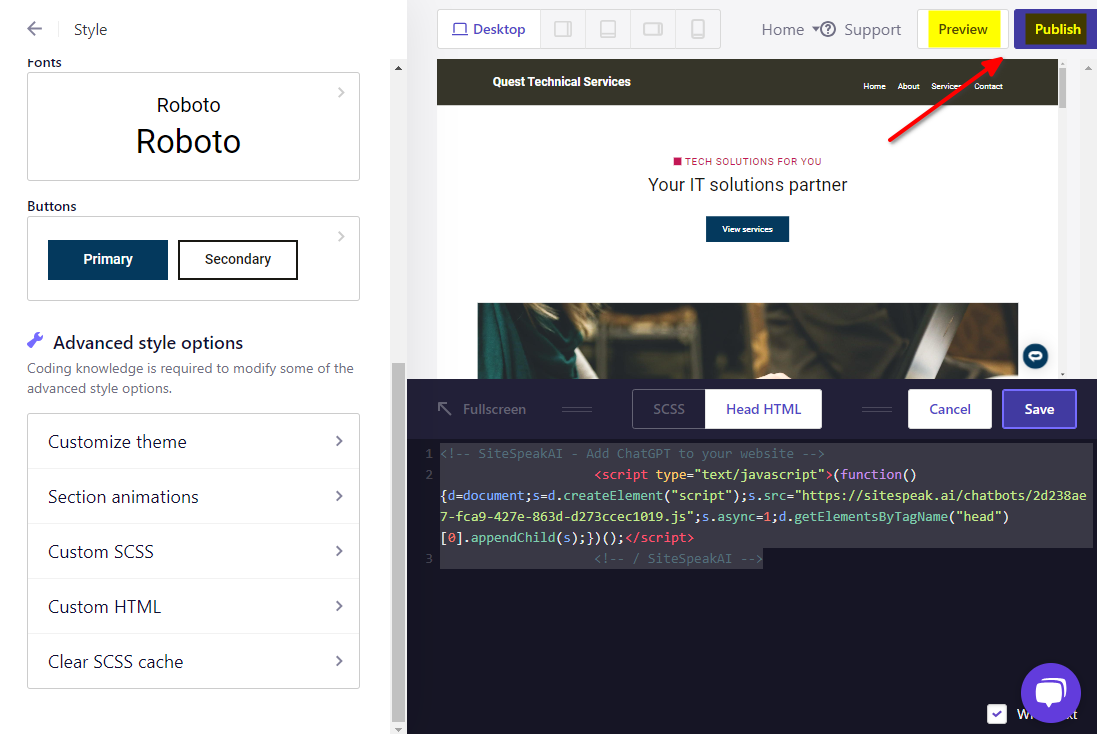
6. Your AI support agent button will now be displayed on your **b12.io** website page

7. If you click on the button it will display the AI support agent dialogue
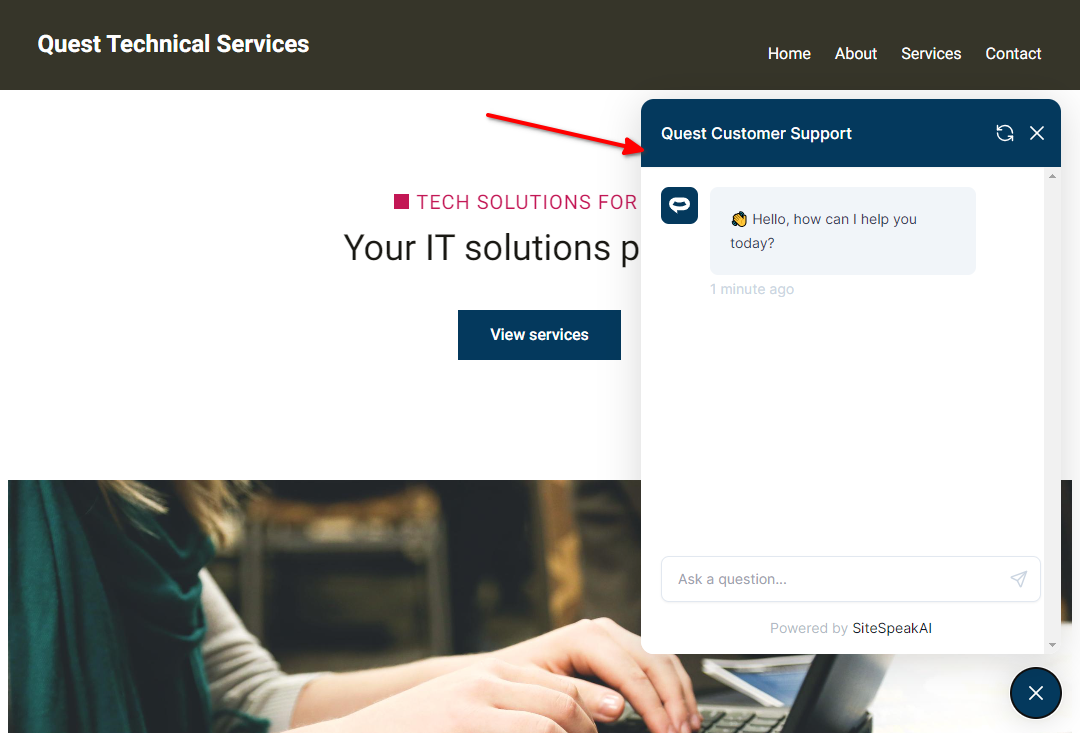
Your AI support agent has now been added to your **b12.io** website and your visitors/customers can start interacting with it!
***
Join over 1000+ businesses, websites and startups automating their customer service and other tasks with a custom trained AI agent.
### In b12.io
1. Log in to your **b12.io** website builder dashboard and select **Website**

2. Select **Style** under **Website**

3. Select **Custom HTML** under **Advanced style Options**

4. Insert your snippet code under **Head HTML** and click on **Save**

5. Click on **Preview** or **Publish** to preview your page edits or publish them to your website

6. Your AI support agent button will now be displayed on your **b12.io** website page

7. If you click on the button it will display the AI support agent dialogue

Your AI support agent has now been added to your **b12.io** website and your visitors/customers can start interacting with it!
***
Join over 1000+ businesses, websites and startups automating their customer service and other tasks with a custom trained AI agent.