> ## Documentation Index
> Fetch the complete documentation index at: https://sitespeak.ai/docs/llms.txt
> Use this file to discover all available pages before exploring further.
# How to add a ChatGPT AI support agent to BigCommerce
> How to add your custom ChatGPT trained AI support agent to your BigCommerce website.
You want to embed your custom trained AI support agent in your **BigCommerce** website page. Here's how to add an AI support agent to BigCommerce with SiteSpeakAI.
In this tutorial, I'll show you how to add a ChatGPT AI chatbot to your BigCommerce store. We'll create and train it on your own content, then add it to your store so it can answer your customers' questions around the clock.
Before you can add your agent to BigCommerce, you need to create and train it. After you log in to SiteSpeak, you land on the Get Started page, which walks you through it in five quick steps. First, give your agent a name. This is the name your customers will see when they chat with it. Click Save and Continue to create the agent. Next, add the website you want your agent to learn from. For this example I'll use snapwidget.com. Click Save and Continue, and SiteSpeak crawls the site to find pages it can train on. In a few seconds, it finds the main pages on the site. SiteSpeak selects those pages for you. Click Save and Continue to train your agent on them. SiteSpeak now trains your agent on that content automatically. Once it finishes, your agent is ready to answer questions, and you can add it to your BigCommerce store.
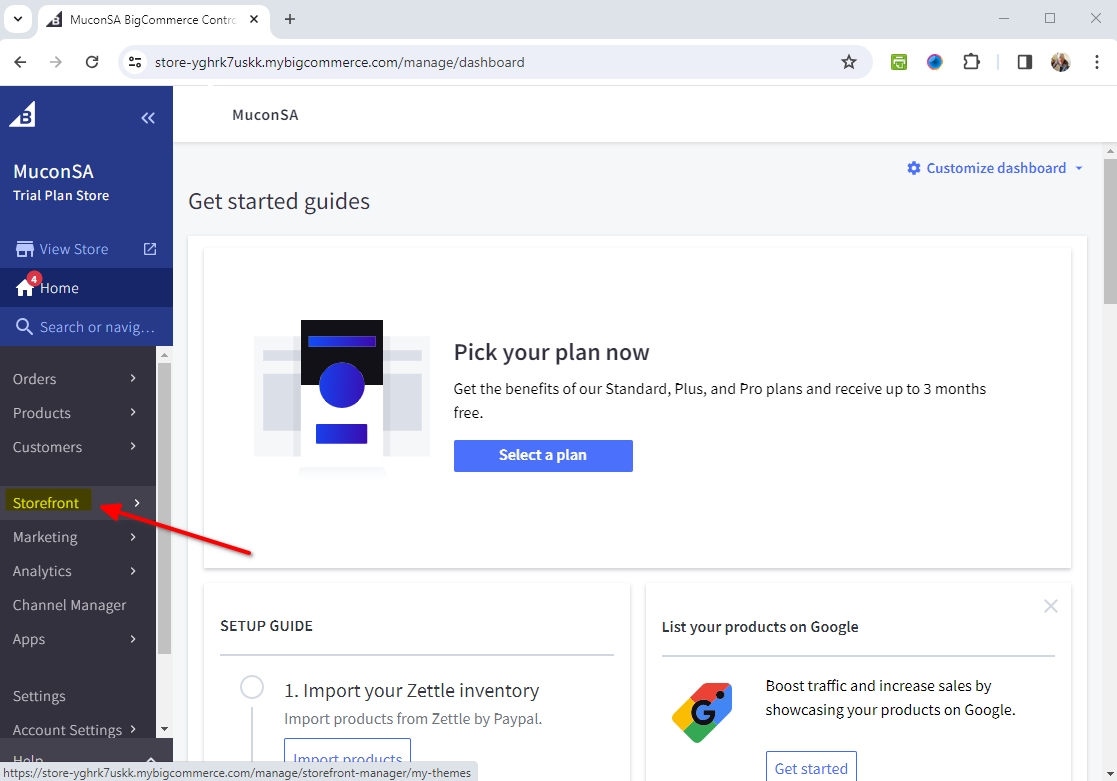
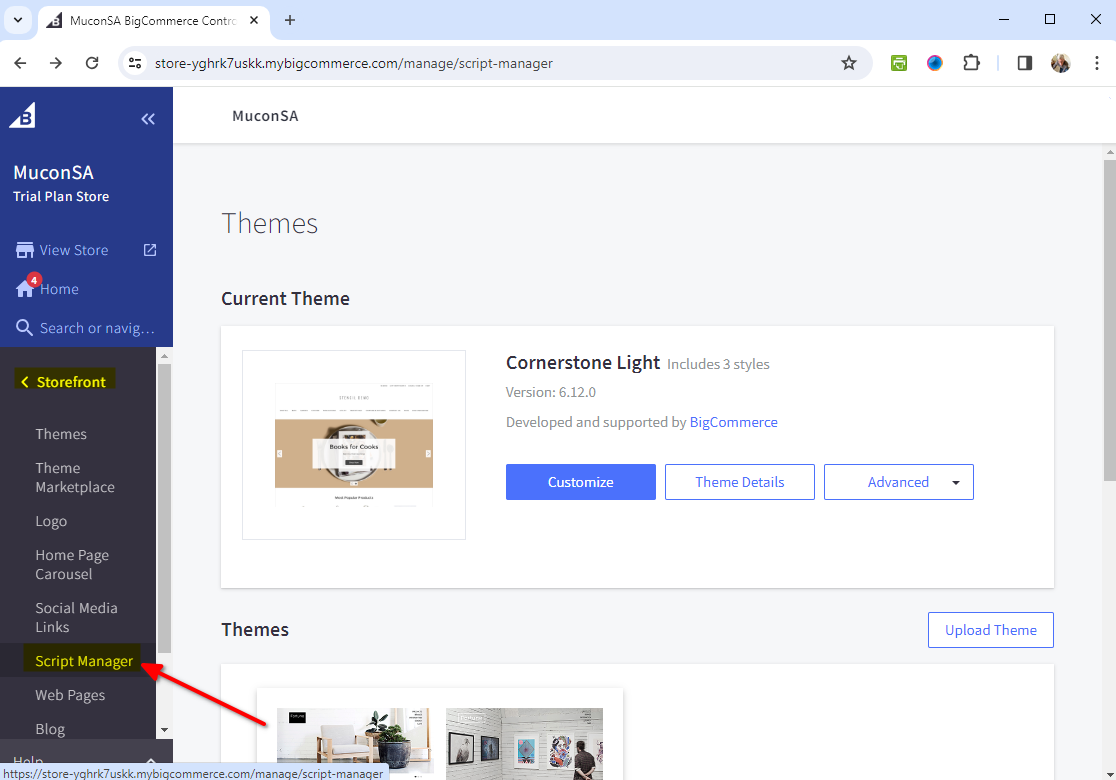
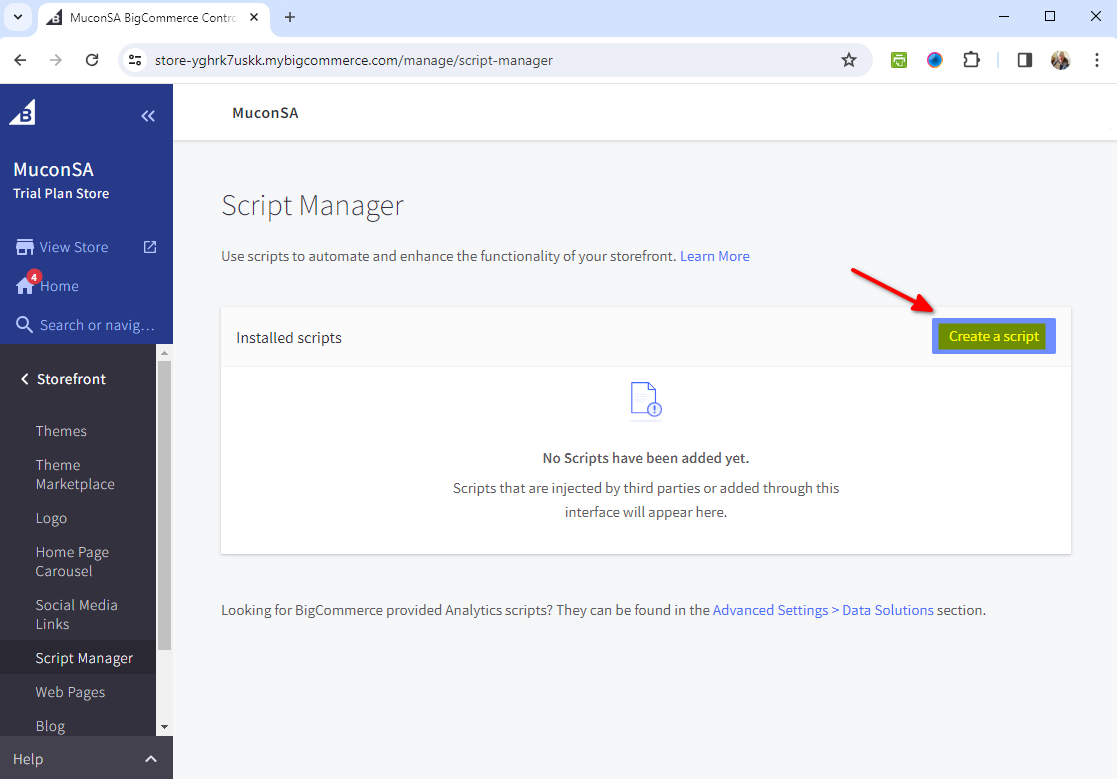
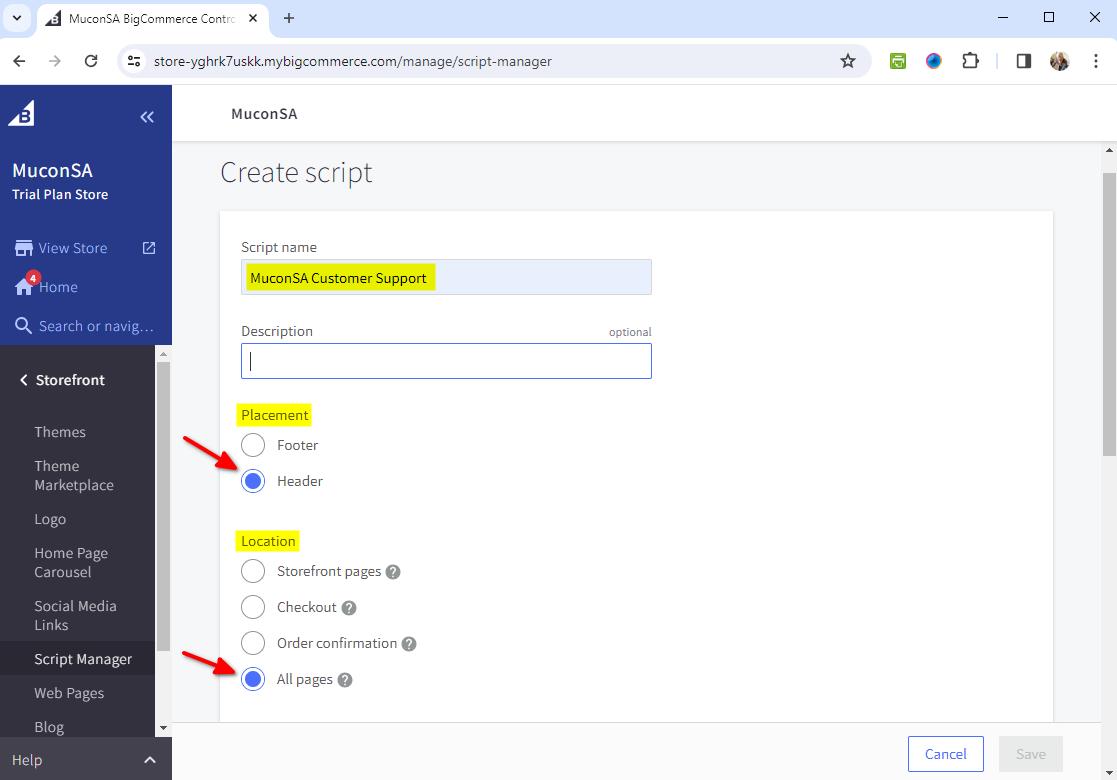
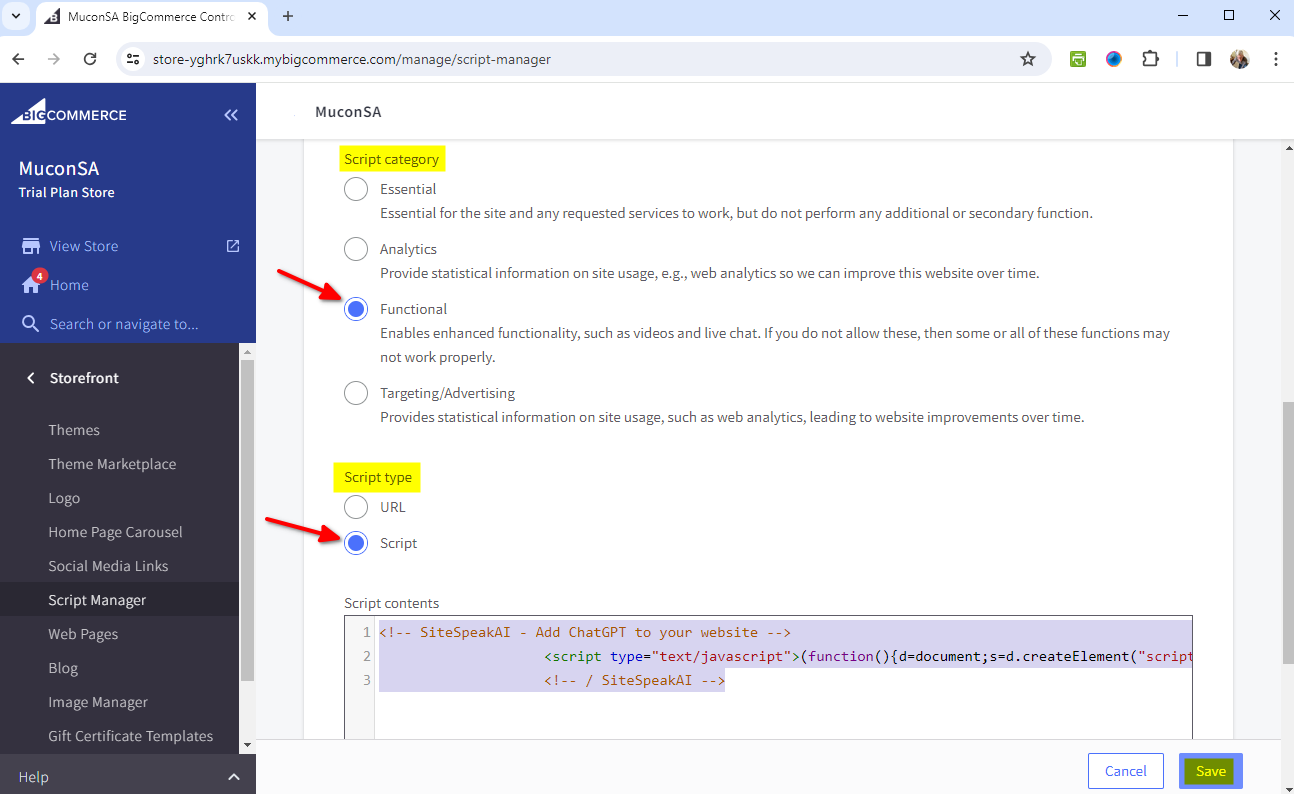
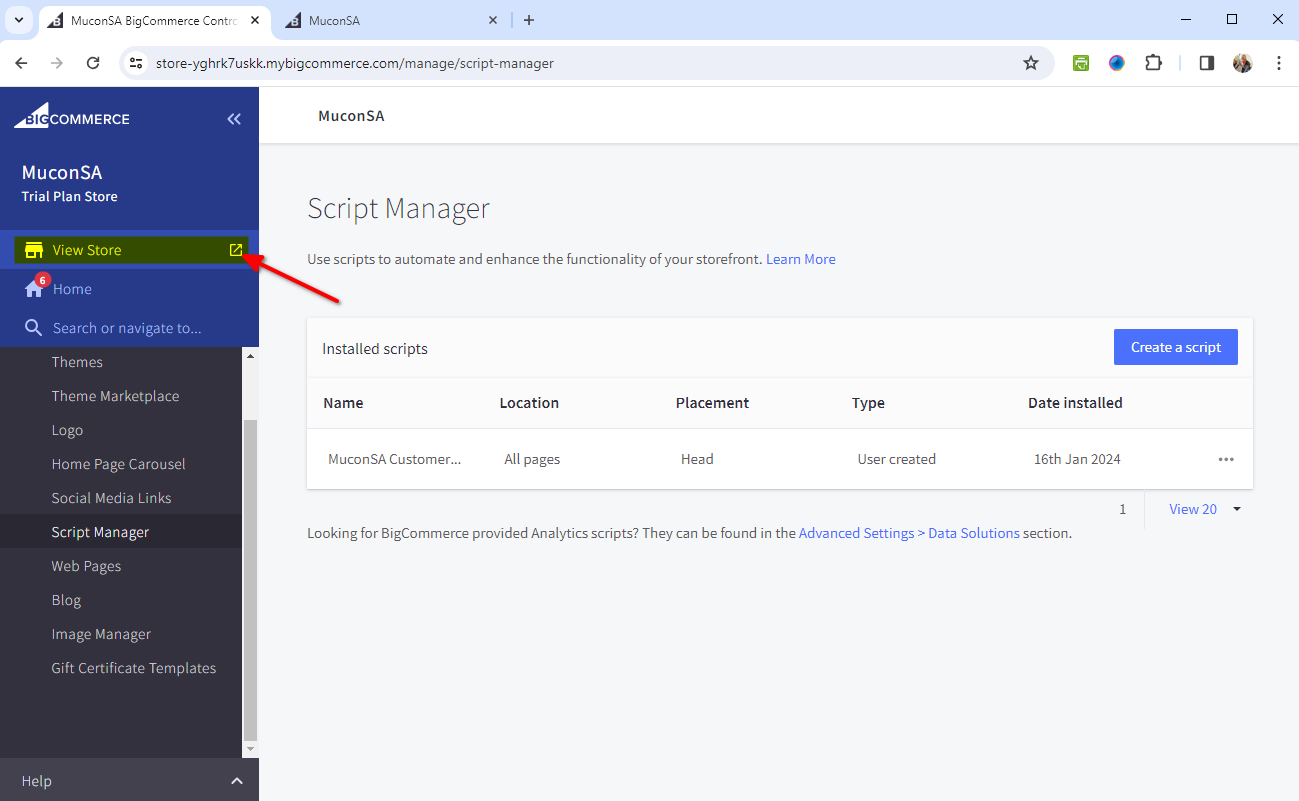
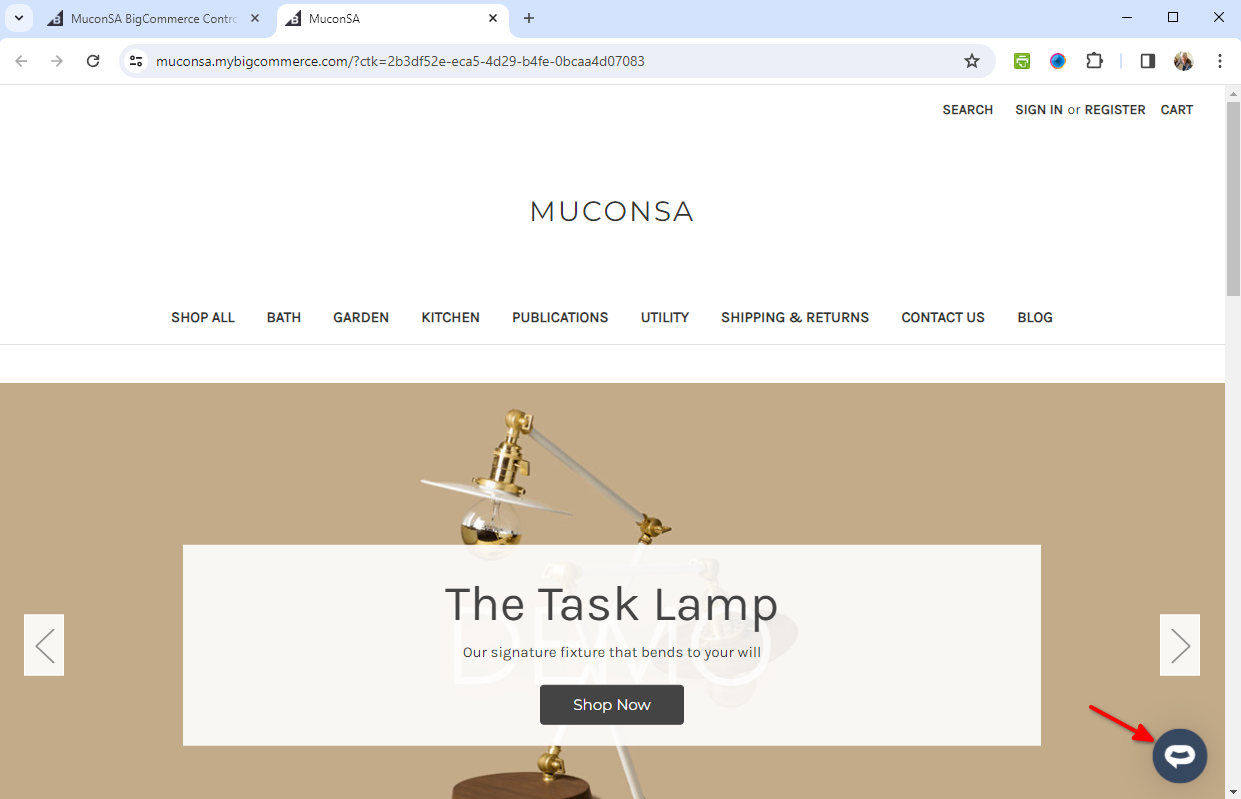
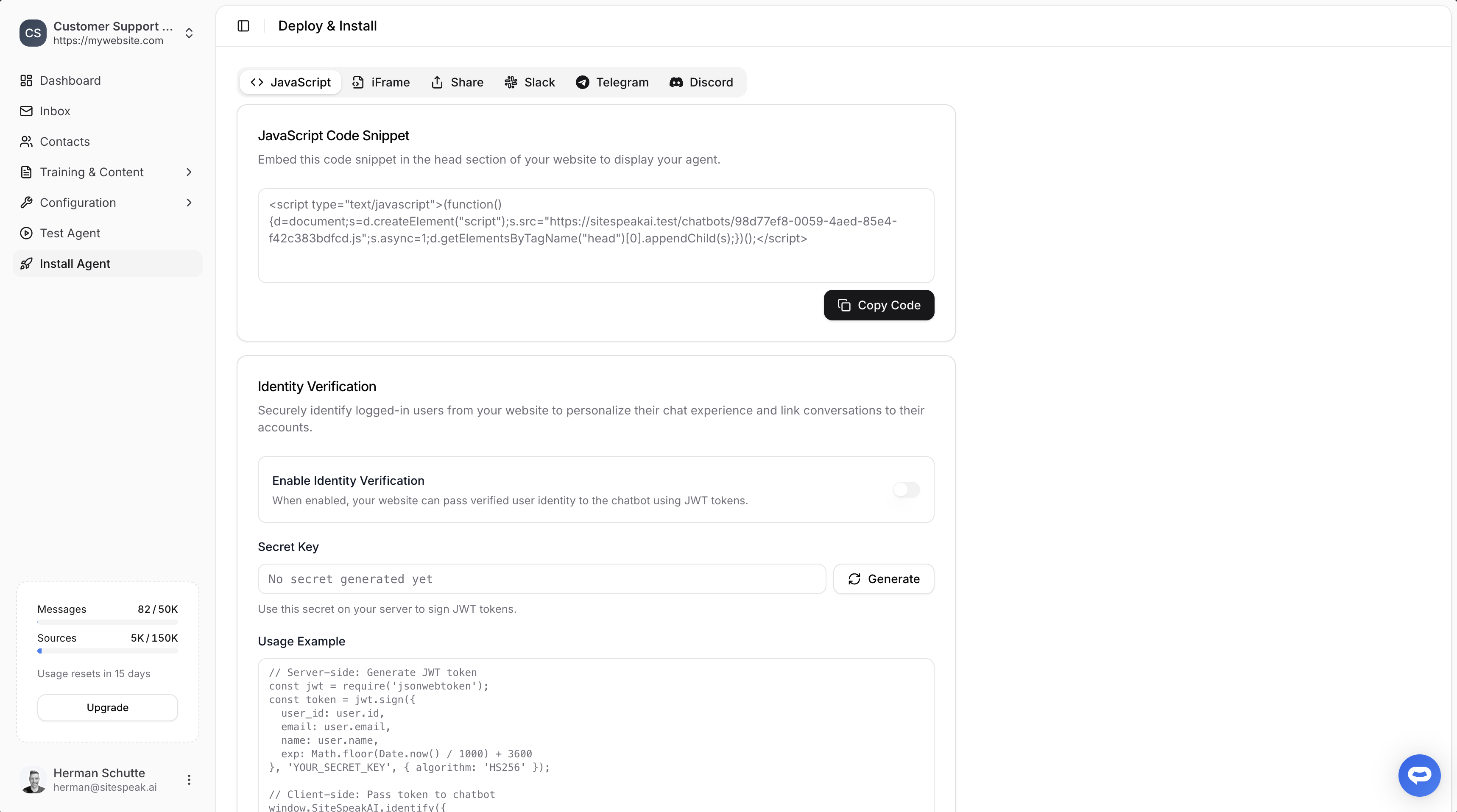
Once your agent is trained, open Install Agent in SiteSpeak and copy your JavaScript snippet. Log in to BigCommerce and on the left sidebar of your dashboard, click Storefront. In the Storefront list, select Script Manager. Click Create a script to set up a new script for your chatbot snippet. Give the script a name, set Placement to Header, and set Location to All Pages. Set Script category to Functional and Script type to Script, paste your SiteSpeakAI snippet into the Script contents box, then click Save. Click View Store to preview your store with the agent installed. Your chatbot button now appears on your BigCommerce store. Customers can click it to open the chat and start asking questions, around the clock.
And that's it. Your ChatGPT AI chatbot is now live on your BigCommerce store, trained on your content and ready to help your customers.
**BigCommerce** is a fully hosted e-commerce platform, basically, it's a website builder *specifically* designed for online stores. Unlike some other platforms (like Shopify), you don't need to find a separate web host. BigCommerce handles everything from hosting your website and processing payments to managing inventory and shipping. It's built with a focus on scalability, meaning it can grow with your business.
**Website URL:** [BigCommerce](https://www.bigcommerce.com/)
## Add your AI support agent to your **BigCommerce** website
### In SiteSpeakAI
Select your chatbot from the dropdown menu at the top, click on the **Install Agent** section in the sidebar, then click on the **Copy Code** button to copy your code snippet.
### In BigCommerce
1. On your dashboard select **Storefront** on the left sidebar list
2. Select **Script Manager** on the Storefront list
3. Select **Create a script** to create a new script containing your chatbot snippet
4. Add the first part of the script details
* Script Name
* Description (optional)
* Under Placement, select **Header**
* Under Location, select **All Pages** (or the specific Page you want)
5. Scroll down and fill in the rest of the details including the snippet code
* Under Script Category, select **Functional**
* Under Script type, select **Script**
Insert your snippet code in the **Script contents** text box and click on **Save**
6. Click on **View Store** to Preview your store
7. Your AI support agent button will now be displayed on your **BigCommerce** store page
8. If you click on the button it will display the AI support agent dialogue
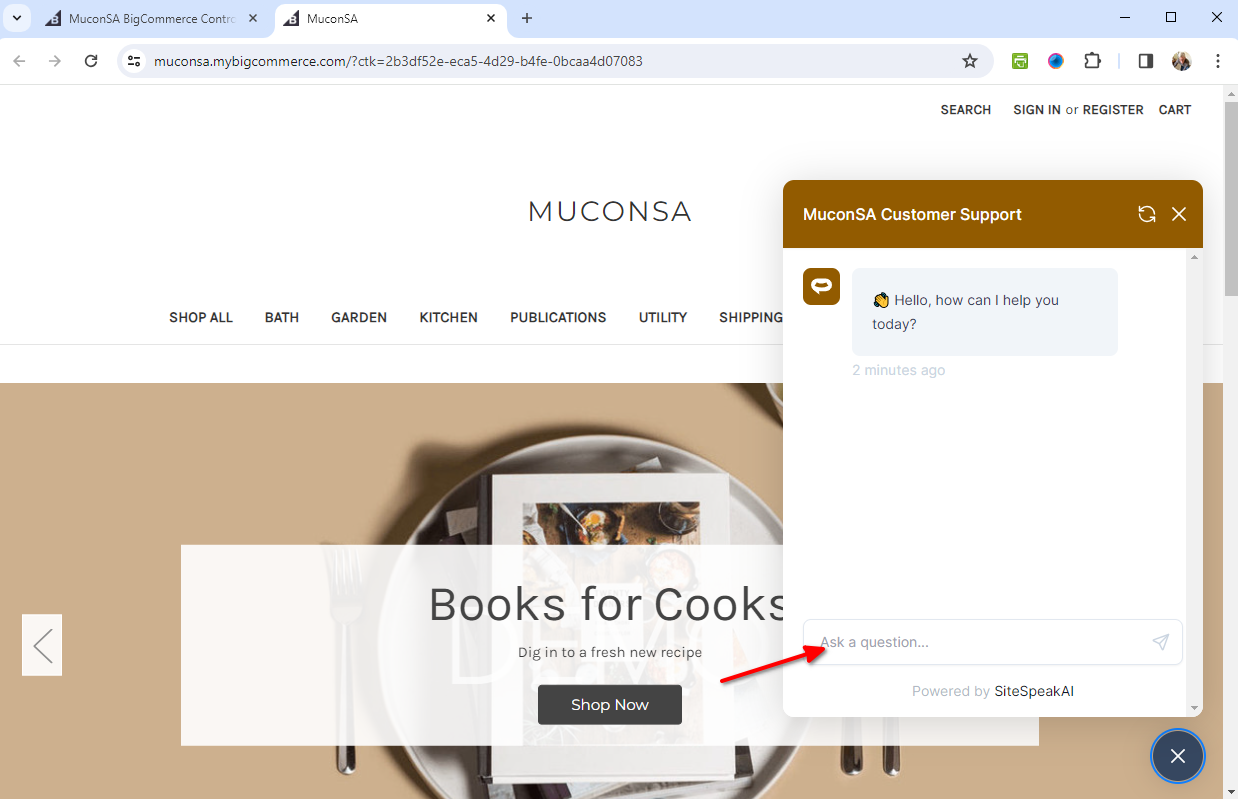
Your AI support agent has now been added to your **BigCommerce** store and your visitors/customers can start interacting with it!
***
Join over 1000+ businesses, websites and startups automating their customer service and other tasks with a custom trained AI agent.
 ### In BigCommerce
1. On your dashboard select **Storefront** on the left sidebar list

2. Select **Script Manager** on the Storefront list

3. Select **Create a script** to create a new script containing your chatbot snippet

4. Add the first part of the script details
* Script Name
* Description (optional)
* Under Placement, select **Header**
* Under Location, select **All Pages** (or the specific Page you want)

5. Scroll down and fill in the rest of the details including the snippet code
* Under Script Category, select **Functional**
* Under Script type, select **Script**
Insert your snippet code in the **Script contents** text box and click on **Save**

6. Click on **View Store** to Preview your store

7. Your AI support agent button will now be displayed on your **BigCommerce** store page

8. If you click on the button it will display the AI support agent dialogue

Your AI support agent has now been added to your **BigCommerce** store and your visitors/customers can start interacting with it!
***
### In BigCommerce
1. On your dashboard select **Storefront** on the left sidebar list

2. Select **Script Manager** on the Storefront list

3. Select **Create a script** to create a new script containing your chatbot snippet

4. Add the first part of the script details
* Script Name
* Description (optional)
* Under Placement, select **Header**
* Under Location, select **All Pages** (or the specific Page you want)

5. Scroll down and fill in the rest of the details including the snippet code
* Under Script Category, select **Functional**
* Under Script type, select **Script**
Insert your snippet code in the **Script contents** text box and click on **Save**

6. Click on **View Store** to Preview your store

7. Your AI support agent button will now be displayed on your **BigCommerce** store page

8. If you click on the button it will display the AI support agent dialogue

Your AI support agent has now been added to your **BigCommerce** store and your visitors/customers can start interacting with it!
***