> ## Documentation Index
> Fetch the complete documentation index at: https://sitespeak.ai/docs/llms.txt
> Use this file to discover all available pages before exploring further.
# How to add a ChatGPT AI support agent to createwebsite.io
> How to add your custom ChatGPT trained AI support agent to your createwebsite.io website.
You want to embed your custom trained AI support agent in your **createwebsite.io** website page. Here's how to add an AI support agent to createwebsite.io with SiteSpeakAI.
**createwebsite.io** is a drag-and-drop website builder designed for beginners. It's incredibly easy to use – you don't need any coding knowledge. You simply choose a template, customize it with pre-built blocks (like text, images, buttons, and forms), and then publish your website. They offer a wide variety of templates for different types of sites (business, portfolio, blog, etc.) and have a free plan with limited features. It's a good option if you want a simple, professional-looking website quickly and without technical hassle.
**Website URL:** [createwebsite.io](https://createwebsite.io/)
## Add your AI support agent to your **createwebsite.io** website
### In SiteSpeakAI
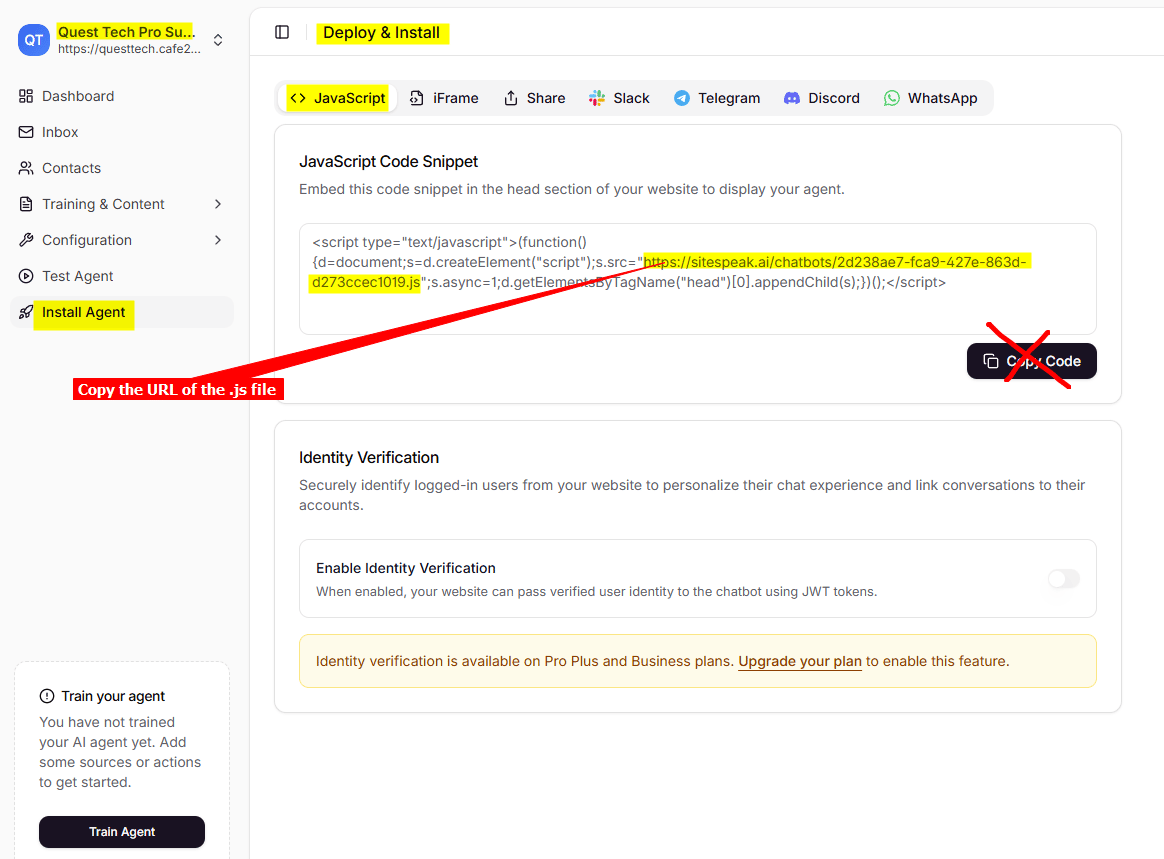
Log into your SiteSpeakAI account and select your agent from the dropdown menu at the top, click on the **Install Agent** section in the sidebar, select the **Javascript** tab and then copy the URL of the Javascript (.js) file (**DO NOT** click on **Copy Code**!!). You will use this later when we insert your snippet.
 ### In createwebsite.io
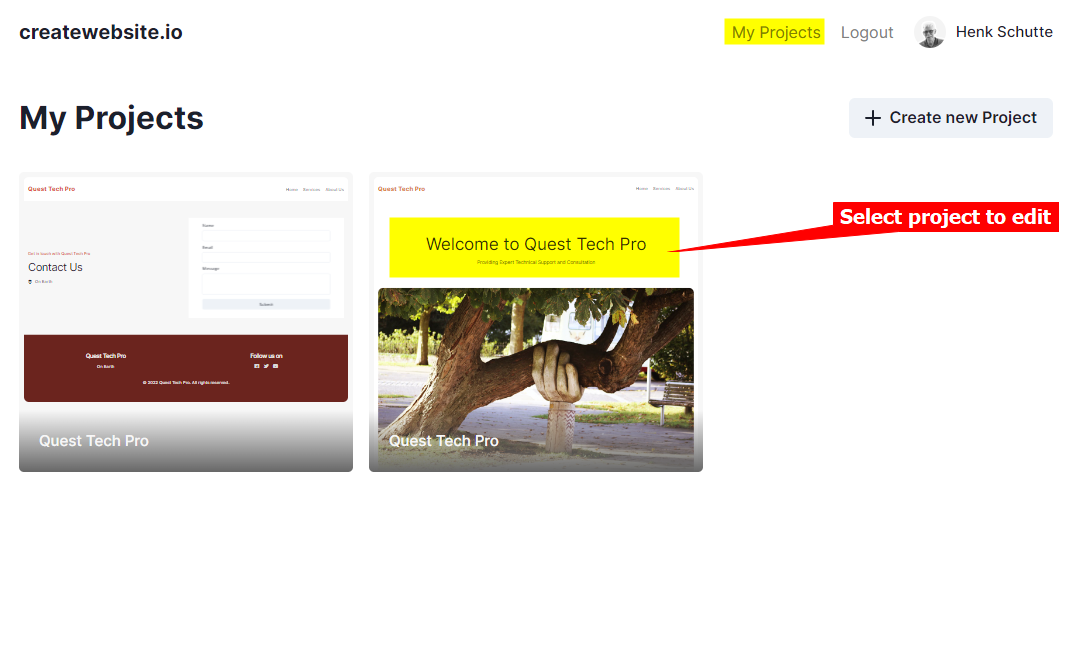
1. Log into your **createwebsite.io** account and on your dashboard select the project to edit
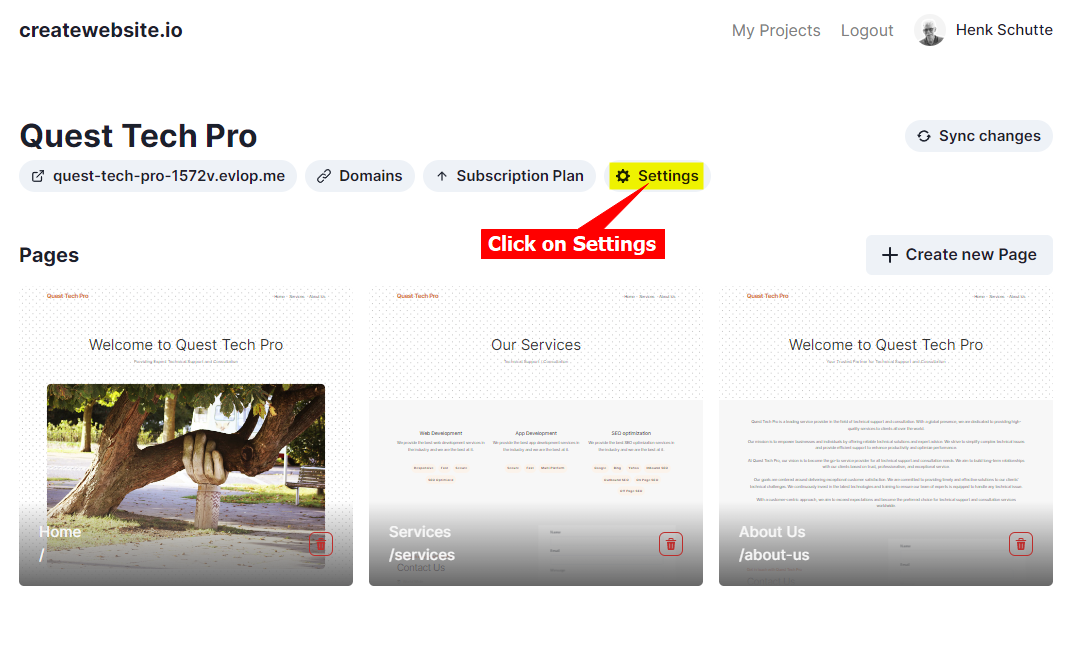
2. Click on **Settings**
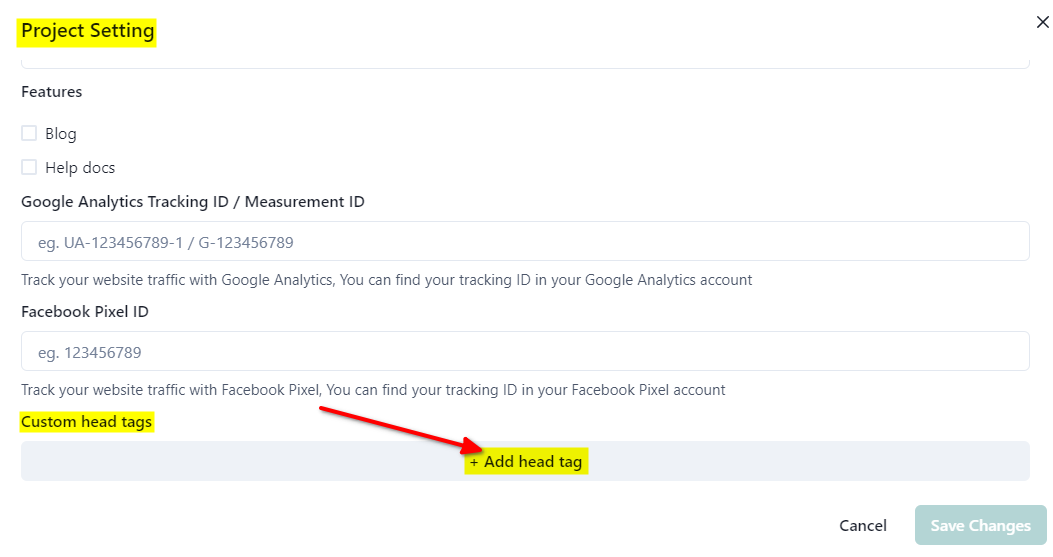
3. Under **Project Settings** scroll down and select **+ Add head tag**
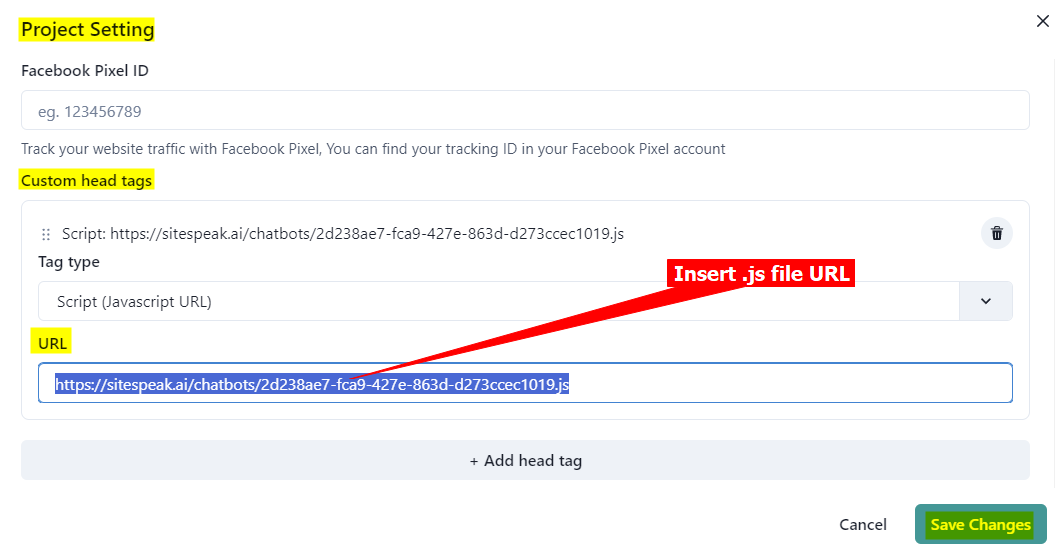
4. Paste the URL of the .js file you copied into the head tag field and click on **Save Changes**
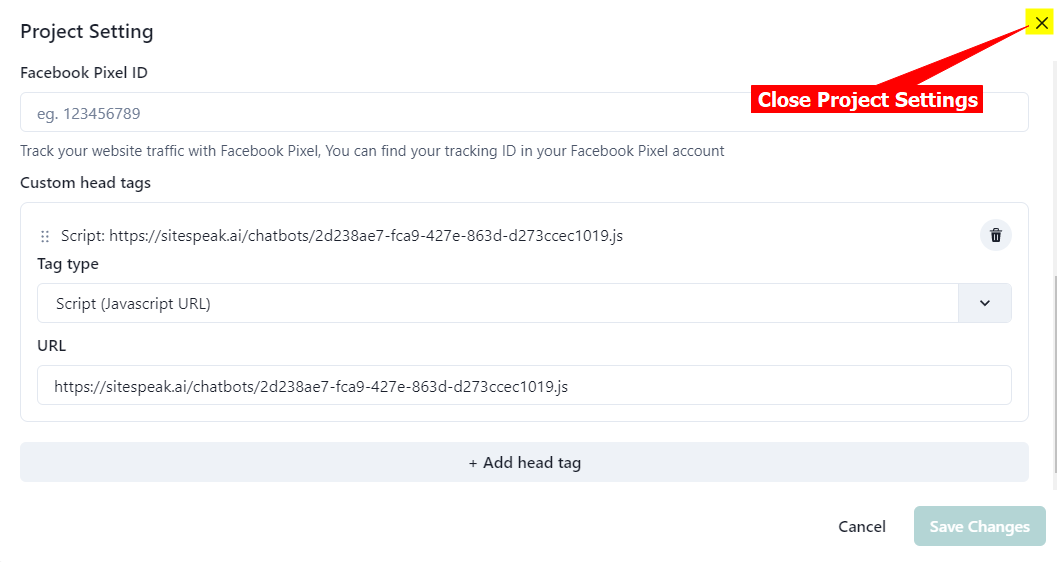
5. Click on **X** to close the **Project Settings**
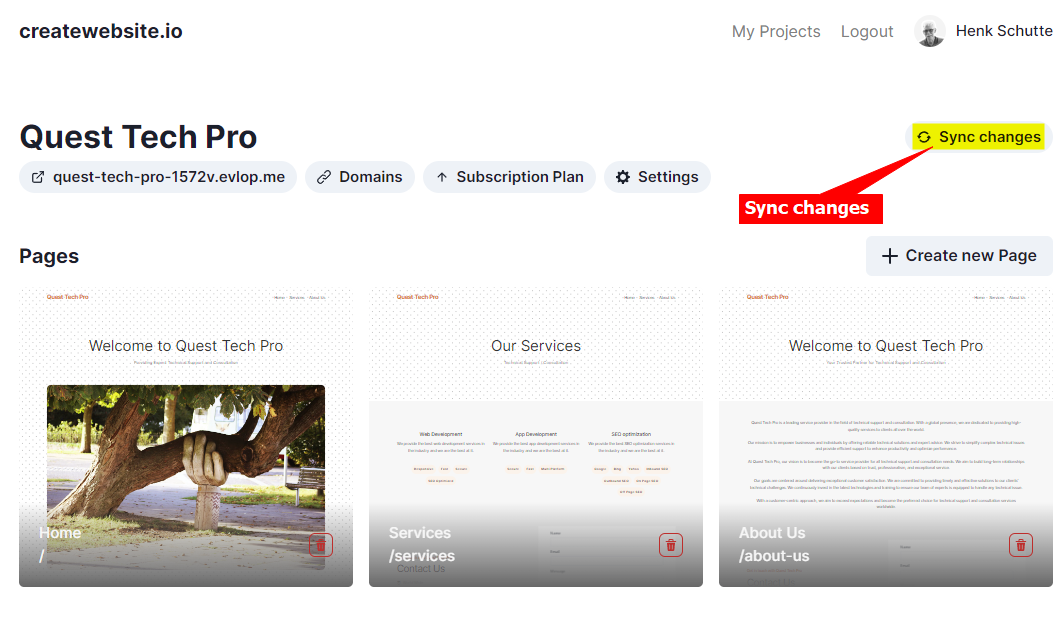
6. Click on **Sync changes** to update your website
7. Your AI support agent button will now be displayed on all your **createwebsite.io** website pages

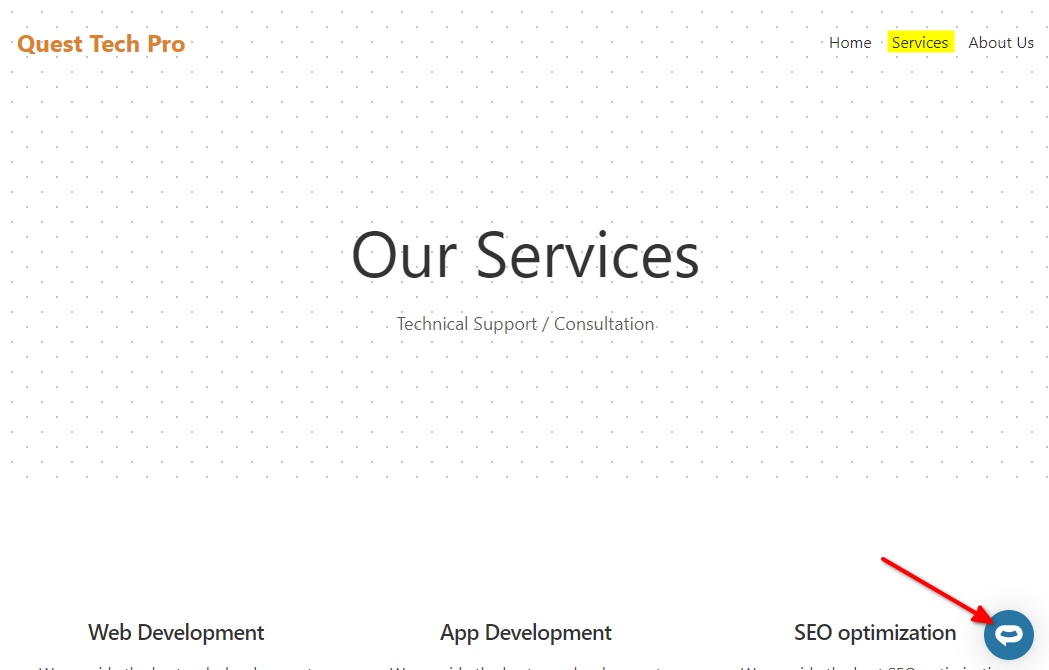

8. If you click on the button it will display the AI support agent dialogue
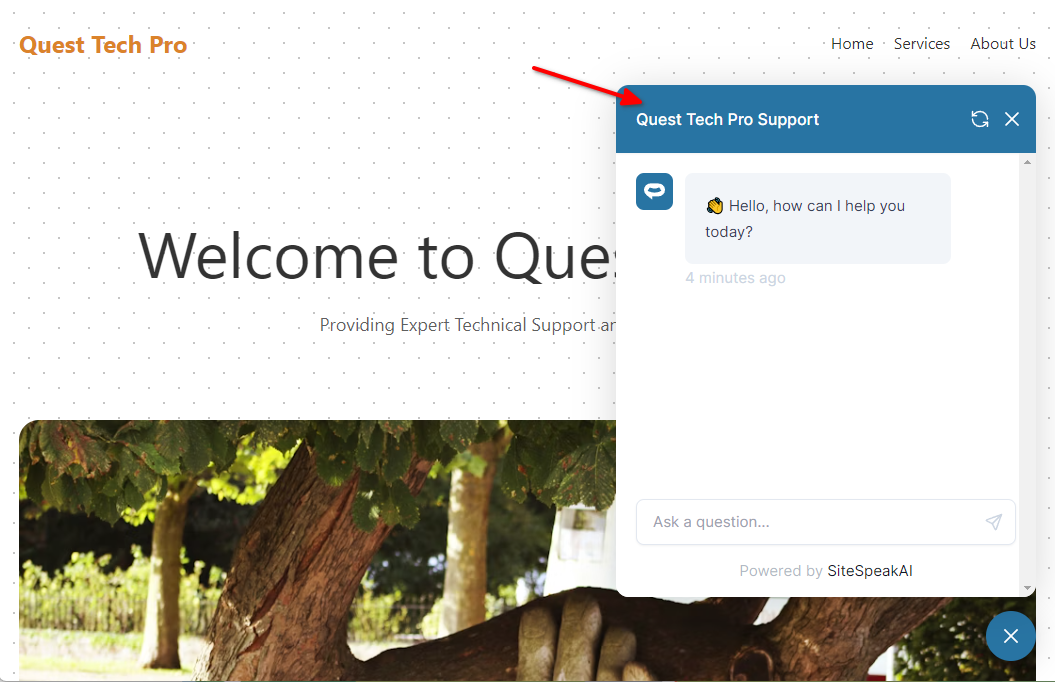
Your AI support agent has now been added to your **createwebsite.io** website and your visitors/customers can start interacting with it!
***
Join over 1000+ businesses, websites and startups automating their customer service and other tasks with a custom trained AI agent.
### In createwebsite.io
1. Log into your **createwebsite.io** account and on your dashboard select the project to edit

2. Click on **Settings**

3. Under **Project Settings** scroll down and select **+ Add head tag**

4. Paste the URL of the .js file you copied into the head tag field and click on **Save Changes**

5. Click on **X** to close the **Project Settings**

6. Click on **Sync changes** to update your website

7. Your AI support agent button will now be displayed on all your **createwebsite.io** website pages



8. If you click on the button it will display the AI support agent dialogue

Your AI support agent has now been added to your **createwebsite.io** website and your visitors/customers can start interacting with it!
***
Join over 1000+ businesses, websites and startups automating their customer service and other tasks with a custom trained AI agent.