> ## Documentation Index
> Fetch the complete documentation index at: https://sitespeak.ai/docs/llms.txt
> Use this file to discover all available pages before exploring further.
# How to add a ChatGPT AI support agent to EZsite AI
> How to add your custom ChatGPT trained AI support agent to your EZsite AI website.
You want to embed your custom trained AI support agent in your **EZsite AI** website page. Here's how to add an AI support agent to EZsite AI with SiteSpeakAI.
**EZsite AI** is praised for its ability to create professional websites and apps without coding, featuring intuitive AI tools for lead capture and automation. Users appreciate its efficiency and ease of use, making it ideal for freelancers and small businesses. However, some users express dissatisfaction with the reduction in free credits and customer service. Overall, it is recommended for those seeking a quick, cost-effective solution to launch high-performing sites.
**Website URL:** [EZsite AI](https://ezsite.ai/)
## Add your AI support agent to your **EZsite AI** website
### In SiteSpeakAI
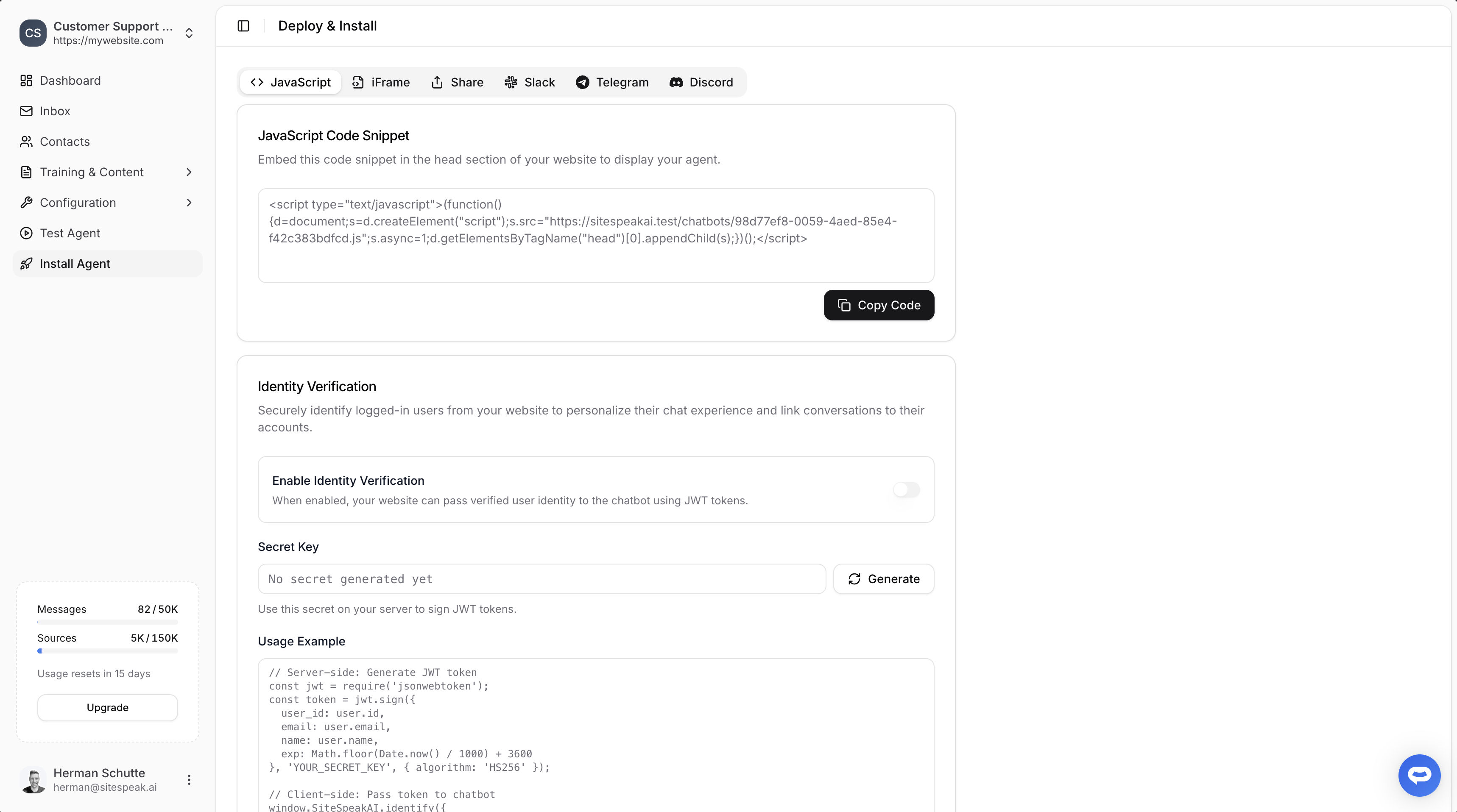
Select your chatbot from the dropdown menu at the top, click on the **Install Agent** section in the sidebar, then click on the **Copy Code** button to copy your code snippet.
 ### In EZsite AI
**Please note**:
* ***EZsite AI*** doesn't provide sections/blocks to add custom html to your website. It however allows you to view and edit the source code of the website source files (html, js and css). This is not for the fainthearted so you will have to be careful when editing these files. In our case we are only going to edit the **index.html** file and insert the AI support agent snippet in the `` element of the file. We suggest you make a backup of your website files before you make any changes to the file. This we will do by copying the contents of the file and saving it off-line on your computer (we will get to that in a bit).
* If you do have a **Pro** account you can also use the EZsite AI **AI** to add your snippet to your website by selecting an element and use an AI prompt to add the snippet for you.
We will look at both options in this tutorial.
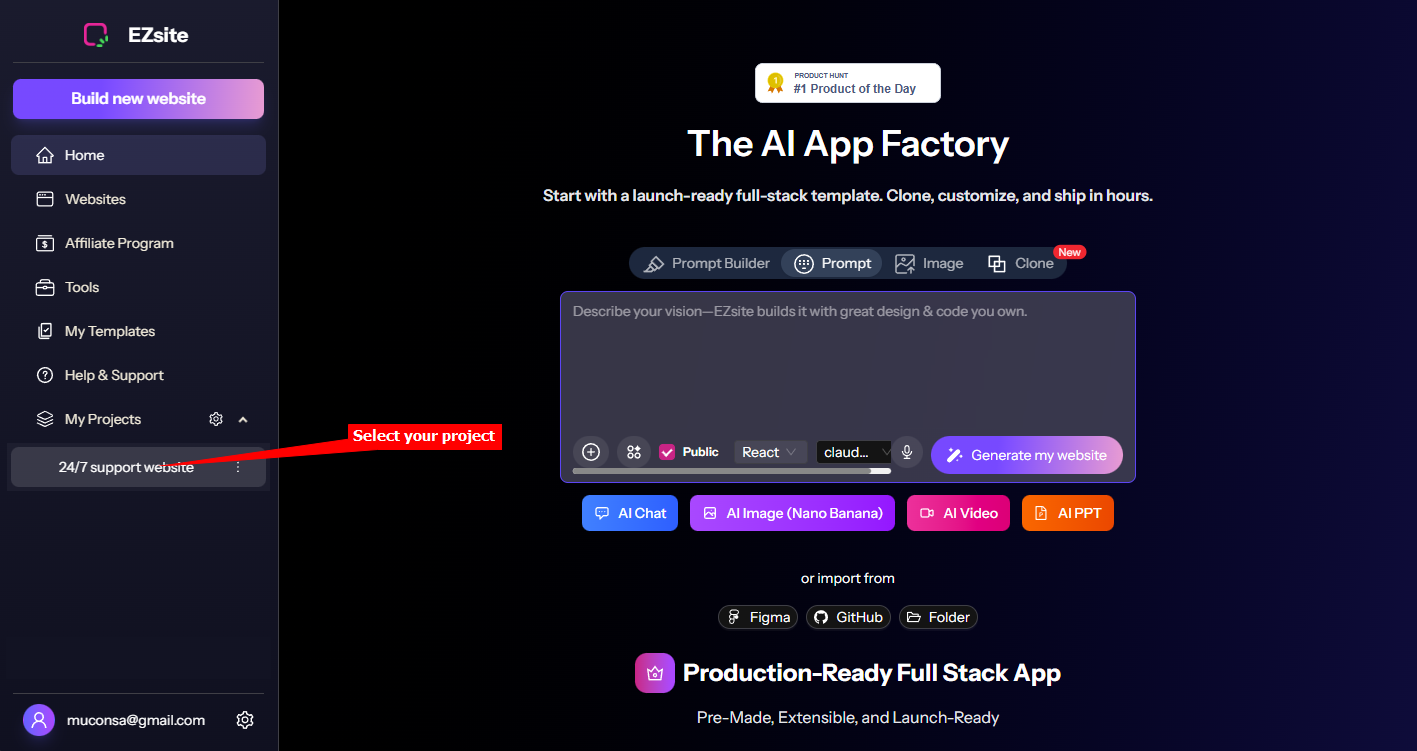
Log into your **EZsite AI** account and select your project under **My Projects** on the dashboard
#### A. Adding your snippet by means of the Code editor
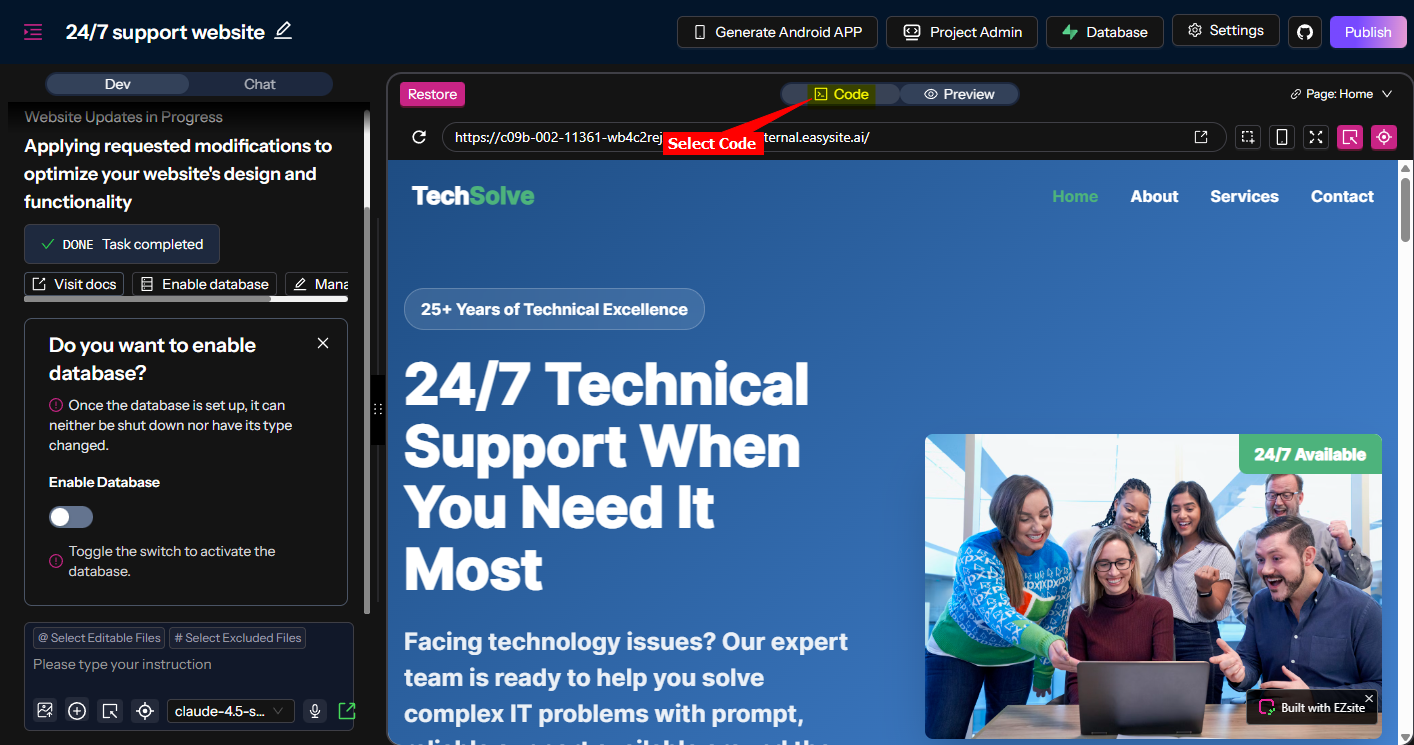
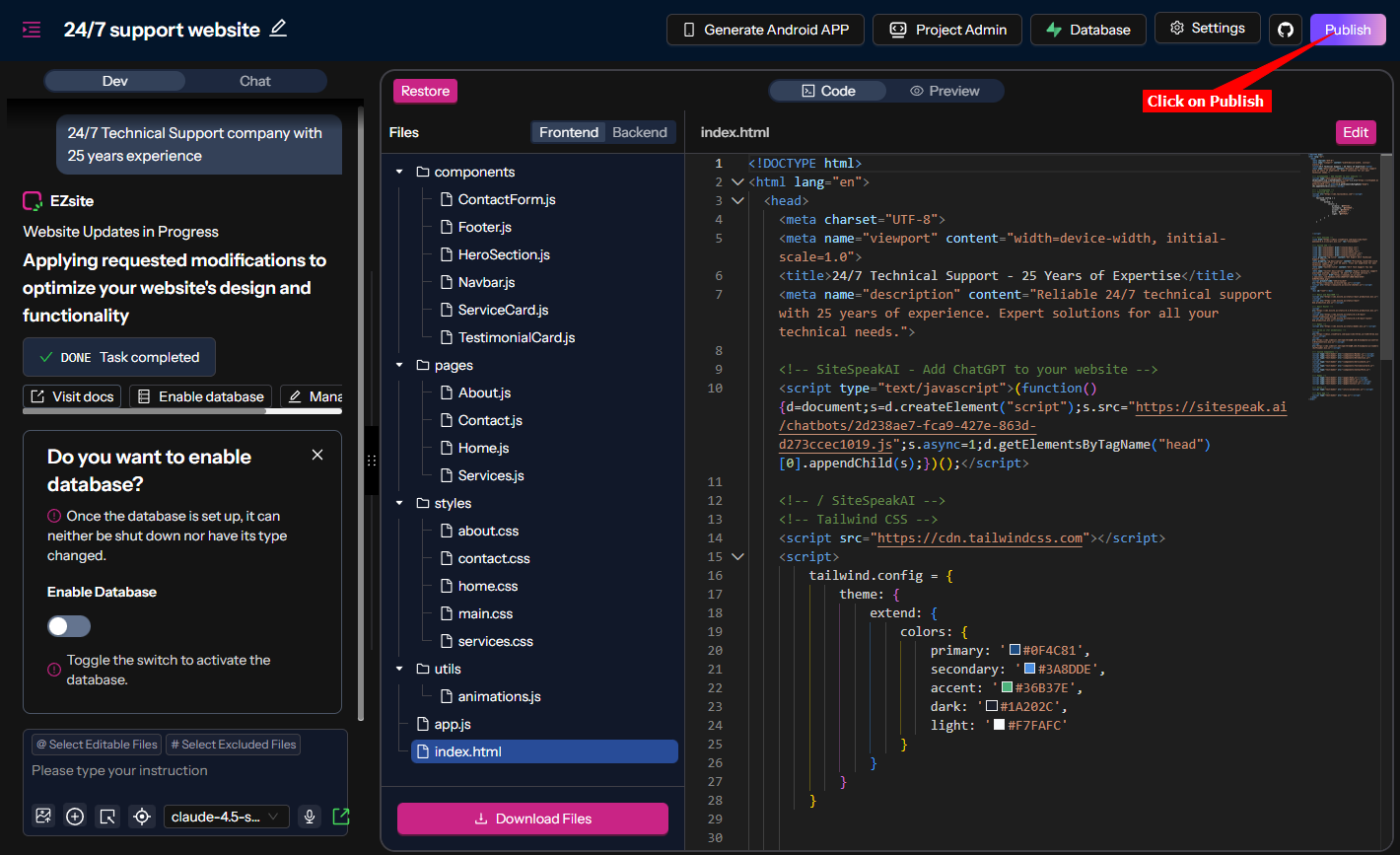
1. On the **Preview** display of your website (the default page will be the Home page), select **Code** to allow viewing and editing your source files
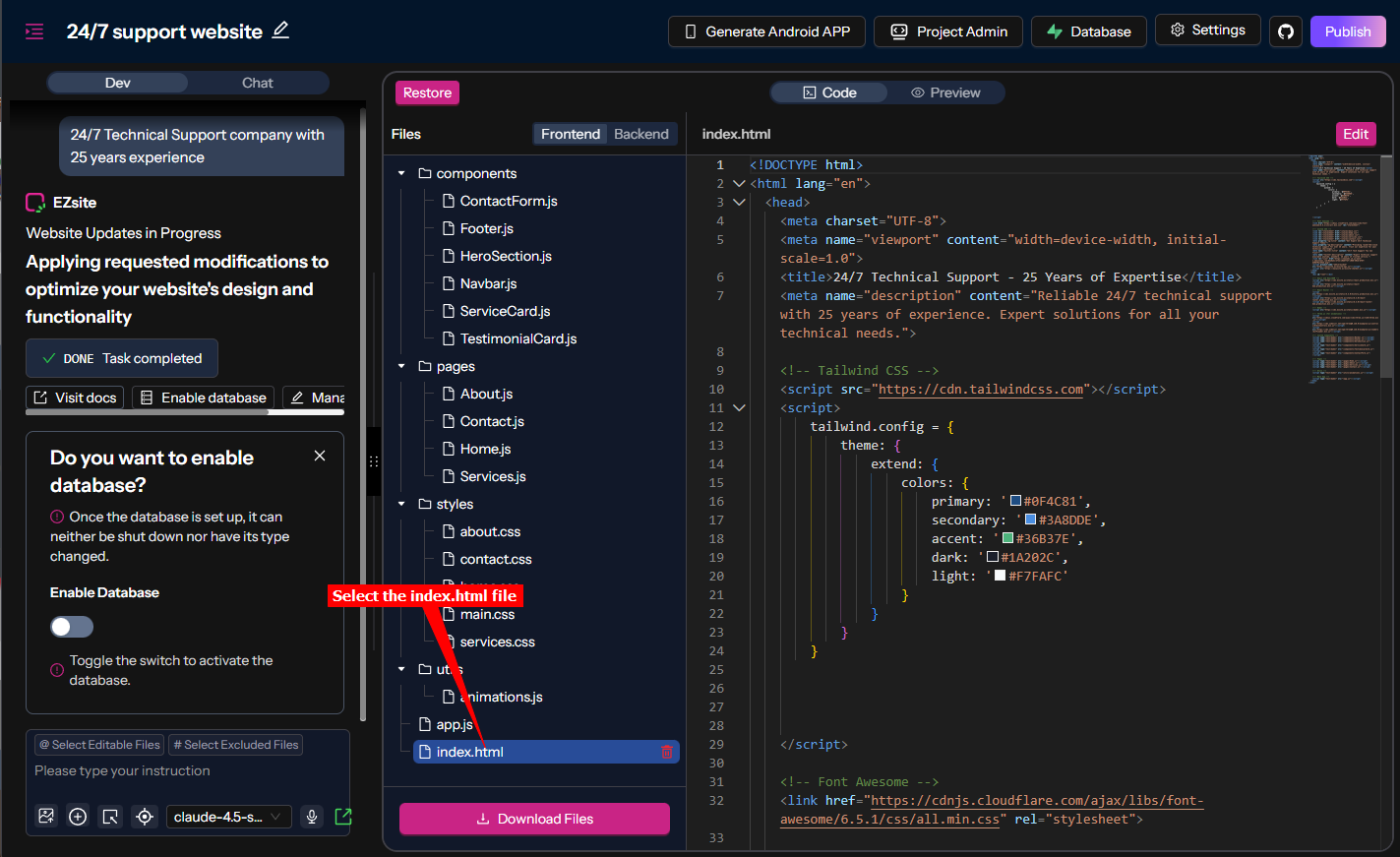
2. Select the **index.html** file. The contents will be displayed in **view-only** mode in the right pane.
3. While still in **view-only** mode, click in the contents of the **index.html** file and use ***Ctrl+A*** and ***Ctrl+C*** to copy the contens of the file. Save this in a text file somewhere where you can easily retrieve it if necessary
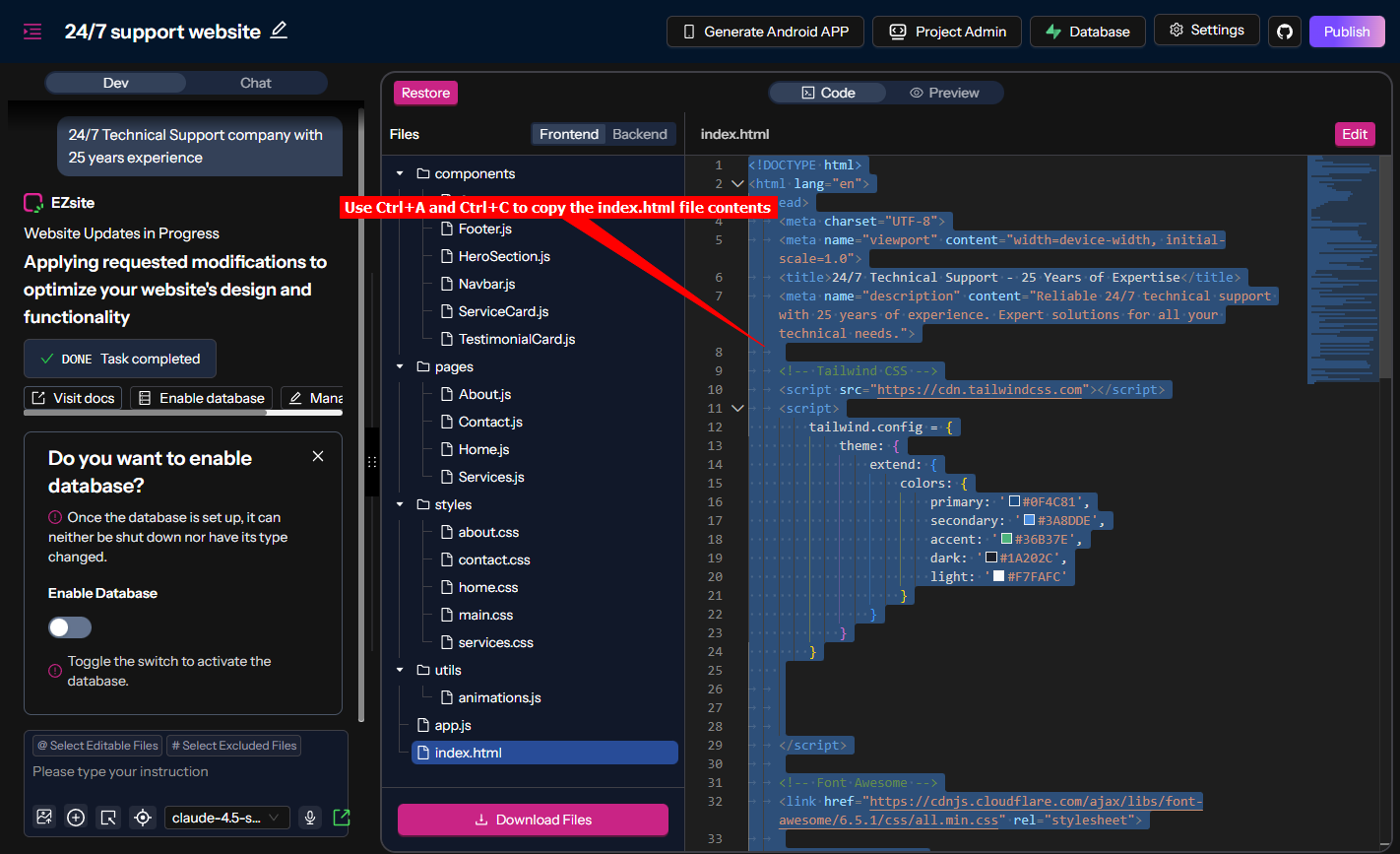
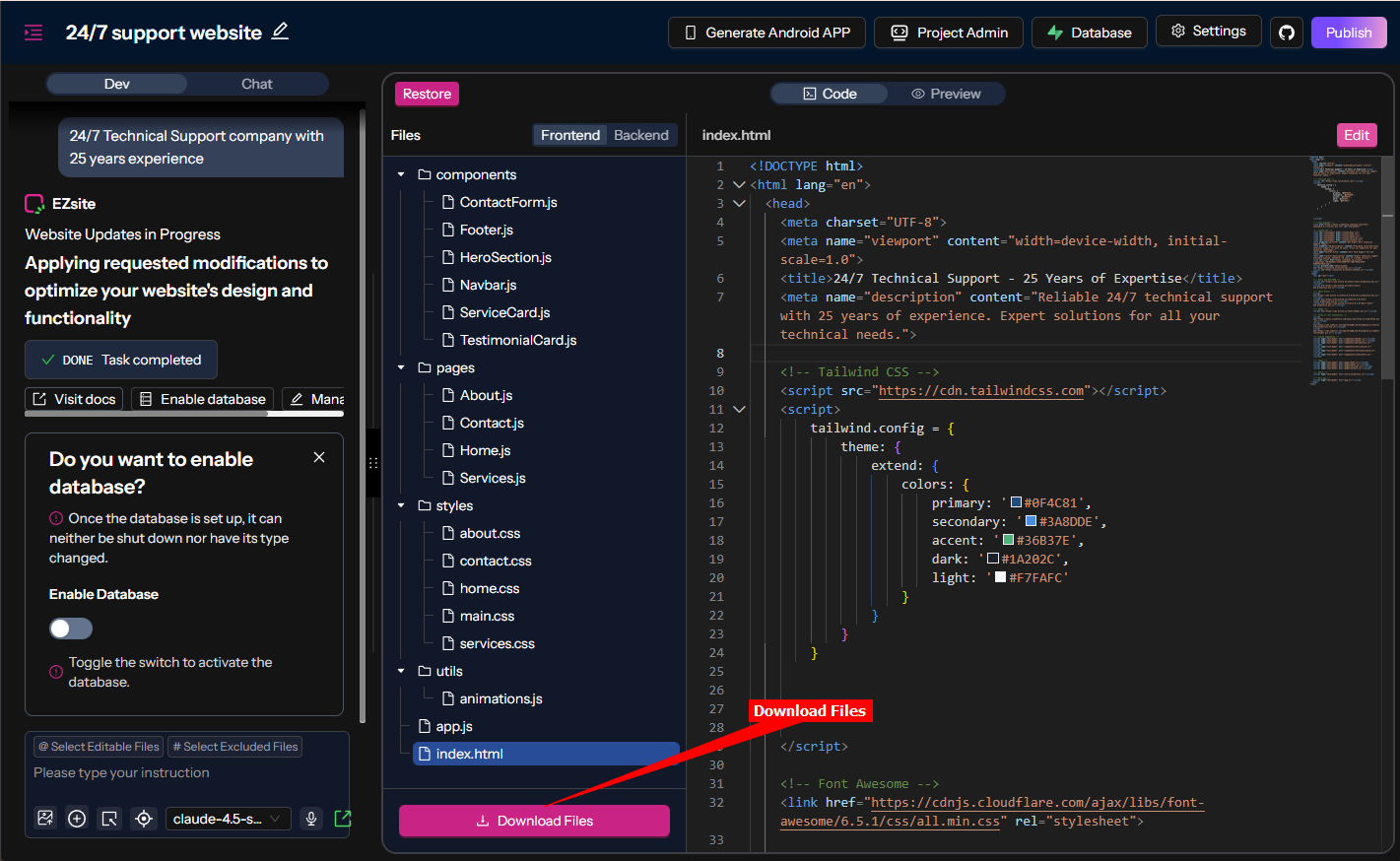
4. **Note**: If you have a **Pro** account, you can also use the **Download Files** option to make a complete backup of all your code files
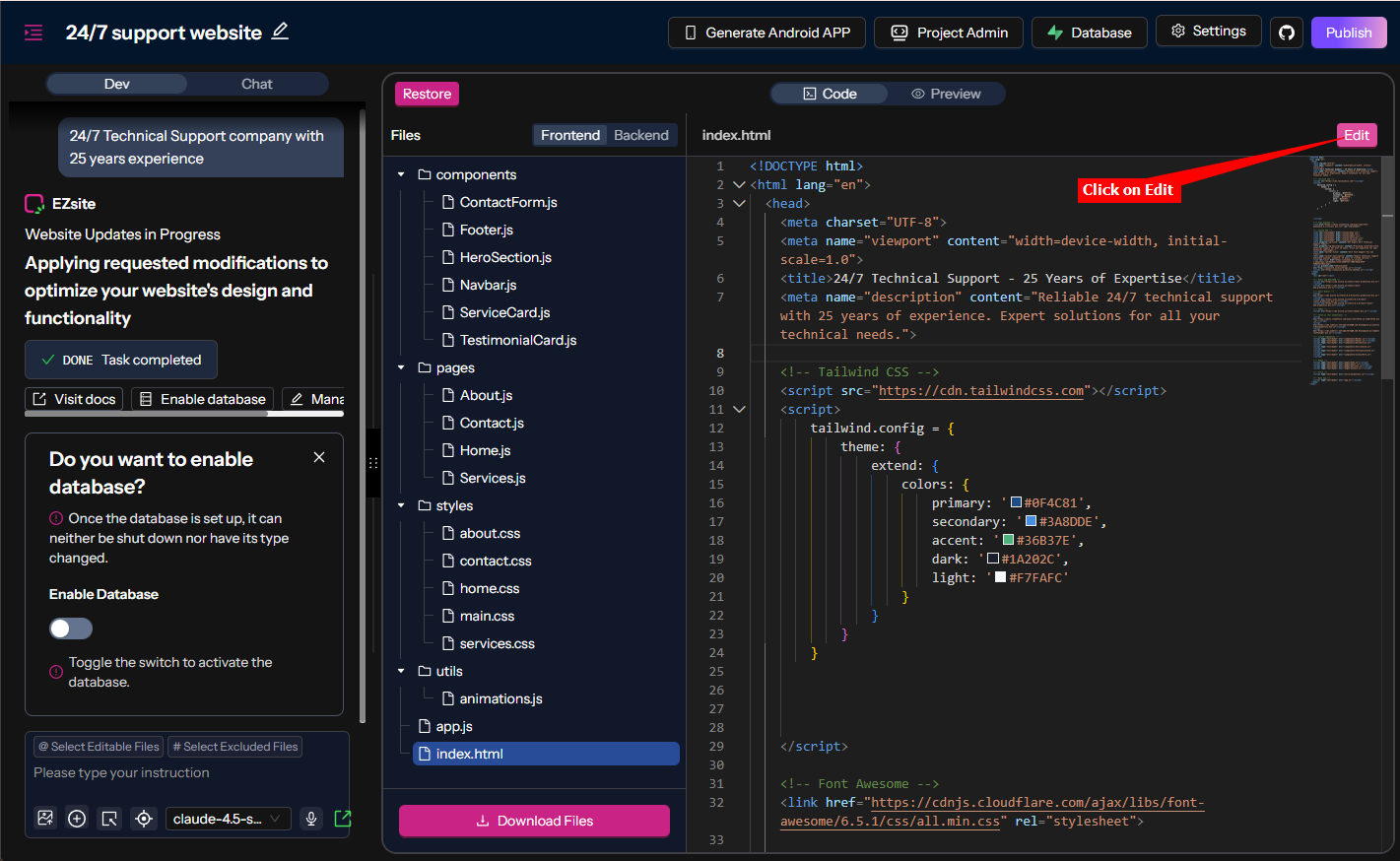
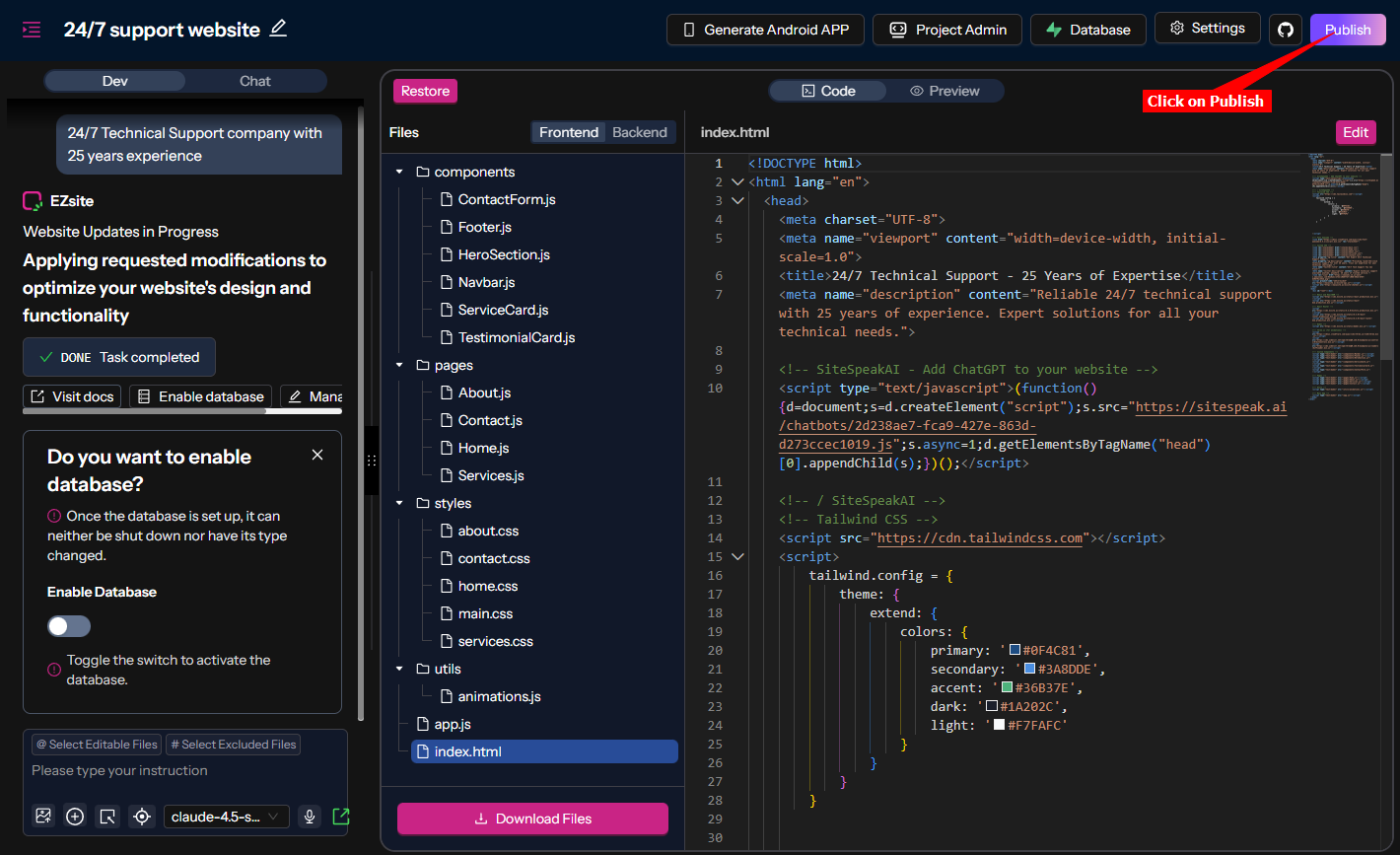
5. Click on **Edit** to allow you to edit the file contents
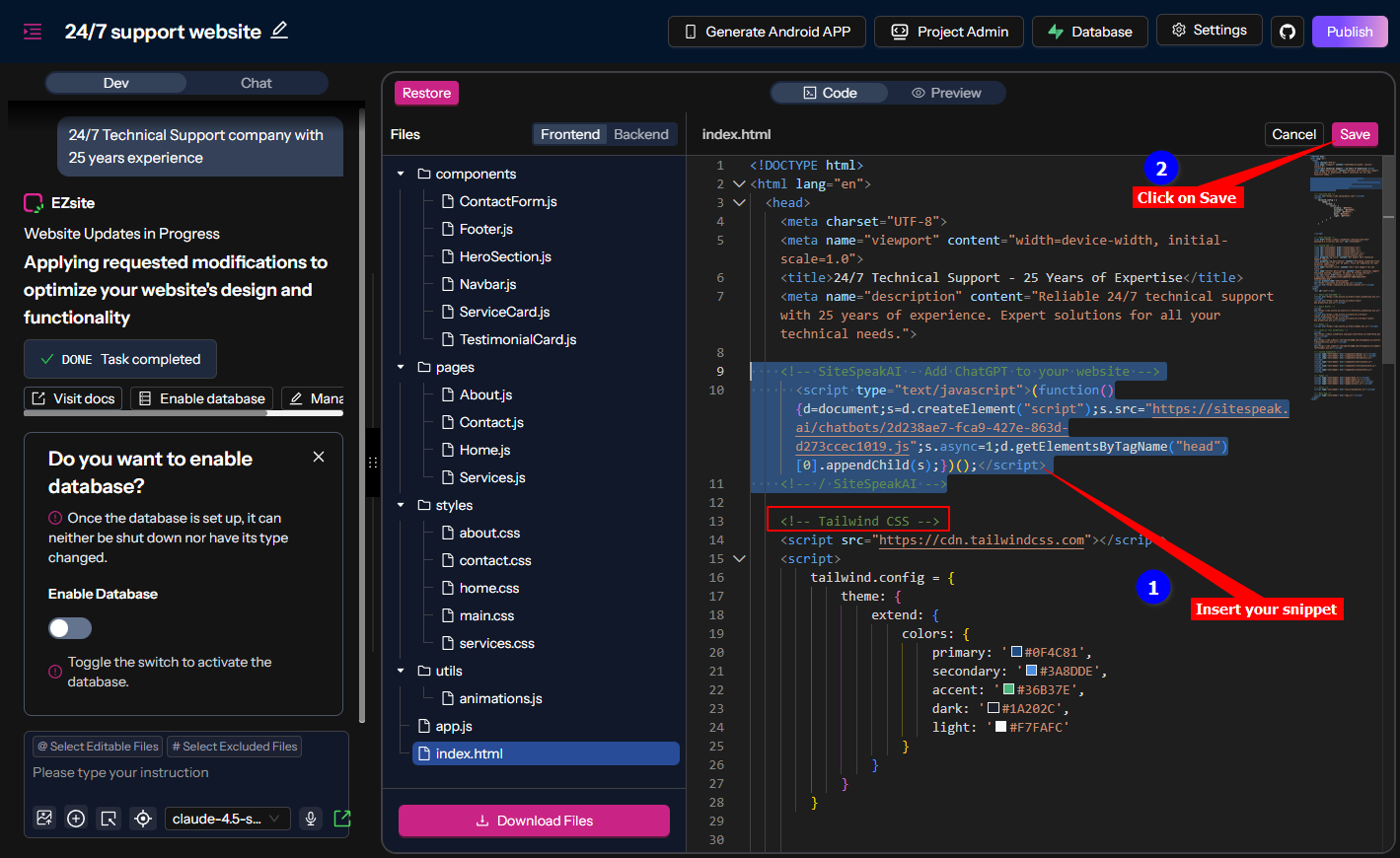
6. Insert your support agent snippet in the `` element in the index.html file (here we have added it just before the `` remark). Click on **Save** to save your modified source code
7. To make your modifications available on your live website, click on **Publish**
#### B. Using the EZsite AI **AI** editor to add your snippet
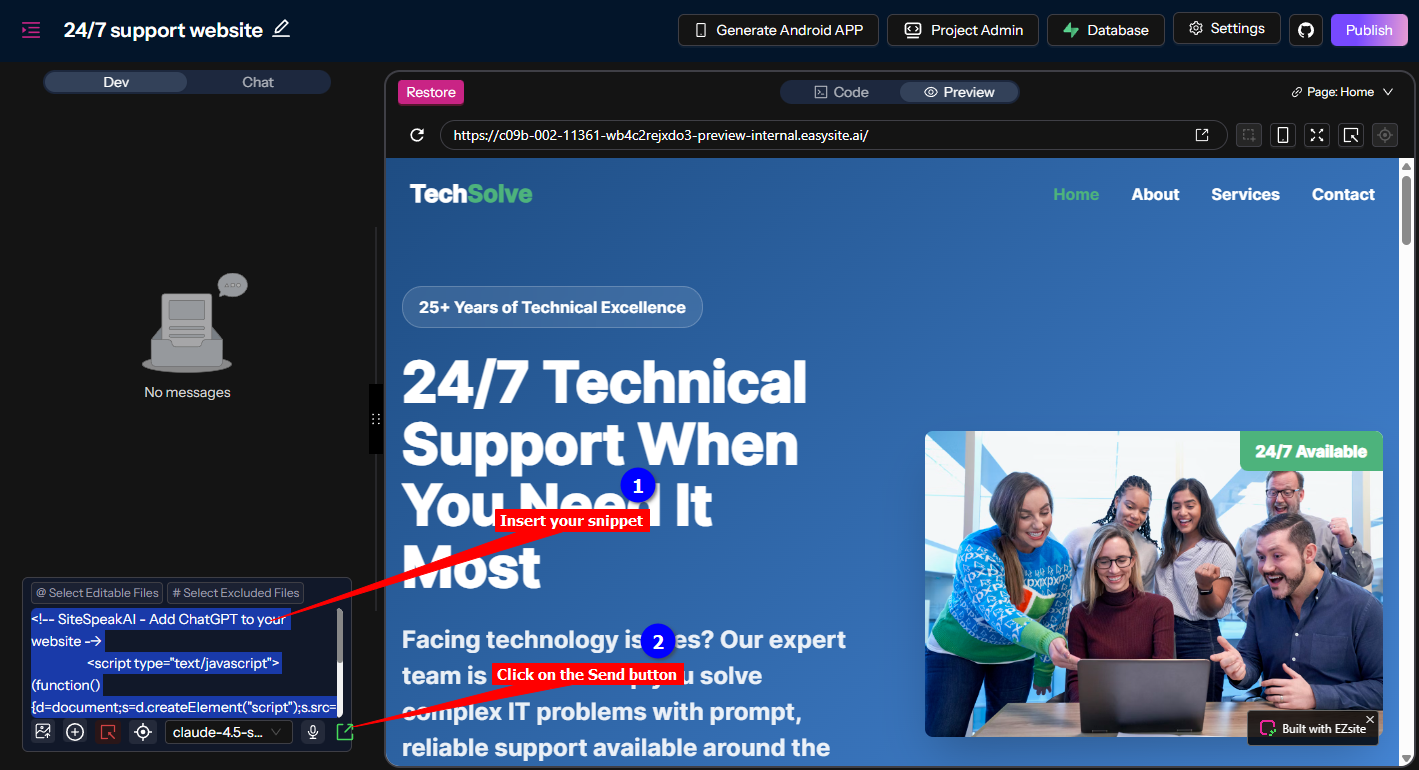
1. Select the **AI Selection Edit** option
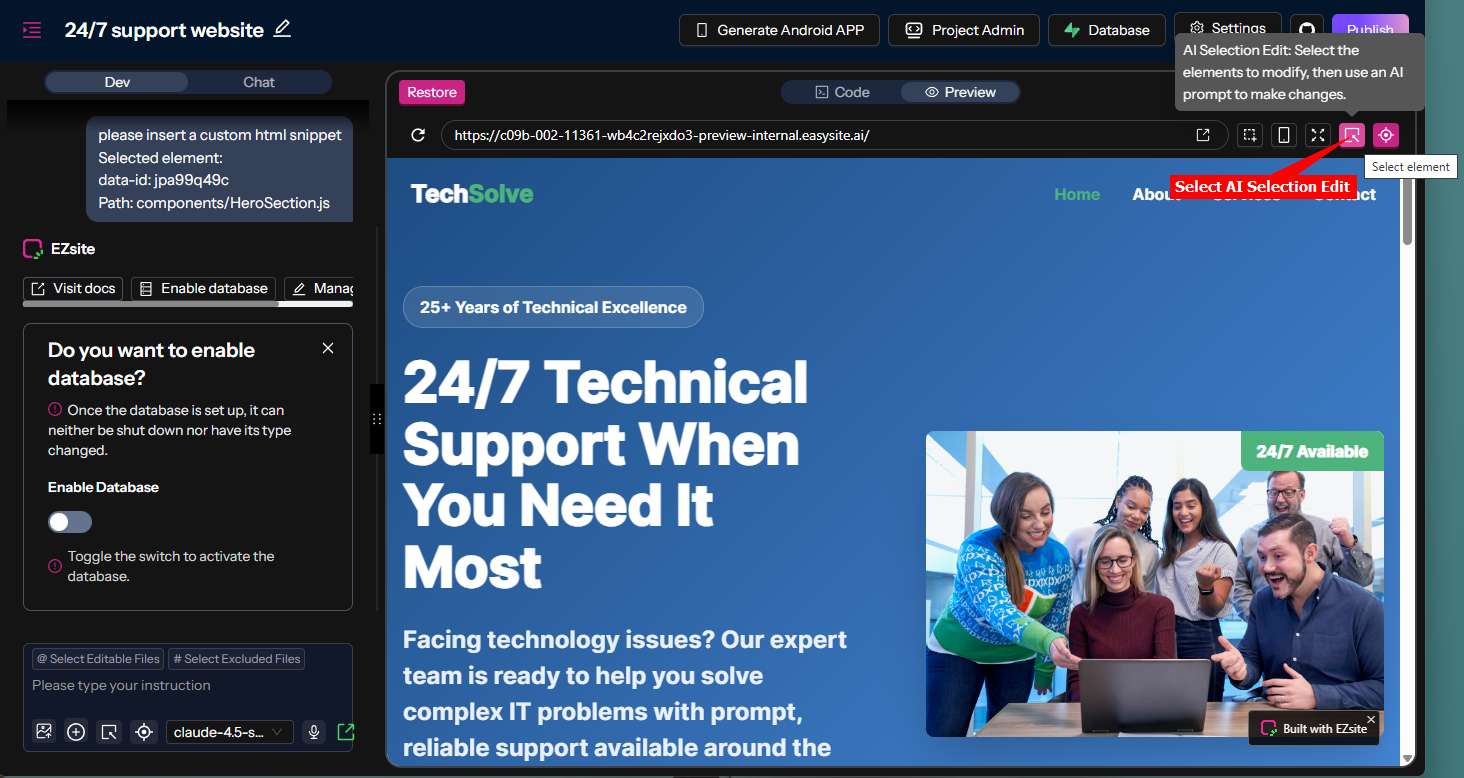
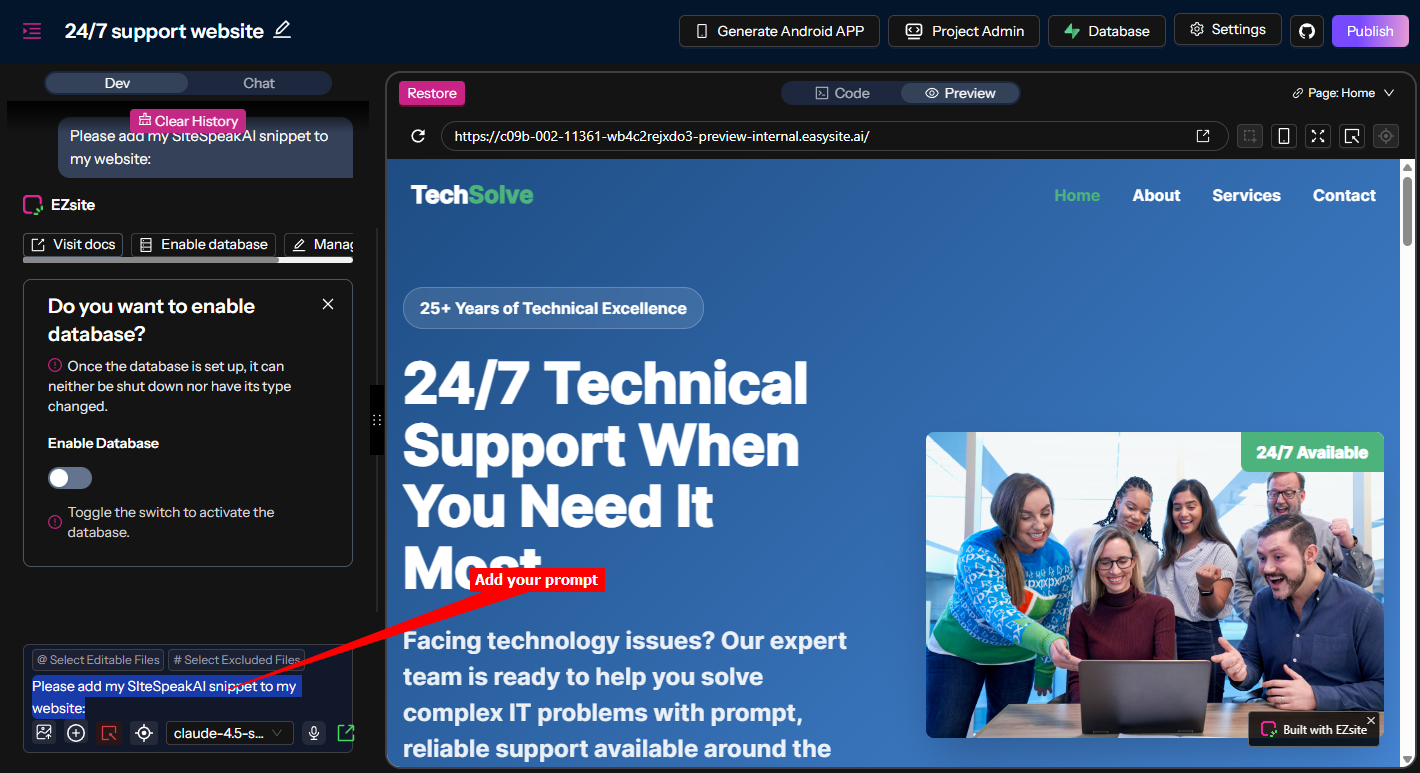
2. Select an element and add your AI prompt in the AI Selection editor. Note that this will be done in 2 parts, the AI editor doesn't allow creating a new line in the prompt (similar to Copilot)
* Add the first part (where you request the AI to add your SiteSpeakAI snippet to your website) in the AI editor text box, select the **AI model** you prefer to use and then click on the Send button
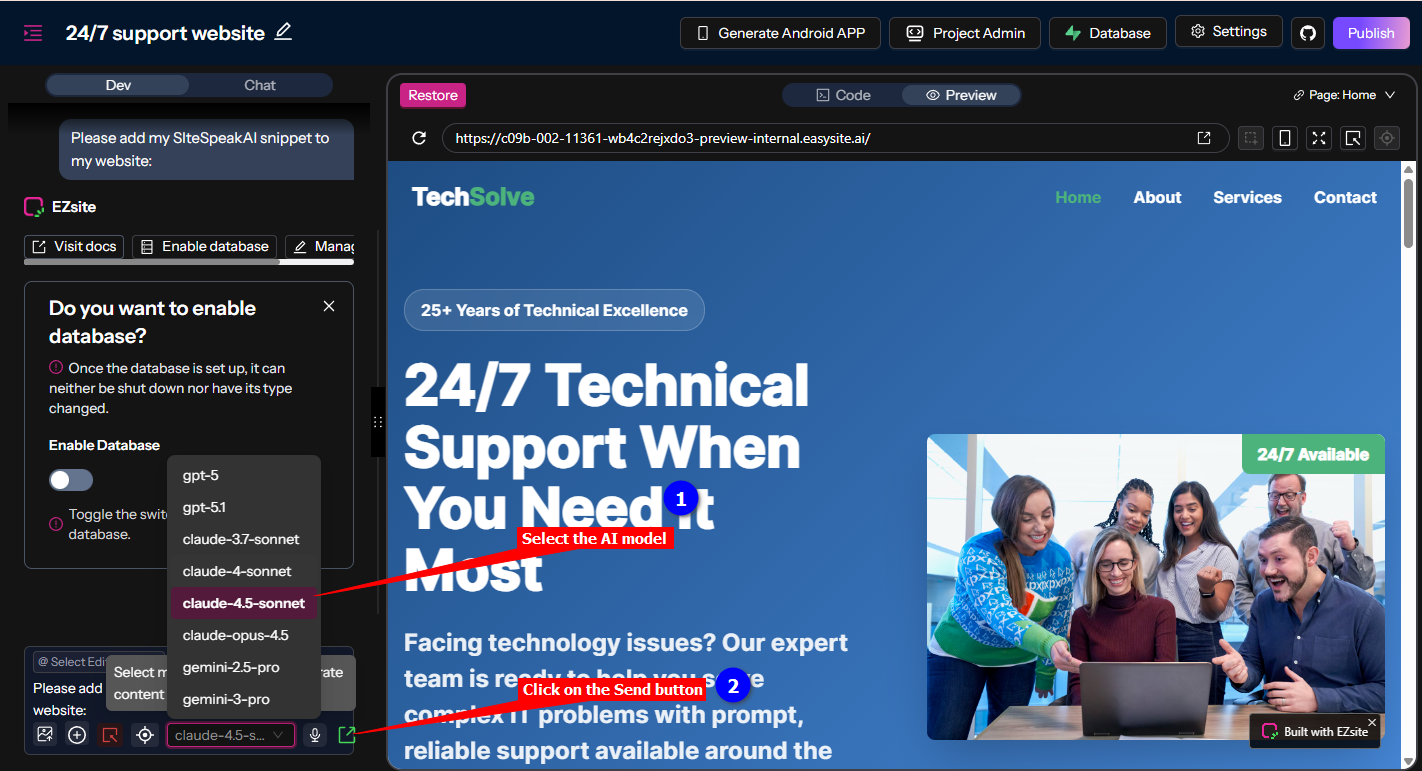
3. The AI editor will then respond with a request to add your snippet. Insert the snippet in the AI editor text box and click again on the Send button
4. To make your modification available on your live website, click on **Publish**
#### C. For all options
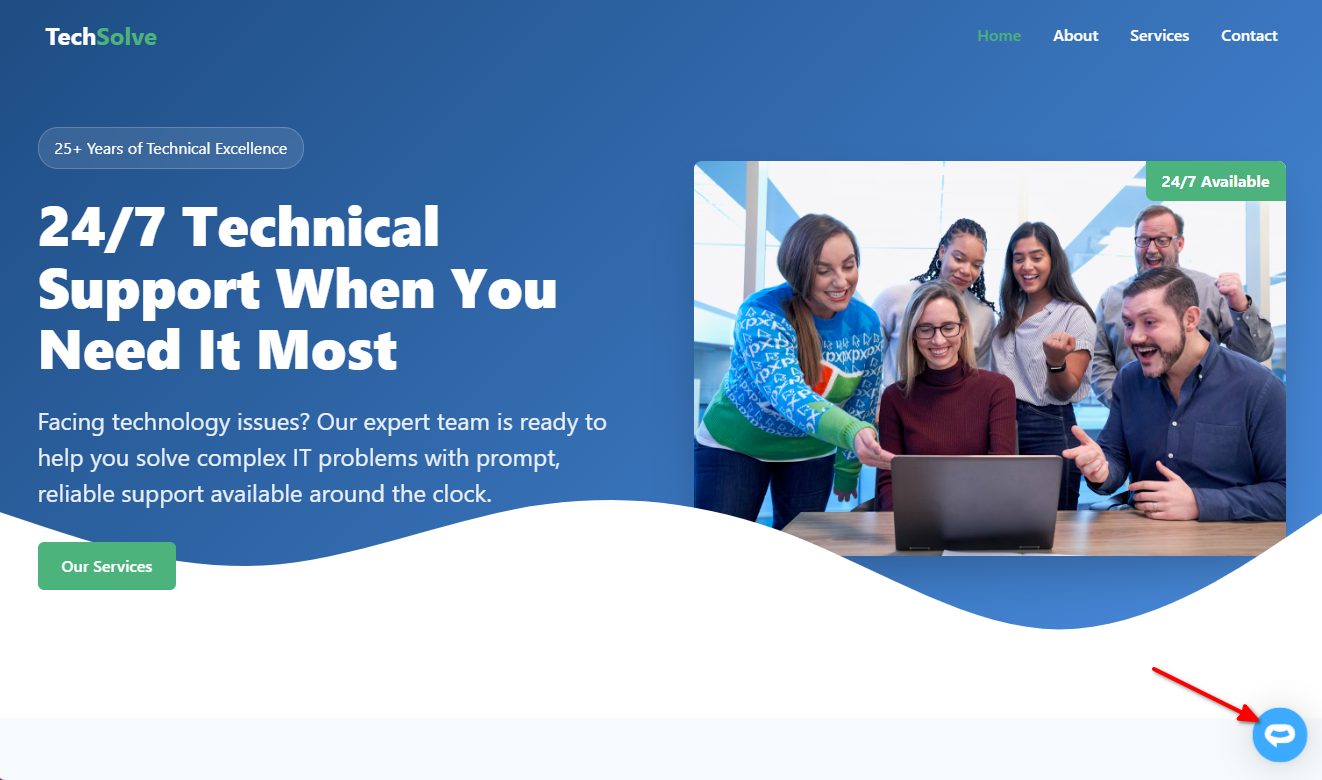
1. Your AI support agent button will now be displayed on your **EZsite AI** website page
2. If you click on the button it will display the AI support agent dialogue
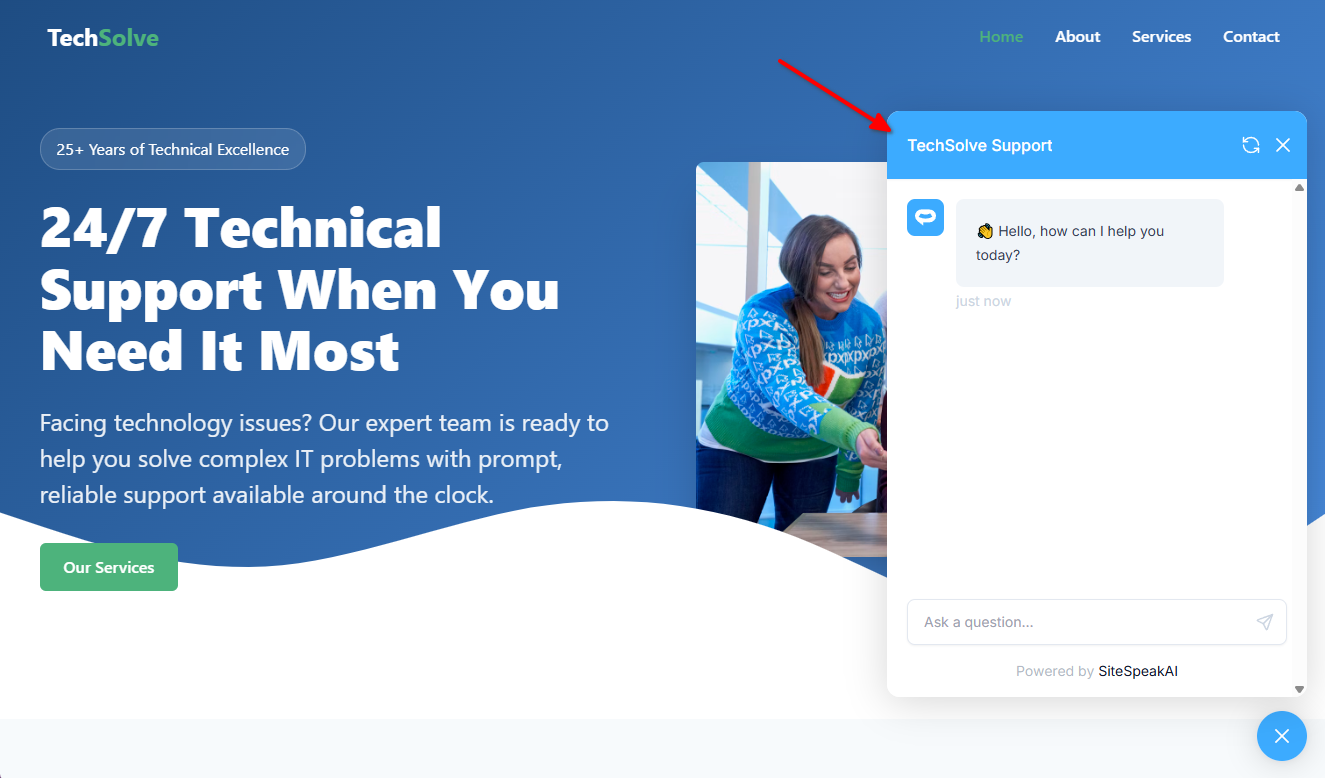
Your AI support agent has now been added to your **EZsite AI** website and your visitors/customers can start interacting with it!
***
Join over 1000+ businesses, websites and startups automating their customer service and other tasks with a custom trained AI agent.
### In EZsite AI
**Please note**:
* ***EZsite AI*** doesn't provide sections/blocks to add custom html to your website. It however allows you to view and edit the source code of the website source files (html, js and css). This is not for the fainthearted so you will have to be careful when editing these files. In our case we are only going to edit the **index.html** file and insert the AI support agent snippet in the `` element of the file. We suggest you make a backup of your website files before you make any changes to the file. This we will do by copying the contents of the file and saving it off-line on your computer (we will get to that in a bit).
* If you do have a **Pro** account you can also use the EZsite AI **AI** to add your snippet to your website by selecting an element and use an AI prompt to add the snippet for you.
We will look at both options in this tutorial.
Log into your **EZsite AI** account and select your project under **My Projects** on the dashboard

#### A. Adding your snippet by means of the Code editor
1. On the **Preview** display of your website (the default page will be the Home page), select **Code** to allow viewing and editing your source files

2. Select the **index.html** file. The contents will be displayed in **view-only** mode in the right pane.

3. While still in **view-only** mode, click in the contents of the **index.html** file and use ***Ctrl+A*** and ***Ctrl+C*** to copy the contens of the file. Save this in a text file somewhere where you can easily retrieve it if necessary

4. **Note**: If you have a **Pro** account, you can also use the **Download Files** option to make a complete backup of all your code files

5. Click on **Edit** to allow you to edit the file contents

6. Insert your support agent snippet in the `` element in the index.html file (here we have added it just before the `` remark). Click on **Save** to save your modified source code

7. To make your modifications available on your live website, click on **Publish**

#### B. Using the EZsite AI **AI** editor to add your snippet
1. Select the **AI Selection Edit** option

2. Select an element and add your AI prompt in the AI Selection editor. Note that this will be done in 2 parts, the AI editor doesn't allow creating a new line in the prompt (similar to Copilot)
* Add the first part (where you request the AI to add your SiteSpeakAI snippet to your website) in the AI editor text box, select the **AI model** you prefer to use and then click on the Send button


3. The AI editor will then respond with a request to add your snippet. Insert the snippet in the AI editor text box and click again on the Send button

4. To make your modification available on your live website, click on **Publish**

#### C. For all options
1. Your AI support agent button will now be displayed on your **EZsite AI** website page

2. If you click on the button it will display the AI support agent dialogue

Your AI support agent has now been added to your **EZsite AI** website and your visitors/customers can start interacting with it!
***
Join over 1000+ businesses, websites and startups automating their customer service and other tasks with a custom trained AI agent.