> ## Documentation Index
> Fetch the complete documentation index at: https://sitespeak.ai/docs/llms.txt
> Use this file to discover all available pages before exploring further.
# How to add a ChatGPT AI support agent to Genstore.ai
> How to add your custom ChatGPT trained AI support agent to your Genstore.ai website.
You want to embed your custom trained AI support agent in your **Genstore.ai** website page. Here's how to add an AI support agent to Genstore.ai with SiteSpeakAI.
**Genstore.ai** is a platform that helps businesses, particularly those selling physical products, easily create and manage their own online stores – without needing to be tech experts.
Think of it like a simplified Shopify or Wix, but specifically designed for businesses that already have a physical inventory (like a retail store, maker, or small manufacturer). It focuses on seamlessly integrating your existing stock and sales data with your online store, so you don't have to manually update inventory counts. It's particularly good for businesses that want to expand their reach beyond their local area.
**Website URL:** [**Genstore.ai** ](https://www.genstore.ai/)
## Add your AI support agent to your **Genstore.ai** website
### In SiteSpeakAI
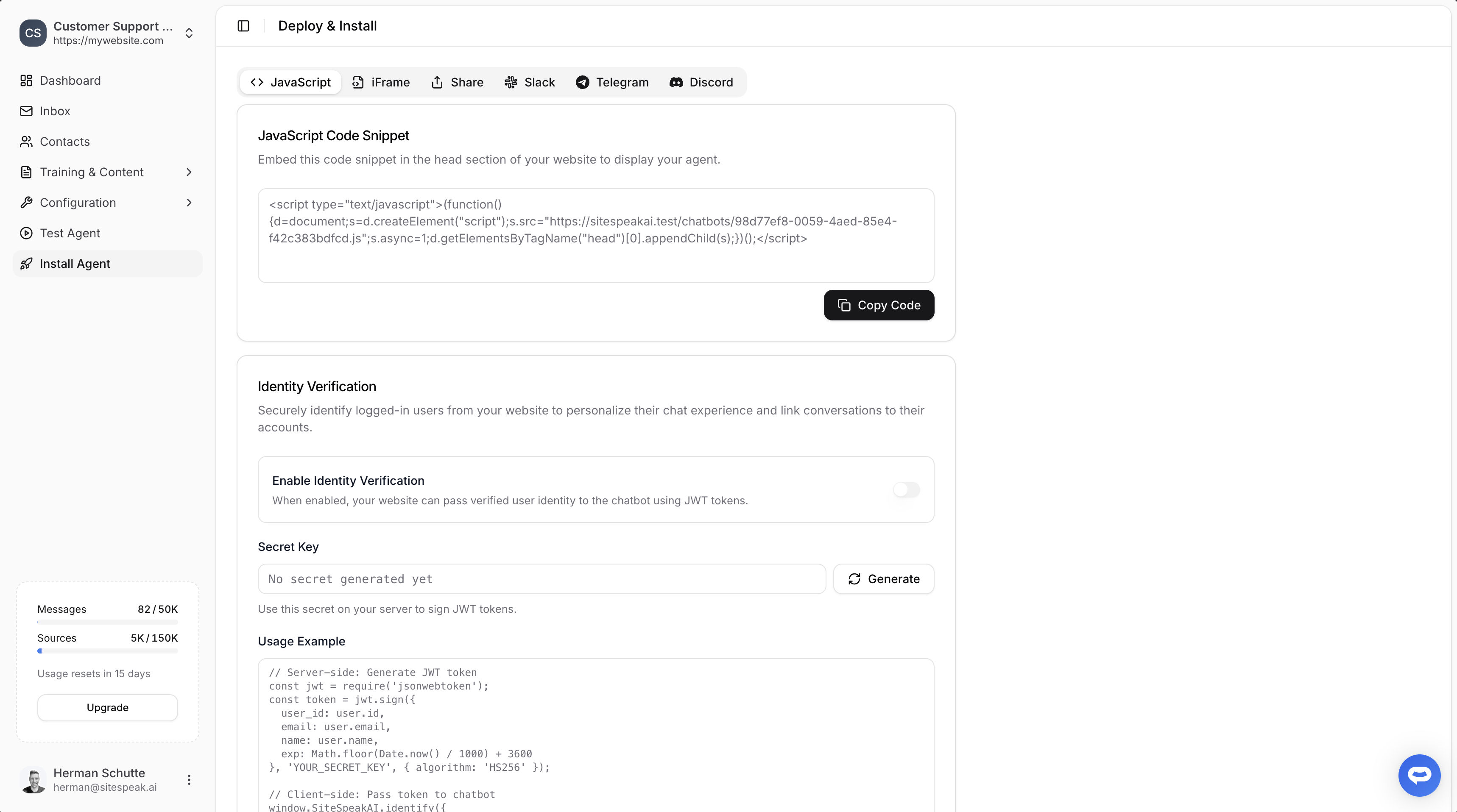
Select your chatbot from the dropdown menu at the top, click on the **Install Agent** section in the sidebar, then click on the **Copy Code** button to copy your code snippet.
 ### In Genstore.ai
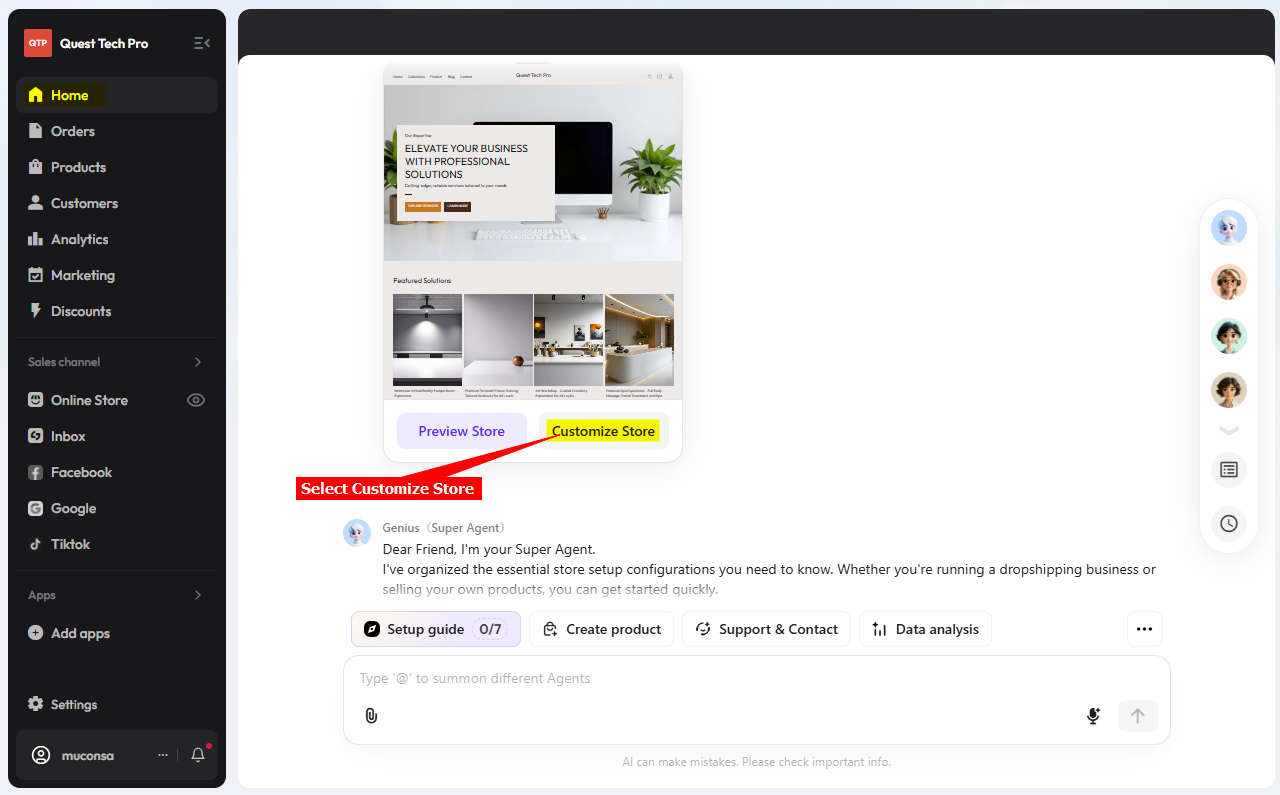
1. Log into your **Genstore.ai** account and select **Customize Store**
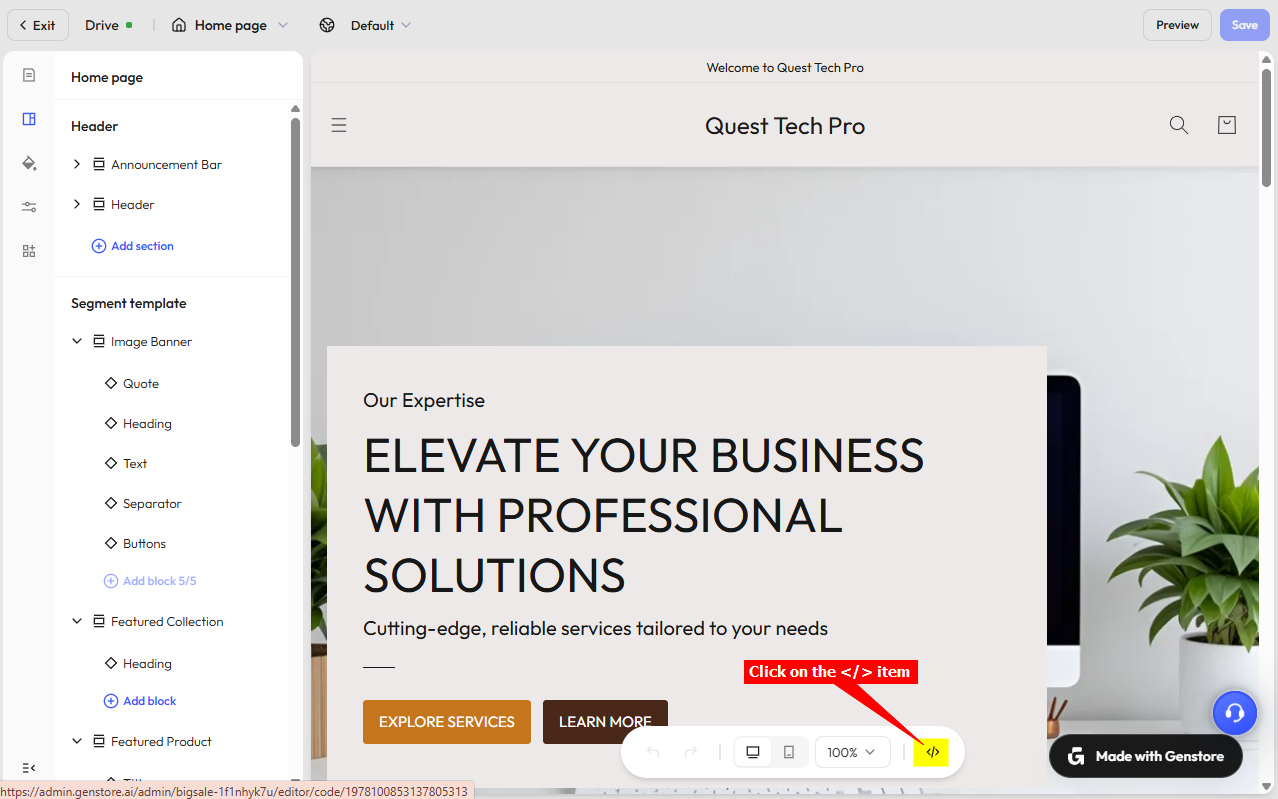
2. Click on the code `\` item at the bottom of the page
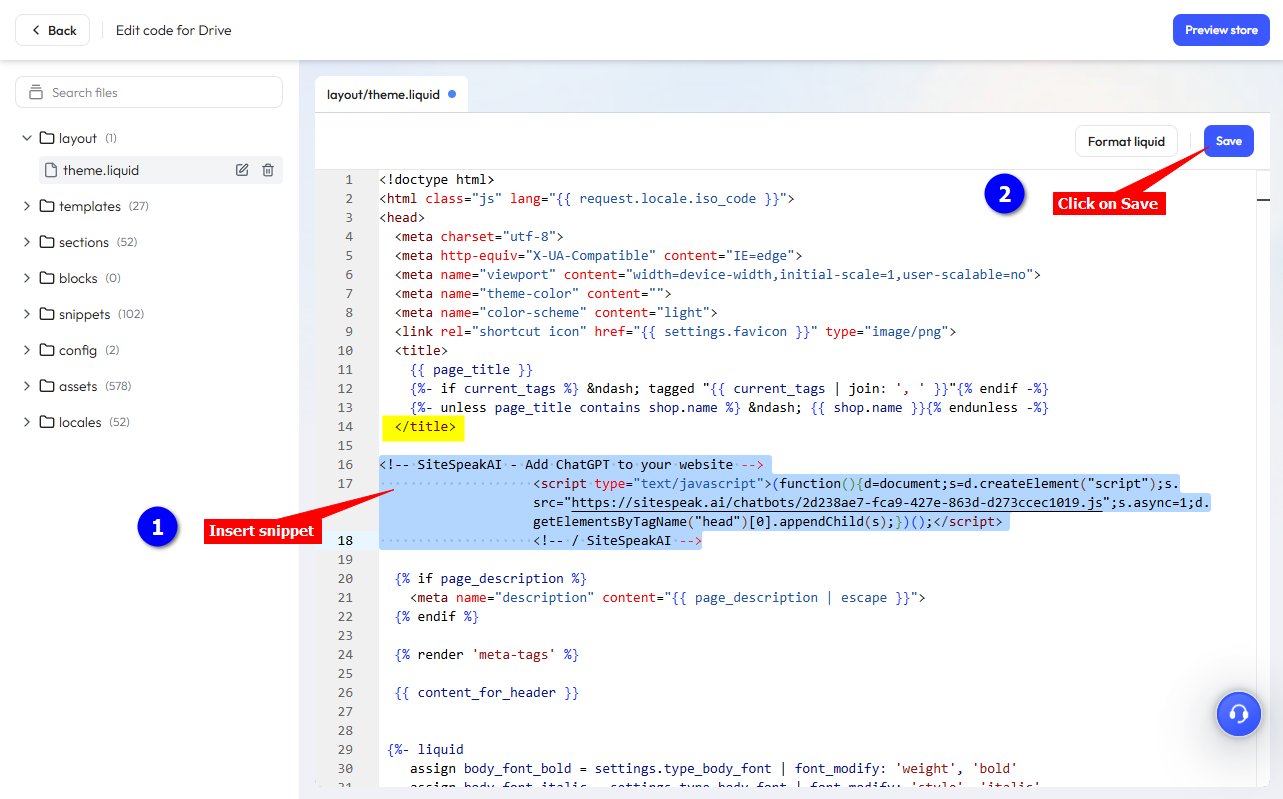
3. This will open the complete backend code list in a new browser tab. Under **layout**, click on **theme.liquid** to display the theme code
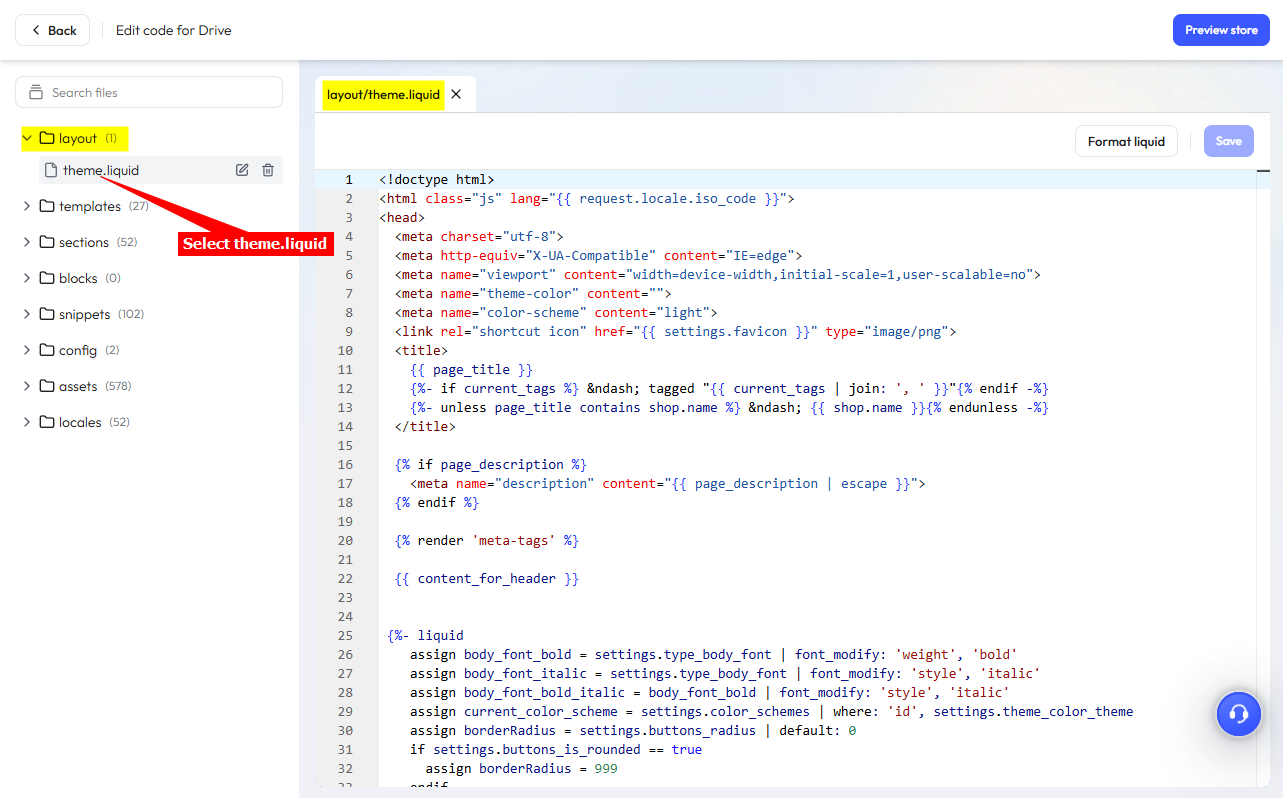
**Please Note!!** We are now going to insert your agent snippet into the **theme.liquid** code file. If you do make a mistake, it could mess up your whole store. We suggest you create a backup copy of the file by clicking inside the file and then use **Ctrl+A** (select all) and **Ctrl+C** (copy) to copy the contents. Using your favourite editor create a new file and paste the copied contents into this file. Save the file somewhere convenient. If something goes wrong you can then replace the contents of the theme.liquid file with the backed up file contents.
4. In the **theme.liquid** file, insert your snippet just below the `\` tag and click on **Save**
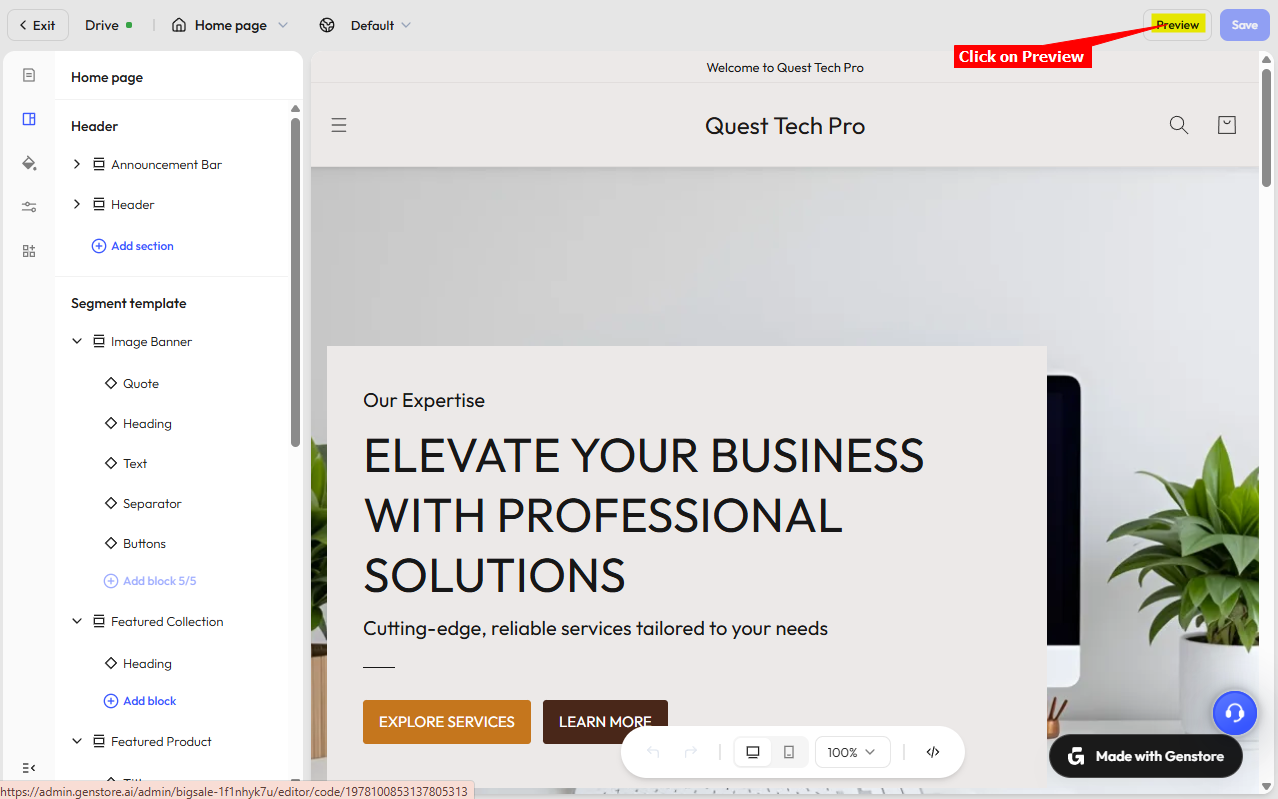
5. Return to the page editor tab and click on **Preview** to preview your modified webpage
6. Your AI support agent button will now be displayed on your **Genstore.ai** website page

7. If you click on the button it will display the AI support agent dialogue
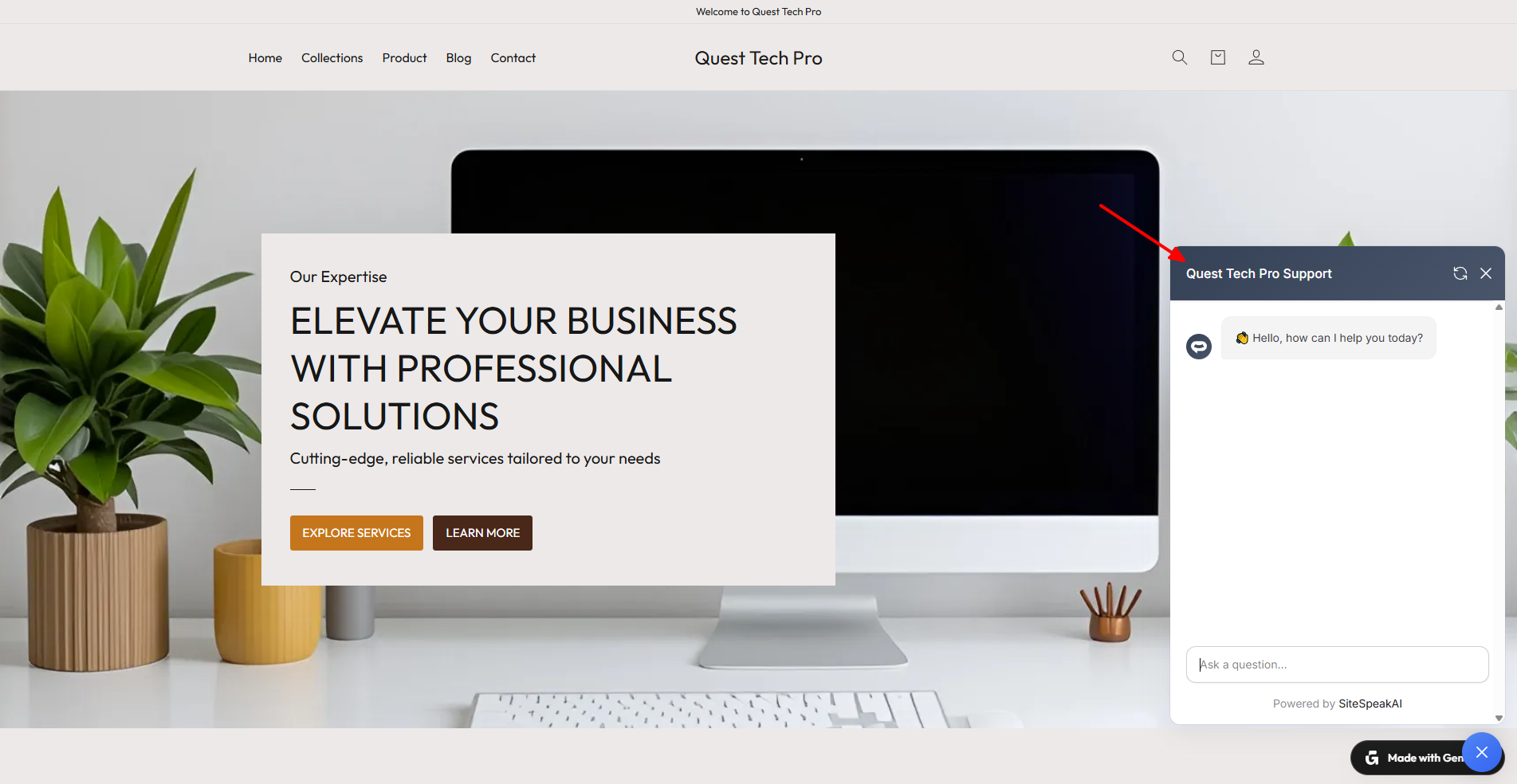
Your AI support agent has now been added to your **Genstore.ai** website and your visitors/customers can start interacting with it!
***
Join over 1000+ businesses, websites and startups automating their customer service and other tasks with a custom trained AI agent.
### In Genstore.ai
1. Log into your **Genstore.ai** account and select **Customize Store**

2. Click on the code `\` item at the bottom of the page

3. This will open the complete backend code list in a new browser tab. Under **layout**, click on **theme.liquid** to display the theme code

**Please Note!!** We are now going to insert your agent snippet into the **theme.liquid** code file. If you do make a mistake, it could mess up your whole store. We suggest you create a backup copy of the file by clicking inside the file and then use **Ctrl+A** (select all) and **Ctrl+C** (copy) to copy the contents. Using your favourite editor create a new file and paste the copied contents into this file. Save the file somewhere convenient. If something goes wrong you can then replace the contents of the theme.liquid file with the backed up file contents.
4. In the **theme.liquid** file, insert your snippet just below the `\` tag and click on **Save**

5. Return to the page editor tab and click on **Preview** to preview your modified webpage

6. Your AI support agent button will now be displayed on your **Genstore.ai** website page

7. If you click on the button it will display the AI support agent dialogue

Your AI support agent has now been added to your **Genstore.ai** website and your visitors/customers can start interacting with it!
***
Join over 1000+ businesses, websites and startups automating their customer service and other tasks with a custom trained AI agent.