> ## Documentation Index
> Fetch the complete documentation index at: https://sitespeak.ai/docs/llms.txt
> Use this file to discover all available pages before exploring further.
# How to add a ChatGPT AI support agent to Hercules
> How to add your custom ChatGPT trained AI support agent to your Hercules website or App.
You want to embed your custom trained AI support agent in your **Hercules** website page or App. Here's how to add an AI support agent to Hercules with SiteSpeakAI.
**Hercules** makes it easy to build stunning apps and websites by chatting with AI. With the Hercules platform you can build any type of app or website, e.g. SaaS, eCommerce, Internal Tools, Mobile Apps, Marketing Pages, Landing pages, and more.
**Website URL**: [Hercules](https://hercules.app)
## Add your AI support agent to your **Hercules** website or App
### In SiteSpeakAI
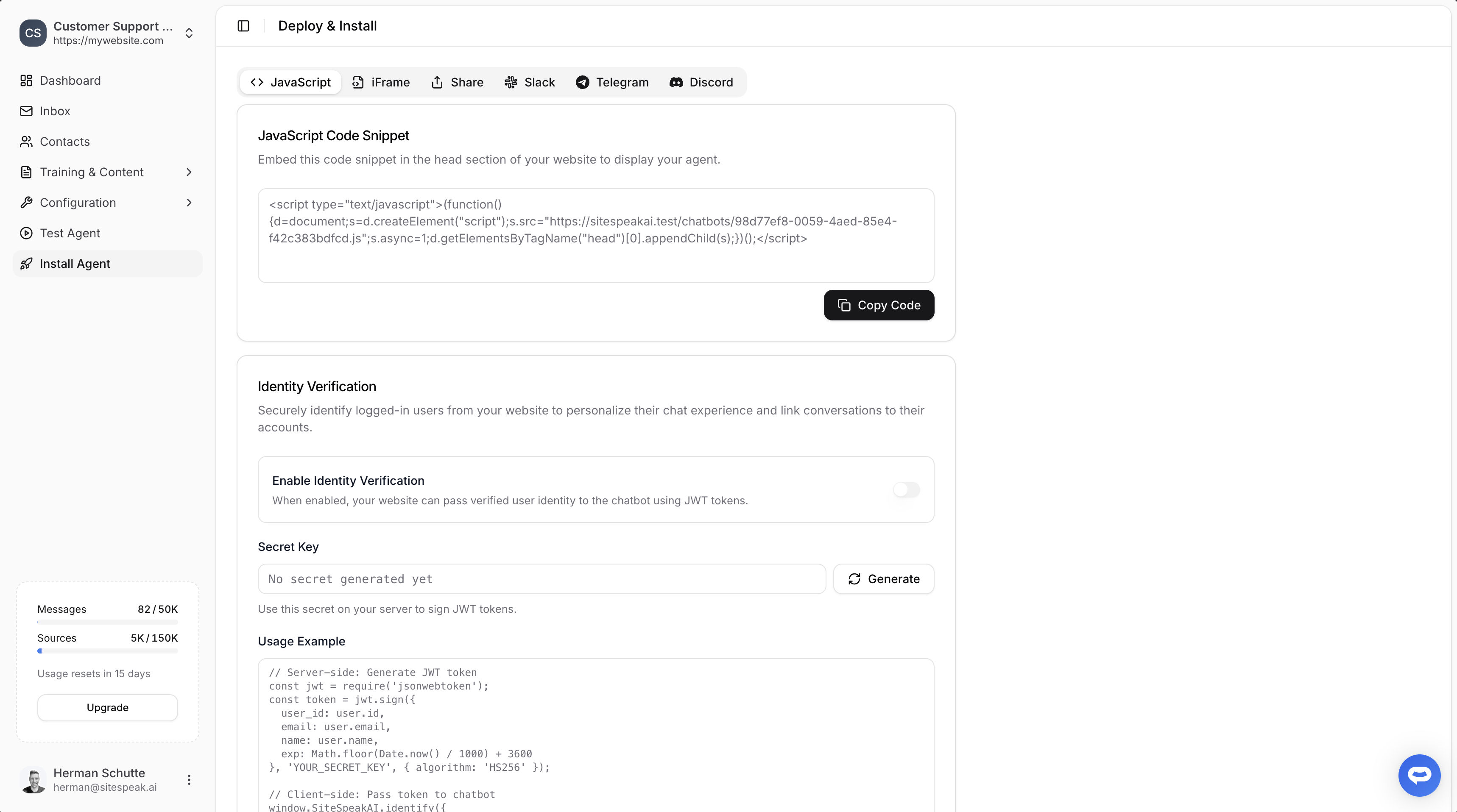
Select your chatbot from the dropdown menu at the top, click on the **Install Agent** section in the sidebar, then click on the **Copy Code** button to copy your code snippet.
 ### In Hercules
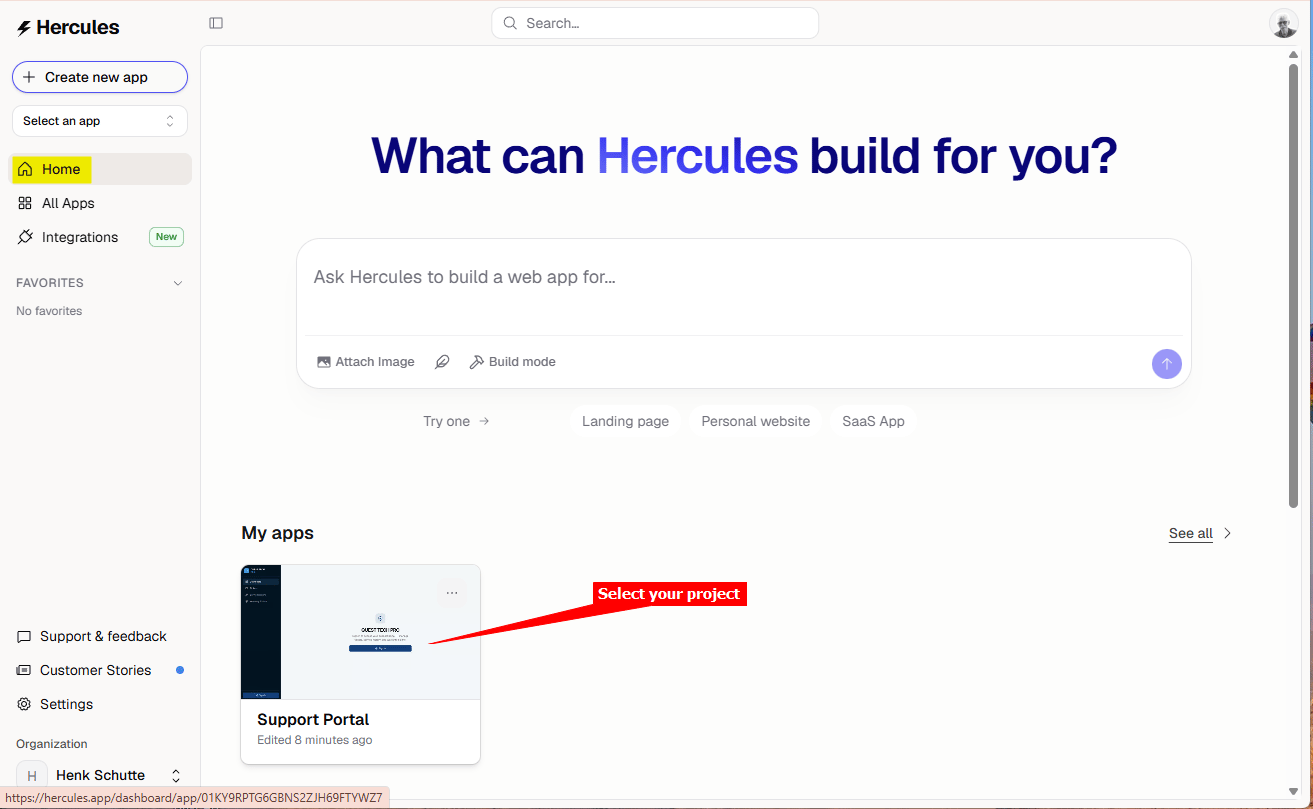
1. Log into your **Hercules** account and select your project on the dashboard
### In Hercules
1. Log into your **Hercules** account and select your project on the dashboard
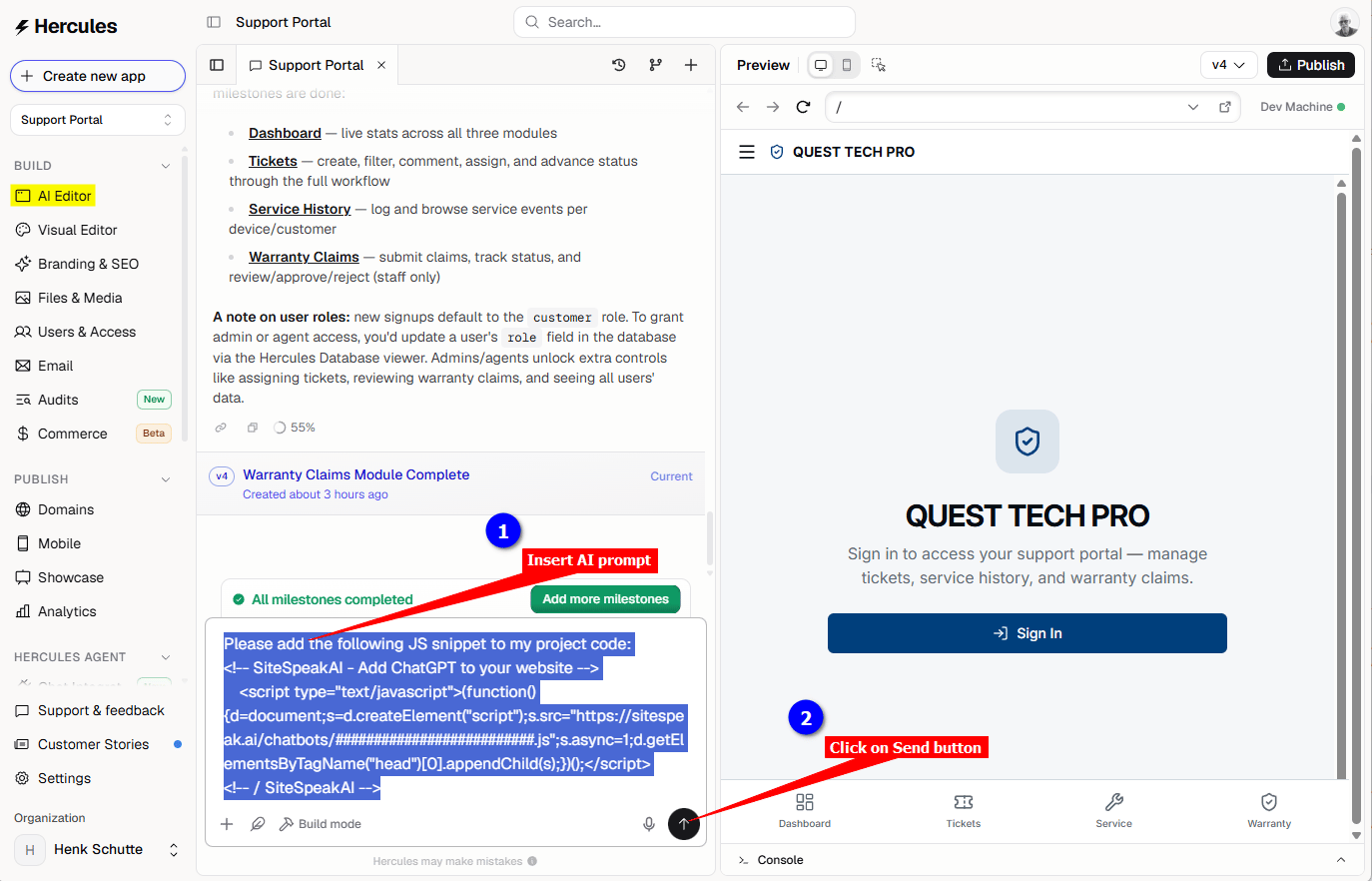
 We are going to use a prompt to instruct the Hercules AI to insert the snippet for us.
The prompt consists of an instruction, e.g. “Please add the following JS snippet to my project code:” followed by the snippet code as copied at the beginning of this tutorial.
Note that the ####################################.js part of the JS file URL will be replaced by your specific js script filename (36 characters including the 4 dashes).
**Tip**: Create the complete prompt in a text editor and then paste this into the AI prompt message box.
```
Please add the following JS snippet to my project code:
```
2. Make sure the **AI Editor** option is selected on the Left sidebar and insert this prompt into the AI prompt message box. Click on the **Send** button
We are going to use a prompt to instruct the Hercules AI to insert the snippet for us.
The prompt consists of an instruction, e.g. “Please add the following JS snippet to my project code:” followed by the snippet code as copied at the beginning of this tutorial.
Note that the ####################################.js part of the JS file URL will be replaced by your specific js script filename (36 characters including the 4 dashes).
**Tip**: Create the complete prompt in a text editor and then paste this into the AI prompt message box.
```
Please add the following JS snippet to my project code:
```
2. Make sure the **AI Editor** option is selected on the Left sidebar and insert this prompt into the AI prompt message box. Click on the **Send** button
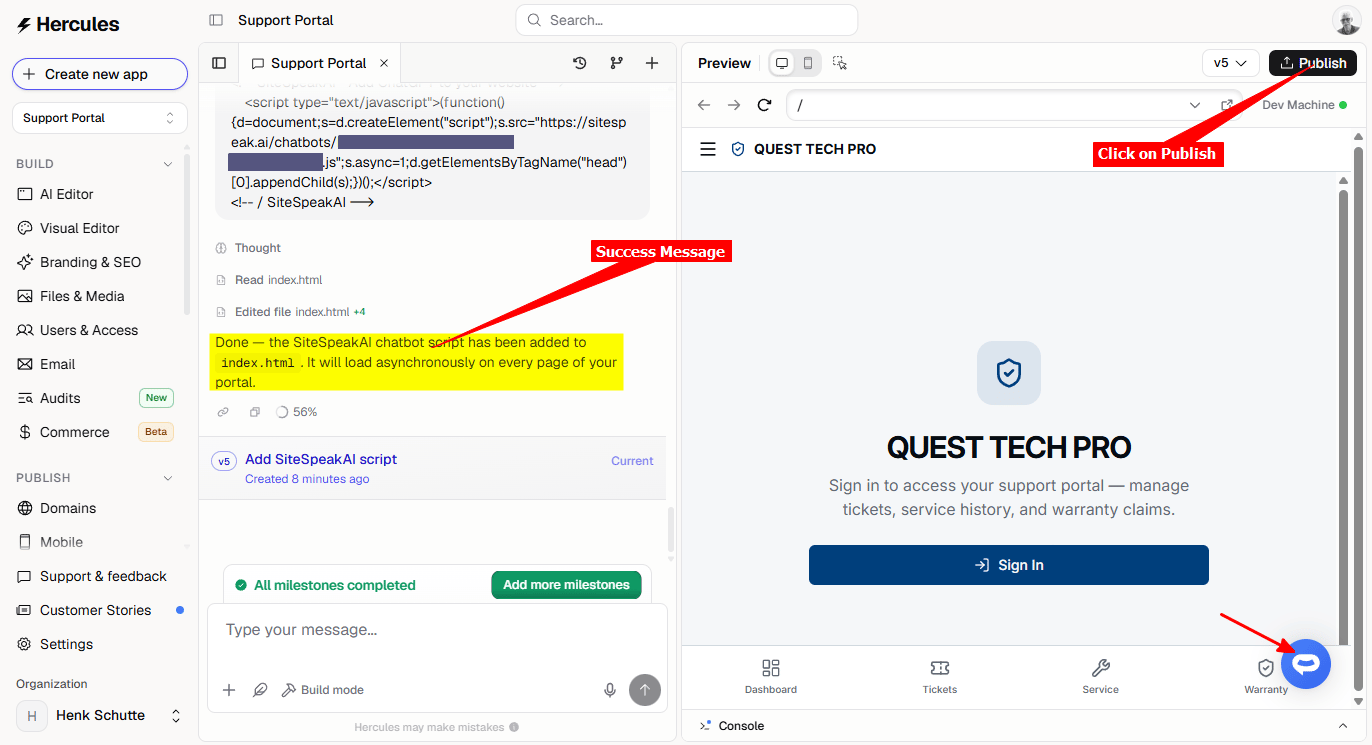
 3. The **Hercules AI** will start adding the code to your website, it takes a while so please be patient. When done it will display a message indicating that the snippet was added and also display the support Agent button on the Preview page. Click on **Publish** to publish your changes
 4. Your AI support agent button will now be displayed on your **Hercules** website page or App
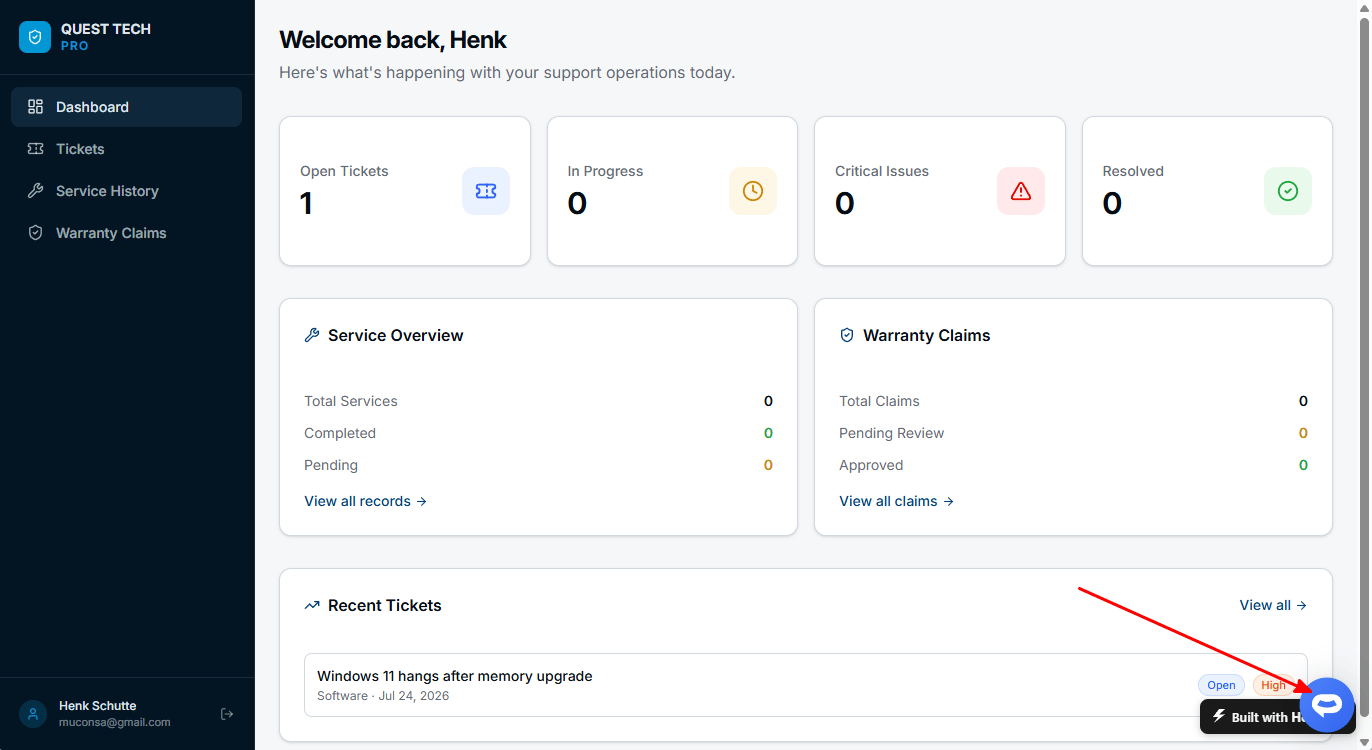 5. If you click on the button it will display the AI support agent dialogue
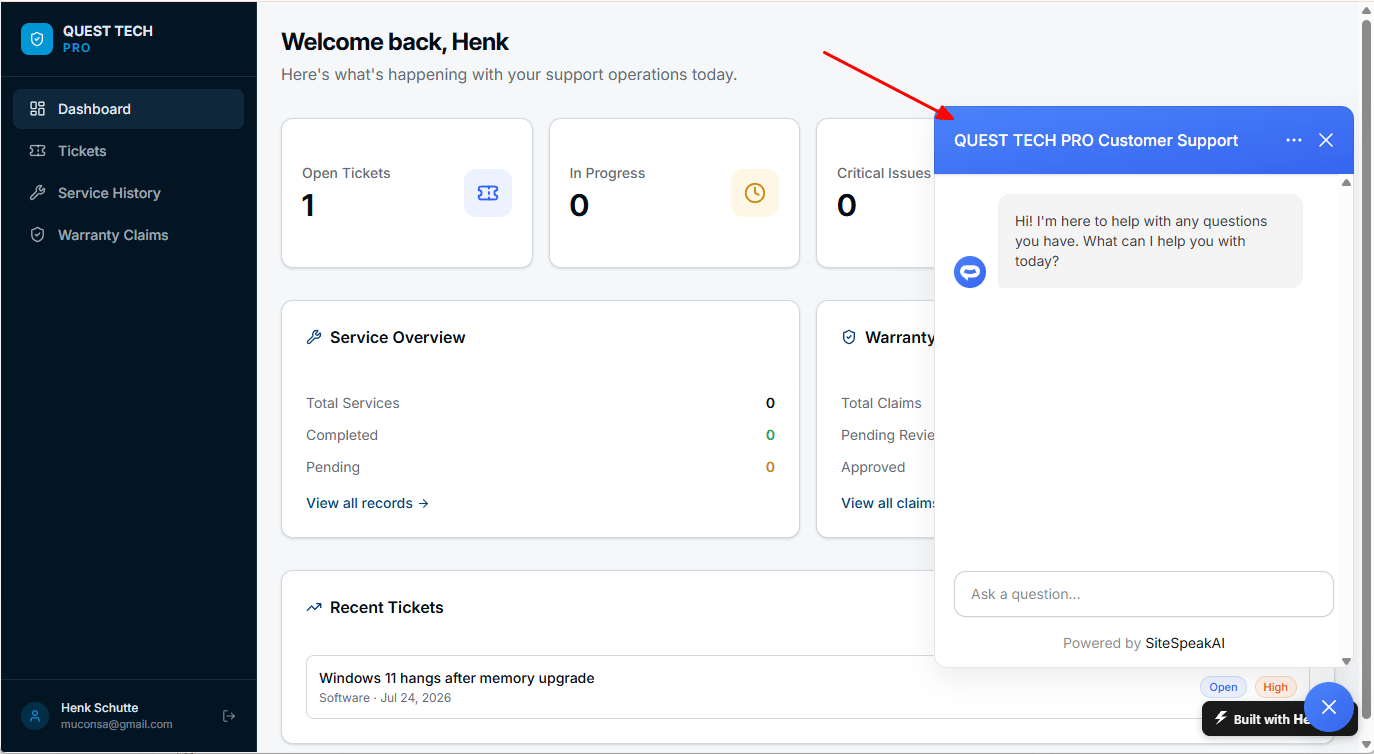 Your AI support agent has now been added to your **Hercules** website and your visitors/customers can start interacting with it!
***
Join over 1000+ businesses, websites and startups automating their customer service and other tasks with a custom trained AI agent.
Your AI support agent has now been added to your **Hercules** website and your visitors/customers can start interacting with it!
***
Join over 1000+ businesses, websites and startups automating their customer service and other tasks with a custom trained AI agent.