> ## Documentation Index
> Fetch the complete documentation index at: https://sitespeak.ai/docs/llms.txt
> Use this file to discover all available pages before exploring further.
# How to add a ChatGPT AI support agent to Kirki
> How to add your custom ChatGPT trained AI support agent to your Kirki built WordPress website.
You want to embed your custom trained AI support agent in your **Kirki** built WordPress website page. Here's how to add an AI support agent to Kirki with SiteSpeakAI.
**Droip** was rebranded into **Kirki**. If you have a current **Droip** subscription, read the following info page [Migrating from Droip to Kirki](https://kirki.com/docs/migrate-from-droip-to-kirki/) for a proper set of instructions on how to migrate to Kirki.
**Please note**: Installing **Kirki** as a plugin on **WordPress** is not part of this tutorial but you can follow the installation on [Installation & Update](https://kirki.com/docs/installation-update/).
**Kirki** is a freeform visual builder plugin for WordPress and an advanced theme customizer that lets you design and build complete websites visually — without coding.
**Website URL**: [Kirki](https://kirki.com)
## Add your AI support agent to your Kirki built WordPress website
### In SiteSpeakAI
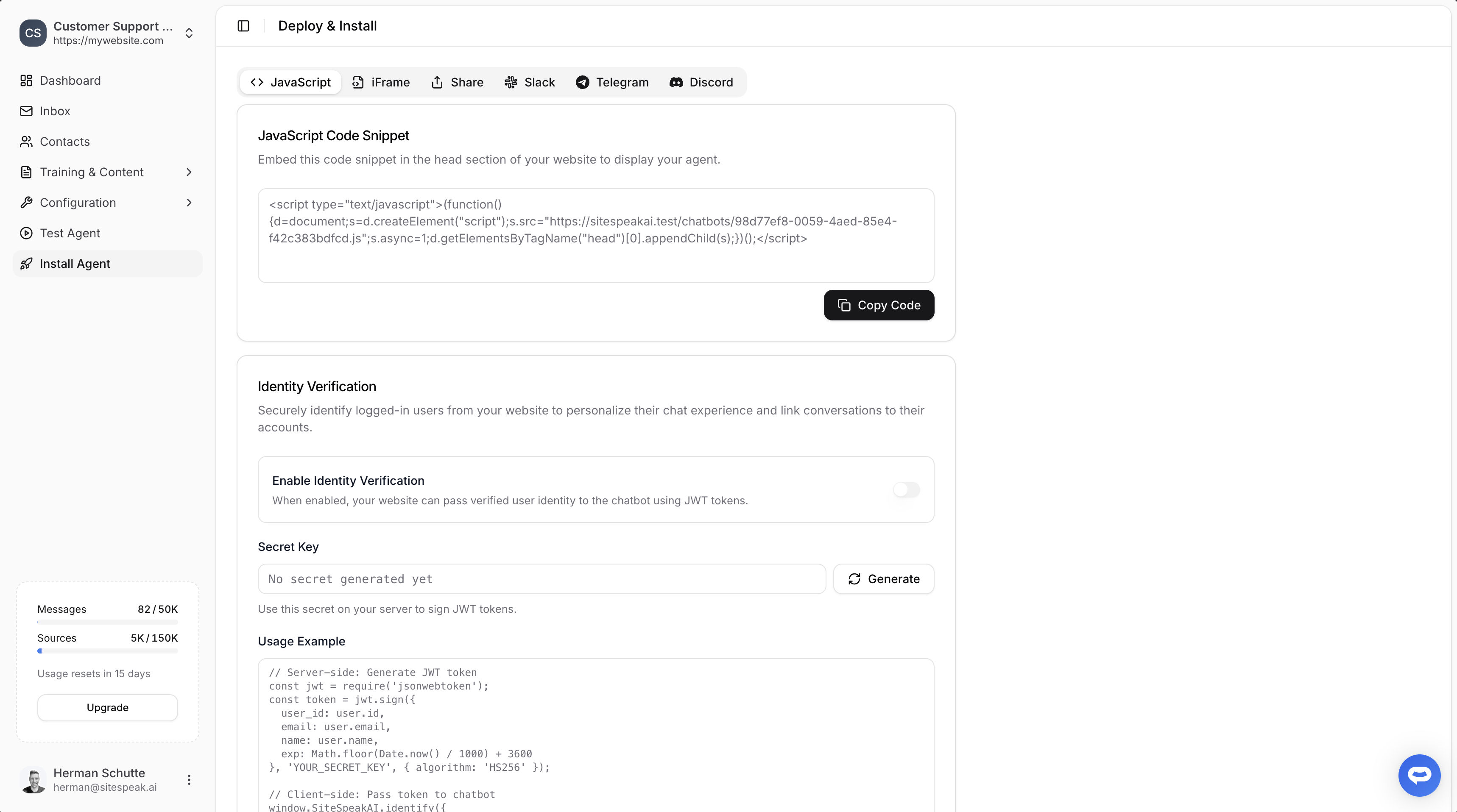
Select your chatbot from the dropdown menu at the top, click on the **Install Agent** section in the sidebar, then click on the **Copy Code** button to copy your code snippet.
 ### In Kirki
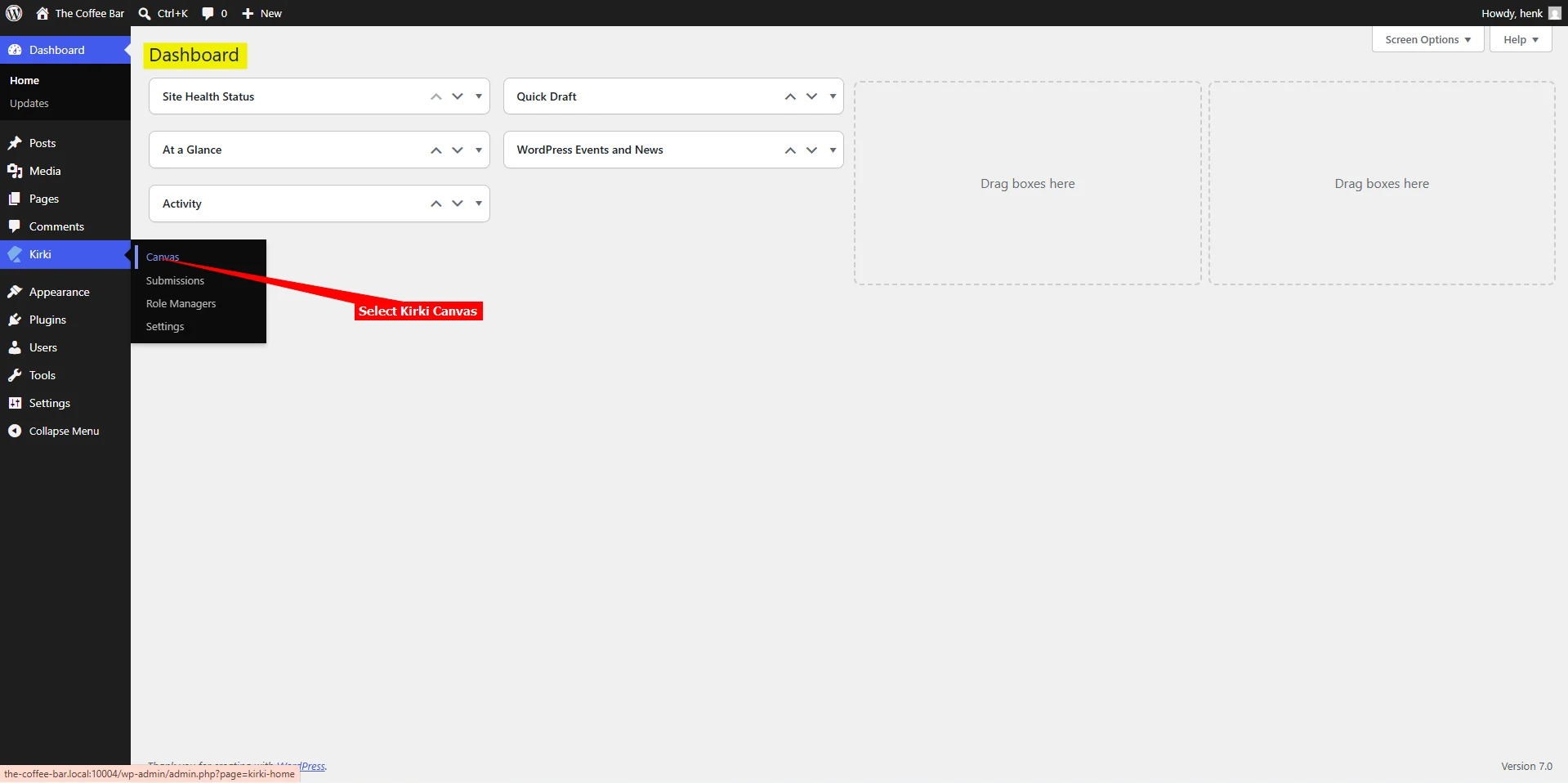
1. Log into your **WordPress** account and on your dashboard select **Kirki** -> **Canvas** on the left side-bar
### In Kirki
1. Log into your **WordPress** account and on your dashboard select **Kirki** -> **Canvas** on the left side-bar
 **Note**! Embedding your support agent in Kirki is done per page, thus you have to add the snippet to each page you want to add your support agent to.
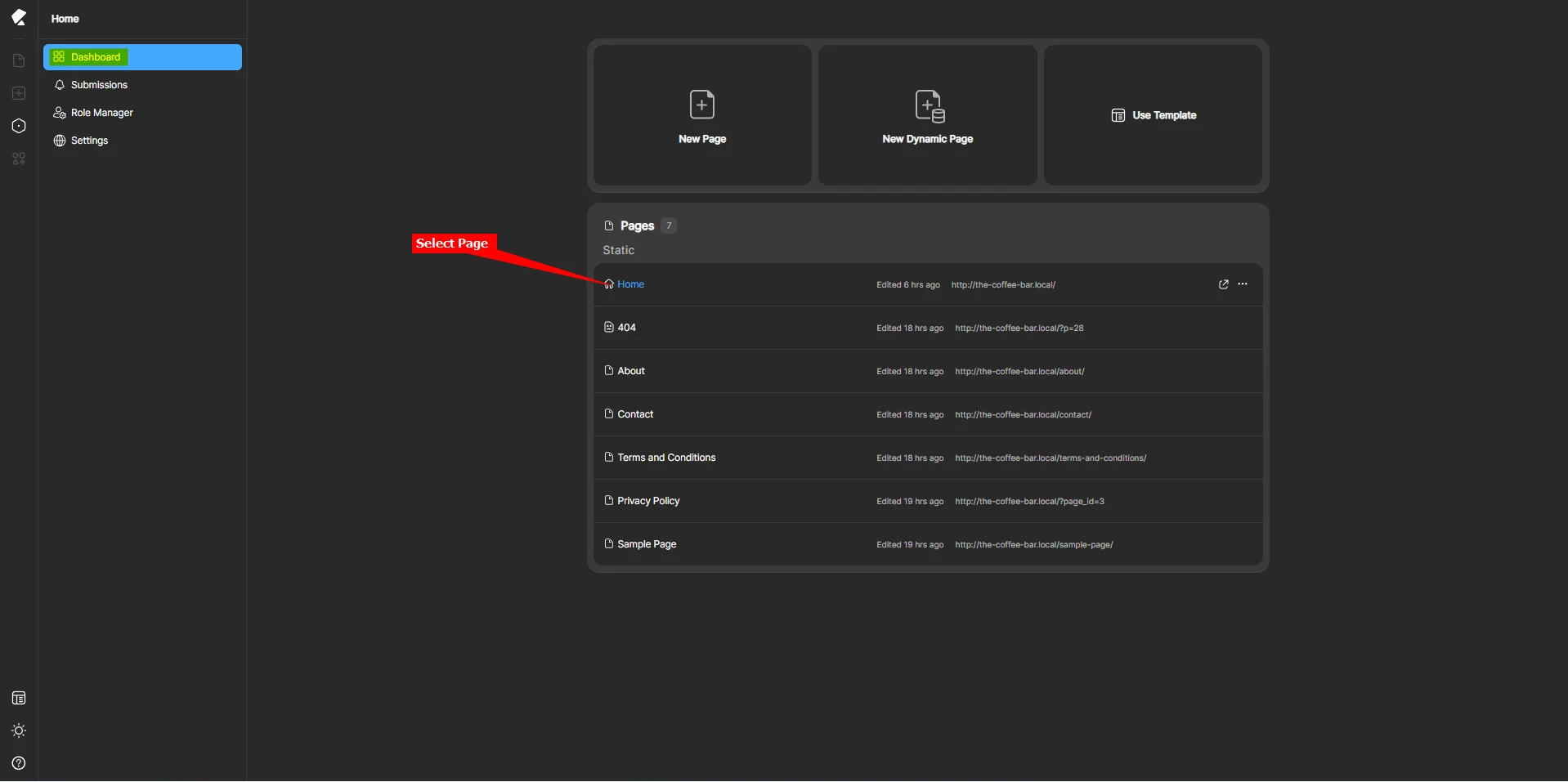
2. On the Kirki dashboard, select the page you want to add your support agent to
**Note**! Embedding your support agent in Kirki is done per page, thus you have to add the snippet to each page you want to add your support agent to.
2. On the Kirki dashboard, select the page you want to add your support agent to
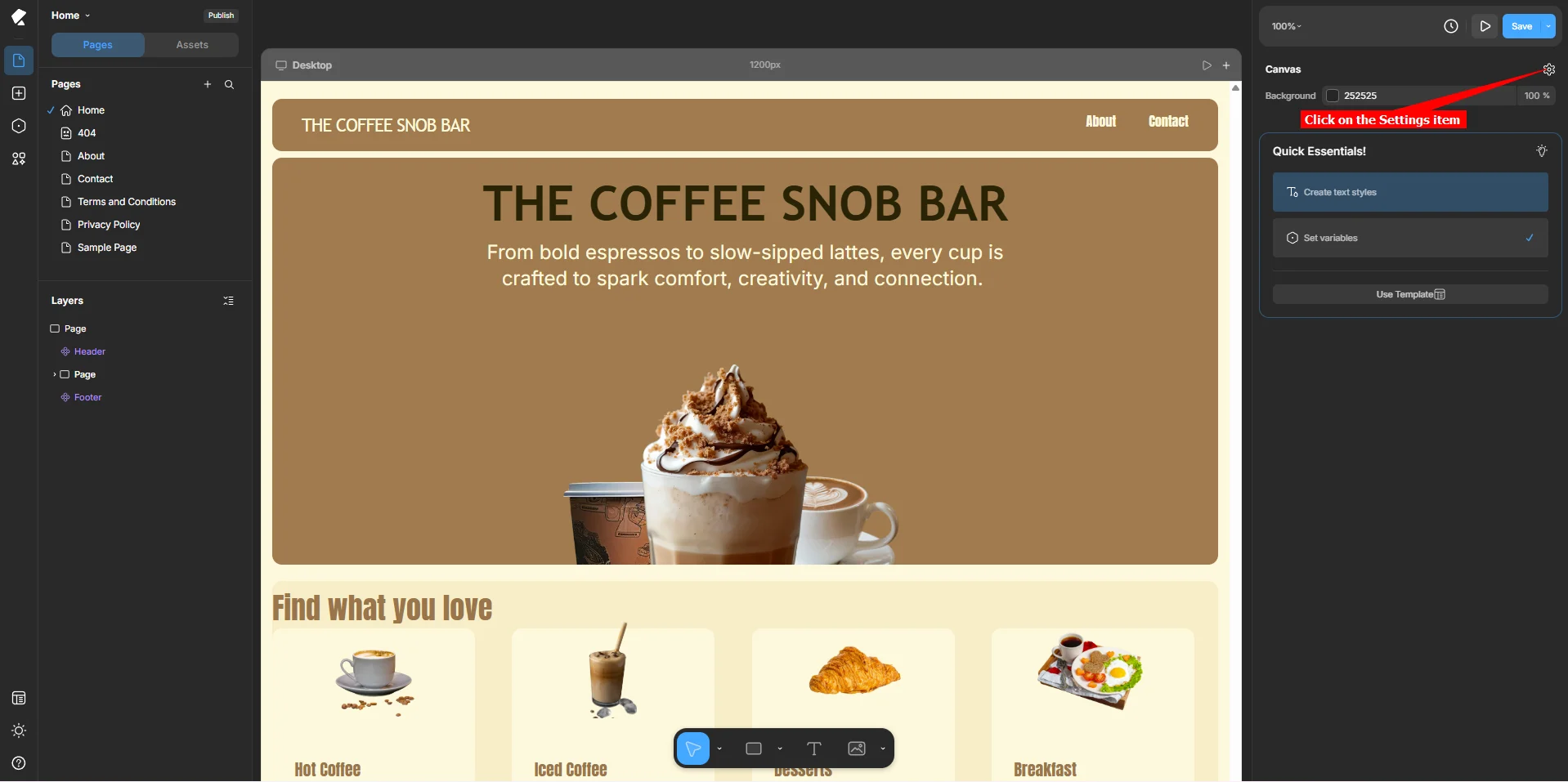
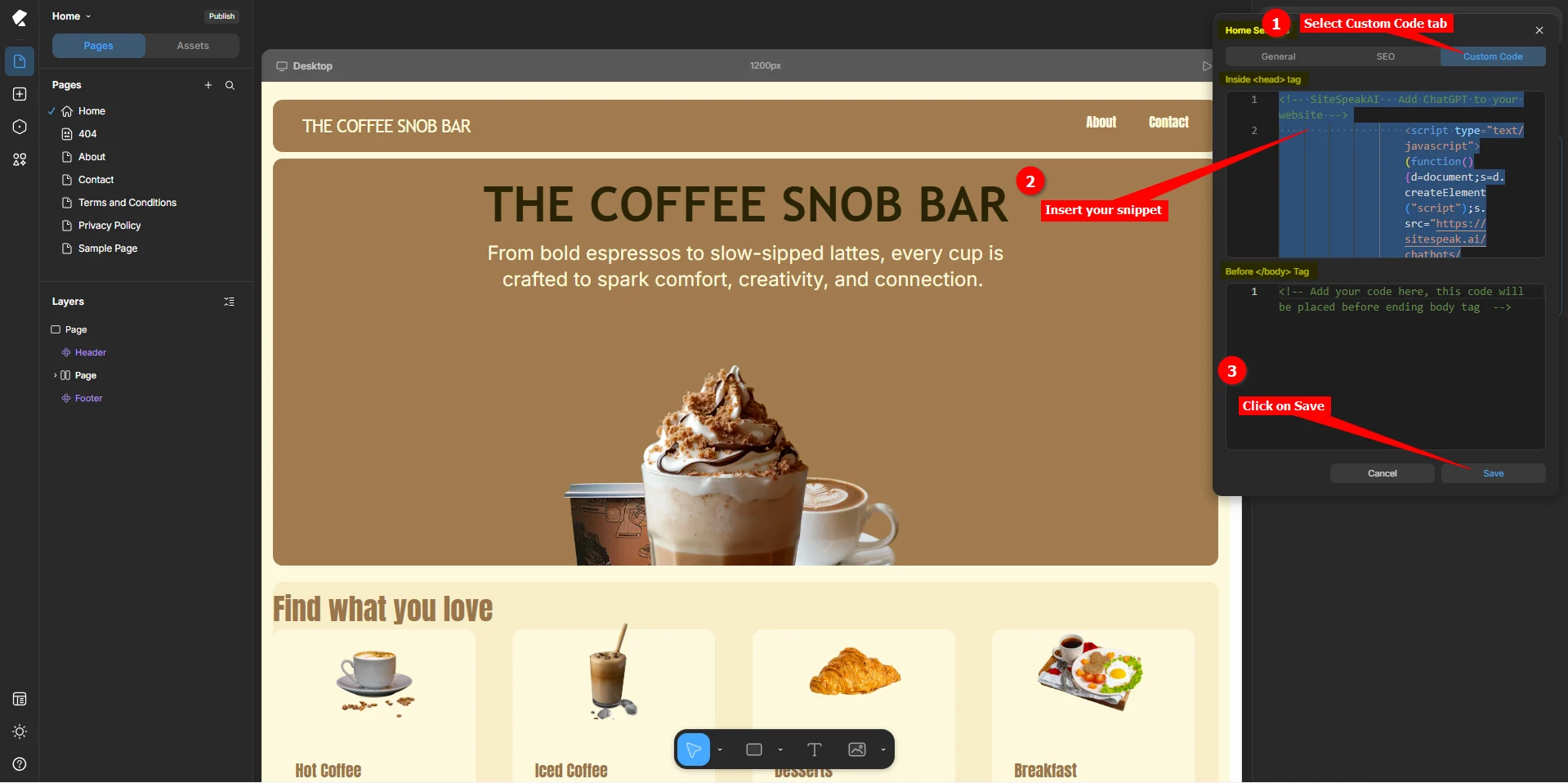
 3. On the Kirki Canvas displaying your page, select **Settings**
 4. Click on the **Custom Code** tab, insert your snippet in one of the two possible areas, i.e. **Inside``tag** or **Before``Tag** and click on **Save**
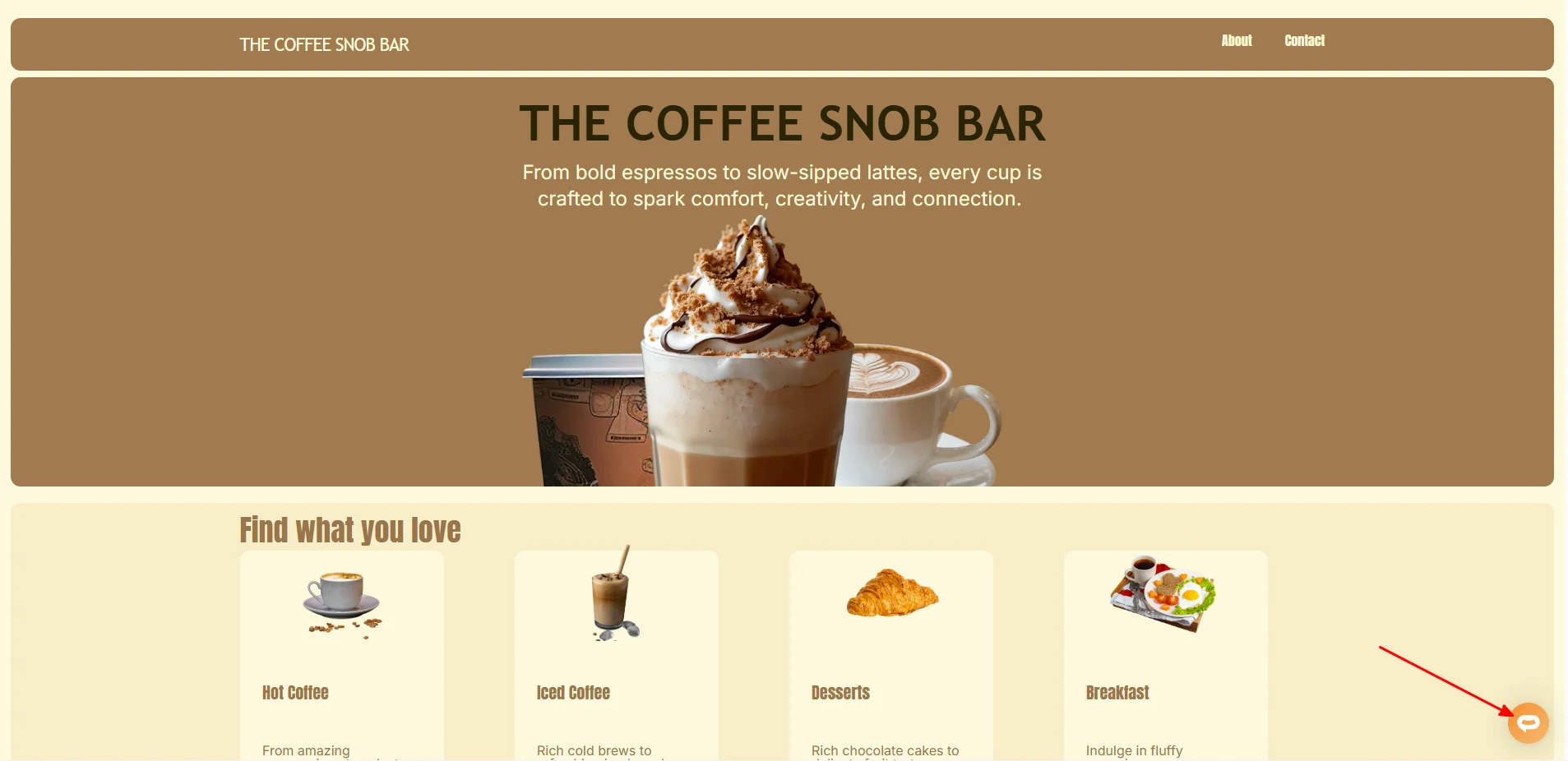
 5. Your AI support agent button will now be displayed on your **Kirki** website page
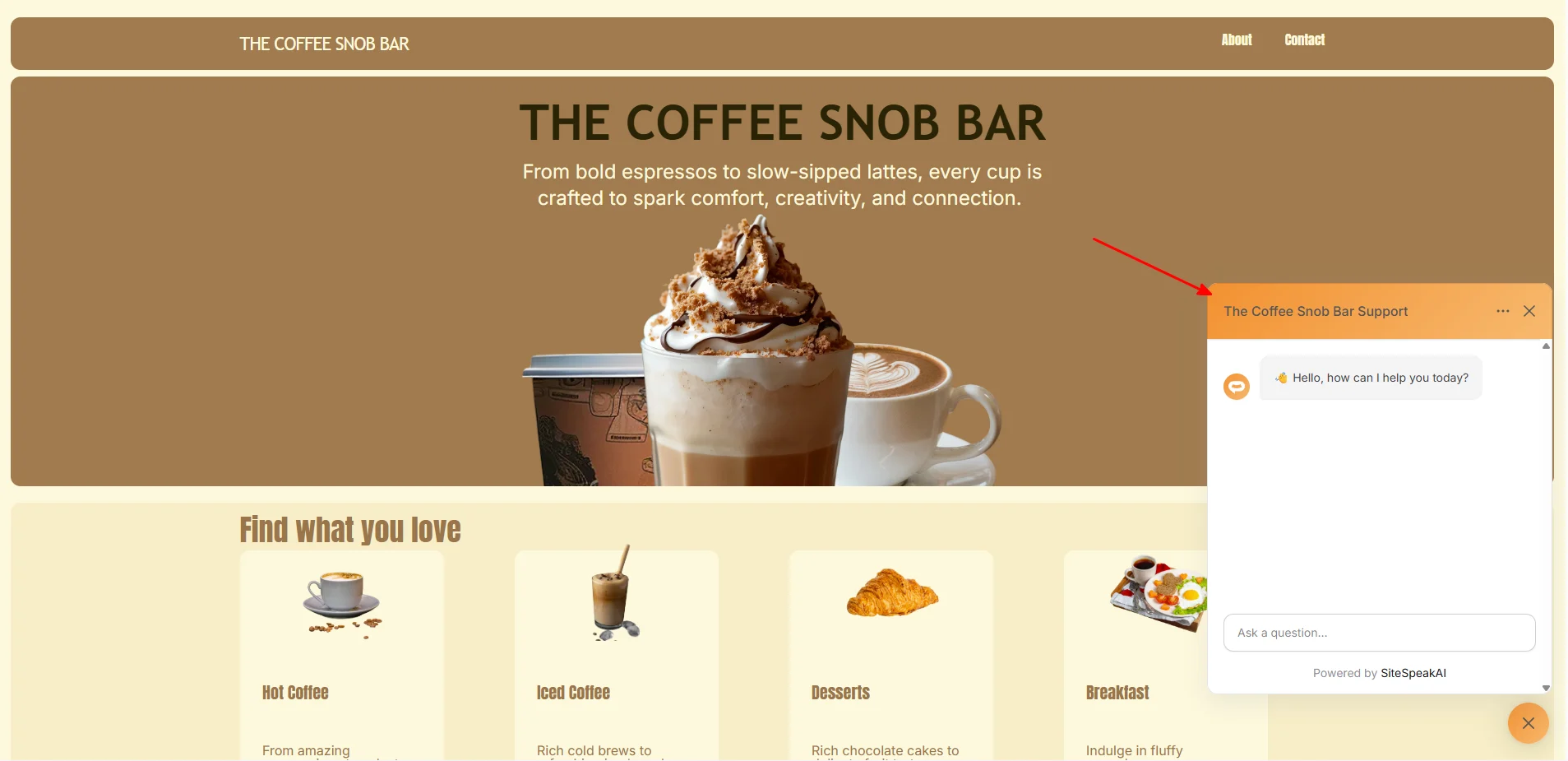
 6. If you click on the button it will display the AI support agent dialogue
 Your AI support agent has now been added to your **Kirki** built WordPress website and your visitors/customers can start interacting with it!
***
Join over 1000+ businesses, websites and startups automating their customer service and other tasks with a custom trained AI agent.
Your AI support agent has now been added to your **Kirki** built WordPress website and your visitors/customers can start interacting with it!
***
Join over 1000+ businesses, websites and startups automating their customer service and other tasks with a custom trained AI agent.