> ## Documentation Index
> Fetch the complete documentation index at: https://sitespeak.ai/docs/llms.txt
> Use this file to discover all available pages before exploring further.
# How to add a ChatGPT AI support agent to Lightfunnels
> How to add your custom ChatGPT trained AI support agent to your Lightfunnels storefront.
You want to embed your custom trained AI support agent in your **Lightfunnels** website page. Here's how to add an AI support agent to Lightfunnels with SiteSpeakAI.
**Lightfunnels** is a no-code platform designed to help entrepreneurs and small businesses quickly build and launch online courses, memberships, and digital products. It focuses on streamlining the entire sales process, from landing pages to payment processing.
**Website URL:** [Lightfunnels](https://lightfunnels.com/)
## Add your AI support agent to your **Lightfunnels** storefront
### In SiteSpeakAI
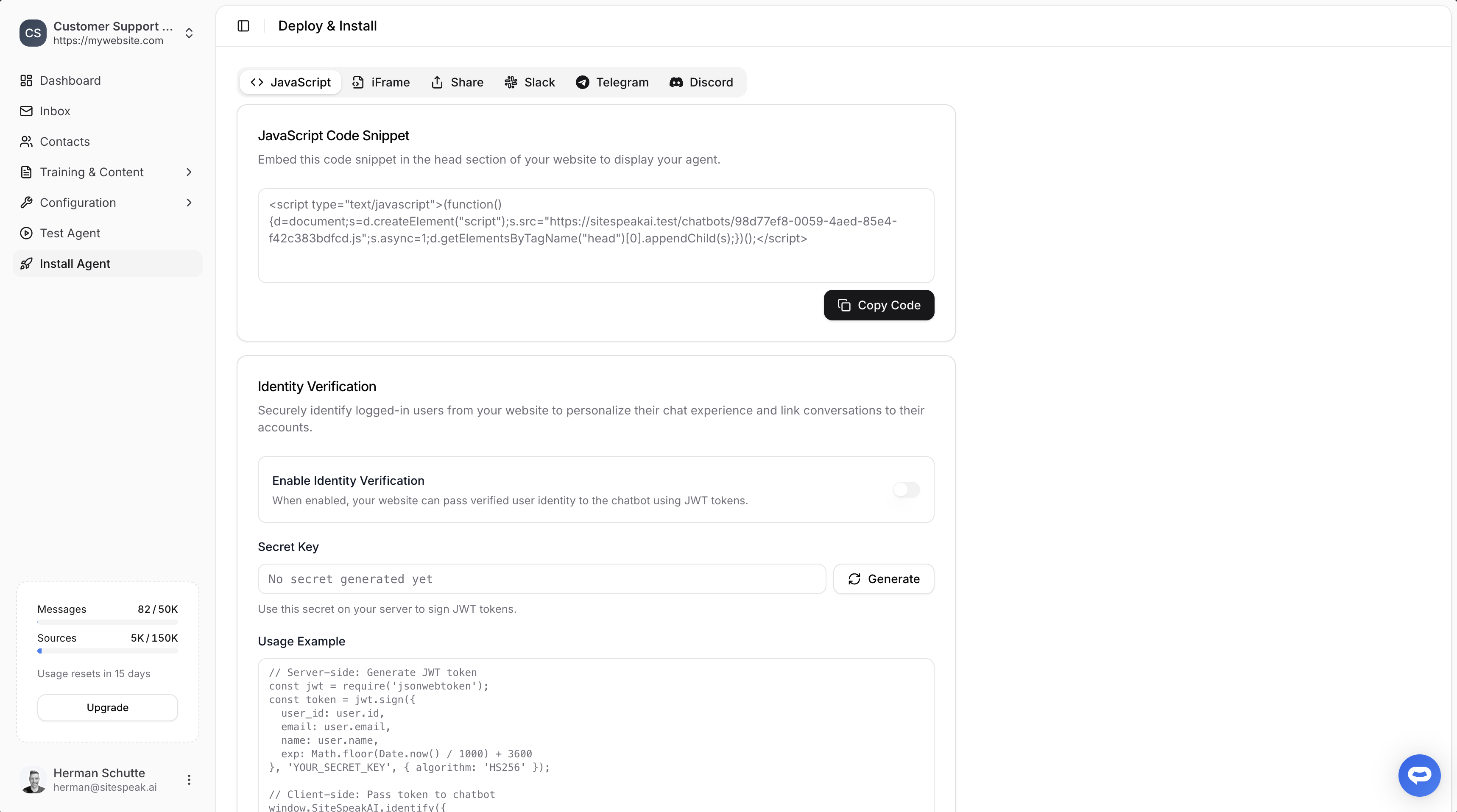
Select your chatbot from the dropdown menu at the top, click on the **Install Agent** section in the sidebar, then click on the **Copy Code** button to copy your code snippet.
 ### In Lightfunnels
1. Log into your **Lightfunnels** account and on the dashboard, select **Stores** on the left-side menu bar
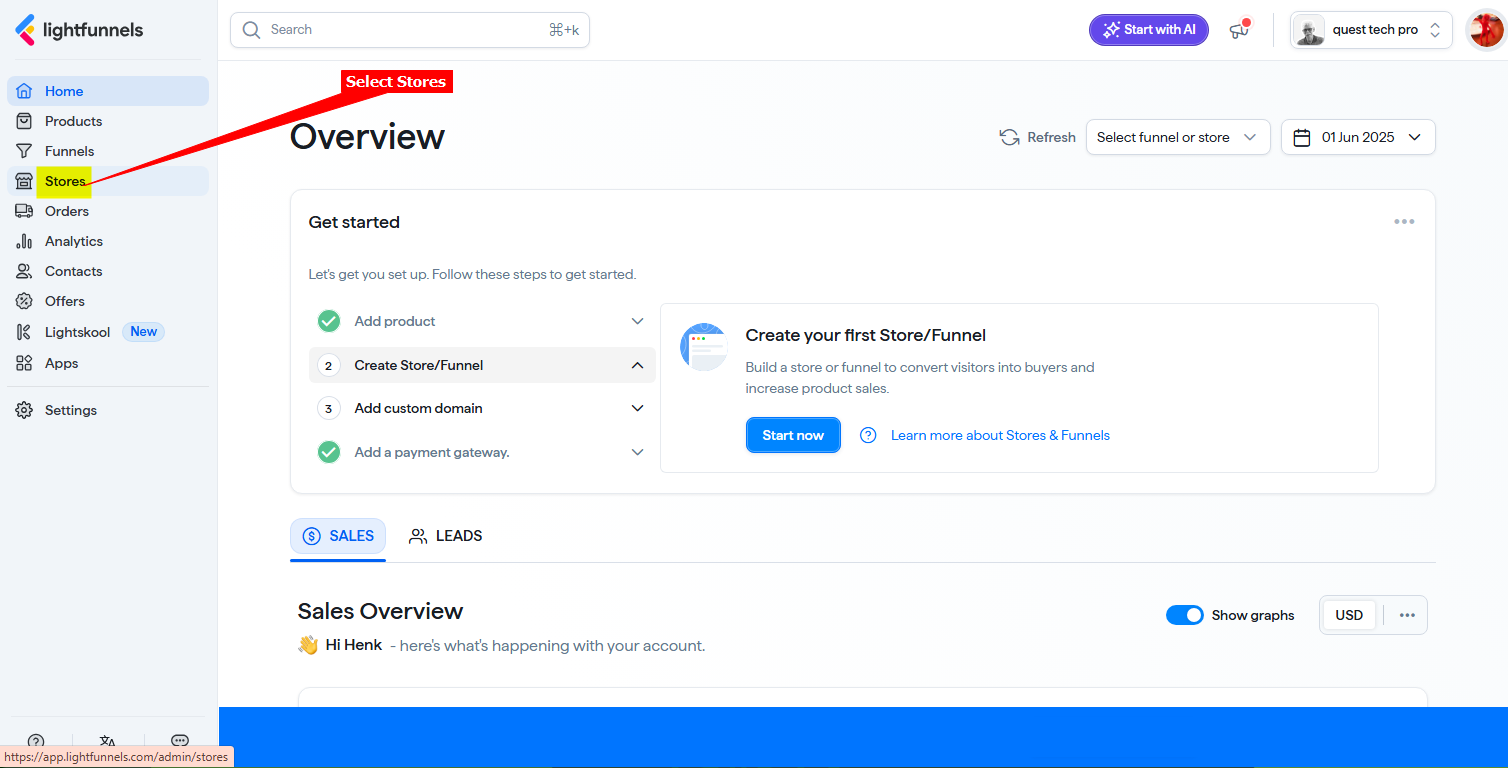
2. Select **Open store** to open the store you want to add your AI support agent snippet to
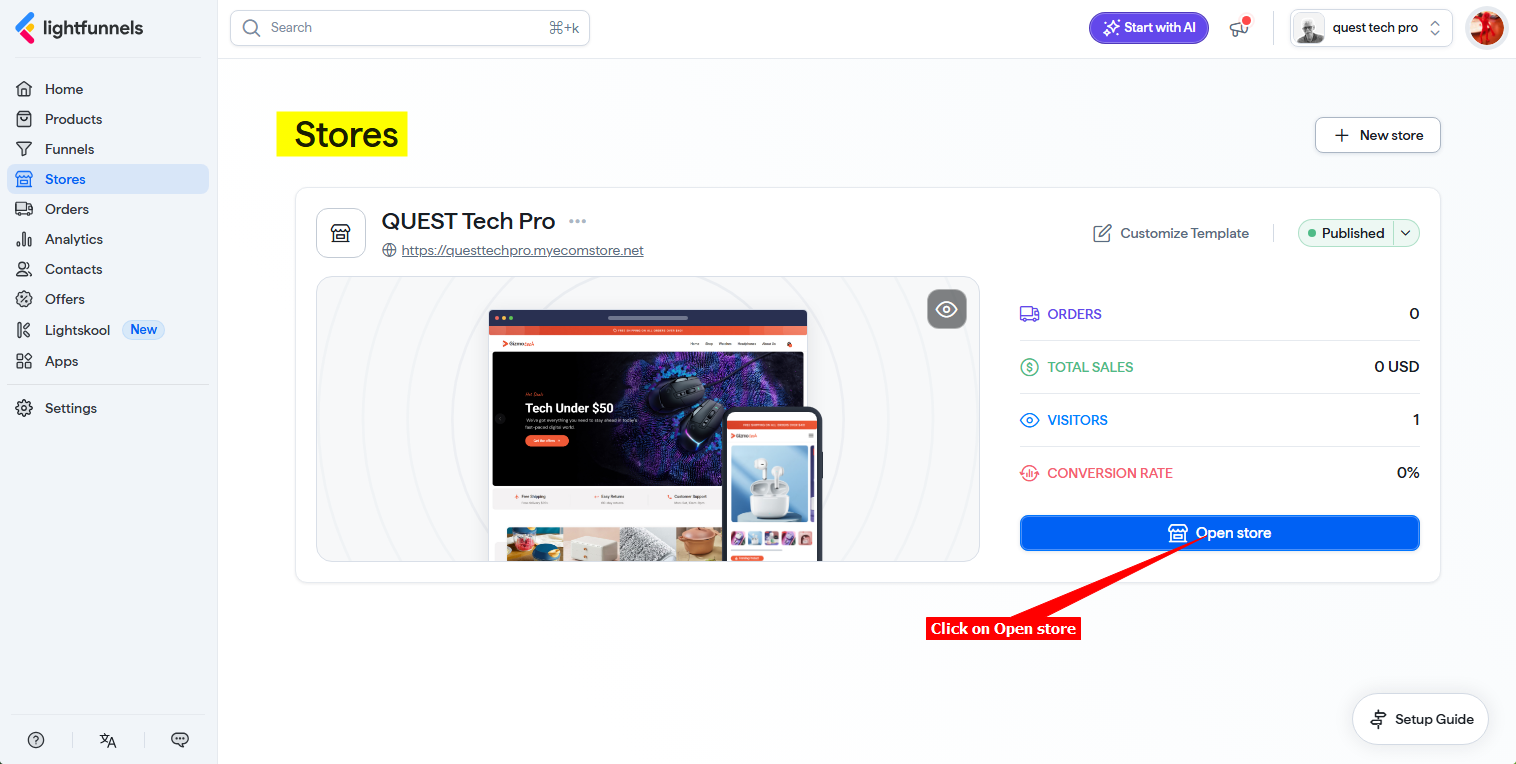
3. Click on the **Settings** tab
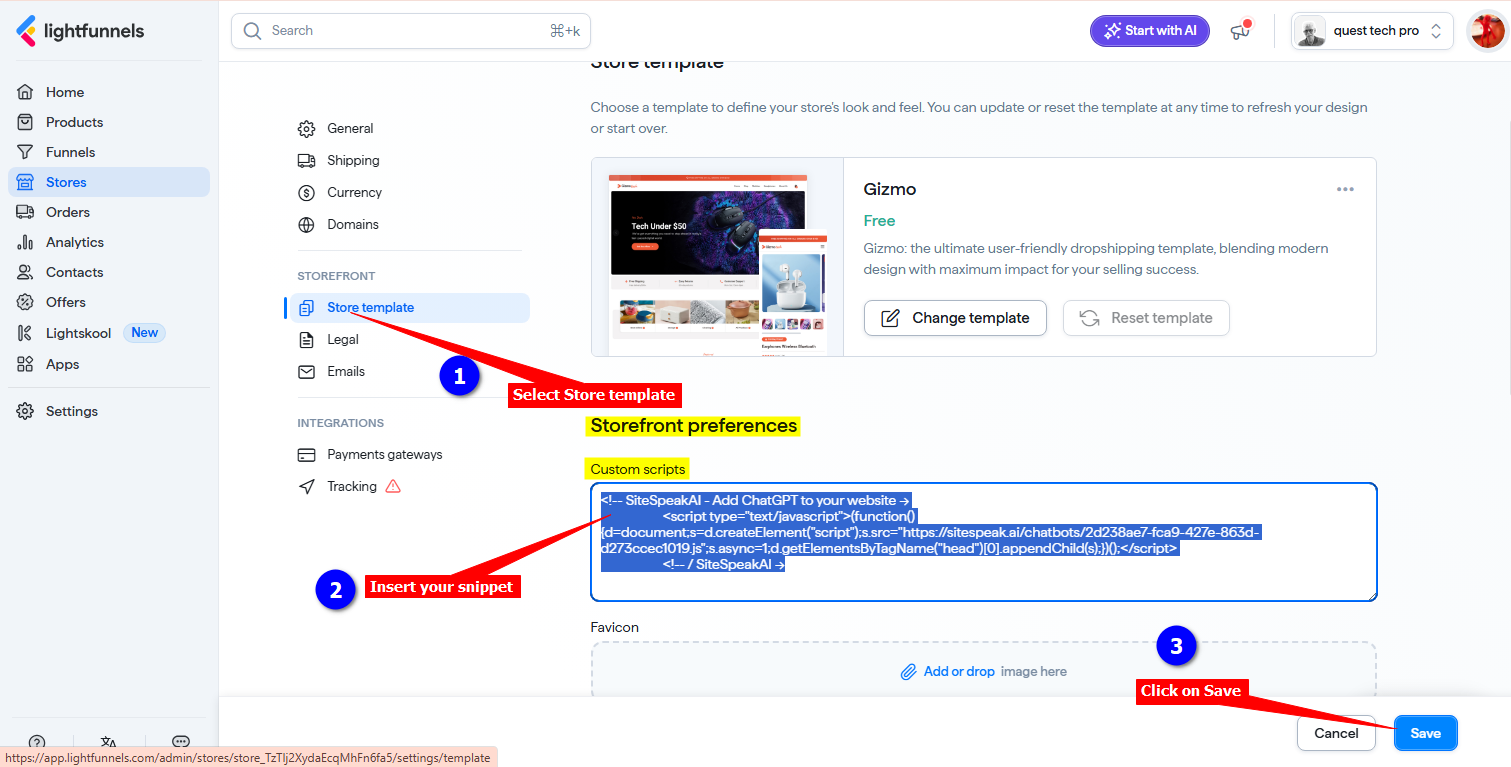
4. Select **Store template**, insert your snippet in the **Custom scripts** box under **Storefront preferences** and click on **Save** to save your changes
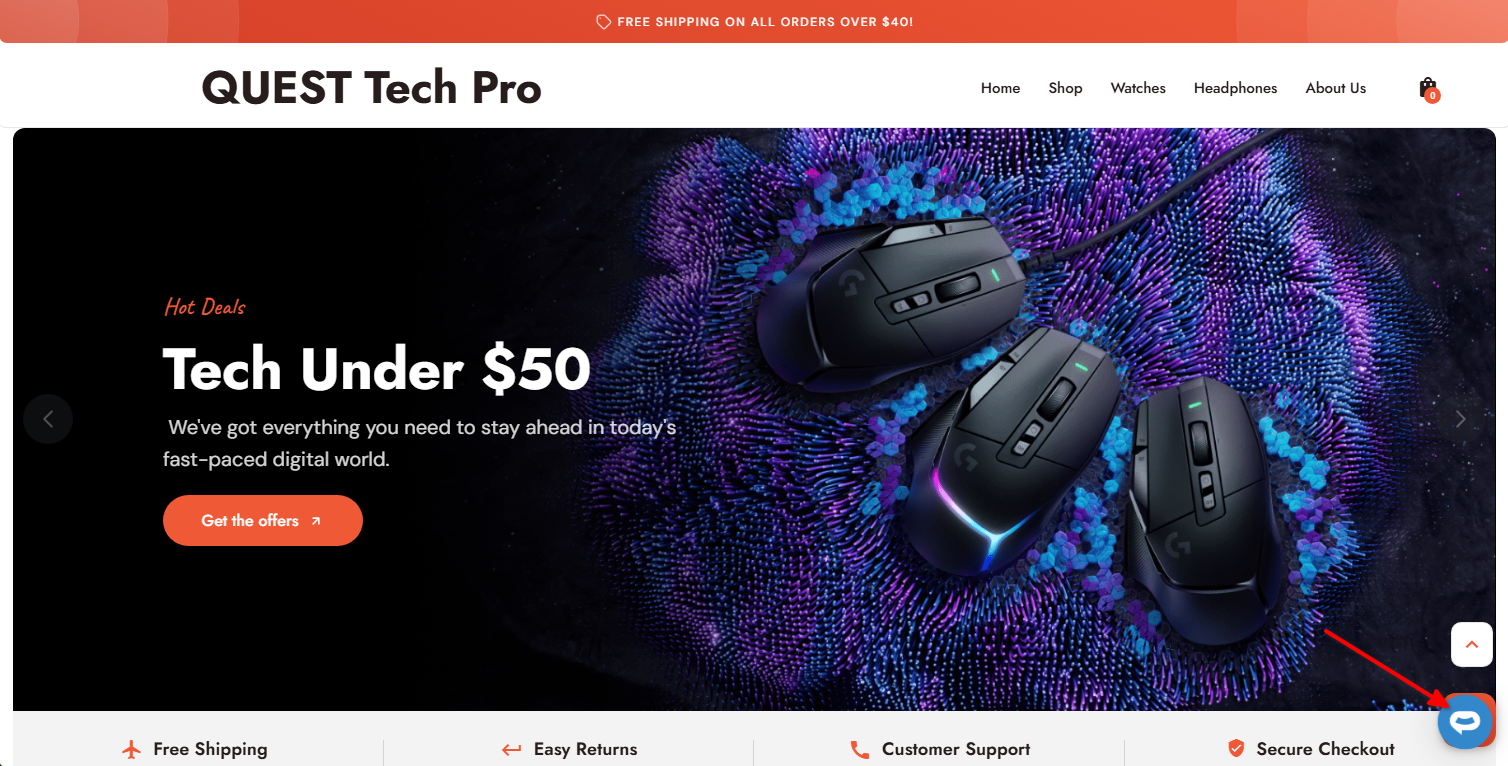
5. Your AI support agent button will now be displayed on your **Lightfunnels** storefront page
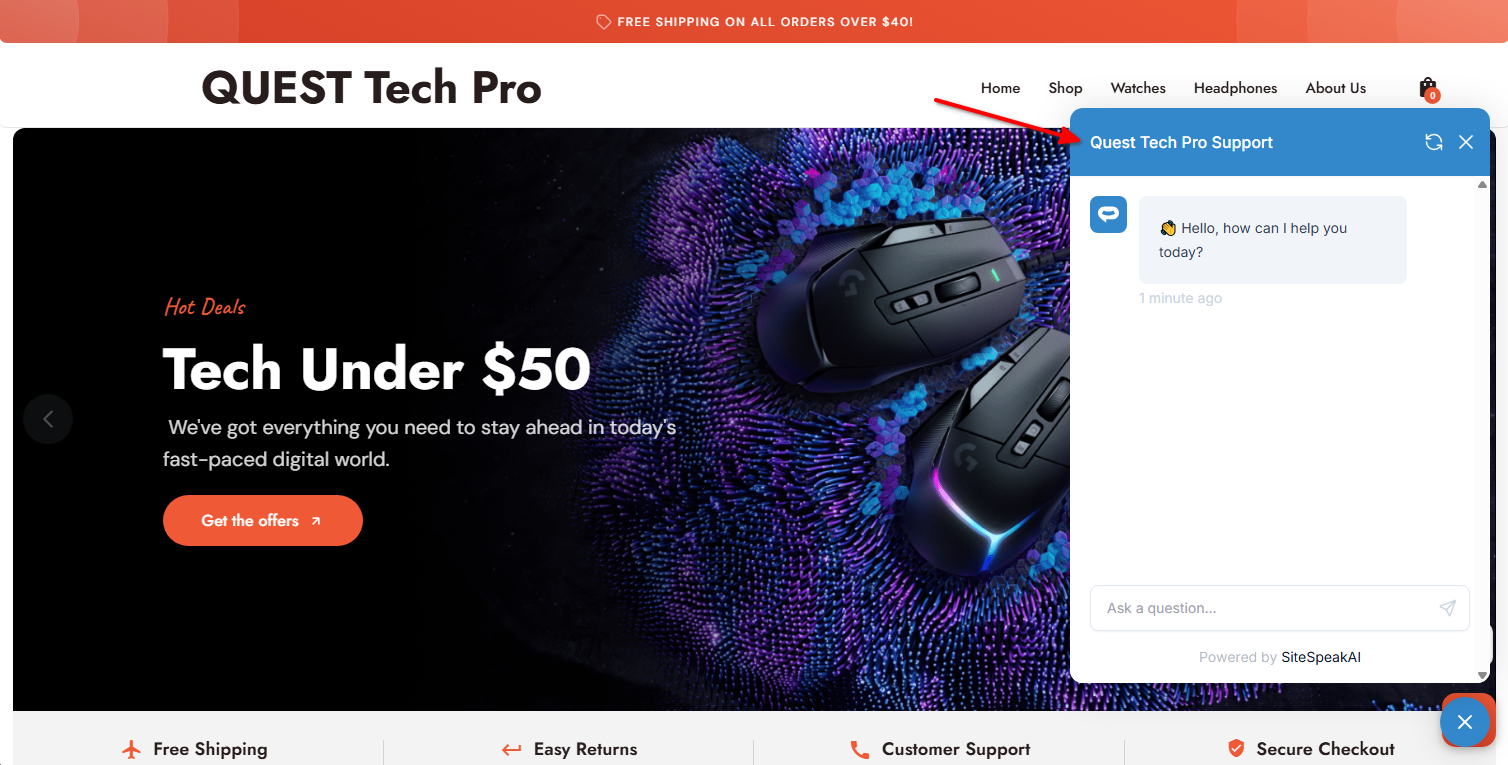
6. If you click on the button it will display the AI support agent dialogue
Your AI support agent has now been added to your **Lightfunnels** store and your visitors/customers can start interacting with it!
***
Join over 1000+ businesses, websites and startups automating their customer service and other tasks with a custom trained AI agent.
### In Lightfunnels
1. Log into your **Lightfunnels** account and on the dashboard, select **Stores** on the left-side menu bar

2. Select **Open store** to open the store you want to add your AI support agent snippet to

3. Click on the **Settings** tab

4. Select **Store template**, insert your snippet in the **Custom scripts** box under **Storefront preferences** and click on **Save** to save your changes

5. Your AI support agent button will now be displayed on your **Lightfunnels** storefront page

6. If you click on the button it will display the AI support agent dialogue

Your AI support agent has now been added to your **Lightfunnels** store and your visitors/customers can start interacting with it!
***
Join over 1000+ businesses, websites and startups automating their customer service and other tasks with a custom trained AI agent.