> ## Documentation Index
> Fetch the complete documentation index at: https://sitespeak.ai/docs/llms.txt
> Use this file to discover all available pages before exploring further.
# How to add a ChatGPT AI support agent to Marcom Robot
> How to add your custom ChatGPT trained AI support agent to your Marcom Robot landing page.
You want to embed your custom trained AI support agent in your **Marcom Robot** website page. Here's how to add an AI support agent to Marcom Robot with SiteSpeakAI.
**Marcom Robot** is a website builder that's designed to be incredibly easy to use, even if you have absolutely no experience with coding or website design. It uses a unique "chatbot" interface where you basically talk to the robot (Marcom) and tell it what you want your website to look like and do, and it builds it for you automatically. It generates clean, responsive websites based on your answers.
**Website:** [Marcom Robot](https://www.marcomrobot.com/)
## Add your AI support agent to your **Marcom Robot** website
### In SiteSpeakAI
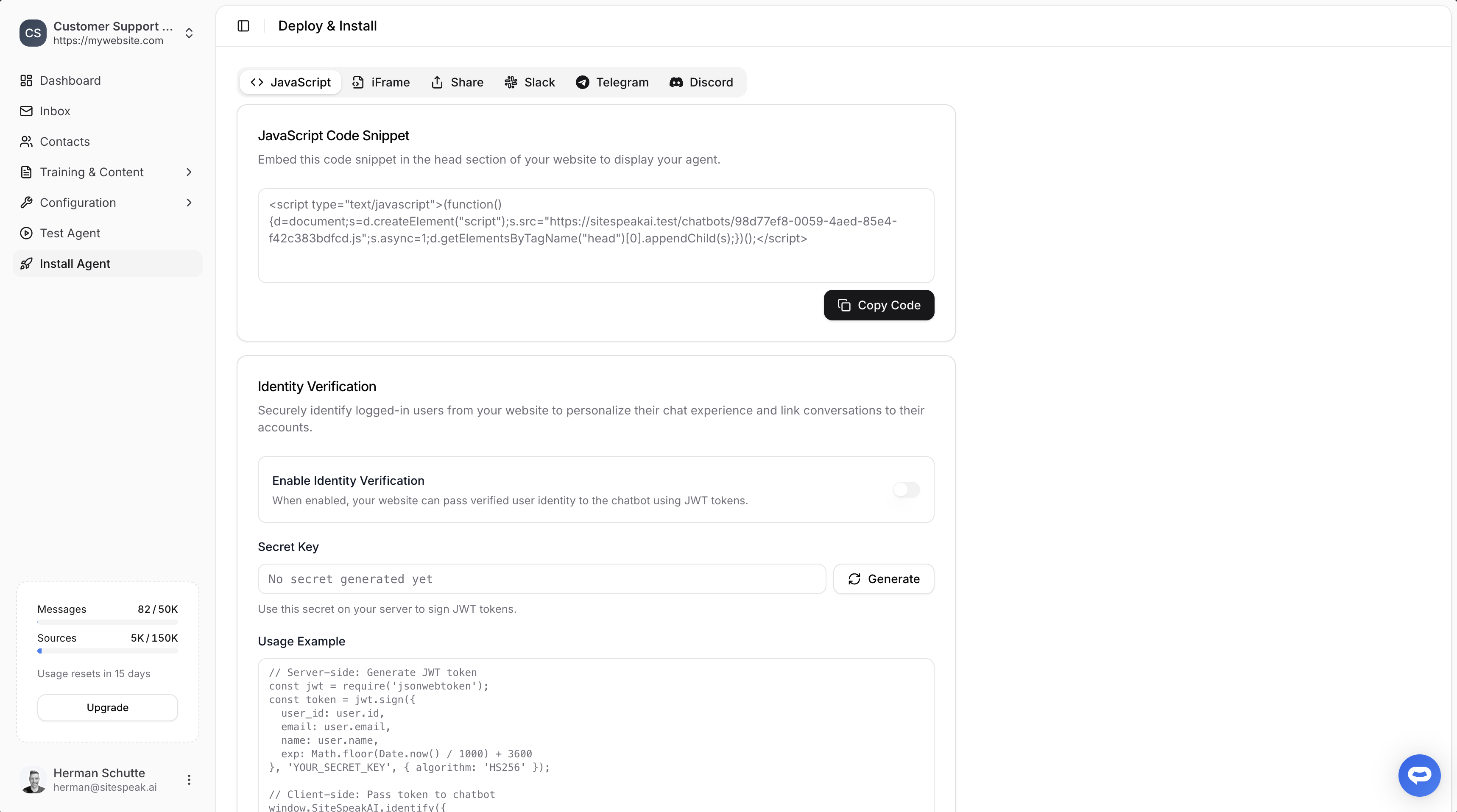
Select your chatbot from the dropdown menu at the top, click on the **Install Agent** section in the sidebar, then click on the **Copy Code** button to copy your code snippet.
 ### In Marcom Robot
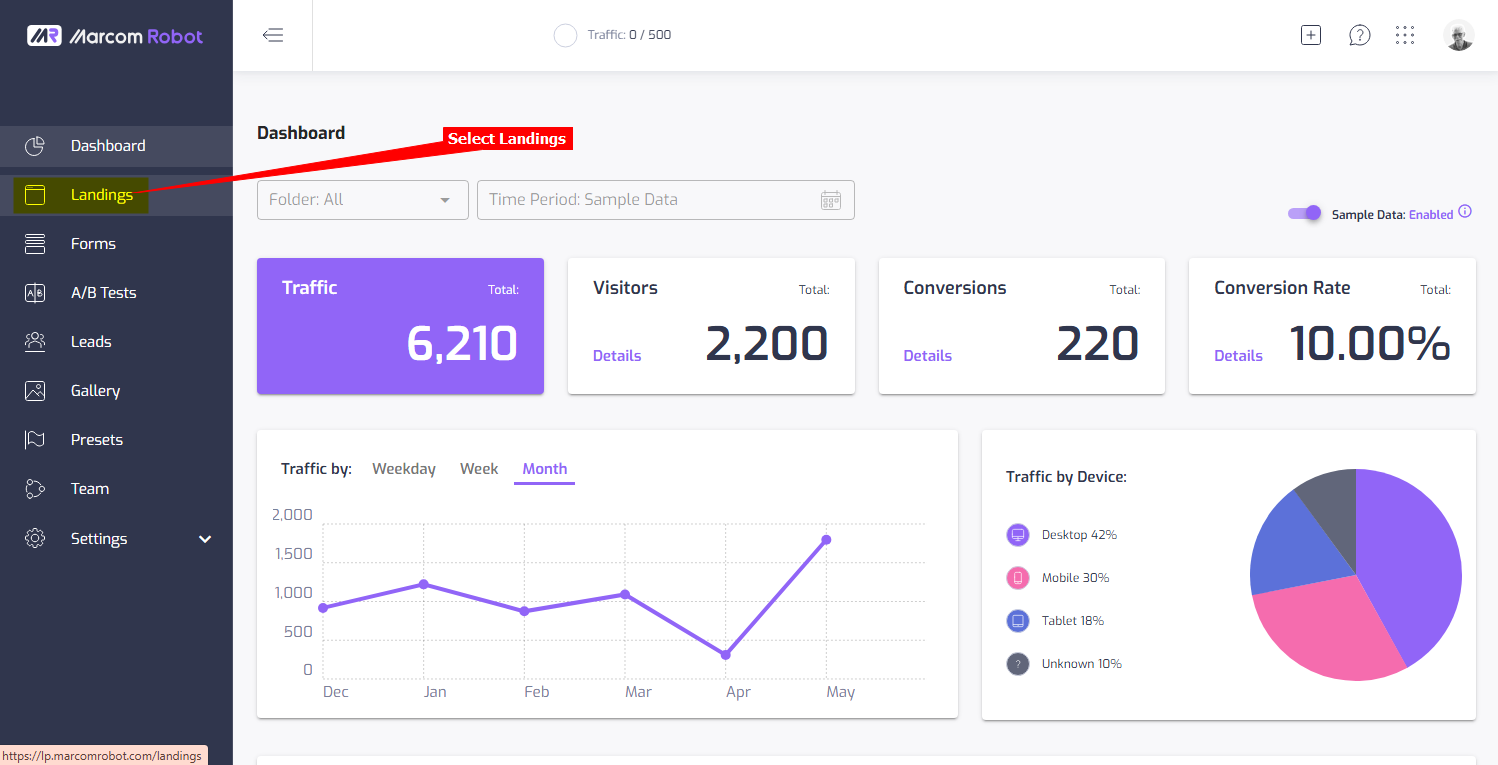
1. Log into your **Marcom Robot** account and on the Dashboard, select **Landings** on the left-side menu
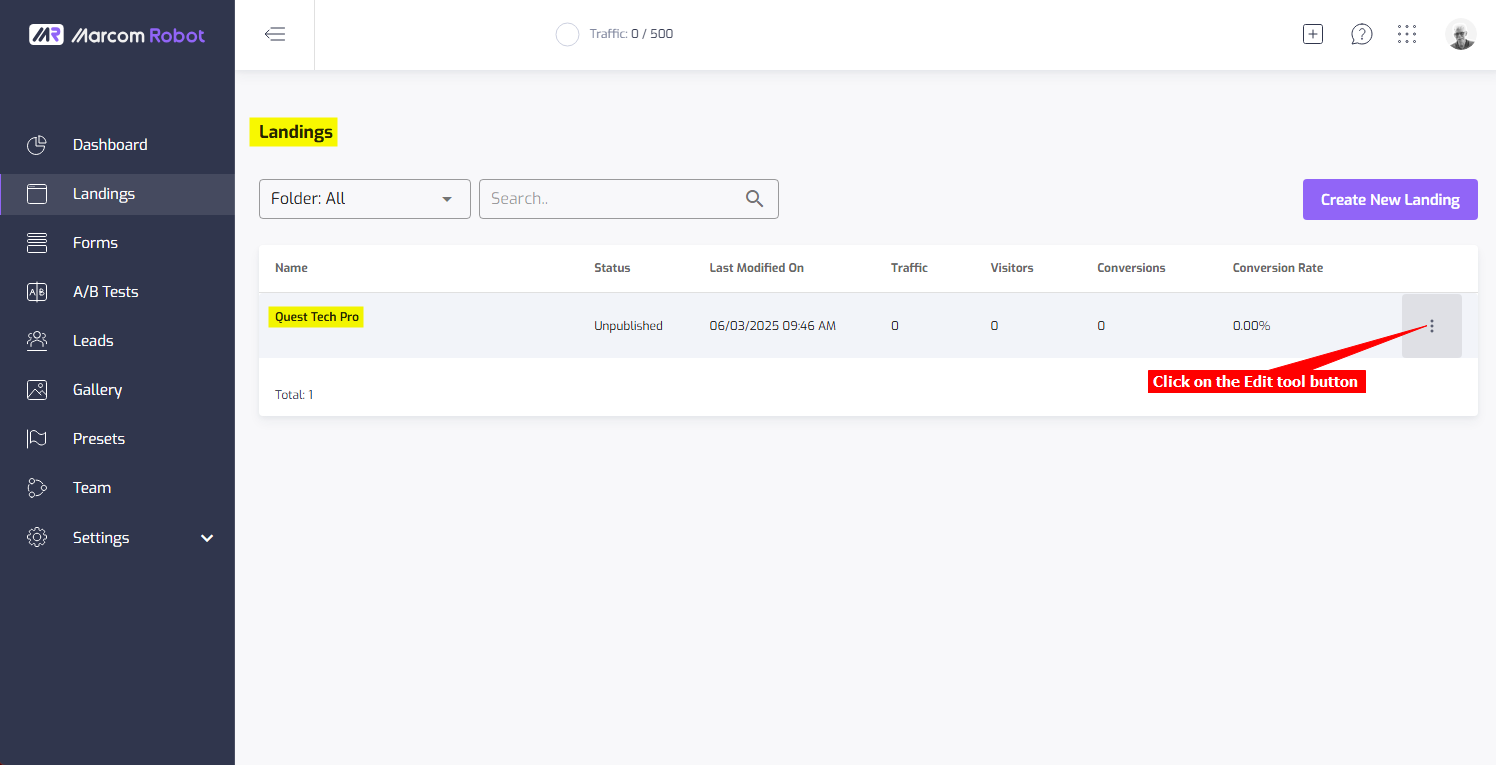
2. On the Landings page, click on the Edit tool button (the 3 vertical dots)
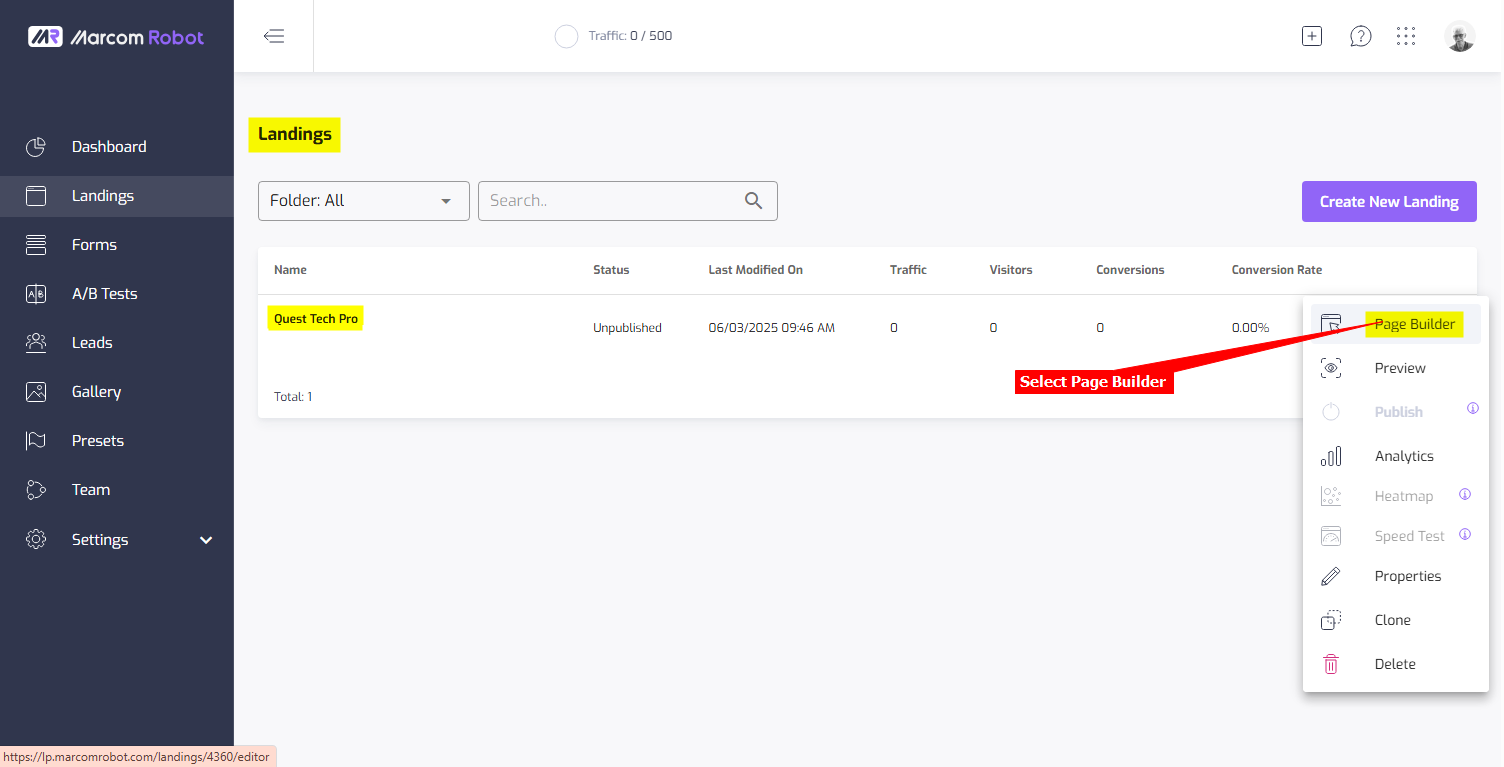
3. Select **Page Builder** to open your landing page in edit mode
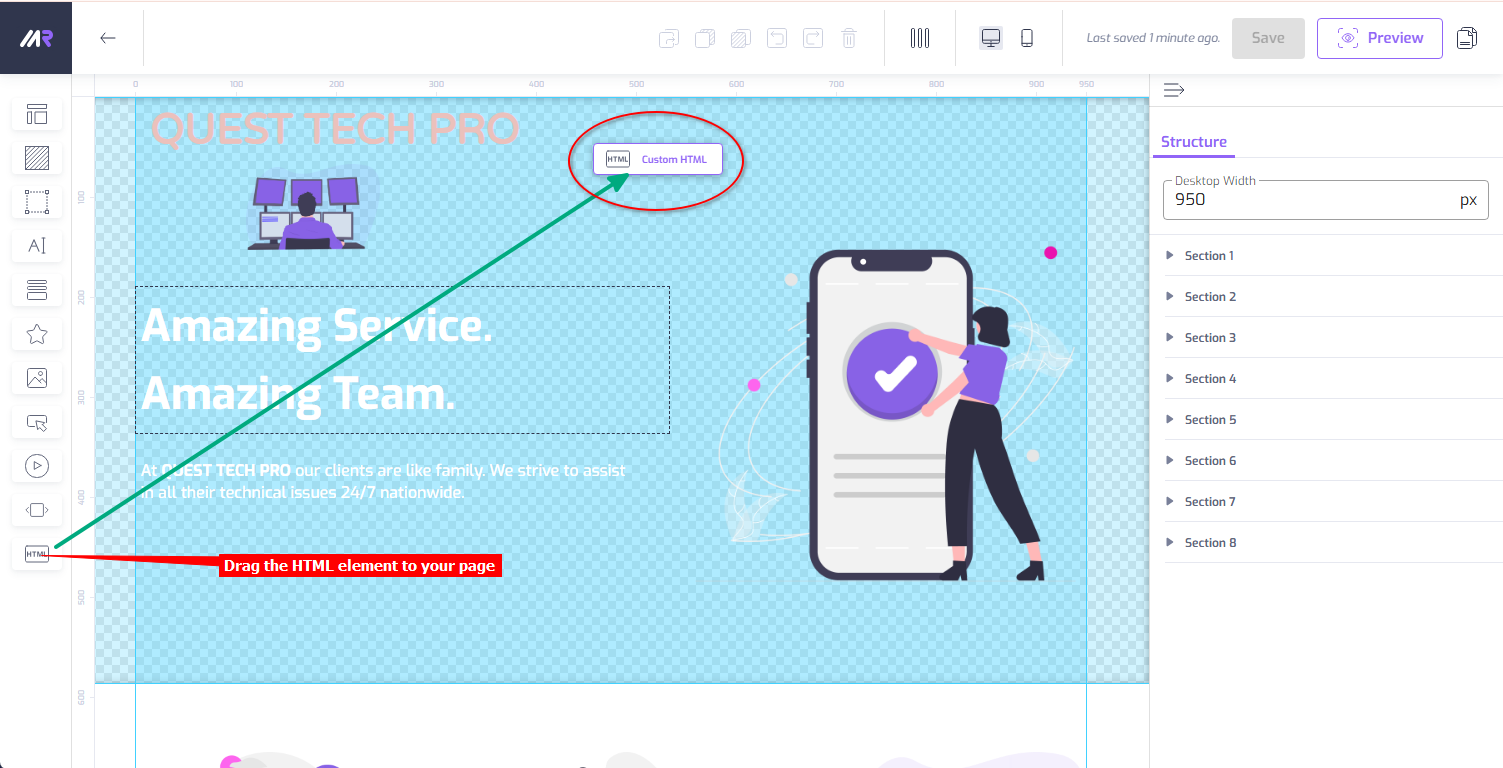
4. In the editor, drag the **HTML** element onto your page
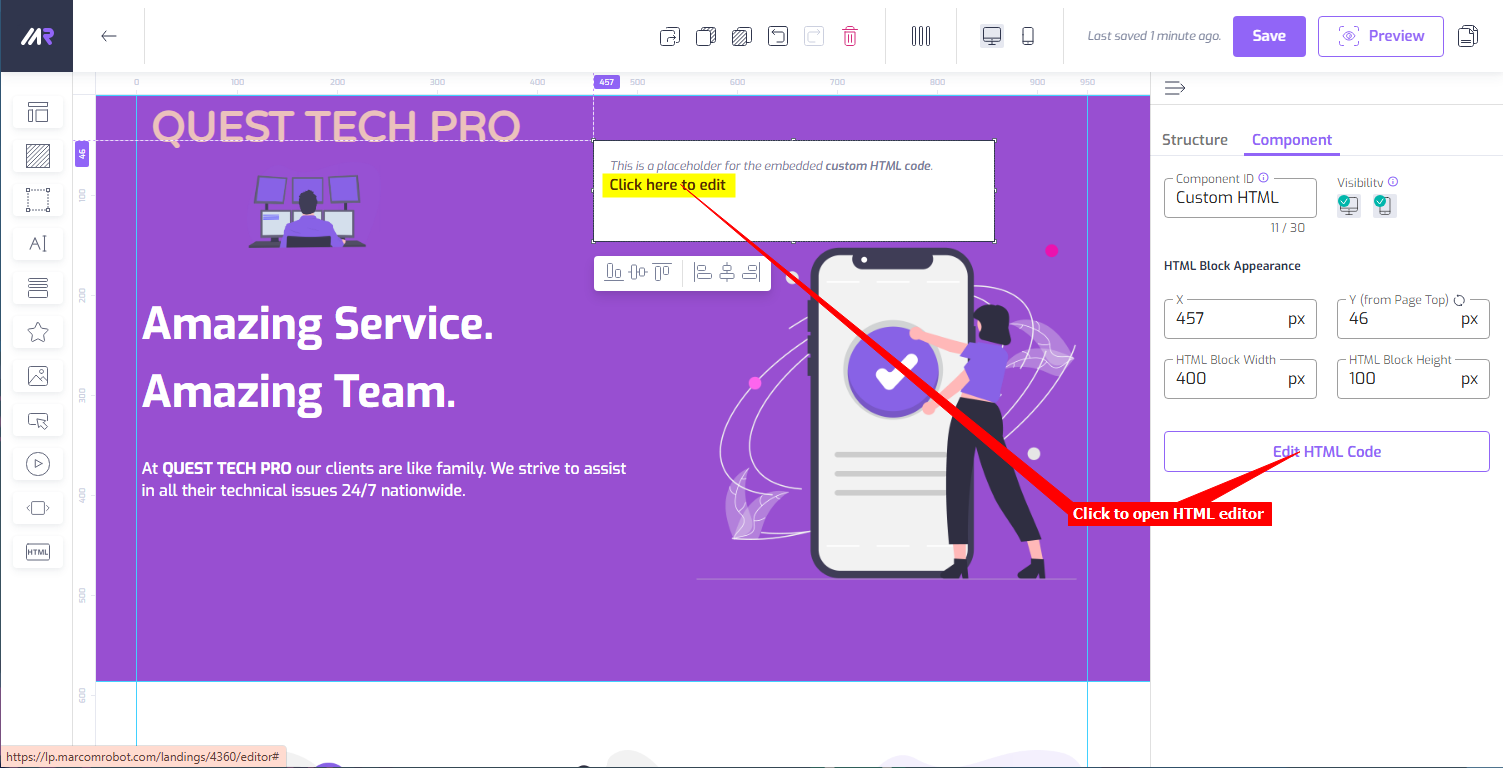
5. Click on **Click here to edit** or on the **Edit HTML Code** button to open the HTML editor
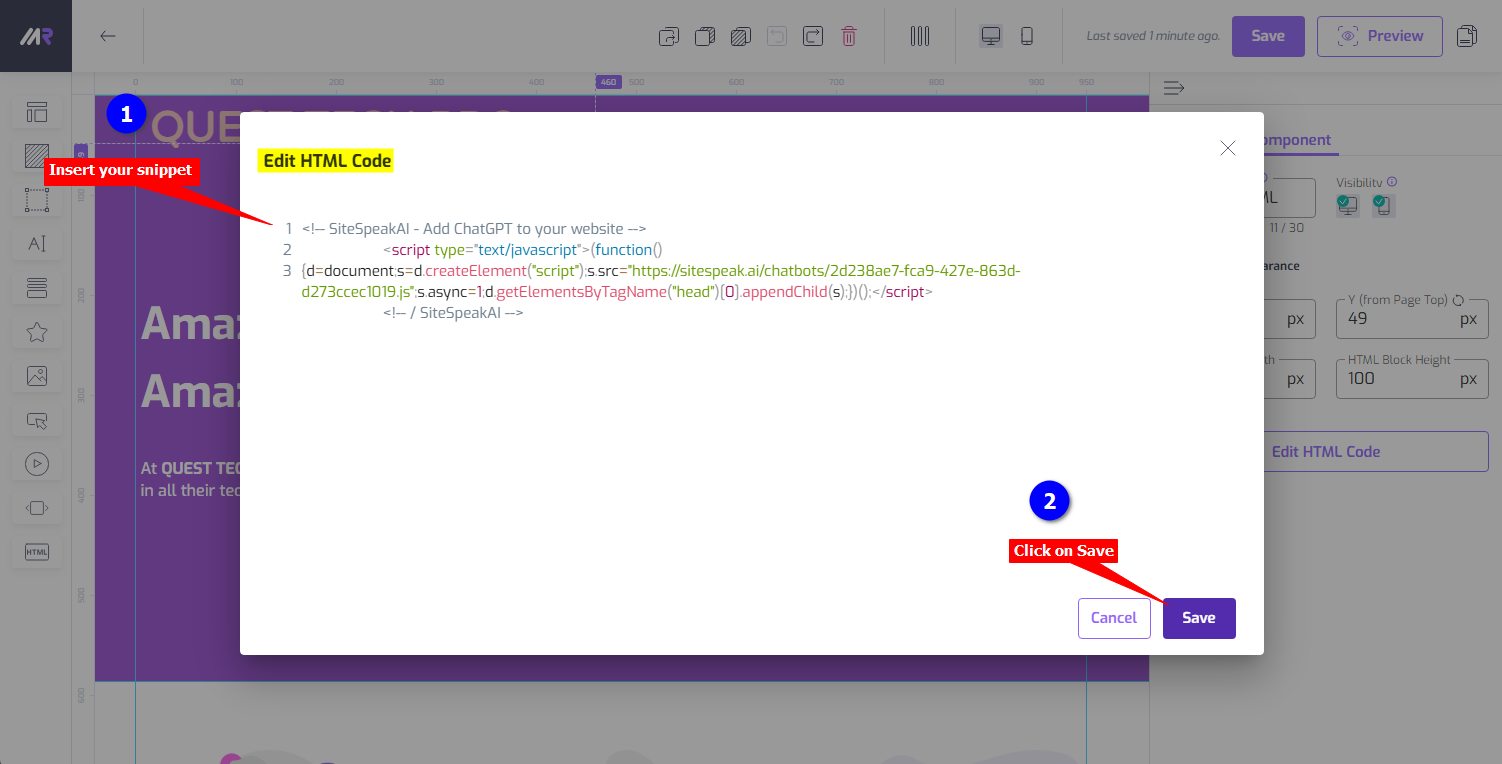
6. Insert your AI support agent snippet into the **Edit HTML Code** box and click on **Save**
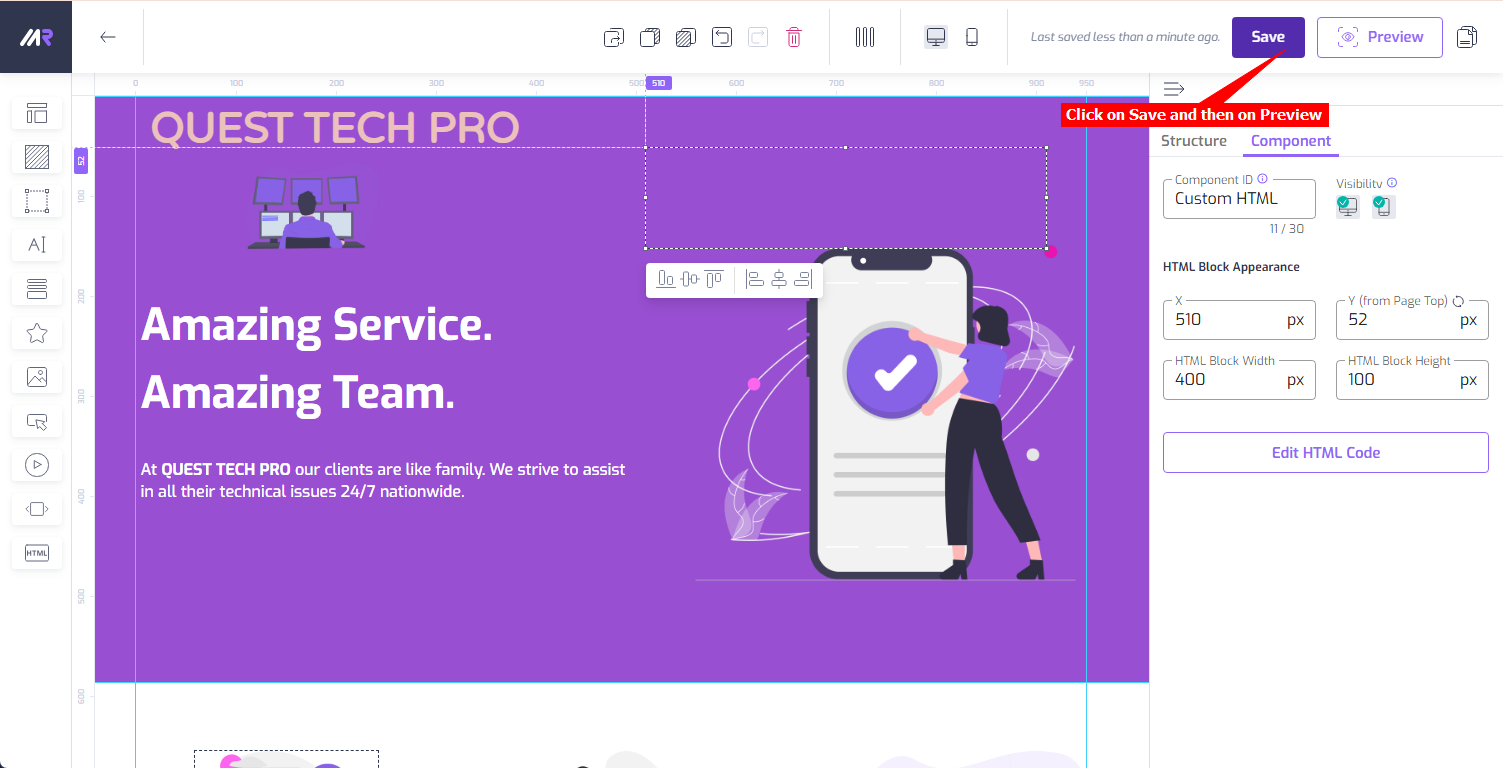
7. Click on **Save** to save your landing page changes and then click on **Preview** to view your page
8. Your AI support agent button will now be displayed on your **Marcom Robot** website page
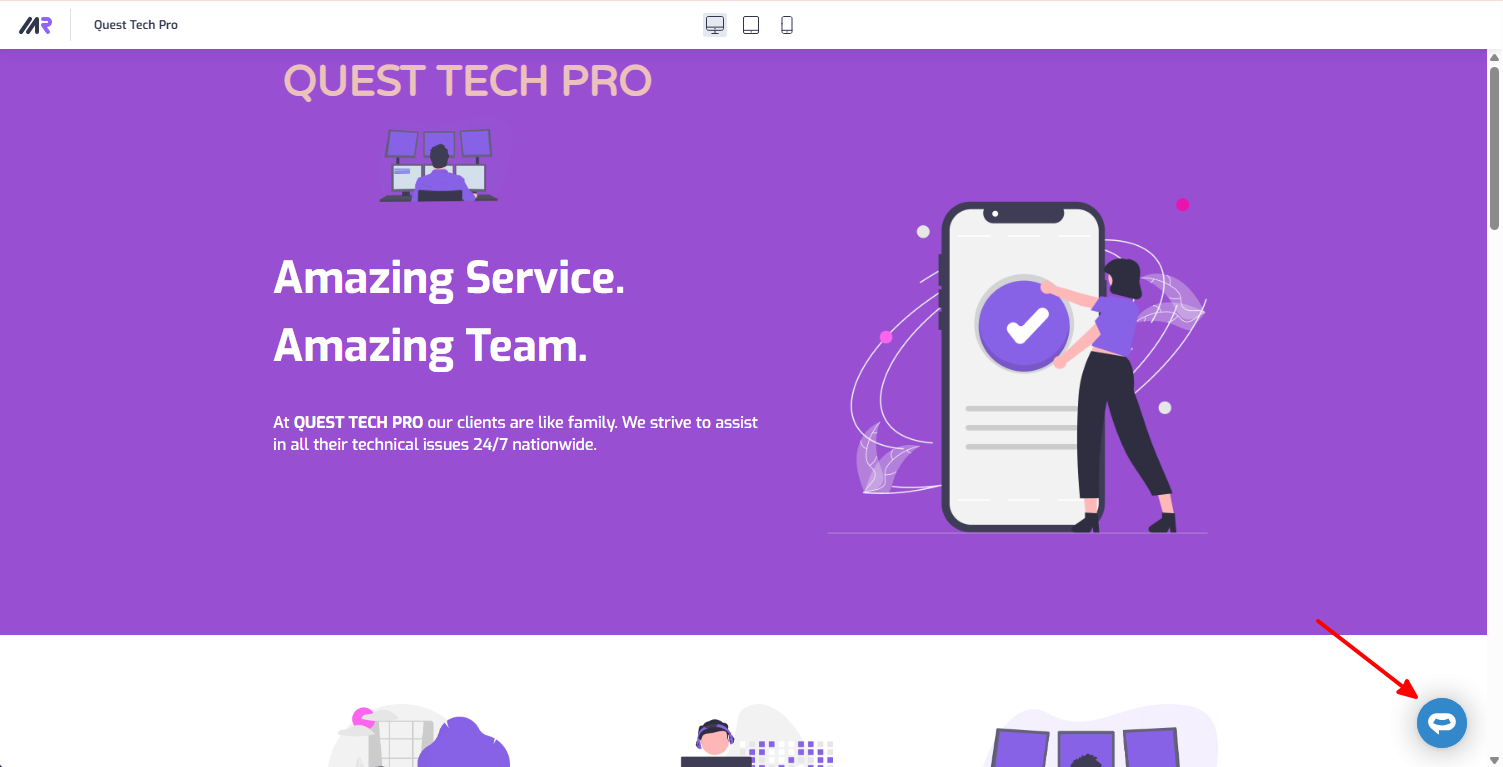
9. If you click on the button it will display the AI support agent dialogue
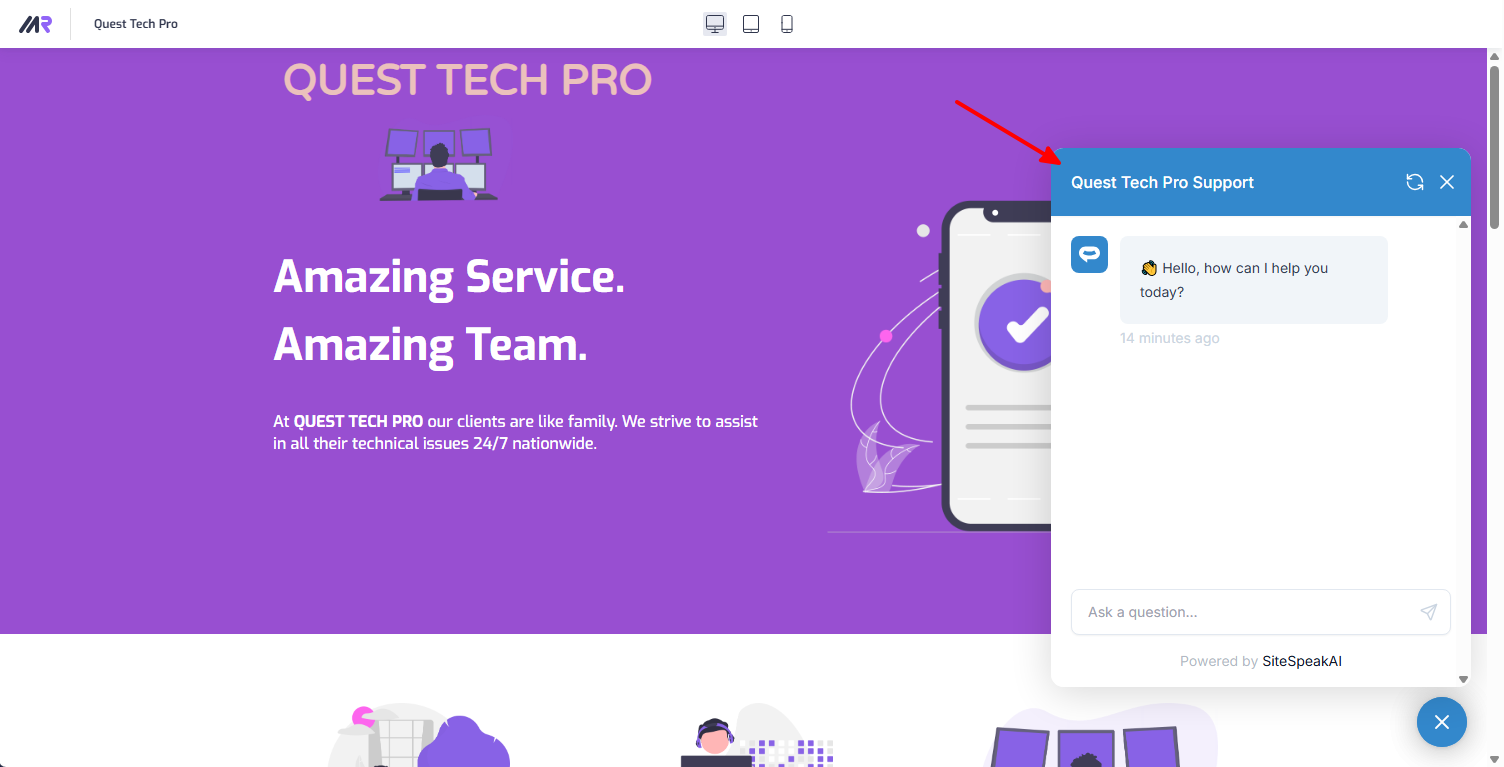
Your AI support agent has now been added to your **Marcom Robot** website and your visitors/customers can start interacting with it!
***
Join over 1000+ businesses, websites and startups automating their customer service and other tasks with a custom trained AI agent.
### In Marcom Robot
1. Log into your **Marcom Robot** account and on the Dashboard, select **Landings** on the left-side menu

2. On the Landings page, click on the Edit tool button (the 3 vertical dots)

3. Select **Page Builder** to open your landing page in edit mode

4. In the editor, drag the **HTML** element onto your page

5. Click on **Click here to edit** or on the **Edit HTML Code** button to open the HTML editor

6. Insert your AI support agent snippet into the **Edit HTML Code** box and click on **Save**

7. Click on **Save** to save your landing page changes and then click on **Preview** to view your page

8. Your AI support agent button will now be displayed on your **Marcom Robot** website page

9. If you click on the button it will display the AI support agent dialogue

Your AI support agent has now been added to your **Marcom Robot** website and your visitors/customers can start interacting with it!
***
Join over 1000+ businesses, websites and startups automating their customer service and other tasks with a custom trained AI agent.