> ## Documentation Index
> Fetch the complete documentation index at: https://sitespeak.ai/docs/llms.txt
> Use this file to discover all available pages before exploring further.
# How to add a ChatGPT AI support agent to Neocities
> How to add your custom ChatGPT trained AI support agent to your Neocities website.
You want to embed your custom trained AI support agent in your **Neocities** website page. Here's how to add an AI support agent to Neocities with SiteSpeakAI.
**Neocities** is a web hosting service for personal websites. It is ideal for those who want to build from scratch. It’s a 100% free hosting platform and builder that provides an in-browser HTML editor, allowing total control over your raw HTML and CSS.
**Website URL:** [Neocities](https://neocities.org/)
## Add your AI support agent to your **Neocities** website
### In SiteSpeakAI
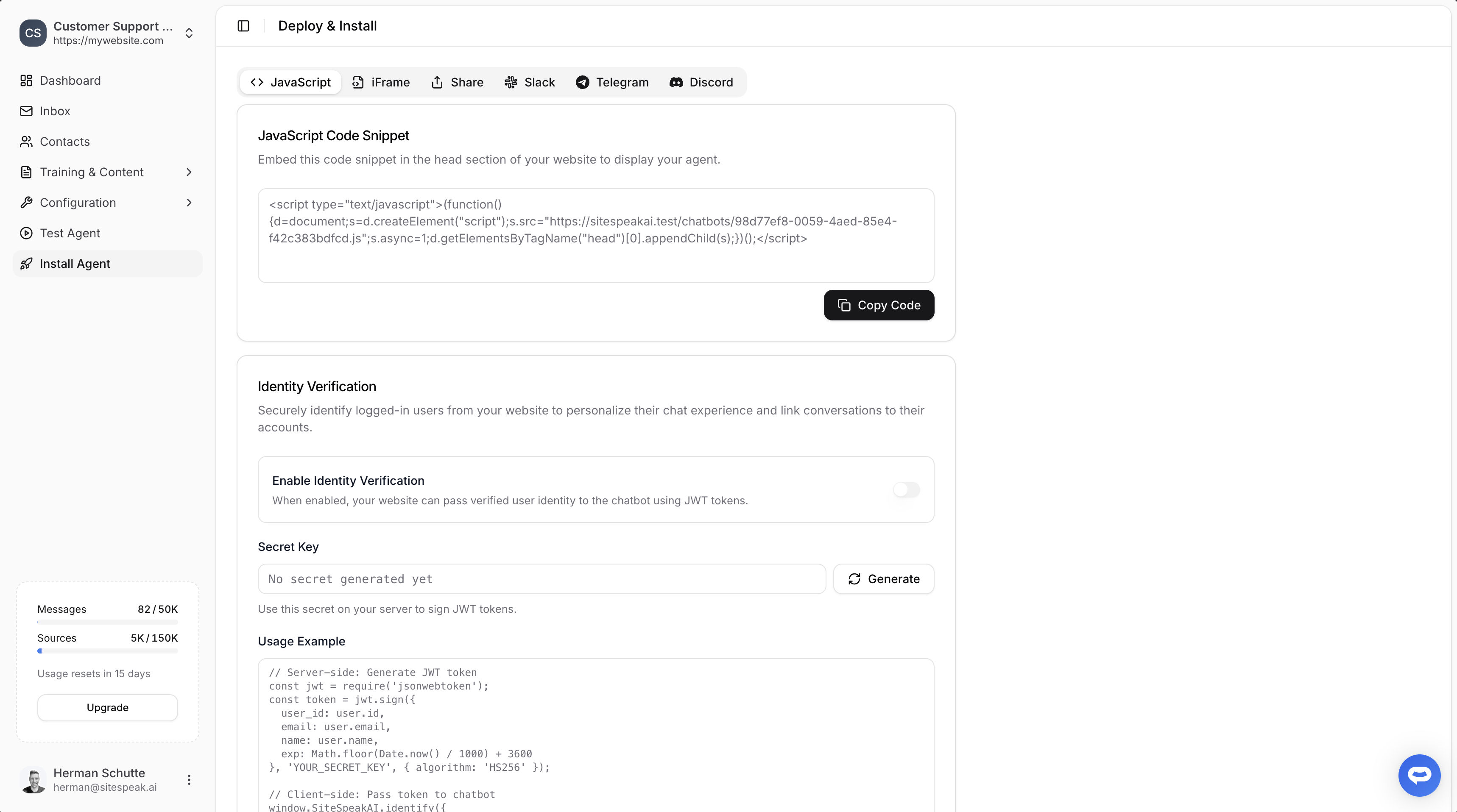
Select your chatbot from the dropdown menu at the top, click on the **Install Agent** section in the sidebar, then click on the **Copy Code** button to copy your code snippet.
 ### In Neocities
**Neocities** doesn't have any elements or items you add to your page. Similar to the tutorial for [Any Html website](https://sitespeak.ai/docs/installing-your-chatbot/how-to-add-chatgpt-to-any-html-website), it allows you to add your snippet to your website by adding the code to your page HTML code via the HTML Page editor.
This needs some precautions to be taken because if you make changes to your HTML code, it could have adverse effects on the status of your website.
We therefore suggest that when you have opened your website in the Page editor, copy your HTML code and save it offline in a text file as a backup in case something goes wrong during the edit process.
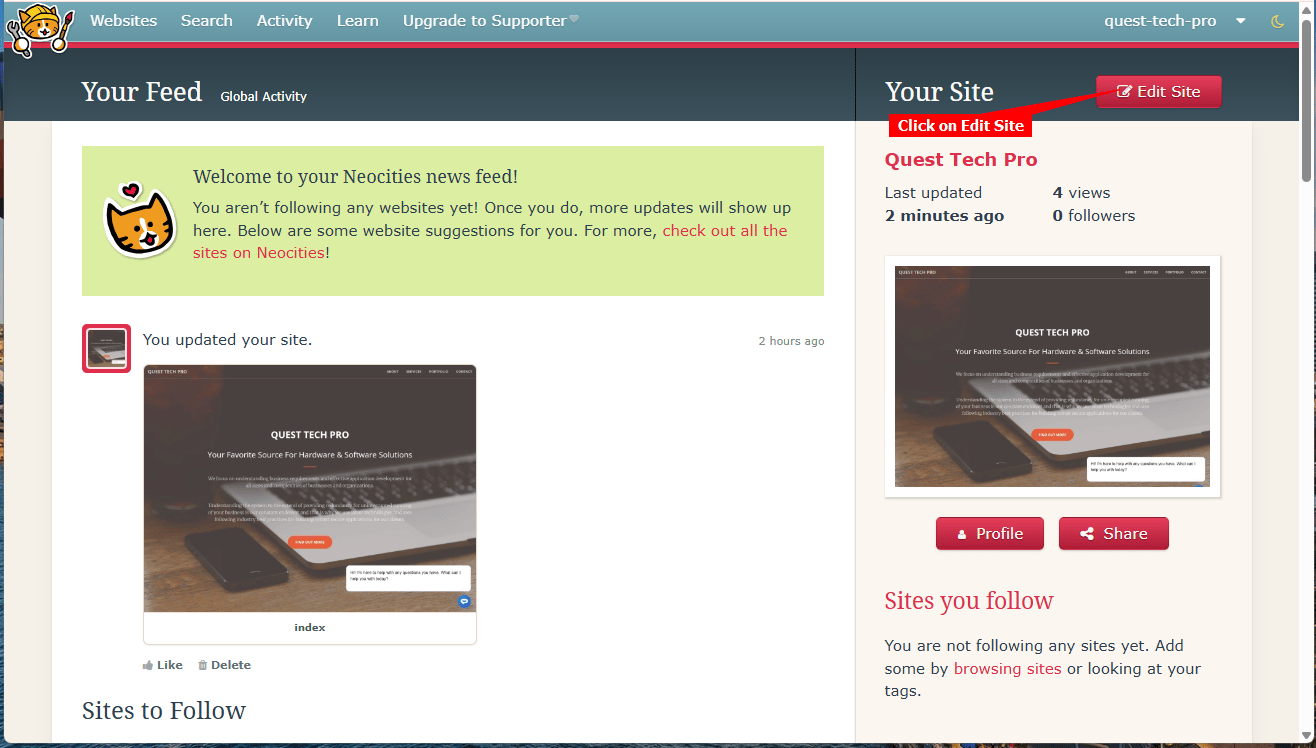
1. Log into your Neocities account and on your dashboard, click on **Edit Site**
### In Neocities
**Neocities** doesn't have any elements or items you add to your page. Similar to the tutorial for [Any Html website](https://sitespeak.ai/docs/installing-your-chatbot/how-to-add-chatgpt-to-any-html-website), it allows you to add your snippet to your website by adding the code to your page HTML code via the HTML Page editor.
This needs some precautions to be taken because if you make changes to your HTML code, it could have adverse effects on the status of your website.
We therefore suggest that when you have opened your website in the Page editor, copy your HTML code and save it offline in a text file as a backup in case something goes wrong during the edit process.
1. Log into your Neocities account and on your dashboard, click on **Edit Site**
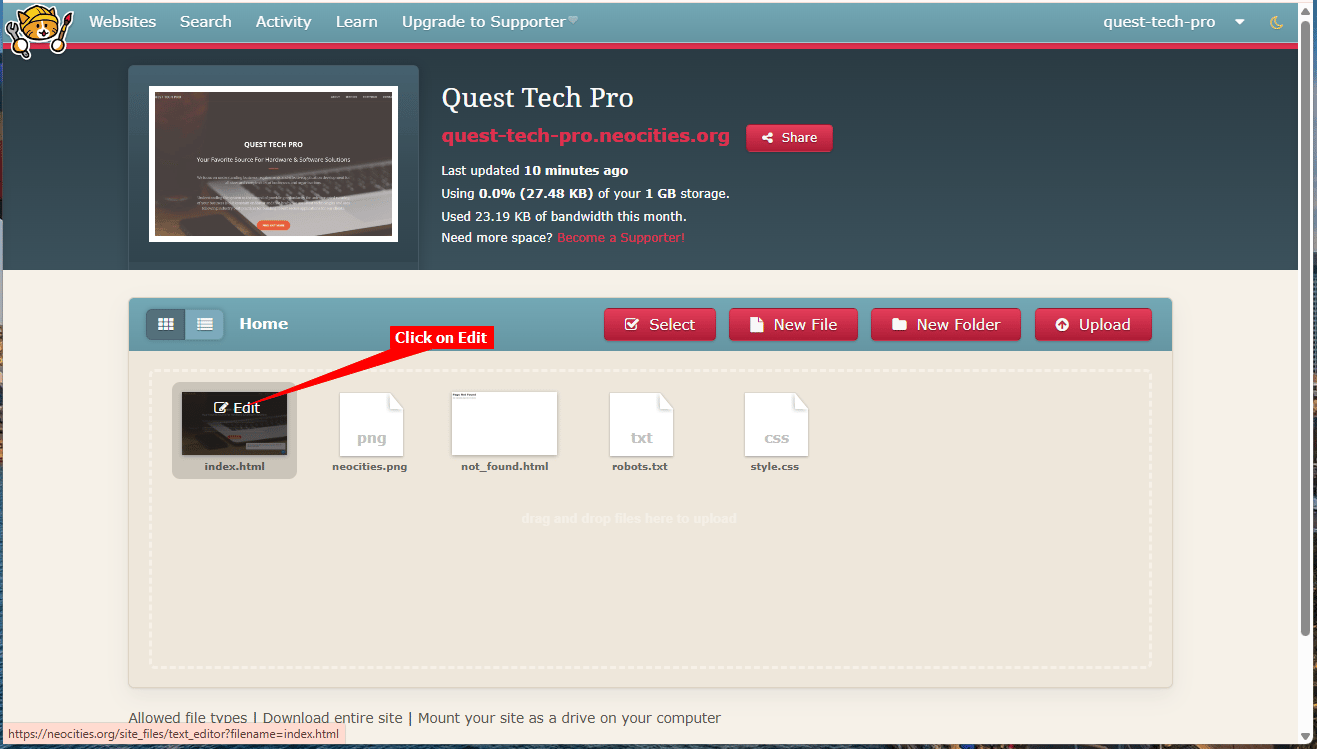
 2. On the Editor page, move your mouse over the index.html file and click on **Edit** to open the HTML page editor
 As mentioned above, copy the current contents and save it offline in a text file.
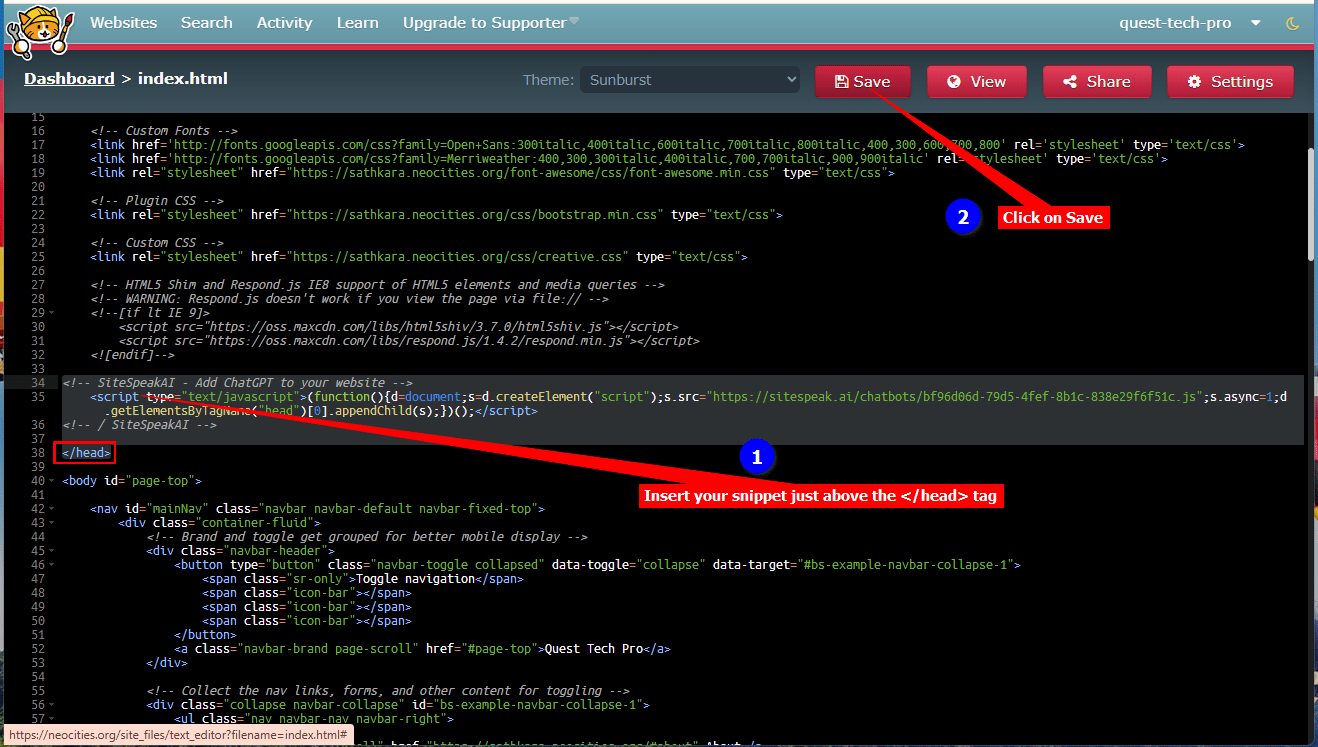
3. Find the `` tag, insert your snippet just above this line and click on **Save**
As mentioned above, copy the current contents and save it offline in a text file.
3. Find the `` tag, insert your snippet just above this line and click on **Save**
 4. Click on **View** to preview your changes
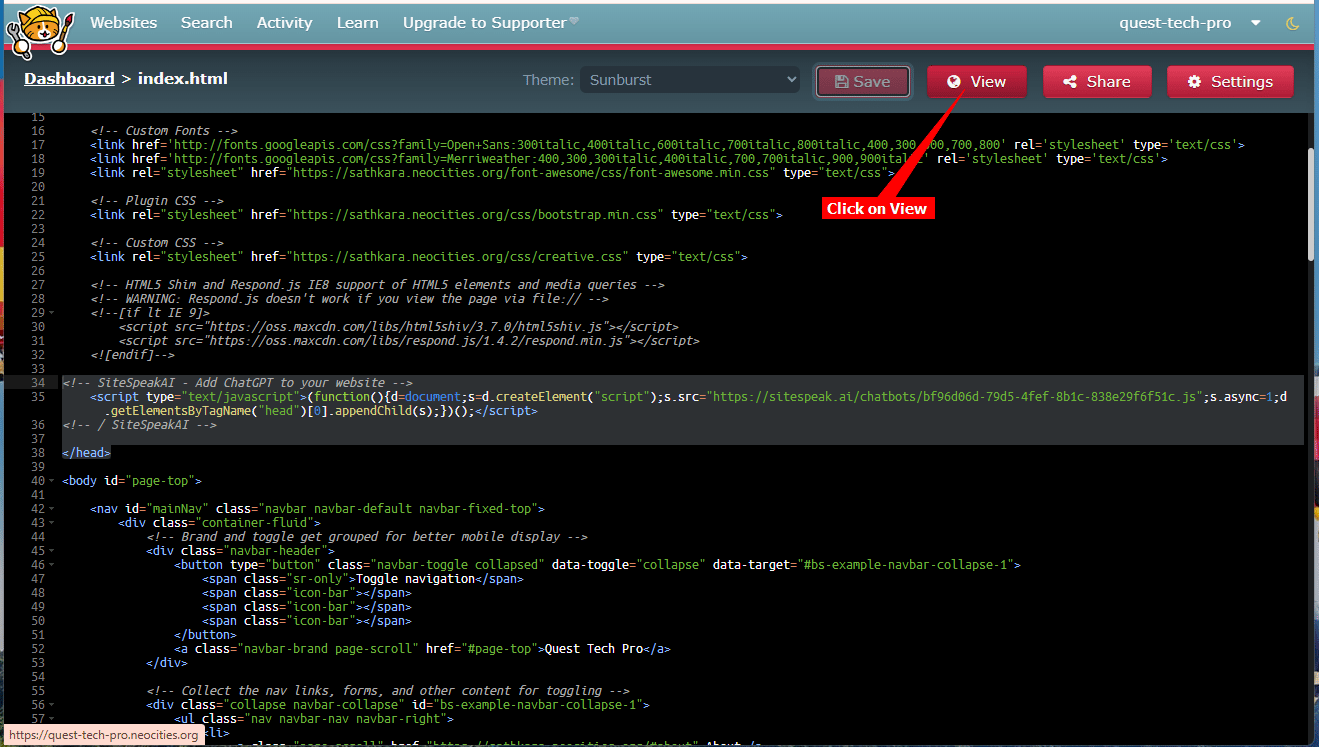 5. Your AI support agent button will now be displayed on your **Neocities** website page
 6. If you click on the button it will display the AI support agent dialogue
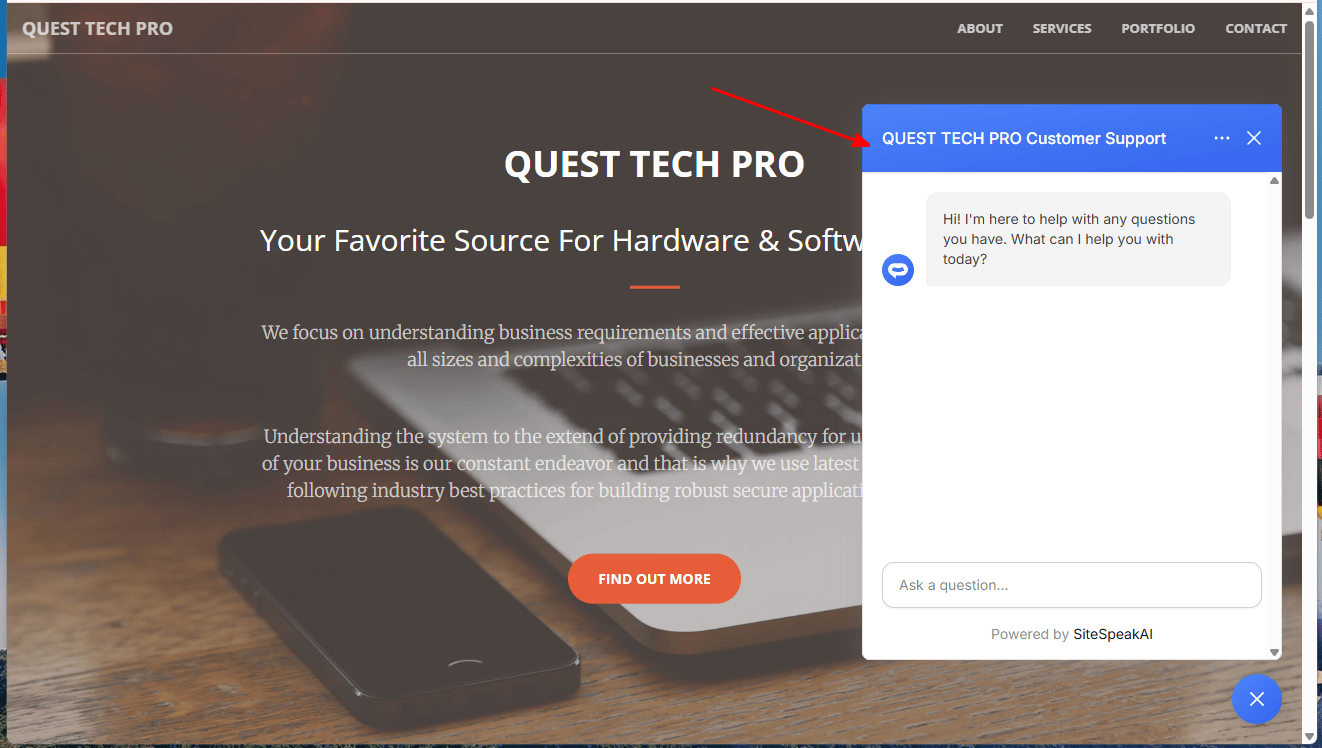 Your AI support agent has now been added to your **Neocities** website and your visitors/customers can start interacting with it!
***
Join over 1000+ businesses, websites and startups automating their customer service and other tasks with a custom trained AI agent.
Your AI support agent has now been added to your **Neocities** website and your visitors/customers can start interacting with it!
***
Join over 1000+ businesses, websites and startups automating their customer service and other tasks with a custom trained AI agent.