> ## Documentation Index
> Fetch the complete documentation index at: https://sitespeak.ai/docs/llms.txt
> Use this file to discover all available pages before exploring further.
# How to add ChatGPT to Notion
> Learn how to embed a custom AI chatbot in Notion pages using iFrame embeds. Perfect for internal wikis, client portals, and knowledge bases.
Adding a custom trained AI chatbot to your Notion workspace makes it easy to provide instant answers to your team or clients directly within your documentation and knowledge bases.
Notion supports embedding external content through iFrames, which means you can add your SiteSpeakAI chatbot to any Notion page. This works great for internal wikis, client portals, onboarding docs, and knowledge bases.
Notion embeds display as inline content on your page rather than as a floating chat widget. The chatbot will appear wherever you place the embed block.
## Add your chatbot to Notion
### In SiteSpeakAI
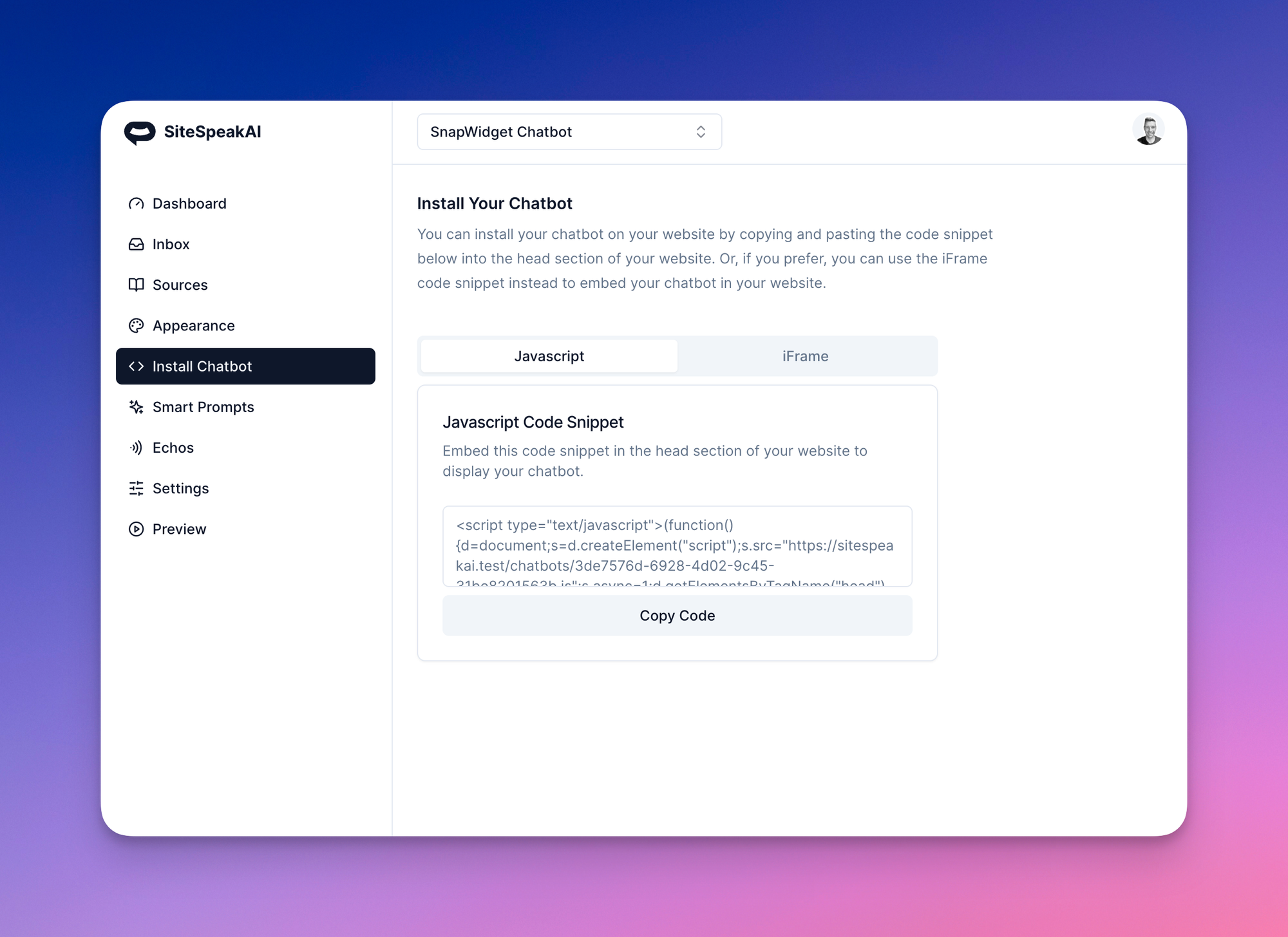
1. Select your chatbot from the dropdown menu at the top of the dashboard
2. Click on the **Install Chatbot** section in the sidebar
3. Click on the **iFrame** tab
4. Click the **Copy Code** button to copy your iFrame code snippet
### In Notion
1. Go to the Notion page where you would like to add your chatbot
2. Type **/embed** and press Enter to add an embed block
3. In the modal that appears, paste the **iFrame** code snippet you copied from SiteSpeakAI
4. Click **Embed link** to add the chatbot to your page
Your chatbot will now appear embedded in your Notion page, ready to answer questions from anyone who has access to that page.
## Use cases for Notion chatbots
**Internal knowledge base**: Add a chatbot trained on your company policies, procedures, and FAQs to help employees find answers quickly.
**Client portals**: Embed a chatbot in shared Notion pages to provide 24/7 support to your clients without them needing to contact you directly.
**Onboarding documentation**: Help new team members get up to speed faster by adding a chatbot that can answer questions about your processes and tools.
**Product documentation**: Make your product docs more interactive by letting users ask questions and get instant answers.
## Customizing the embed size
You can adjust the size of your chatbot embed by modifying the width and height values in the iFrame code before pasting it into Notion. The default size works well for most pages, but you may want to make it larger for a more prominent chat experience.
## Troubleshooting
**Chatbot not displaying?** Make sure you're using the iFrame code (not the standard JavaScript widget code). Notion only supports iFrame embeds.
**Embed appears too small?** You can adjust the width and height parameters in the iFrame code before embedding, or resize the block directly in Notion.
**Changes not showing?** Try refreshing the Notion page or clearing your browser cache. Notion may cache embedded content.
***
Join over 1000+ businesses, websites and startups automating their customer service and other tasks with a custom trained AI agent.