> ## Documentation Index
> Fetch the complete documentation index at: https://sitespeak.ai/docs/llms.txt
> Use this file to discover all available pages before exploring further.
# How to add a ChatGPT AI support agent to Odoo
> How to add your custom ChatGPT trained AI support agent to your Odoo website.
You want to embed your custom trained AI support agent in your **Odoo** website page. Here's how to add an AI support agent to Odoo with SiteSpeakAI.
Odoo's Website Builder is a surprisingly powerful and easy-to-use tool that lets you create professional-looking websites and landing pages *without* needing to be a coder or designer. It's part of the larger **Odoo** suite of business applications, think of it as a way to manage your online presence alongside your business operations. It's drag-and-drop simple. You can visually build your website by adding blocks for text, images, videos, forms, buttons, and more. It's particularly strong for showcasing products, services, and collecting leads.
**Website URL:** [Odoo](https://www.odoo.com/website-builder)
## Add your AI support agent to your **Odoo** website
### In SiteSpeakAI
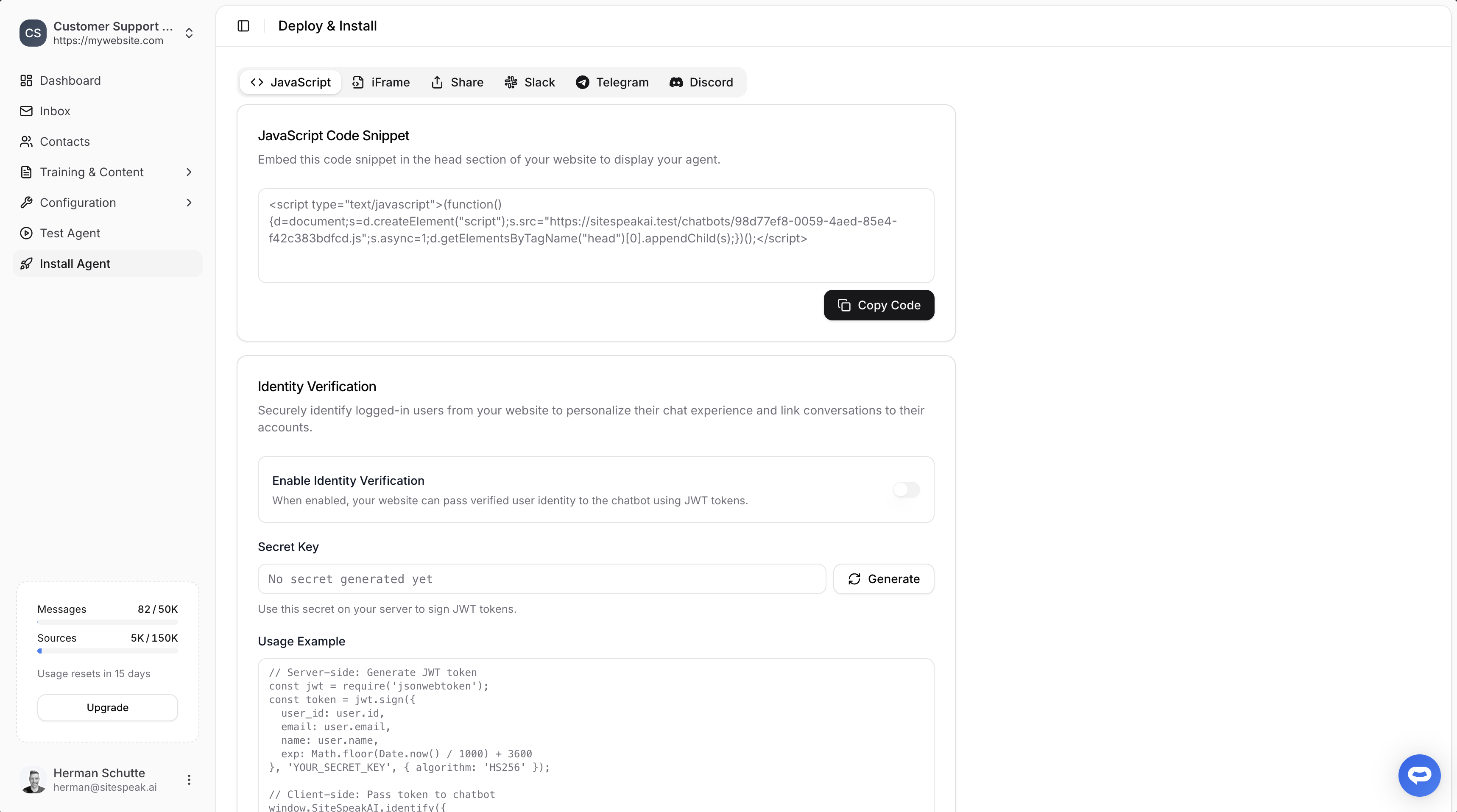
Select your chatbot from the dropdown menu at the top, click on the **Install Agent** section in the sidebar, then click on the **Copy Code** button to copy your code snippet.
 ### In Odoo
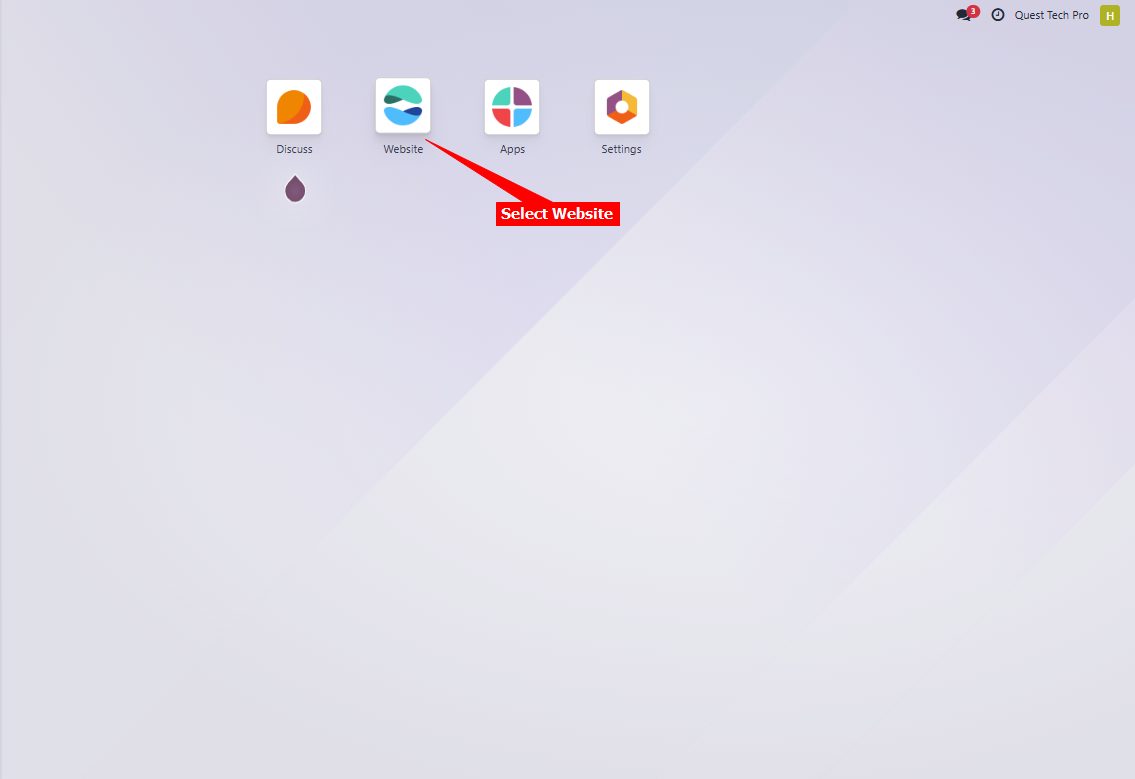
1. Log into your **Odoo** account and on the dashboard select **Website**
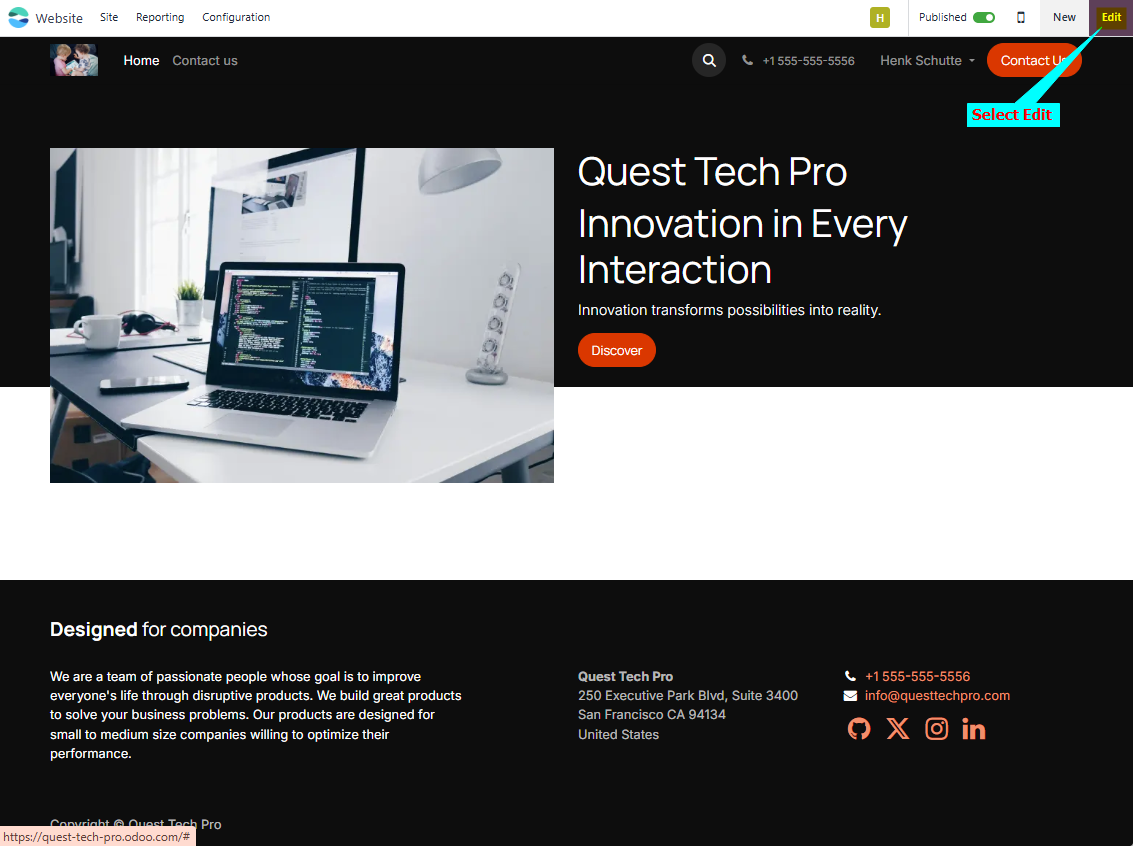
2. On the website page editor select **Edit**
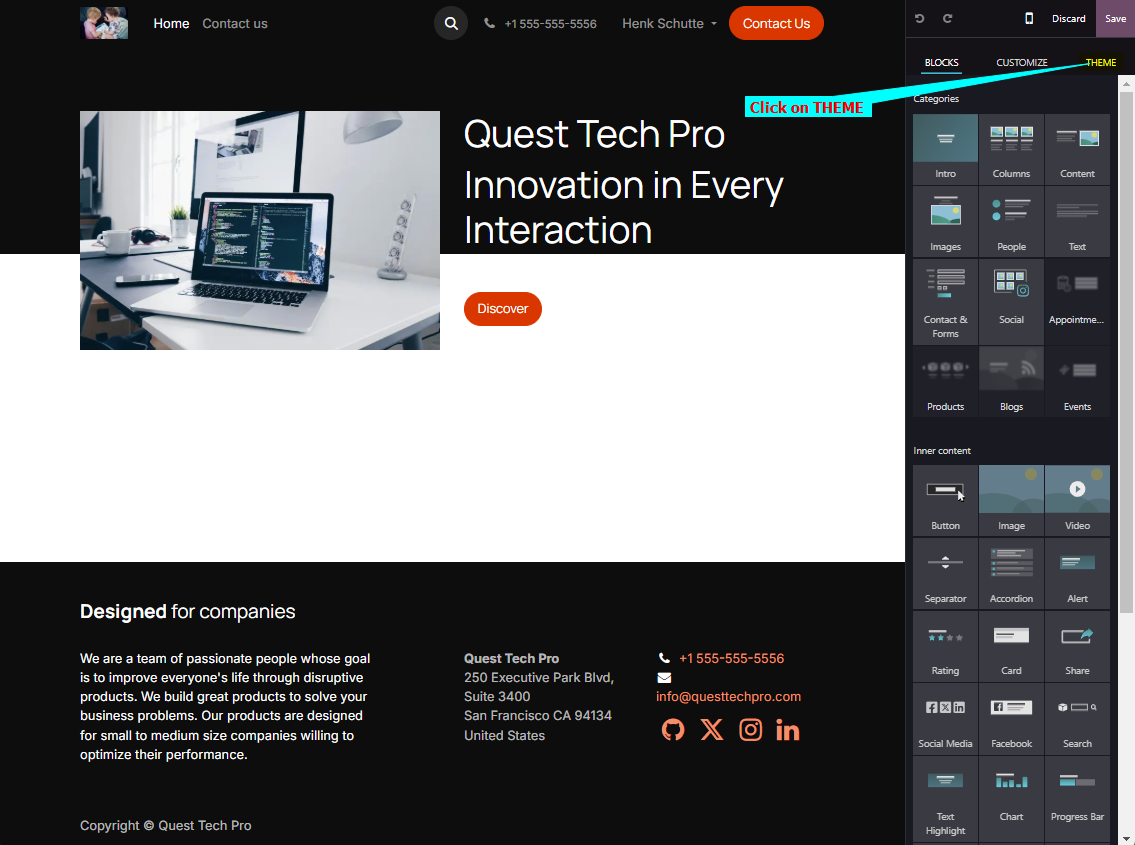
3. Click on the **THEME** tab in the editor menu
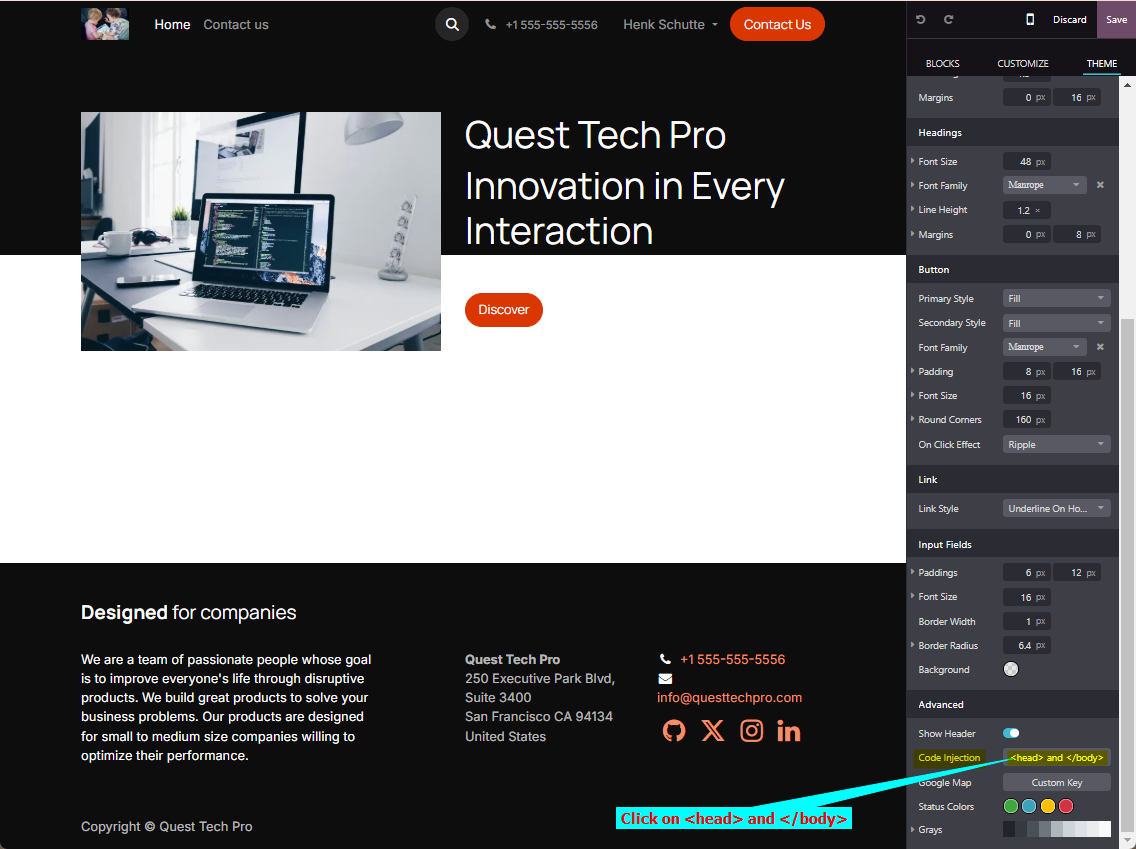
4. Scroll down on the THEME list and select *\ and \* under **Code Injection**
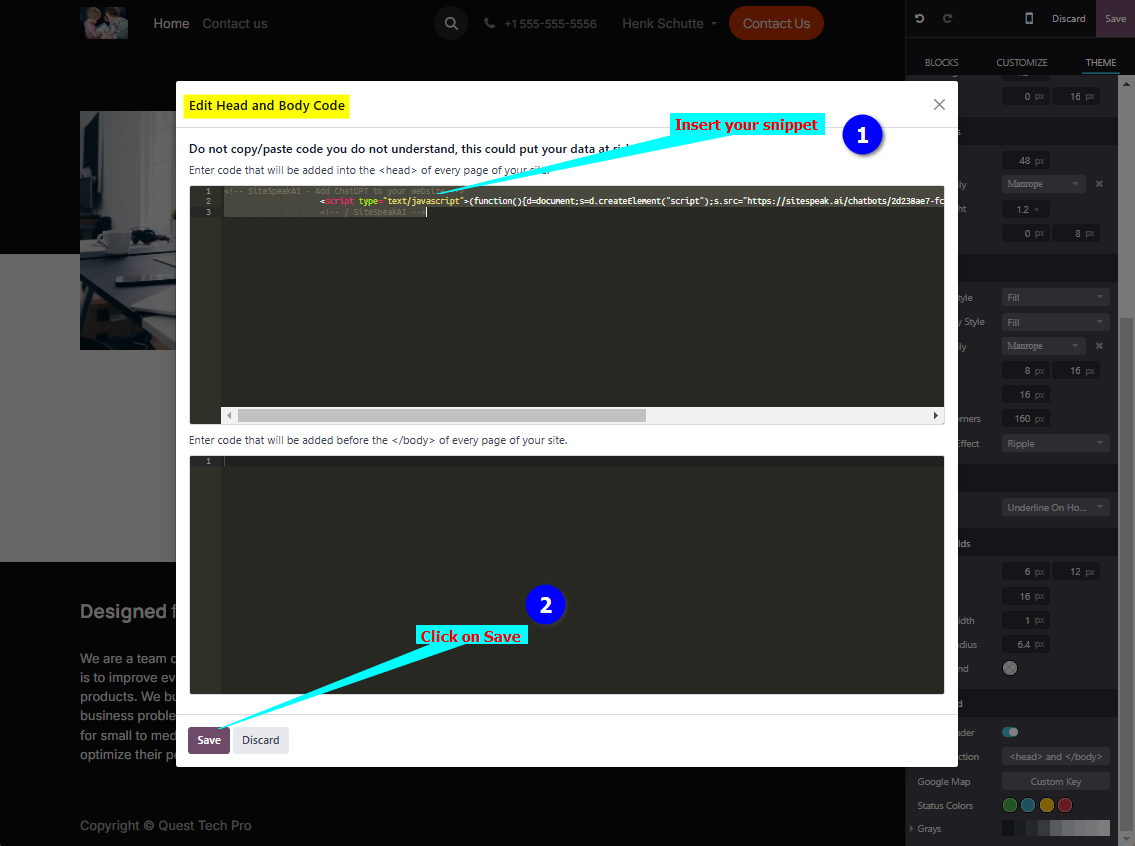
5. Insert your snippet in one of the code text boxes and click on **Save**
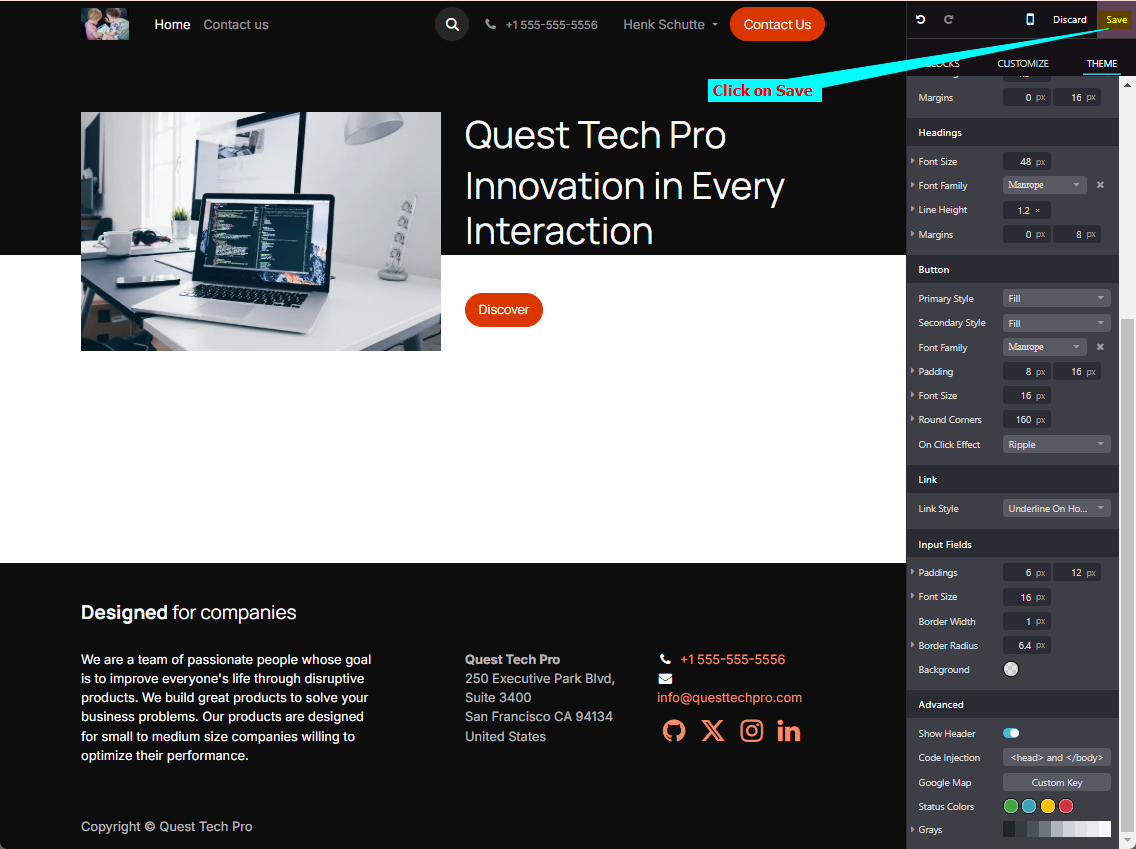
6. Click on **Save** in the main editor page
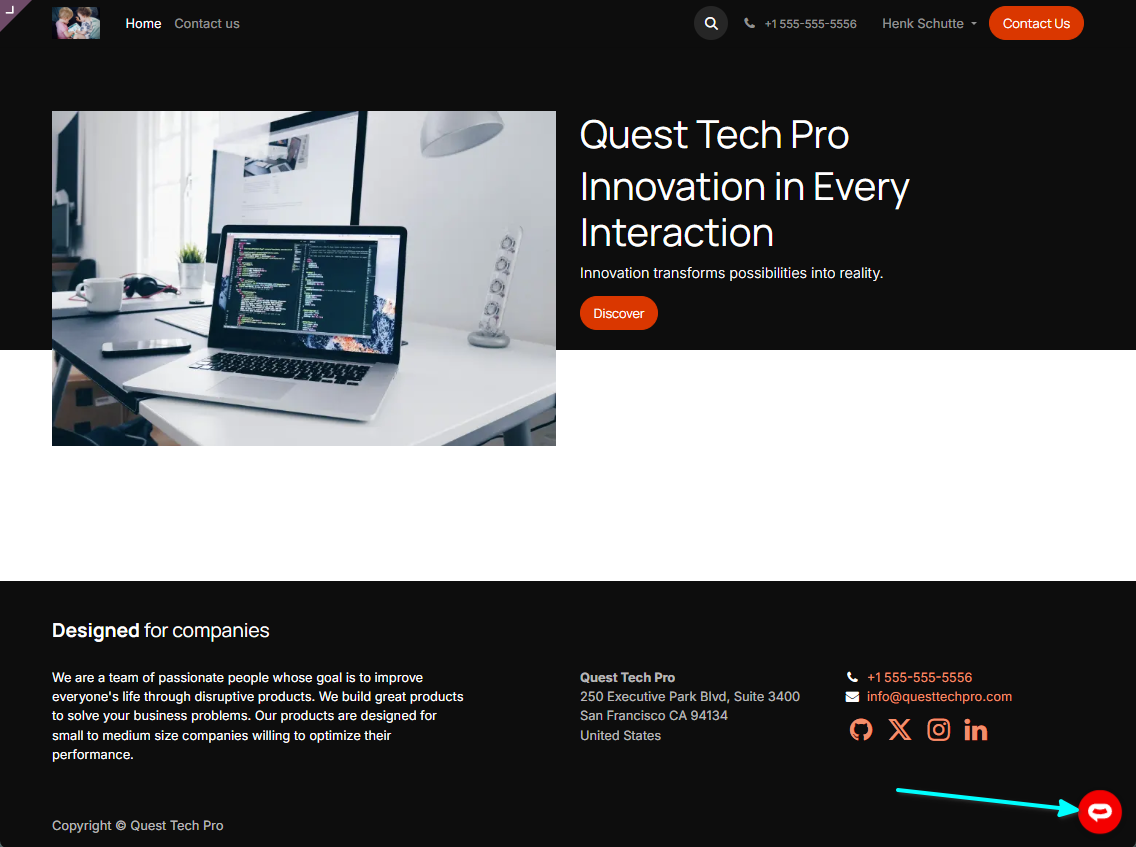
7. Your AI support agent button will now be displayed on your **Odoo** website page
8. If you click on the button it will display the AI support agent dialogue
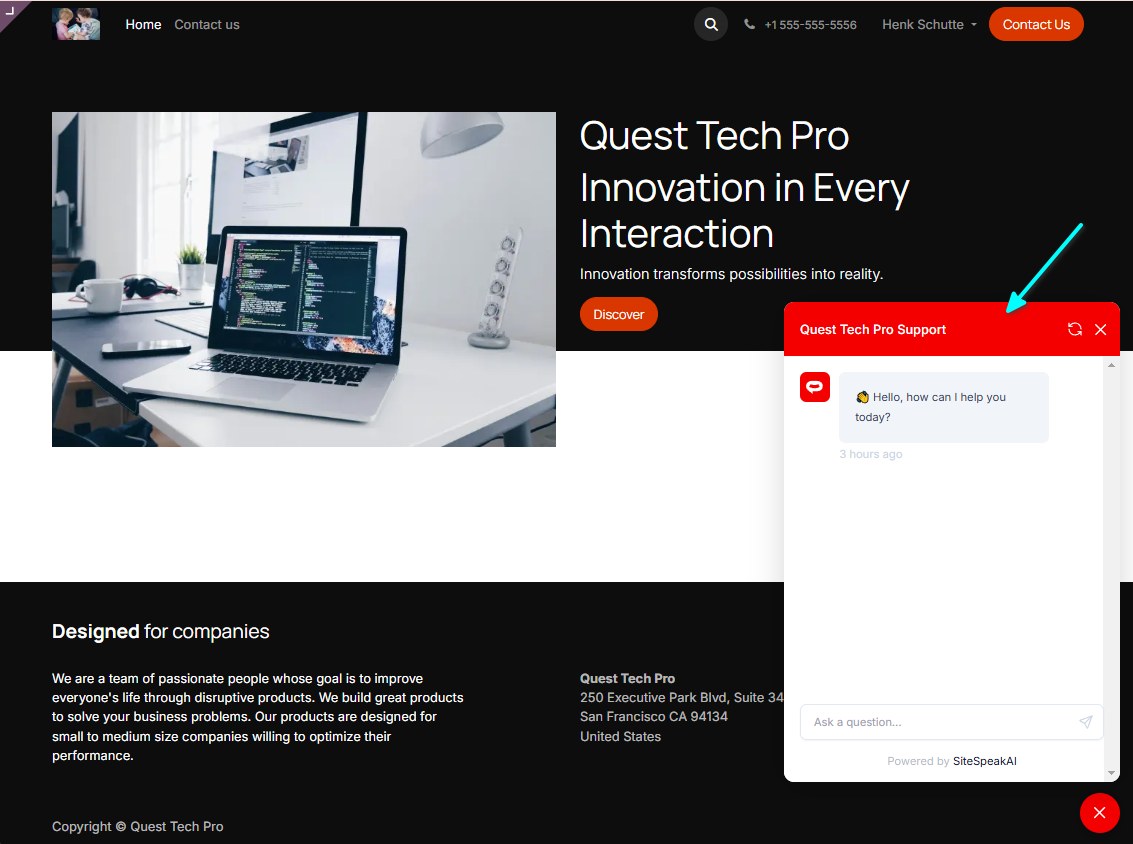
Your AI support agent has now been added to your **Odoo** website and your visitors/customers can start interacting with it!
***
Join over 1000+ businesses, websites and startups automating their customer service and other tasks with a custom trained AI agent.
### In Odoo
1. Log into your **Odoo** account and on the dashboard select **Website**

2. On the website page editor select **Edit**

3. Click on the **THEME** tab in the editor menu

4. Scroll down on the THEME list and select *\ and \* under **Code Injection**

5. Insert your snippet in one of the code text boxes and click on **Save**

6. Click on **Save** in the main editor page

7. Your AI support agent button will now be displayed on your **Odoo** website page

8. If you click on the button it will display the AI support agent dialogue

Your AI support agent has now been added to your **Odoo** website and your visitors/customers can start interacting with it!
***
Join over 1000+ businesses, websites and startups automating their customer service and other tasks with a custom trained AI agent.