> ## Documentation Index
> Fetch the complete documentation index at: https://sitespeak.ai/docs/llms.txt
> Use this file to discover all available pages before exploring further.
# How to add a ChatGPT AI support agent to Open Real Estate CMS
> How to add your custom ChatGPT trained AI support agent to your Open Real Estate website.
You want to embed your custom trained AI support agent in your **Open Real Estate** website page. Here's how to add an AI support agent to Open Real Estate with SiteSpeakAI.
**Open Real Estate** lets you create your own website to get the profits within the shortest possible time or to present your real estate agency on the Internet. An easy-to-use interface, high website speed, social tools, a variety of functions and add-ons all this and some more help to build a business based on our products efficiently. Open Real Estate offers real estate agencies and real estate agents the technology they need to connect with real estate owners, prospective buyers and Internet surfers.
**Website URL:** [Open Real Estate](https://open-real-estate.info/)
## Add your AI support agent to your Open Real Estate website
### In SiteSpeakAI
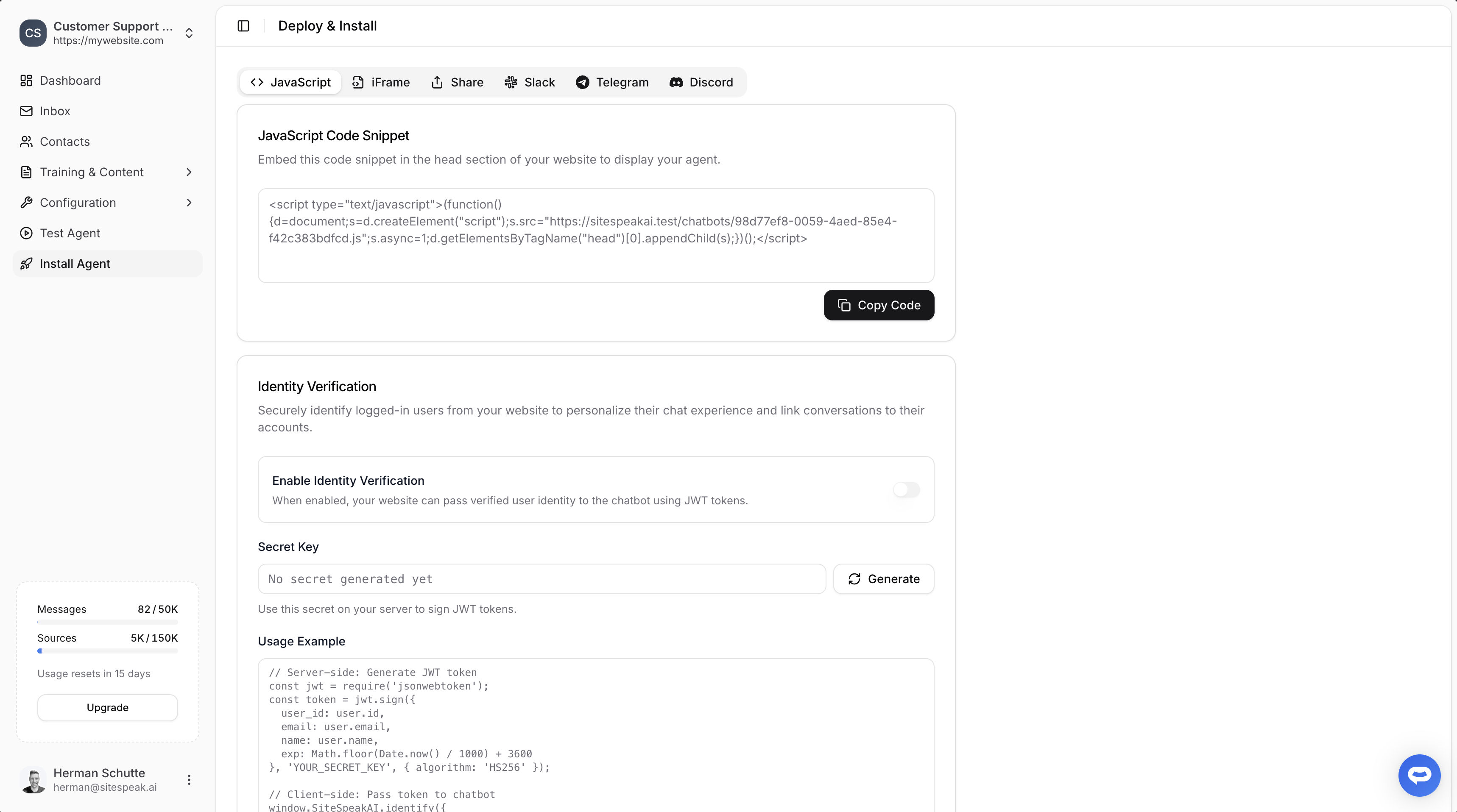
Select your chatbot from the dropdown menu at the top, click on the **Install Agent** section in the sidebar, then click on the **Copy Code** button to copy your code snippet.
 ### In Open Real Estate
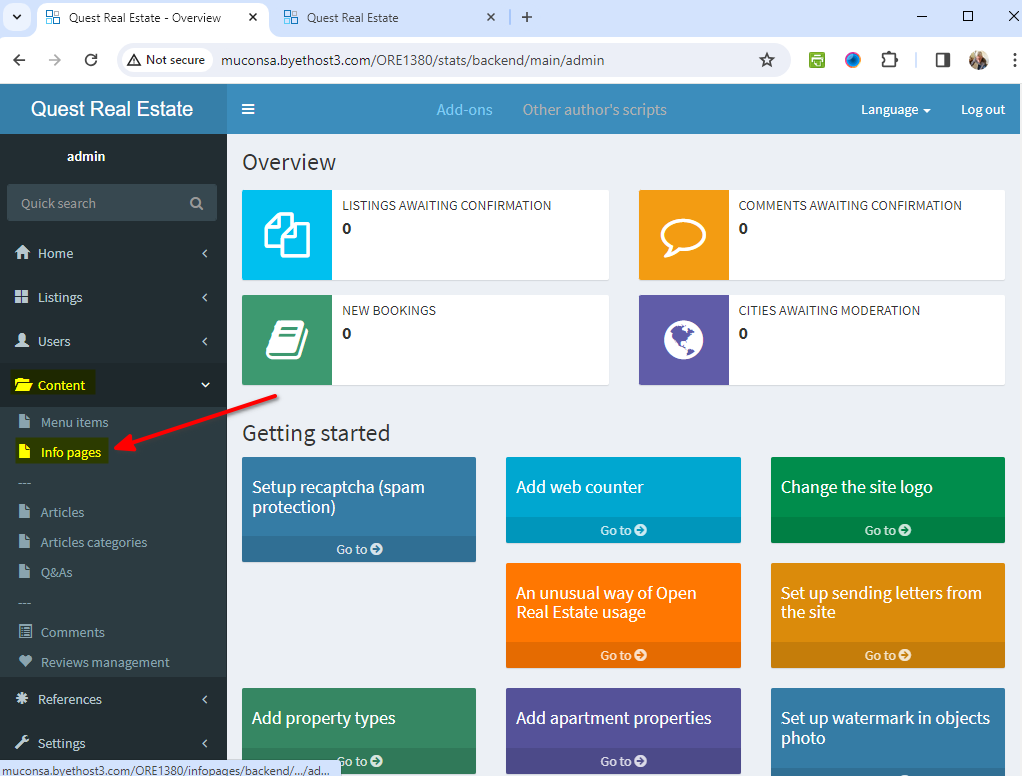
1. Log into your **Open Real Estate** account and on your dashboard, select **Info Pages** under **Content**
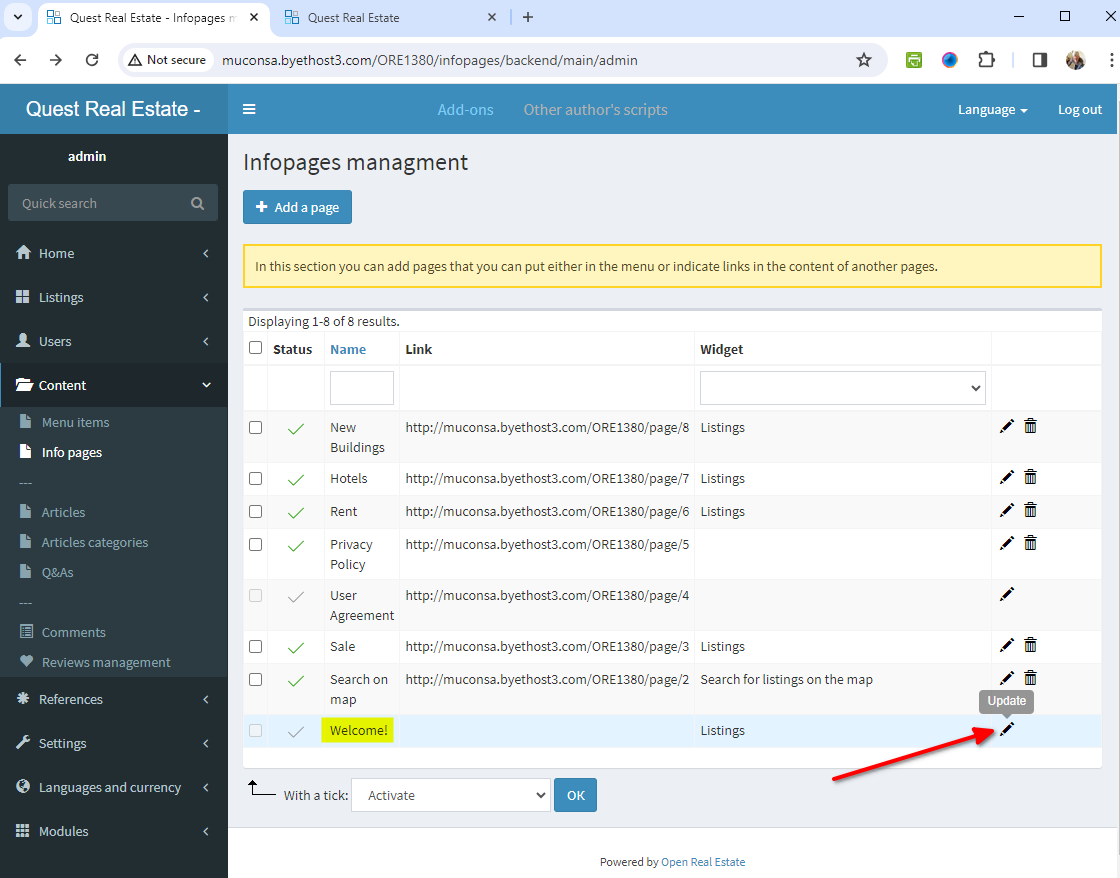
2. Click on **Update** for the page you want to add your AI support agent snippet to
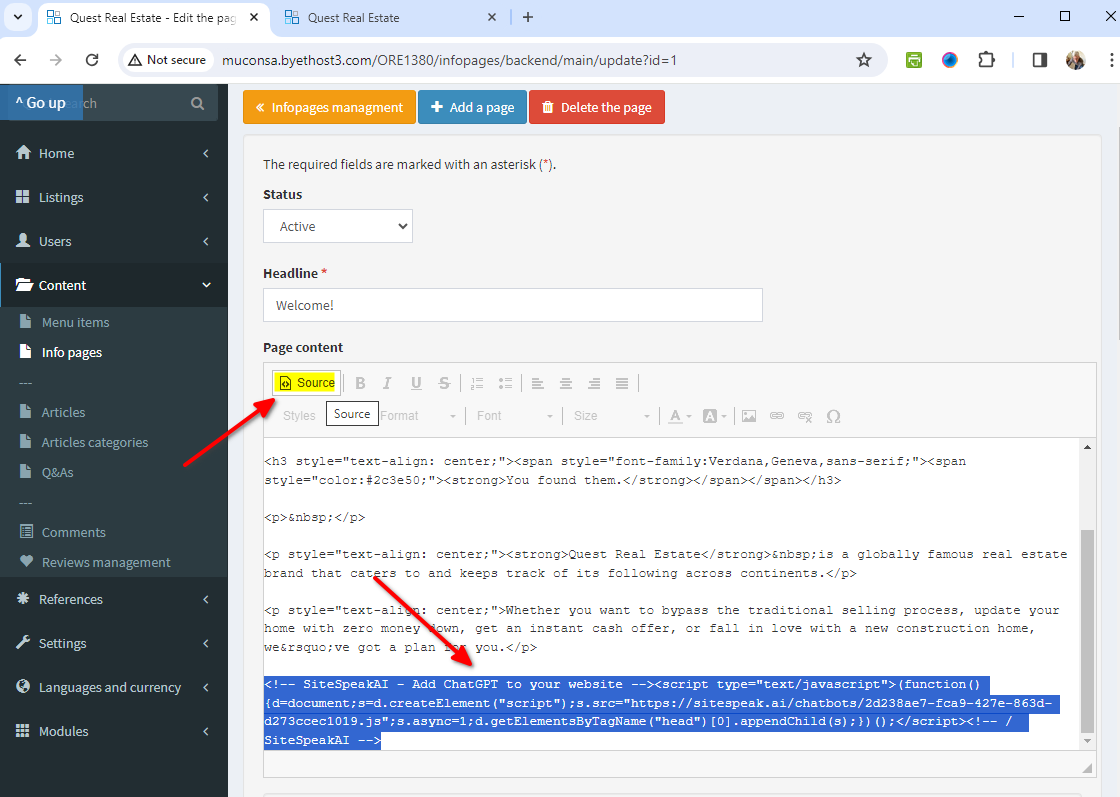
3. Select **Source** and insert your AI support agent snippet after any content that already exists on the page
4. Scroll down on the page editor and click on **Save** or **Save and close**
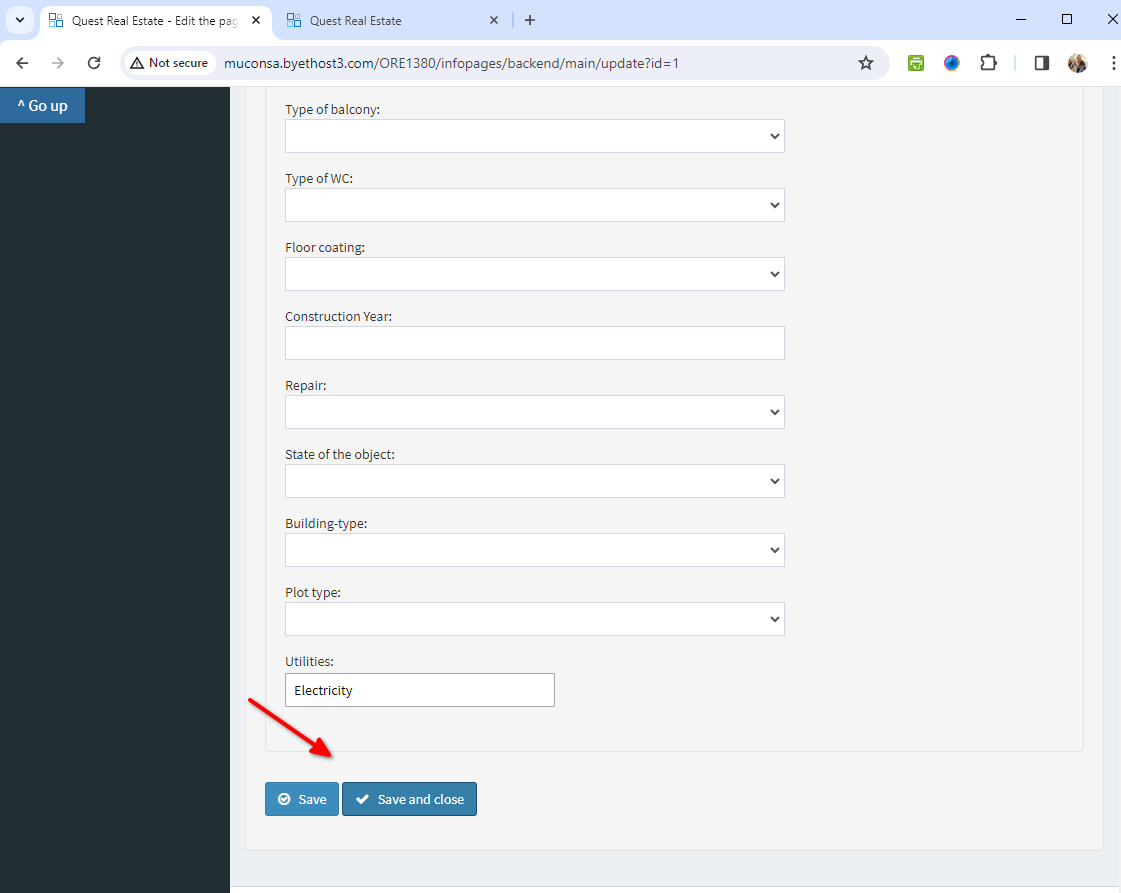
5. Your AI support agent button will now be displayed on your **Open Real Estate** website page
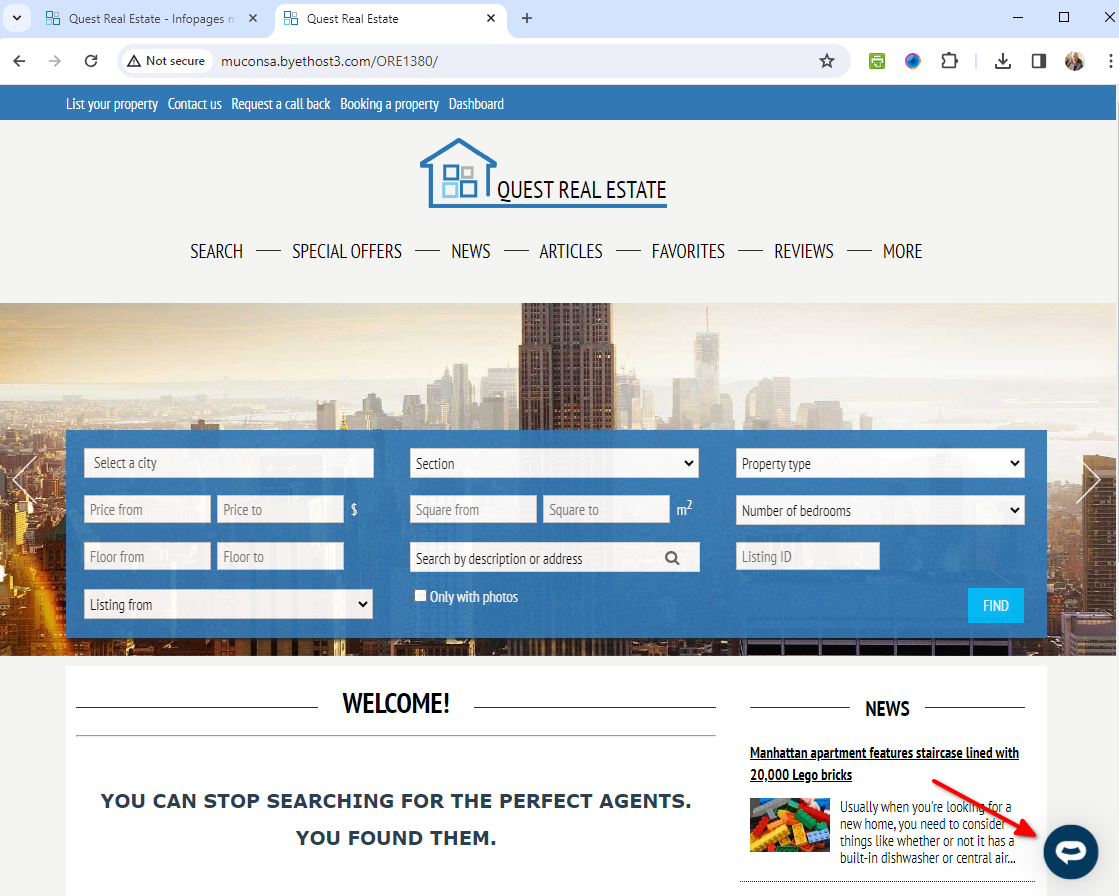
6. If you click on the button it will display the AI support agent dialogue
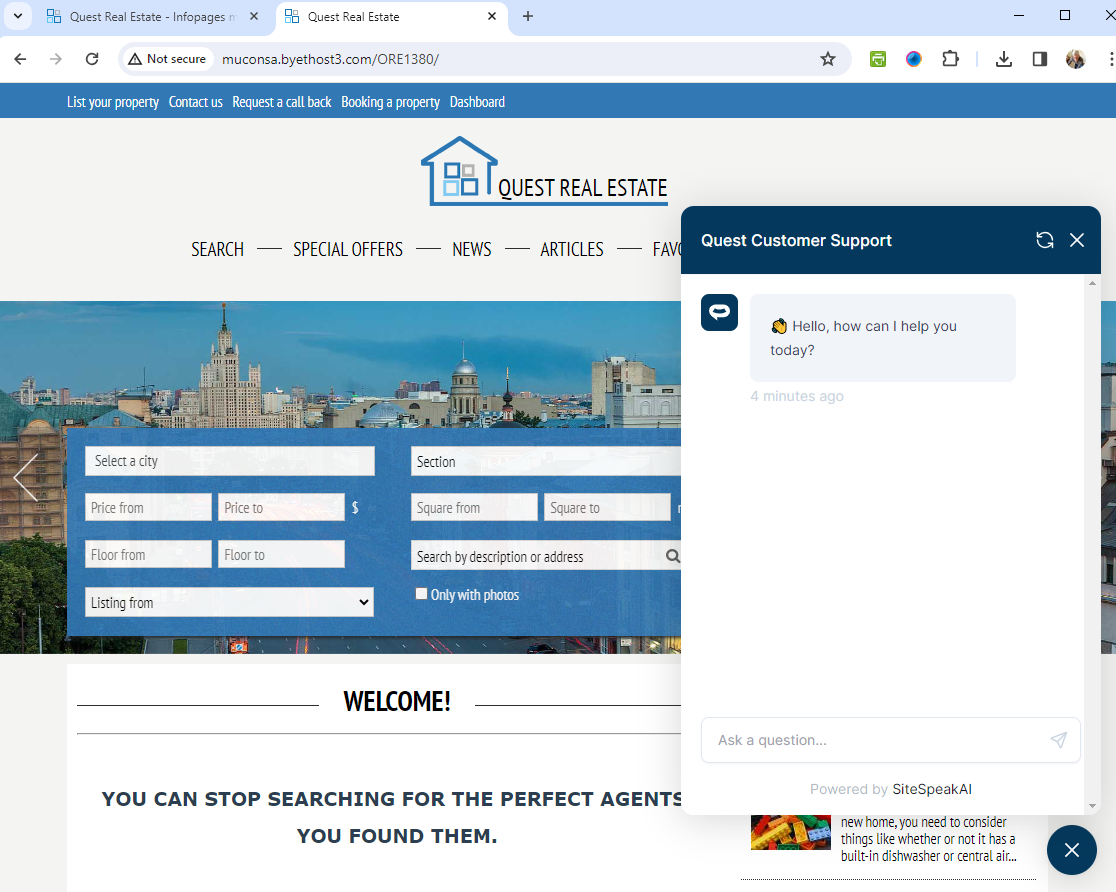
Your AI support agent has now been added to your **Open Real Estate CMS** website and your visitors/customers can start interacting with it!
***
Join over 1000+ businesses, websites and startups automating their customer service and other tasks with a custom trained AI agent.
### In Open Real Estate
1. Log into your **Open Real Estate** account and on your dashboard, select **Info Pages** under **Content**

2. Click on **Update** for the page you want to add your AI support agent snippet to

3. Select **Source** and insert your AI support agent snippet after any content that already exists on the page

4. Scroll down on the page editor and click on **Save** or **Save and close**

5. Your AI support agent button will now be displayed on your **Open Real Estate** website page

6. If you click on the button it will display the AI support agent dialogue

Your AI support agent has now been added to your **Open Real Estate CMS** website and your visitors/customers can start interacting with it!
***
Join over 1000+ businesses, websites and startups automating their customer service and other tasks with a custom trained AI agent.