> ## Documentation Index
> Fetch the complete documentation index at: https://sitespeak.ai/docs/llms.txt
> Use this file to discover all available pages before exploring further.
# How to add a ChatGPT AI support agent to Pagewiz
> How to add your custom ChatGPT trained AI support agent to your Pagewiz website.
You want to embed your custom trained AI support agent in your **Pagewiz** website page. Here's how to add an AI support agent to Pagewiz with SiteSpeakAI.
**Pagewiz** is a landing page platform that enables marketers to create, publish, and optimize high-converting landing pages with ease. It offers a wizard-style interface that feels as straightforward as a PowerPoint presentation, helping users launch campaigns faster and smarter. The platform handles hosting, performance monitoring, and maintenance around the clock, reducing the overhead associated with managing your conversion funnel.
**Website URL:** [Pagewiz](https://www.pagewiz.com/).
## Add your AI support agent to your **Pagewiz** website
### In SiteSpeakAI
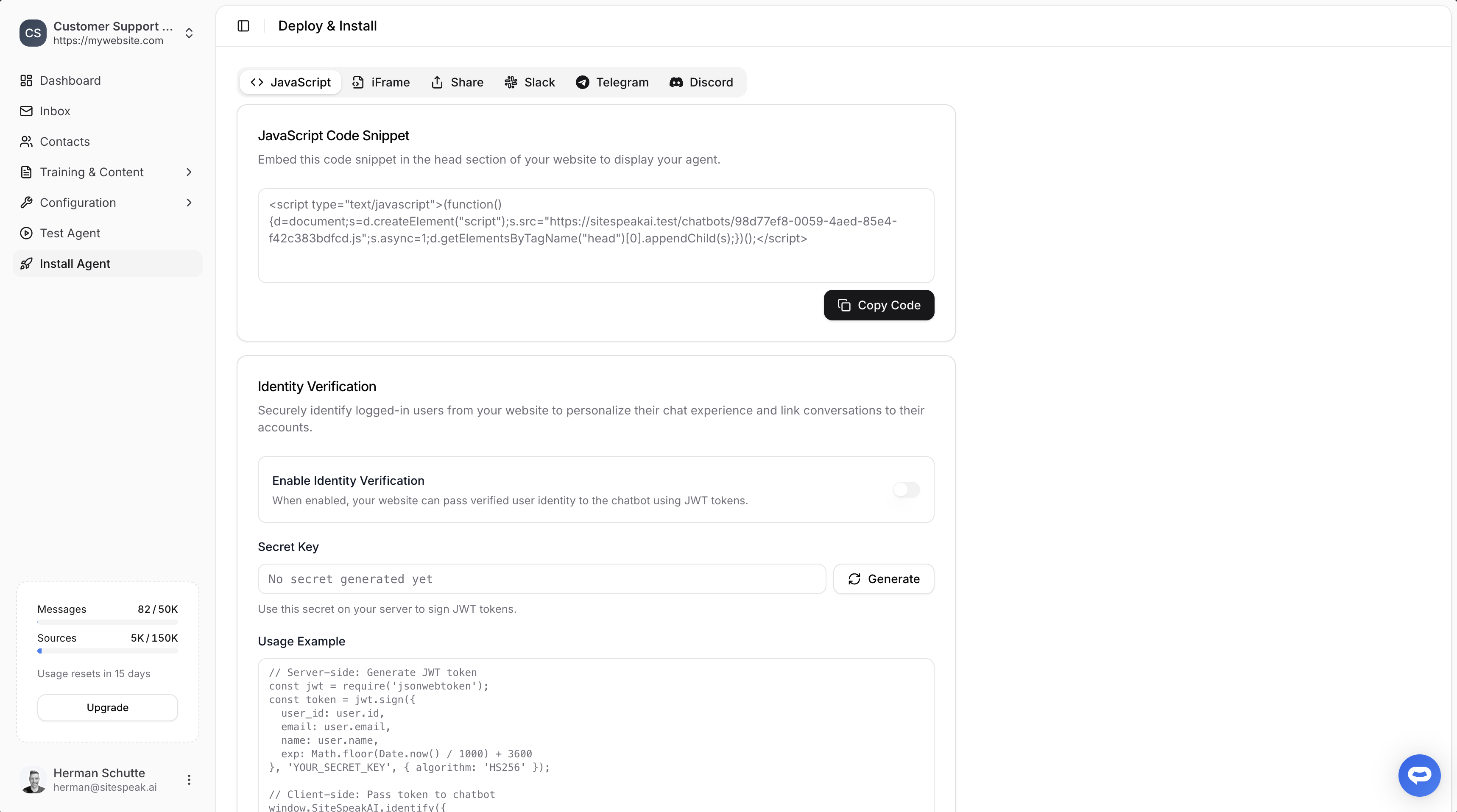
Select your chatbot from the dropdown menu at the top, click on the **Install Agent** section in the sidebar, then click on the **Copy Code** button to copy your code snippet.
 ### In Pagewiz
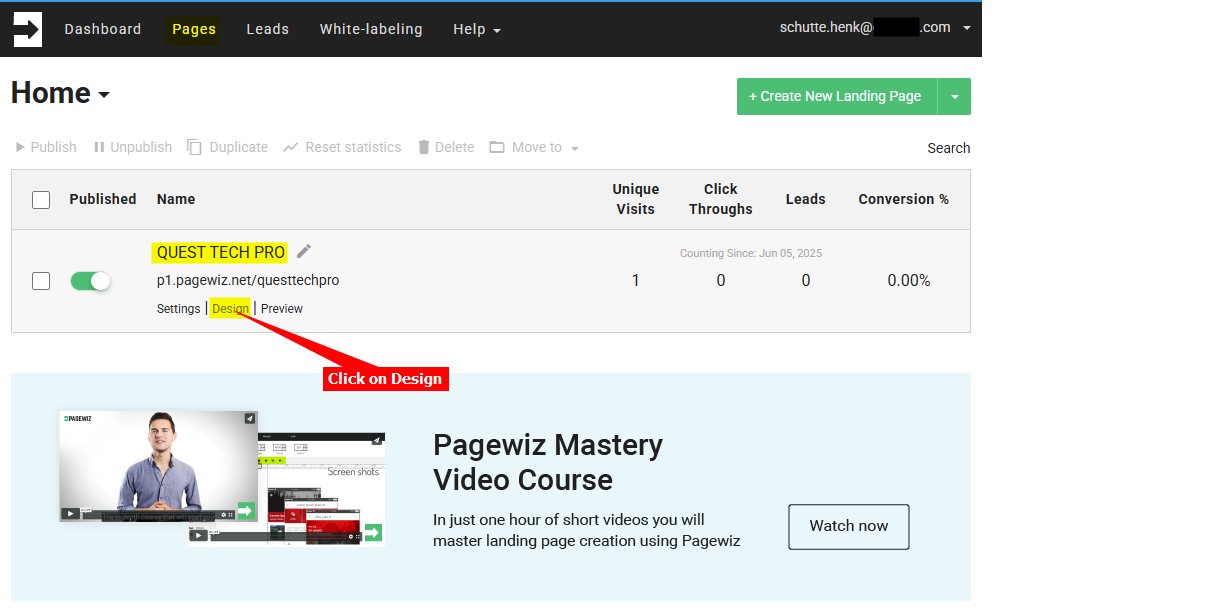
1. Log into your **Pagewiz** account, make sure **Pages** is selected on the top menu bar and click on **Design** for the page you want to add your AI support agent to
**Note**: There are two (2) ways to add your snippet to your **Pagewiz** page.
a. Using the **Embed Code** component to insert the code per page or
b. Add a global **JS Script** which will then be applied to all pages
#### A. Using the ***Embed Code*** component option:
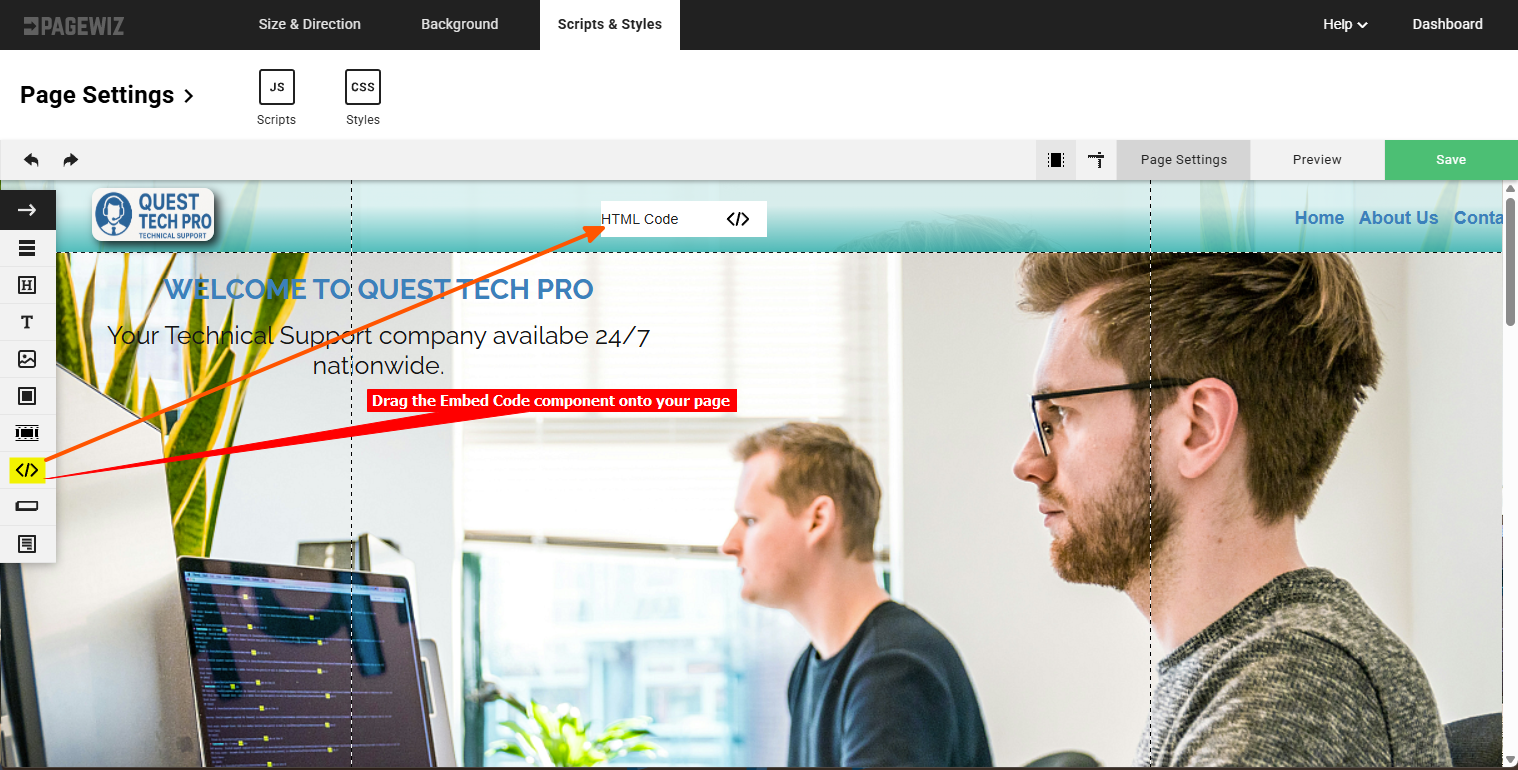
i. Drag the **Embed Code** component onto your page
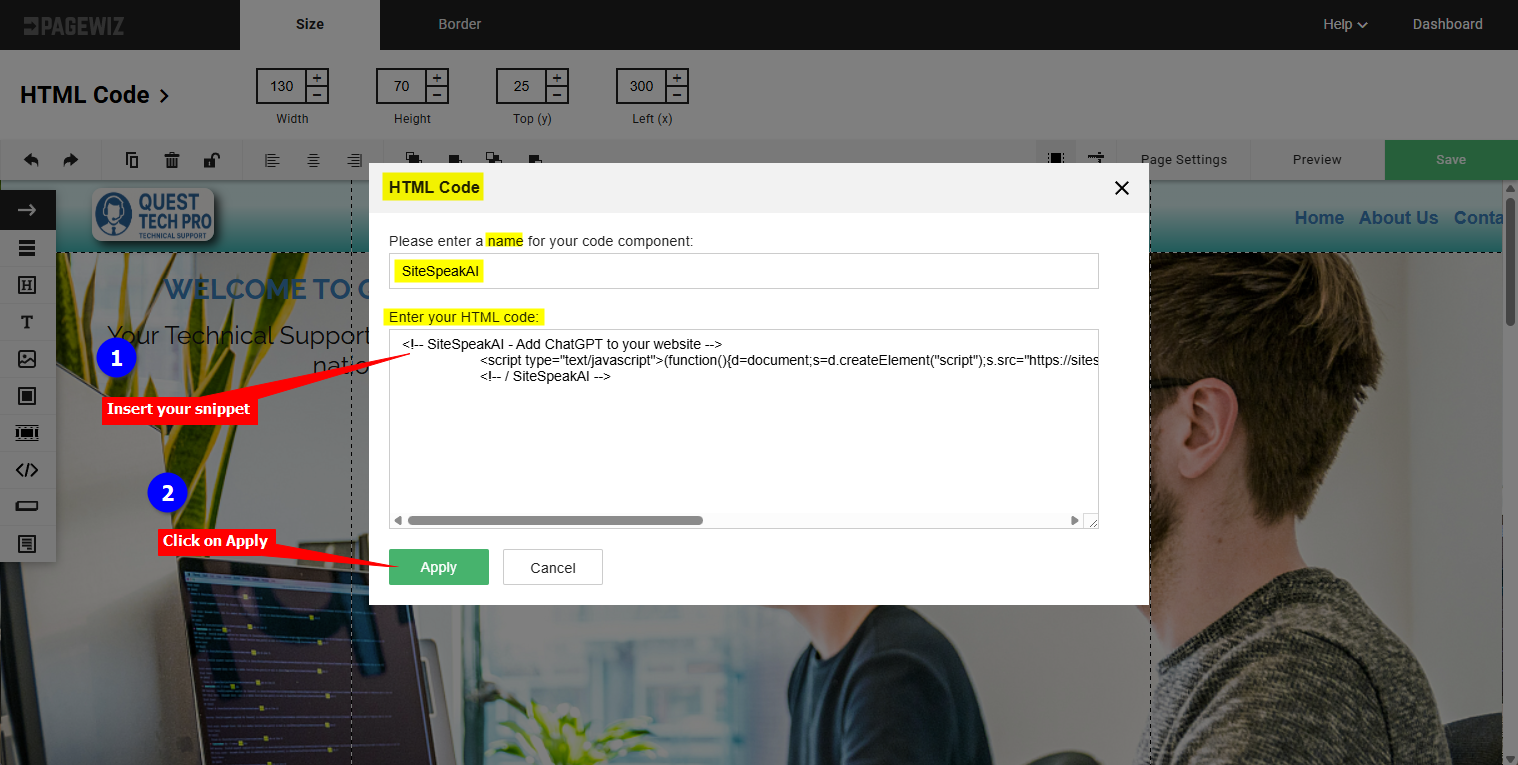
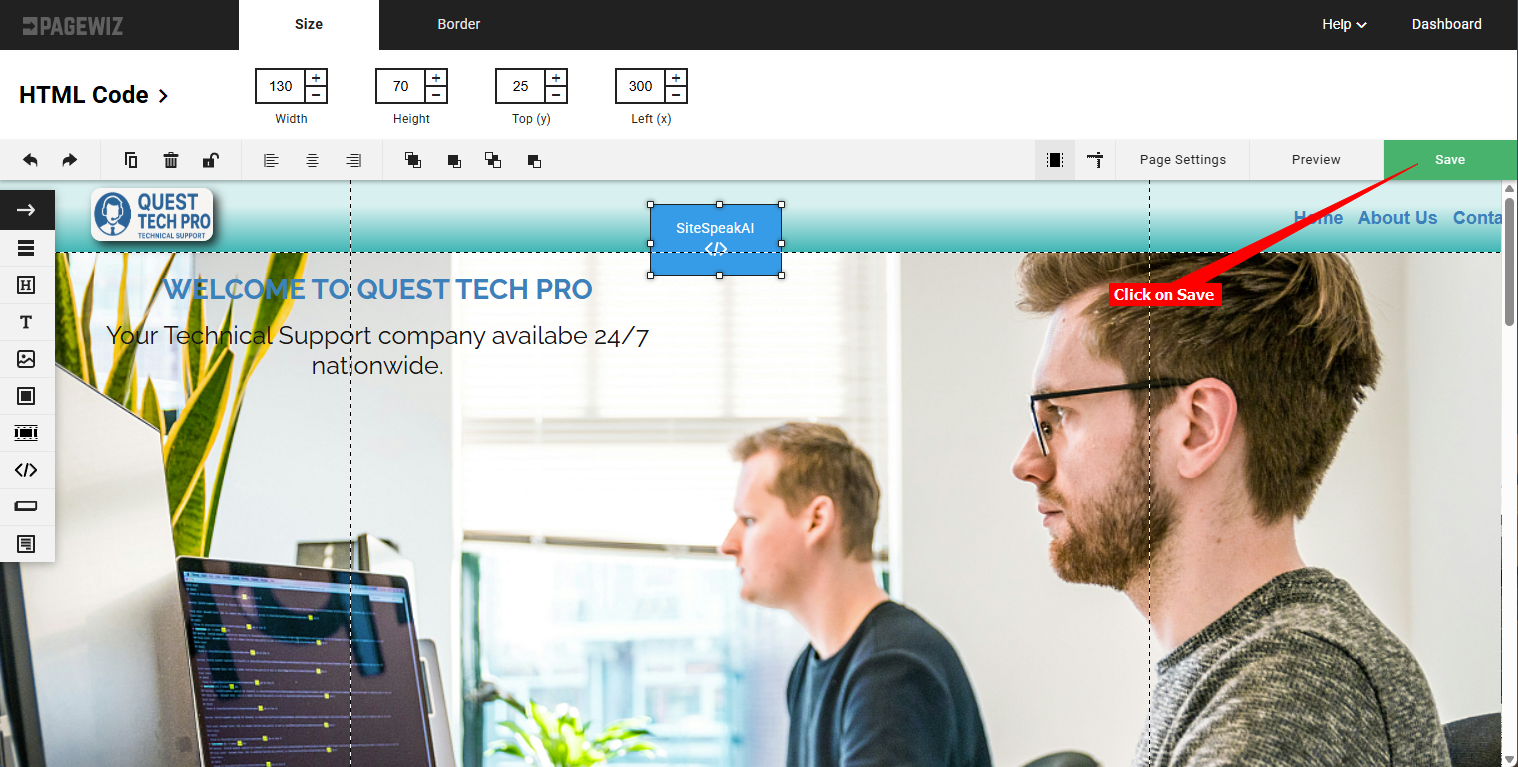
ii. Enter a **name** for the code component, insert your snippet in the **HTML code** text box and click on **Apply**
iii. Click on **Save** to save your page modifications
#### B. Using the global ***JS Script*** option:
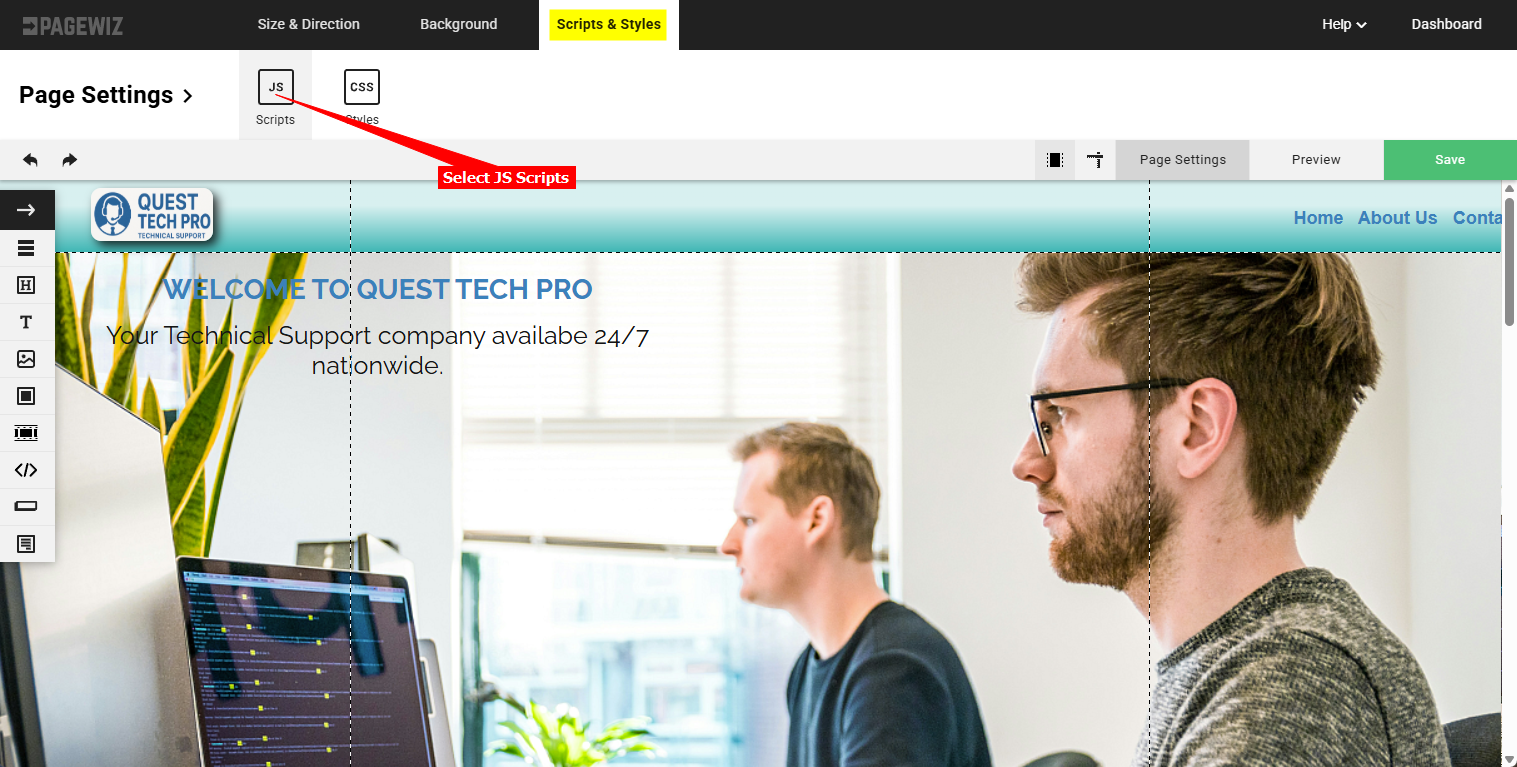
i. Select **Scripts & Styles** on the top menu bar and select the **JS Scripts** option
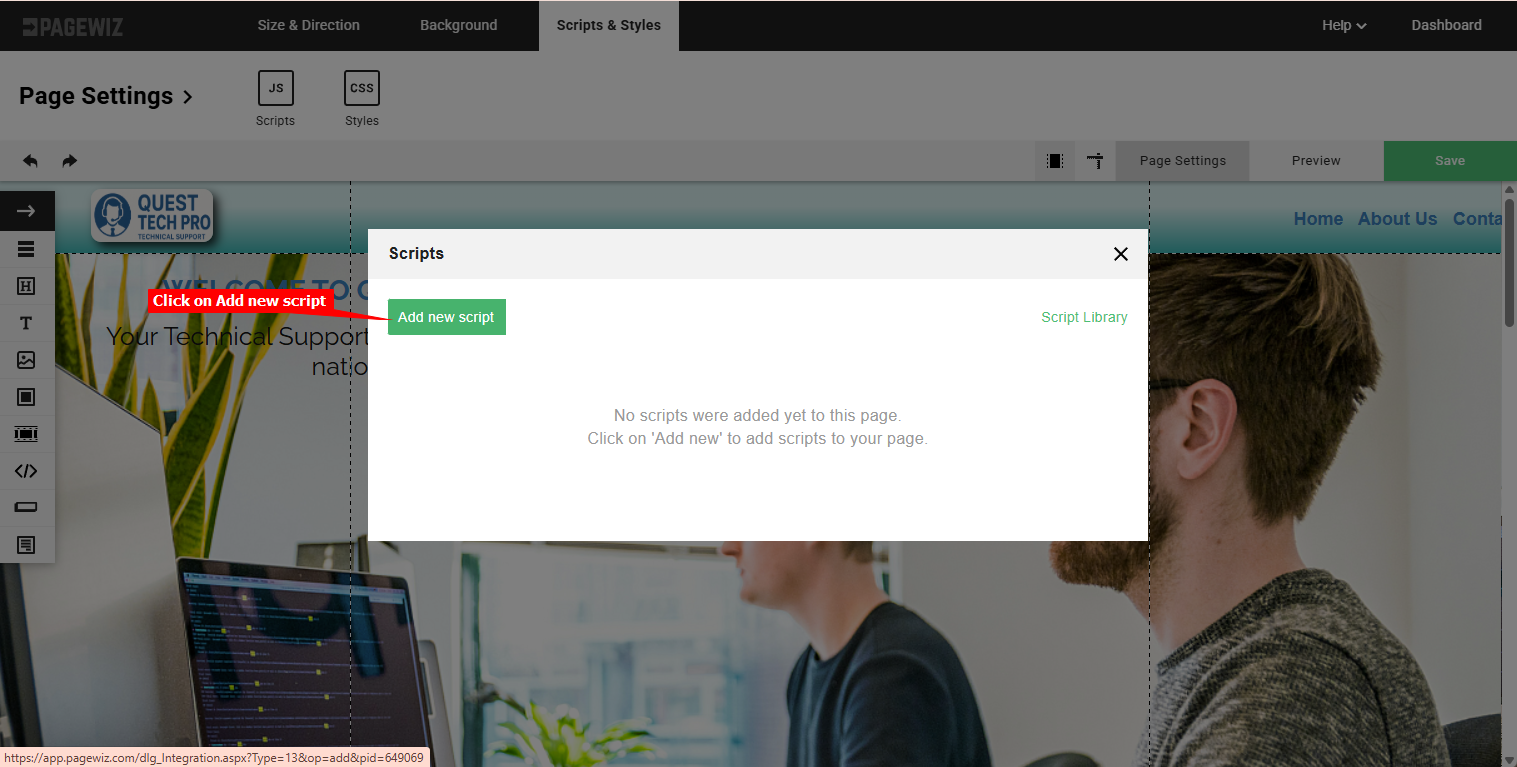
ii. Click on **Add new script**
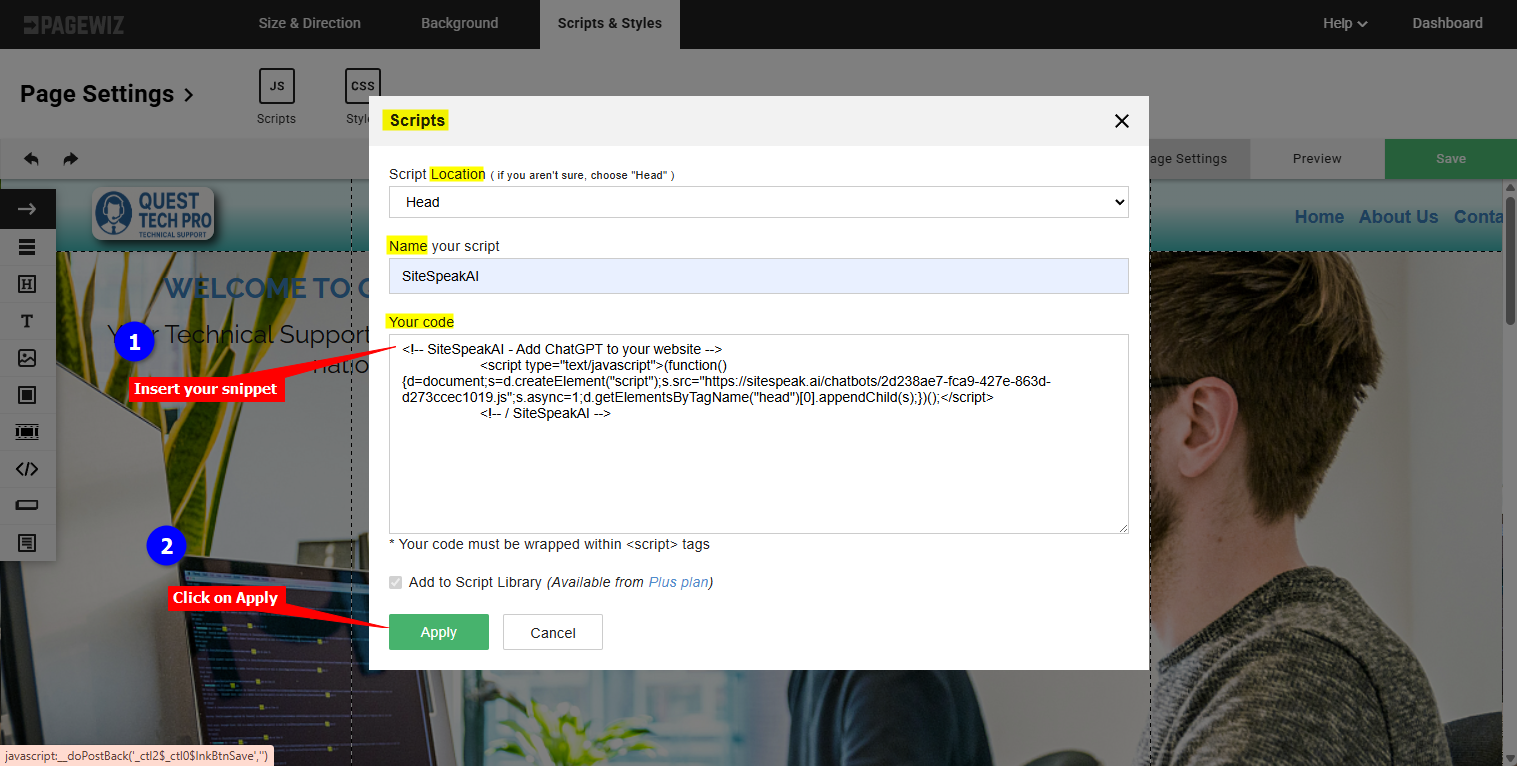
iii. Select the **location** to place your script (**Head**, **Body** or **Footer**), provide a **name** for your script, insert your snippet and click on **Apply**
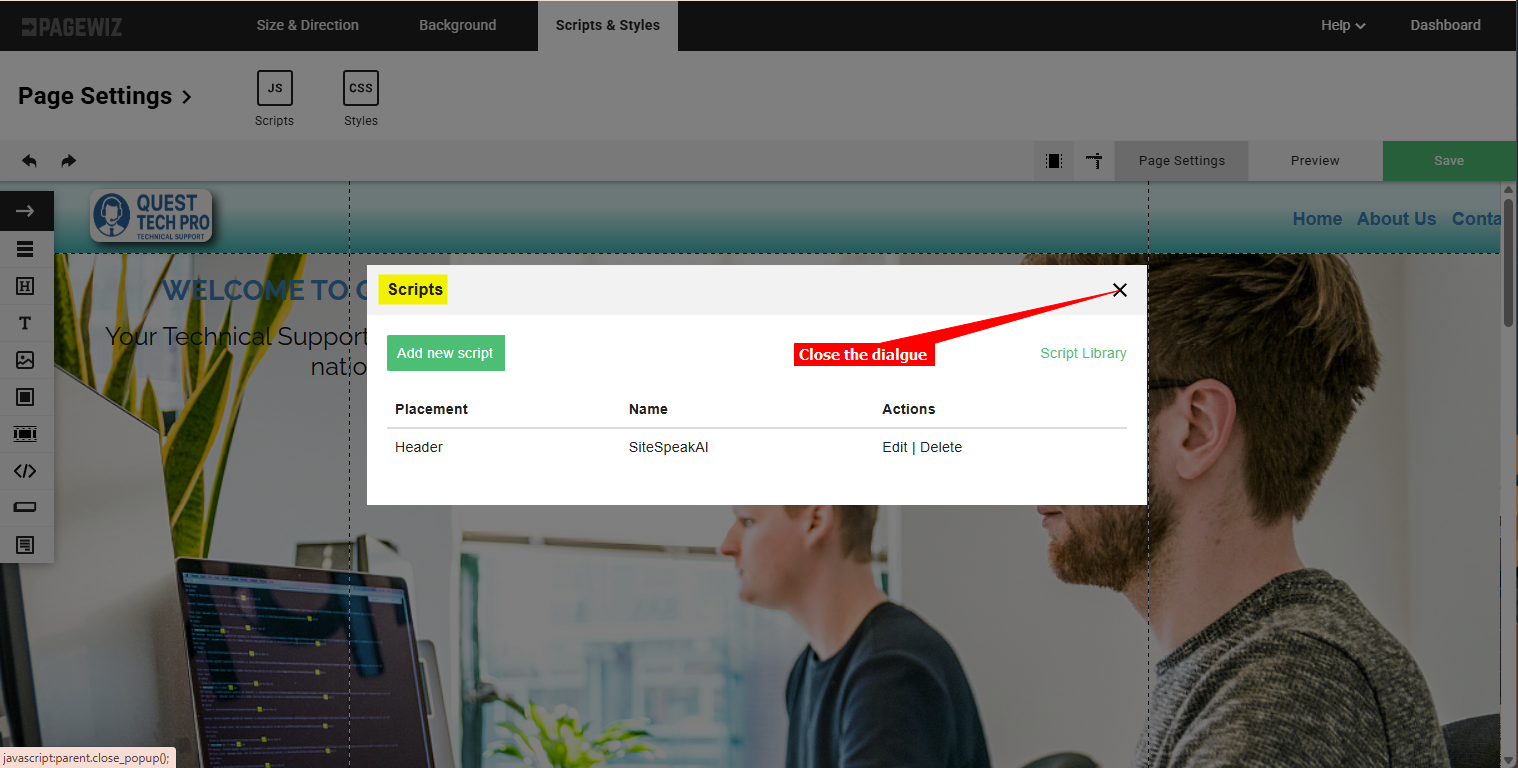
iv. Close the **Scripts** dialogue
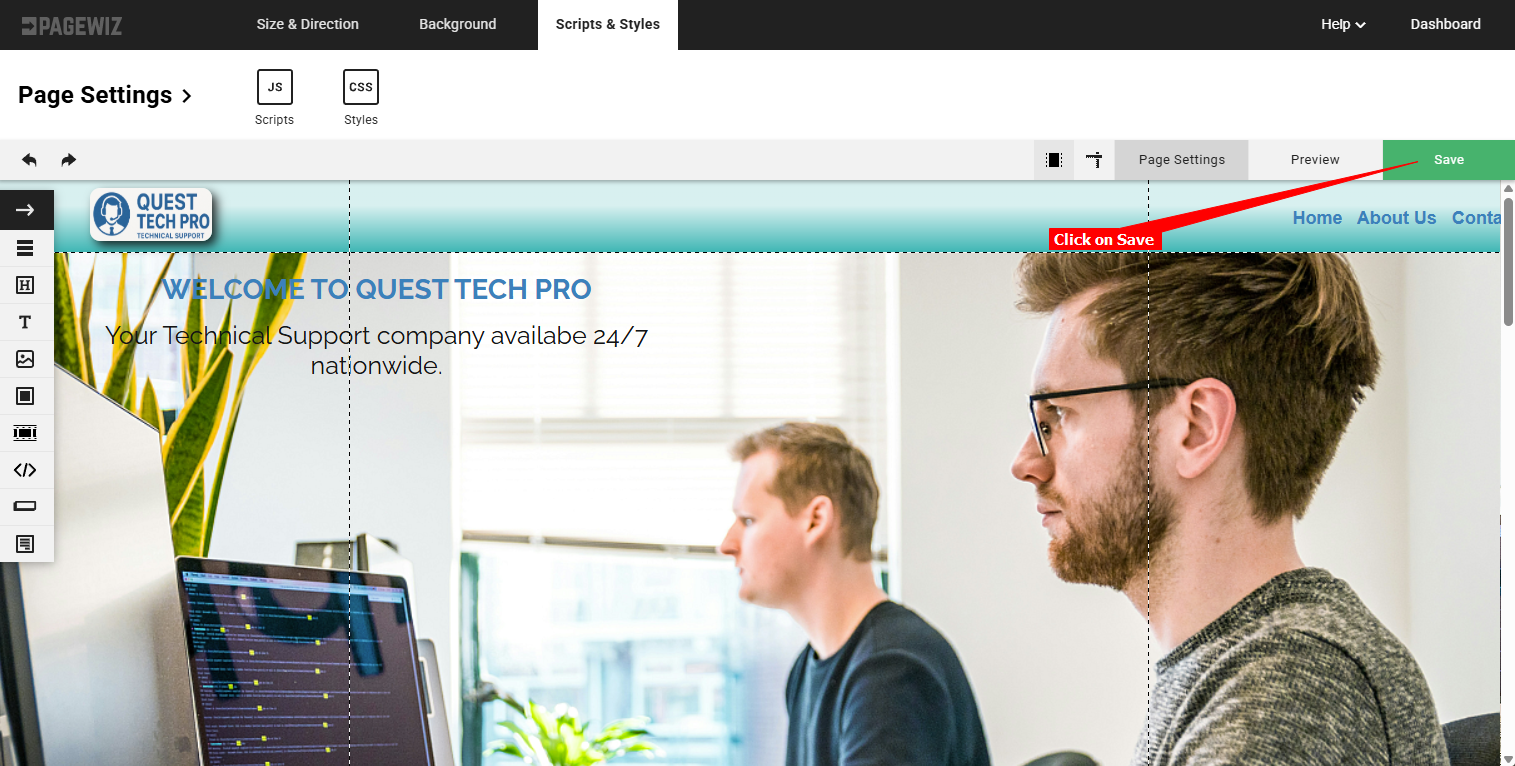
v. Click on **Save** to save your page modifications
#### C. For both options:
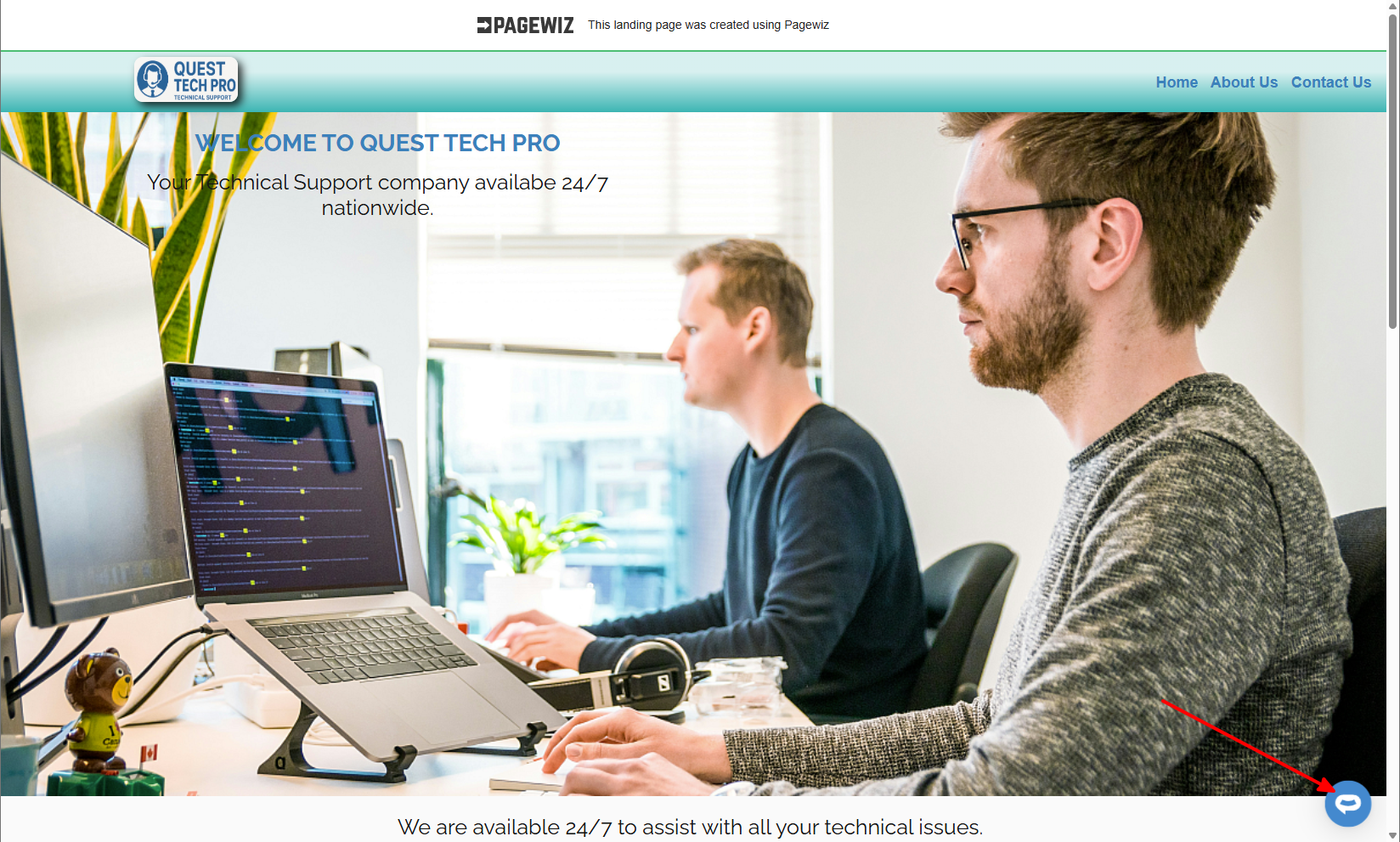
1. Your AI support agent button will now be displayed on your **Pagewiz** website page
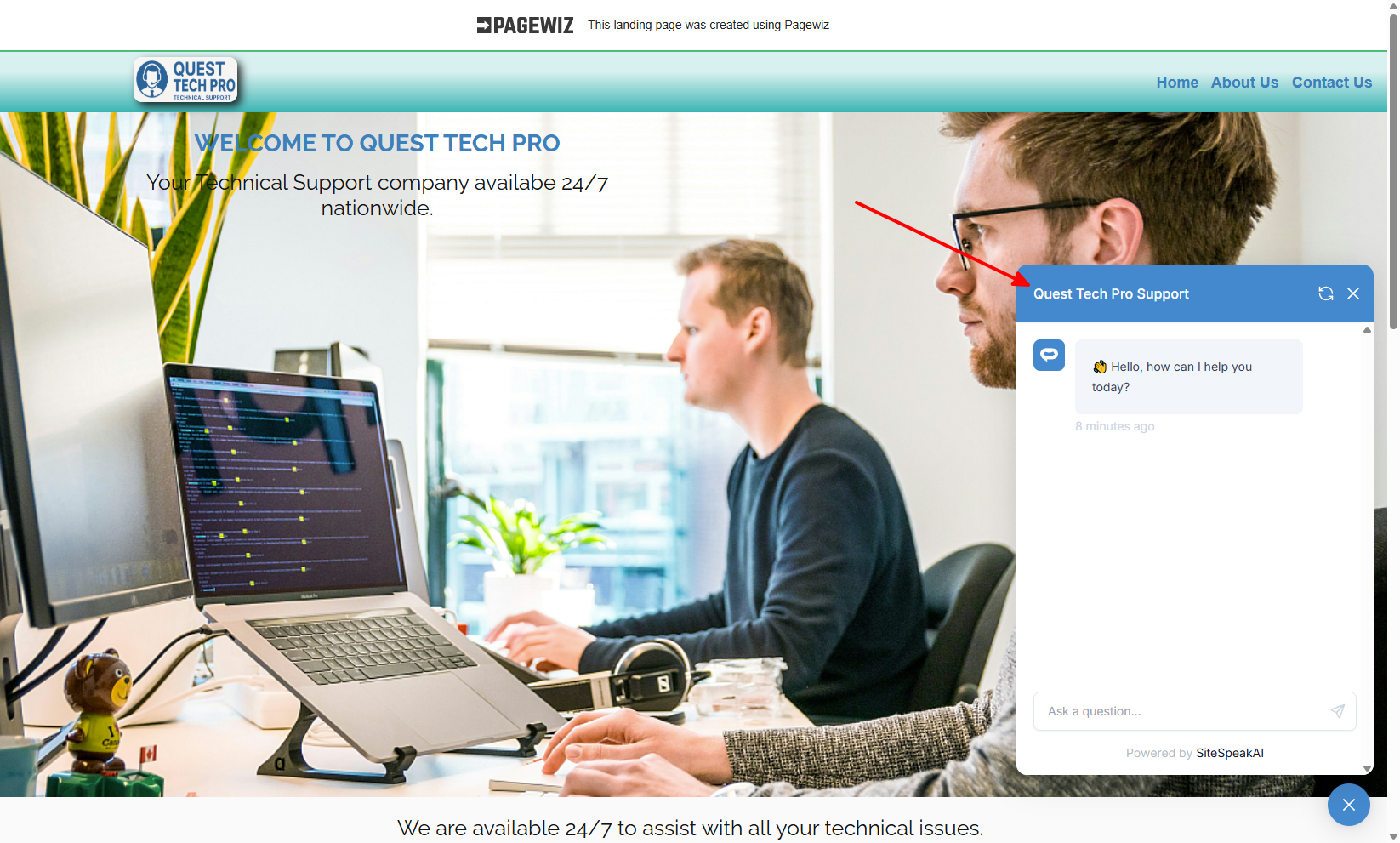
2. If you click on the button it will display the AI support agent dialogue
Your AI support agent has now been added to your **Pagewiz** website and your visitors/customers can start interacting with it!
***
Join over 1000+ businesses, websites and startups automating their customer service and other tasks with a custom trained AI agent.
### In Pagewiz
1. Log into your **Pagewiz** account, make sure **Pages** is selected on the top menu bar and click on **Design** for the page you want to add your AI support agent to

**Note**: There are two (2) ways to add your snippet to your **Pagewiz** page.
a. Using the **Embed Code** component to insert the code per page or
b. Add a global **JS Script** which will then be applied to all pages
#### A. Using the ***Embed Code*** component option:
i. Drag the **Embed Code** component onto your page

ii. Enter a **name** for the code component, insert your snippet in the **HTML code** text box and click on **Apply**

iii. Click on **Save** to save your page modifications

#### B. Using the global ***JS Script*** option:
i. Select **Scripts & Styles** on the top menu bar and select the **JS Scripts** option

ii. Click on **Add new script**

iii. Select the **location** to place your script (**Head**, **Body** or **Footer**), provide a **name** for your script, insert your snippet and click on **Apply**

iv. Close the **Scripts** dialogue

v. Click on **Save** to save your page modifications

#### C. For both options:
1. Your AI support agent button will now be displayed on your **Pagewiz** website page

2. If you click on the button it will display the AI support agent dialogue

Your AI support agent has now been added to your **Pagewiz** website and your visitors/customers can start interacting with it!
***
Join over 1000+ businesses, websites and startups automating their customer service and other tasks with a custom trained AI agent.