> ## Documentation Index
> Fetch the complete documentation index at: https://sitespeak.ai/docs/llms.txt
> Use this file to discover all available pages before exploring further.
# How to add a ChatGPT AI support agent to Photler
> How to add your custom ChatGPT trained AI support agent to your Photler website.
You want to embed your custom trained AI support agent in your **Photler** website page. Here's how to add an AI support agent to Photler with SiteSpeakAI.
**Photler** is a tool that drives travel inspiration. If you wish to show others the magical places you’ve been to or see scenic places that you should visit, Photler is the place to go to. It brings together travel enthusiasts from all over the world and aims at making your travel decisions easier by showing you how beautiful the world actually is.
**Website URL:** [Photler](https://photler.com/)
## Add your AI support agent to your **Photler** website
### In SiteSpeakAI
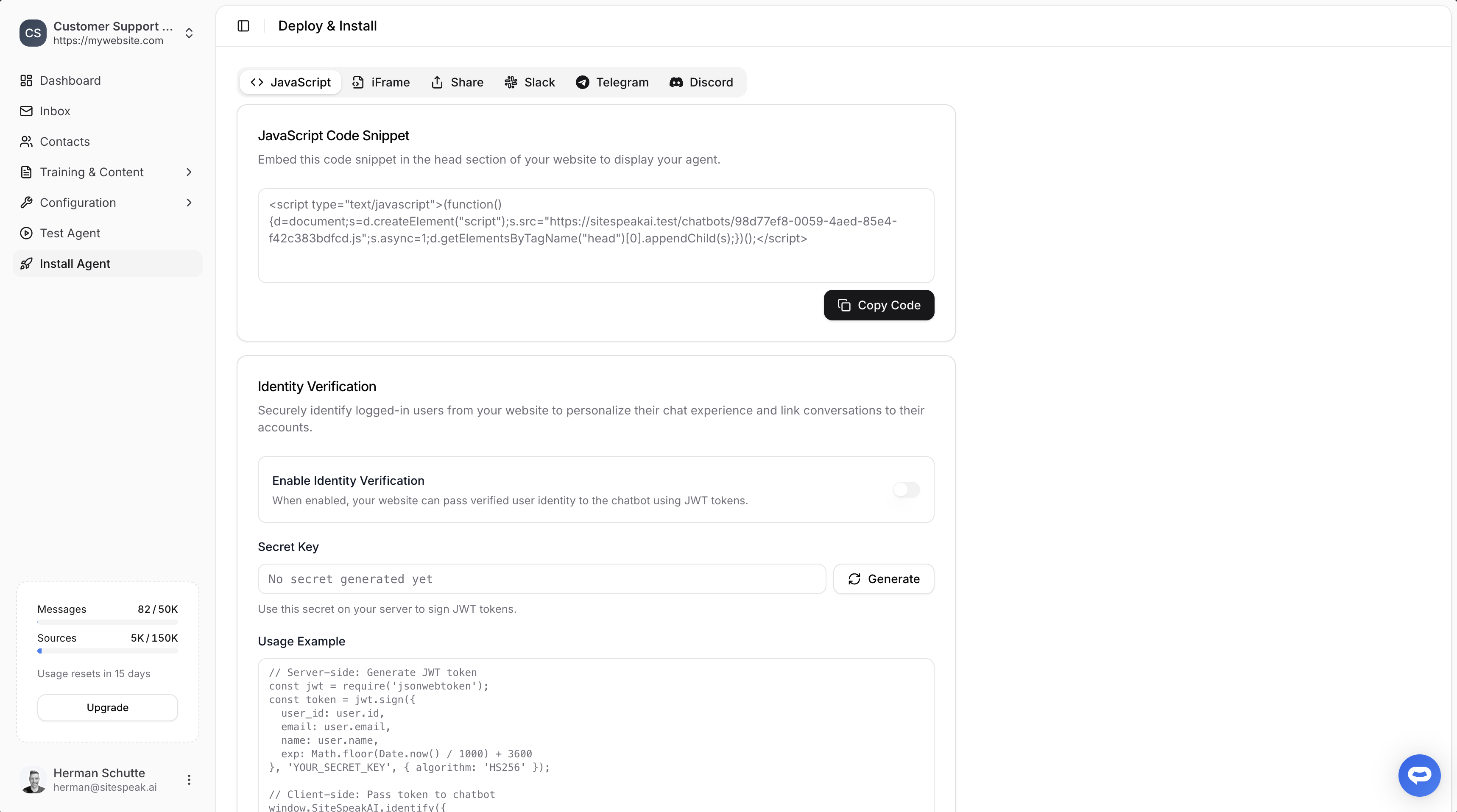
Select your chatbot from the dropdown menu at the top, click on the **Install Agent** section in the sidebar, then click on the **Copy Code** button to copy your code snippet.
 ### In Photler
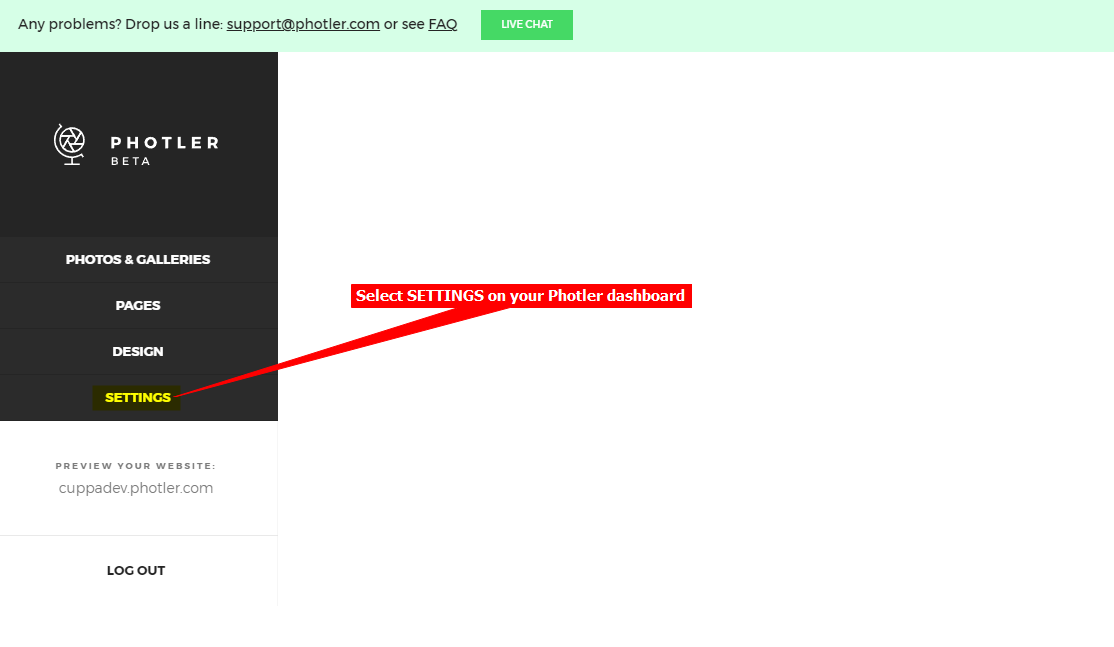
1. Log into your **Photler** website and on your dashboard, select **SETTINGS** on the left sidebar.
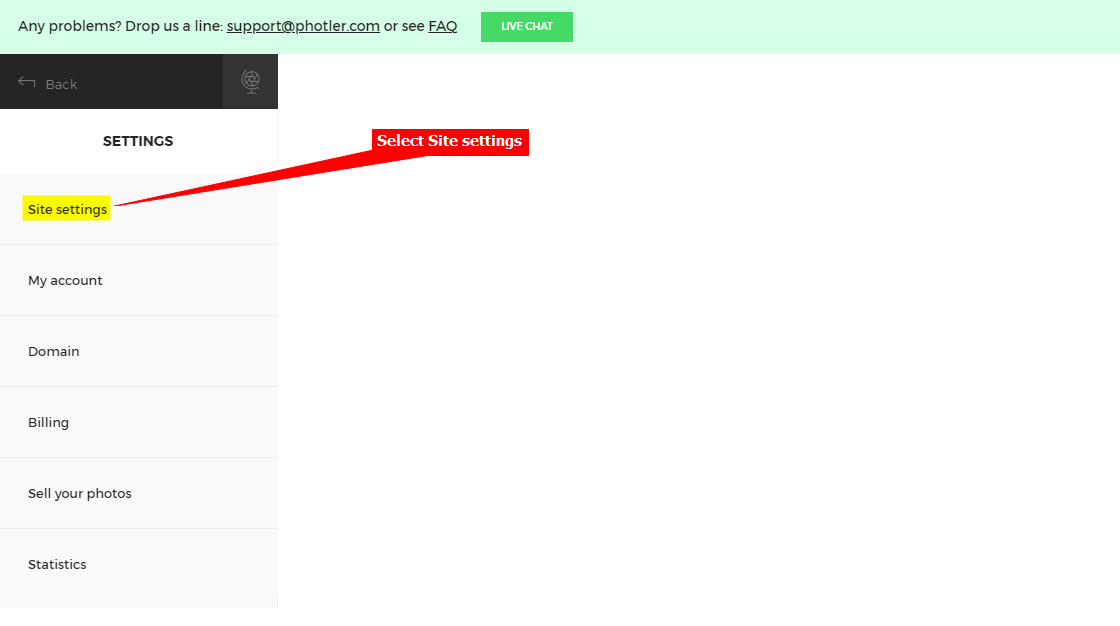
2. Select **Site settings**.
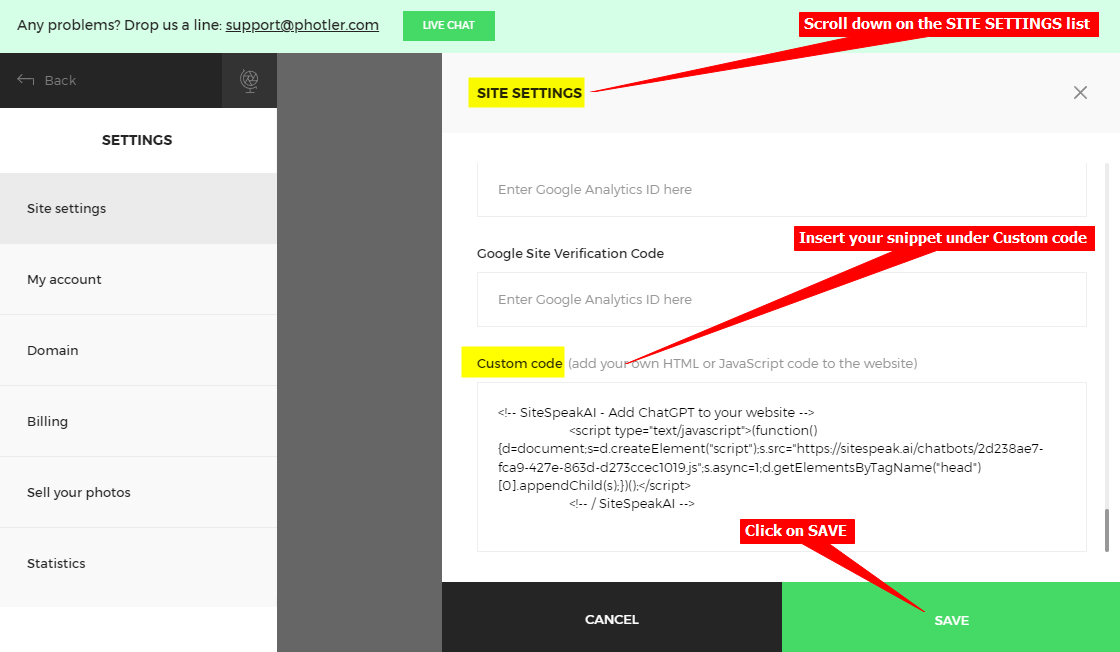
3. Scroll down on the SITE SETTINGS list and insert your snippet under **Custom code**. Click on **SAVE** when done.
4. Your AI support agent button will now be displayed on your **Photler** website.
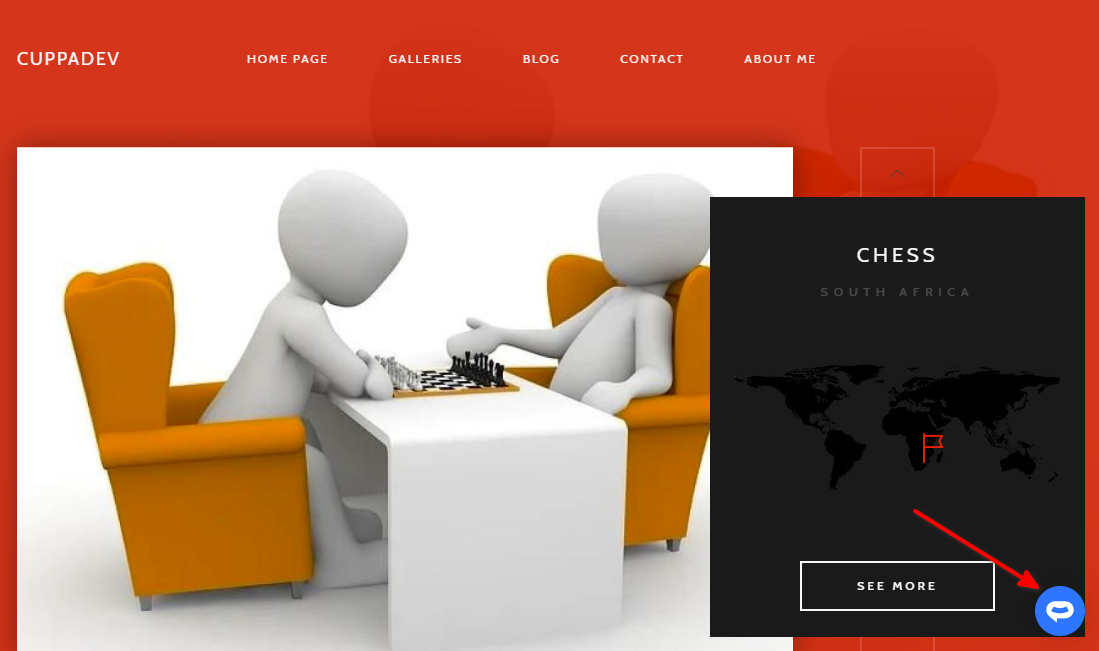
5. If you click on the button it will display your AI support agent dialogue.
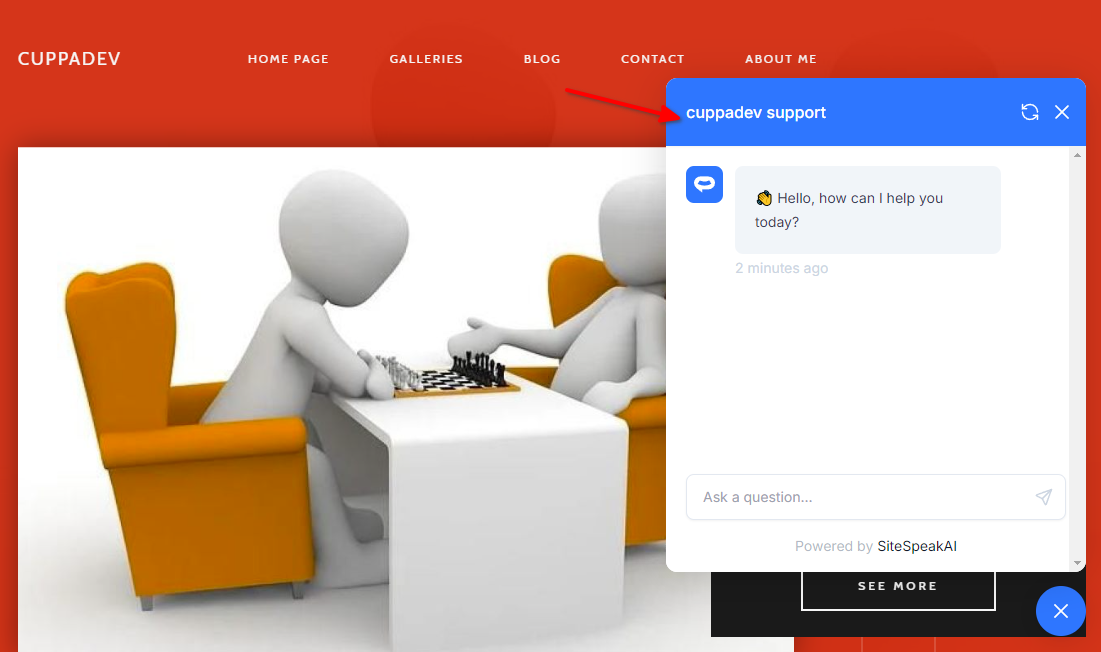
Your AI support agent is now added to your **Photler** website and your customers/visitors can start interacting with it!
***
Join over 1000+ businesses, websites and startups automating their customer service and other tasks with a custom trained AI agent.
### In Photler
1. Log into your **Photler** website and on your dashboard, select **SETTINGS** on the left sidebar.

2. Select **Site settings**.

3. Scroll down on the SITE SETTINGS list and insert your snippet under **Custom code**. Click on **SAVE** when done.

4. Your AI support agent button will now be displayed on your **Photler** website.

5. If you click on the button it will display your AI support agent dialogue.

Your AI support agent is now added to your **Photler** website and your customers/visitors can start interacting with it!
***
Join over 1000+ businesses, websites and startups automating their customer service and other tasks with a custom trained AI agent.