> ## Documentation Index
> Fetch the complete documentation index at: https://sitespeak.ai/docs/llms.txt
> Use this file to discover all available pages before exploring further.
# How to add a ChatGPT AI support agent to Publii
> How to add your custom ChatGPT trained AI support agent to your Publii website.
You want to embed your custom trained AI support agent in your **Publii** website page. Here's how to add ChatGPT to Publii with SiteSpeakAI.
**Publii** makes website creation simple and accessible for everyone, no matter your skill level. With an intuitive desktop interface and built-in privacy-first tools, Publii offers flexible and powerful options to build and manage blogs, portfolios, or documentation websites — quickly, securely, and completely hassle-free. It's the perfect tool for creators, authors, and businesses who value control and simplicity.
You can learn more at: [Publii](https://getpublii.com/)
## Add your AI support agent to your **Publii** website
**Please note**:
Publii is not an on-line (web based) website builder. It is installed on your computer as an application.
The default `server` setup is on your local computer but it can be setup to use **FTP** or **SFTP** to transfer the code to a host of your choice.
### In SiteSpeakAI
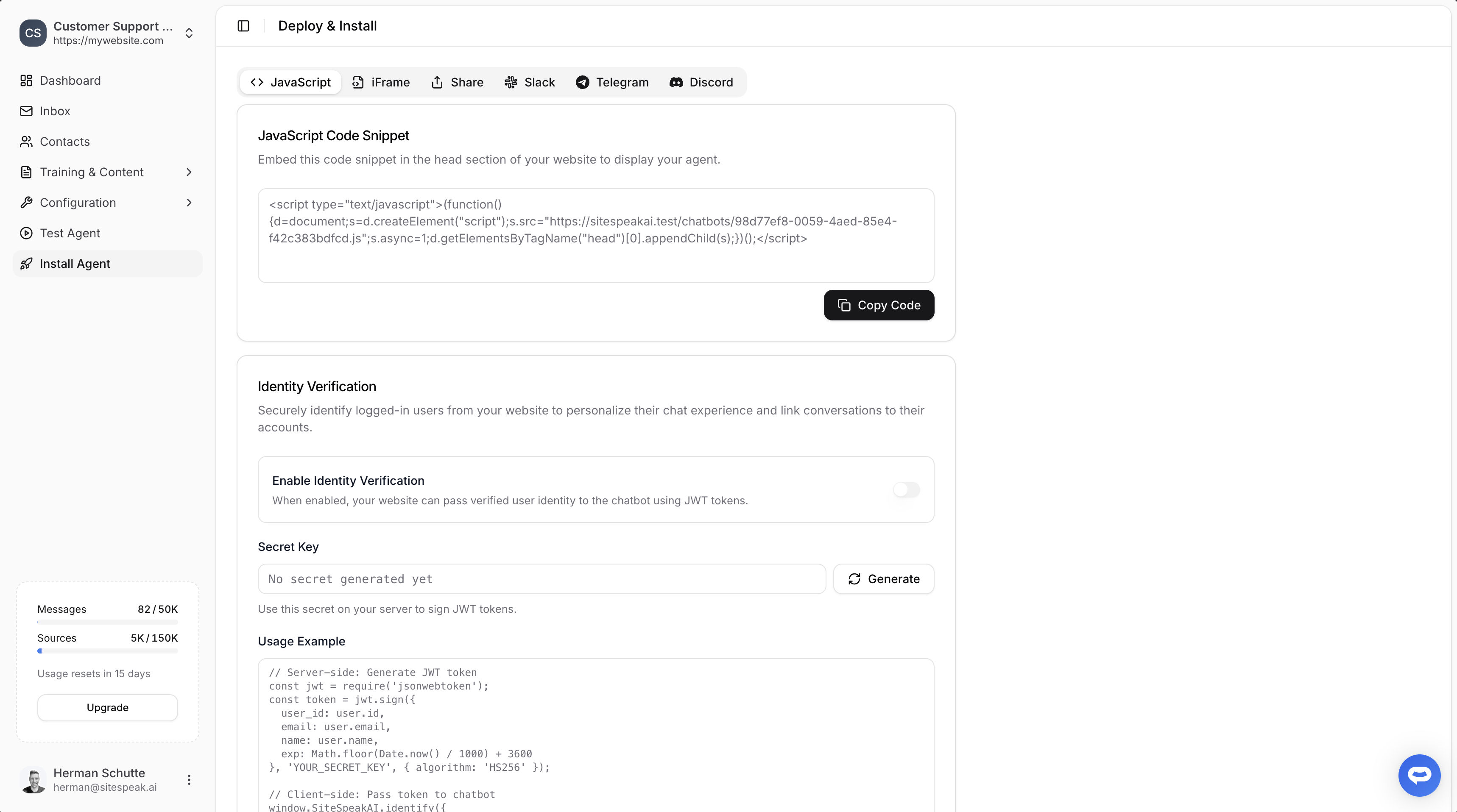
Select your chatbot from the dropdown menu at the top, click on the **Install Agent** section in the sidebar, then click on the **Copy Code** button to copy your code snippet.
 ### In Publii
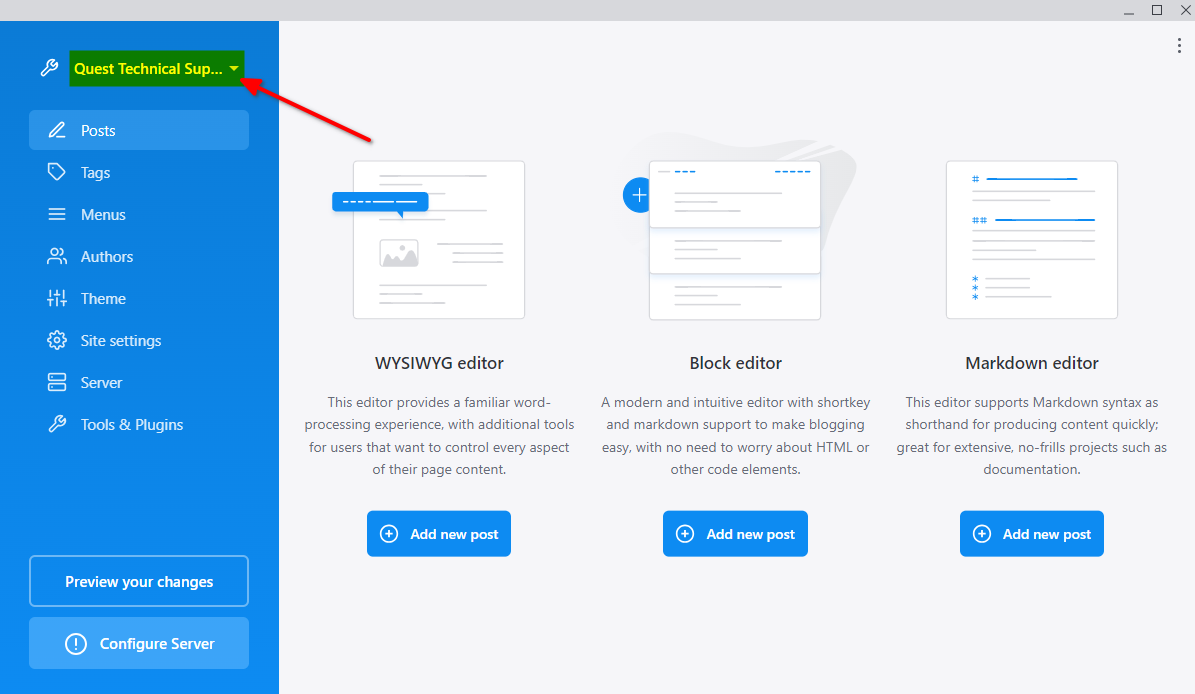
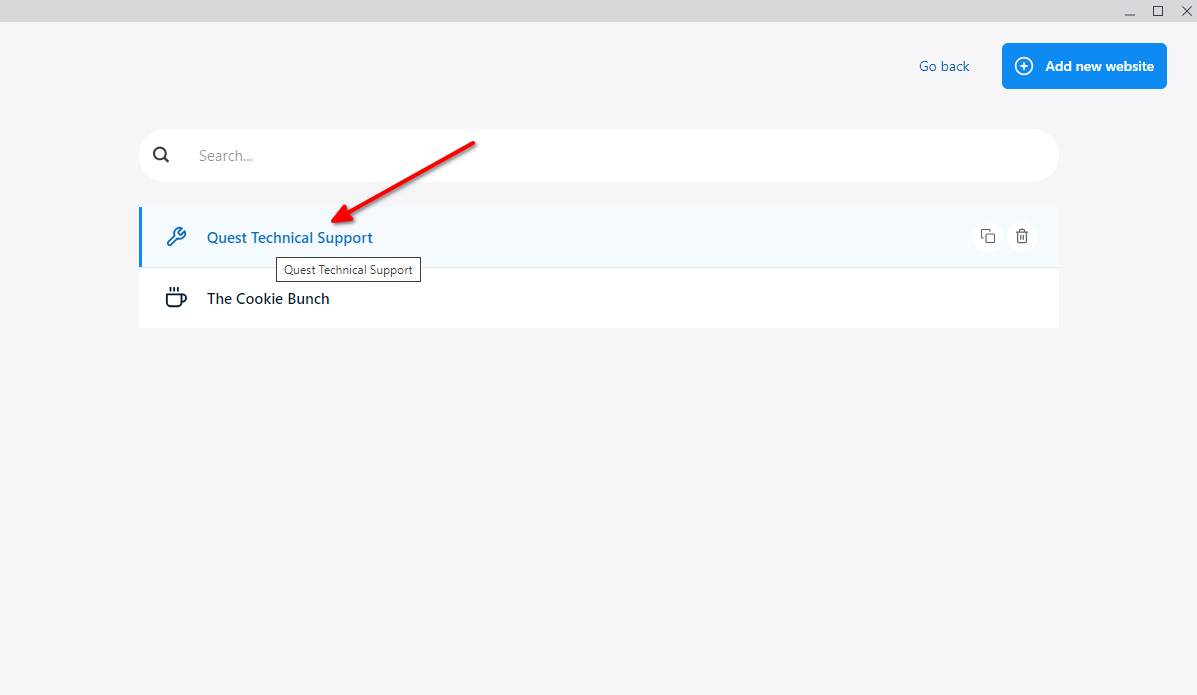
1. Start the **Publii** application and (if you have more than one site created on Publii) select the website from the dropdown list
...
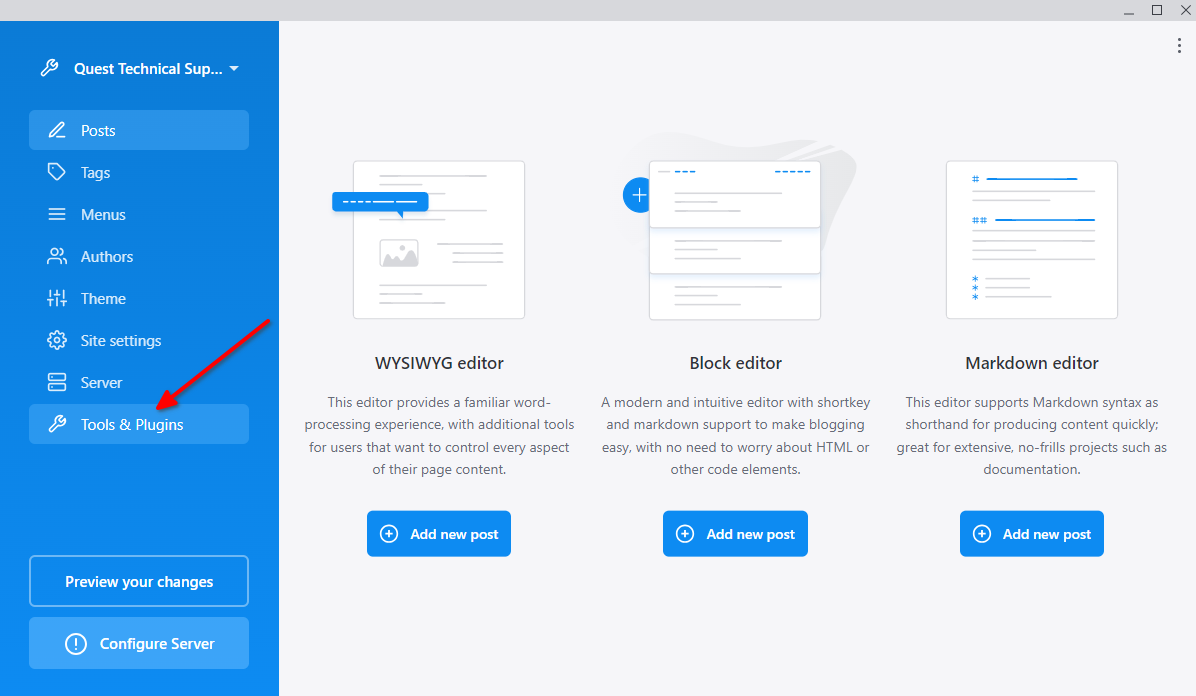
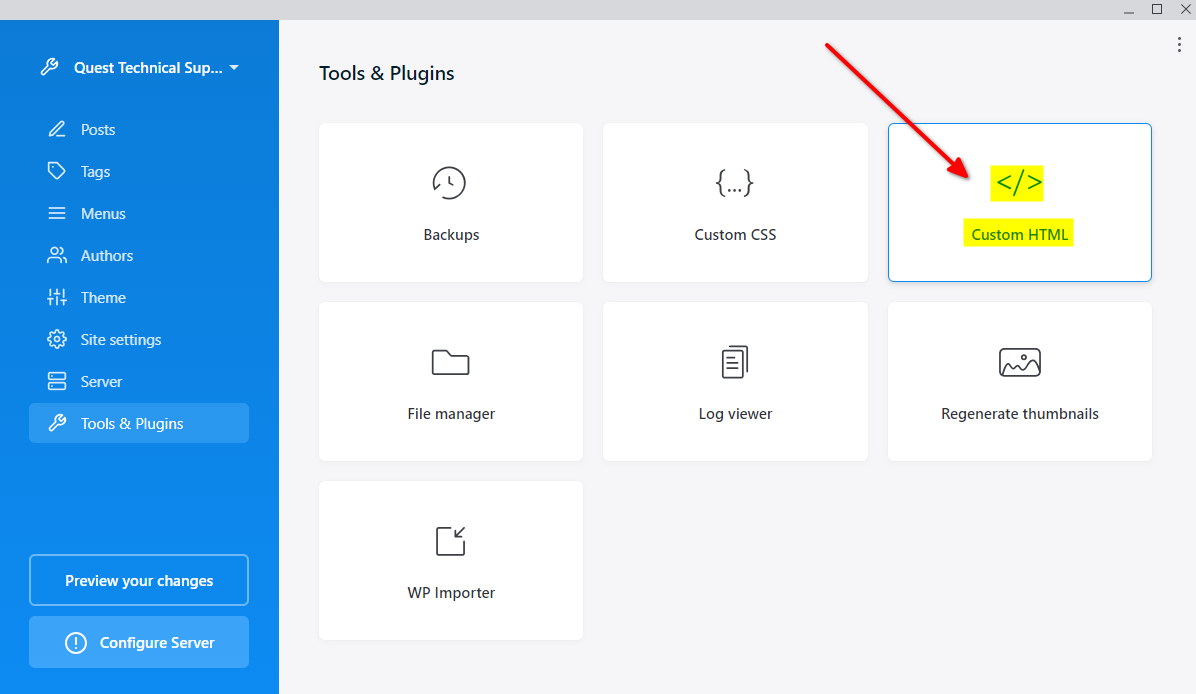
2. Select **Tools & Plugins**
3. Select **Custom HTML**
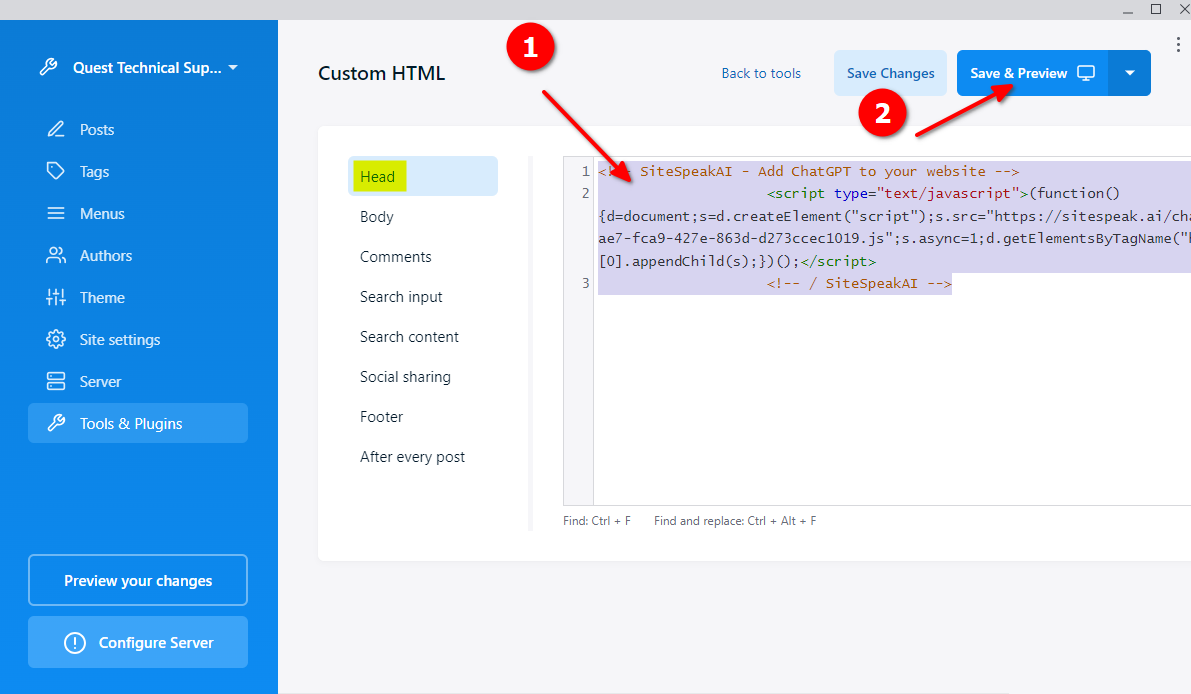
4. Insert your snippet in the **Head** (or **Footer**) part of your website and click on **Save & Preview**
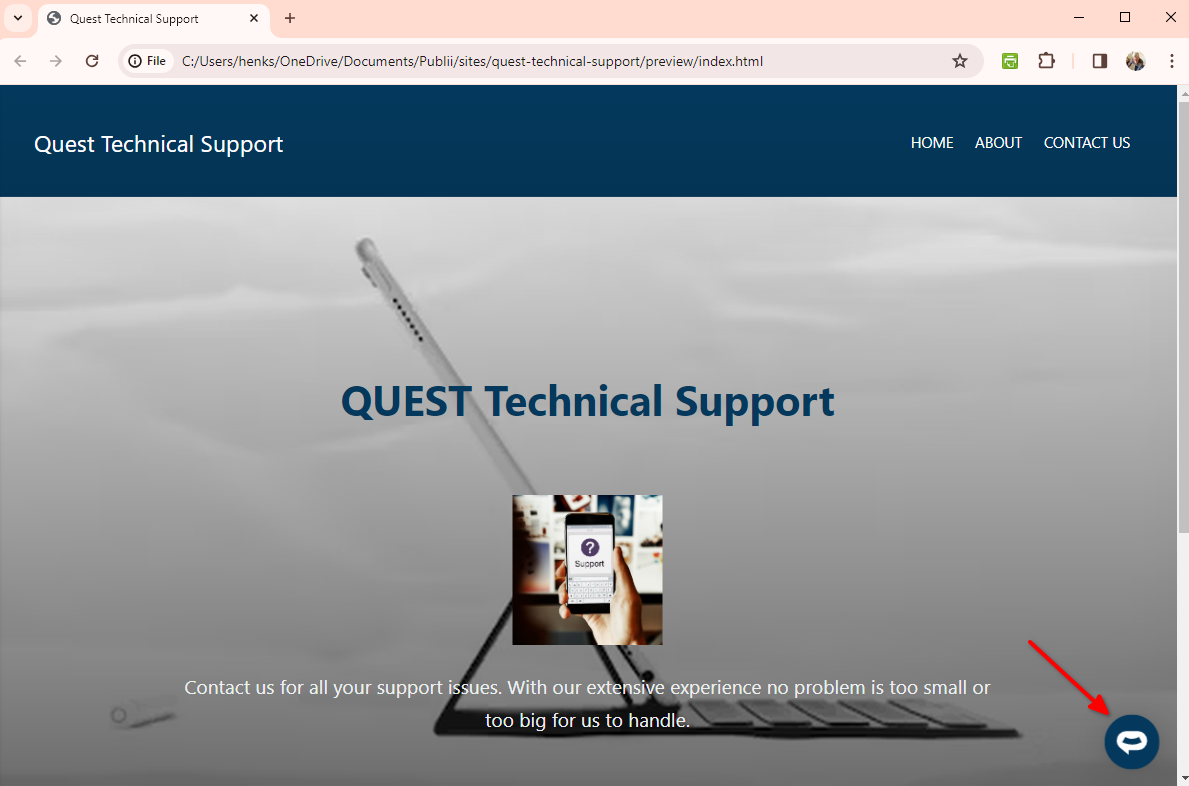
5. Your AI support agent button will now be displayed on your Publii website
6. If you click on the button it will display the AI support agent dialogue
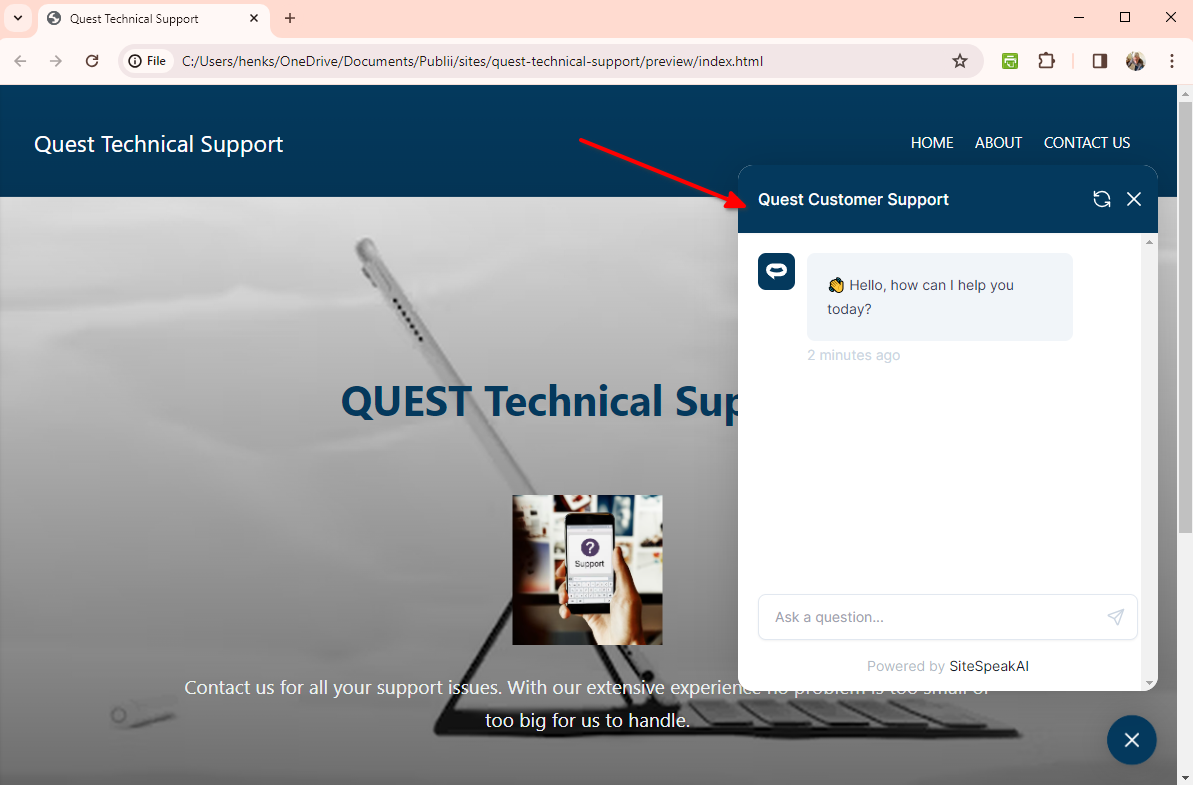
Your AI support agent is now added to your **Publii** website and your customers can start interacting with it!
***
Join over 1000+ businesses, websites and startups automating their customer service and other tasks with a custom trained AI agent.
### In Publii
1. Start the **Publii** application and (if you have more than one site created on Publii) select the website from the dropdown list

...

2. Select **Tools & Plugins**

3. Select **Custom HTML**

4. Insert your snippet in the **Head** (or **Footer**) part of your website and click on **Save & Preview**

5. Your AI support agent button will now be displayed on your Publii website

6. If you click on the button it will display the AI support agent dialogue

Your AI support agent is now added to your **Publii** website and your customers can start interacting with it!
***
Join over 1000+ businesses, websites and startups automating their customer service and other tasks with a custom trained AI agent.