> ## Documentation Index
> Fetch the complete documentation index at: https://sitespeak.ai/docs/llms.txt
> Use this file to discover all available pages before exploring further.
# How to add a ChatGPT AI support agent to Replit
> How to add your custom ChatGPT trained AI support agent to your Replit website or app.
You want to embed your custom trained AI support agent in your **Replit** website page or app. Here's how to add an AI support agent to Replit with SiteSpeakAI.
**Replit** is a cloud-based development platform and AI-powered app builder that lets you write code, collaborate in real time, and build fully functional software straight from your web browser.
The **Replit Agent** is an AI tool that lets you build complete websites, apps, and tools just by describing what you want in plain English.
**Website URL**: [Replit](https://replit.com)
## Add your AI support agent to your **Replit** website or app
**Replit** can also be installed as a desktop app. For this tutorial we will be using the web based setup.
### In SiteSpeakAI
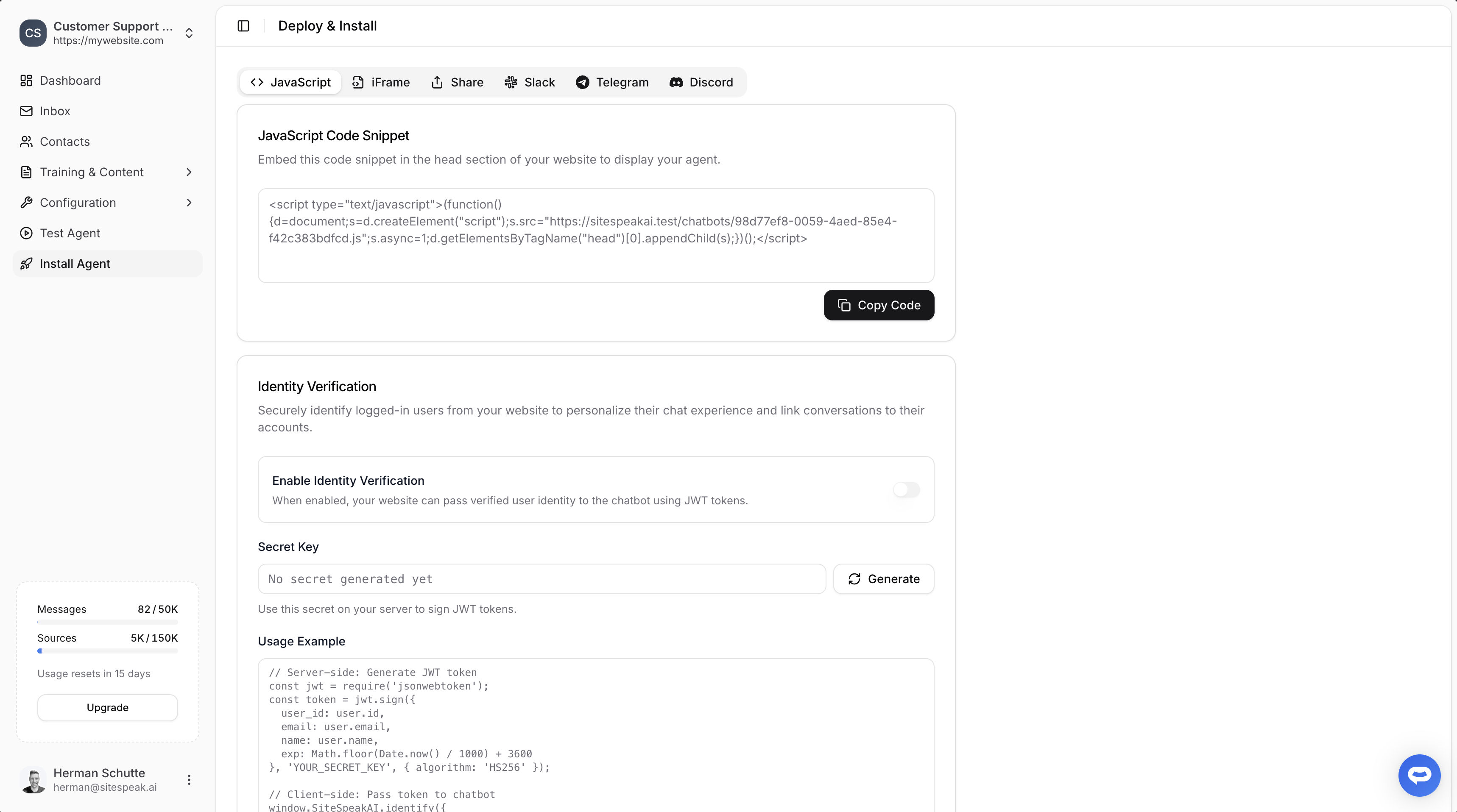
Select your chatbot from the dropdown menu at the top, click on the **Install Agent** section in the sidebar, then click on the **Copy Code** button to copy your code snippet.
 ### In Replit
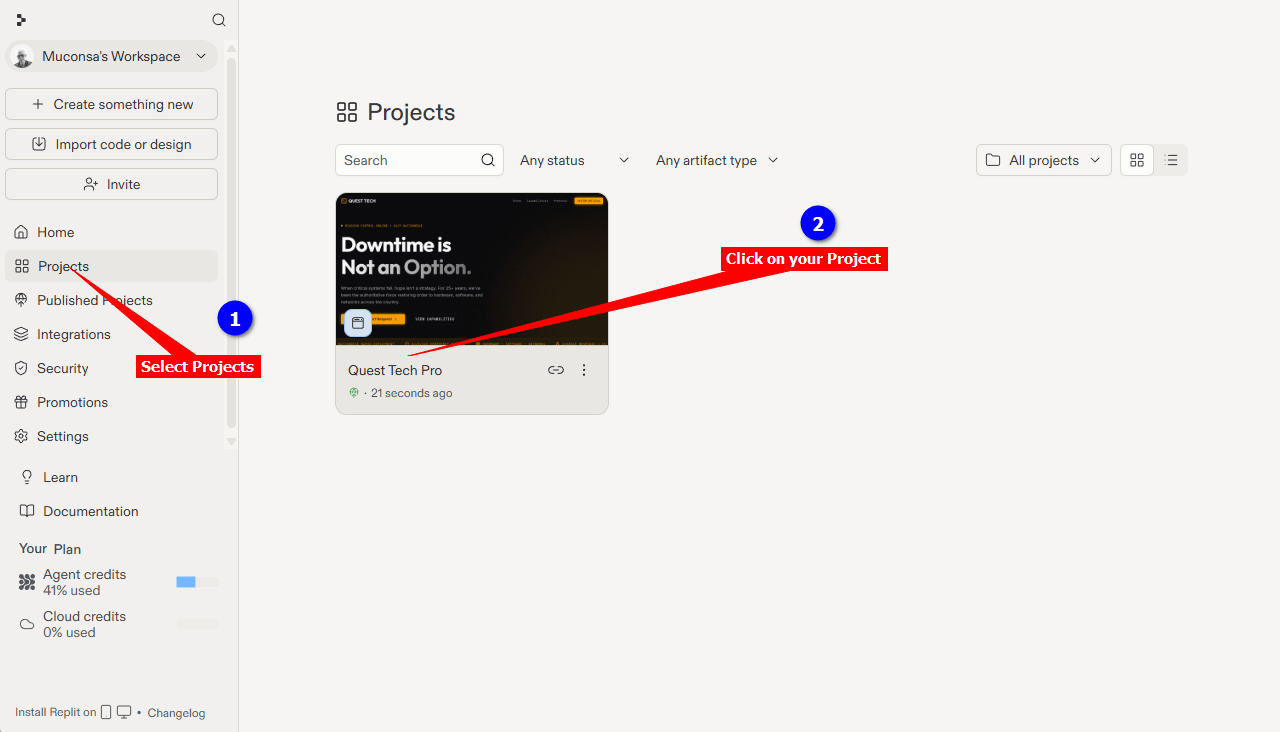
1. Log into your **Replit** account, select **Projects** on the left sidebar and click on the Project you want to add your AI Support agent to
### In Replit
1. Log into your **Replit** account, select **Projects** on the left sidebar and click on the Project you want to add your AI Support agent to
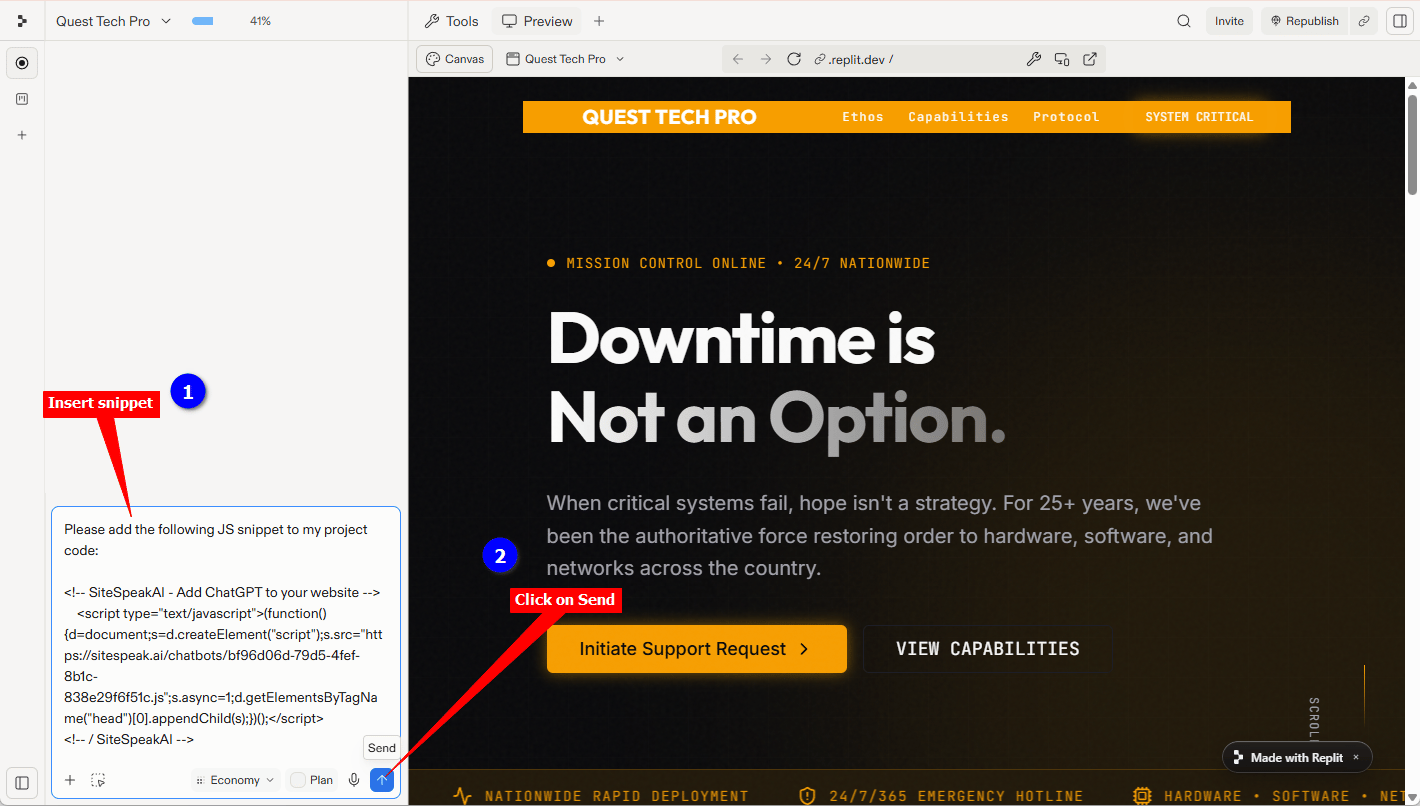
 We are going to use a prompt to instruct the **Replit Agent** to insert the snippet for us.
The prompt consists of an instruction, e.g. “Please add the following JS snippet to my project code:” followed by the snippet code as copied at the beginning of this tutorial.
Note that the /####################################.js part of the JS file URL will be replaced by your specific js script filename (36 characters including the 4 dashes).
**Tip**: Create the complete prompt in a text editor and then paste this into the Replit Agent **Message Agent...** box.
```
Please add the following JS snippet to my project code:
```
2. Insert this prompt into the Replit Agent **Message Agent...** box and click on the **Send** button
We are going to use a prompt to instruct the **Replit Agent** to insert the snippet for us.
The prompt consists of an instruction, e.g. “Please add the following JS snippet to my project code:” followed by the snippet code as copied at the beginning of this tutorial.
Note that the /####################################.js part of the JS file URL will be replaced by your specific js script filename (36 characters including the 4 dashes).
**Tip**: Create the complete prompt in a text editor and then paste this into the Replit Agent **Message Agent...** box.
```
Please add the following JS snippet to my project code:
```
2. Insert this prompt into the Replit Agent **Message Agent...** box and click on the **Send** button
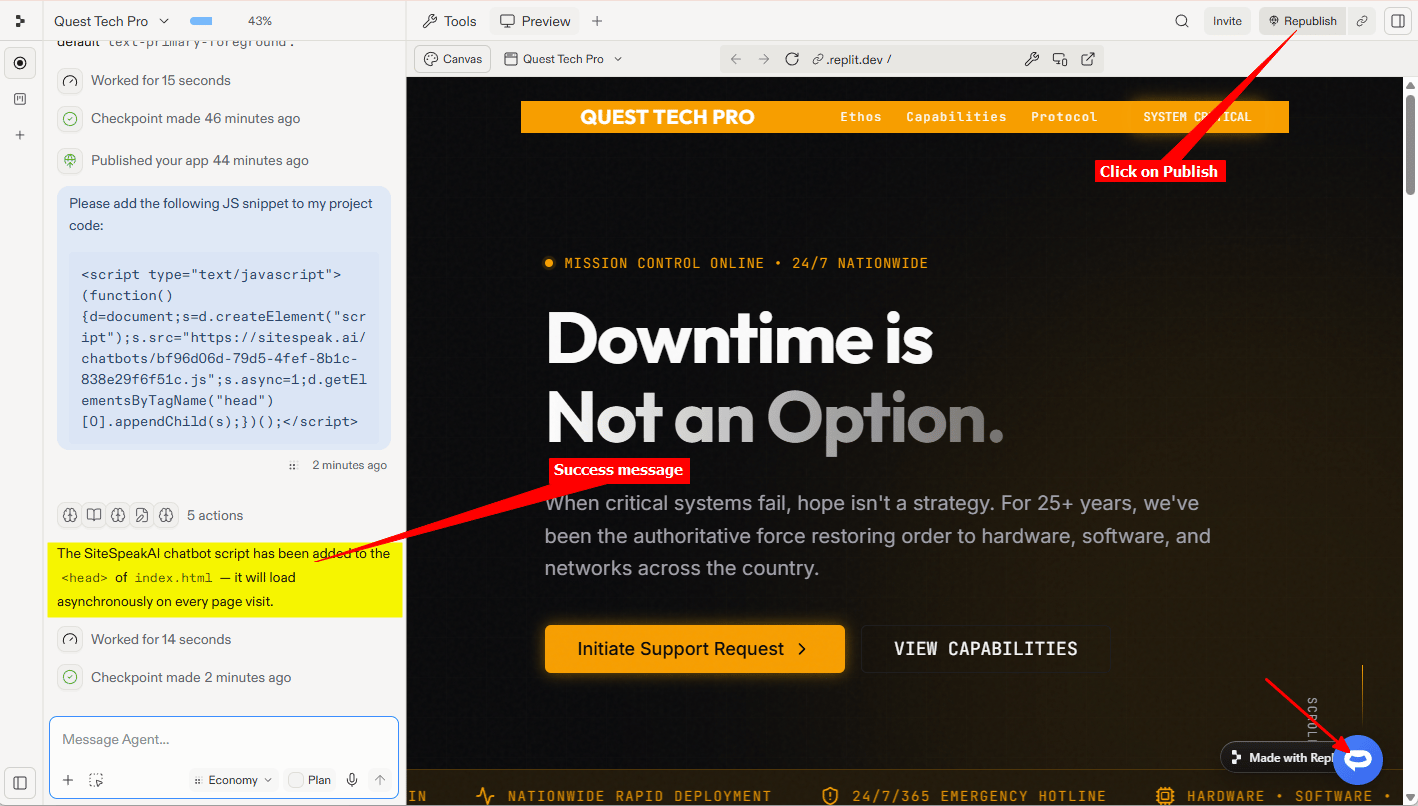
 3. The **Replit Agent** will start adding the code to your website, it takes a while so please be patient. When done it will display a message indicating that the snippet was added and also display the AI support agent button on the Preview page. Click on **Publish** (or **Republish**) to publish your changes to your live website or app
 4. Your AI support agent button will now be displayed on your **Replit** website page or app
 5. If you click on the button it will display the AI support agent dialogue
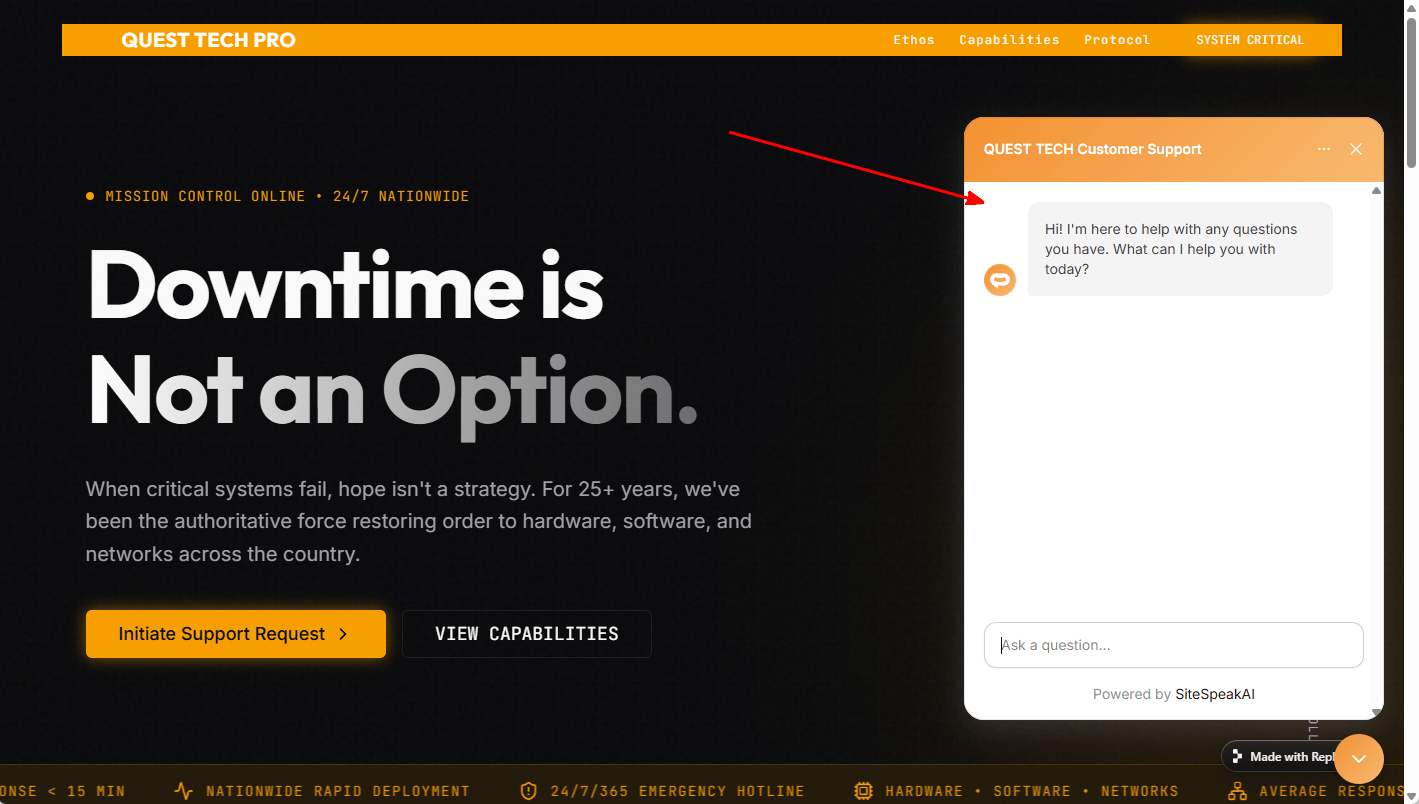 Your AI support agent has now been added to your **Replit** website or app and your visitors/customers can start interacting with it!
***
Join over 1000+ businesses, websites and startups automating their customer service and other tasks with a custom trained AI agent.
Your AI support agent has now been added to your **Replit** website or app and your visitors/customers can start interacting with it!
***
Join over 1000+ businesses, websites and startups automating their customer service and other tasks with a custom trained AI agent.