> ## Documentation Index
> Fetch the complete documentation index at: https://sitespeak.ai/docs/llms.txt
> Use this file to discover all available pages before exploring further.
# How to add a ChatGPT AI support agent to Skywork.ai
> How to add your custom ChatGPT trained AI support agent to your Skywork.ai website.
You want to embed your custom trained AI support agent in your **Skywork.ai** website page. Here's how to add an AI support agent to Skywork.ai with SiteSpeakAI.
**Skywork.ai** is an AI-powered website builder designed to help users create websites quickly and easily. It leverages artificial intelligence to simplify the design and development process.
You can learn more at: [Skywork.ai](https://skywork.ai/)
## Add your AI support agent to your Skywork.ai website
### In SiteSpeakAI
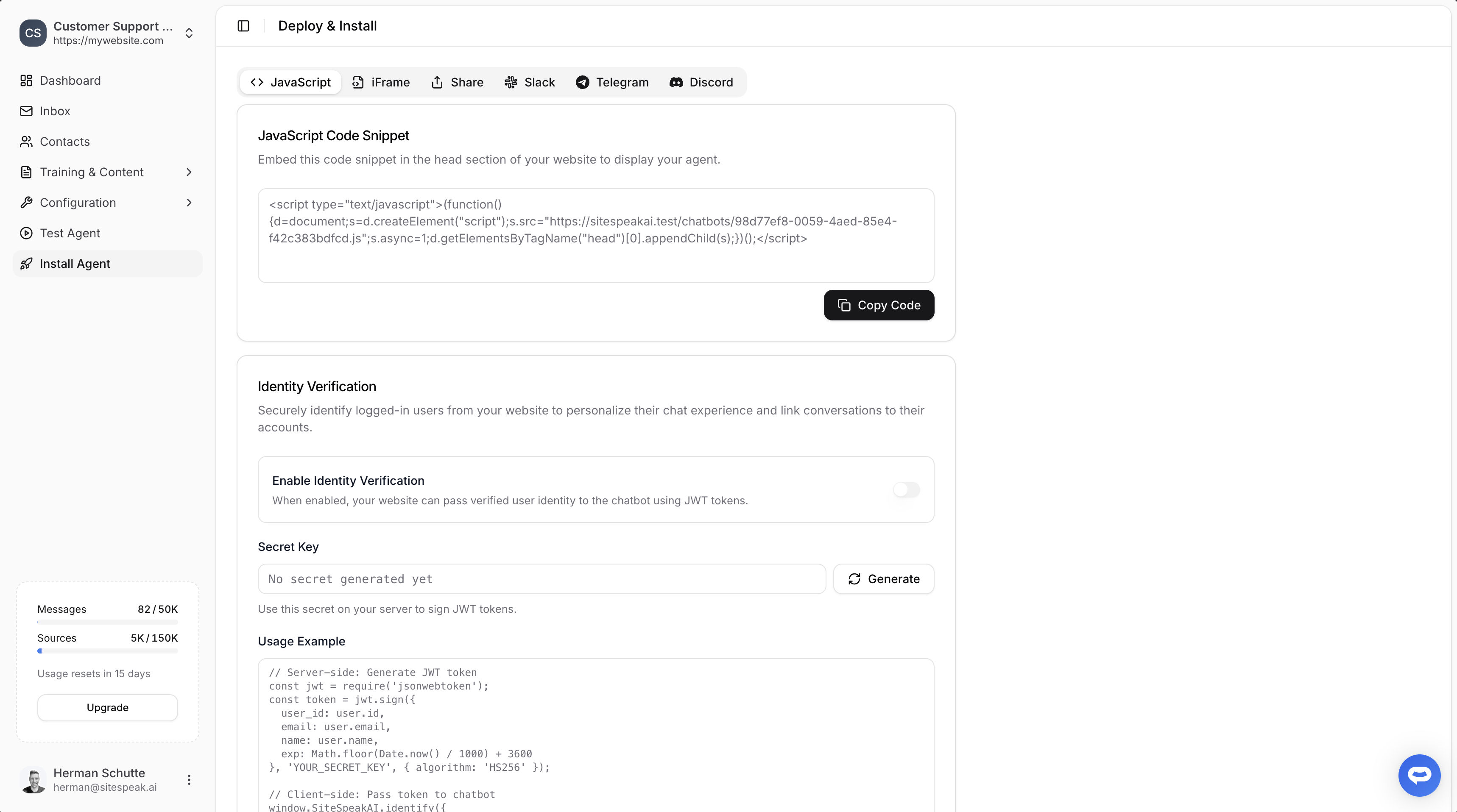
Select your chatbot from the dropdown menu at the top, click on the **Install Agent** section in the sidebar, then click on the **Copy Code** button to copy your code snippet.
 ### In Skywork.ai
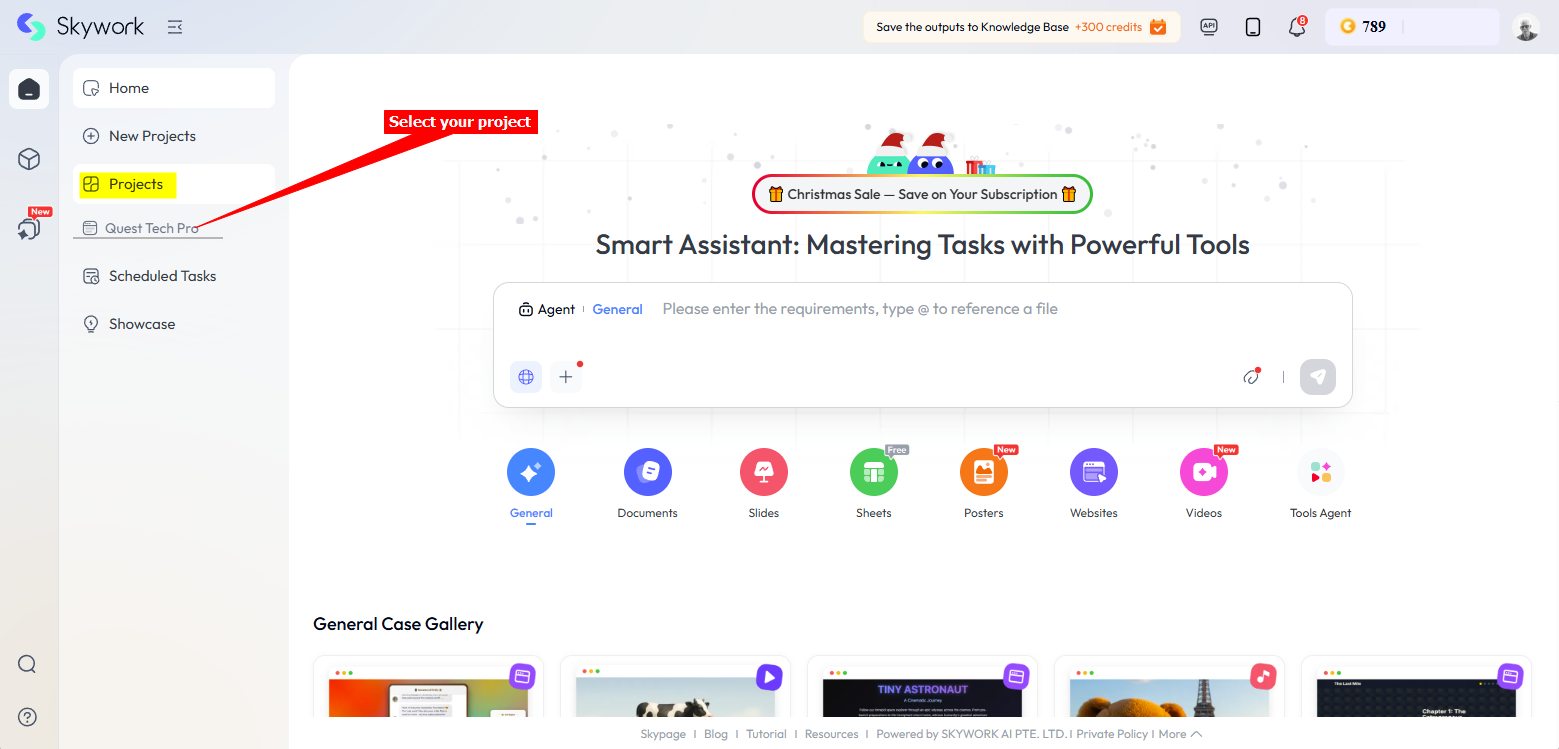
1. Log into your **Skywork** account and select your project in the lefthand sidebar under **Projects**
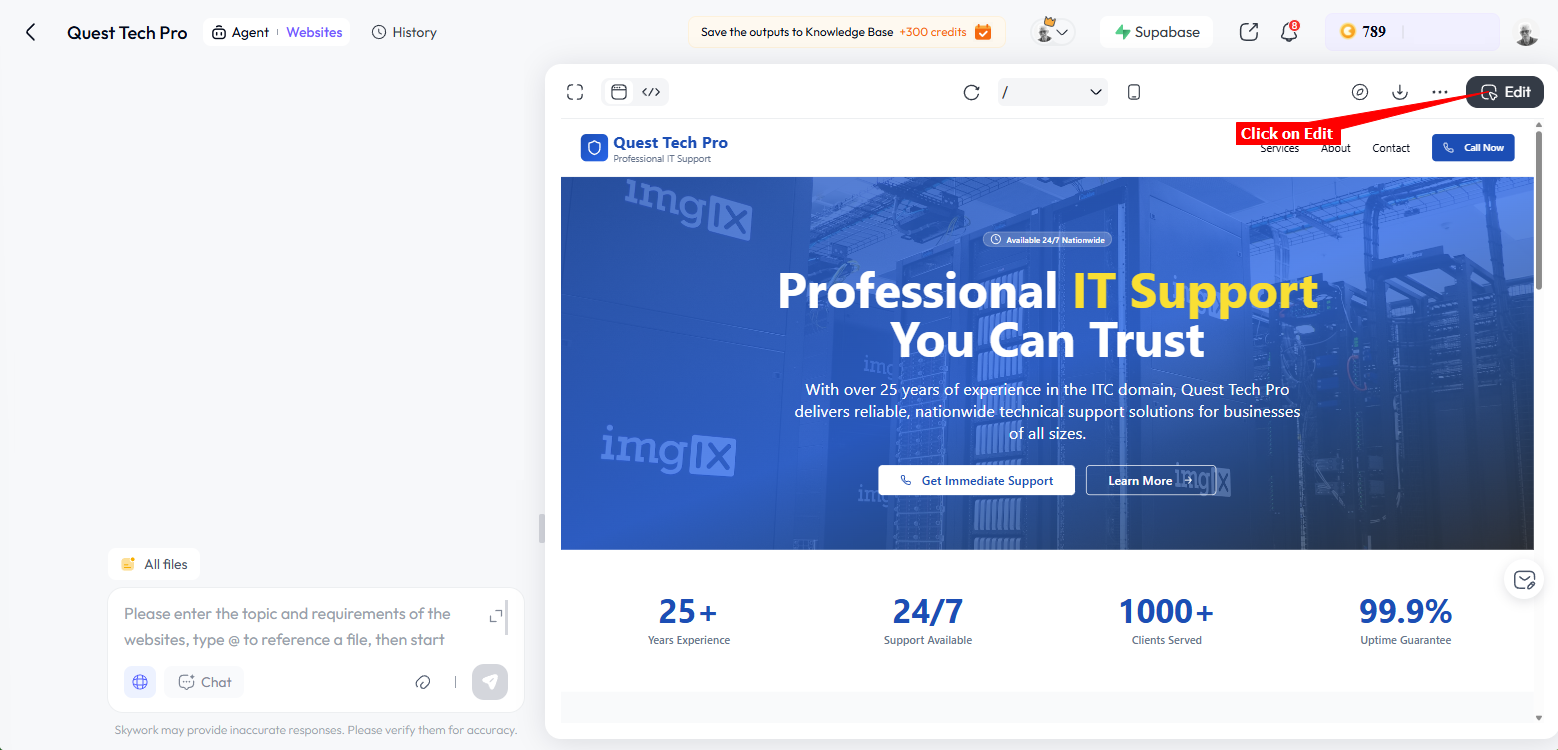
2. When the project opens, click on **Edit**
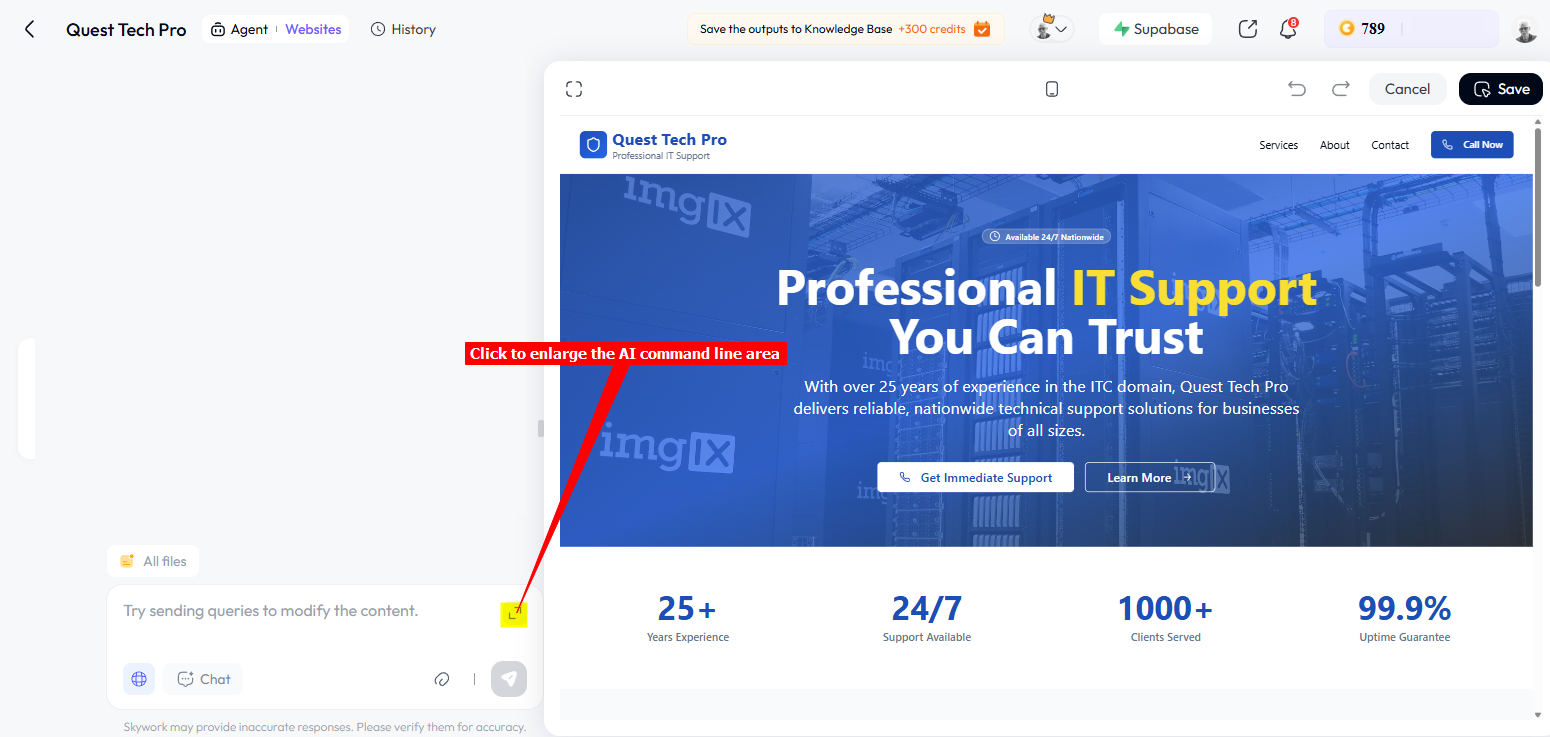
3. Select the enlarge icon to enlarge the AI command line area
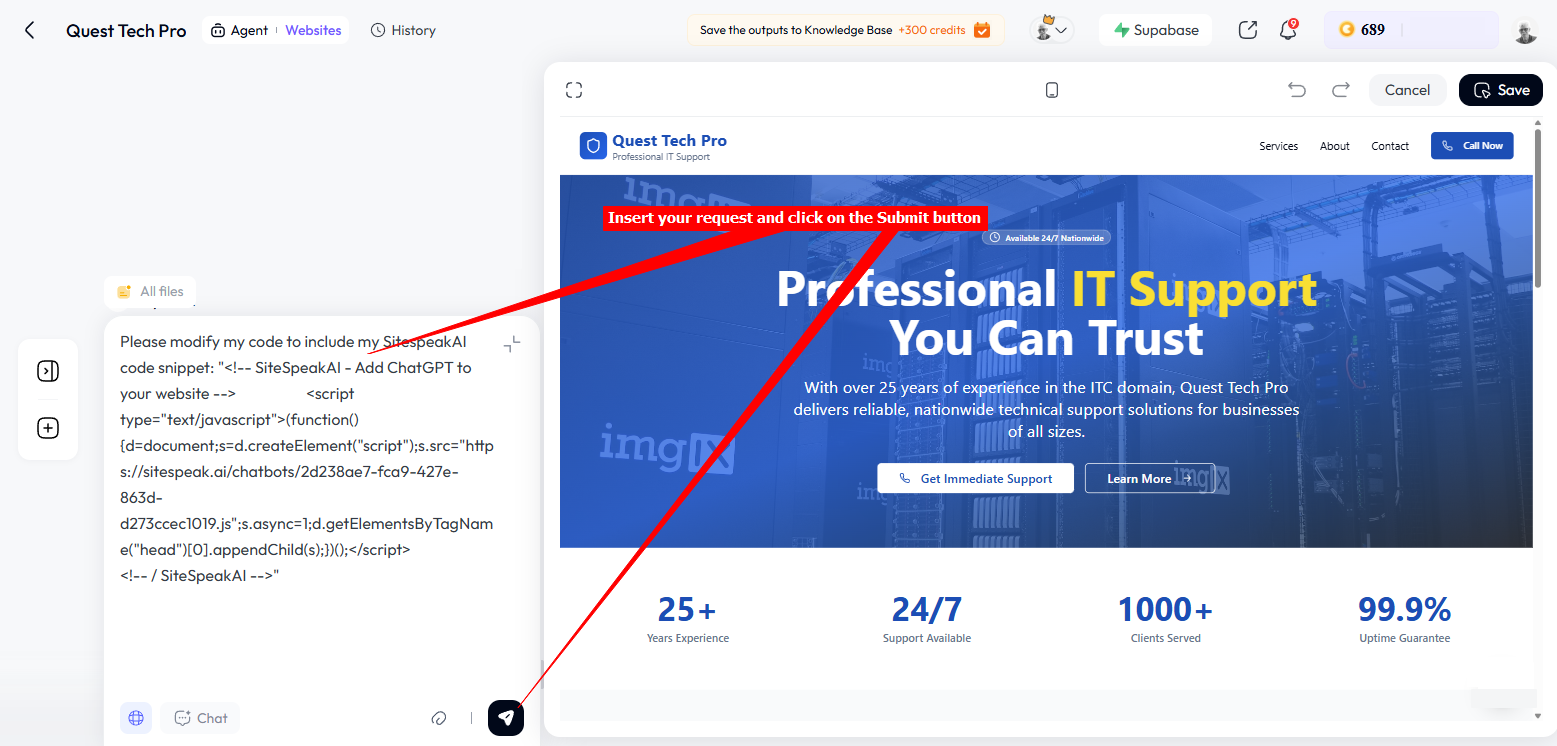
4. Enter the following instruction/request into the AI command line:
**Please modify my code to include my SitespeakAI code snippet:** "*--- insert the AI support agent js code copied at the beginnng of the tutorial ---*" and then click on the **Submit** button. **Skywork AI** will start adding the code to your website, it takes a while so please be patient.
5. When the process is completed, the AI support agent button will be displayed on you project page. Click on **Save** to save your changes to your live website.
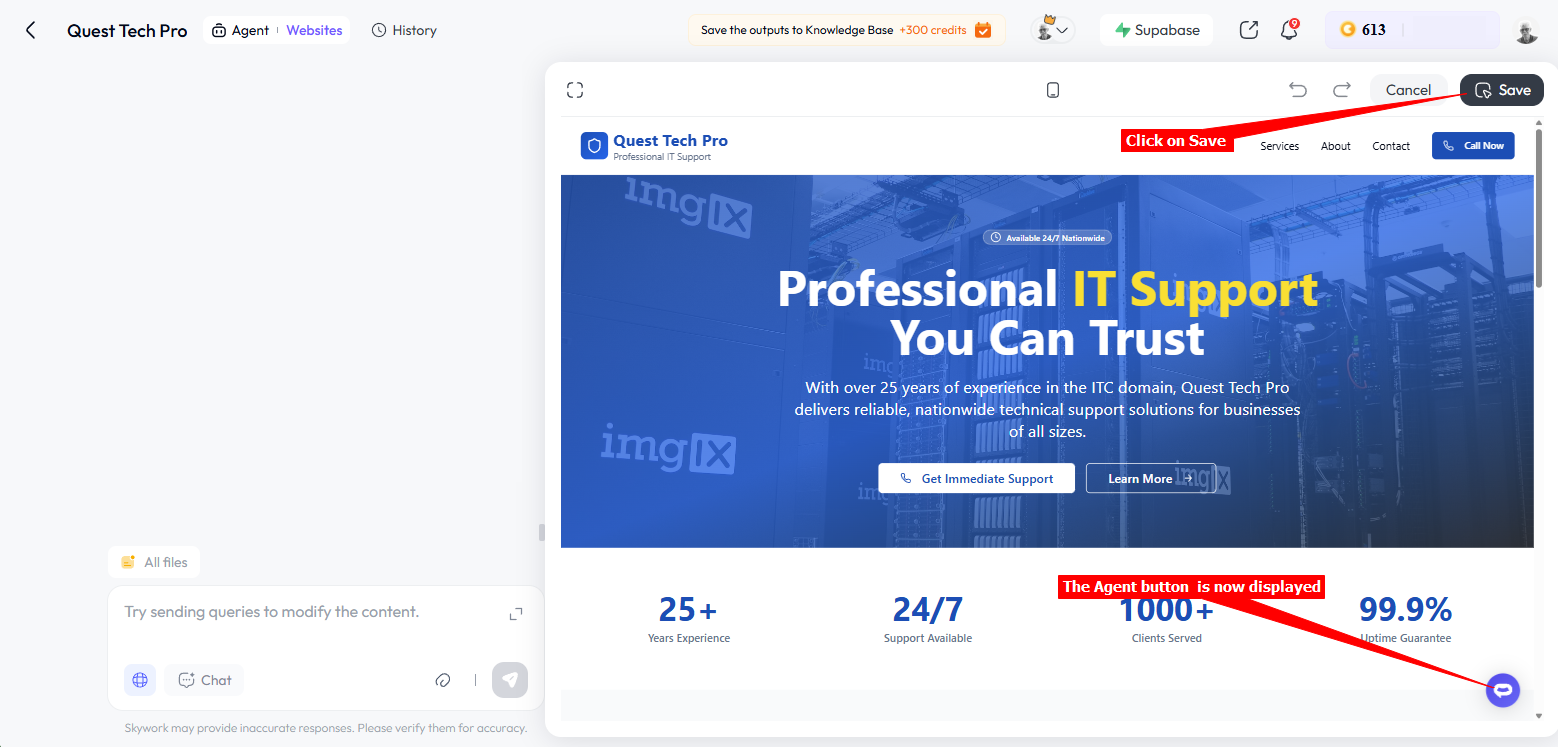
6. Your AI support agent button will now be displayed on your **Skywork.ai** website page

7. If you click on the button it will display the AI support agent dialogue

Your AI support agent has now been added to your **Skywork.ai** website and your visitors/customers can start interacting with it!
***
Join over 1000+ businesses, websites and startups automating their customer service and other tasks with a custom trained AI agent.
### In Skywork.ai
1. Log into your **Skywork** account and select your project in the lefthand sidebar under **Projects**

2. When the project opens, click on **Edit**

3. Select the enlarge icon to enlarge the AI command line area

4. Enter the following instruction/request into the AI command line:
**Please modify my code to include my SitespeakAI code snippet:** "*--- insert the AI support agent js code copied at the beginnng of the tutorial ---*" and then click on the **Submit** button. **Skywork AI** will start adding the code to your website, it takes a while so please be patient.

5. When the process is completed, the AI support agent button will be displayed on you project page. Click on **Save** to save your changes to your live website.

6. Your AI support agent button will now be displayed on your **Skywork.ai** website page

7. If you click on the button it will display the AI support agent dialogue

Your AI support agent has now been added to your **Skywork.ai** website and your visitors/customers can start interacting with it!
***
Join over 1000+ businesses, websites and startups automating their customer service and other tasks with a custom trained AI agent.