> ## Documentation Index
> Fetch the complete documentation index at: https://sitespeak.ai/docs/llms.txt
> Use this file to discover all available pages before exploring further.
# How to add ChatGPT to Wordpress
> How to add your custom ChatGPT trained chatbot to your Wordpress.org website.
You want to embed your custom trained chatbot in your Wordpress website. Here's how to add ChatGPT to Wordpress with SiteSpeakAI.
In this tutorial, I'll show you how to add a ChatGPT AI chatbot to your WordPress site. We'll create and train it on your own content, then add it to a page so it can answer your visitors' questions around the clock.
Before you can add your agent to WordPress, you need to create and train it. After you log in to SiteSpeak, you land on the Get Started page, which walks you through it in five quick steps. First, give your agent a name. This is the name your visitors will see when they chat with it. Click Save and Continue to create the agent. Next, add the website you want your agent to learn from. For this example I'll use snapwidget.com. Click Save and Continue, and SiteSpeak crawls the site to find pages it can train on. In a few seconds, it finds the main pages on the site. SiteSpeak selects those pages for you. Click Save and Continue to train your agent on them. SiteSpeak now trains your agent on that content automatically. Once it finishes, your agent is ready to answer questions about your site, and you can add it to your WordPress website.
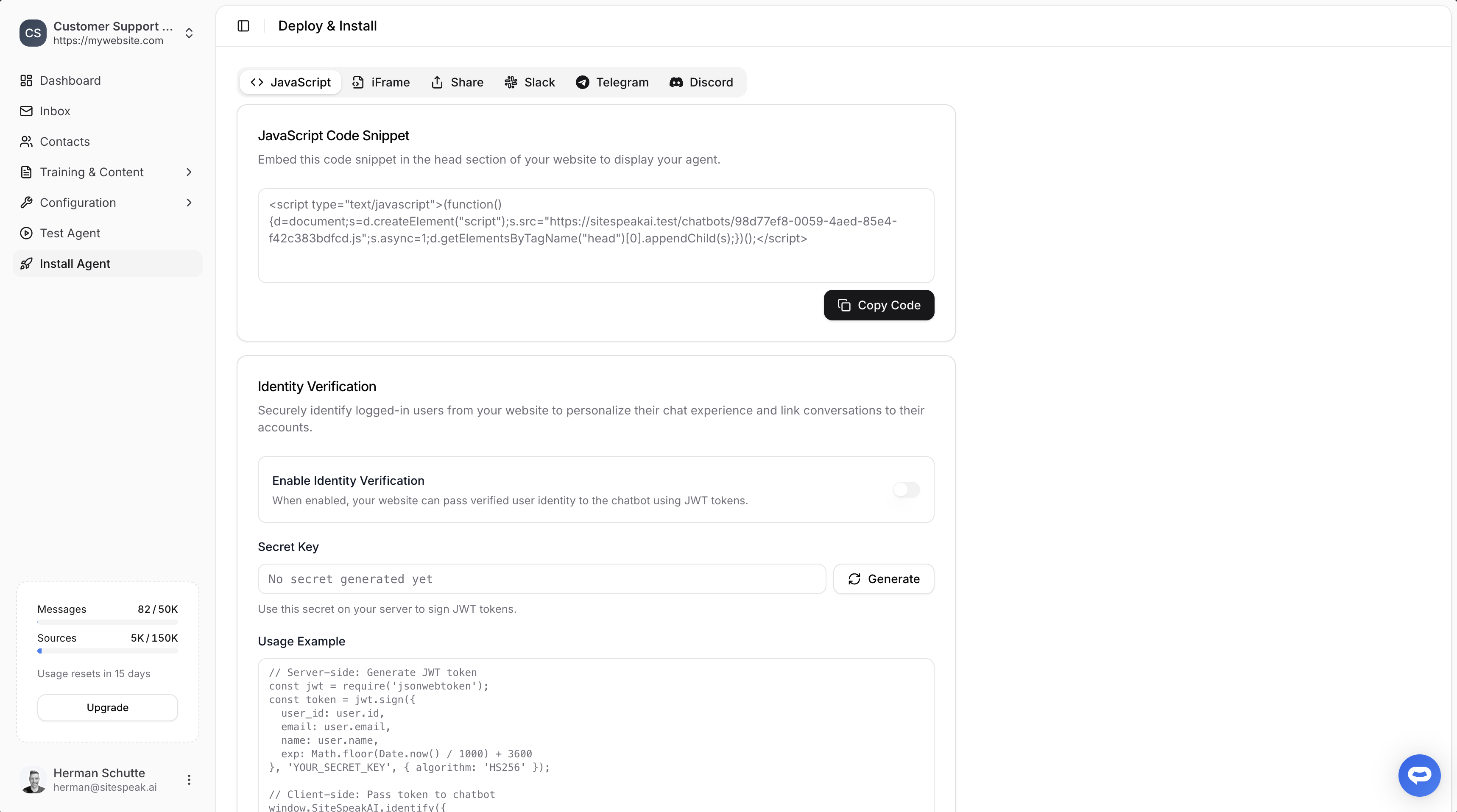
Once your agent is trained, open Install Agent in SiteSpeak and copy your JavaScript snippet. For WordPress, the quickest route is our official SiteSpeakAI plugin from the WordPress plugin directory. If you'd rather not use a plugin, you can paste this snippet manually, which I'll show you now. In your WordPress dashboard, click on Pages, and open the page where you want the chatbot to appear. At the bottom of the page, type a forward slash to bring up the block selector, and choose Custom HTML. Paste your SiteSpeakAI snippet into the Custom HTML block, then click Update to save the page.
And that's it. Your ChatGPT AI chatbot is now live on your WordPress site, trained on your content and ready to help your visitors.
*Update: You can now use the SiteSpeakAI Wordpress Plugin to add ChatGPT to your Wordpress website: [https://wordpress.org/plugins/sitespeakai/](https://wordpress.org/plugins/sitespeakai/)*
## Add your chatbot to your Wordpress website
### In SiteSpeakAI
Select your chatbot from the dropdown menu at the top, click on the **Install Agent** section in the sidebar, then click on the **Copy Code** button to copy your code snippet.
### In Wordpress
1. Click on **Pages**
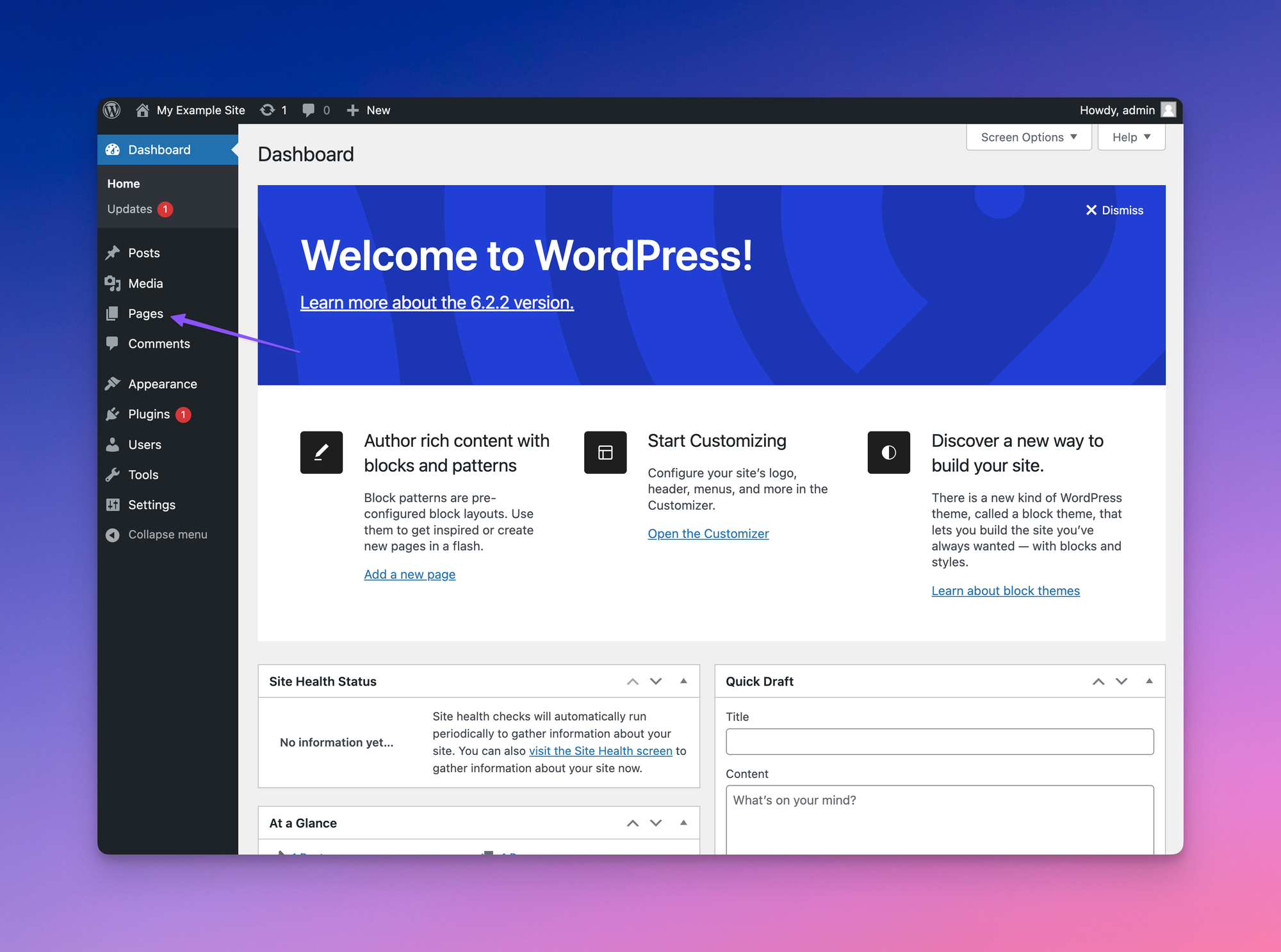
2. Select the page you would like to have the chatbot displayed on
3. At the bottom of the page, type **/** to bring up the block selector and choose **Custom HTML**
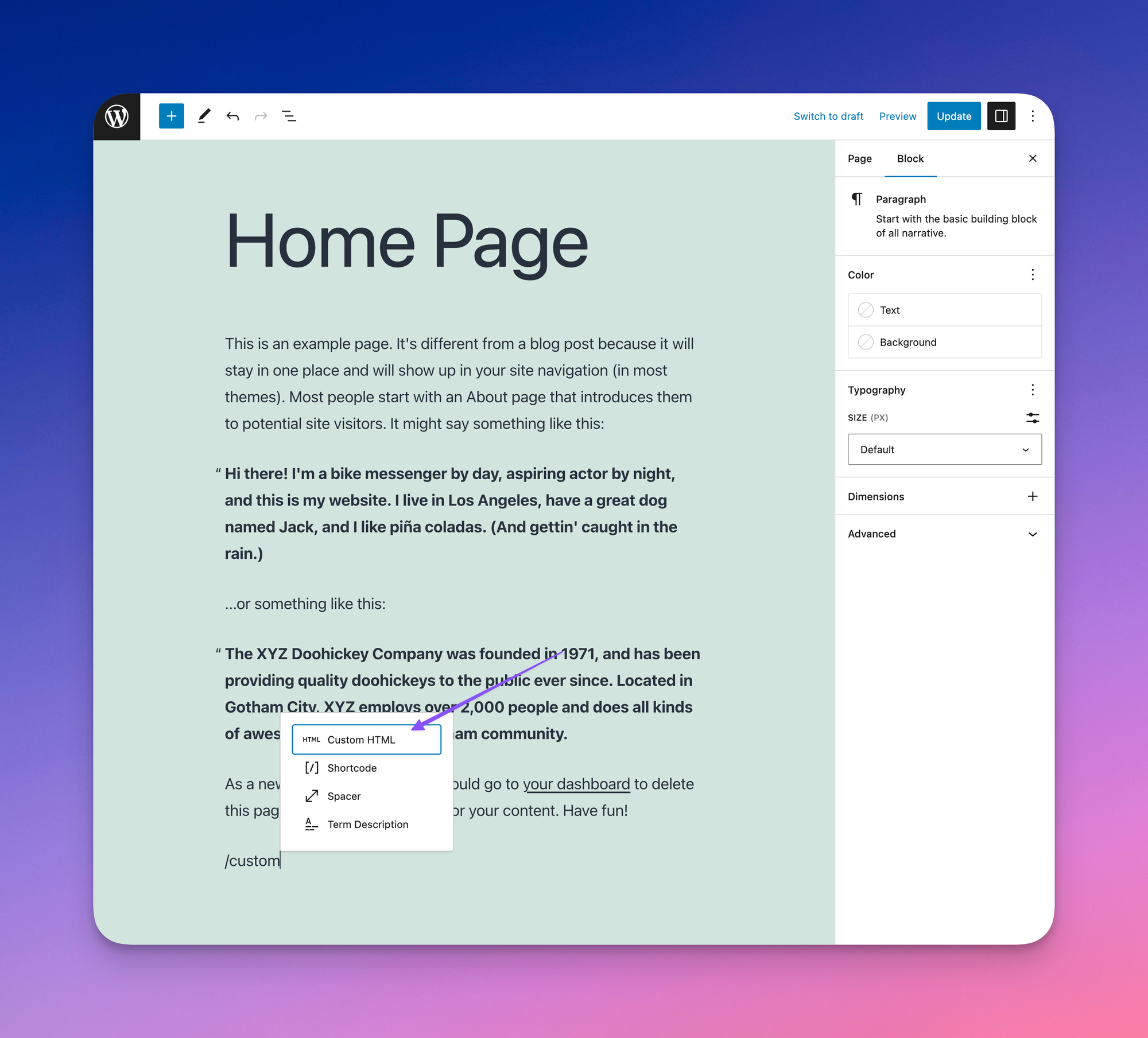
4. Paste the SiteSpeakAI code snippet
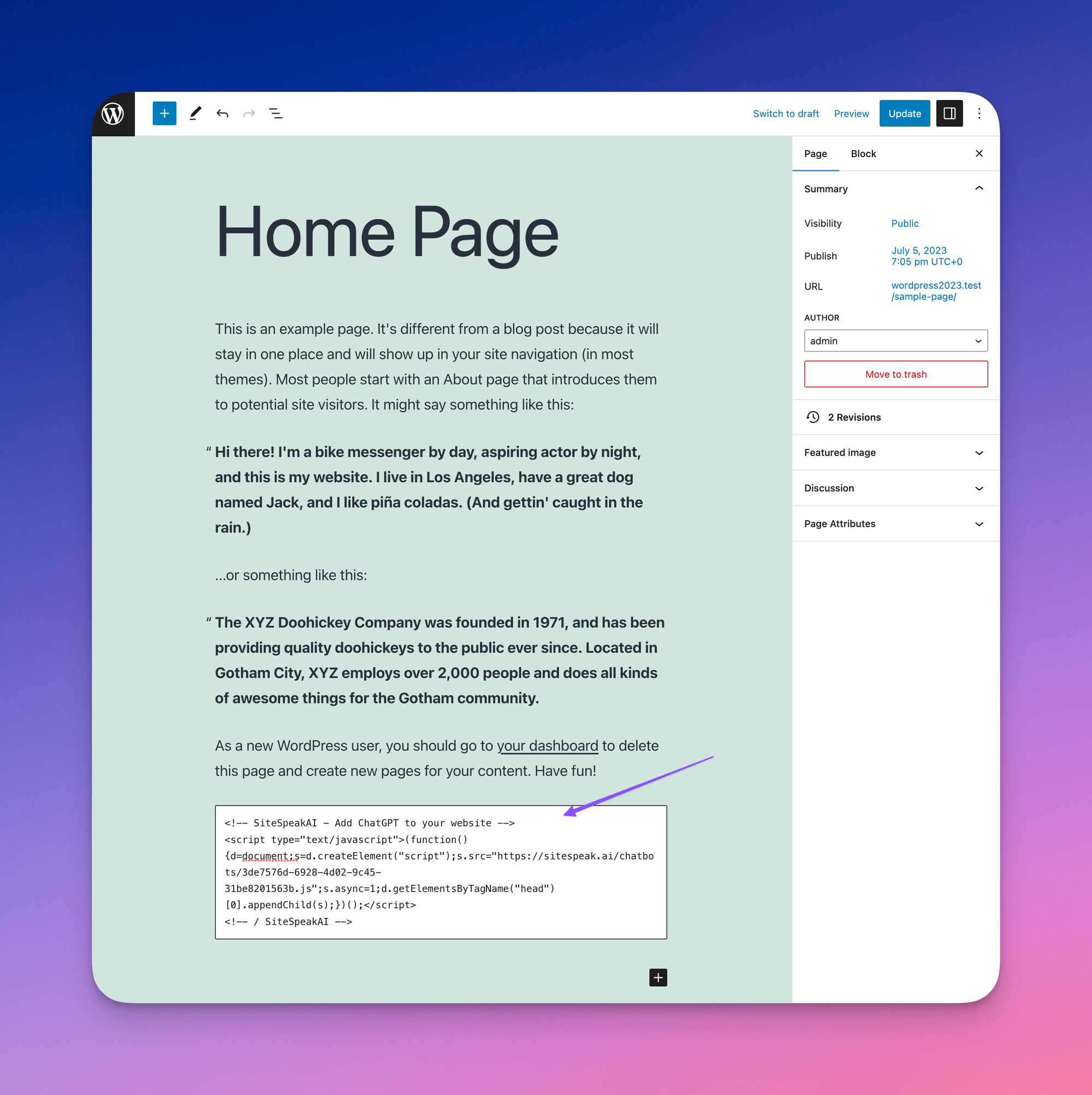
5. Update the page to save your changes
Your chatbot will now be displayed on your Wordpress website.
***
Join over 1000+ businesses, websites and startups automating their customer service and other tasks with a custom trained AI agent.
 ### In Wordpress
1. Click on **Pages**

2. Select the page you would like to have the chatbot displayed on
3. At the bottom of the page, type **/** to bring up the block selector and choose **Custom HTML**

4. Paste the SiteSpeakAI code snippet

5. Update the page to save your changes
Your chatbot will now be displayed on your Wordpress website.
***
### In Wordpress
1. Click on **Pages**

2. Select the page you would like to have the chatbot displayed on
3. At the bottom of the page, type **/** to bring up the block selector and choose **Custom HTML**

4. Paste the SiteSpeakAI code snippet

5. Update the page to save your changes
Your chatbot will now be displayed on your Wordpress website.
***