> ## Documentation Index
> Fetch the complete documentation index at: https://sitespeak.ai/docs/llms.txt
> Use this file to discover all available pages before exploring further.
# Connect SiteSpeakAI to Drip
> Automatically sync leads captured by your chatbot to your Drip account as subscribers.
SiteSpeakAI integrates with Drip to automatically create and update subscribers in your Drip account when leads are captured by your chatbot. Each lead is also tagged and recorded as a "Lead captured" event, so you can trigger Drip workflows automatically.
## Connect Drip
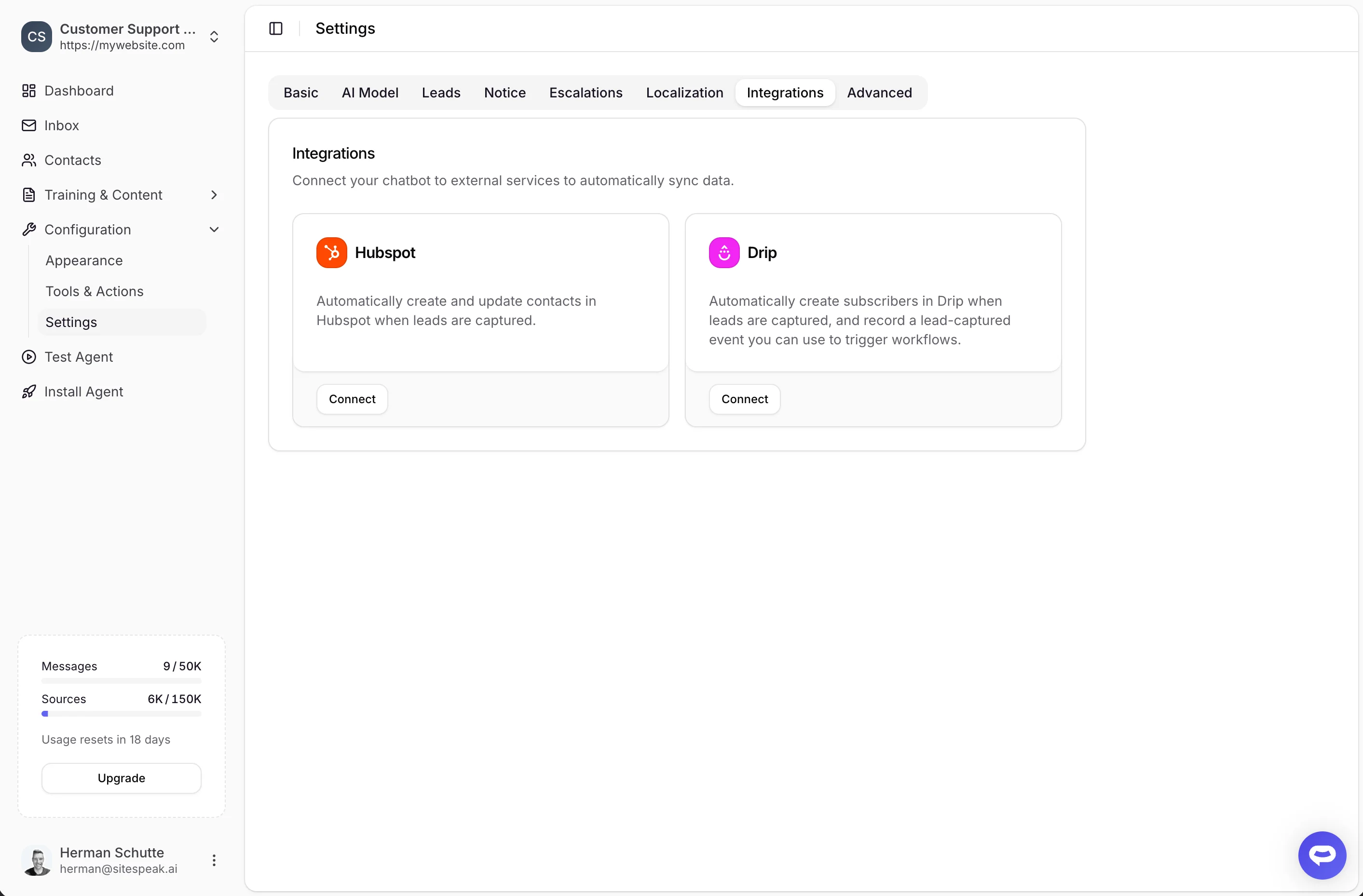
In your chatbot dashboard, go to **Configuration > Settings** and click the **Integrations** tab.
Locate the **Drip** integration card.
Click the **Connect** button.
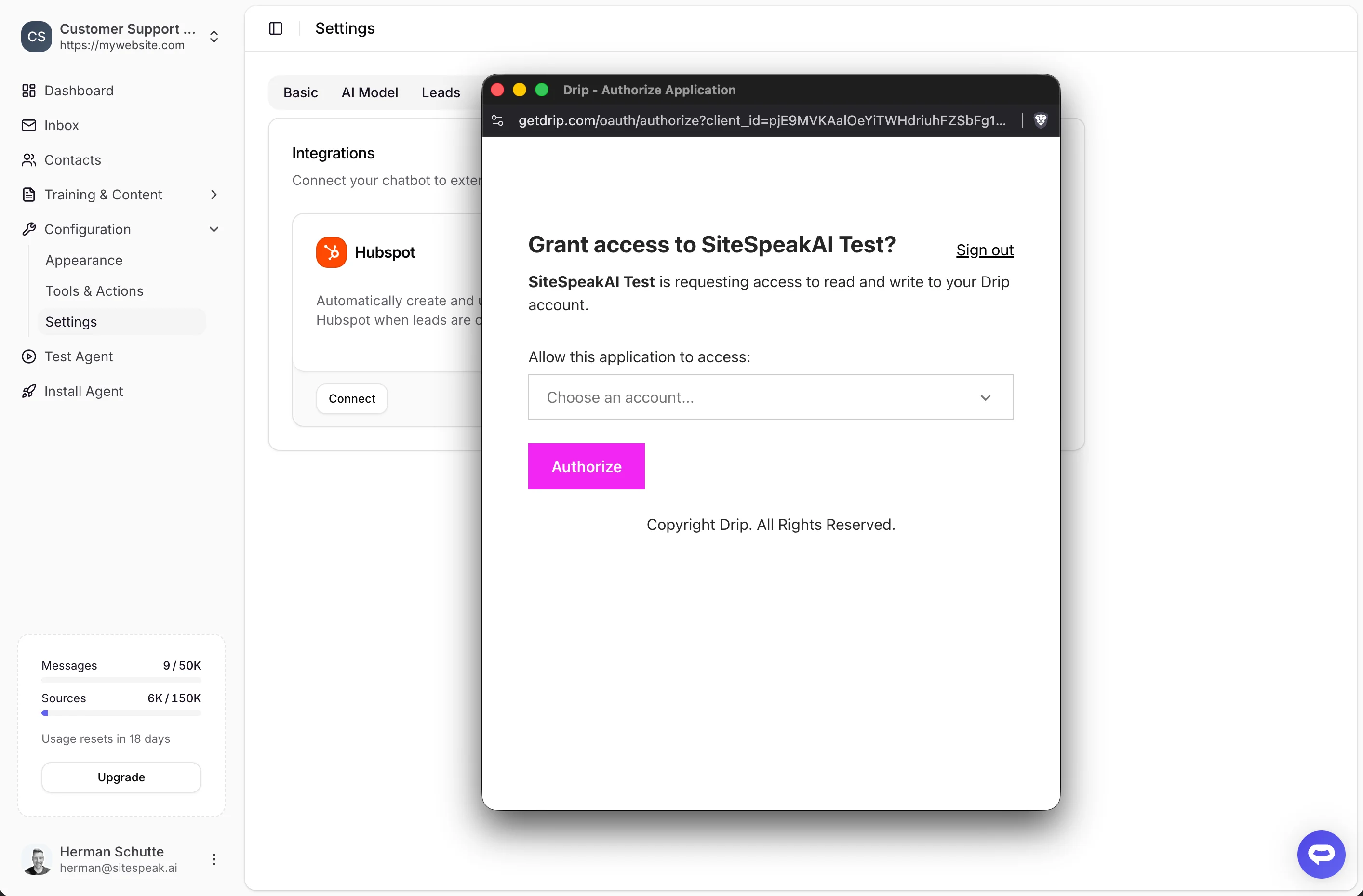
A popup will appear asking you to sign in to your Drip account and authorize SiteSpeakAI to connect.
 ## Connected State
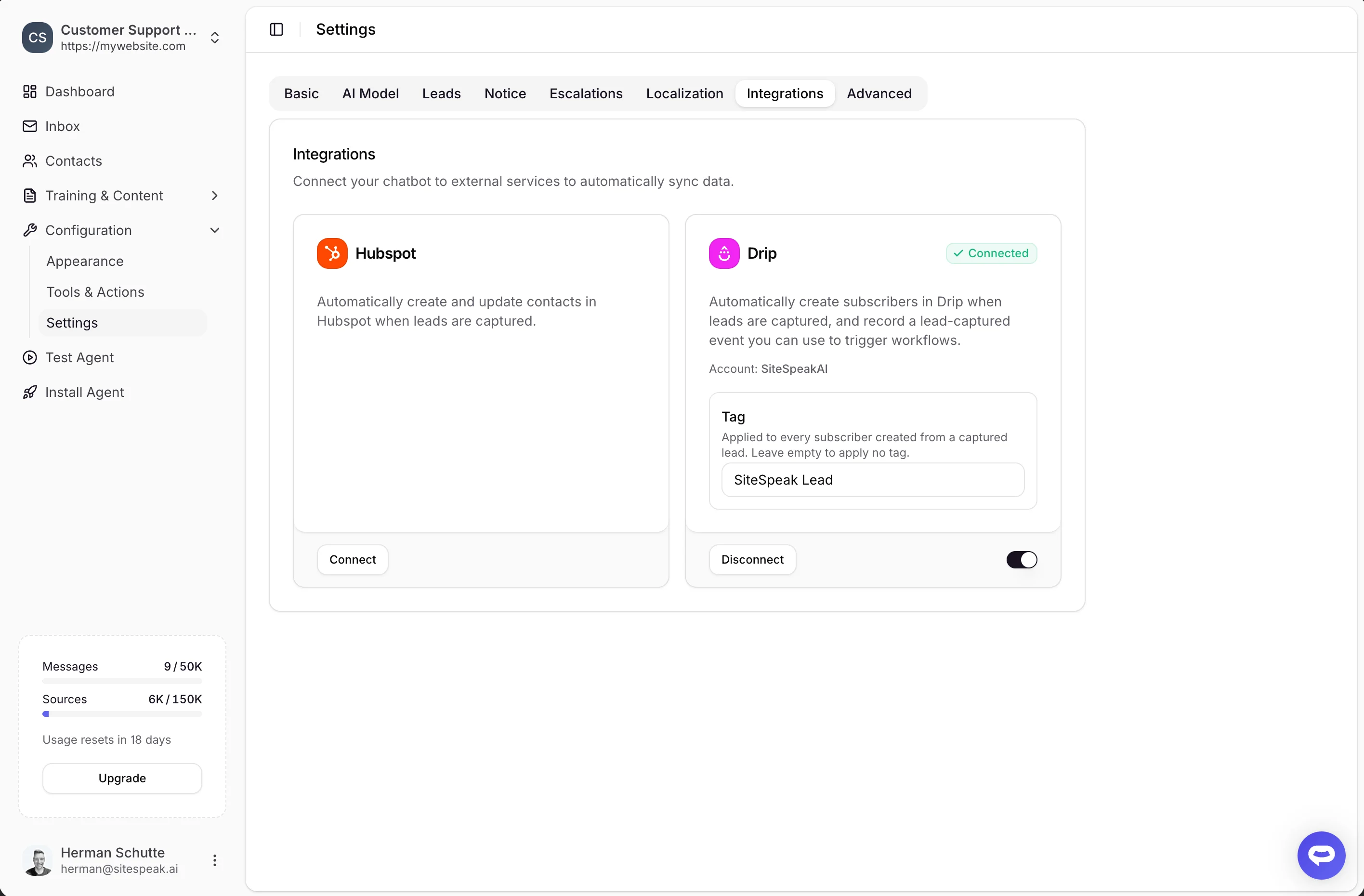
Once connected, you'll see:
* A green **Connected** badge
* Your Drip **Account** name
All newly captured leads will now automatically be added to your Drip account as subscribers.
## Connected State
Once connected, you'll see:
* A green **Connected** badge
* Your Drip **Account** name
All newly captured leads will now automatically be added to your Drip account as subscribers.
 ## Set a Tag
Every lead synced to Drip can be tagged, so you can segment your subscribers and trigger automations:
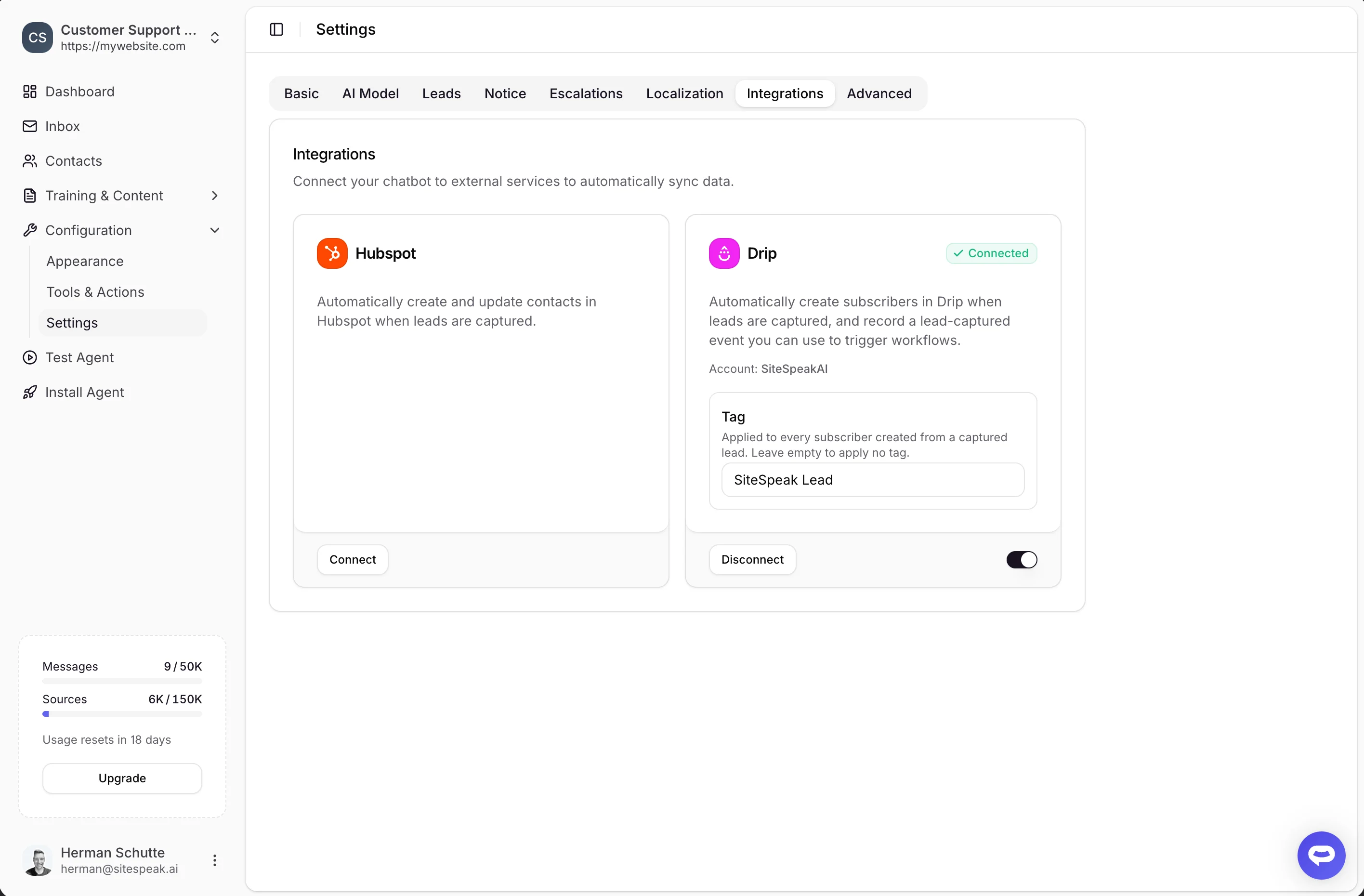
In the connected Drip card, locate the **Tag** field.
Enter the tag to apply to each subscriber (for example, `SiteSpeak Lead`). Leave it empty to apply no tag.
Each captured lead is also recorded in Drip as a **"Lead captured"** event, which you can use as a trigger to start a Drip workflow or campaign.
## Set a Tag
Every lead synced to Drip can be tagged, so you can segment your subscribers and trigger automations:
In the connected Drip card, locate the **Tag** field.
Enter the tag to apply to each subscriber (for example, `SiteSpeak Lead`). Leave it empty to apply no tag.
Each captured lead is also recorded in Drip as a **"Lead captured"** event, which you can use as a trigger to start a Drip workflow or campaign.
 ## Disconnect Drip
To disconnect the integration, click the **Disconnect** button in the Drip card. You can also use the main toggle at the bottom of the card to temporarily disable syncing without disconnecting.
***
Join over 1000+ businesses, websites and startups automating their customer service and other tasks with a custom trained AI agent.
## Disconnect Drip
To disconnect the integration, click the **Disconnect** button in the Drip card. You can also use the main toggle at the bottom of the card to temporarily disable syncing without disconnecting.
***
Join over 1000+ businesses, websites and startups automating their customer service and other tasks with a custom trained AI agent.