> ## Documentation Index
> Fetch the complete documentation index at: https://sitespeak.ai/docs/llms.txt
> Use this file to discover all available pages before exploring further.
# Connect SiteSpeakAI to Zapier
> Automate workflows by connecting SiteSpeakAI to 5,000+ apps with Zapier.
Zapier allows you to connect SiteSpeakAI to over 5,000 apps and automate workflows without writing code. You can automatically send captured leads to your CRM, notify your team in Slack, add contacts to email lists, and much more.
## Prerequisites
* A SiteSpeakAI account with a chatbot configured
* A [Zapier account](https://zapier.com) (free tier available)
## Step 1: Create a SiteSpeakAI API Token
In your SiteSpeakAI account, click on your profile and select **API Tokens**.
Click **Create Token** and give it a descriptive name (e.g., "Zapier Integration").
Copy the newly created API token. You'll need this to connect Zapier to your account.
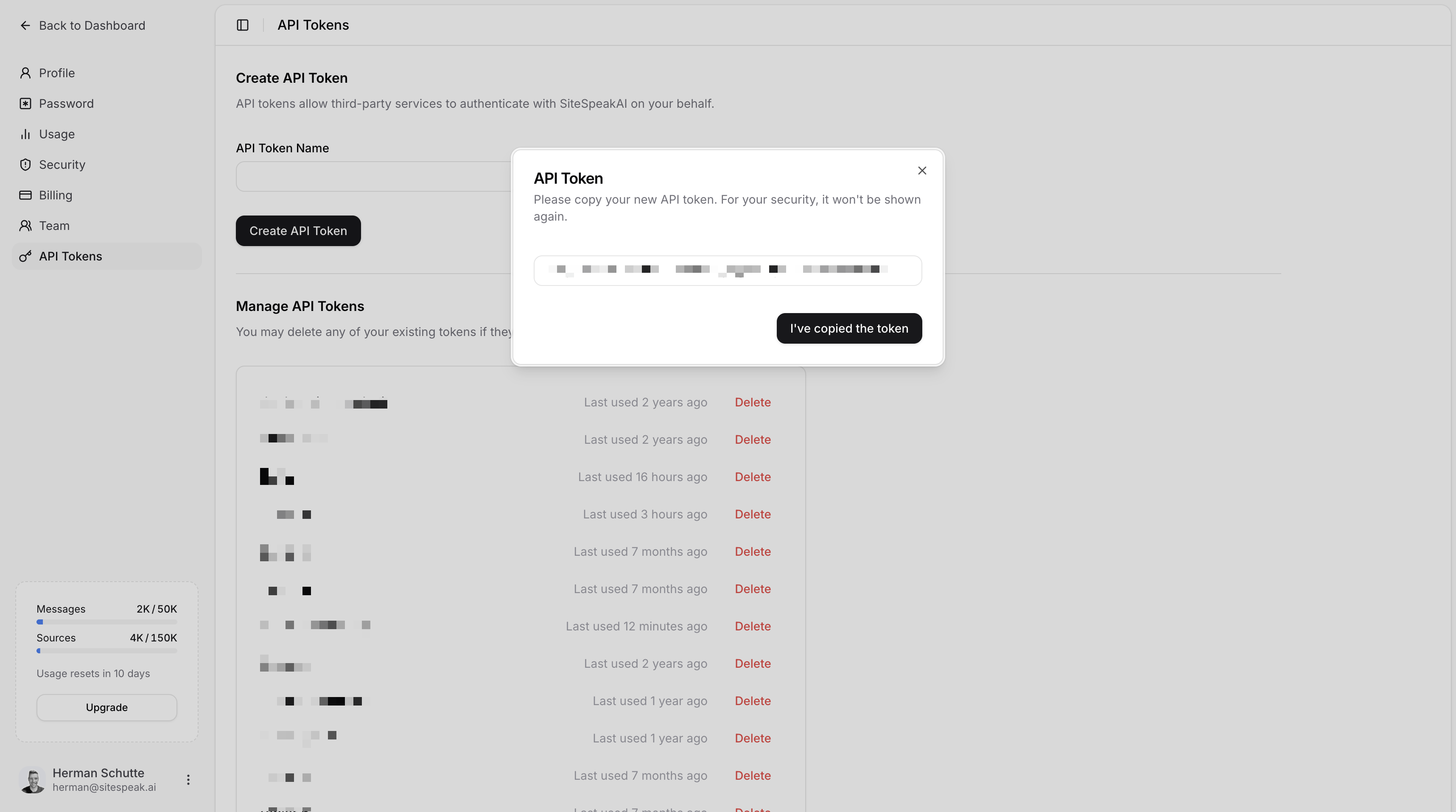 Store your API token securely. You won't be able to see it again after leaving this page.
## Step 2: Create a New Zap
Log in to your Zapier account and click **Create Zap**.
Store your API token securely. You won't be able to see it again after leaving this page.
## Step 2: Create a New Zap
Log in to your Zapier account and click **Create Zap**.
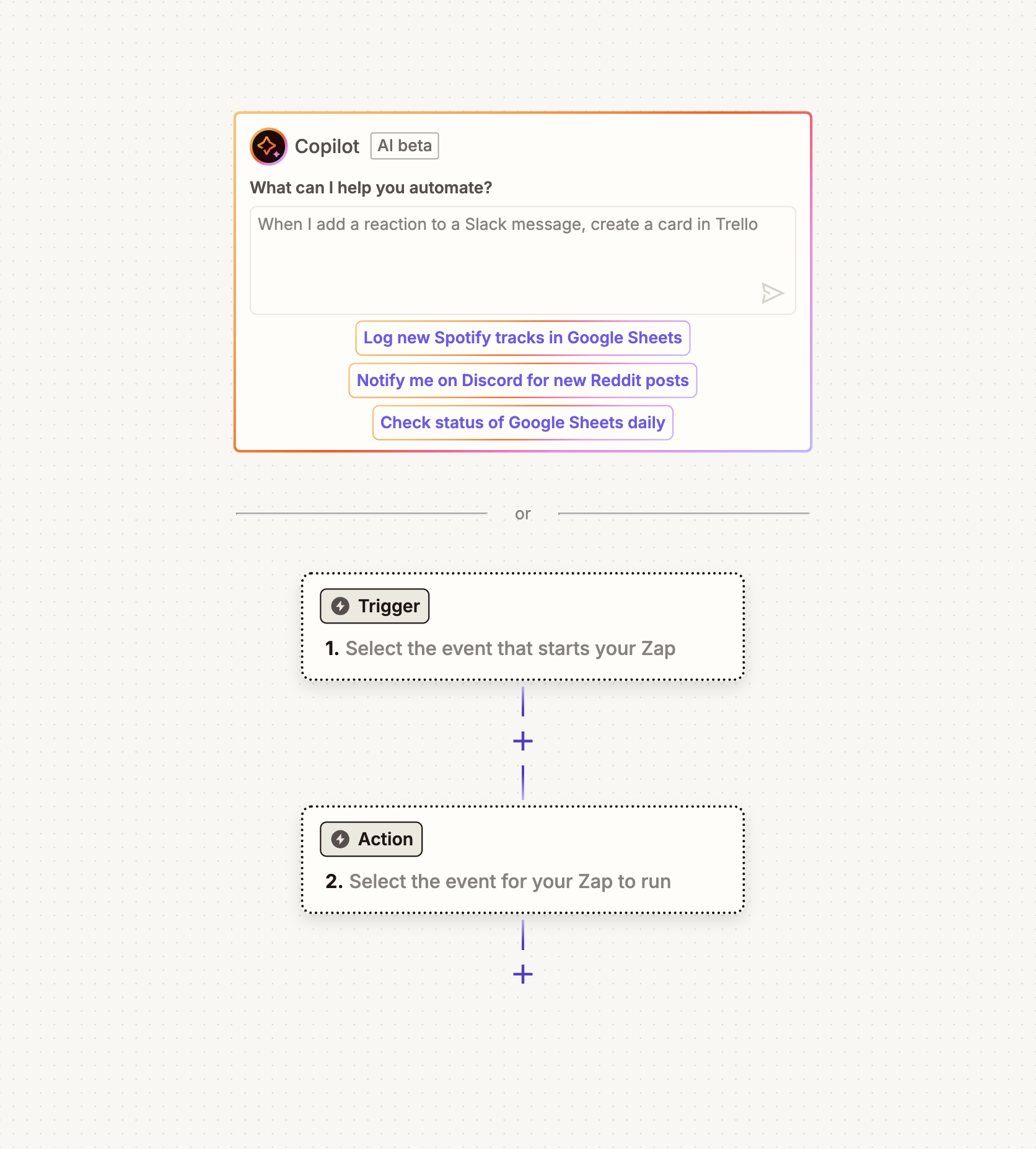 ## Step 3: Configure the Trigger
In the Trigger section, search for and select **SiteSpeakAI**.
Select **New Lead** as the trigger event. This fires whenever a visitor submits a lead capture form.
Click **Sign in** and enter the API token you created earlier.
## Step 3: Configure the Trigger
In the Trigger section, search for and select **SiteSpeakAI**.
Select **New Lead** as the trigger event. This fires whenever a visitor submits a lead capture form.
Click **Sign in** and enter the API token you created earlier.
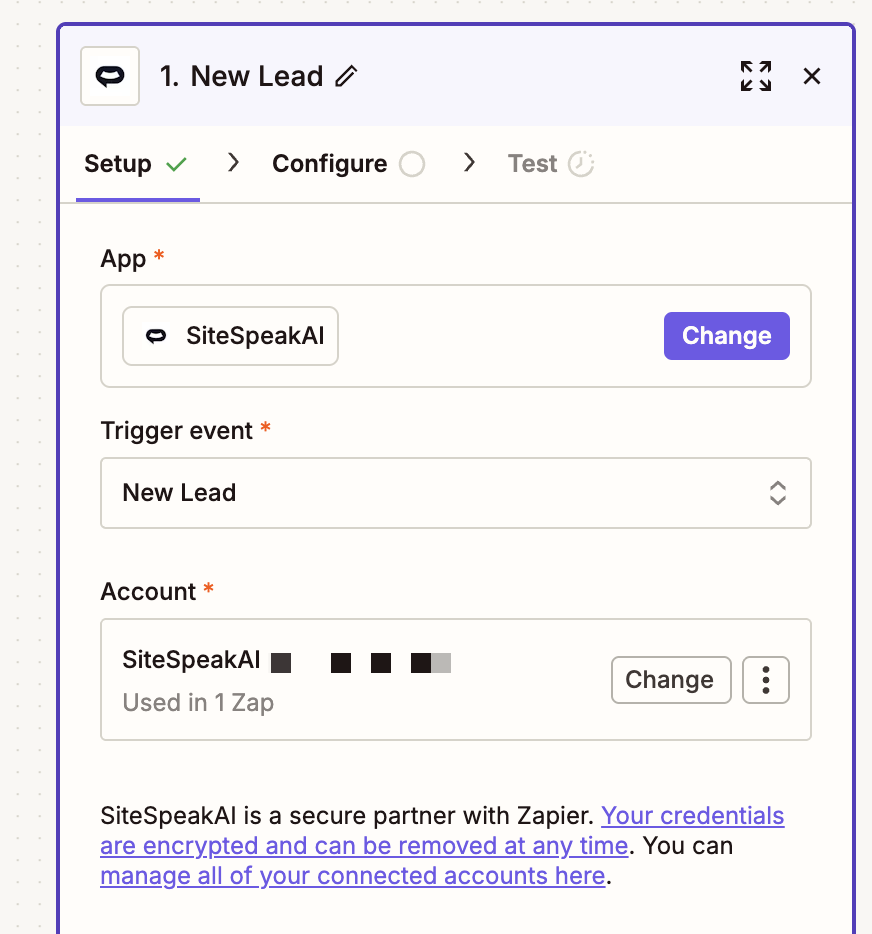 Enter your chatbot's ID. You can find this in **Configuration > Settings** in your SiteSpeakAI dashboard. The Agent ID is displayed at the top.
Click **Test trigger** to verify the connection is working.
## Step 4: Add an Action
Now connect SiteSpeakAI to your destination app. Here are some popular examples:
### Example: Send Leads to Google Sheets
Click the **+** button to add an action step.
Search for and select **Google Sheets**.
Select **Create Spreadsheet Row**.
Connect your Google account, select your spreadsheet, and map the lead fields to columns.
### Example: Notify Team in Slack
Click the **+** button to add an action step.
Search for and select **Slack**.
Select **Send Channel Message**.
Choose your channel and create a message template with lead details.
### Example: Add to Mailchimp
Click the **+** button to add an action step.
Search for and select **Mailchimp**.
Select **Add/Update Subscriber**.
Map the email and name fields from the lead to Mailchimp subscriber fields.
## Step 5: Test and Publish
Click **Test step** to verify data flows correctly to your destination app.
Check that the test data appeared in your destination (spreadsheet, Slack channel, etc.).
Click **Publish** to activate your Zap.
## Available Trigger Data
When a lead is captured, Zapier receives the following data that you can use in your actions:
| Field | Description |
| ------------- | ------------------------------------------------- |
| `email` | Lead's email address |
| `name` | Lead's name (if captured) |
| `message` | Any message the lead submitted |
| `created_at` | Timestamp of submission |
| Custom fields | Any additional fields from your lead capture form |
You can create multiple Zaps with different actions. For example, one Zap to add leads to your CRM and another to send a Slack notification.
## Troubleshooting
### Leads Not Triggering the Zap
* Check that your Zap is published and turned on
* Verify the API token is still valid
* Ensure the chatbot ID is correct
* Check the Zap history for any errors
### Missing Data
* Make sure your lead capture form collects the fields you need
* Check field mappings in your Zap action
***
Join over 1000+ businesses, websites and startups automating their customer service and other tasks with a custom trained AI agent.
Enter your chatbot's ID. You can find this in **Configuration > Settings** in your SiteSpeakAI dashboard. The Agent ID is displayed at the top.
Click **Test trigger** to verify the connection is working.
## Step 4: Add an Action
Now connect SiteSpeakAI to your destination app. Here are some popular examples:
### Example: Send Leads to Google Sheets
Click the **+** button to add an action step.
Search for and select **Google Sheets**.
Select **Create Spreadsheet Row**.
Connect your Google account, select your spreadsheet, and map the lead fields to columns.
### Example: Notify Team in Slack
Click the **+** button to add an action step.
Search for and select **Slack**.
Select **Send Channel Message**.
Choose your channel and create a message template with lead details.
### Example: Add to Mailchimp
Click the **+** button to add an action step.
Search for and select **Mailchimp**.
Select **Add/Update Subscriber**.
Map the email and name fields from the lead to Mailchimp subscriber fields.
## Step 5: Test and Publish
Click **Test step** to verify data flows correctly to your destination app.
Check that the test data appeared in your destination (spreadsheet, Slack channel, etc.).
Click **Publish** to activate your Zap.
## Available Trigger Data
When a lead is captured, Zapier receives the following data that you can use in your actions:
| Field | Description |
| ------------- | ------------------------------------------------- |
| `email` | Lead's email address |
| `name` | Lead's name (if captured) |
| `message` | Any message the lead submitted |
| `created_at` | Timestamp of submission |
| Custom fields | Any additional fields from your lead capture form |
You can create multiple Zaps with different actions. For example, one Zap to add leads to your CRM and another to send a Slack notification.
## Troubleshooting
### Leads Not Triggering the Zap
* Check that your Zap is published and turned on
* Verify the API token is still valid
* Ensure the chatbot ID is correct
* Check the Zap history for any errors
### Missing Data
* Make sure your lead capture form collects the fields you need
* Check field mappings in your Zap action
***
Join over 1000+ businesses, websites and startups automating their customer service and other tasks with a custom trained AI agent.