> ## Documentation Index
> Fetch the complete documentation index at: https://sitespeak.ai/docs/llms.txt
> Use this file to discover all available pages before exploring further.
# Customize your chatbot's appearance
> Match your chatbot's look and feel to your brand with customizable themes, colors, icons, and more
Customize your chatbot's appearance to match your brand and create a seamless experience for your visitors.
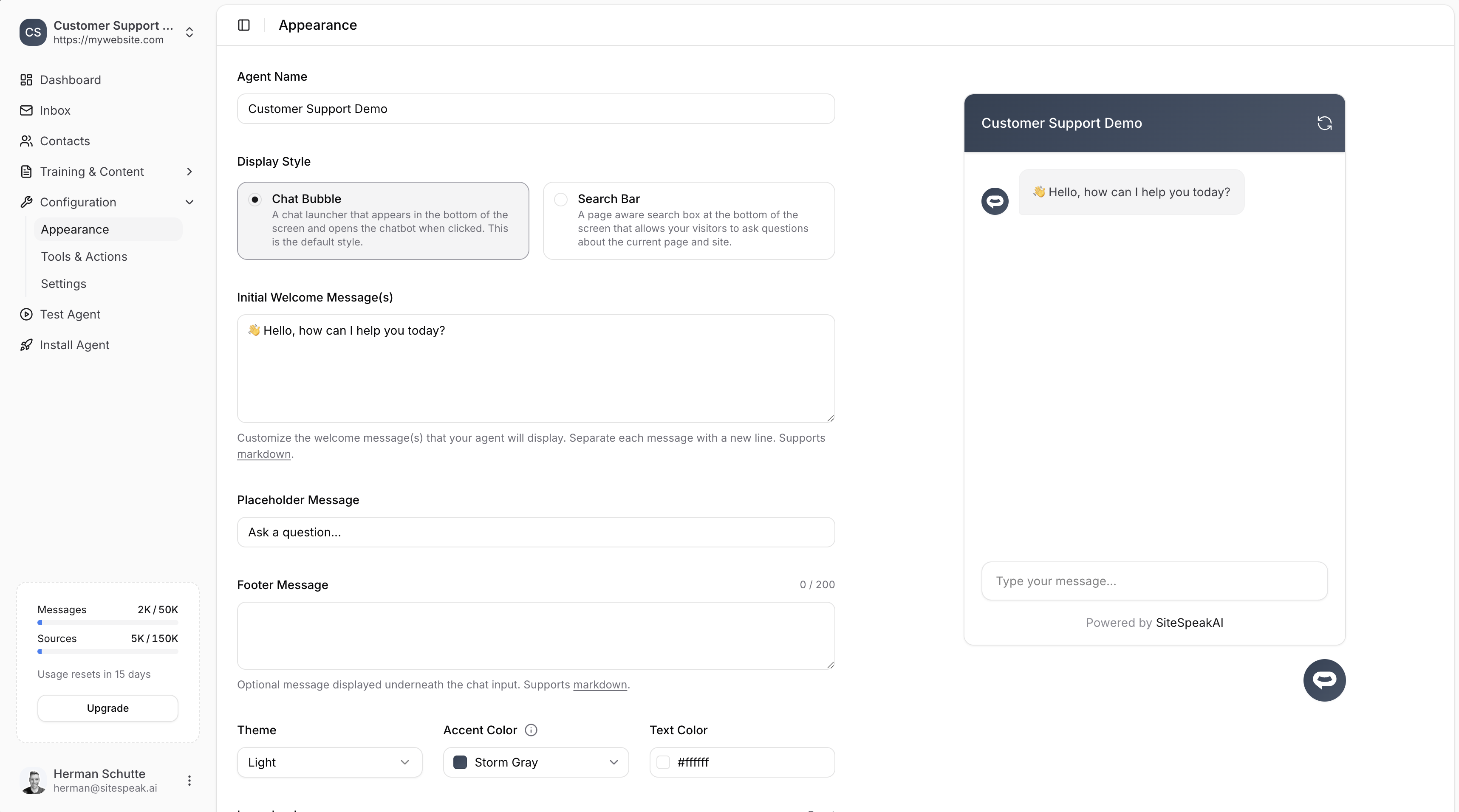
To access appearance settings, go to **Configuration → Appearance** in your chatbot dashboard.
 ## Display style
Choose how your chatbot appears on your website:
A chat launcher that appears in the bottom of the screen and opens the chatbot when clicked. This is the default style.
A page-aware search box at the bottom of the screen that allows visitors to ask questions about the current page and site.
## Branding
### Agent name
The name displayed in the chat header. This is what your visitors will see when chatting with your bot.
### Welcome messages
Customize the initial message(s) your chatbot displays when opened. You can add multiple welcome messages by separating each with a new line.
Welcome messages support **markdown** formatting. You can also [personalize messages with template tags](/managing-your-chatbot/personalise-welcome-message) using visitor information from your lead capture form.
### Placeholder message
The placeholder text shown in the chat input field (e.g., "Ask a question...").
### Footer message
An optional message displayed underneath the chat input. Supports markdown. Maximum 200 characters.
## Theme & colors
### Theme
Choose between **Light** or **Dark** theme for your chatbot.
### Accent color
The primary color used for buttons, links, and the chat header. Choose from preset colors or enter a custom hex value.
### Text color
The color of text displayed on accent-colored elements (e.g., the header). Typically white (`#ffffff`) for dark accent colors.
## Icons
Customize the icons displayed in your chatbot:
| Icon | Description | Recommended Size |
| ----------------- | ------------------------------------------ | ---------------- |
| **Launcher Icon** | Displayed in the chat launcher button | 100 x 100px |
| **Header Icon** | Displayed in the chat header | 100 x 100px |
| **Share Icon** | Displayed on the share page for your agent | 100 x 100px |
Click **Reset** next to any icon to restore the default.
### Launcher text
Short text displayed in the launcher button (e.g., "Help"). Keep it short and sweet.
## Layout & behavior
### Max height
Control the maximum height of the chat window. Default is 720px.
### Font size
Choose the font size for chat messages: **Small**, **Medium**, or **Large**.
### Header size
Choose the header size: **Small**, **Medium**, or **Large**.
### Position
Choose where the chat launcher appears on your website:
* Bottom Right (default)
* Bottom Left
## Advanced options
### Auto popup welcome message
Set a delay before the welcome message automatically pops up. Options range from **Off** to several seconds (e.g., 3s).
### Auto scroll to new messages
When enabled, the chat window automatically scrolls to show new messages. Default is **Yes**.
### Display sources in messages
When enabled, shows the source links used to generate each response. Useful for transparency and allowing visitors to learn more.
### Sources label
Customize the label shown above source links (default: "Sources").
### Horizontal scroll smart prompts
Enable horizontal scrolling for smart prompt suggestions.
### Hide "Powered by"
Hide the "Powered by SiteSpeakAI" branding in the chat footer.
Removing the "Powered by" branding is available on paid plans.
***
Join over 1000+ businesses, websites and startups automating their customer service and other tasks with a custom trained AI agent.
## Display style
Choose how your chatbot appears on your website:
A chat launcher that appears in the bottom of the screen and opens the chatbot when clicked. This is the default style.
A page-aware search box at the bottom of the screen that allows visitors to ask questions about the current page and site.
## Branding
### Agent name
The name displayed in the chat header. This is what your visitors will see when chatting with your bot.
### Welcome messages
Customize the initial message(s) your chatbot displays when opened. You can add multiple welcome messages by separating each with a new line.
Welcome messages support **markdown** formatting. You can also [personalize messages with template tags](/managing-your-chatbot/personalise-welcome-message) using visitor information from your lead capture form.
### Placeholder message
The placeholder text shown in the chat input field (e.g., "Ask a question...").
### Footer message
An optional message displayed underneath the chat input. Supports markdown. Maximum 200 characters.
## Theme & colors
### Theme
Choose between **Light** or **Dark** theme for your chatbot.
### Accent color
The primary color used for buttons, links, and the chat header. Choose from preset colors or enter a custom hex value.
### Text color
The color of text displayed on accent-colored elements (e.g., the header). Typically white (`#ffffff`) for dark accent colors.
## Icons
Customize the icons displayed in your chatbot:
| Icon | Description | Recommended Size |
| ----------------- | ------------------------------------------ | ---------------- |
| **Launcher Icon** | Displayed in the chat launcher button | 100 x 100px |
| **Header Icon** | Displayed in the chat header | 100 x 100px |
| **Share Icon** | Displayed on the share page for your agent | 100 x 100px |
Click **Reset** next to any icon to restore the default.
### Launcher text
Short text displayed in the launcher button (e.g., "Help"). Keep it short and sweet.
## Layout & behavior
### Max height
Control the maximum height of the chat window. Default is 720px.
### Font size
Choose the font size for chat messages: **Small**, **Medium**, or **Large**.
### Header size
Choose the header size: **Small**, **Medium**, or **Large**.
### Position
Choose where the chat launcher appears on your website:
* Bottom Right (default)
* Bottom Left
## Advanced options
### Auto popup welcome message
Set a delay before the welcome message automatically pops up. Options range from **Off** to several seconds (e.g., 3s).
### Auto scroll to new messages
When enabled, the chat window automatically scrolls to show new messages. Default is **Yes**.
### Display sources in messages
When enabled, shows the source links used to generate each response. Useful for transparency and allowing visitors to learn more.
### Sources label
Customize the label shown above source links (default: "Sources").
### Horizontal scroll smart prompts
Enable horizontal scrolling for smart prompt suggestions.
### Hide "Powered by"
Hide the "Powered by SiteSpeakAI" branding in the chat footer.
Removing the "Powered by" branding is available on paid plans.
***
Join over 1000+ businesses, websites and startups automating their customer service and other tasks with a custom trained AI agent.