> ## Documentation Index
> Fetch the complete documentation index at: https://sitespeak.ai/docs/llms.txt
> Use this file to discover all available pages before exploring further.
# Human handoff
> Allow visitors to escalate conversations to human support when needed
Sometimes your visitors need to speak with a human. SiteSpeakAI makes it easy to escalate conversations to your support team when the AI can't fully help.
## How human handoff works
When enabled, visitors can request to speak with a human agent. They'll be prompted to enter their email address, and your team receives a notification with the conversation details.
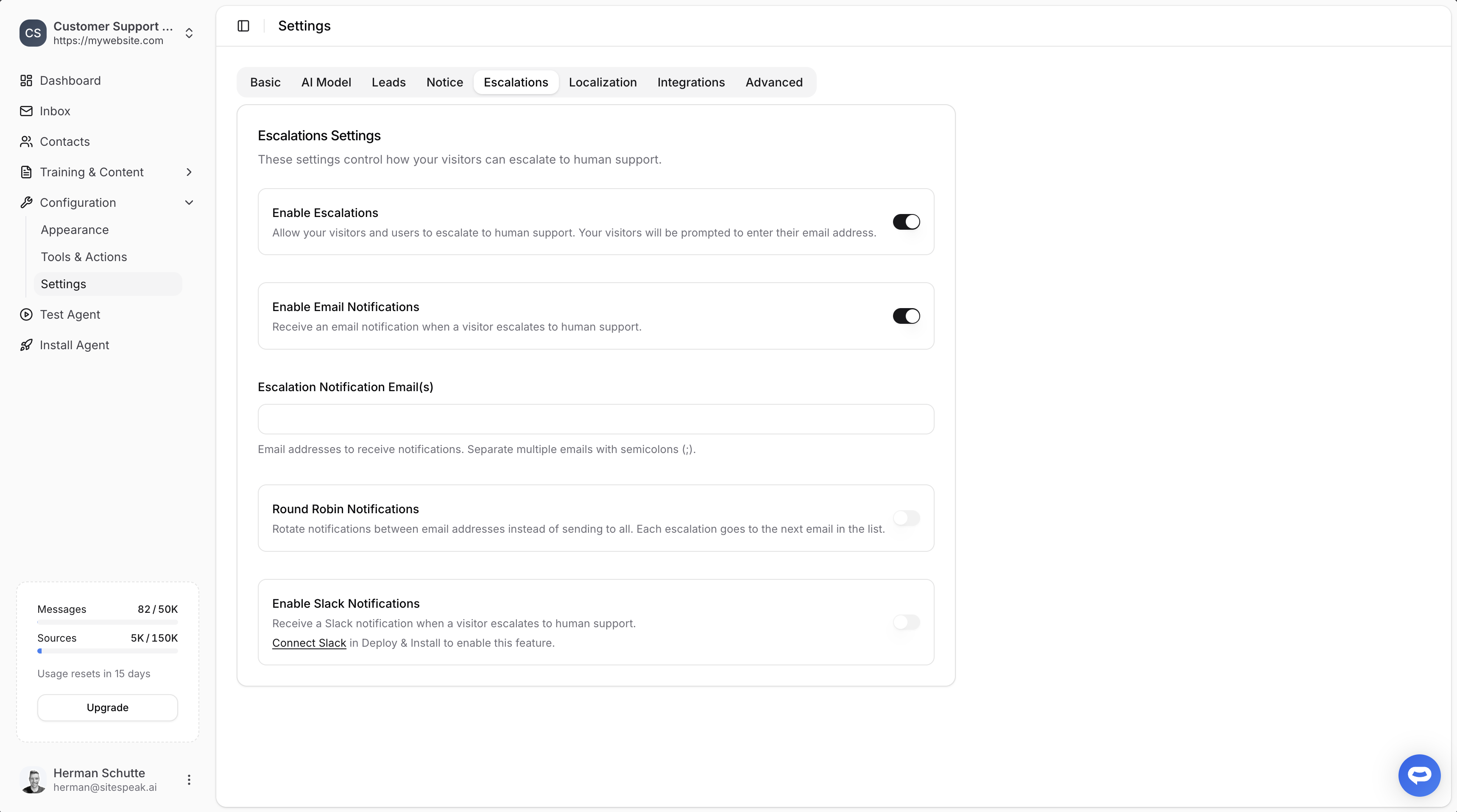
## Enable escalations
In your chatbot dashboard, click **Configuration** in the sidebar.
Click on **Settings**.
Click on the **Escalations** tab.
Toggle on **Enable Escalations** to allow visitors to escalate to human support.
 ## Email notifications
Get notified via email when a visitor escalates:
1. Toggle on **Enable Email Notifications**
2. Enter your email address(es) in the **Escalation Notification Email(s)** field
3. Separate multiple emails with semicolons (`;`)
### Round robin notifications
If you have multiple team members handling support, enable **Round Robin Notifications** to rotate escalations between email addresses instead of sending to all. Each escalation goes to the next email in the list.
Round robin is great for distributing workload evenly across your support team without overwhelming everyone with notifications.
## Slack notifications
Receive escalation notifications directly in your Slack workspace:
Go to **Install Agent → Slack** and click **Connect to Slack**.
Authorize SiteSpeakAI to access your Slack workspace.
Invite the SiteSpeakAI bot to the channel where you want to receive notifications.
Back in **Settings → Escalations**, toggle on **Enable Slack Notifications**.
You must connect Slack in Deploy & Install before the Slack notification option becomes available.
## Webhook notifications
Send escalation data to any URL via a POST request. This is useful for integrating with tools like Zapier, Make, or your own CRM.
In **Settings → Escalations**, toggle on **Enable Webhook Notifications**.
Paste the URL where you want to receive escalation data.
Enter a secret to sign webhook payloads with HMAC-SHA256 for verification. The signature is sent in the `X-Signature-256` header.
### Webhook payload
When a visitor escalates, SiteSpeakAI sends a POST request with a JSON body:
```json theme={null}
{
"event": "escalation.created",
"title": "My Chatbot: Visitor needs human assistance",
"text": "I need to speak with someone",
"chatbot": {
"id": "chatbot-uuid",
"name": "My Chatbot"
},
"visitor": {
"id": 123,
"email": "visitor@example.com",
"first_name": "Jane",
"last_name": "Doe",
"phone": "+1234567890"
},
"conversation": {
"id": 456,
"last_message": "I need to speak with someone"
},
"inbox_url": "https://app.sitespeak.ai/chatbots/{id}/inbox/{visitor_id}",
"timestamp": "2026-02-09T12:00:00+00:00"
}
```
### Verifying webhook signatures
If you set a signing secret, each request includes an `X-Signature-256` header. To verify the request is from SiteSpeakAI, compute the HMAC-SHA256 of the raw request body using your secret and compare it to the header value:
```js theme={null}
const crypto = require("crypto")
function verifySignature(payload, secret, signature) {
const expected =
"sha256=" + crypto.createHmac("sha256", secret).update(payload).digest("hex")
return crypto.timingSafeEqual(
Buffer.from(expected),
Buffer.from(signature)
)
}
```
Webhook notifications work independently of email and Slack notifications. You can enable any combination of the three.
## How visitors escalate
Once enabled, visitors can escalate to human support by:
* **Asking to speak with a human**: The AI recognizes requests like "Can I talk to a person?" or "I need human help"
* **The AI offering escalation**: When the AI can't confidently answer, it can offer to connect the visitor with a human
When a visitor escalates, they'll be prompted to enter their email address so your team can follow up.
## Responding via Live Chat
When you receive an escalation notification, you can respond to visitors in real-time through the Inbox (Conversation History).
Click **Inbox** in the dashboard sidebar to see all conversations.
Find the escalated conversation and click on it to open.
Type your message in the input field and send. This automatically starts a Live Chat session.
When finished, click the **End Live Chat** button in the conversation header. This returns control to the AI assistant.
## Email notifications
Get notified via email when a visitor escalates:
1. Toggle on **Enable Email Notifications**
2. Enter your email address(es) in the **Escalation Notification Email(s)** field
3. Separate multiple emails with semicolons (`;`)
### Round robin notifications
If you have multiple team members handling support, enable **Round Robin Notifications** to rotate escalations between email addresses instead of sending to all. Each escalation goes to the next email in the list.
Round robin is great for distributing workload evenly across your support team without overwhelming everyone with notifications.
## Slack notifications
Receive escalation notifications directly in your Slack workspace:
Go to **Install Agent → Slack** and click **Connect to Slack**.
Authorize SiteSpeakAI to access your Slack workspace.
Invite the SiteSpeakAI bot to the channel where you want to receive notifications.
Back in **Settings → Escalations**, toggle on **Enable Slack Notifications**.
You must connect Slack in Deploy & Install before the Slack notification option becomes available.
## Webhook notifications
Send escalation data to any URL via a POST request. This is useful for integrating with tools like Zapier, Make, or your own CRM.
In **Settings → Escalations**, toggle on **Enable Webhook Notifications**.
Paste the URL where you want to receive escalation data.
Enter a secret to sign webhook payloads with HMAC-SHA256 for verification. The signature is sent in the `X-Signature-256` header.
### Webhook payload
When a visitor escalates, SiteSpeakAI sends a POST request with a JSON body:
```json theme={null}
{
"event": "escalation.created",
"title": "My Chatbot: Visitor needs human assistance",
"text": "I need to speak with someone",
"chatbot": {
"id": "chatbot-uuid",
"name": "My Chatbot"
},
"visitor": {
"id": 123,
"email": "visitor@example.com",
"first_name": "Jane",
"last_name": "Doe",
"phone": "+1234567890"
},
"conversation": {
"id": 456,
"last_message": "I need to speak with someone"
},
"inbox_url": "https://app.sitespeak.ai/chatbots/{id}/inbox/{visitor_id}",
"timestamp": "2026-02-09T12:00:00+00:00"
}
```
### Verifying webhook signatures
If you set a signing secret, each request includes an `X-Signature-256` header. To verify the request is from SiteSpeakAI, compute the HMAC-SHA256 of the raw request body using your secret and compare it to the header value:
```js theme={null}
const crypto = require("crypto")
function verifySignature(payload, secret, signature) {
const expected =
"sha256=" + crypto.createHmac("sha256", secret).update(payload).digest("hex")
return crypto.timingSafeEqual(
Buffer.from(expected),
Buffer.from(signature)
)
}
```
Webhook notifications work independently of email and Slack notifications. You can enable any combination of the three.
## How visitors escalate
Once enabled, visitors can escalate to human support by:
* **Asking to speak with a human**: The AI recognizes requests like "Can I talk to a person?" or "I need human help"
* **The AI offering escalation**: When the AI can't confidently answer, it can offer to connect the visitor with a human
When a visitor escalates, they'll be prompted to enter their email address so your team can follow up.
## Responding via Live Chat
When you receive an escalation notification, you can respond to visitors in real-time through the Inbox (Conversation History).
Click **Inbox** in the dashboard sidebar to see all conversations.
Find the escalated conversation and click on it to open.
Type your message in the input field and send. This automatically starts a Live Chat session.
When finished, click the **End Live Chat** button in the conversation header. This returns control to the AI assistant.
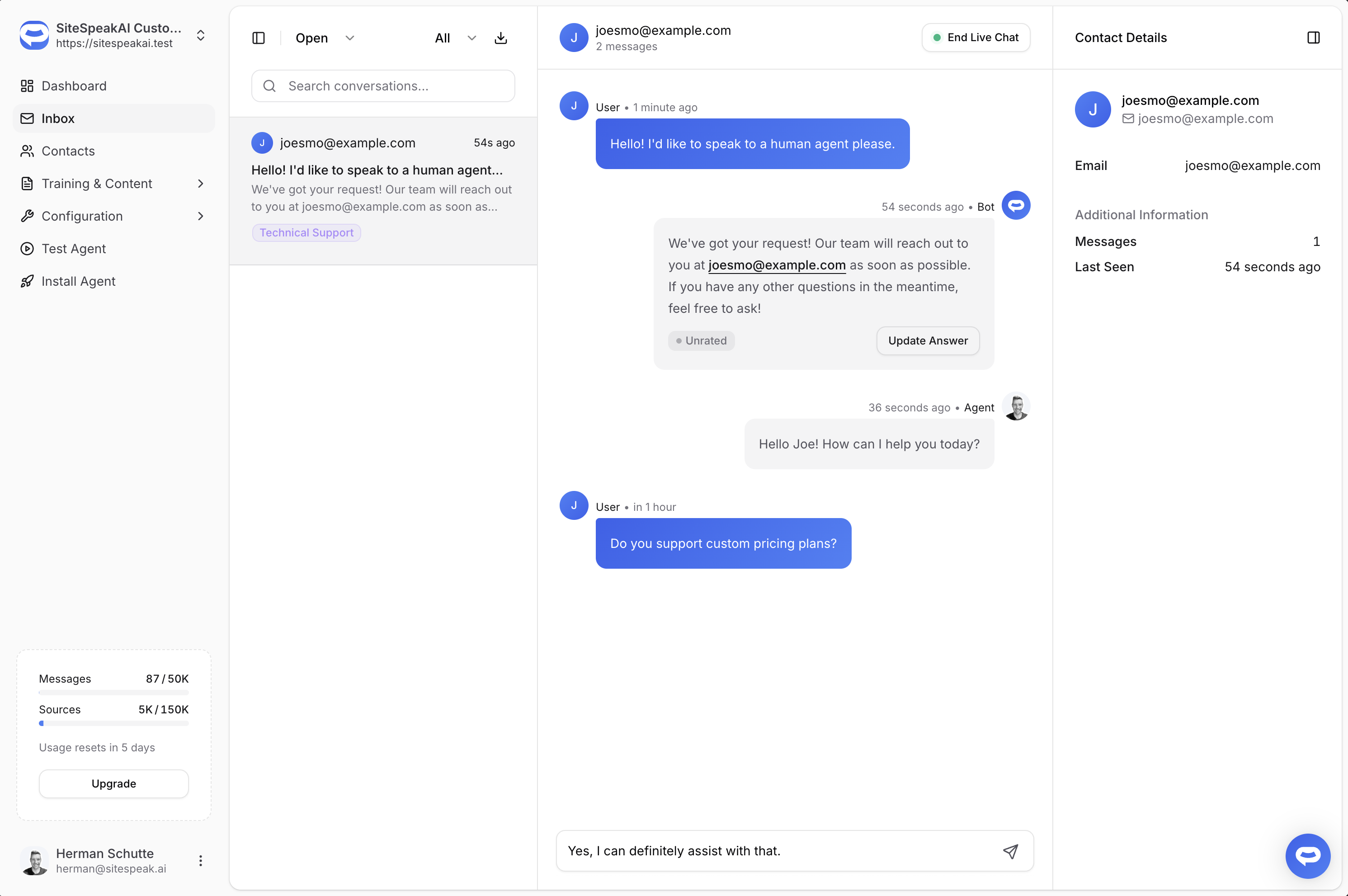 While Live Chat is active, the AI assistant will not respond to messages. This ensures the visitor only communicates with your support team until you end the session.
## Customizing escalation messages
You can customize the messages shown to visitors during escalation in the **Localization** tab under Settings, including:
* The message shown when escalating
* Email input placeholder text
* Confirmation messages
## Best practices
* **Set expectations**: Let visitors know typical response times in your escalation confirmation message
* **Use round robin**: Distribute escalations evenly across your team
* **Connect Slack**: Get real-time notifications where your team already communicates
* **Use webhooks**: Connect escalations to your CRM or ticketing system via Zapier, Make, or a custom endpoint
* **Review escalations**: Regularly review why visitors escalate to improve your AI's training
***
Join over 1000+ businesses, websites and startups automating their customer service and other tasks with a custom trained AI agent.
While Live Chat is active, the AI assistant will not respond to messages. This ensures the visitor only communicates with your support team until you end the session.
## Customizing escalation messages
You can customize the messages shown to visitors during escalation in the **Localization** tab under Settings, including:
* The message shown when escalating
* Email input placeholder text
* Confirmation messages
## Best practices
* **Set expectations**: Let visitors know typical response times in your escalation confirmation message
* **Use round robin**: Distribute escalations evenly across your team
* **Connect Slack**: Get real-time notifications where your team already communicates
* **Use webhooks**: Connect escalations to your CRM or ticketing system via Zapier, Make, or a custom endpoint
* **Review escalations**: Regularly review why visitors escalate to improve your AI's training
***
Join over 1000+ businesses, websites and startups automating their customer service and other tasks with a custom trained AI agent.