> ## Documentation Index
> Fetch the complete documentation index at: https://sitespeak.ai/docs/llms.txt
> Use this file to discover all available pages before exploring further.
# Capture leads with your chatbot
> Use your chatbot to capture new leads and grow your sales
You can easily use your chatbot to capture new leads and grow your sales.
## Enable lead capture
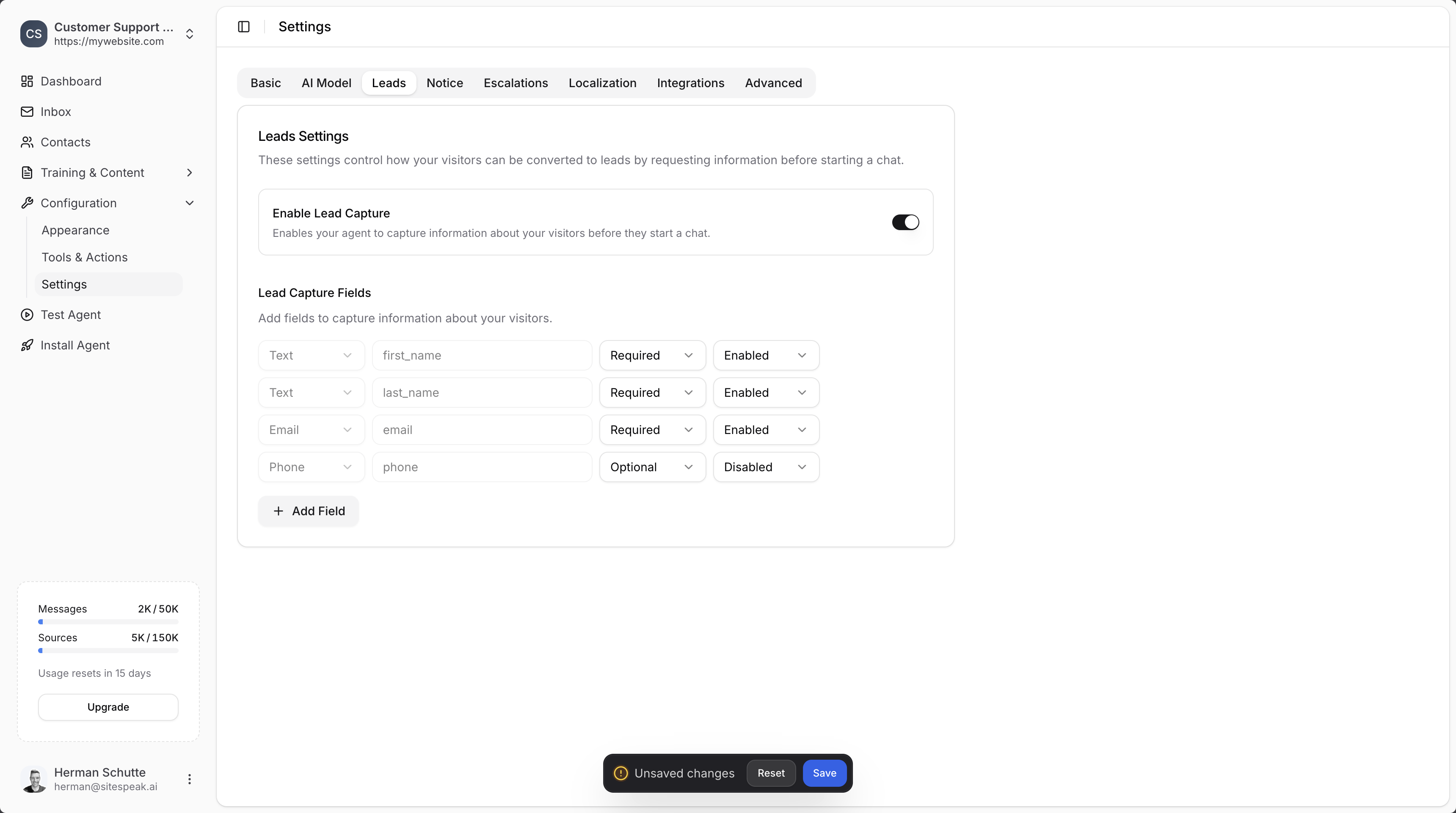
Head over to the **Settings** section in your chatbot dashboard.
Click on the **Leads** tab.
Toggle on the **Enable Lead Capture** option.
Click the **Save** button to save your settings.
 ## Add custom fields
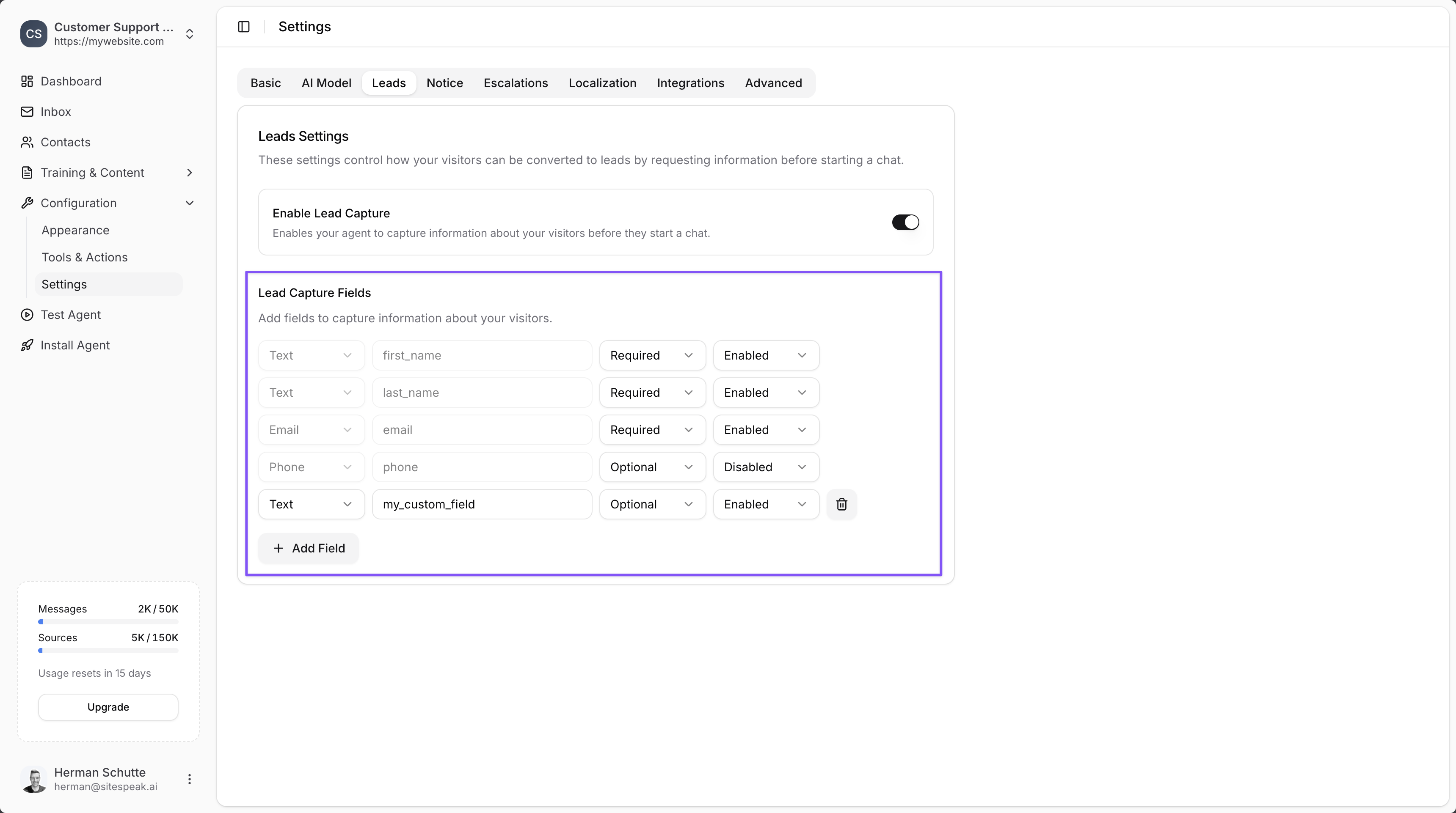
You can add your own custom fields that you would like your visitors to complete before they start chatting to your chatbot.
Common fields include:
* Name
* Email address
* Phone number
* Company name
## Add custom fields
You can add your own custom fields that you would like your visitors to complete before they start chatting to your chatbot.
Common fields include:
* Name
* Email address
* Phone number
* Company name
 ## Customise the form text
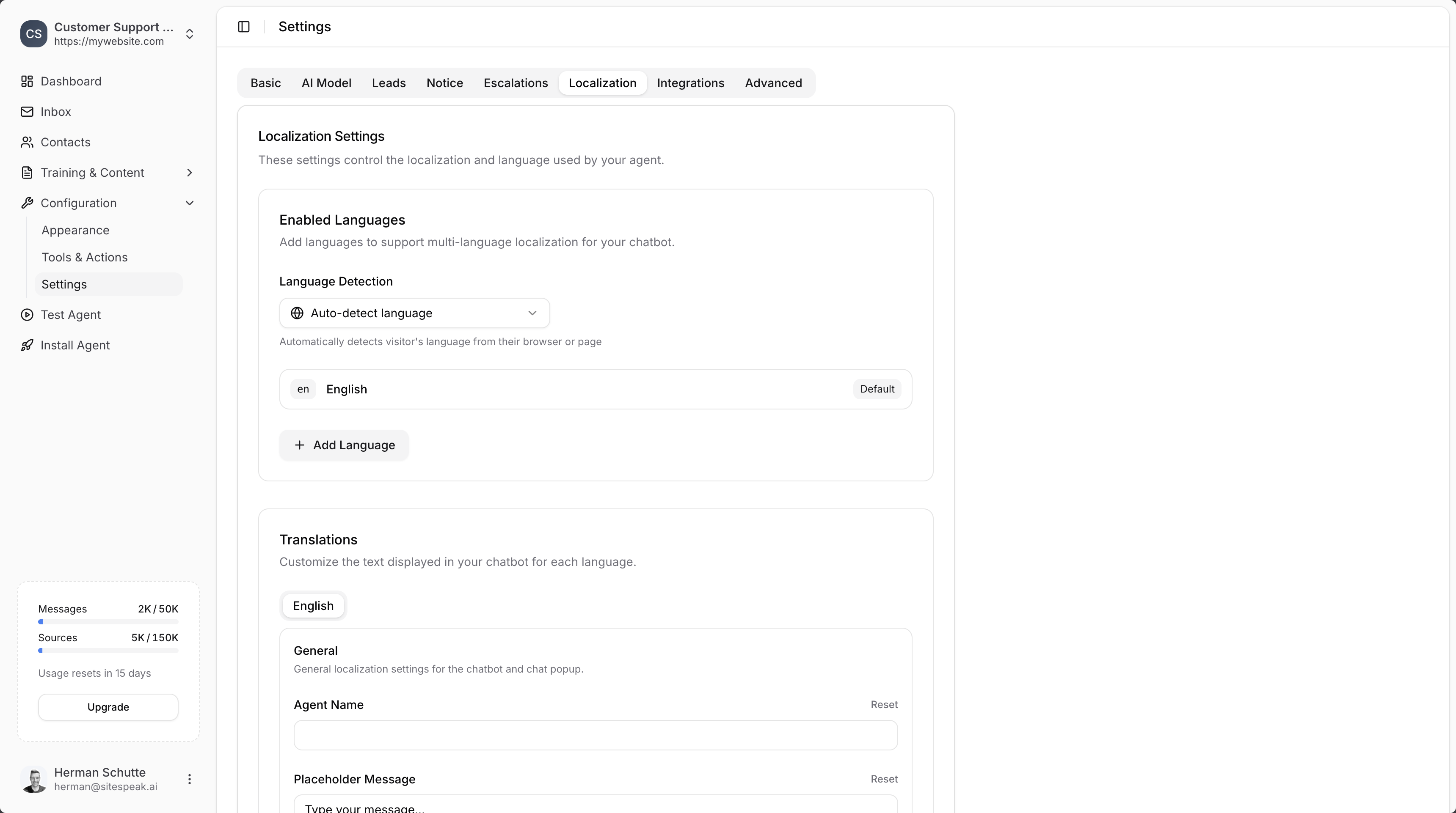
You can update the text displayed on the lead capture form by editing the Lead Capture text in the **Localization** settings.
## Customise the form text
You can update the text displayed on the lead capture form by editing the Lead Capture text in the **Localization** settings.
 ## How it works
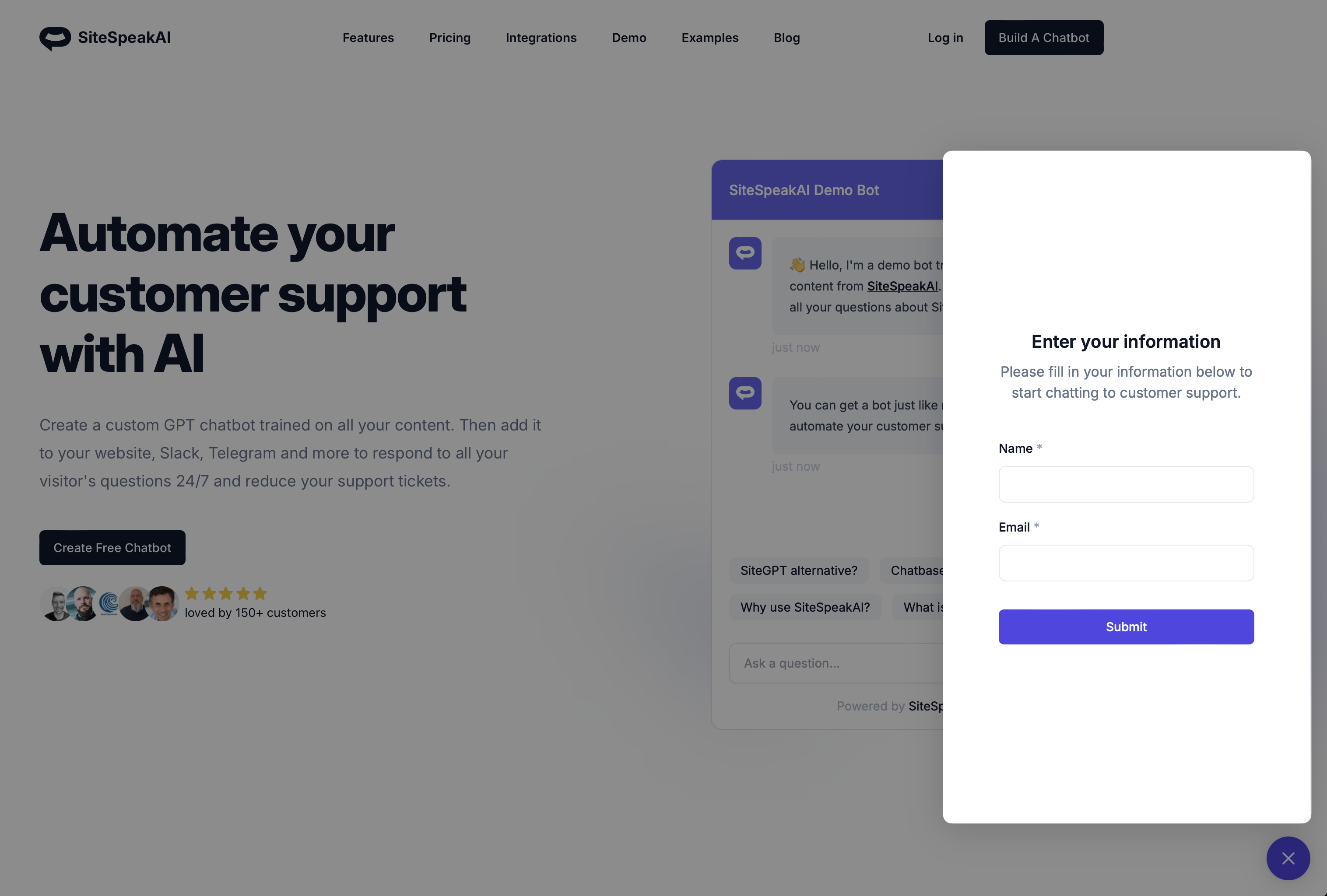
Once enabled, your chatbot will prompt visitors to leave their details before starting the chat.
## How it works
Once enabled, your chatbot will prompt visitors to leave their details before starting the chat.
 **Using the [Zapier integration](https://zapier.com/apps/sitespeakai/integrations)?** Whenever a visitor leaves their email, the "New Lead" trigger fires and you can perform an action based on this.
Create your free AI chatbot and turn website visitors into qualified leads
**Using the [Zapier integration](https://zapier.com/apps/sitespeakai/integrations)?** Whenever a visitor leaves their email, the "New Lead" trigger fires and you can perform an action based on this.
Create your free AI chatbot and turn website visitors into qualified leads