> ## Documentation Index
> Fetch the complete documentation index at: https://sitespeak.ai/docs/llms.txt
> Use this file to discover all available pages before exploring further.
# Share Your Chatbot
> Share your chatbot with others via a dedicated URL for demos, testing, or direct access.
You can easily share your chatbot with others using a dedicated share URL. This is great for sharing information about your business or products in a conversational way.
## Get Your Share Link
In your chatbot dashboard, click **Install Agent** in the sidebar.
Click on the **Share** tab.
Click the **Copy URL** button to copy your chatbot's share link.
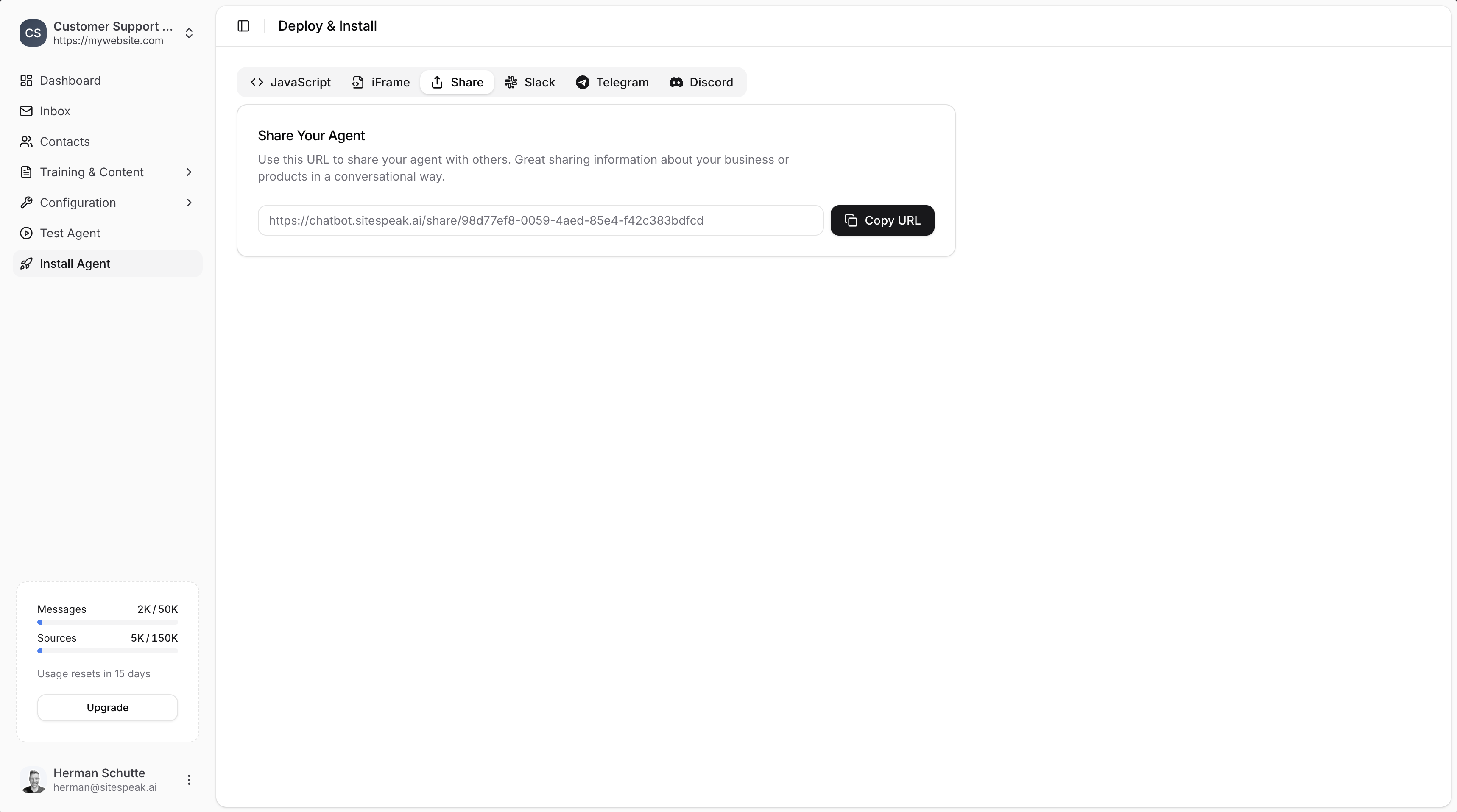 Your share URL will look like:
```
https://chatbot.sitespeak.ai/share/your-agent-id
```
***
## Use Cases
Share links are useful for:
* **Team testing**: Share with colleagues to review and test before going live
* **Client demos**: Send to potential customers or stakeholders to showcase your chatbot
* **Email support**: Include a direct link in emails so customers can quickly access help
* **Social media**: Post on Twitter, LinkedIn, or other platforms to drive engagement
* **Sales conversations**: Share product information in a conversational format
* **Internal tools**: Give team members quick access to company knowledge
***
## How the Share Page Works
When someone opens your share link:
1. They see a full-page version of your chatbot
2. They can immediately start chatting without any installation
3. The chatbot uses all your configured settings, training, and appearance options
4. Conversations are logged in your dashboard like any other interaction
***
## Customizing the Share Experience
The share page uses your chatbot's configured settings. To customize how it appears:
Change the name, colors, theme, and icons.
Set the greeting visitors see when they open the chat.
***
Join over 1000+ businesses, websites and startups automating their customer service and other tasks with a custom trained AI agent.
Your share URL will look like:
```
https://chatbot.sitespeak.ai/share/your-agent-id
```
***
## Use Cases
Share links are useful for:
* **Team testing**: Share with colleagues to review and test before going live
* **Client demos**: Send to potential customers or stakeholders to showcase your chatbot
* **Email support**: Include a direct link in emails so customers can quickly access help
* **Social media**: Post on Twitter, LinkedIn, or other platforms to drive engagement
* **Sales conversations**: Share product information in a conversational format
* **Internal tools**: Give team members quick access to company knowledge
***
## How the Share Page Works
When someone opens your share link:
1. They see a full-page version of your chatbot
2. They can immediately start chatting without any installation
3. The chatbot uses all your configured settings, training, and appearance options
4. Conversations are logged in your dashboard like any other interaction
***
## Customizing the Share Experience
The share page uses your chatbot's configured settings. To customize how it appears:
Change the name, colors, theme, and icons.
Set the greeting visitors see when they open the chat.
***
Join over 1000+ businesses, websites and startups automating their customer service and other tasks with a custom trained AI agent.