> ## Documentation Index
> Fetch the complete documentation index at: https://sitespeak.ai/docs/llms.txt
> Use this file to discover all available pages before exploring further.
# Voice recognition & text-to-speech
> Enable voice input and text-to-speech for a more accessible chatbot experience
Make your chatbot more accessible by enabling speech recognition (speech-to-text) and text-to-speech capabilities.
## Speech recognition
Speech recognition allows visitors to speak their questions instead of typing. When enabled, the agent will respond with both text and audio.
### Enable speech recognition
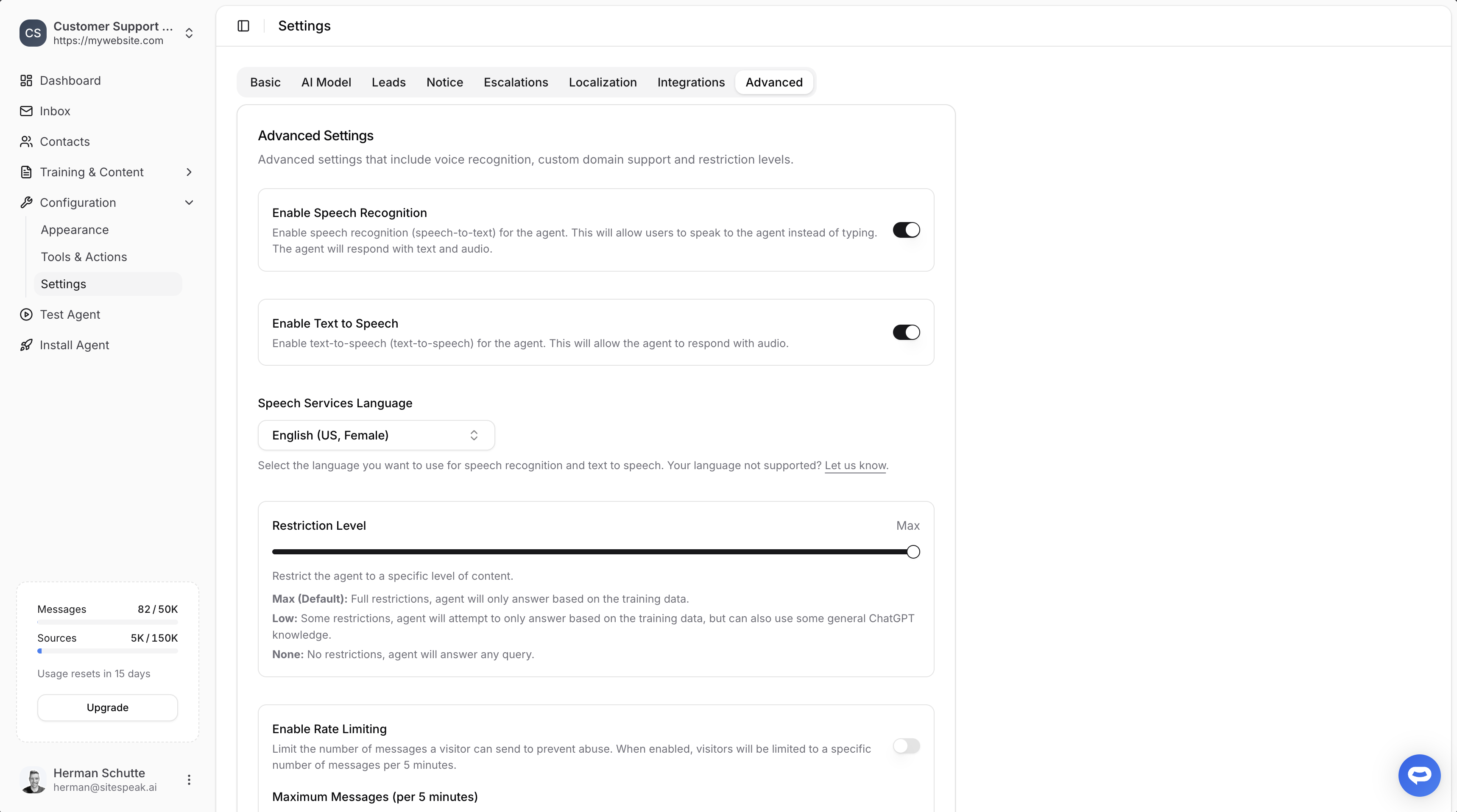
In your chatbot dashboard, click **Configuration** in the sidebar.
Click on **Settings**.
Click on the **Advanced** tab.
Toggle on **Enable Speech Recognition**.
 Once enabled, a microphone icon appears in the chat input field. Visitors can click it to speak their message.
## Text-to-speech
Text-to-speech allows the agent to respond with audio, reading responses aloud to visitors.
### Enable text-to-speech
In the same **Advanced** tab:
1. Toggle on **Enable Text to Speech**
Once enabled, the agent's responses will include an audio playback option.
## Speech services language
Select the language and voice you want to use for both speech recognition and text-to-speech:
1. Find the **Speech Services Language** dropdown
2. Select your preferred language and voice (e.g., "English (US, Female)")
If your language isn't supported, you can request it by clicking "Let us know" in the settings.
## Use cases
Voice features are especially useful for:
* **Accessibility**: Supporting visitors who have difficulty typing
* **Mobile users**: Easier input on small screens
* **Hands-free scenarios**: When visitors can't type
* **Multilingual support**: Natural voice interaction in different languages
***
Join over 1000+ businesses, websites and startups automating their customer service and other tasks with a custom trained AI agent.
Once enabled, a microphone icon appears in the chat input field. Visitors can click it to speak their message.
## Text-to-speech
Text-to-speech allows the agent to respond with audio, reading responses aloud to visitors.
### Enable text-to-speech
In the same **Advanced** tab:
1. Toggle on **Enable Text to Speech**
Once enabled, the agent's responses will include an audio playback option.
## Speech services language
Select the language and voice you want to use for both speech recognition and text-to-speech:
1. Find the **Speech Services Language** dropdown
2. Select your preferred language and voice (e.g., "English (US, Female)")
If your language isn't supported, you can request it by clicking "Let us know" in the settings.
## Use cases
Voice features are especially useful for:
* **Accessibility**: Supporting visitors who have difficulty typing
* **Mobile users**: Easier input on small screens
* **Hands-free scenarios**: When visitors can't type
* **Multilingual support**: Natural voice interaction in different languages
***
Join over 1000+ businesses, websites and startups automating their customer service and other tasks with a custom trained AI agent.