> ## Documentation Index
> Fetch the complete documentation index at: https://sitespeak.ai/docs/llms.txt
> Use this file to discover all available pages before exploring further.
# Add Cal.com Booking Action
> Enable your AI agent to check availability and make bookings on your Cal.com calendar.
The Cal.com action allows your AI agent to check your calendar availability and help visitors book appointments directly through the chatbot.
 ## Adding the Cal.com Action
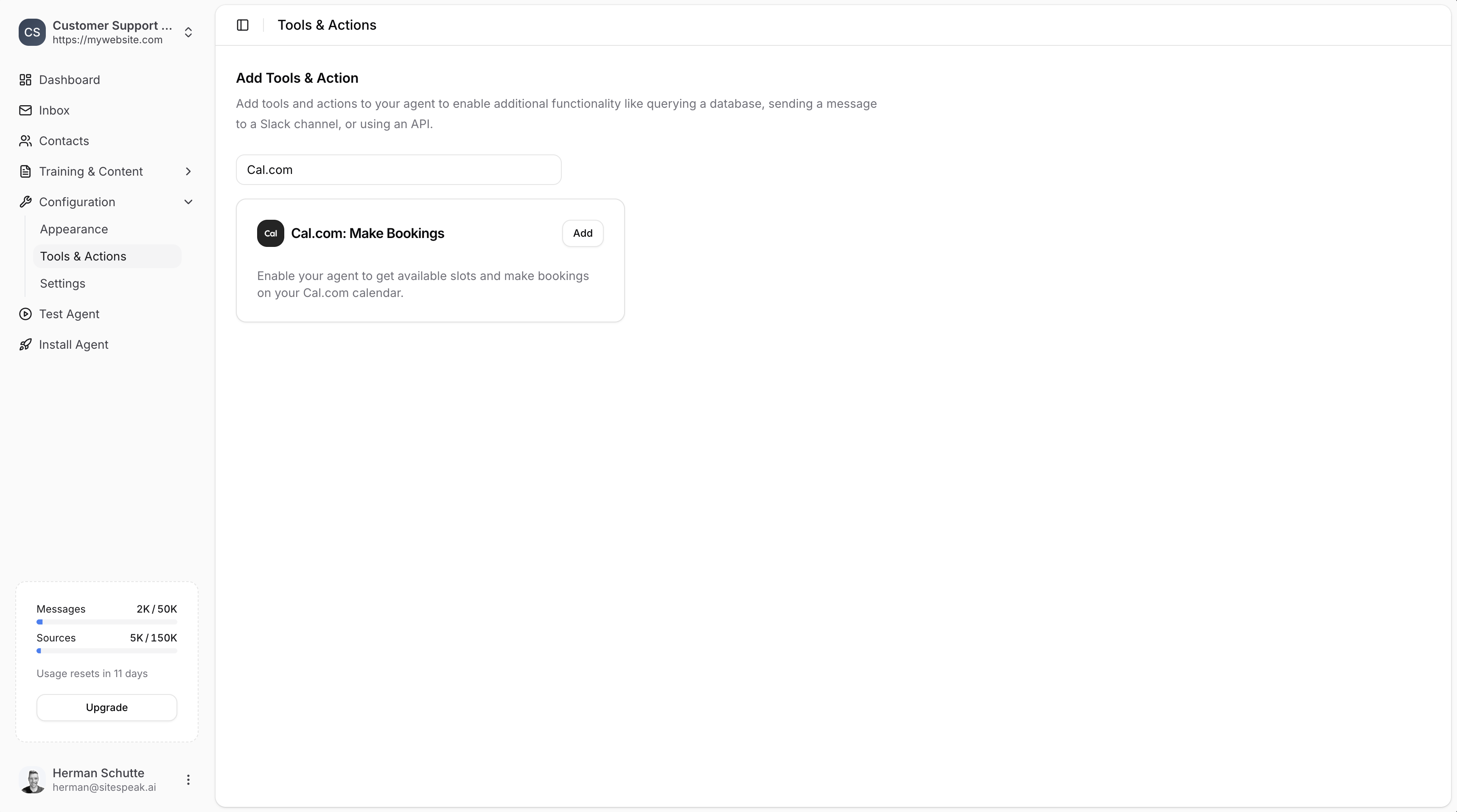
In your chatbot dashboard, go to **Configuration → Tools & Actions**.
Find **Cal.com: Make Bookings** and click **Add**.
***
## Configuration
## Adding the Cal.com Action
In your chatbot dashboard, go to **Configuration → Tools & Actions**.
Find **Cal.com: Make Bookings** and click **Add**.
***
## Configuration
 ### Name
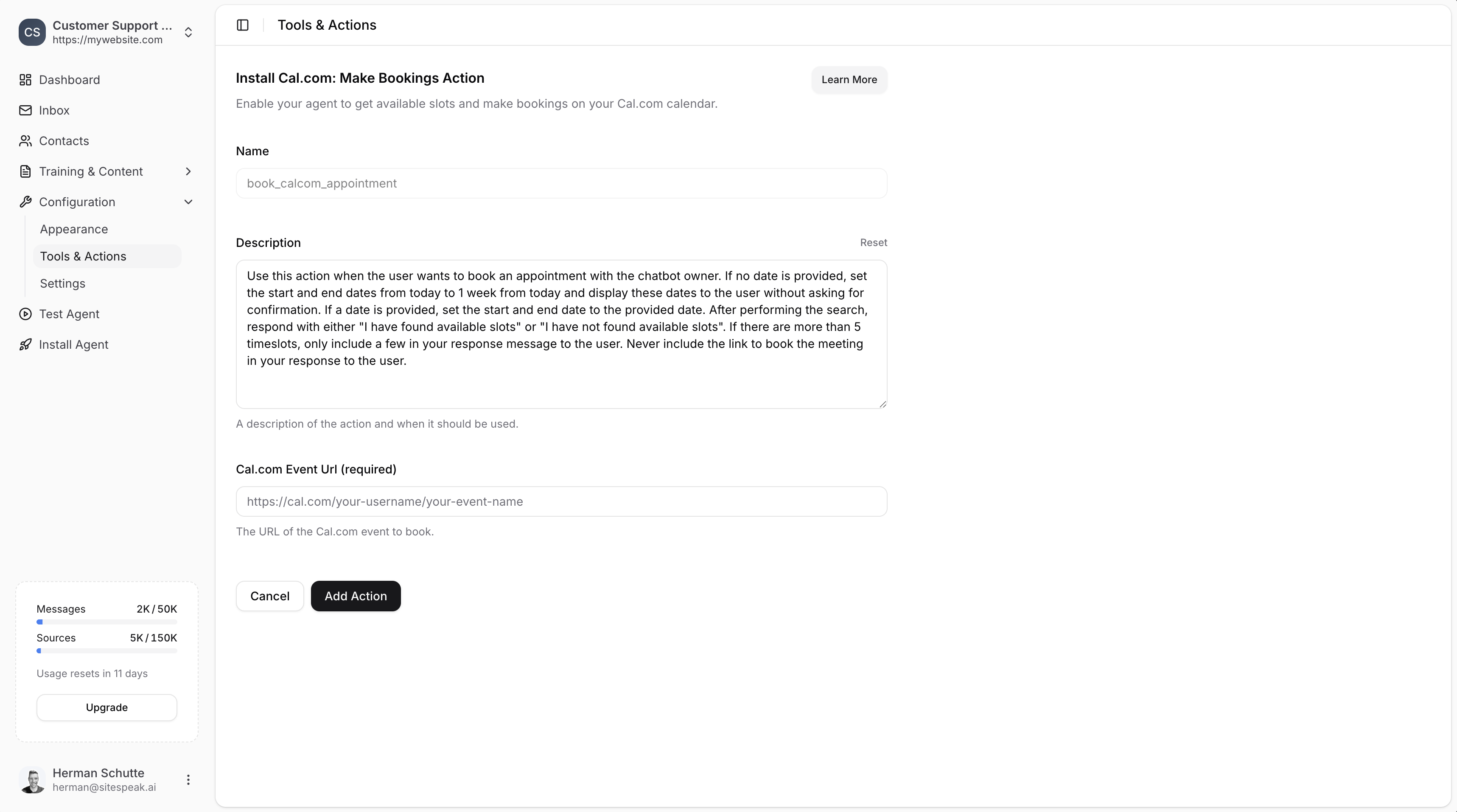
A descriptive name for the action. Default: `book_calcom_appointment`
### Description
A description of the action and when it should be used. The default description guides the agent on how to handle booking requests, date ranges, and displaying available slots.
### Cal.com Event URL (required)
The URL of the Cal.com event to book. This URL looks like:
```
https://cal.com/your-username/your-event-name
```
***
## Finding Your Cal.com Event URL
Log in to your [Cal.com dashboard](https://app.cal.com).
Go to **Event Types** at [app.cal.com/event-types](https://app.cal.com/event-types).
Find the event you want to use and copy its URL.
***
## Save the Action
Once you've entered the Event URL, click **Add Action** to enable it.
Your chatbot will now be able to:
* Check availability on your calendar
* Show available time slots to visitors
* Allow visitors to book appointments
Bookings will automatically be added to your Cal.com calendar.
***
Join over 1000+ businesses, websites and startups automating their customer service and other tasks with a custom trained AI agent.
### Name
A descriptive name for the action. Default: `book_calcom_appointment`
### Description
A description of the action and when it should be used. The default description guides the agent on how to handle booking requests, date ranges, and displaying available slots.
### Cal.com Event URL (required)
The URL of the Cal.com event to book. This URL looks like:
```
https://cal.com/your-username/your-event-name
```
***
## Finding Your Cal.com Event URL
Log in to your [Cal.com dashboard](https://app.cal.com).
Go to **Event Types** at [app.cal.com/event-types](https://app.cal.com/event-types).
Find the event you want to use and copy its URL.
***
## Save the Action
Once you've entered the Event URL, click **Add Action** to enable it.
Your chatbot will now be able to:
* Check availability on your calendar
* Show available time slots to visitors
* Allow visitors to book appointments
Bookings will automatically be added to your Cal.com calendar.
***
Join over 1000+ businesses, websites and startups automating their customer service and other tasks with a custom trained AI agent.