> ## Documentation Index
> Fetch the complete documentation index at: https://sitespeak.ai/docs/llms.txt
> Use this file to discover all available pages before exploring further.
# Add a Paddle Subscription Action
> Enable your AI agent to retrieve subscription information from your Paddle account.
The Paddle action allows your AI agent to retrieve information about a customer's Paddle Classic subscription, such as payment dates, invoices, and billing information.
## Adding the Paddle Action
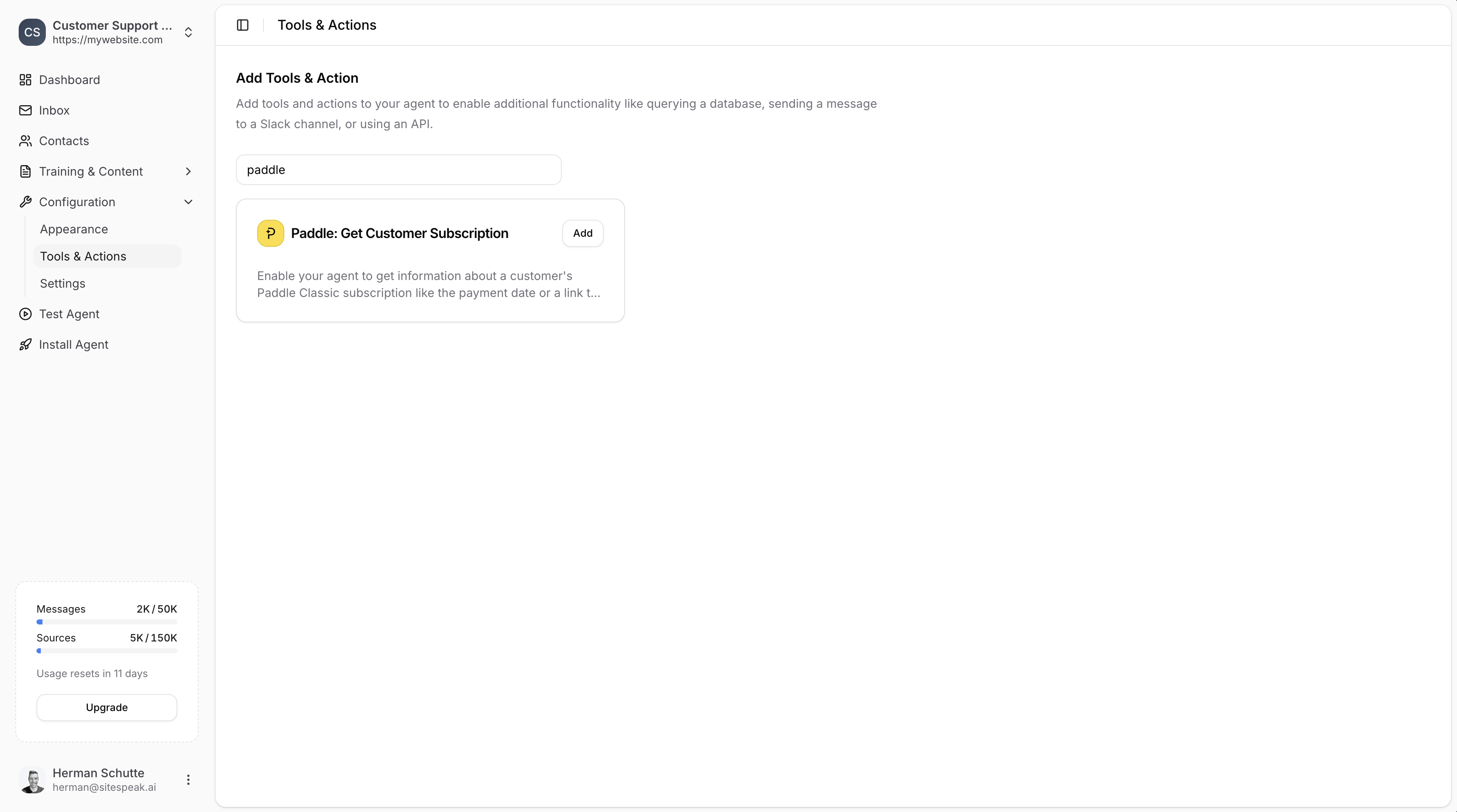
In your chatbot dashboard, go to **Configuration → Tools & Actions**.
Find **Paddle: Get Customer Subscription** and click **Add**.
 ***
## Configuration
***
## Configuration
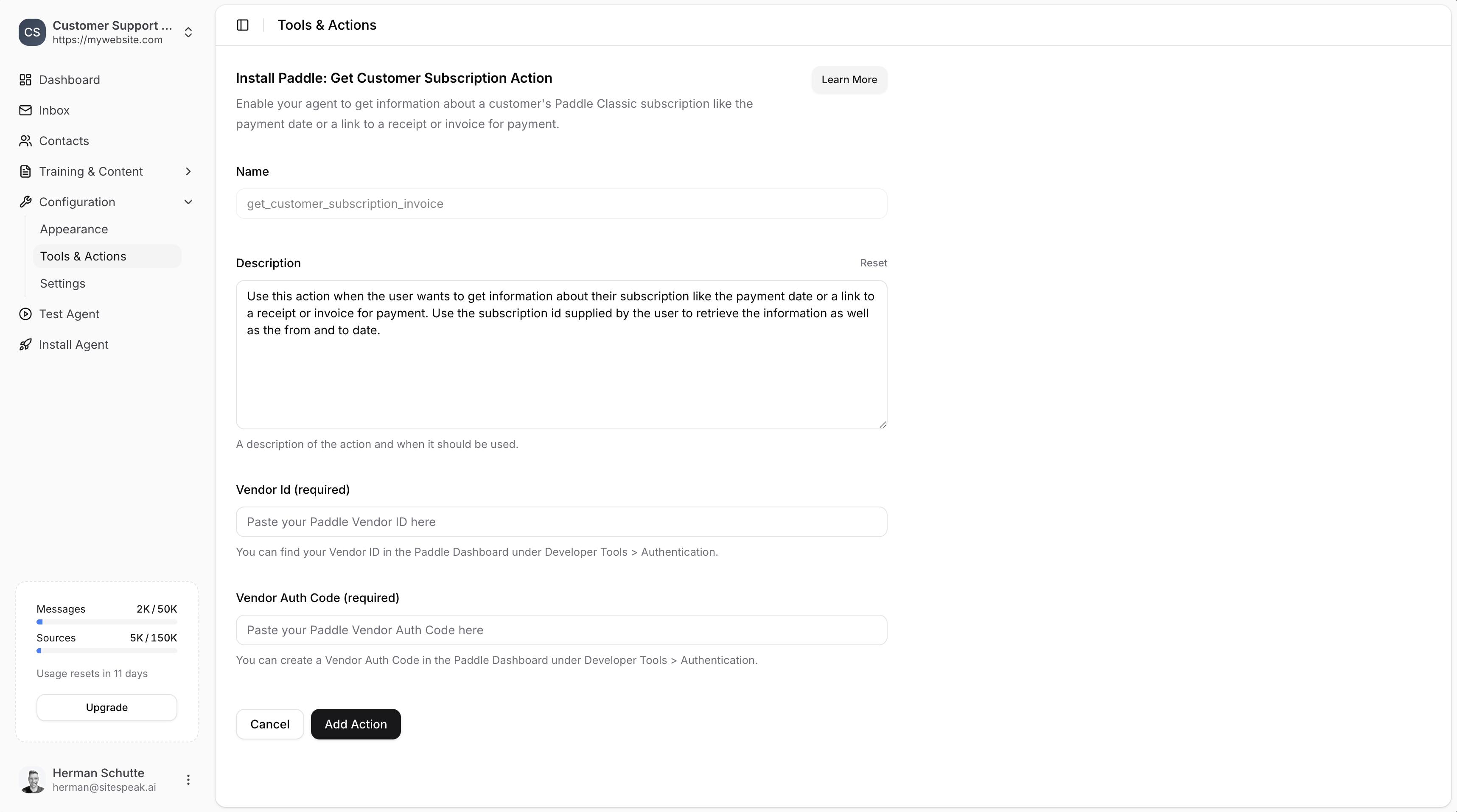 ### Name
A descriptive name for the action. Default: `get_customer_subscription_invoice`
### Description
A description of the action and when it should be used. You can customize this or use the provided default.
**Example:**
> Use this action when the user wants to get information about their subscription like the payment date or a link to a receipt or invoice. Use the subscription id supplied by the user to retrieve the information as well as the from and to date.
### Vendor Id (required)
Your Paddle Vendor ID.
You can find your Vendor ID in the Paddle Dashboard under **Developer Tools → Authentication**.
### Vendor Auth Code (required)
Your Paddle Vendor Auth Code.
You can create a Vendor Auth Code in the Paddle Dashboard under **Developer Tools → Authentication**.
***
## Getting Your Paddle Credentials
Go to your [Paddle Dashboard](https://vendors.paddle.com).
Navigate to **Developer Tools → Authentication**.
Copy your **Vendor ID** and **Vendor Auth Code** and paste them into SiteSpeakAI.
***
## Save the Action
Click **Add Action** to enable the action for your AI agent.
Your agent will now be able to assist visitors with information about their latest invoices and how to update their billing information.
***
## Providing Customer Information
To look up subscription information for a specific customer, combine this action with the [Identify feature](/managing-your-chatbot/deploy-and-install) so your agent has the required information to retrieve subscriptions.
***
Join over 1000+ businesses, websites and startups automating their customer service and other tasks with a custom trained AI agent.
### Name
A descriptive name for the action. Default: `get_customer_subscription_invoice`
### Description
A description of the action and when it should be used. You can customize this or use the provided default.
**Example:**
> Use this action when the user wants to get information about their subscription like the payment date or a link to a receipt or invoice. Use the subscription id supplied by the user to retrieve the information as well as the from and to date.
### Vendor Id (required)
Your Paddle Vendor ID.
You can find your Vendor ID in the Paddle Dashboard under **Developer Tools → Authentication**.
### Vendor Auth Code (required)
Your Paddle Vendor Auth Code.
You can create a Vendor Auth Code in the Paddle Dashboard under **Developer Tools → Authentication**.
***
## Getting Your Paddle Credentials
Go to your [Paddle Dashboard](https://vendors.paddle.com).
Navigate to **Developer Tools → Authentication**.
Copy your **Vendor ID** and **Vendor Auth Code** and paste them into SiteSpeakAI.
***
## Save the Action
Click **Add Action** to enable the action for your AI agent.
Your agent will now be able to assist visitors with information about their latest invoices and how to update their billing information.
***
## Providing Customer Information
To look up subscription information for a specific customer, combine this action with the [Identify feature](/managing-your-chatbot/deploy-and-install) so your agent has the required information to retrieve subscriptions.
***
Join over 1000+ businesses, websites and startups automating their customer service and other tasks with a custom trained AI agent.