> ## Documentation Index
> Fetch the complete documentation index at: https://sitespeak.ai/docs/llms.txt
> Use this file to discover all available pages before exploring further.
# Train Your Chatbot on BookStack Wiki Content
> Learn how to connect your BookStack wiki to SiteSpeakAI and train your chatbot to answer questions using your knowledge base content.
Connect your BookStack wiki to SiteSpeakAI to create an AI chatbot that can answer questions using your existing knowledge base. Your chatbot will automatically pull content from your BookStack pages, books, and shelves to provide accurate, contextual responses to your visitors.
## Why Use BookStack with SiteSpeakAI?
BookStack is a popular open-source wiki platform used by thousands of organizations for documentation and knowledge management. By connecting it to SiteSpeakAI, you can:
* **Instant answers**: Let visitors ask questions in natural language instead of searching
* **24/7 availability**: Provide support even when your team is offline
* **Reduced support load**: Automate responses to common questions
* **Always up-to-date**: SiteSpeakAI automatically checks for new and updated content every hour
***
## Prerequisites
Before connecting BookStack to SiteSpeakAI, you'll need:
1. A BookStack installation with API access enabled
2. A BookStack API token and secret
3. A SiteSpeakAI account ([sign up free](https://sitespeak.ai/register))
***
## How to Get Your BookStack API Credentials
Access your BookStack installation as an administrator.
Click on your profile icon and select **Edit Profile**.
Scroll down to the **API Tokens** section and click **Create Token**.
Copy both the **Token ID** and **Token Secret**. Store these securely as the secret won't be shown again.
Make sure your API token has read access to the content you want your chatbot to use. Check your BookStack role permissions if needed.
***
## Connect BookStack to SiteSpeakAI
Log in to [SiteSpeakAI](https://sitespeak.ai/login) and select your chatbot.
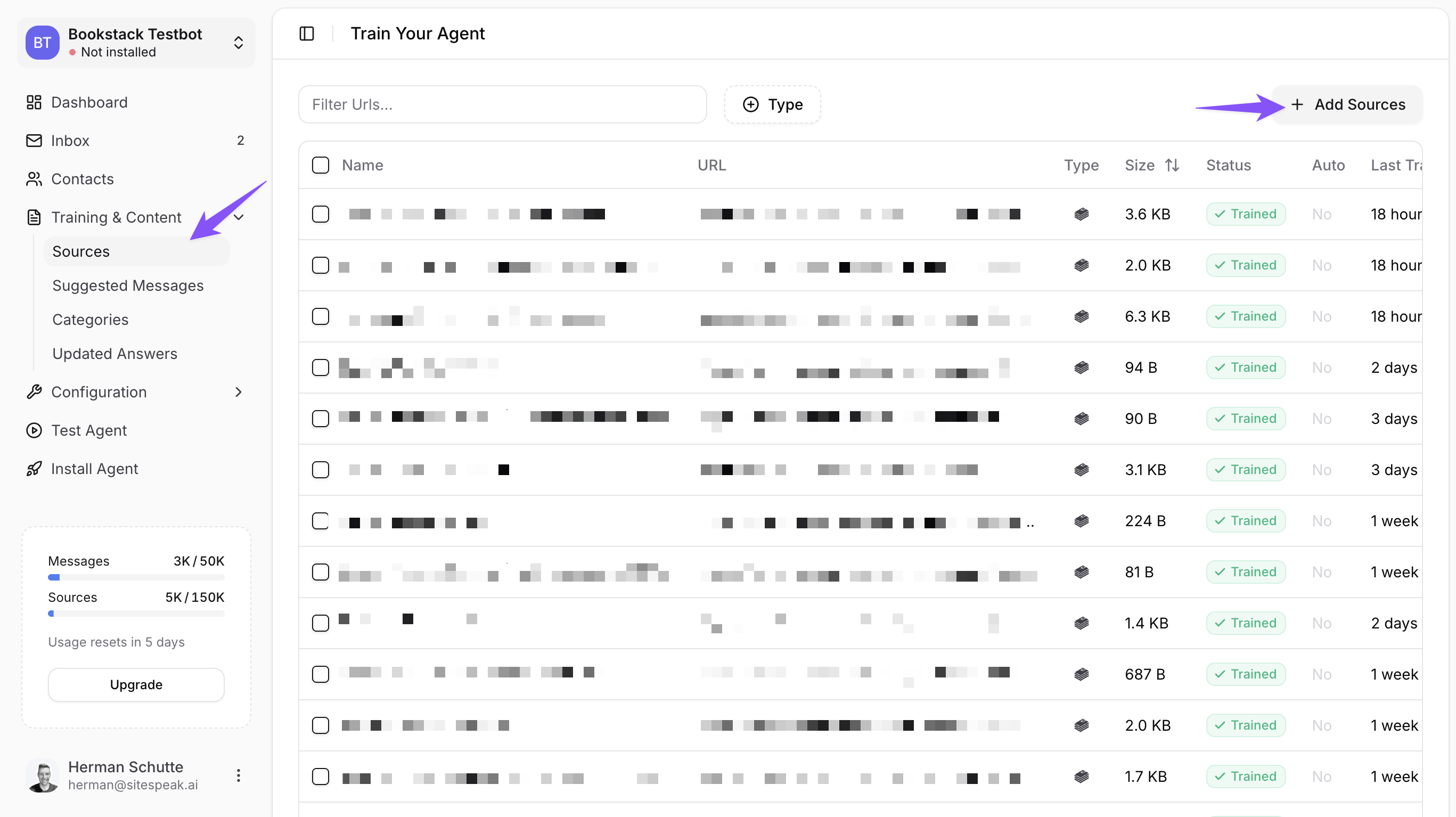
Click **Training & Content** in the sidebar, then select **Sources**.
Click the **+ Add Sources** button in the top right corner.
In the source type dropdown, select **Apps** to see available integrations.
Click on the **BookStack** integration option.
 ### Enter Your BookStack Details
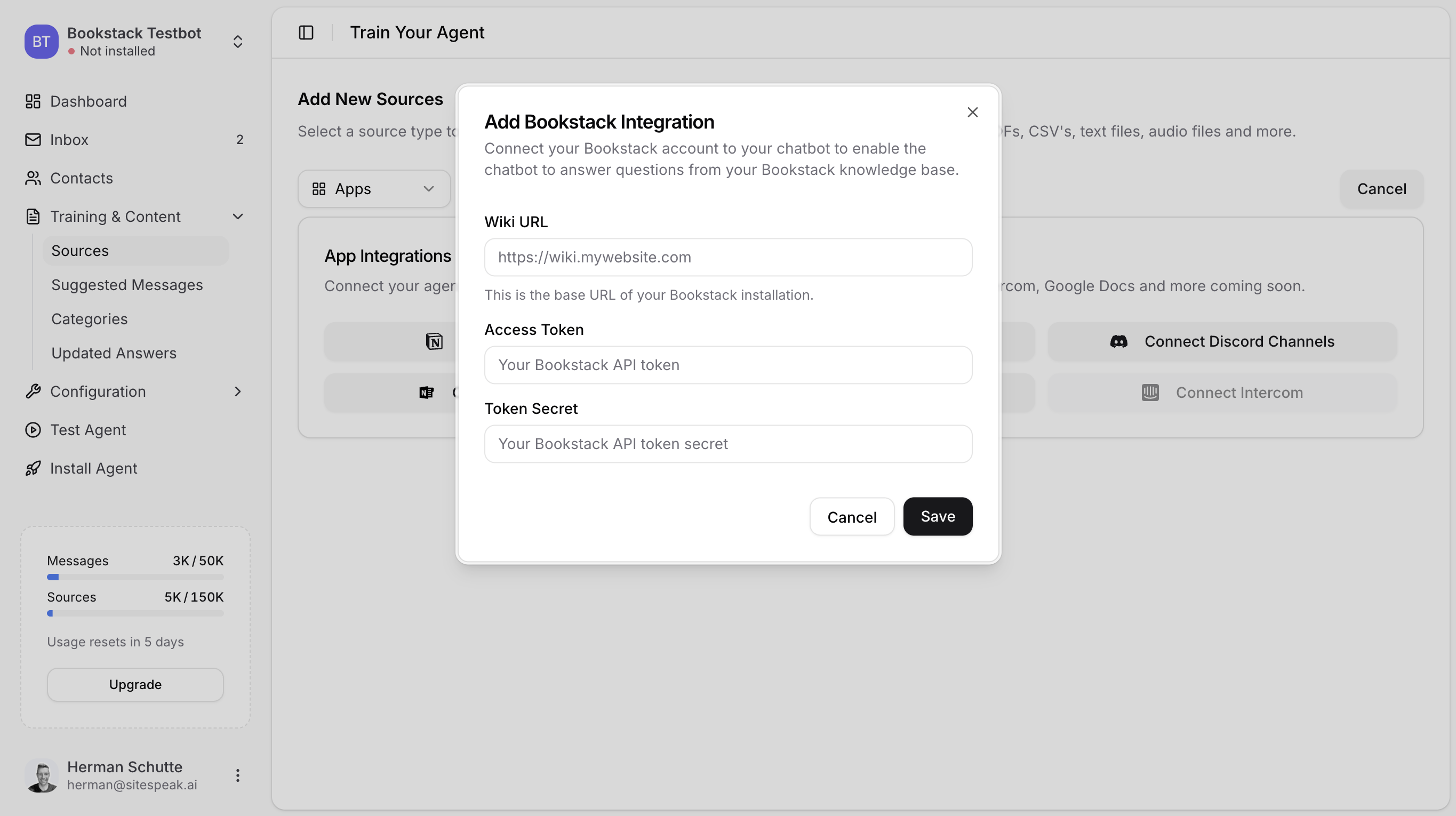
In the **Add Bookstack Integration** modal:
Enter the base URL of your BookStack installation (e.g., `https://wiki.mywebsite.com`).
Paste the API Token ID you copied from BookStack.
Paste the API Token Secret.
Click **Save** to connect your BookStack wiki.
### Enter Your BookStack Details
In the **Add Bookstack Integration** modal:
Enter the base URL of your BookStack installation (e.g., `https://wiki.mywebsite.com`).
Paste the API Token ID you copied from BookStack.
Paste the API Token Secret.
Click **Save** to connect your BookStack wiki.
 ***
## Select Content to Train On
Once connected, SiteSpeakAI will fetch your BookStack content. You can then:
1. **Select specific pages**: Choose which pages, chapters, or books to include
2. **Train your chatbot**: Click **Train** to process the selected content
3. **Monitor status**: Watch the training progress in the Sources list
Your sources will show a **Trained** status with a green checkmark when ready.
***
## How Your Chatbot Uses BookStack Content
After training, your chatbot will:
* Search your BookStack content when visitors ask questions
* Provide answers based on relevant wiki pages
* Cite sources so visitors know where the information comes from
* Handle follow-up questions with context awareness
### Example Interaction
**Visitor**: "How do I reset my password?"
**Chatbot**: "To reset your password, go to the login page and click 'Forgot Password'. Enter your email address and you'll receive a reset link within a few minutes. If you don't see the email, check your spam folder."
*Source: Password Reset Guide (BookStack)*
***
## Keeping Content Updated
Once connected, SiteSpeakAI automatically keeps your chatbot in sync with your BookStack wiki:
* **Automatic sync**: SiteSpeakAI checks BookStack for new and updated pages every hour
* **No manual action required**: Your chatbot automatically trains on any content changes
This means you can update your BookStack wiki and your chatbot will have the latest information within an hour.
***
## Troubleshooting
### Connection Failed
If you can't connect to BookStack:
* Verify your Wiki URL is correct and accessible
* Check that API access is enabled in BookStack settings
* Ensure your token hasn't expired or been revoked
* Confirm your token has read permissions
### Content Not Appearing
If your content isn't being fetched:
* Check your BookStack role permissions
* Verify the pages aren't restricted to specific roles
* Try creating a new API token with broader permissions
### Chatbot Giving Wrong Answers
If responses aren't accurate:
* Review and update your BookStack content
* Add more detailed information to relevant pages
* Use [fine-tuning](/training-your-chatbot/fine-tuning) to improve specific responses
***
## Frequently Asked Questions
Yes, you can connect multiple BookStack installations to a single chatbot by adding each as a separate source.
SiteSpeakAI automatically checks your BookStack wiki for new and updated content every hour. No manual action is required.
You need your BookStack Wiki URL, an API Access Token, and the Token Secret. You can create these in your BookStack profile under API Tokens.
***
## Next Steps
Improve your chatbot's answers with custom training.
Add your trained chatbot to your website.
Combine BookStack with other content sources.
Match your chatbot to your brand.
***
Join over 1000+ businesses, websites and startups automating their customer service and other tasks with a custom trained AI agent.
***
## Select Content to Train On
Once connected, SiteSpeakAI will fetch your BookStack content. You can then:
1. **Select specific pages**: Choose which pages, chapters, or books to include
2. **Train your chatbot**: Click **Train** to process the selected content
3. **Monitor status**: Watch the training progress in the Sources list
Your sources will show a **Trained** status with a green checkmark when ready.
***
## How Your Chatbot Uses BookStack Content
After training, your chatbot will:
* Search your BookStack content when visitors ask questions
* Provide answers based on relevant wiki pages
* Cite sources so visitors know where the information comes from
* Handle follow-up questions with context awareness
### Example Interaction
**Visitor**: "How do I reset my password?"
**Chatbot**: "To reset your password, go to the login page and click 'Forgot Password'. Enter your email address and you'll receive a reset link within a few minutes. If you don't see the email, check your spam folder."
*Source: Password Reset Guide (BookStack)*
***
## Keeping Content Updated
Once connected, SiteSpeakAI automatically keeps your chatbot in sync with your BookStack wiki:
* **Automatic sync**: SiteSpeakAI checks BookStack for new and updated pages every hour
* **No manual action required**: Your chatbot automatically trains on any content changes
This means you can update your BookStack wiki and your chatbot will have the latest information within an hour.
***
## Troubleshooting
### Connection Failed
If you can't connect to BookStack:
* Verify your Wiki URL is correct and accessible
* Check that API access is enabled in BookStack settings
* Ensure your token hasn't expired or been revoked
* Confirm your token has read permissions
### Content Not Appearing
If your content isn't being fetched:
* Check your BookStack role permissions
* Verify the pages aren't restricted to specific roles
* Try creating a new API token with broader permissions
### Chatbot Giving Wrong Answers
If responses aren't accurate:
* Review and update your BookStack content
* Add more detailed information to relevant pages
* Use [fine-tuning](/training-your-chatbot/fine-tuning) to improve specific responses
***
## Frequently Asked Questions
Yes, you can connect multiple BookStack installations to a single chatbot by adding each as a separate source.
SiteSpeakAI automatically checks your BookStack wiki for new and updated content every hour. No manual action is required.
You need your BookStack Wiki URL, an API Access Token, and the Token Secret. You can create these in your BookStack profile under API Tokens.
***
## Next Steps
Improve your chatbot's answers with custom training.
Add your trained chatbot to your website.
Combine BookStack with other content sources.
Match your chatbot to your brand.
***
Join over 1000+ businesses, websites and startups automating their customer service and other tasks with a custom trained AI agent.