> ## Documentation Index
> Fetch the complete documentation index at: https://sitespeak.ai/docs/llms.txt
> Use this file to discover all available pages before exploring further.
# Train Your Chatbot
> Learn how to train your AI chatbot using websites, documents, and app integrations.
Training your chatbot is how you teach it to answer questions about your business, products, and services. SiteSpeakAI supports multiple content sources so you can build a comprehensive knowledge base for your AI agent.
## How Training Works
Connect your content sources like websites, documents, or app integrations.
Choose which pages, files, or data you want your chatbot to learn from.
SiteSpeakAI processes your content and builds a searchable knowledge base.
Ask your chatbot questions and fine-tune responses as needed.
***
## Supported Source Types
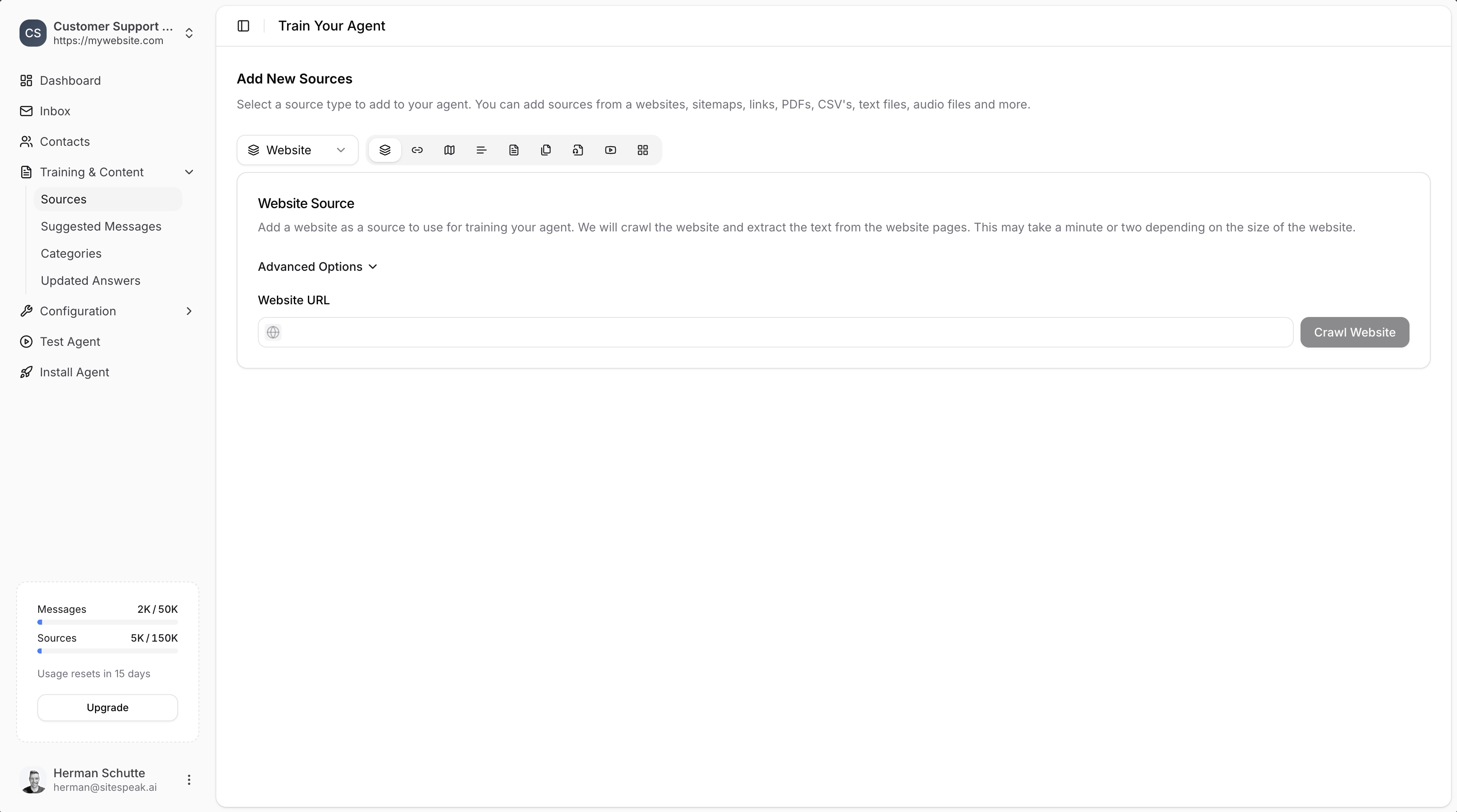
When you click **+ Add Sources**, you can choose from the following source types:
### Website
Add a website URL and SiteSpeakAI will crawl it to extract text content. This may take a minute or two depending on the size of the website. [Learn more](/training-your-chatbot/website-and-links)
### Links
Add individual page URLs to train on specific pages rather than an entire website. [Learn more](/training-your-chatbot/website-and-links)
### Sitemap
Provide a sitemap URL to automatically discover and crawl all pages on your site.
### Text
Upload plain text files or paste text content directly.
### PDF
Upload PDF documents like product manuals, guides, and policies. [Learn more](/training-your-chatbot/pdfs)
### Audio
Upload audio files to be transcribed and used for training. [Learn more](/training-your-chatbot/audio)
### Video
Upload video files to extract and train on the audio content.
### Apps
Connect third-party platforms to train on their content. [Learn more](/training-your-chatbot/app-integrations)
Available integrations:
* **Notion**: Connect your Notion workspace
* **[BookStack](/training-your-chatbot/bookstack)**: Wiki and knowledge base content
* **OneNote**: Connect your Microsoft OneNote notebooks
* **Google Drive**: Connect your Google Drive documents
* **SharePoint**: Connect your SharePoint document libraries and site pages
* **Discord**: Select Discord channels to train on
Intercom and Google Docs integrations are coming soon.
***
## Accessing Training Sources
In your chatbot dashboard, click **Training & Content** in the sidebar.
Click on **Sources** to view and manage your training content.
Click **+ Add Sources** to connect new content.
 ***
## Managing Your Sources
### Source Status
Each source shows its current status:
| Status | Meaning |
| ------------------- | ------------------------------ |
| **Trained** (green) | Content is processed and ready |
| **Training** | Currently being processed |
| **Pending** | Queued for training |
| **Error** | Something went wrong |
### Source Information
For each source you can see:
* **Name**: The page title or file name
* **URL**: Source location (if applicable)
* **Type**: The source type (link icon for URLs, etc.)
* **Size**: Amount of content (e.g., 3.6 KB, 7.2 KB)
* **Status**: Training status (Trained, Training, Pending, Error)
* **Auto**: Whether auto-sync is enabled
* **Last Trained**: When it was last processed (e.g., 18 hours ago, 4 months ago)
### Managing Sources
Select one or more sources using the checkboxes to reveal action buttons:
* **Delete**: Remove selected sources from training
* **Retrain**: Re-fetch content and retrain selected sources
* **Auto Sync**: Enable automatic syncing for selected sources
***
## Best Practices
### Quality Over Quantity
* Focus on accurate, well-written content
* Remove outdated or duplicate information
* Organize content clearly with headings
### Keep Content Updated
* Enable auto-sync for dynamic sources
* Regularly review and refresh static content
* Remove sources that are no longer relevant
### Test Thoroughly
* Ask your chatbot common customer questions
* Check that answers cite the correct sources
* Use [fine-tuning](/training-your-chatbot/fine-tuning) to correct mistakes
***
## Source Guides
Train on your website content and specific page URLs.
Connect your BookStack knowledge base.
Upload PDFs, CSVs, and text files.
Upload and transcribe audio files.
Connect Notion, OneNote, Google Drive, and more.
Improve your chatbot's responses.
***
Join over 1000+ businesses, websites and startups automating their customer service and other tasks with a custom trained AI agent.
***
## Managing Your Sources
### Source Status
Each source shows its current status:
| Status | Meaning |
| ------------------- | ------------------------------ |
| **Trained** (green) | Content is processed and ready |
| **Training** | Currently being processed |
| **Pending** | Queued for training |
| **Error** | Something went wrong |
### Source Information
For each source you can see:
* **Name**: The page title or file name
* **URL**: Source location (if applicable)
* **Type**: The source type (link icon for URLs, etc.)
* **Size**: Amount of content (e.g., 3.6 KB, 7.2 KB)
* **Status**: Training status (Trained, Training, Pending, Error)
* **Auto**: Whether auto-sync is enabled
* **Last Trained**: When it was last processed (e.g., 18 hours ago, 4 months ago)
### Managing Sources
Select one or more sources using the checkboxes to reveal action buttons:
* **Delete**: Remove selected sources from training
* **Retrain**: Re-fetch content and retrain selected sources
* **Auto Sync**: Enable automatic syncing for selected sources
***
## Best Practices
### Quality Over Quantity
* Focus on accurate, well-written content
* Remove outdated or duplicate information
* Organize content clearly with headings
### Keep Content Updated
* Enable auto-sync for dynamic sources
* Regularly review and refresh static content
* Remove sources that are no longer relevant
### Test Thoroughly
* Ask your chatbot common customer questions
* Check that answers cite the correct sources
* Use [fine-tuning](/training-your-chatbot/fine-tuning) to correct mistakes
***
## Source Guides
Train on your website content and specific page URLs.
Connect your BookStack knowledge base.
Upload PDFs, CSVs, and text files.
Upload and transcribe audio files.
Connect Notion, OneNote, Google Drive, and more.
Improve your chatbot's responses.
***
Join over 1000+ businesses, websites and startups automating their customer service and other tasks with a custom trained AI agent.