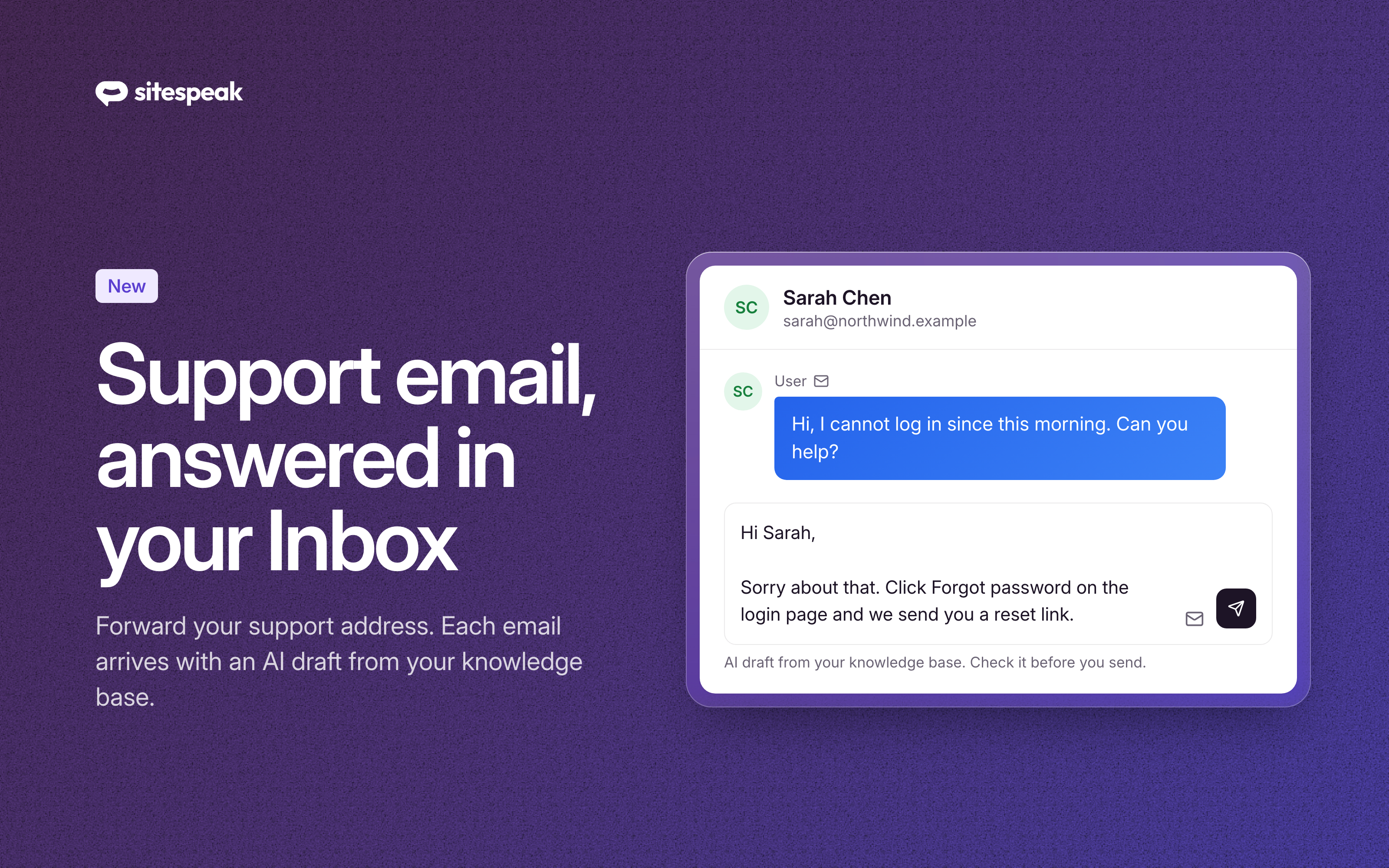
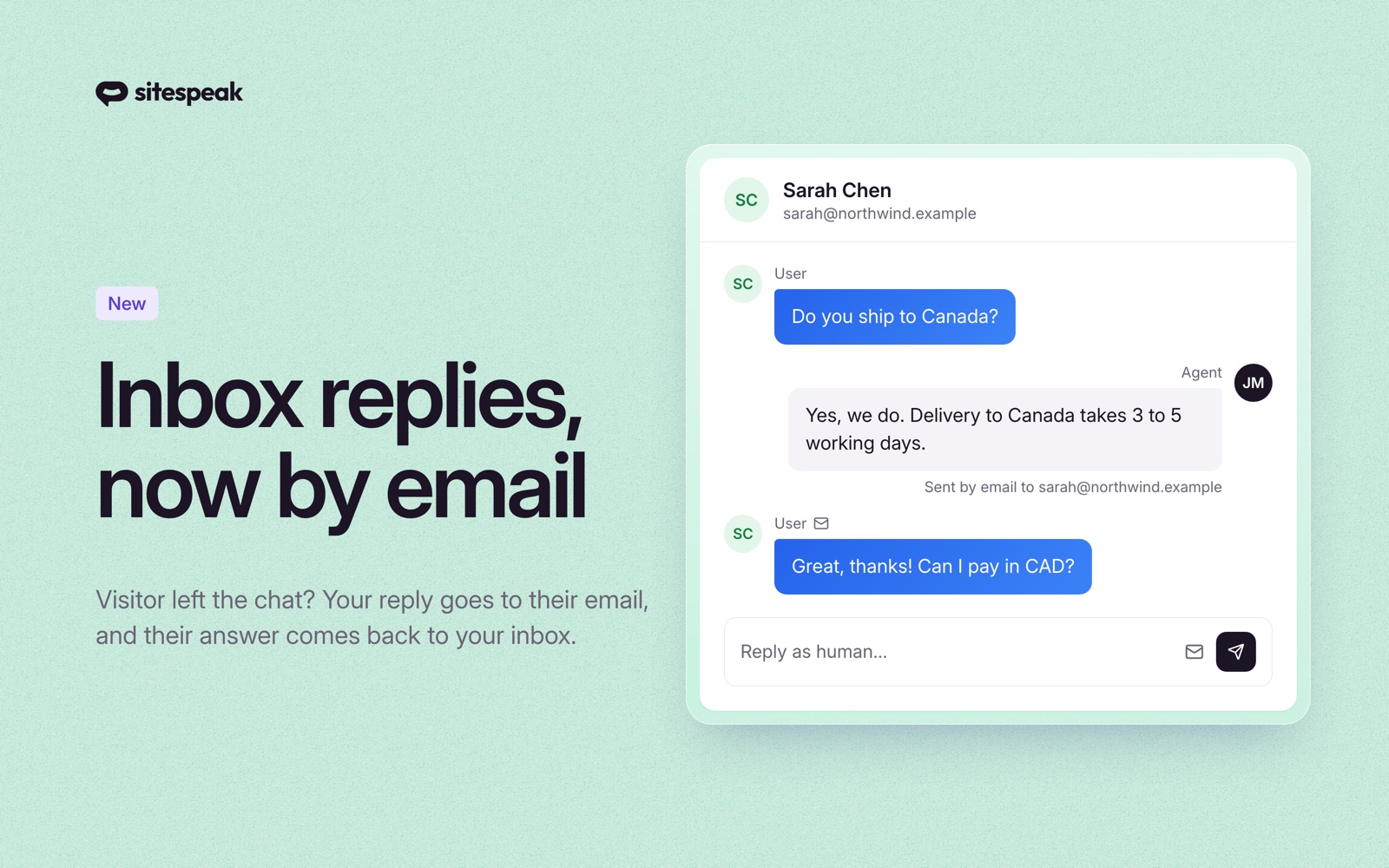
If you use ChatGPT for your work, your chatbot's inbox was always one more tab away.
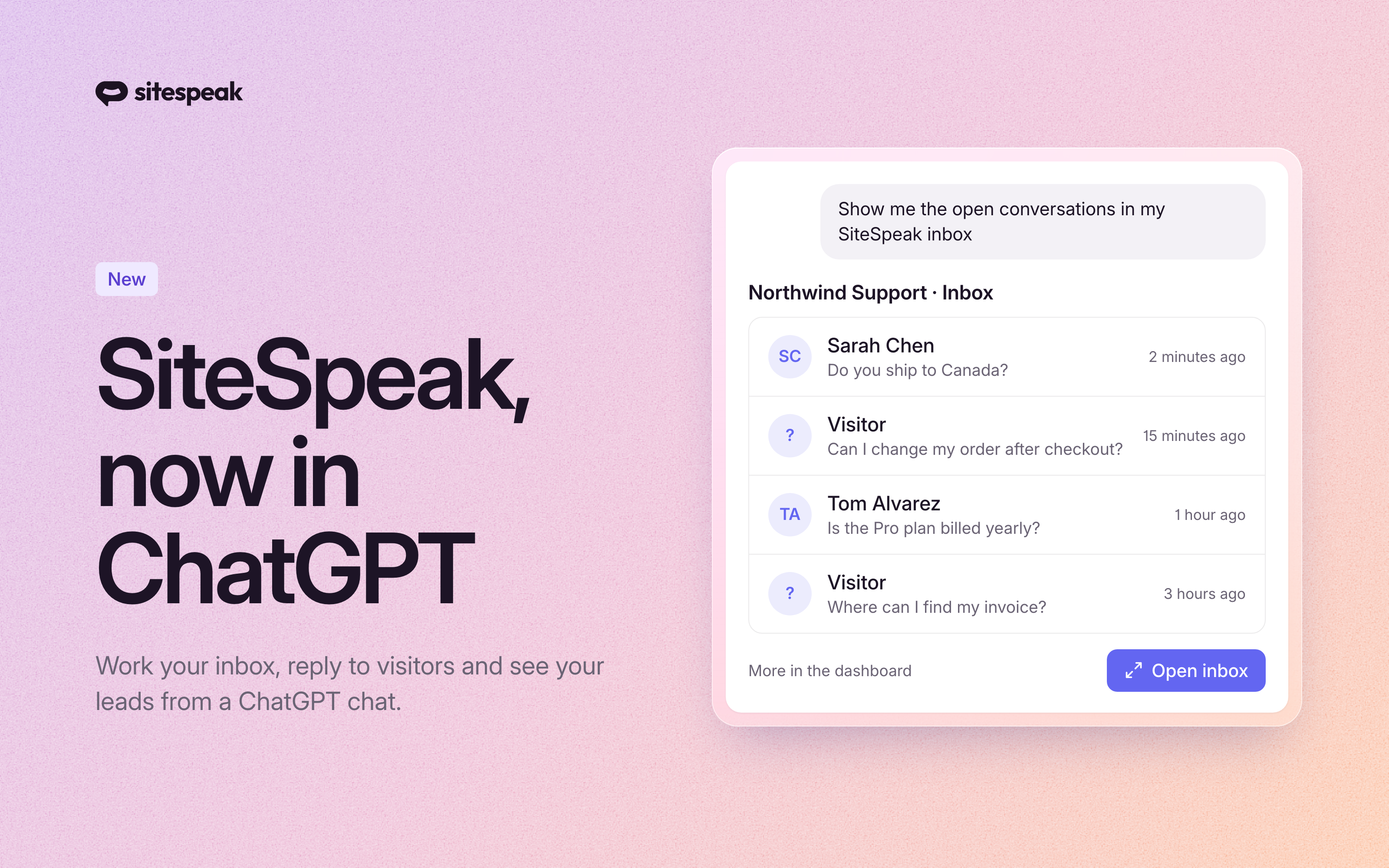
The SiteSpeak plugin is now in the ChatGPT plugin directory. Install it once, and you can work on your chatbot from a ChatGPT chat.
How it works
- Open the SiteSpeak plugin page, or select Plugins in the ChatGPT sidebar and find SiteSpeak.
- Select Install plugin.
- When ChatGPT asks, select Connect. Sign in with your SiteSpeakAI login and select Authorize.
Then ask in plain words, for example "Show me the open conversations in my SiteSpeak inbox". To pick the plugin yourself, type @ and select SiteSpeak.
What you can do
- Read your Inbox, search conversations and mark them as done.
- Reply to a website visitor as a human agent. ChatGPT drafts the reply, and it sends only after you approve it.
- See the leads that visitors left in the chat, with their contact details.
- Check analytics: conversations per day, answer rate, feedback, top questions and the questions your chatbot could not answer.
- Add a web page to your chatbot's knowledge, or recrawl a page to update it.
- Change chatbot settings and suggested messages.
Your chatbots, inbox and leads show as cards in the chat. Open the SiteSpeak app from the ChatGPT sidebar for a full dashboard with Inbox, Leads, Analytics and Knowledge tabs.
Good to know
- The plugin sees only the chatbots that your SiteSpeakAI account can access.
- You can disconnect SiteSpeak at any time in your ChatGPT settings.
- The same tools also work in Claude and Claude Code.
Setup steps for ChatGPT, Claude and other AI tools are in the AI agents documentation.