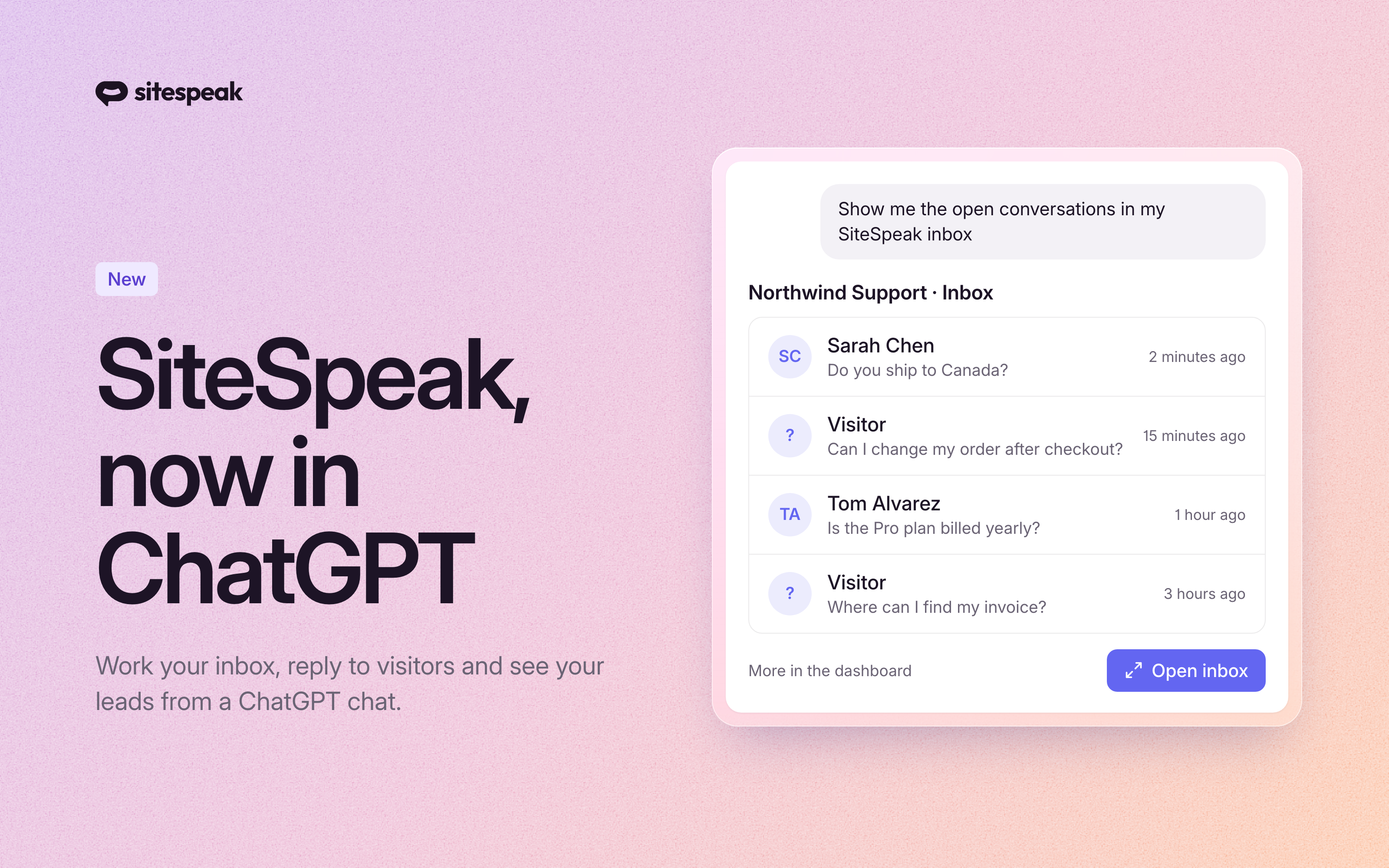
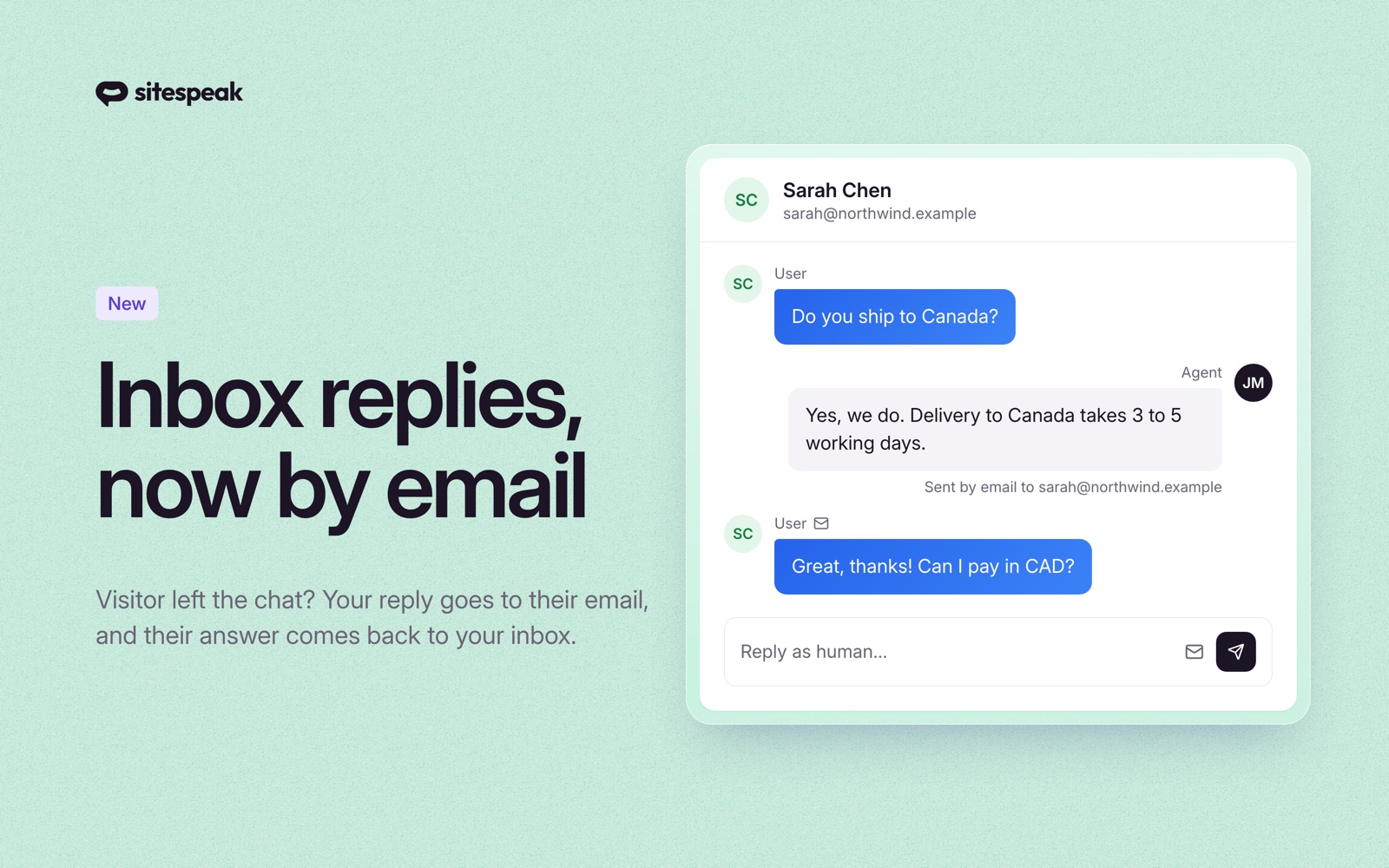
Your customers email support@yourcompany.com, and your website chats land in SiteSpeakAI. Two places to check, and the emails get no help from your knowledge base.
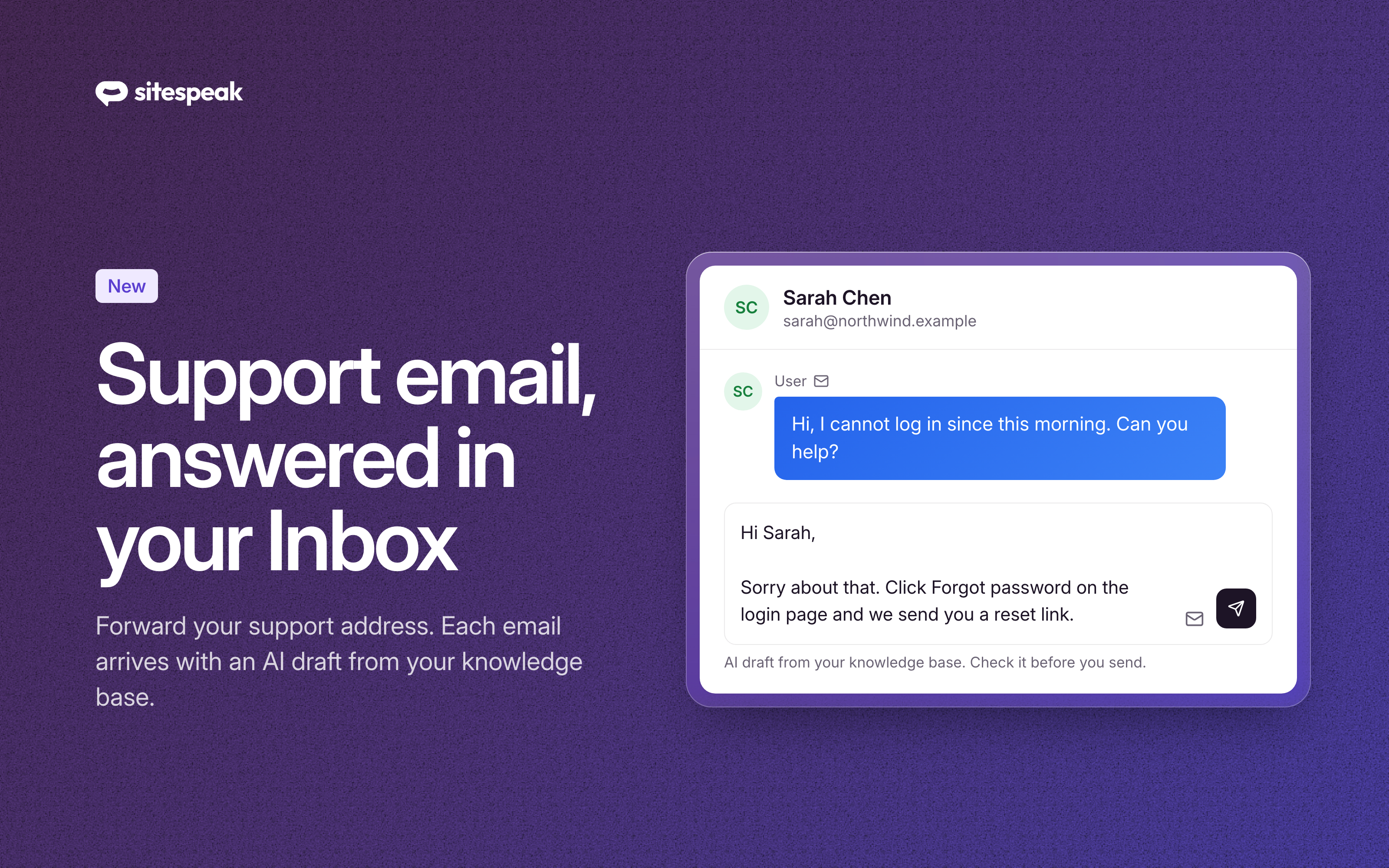
Your support email can now come into the same SiteSpeakAI Inbox as your chats, with an answer already written for you.
How it works
Go to Configuration > Settings and, on the Basic tab, switch on Support Inbox. After you save, Settings shows your inbox address, for example yourcompany-k3f9x2@reply.sitespeak.ai, with a Copy address button.
In Gmail, Google Workspace, or Microsoft 365, forward your support address to the inbox address. From then on:
- Each email opens a conversation in your Inbox. A new email from the same sender goes into the same conversation.
- SiteSpeakAI writes a draft answer from your knowledge base and puts it in the reply box, marked as an AI draft.
- You check the draft, change it if you need to, and click send. Nothing goes out until you do.
- Your answer goes to the customer by email at once, in the same email thread. When they reply, the reply comes back to the same conversation.
Good to know
- Answers come from your agent's name at
reply.sitespeak.ai. To send from your own support address, contact us and we set it up for you. - Each AI draft uses one query credit from your monthly MCP query allowance. When the allowance is used up, emails still arrive, without a draft.
- Out-of-office replies and other automatic emails do not open a conversation.
- Your team members with the Editor or Member role can now also reply from the Inbox.
Availability
The support inbox is available on the Pro plan and higher. AI email drafts, including the Draft email reply action in the Inbox, are now on Pro too. See pricing for plan details.
Setup steps for each email provider are in the support inbox documentation.