A knowledge base chatbot answers questions from your own help docs, product pages and files. A customer types a question, the chatbot finds the right passage in your content, and it replies in plain language with a link to the source.
Done well, it answers the same 50 questions your team answers every week, at any hour, and it hands the rest to a person. Done badly, it guesses. The difference is almost never the AI model. It is the content you give it and how you set it up.
This guide shows how a knowledge base chatbot works, how to prepare your content, and how to build one step by step without code. We use SiteSpeakAI for the examples, because it is what we build, but the preparation and testing steps apply to any tool.
What is a knowledge base chatbot?
A knowledge base chatbot is an AI chatbot that answers from a fixed set of content that you control, such as a help center, docs site, product catalog, PDFs or policies. It does not answer from the open internet or from the AI model's general knowledge.
That makes it different from two things people often confuse it with:
| Rule-based FAQ bot | ChatGPT | Knowledge base chatbot | |
|---|---|---|---|
| Where answers come from | Answers you wrote for each button or keyword | The model's training data | Your own content |
| Handles questions phrased in new ways | No | Yes | Yes |
| Knows your prices, policies and products | Only what you scripted | No | Yes |
| Shows where the answer came from | No | Not reliably | Yes, with source links |
| Upkeep | Rewrite flows by hand | None, but it can't know your business | Keep your docs current |
The term for the technique behind it is retrieval-augmented generation, or RAG. You don't need to know the term to build one, but it helps to know what happens when a question comes in.
How a knowledge base chatbot finds the right answer
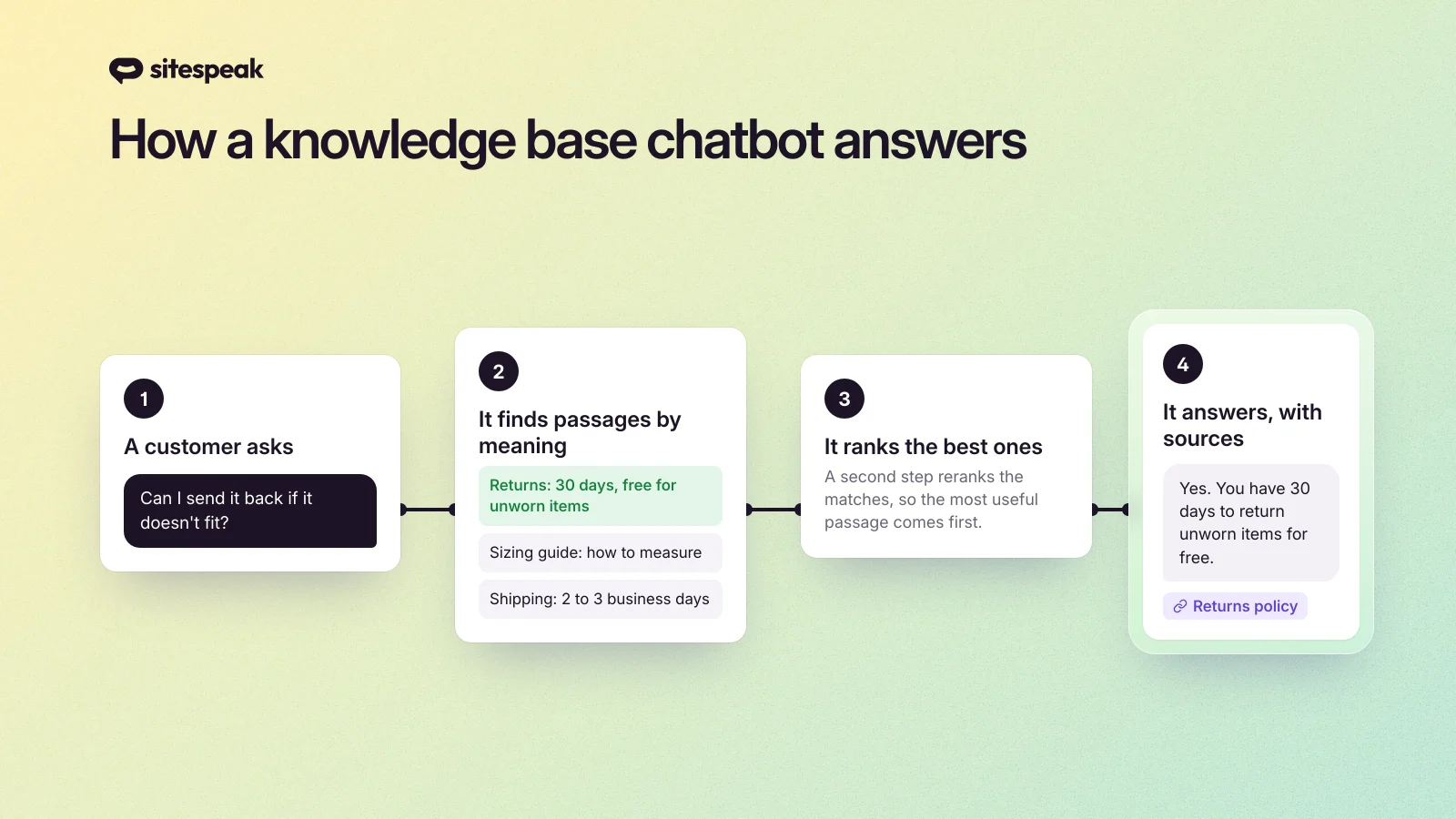
Here is what happens in the few seconds between a question and an answer:
- Your content is split into passages. When you add a page or file, the chatbot breaks it into short sections and stores each one as a vector, a numeric fingerprint of its meaning.
- The question is matched by meaning, not keywords. "Can I send it back?" finds your returns policy even if the page never uses the words "send it back".
- The best passages are ranked. A second step reranks the matches so the most useful passages come first.
- The AI writes the answer from those passages only. Its instructions tell it to stay inside the content it was given, and to say so when the answer is not there.
- The answer links to its sources, so the customer can check it and read more.
This is also why content quality matters more than the model. If the right passage is missing, outdated or buried in a 40-page PDF, no model can find it.
Before you build: prepare your content
Spend an hour here and you will save days of fixing wrong answers later.
Start with your real questions. Export your last 100 support tickets or chats and list the 20 questions that come up most. Then check that your docs answer each one clearly. Most teams find 3 or 4 that are answered nowhere, because the support team always replies from memory.
One topic per page. A page called "Shipping, returns and payment" mixes three topics, and passages from it match questions about all three. Separate pages give cleaner matches.
Put the answer near the heading. Write "Orders ship in 2 to 3 business days" under the heading "Shipping times", not in the fourth paragraph.
Remove old content. An archived 2023 pricing page is still content. If the chatbot can see it, it can quote it. Leave out or delete pages that are no longer true.
Write down what lives in people's heads. Exceptions, edge cases and "we usually do X" belong in a short internal FAQ or a text source. If it is not written down, the chatbot cannot know it.
Keep tables simple. Plain tables with clear headers work well. Merged cells and tables pasted as images do not.
How to build a knowledge base chatbot, step by step
These steps use SiteSpeakAI. You don't need to write code at any point.
Step 1: Create the agent from your website
Create a free account, give your agent a name and enter your website URL. SiteSpeakAI finds your pages, selects the main ones and trains the agent on them. For a help center or docs site, this one step usually covers most of your knowledge base.
Step 2: Add the rest of your knowledge
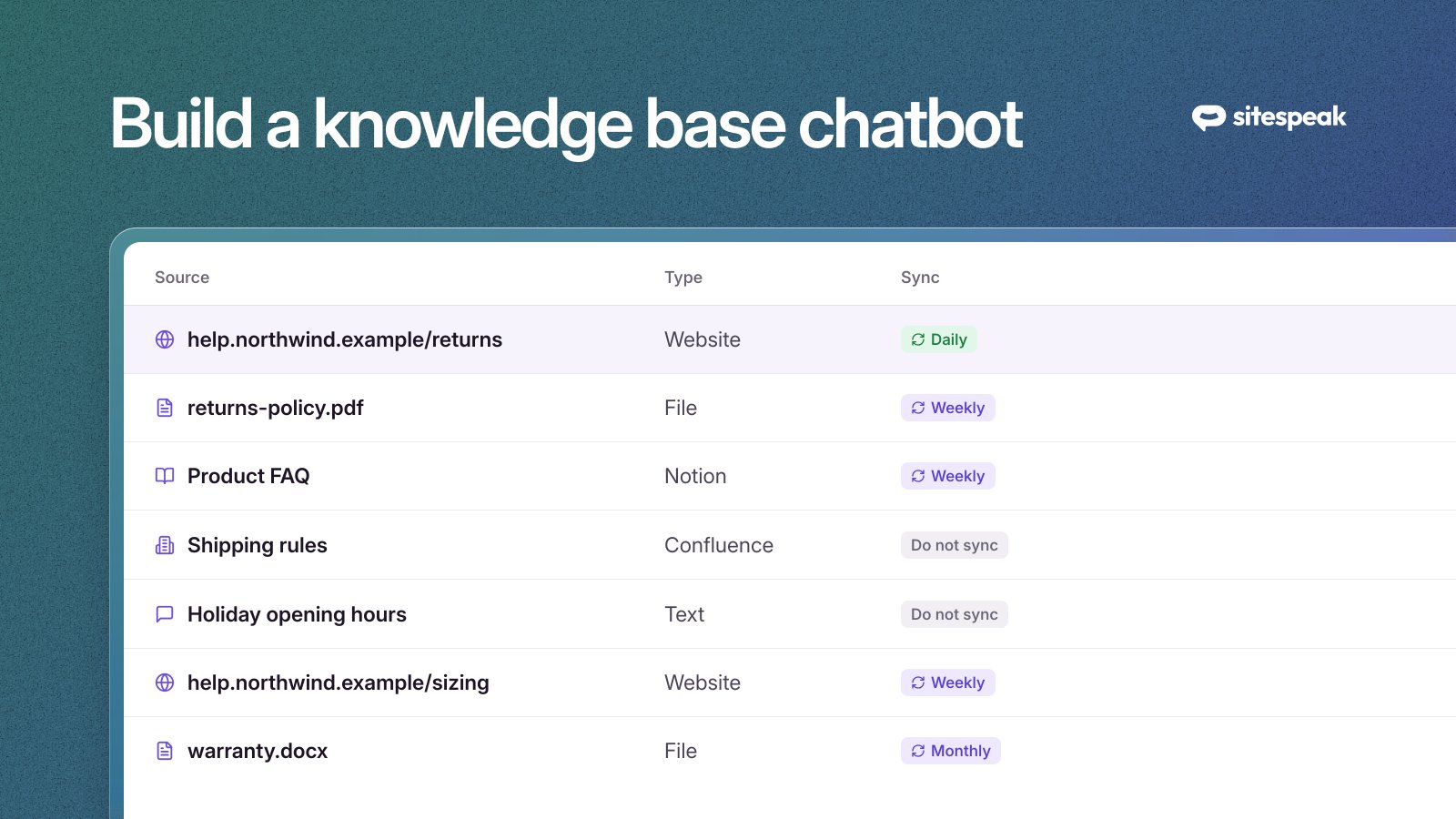
Most knowledge bases don't live on one website. Open Training & Content, then Sources, and click Add Sources. You can add:
- Files: PDF, Word (.docx), PowerPoint (.pptx), CSV, TXT and Markdown, such as manuals, policies and price lists.
- Apps: Notion, Confluence, Google Drive, SharePoint, OneDrive, OneNote and BookStack.
- Text: short answers you write directly, for the knowledge that lives in people's heads.
- YouTube videos and audio files, such as product demos and recorded webinars.
- A sitemap or a list of links, to add exactly the pages you want.
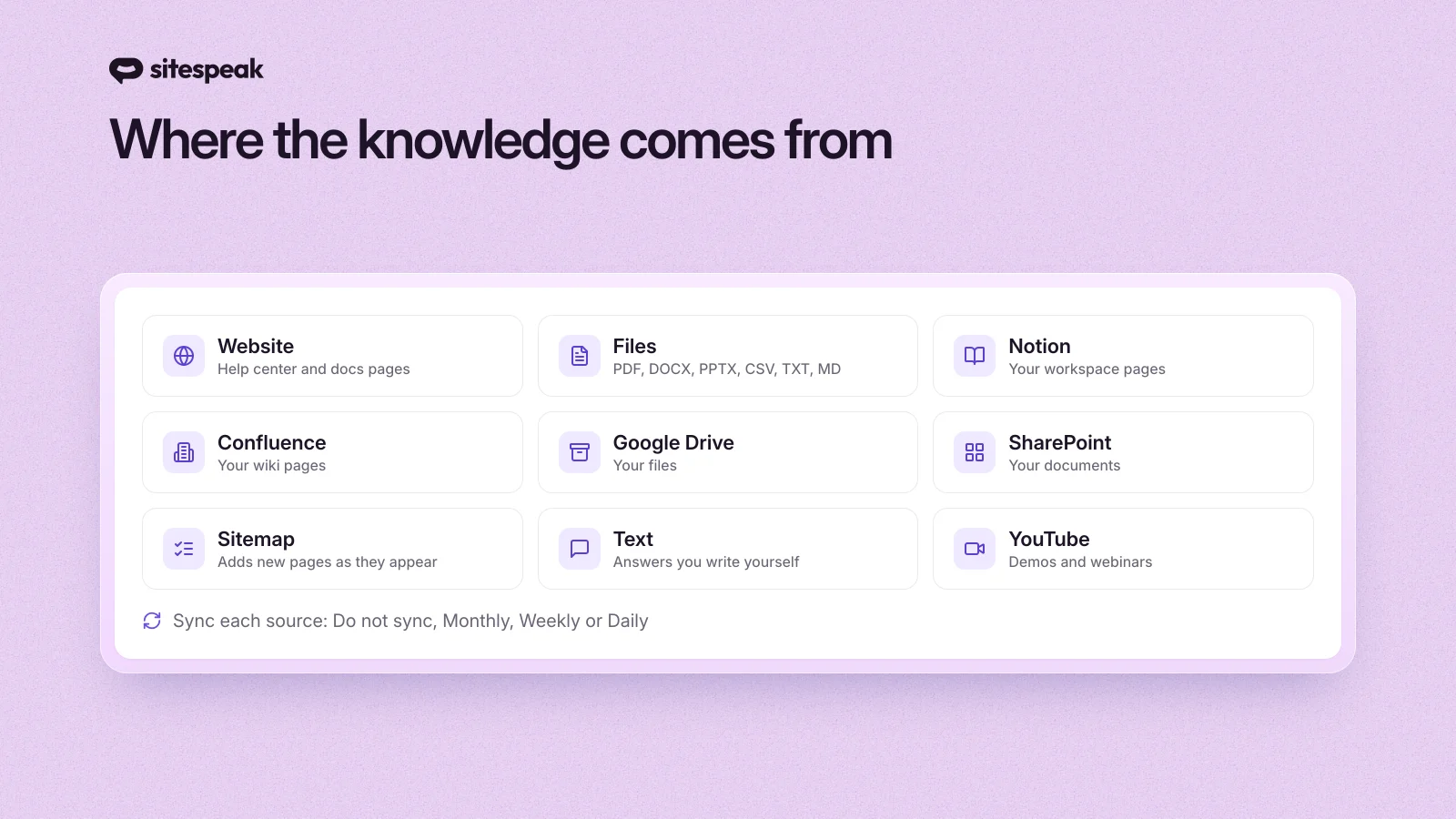
Read more about the options on our AI training page.
Step 3: Keep it up to date
A knowledge base chatbot is only as current as its last sync. In Sources, select the sources that change and set how often they sync: Daily, Weekly or Monthly. Your pricing page and release notes might need daily syncs. Your company history page can stay as it is.
Automatic syncing comes with the paid plans: monthly on Starter, weekly on Pro, and daily on Growth and Business. A sitemap source adds new pages when they appear in your sitemap. To refresh pages that already exist, set a sync frequency on those pages too.
Step 4: Tell it how to answer
Open Settings. On the AI Model tab, the Instructions field sets the agent's rules: its tone, what it should and should not answer, and how long answers should be. A short set of clear rules works better than a long one. For example:
You are the support assistant for Northwind.
Answer only from the provided content. If the answer is not there, say so.
Keep answers under 100 words. Use bullet points for steps.
Never promise refunds or discounts. Offer to connect the customer with the team instead.
On the Basic tab, set the Default Answer. This is what the agent says when it cannot find an answer. Make it useful: say what the agent can help with, and how to reach a person.
Step 5: Show the sources
Customers trust an answer more when they can check it. In Appearance, turn on Display Sources In Messages. Each answer then links to the pages it came from, and customers can click through to read the full article.
Step 6: Test it with real questions
Open Test Agent and ask the 20 questions from your ticket list, phrased the way customers write them, typos included. For each answer, check three things:
- Is it correct?
- Does it link to the right source?
- When the answer is not in your content, does it say so instead of guessing?
When an answer is wrong, the fix is almost always in the content: a missing page, an outdated page, or an answer buried in a long document. Fix the source and test again. For a single question that needs an exact answer, add an Updated Answer.
Step 7: Hand off when the docs run out
Some questions need a person: a refund, a complaint, a custom quote. In Settings, go to Escalations and turn on Enable Escalations. When a visitor asks for a person, the agent passes the conversation to your team, and you reply from the Inbox with the full chat history in front of you. Escalations are available on the Pro plan and higher. We wrote more about this in escalating unresolved tickets to a human agent.
Step 8: Add it to your help center
Open Install Agent, copy the snippet and add it to your website or help center. It works on any site where you can add a script tag, including WordPress, Shopify and Webflow.
Step 9: Fill the gaps every week
This step is what separates a chatbot that gets better from one that stays the same. Open the Dashboard and look at Top Unanswered Questions. These are real questions your agent could not answer, so each one is a gap in your knowledge base. Add the missing content, then check the list again next week.
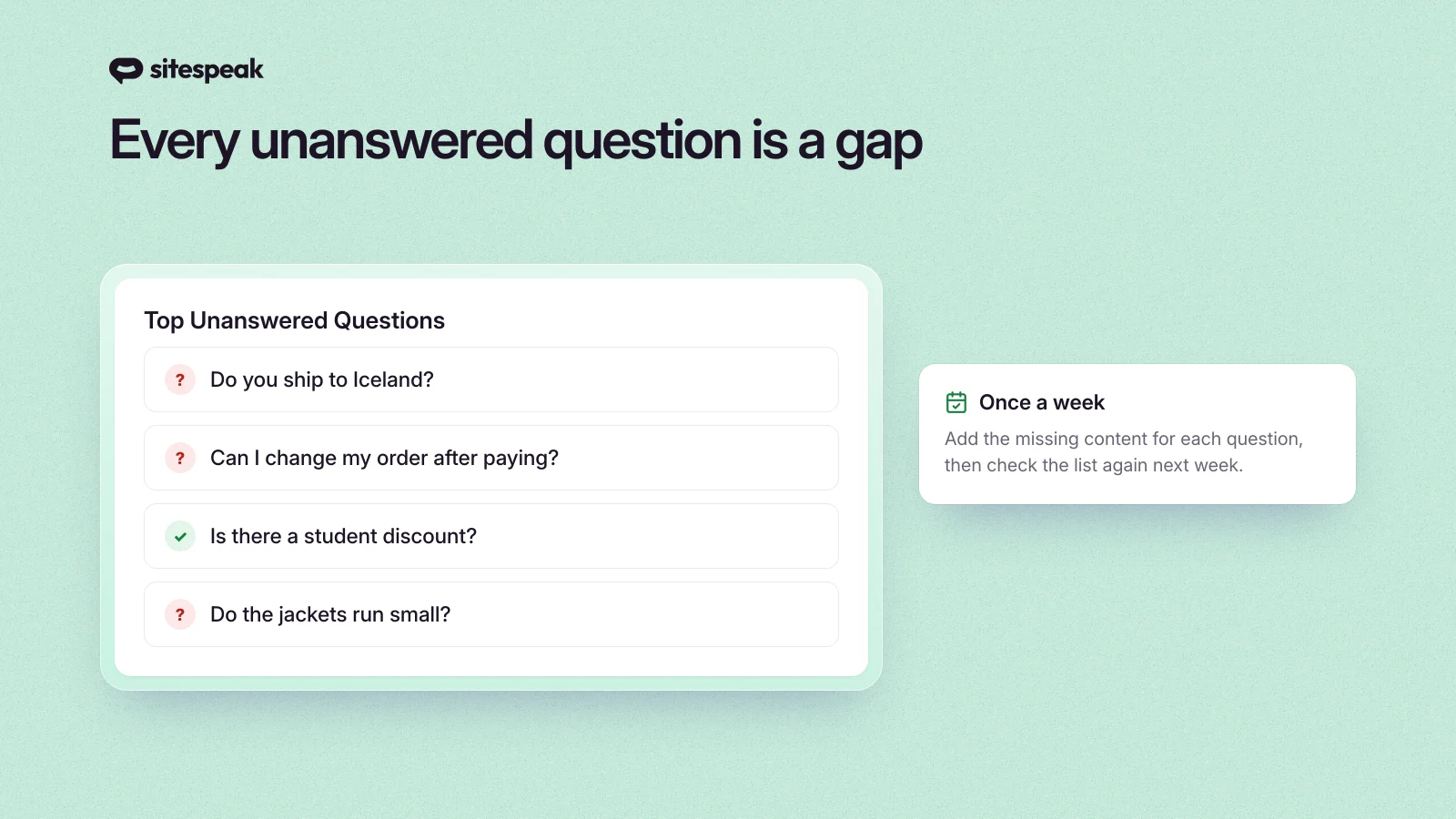
The analytics also show what people ask most, which tells you which pages deserve the most care.
Customer-facing or internal?
Everything above is about a chatbot that answers customers. The same approach works for your own team: an assistant that answers questions from your wiki, HR policies and internal docs, so people stop asking the same things in Slack. The main differences are where the content lives (Confluence, SharePoint, Notion) and who can access the chatbot. We cover that use case on our internal knowledge base assistant page.
Common mistakes
Uploading everything. More content is not always better. Ten overlapping versions of the same policy give the chatbot ten chances to quote the wrong one.
Never syncing. A chatbot trained once in January will quote January's prices in June.
A dead-end default answer. "I don't know" loses the customer. "I don't have that information, but I can connect you with our team" keeps them.
Testing with your own questions only. Your team knows the right words. Customers don't. Test with questions copied from real tickets.
Not reading the unanswered questions. They are the cheapest list of content gaps you will ever get.
Frequently asked questions
How do chatbots find the relevant content in a knowledge base?
They split your content into short passages and store each one by meaning. When a question comes in, the chatbot finds the passages closest in meaning to the question, ranks them, and writes an answer from the best ones. This is called retrieval-augmented generation (RAG).
Can I build a knowledge base chatbot without coding?
Yes. With SiteSpeakAI you enter your website URL, add files or connect apps such as Notion and Confluence, and add the chatbot to your site with one snippet. You never write code.
How much content can a knowledge base chatbot use?
It depends on the tool and plan. On SiteSpeakAI, the free plan includes 10 training sources and paid plans go from 200 up to 20,000. A source is one page, file or document.
Will a knowledge base chatbot make things up?
A well set-up one answers from your content and says when it does not know. Clear instructions, a useful default answer, and source links in every answer all reduce the risk. When it does get something wrong, the cause is usually missing or outdated content.
How do I keep my knowledge base chatbot up to date?
Set your sources to sync on a schedule, and check the unanswered questions every week. Add new content when your products, prices or policies change.
Can it answer in other languages?
Yes. SiteSpeakAI answers in 95+ languages, even when your knowledge base is written in one language.
Start with your top 20 questions
You don't need a perfect knowledge base to start. List the 20 questions your team answers most, make sure your docs answer them, and build the chatbot on that. Then let the unanswered questions tell you what to write next. You can start free with SiteSpeakAI and have it answering on your site today.
For more on cutting support load, see how to reduce support tickets with AI chatbots and our guide to training ChatGPT with your own data.