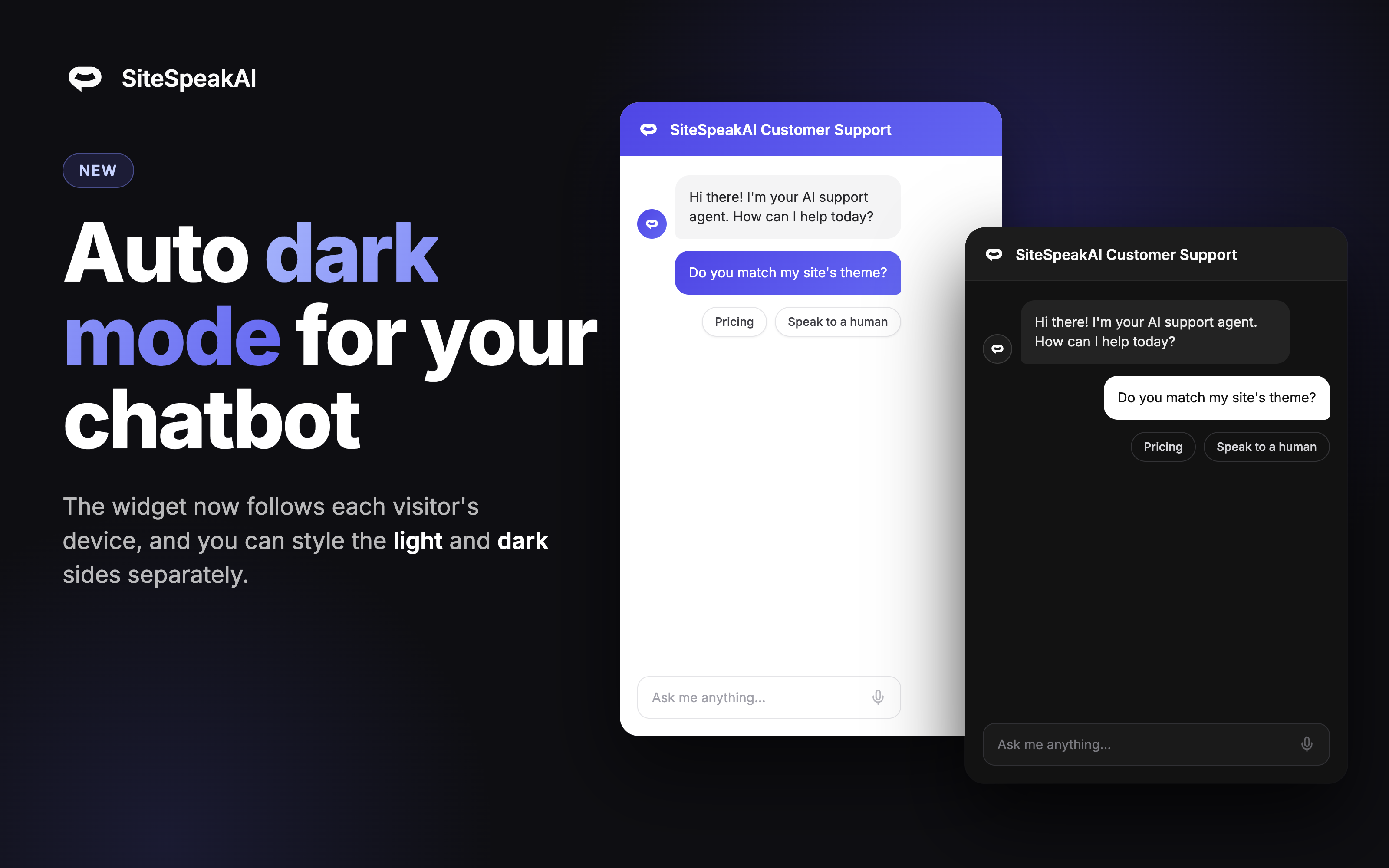
Your website has a dark mode. Until this week, your chatbot didn't really have one: you picked Light or Dark once, and every visitor got the same colors whether their screen was bright white or pitch black.
The numbers show how well that worked. Of the more than 74,000 chatbots running on SiteSpeakAI, fewer than 250 used the dark theme. Not because visitors don't browse in dark mode, but because one set of colors had to work everywhere.
This release fixes that, and brings dark mode to the SiteSpeakAI dashboard while we're at it.
Auto theme: your chatbot now matches each visitor's device
Set your chatbot's theme to Auto (match visitor device) and the widget follows each visitor's system setting. Visitors browsing in dark mode get a dark launcher, panel and chat bubbles. Everyone else gets the light version. If a visitor switches their device theme mid-conversation, the widget switches with them, no reload needed.
Out of the box, Auto uses a neutral palette on each side: clean white with dark text for light mode, and a soft dark grey for dark mode. We deliberately avoided pure black; the dark side is easy on the eyes next to any site.
Style the light and dark sides separately
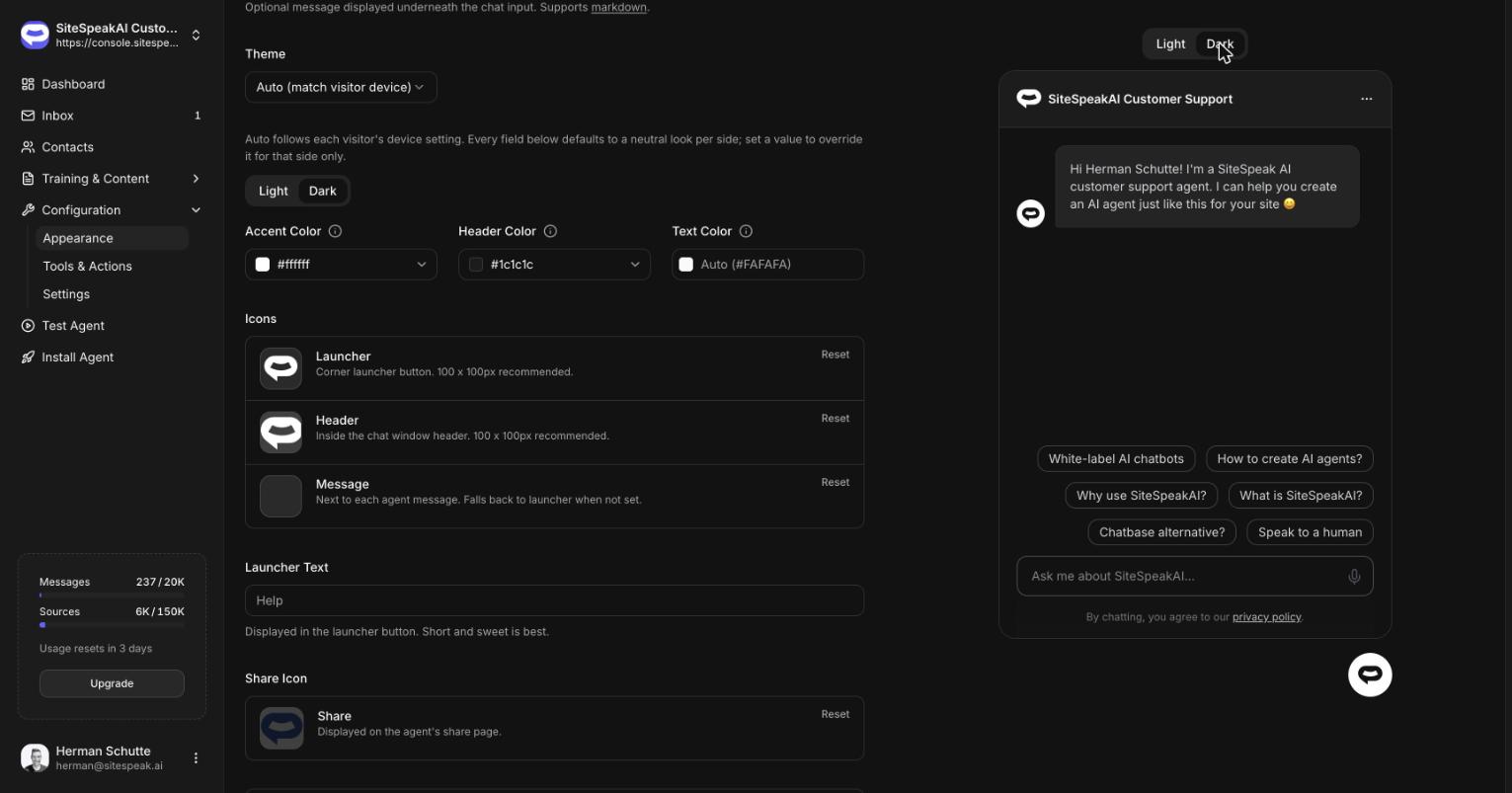
Our customers currently use 460 different accent colors across their chatbots, so a one-size dark preset was never going to be enough. With Auto selected, the appearance page shows a Light and a Dark tab, and each side gets its own:
- Accent color (solid or gradient)
- Header color, new in this release and separate from the accent, with a "matches accent" default
- Text color
- Launcher, header and message icons, so a logo that works on white can swap for a light version on dark
Every field defaults to Auto. Set only what you need and reset any field to go back to the neutral look. A Light/Dark toggle above the live preview lets you check both sides without touching your own device settings.
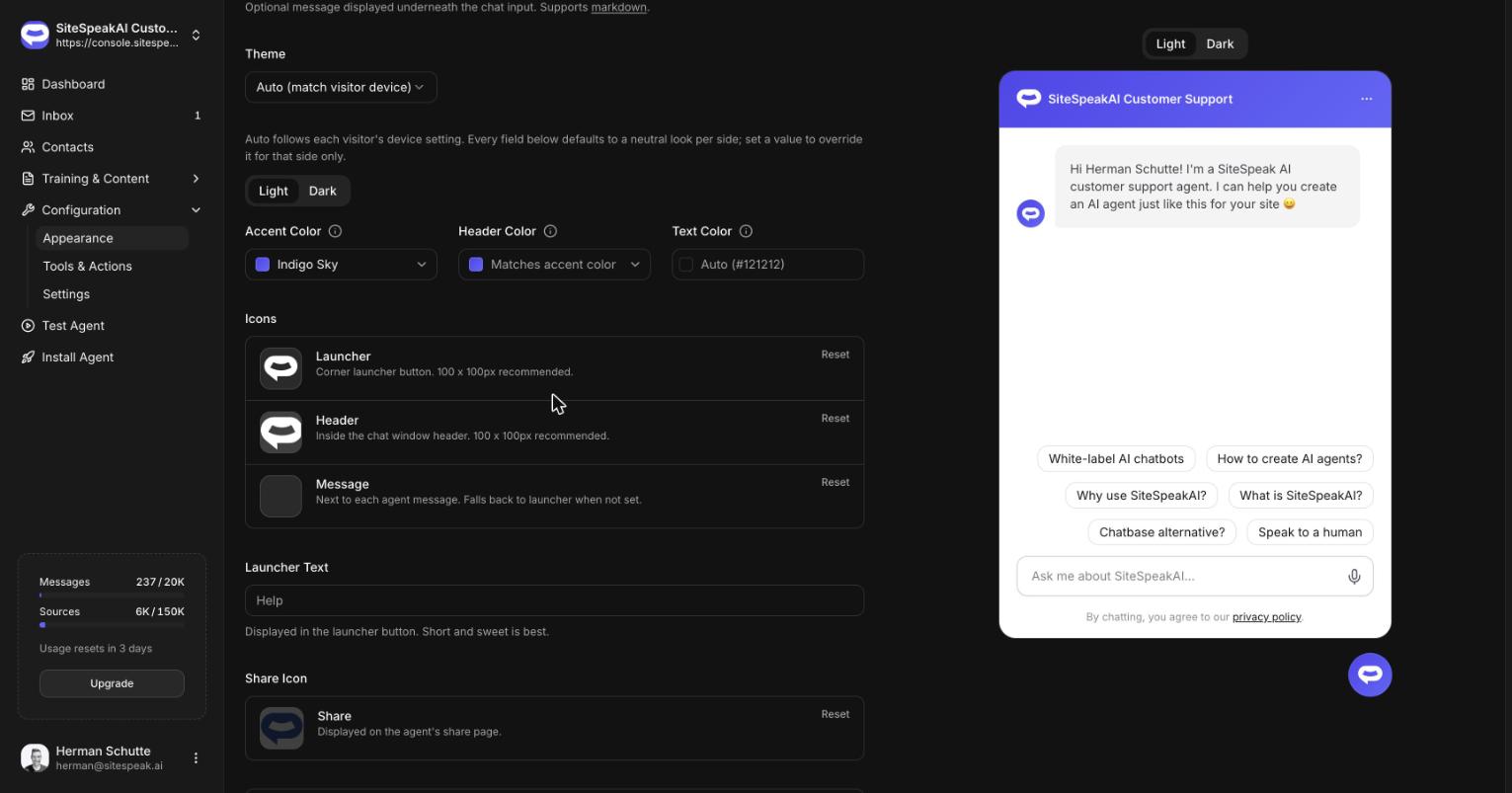
If part of your site should always show one side, pin it per page by adding data-theme to the embed script:
<script src="https://sitespeak.ai/chatbots/YOUR_CHATBOT_ID.js" data-theme="light" defer></script>
Dark mode for the dashboard
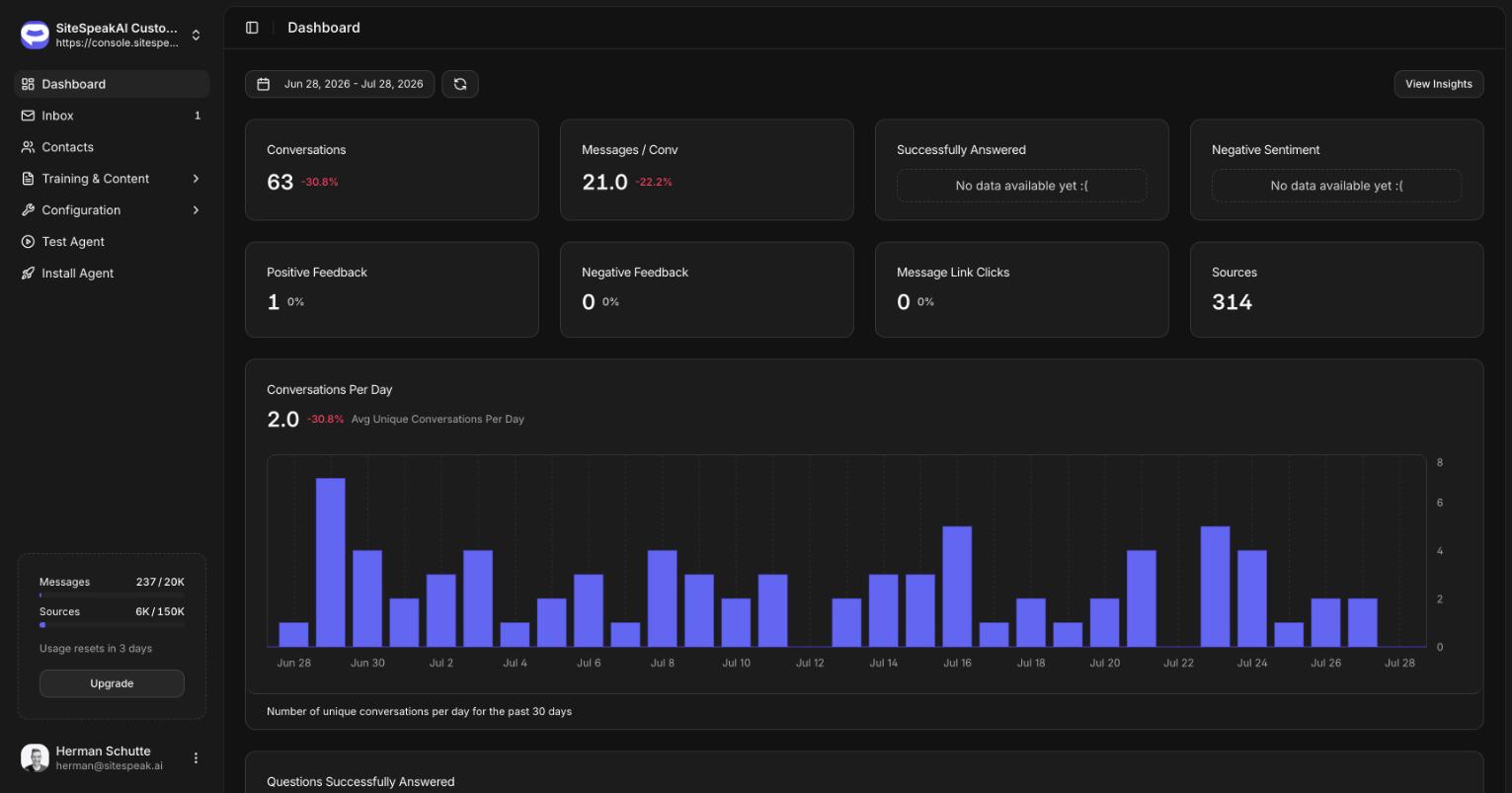
The SiteSpeakAI dashboard itself now has a full dark mode. It follows your system setting by default, and you can force light or dark from the profile menu. Every page has been restyled, from analytics charts to the inbox.
Chat widget polish
A few smaller widget improvements shipped alongside the themes:
- Visitors can expand the chat window for longer conversations
- The message action bar was reordered: timestamp first, then feedback and copy
- Timestamps now display in the visitor's local time zone
- The pre-chat lead form is styled for dark mode
How to turn it on
Auto is opt-in: existing chatbots keep their current theme until you change it. Go to Configuration, Appearance, set the theme to Auto (match visitor device), and adjust either side if you want more than the neutral defaults.
SiteSpeakAI chatbots answered over 32,000 visitor questions in the past 30 days. From today, every one of those conversations can match the visitor's screen.
Full details in the appearance documentation.