Generate a llms.txt for you website with SiteSpeakAI
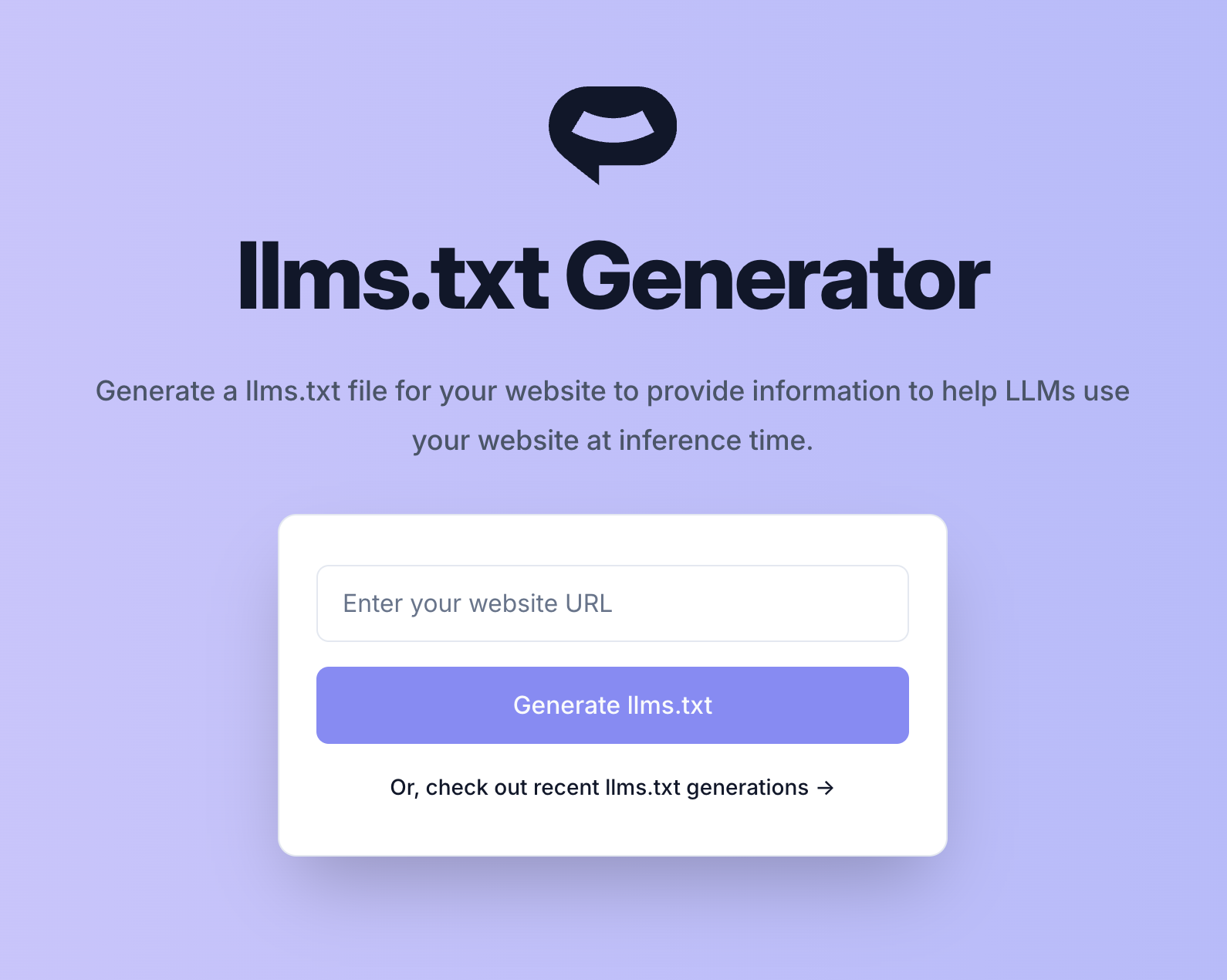
You can now easily generate a free llms.txt for your website to provide information to help LLMs use your website at inference time. Read more about the proposal for a llms.txt standard here.
New features and improvements in SiteSpeakAI, newest first.
You can now easily generate a free llms.txt for your website to provide information to help LLMs use your website at inference time. Read more about the proposal for a llms.txt standard here.
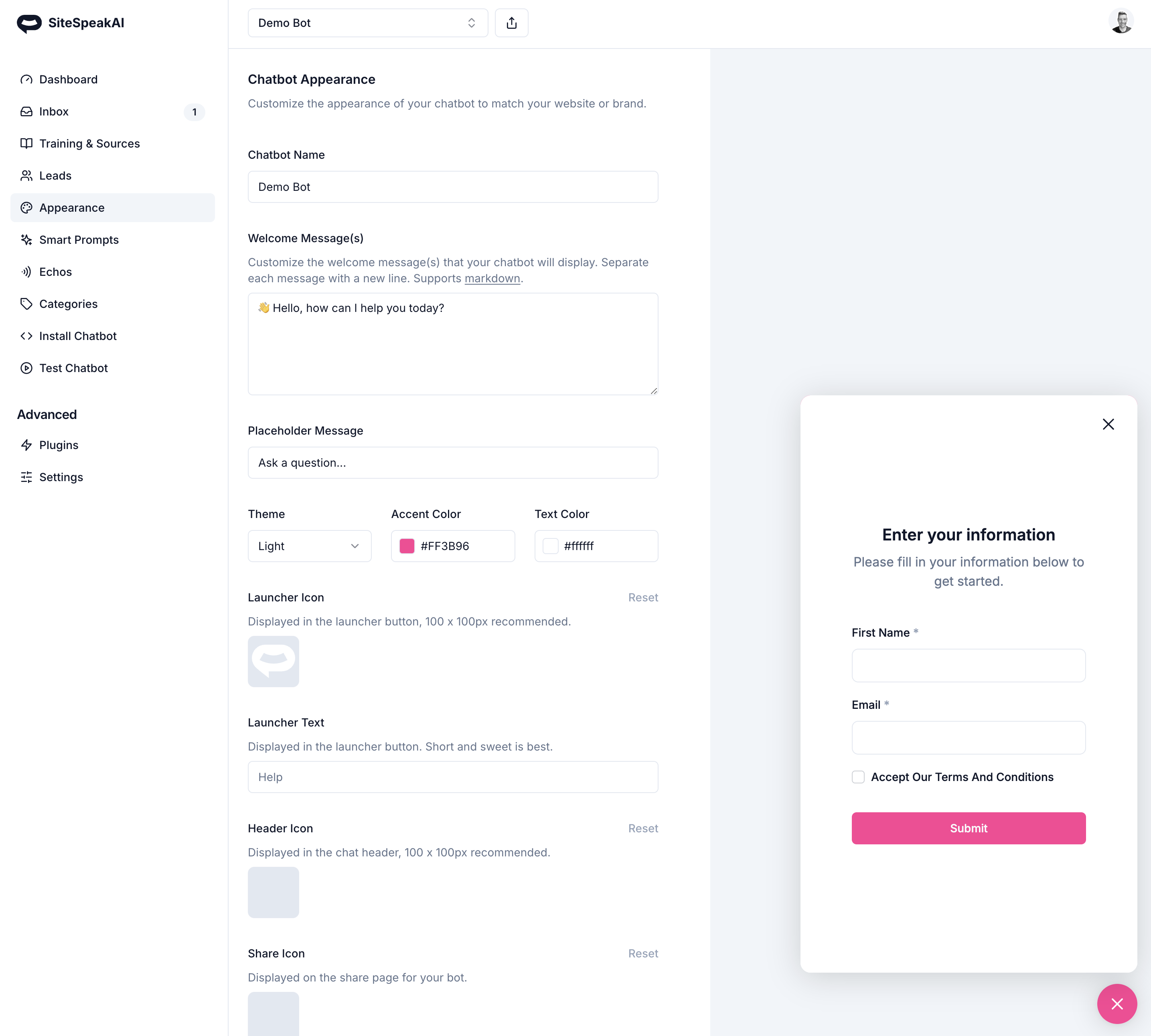
You can now enable a checkbox field on your lead capture form before your visitor starts chatting to your chatbot. This is great for ensuring visitors agree to your terms and conditions before starting their conversation. This new field can be added under Advanced -> Settings -> Leads
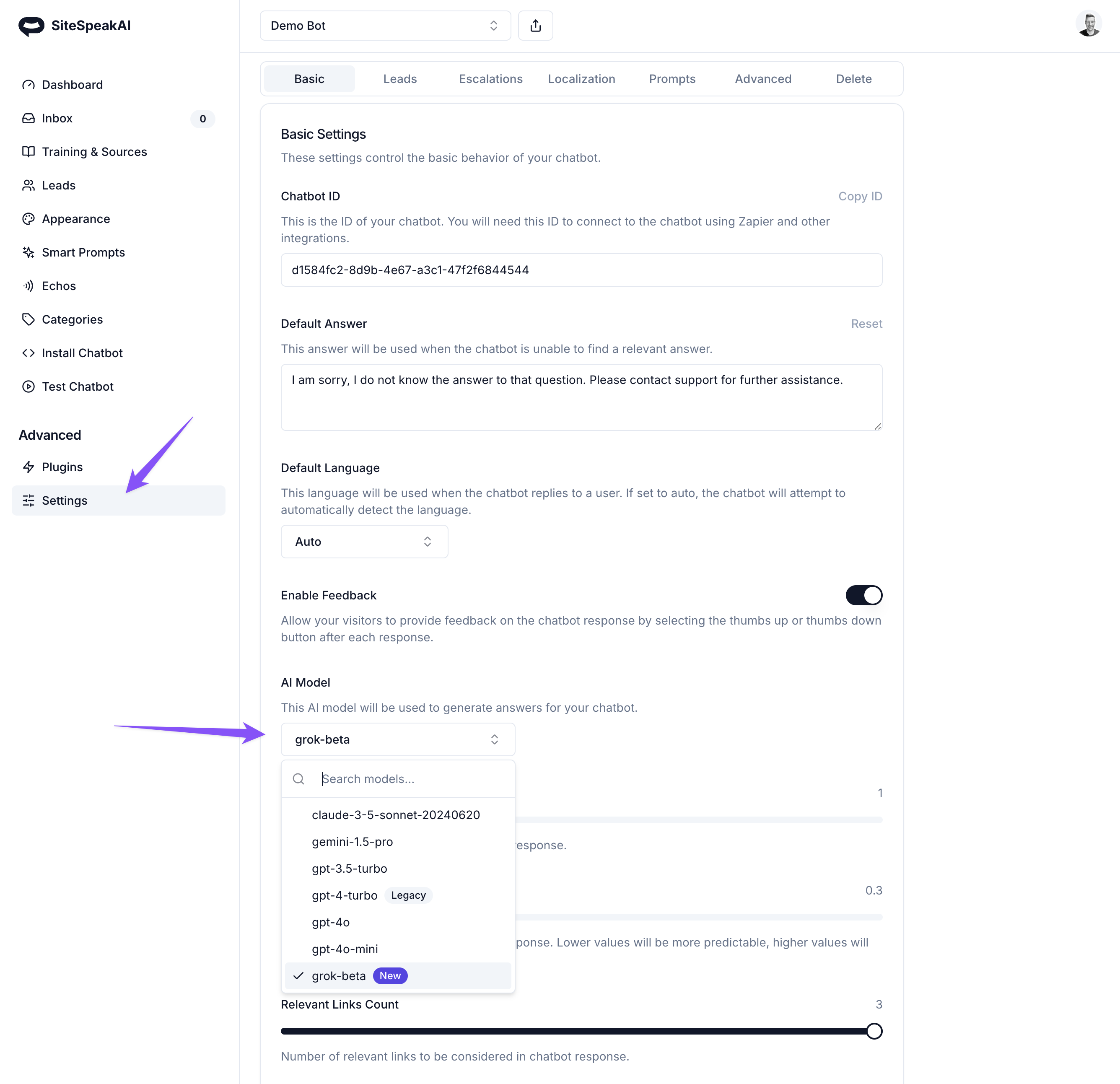
The newly launched (last 24 hours) Grok Beta model from xAI is now available to use in SiteSpeakAI. To enable, go to Advanced -> Settings -> AI Model and select the new grok-beta option.
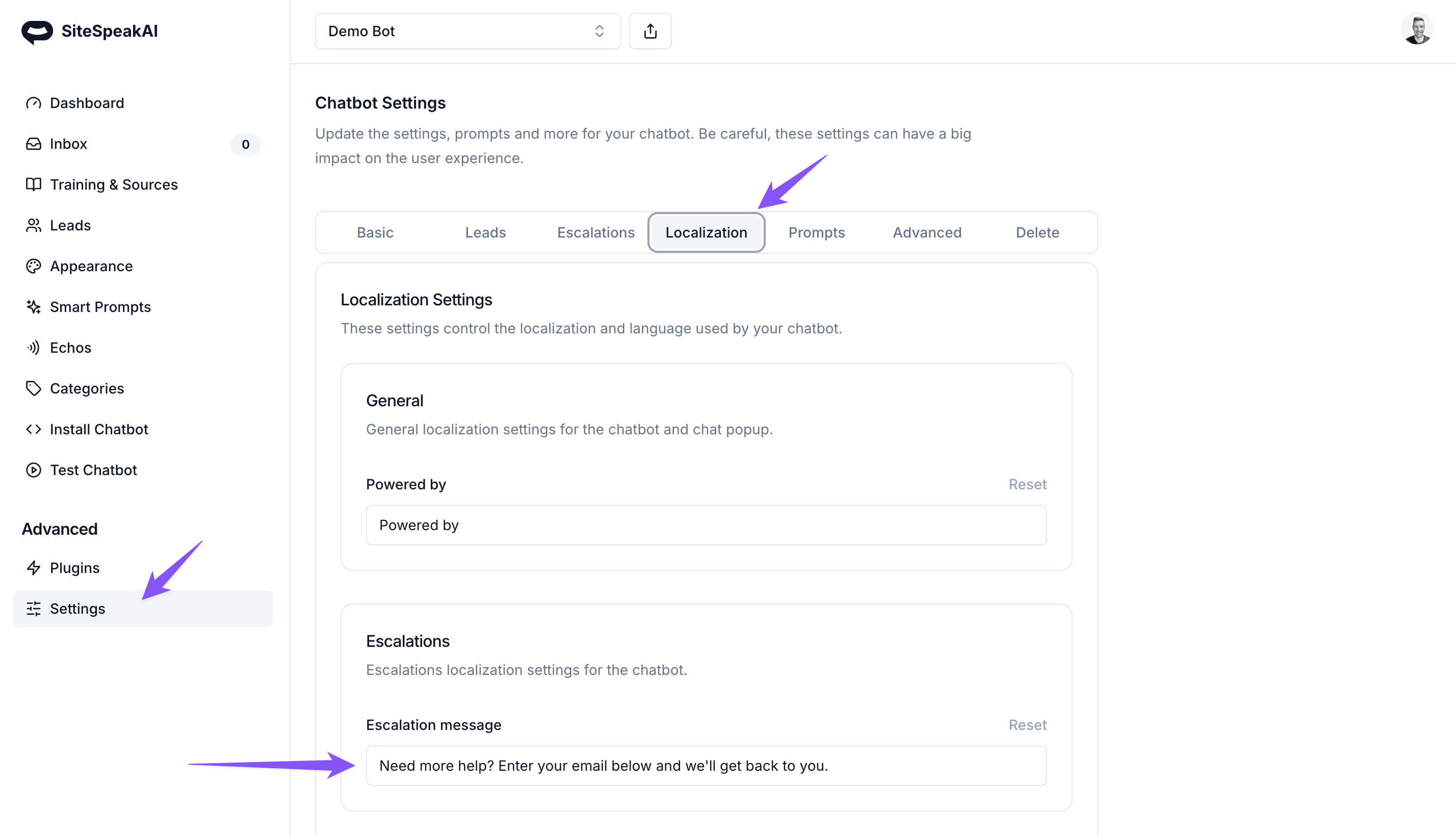
You can now update the default message shown when you enable escalations for your chatbot or when you've added the "Escalate to Human" smart prompt for your chatbot. To set your custom message, go to Advanced -> Settings -> Localization and update the message under the Escalations section.
Join our official Customer Support Telegram group to get all your questions about SiteSpeakAI and creating and installing your own custom GPT chatbot or assistant answered. Join here: Telegram Link
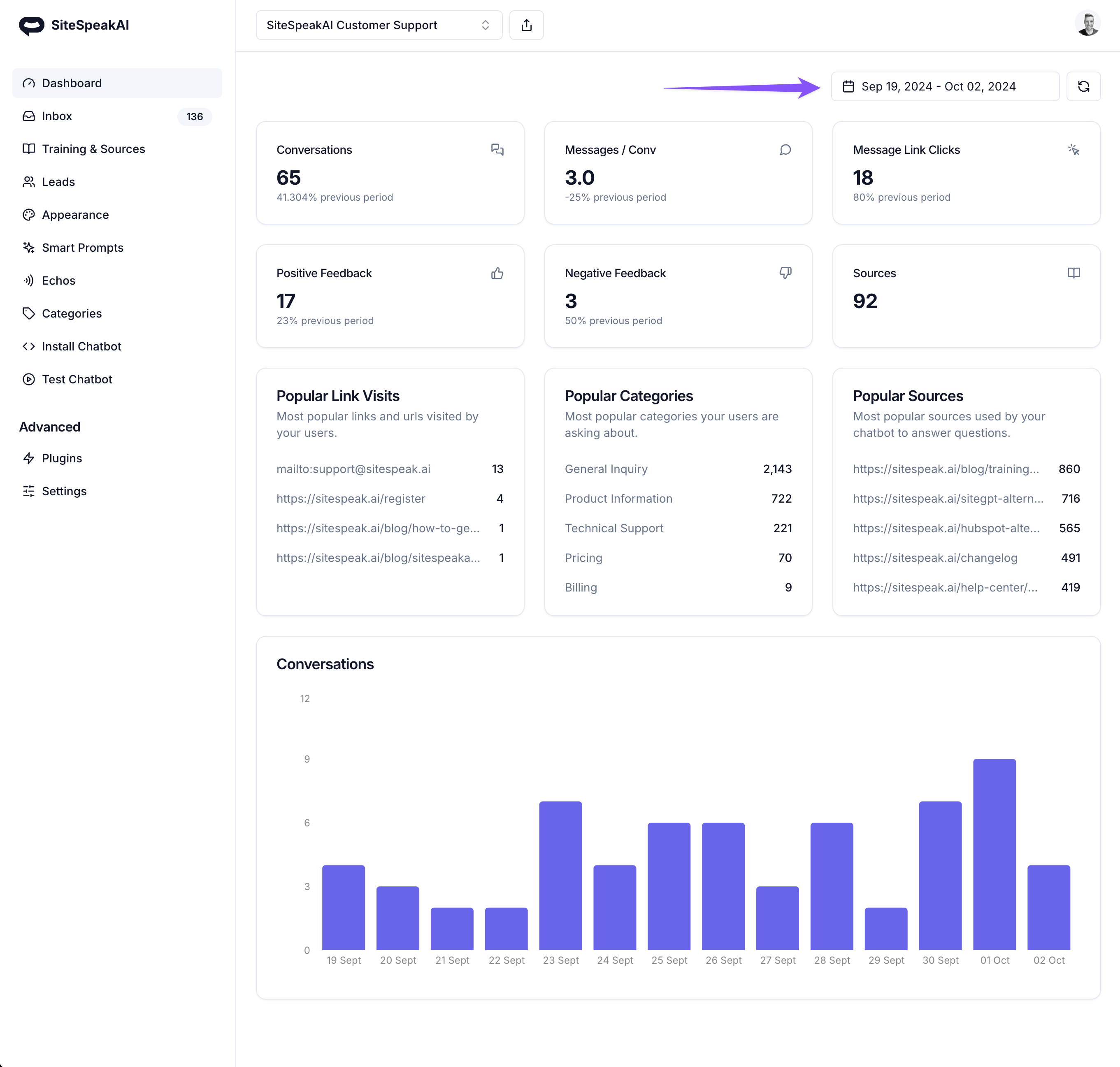
You can now select a date range to see stats and analytics for your chatbots. This includes conversations, links clicked in messages and responses from your chatbots, feedback and conversations per day.
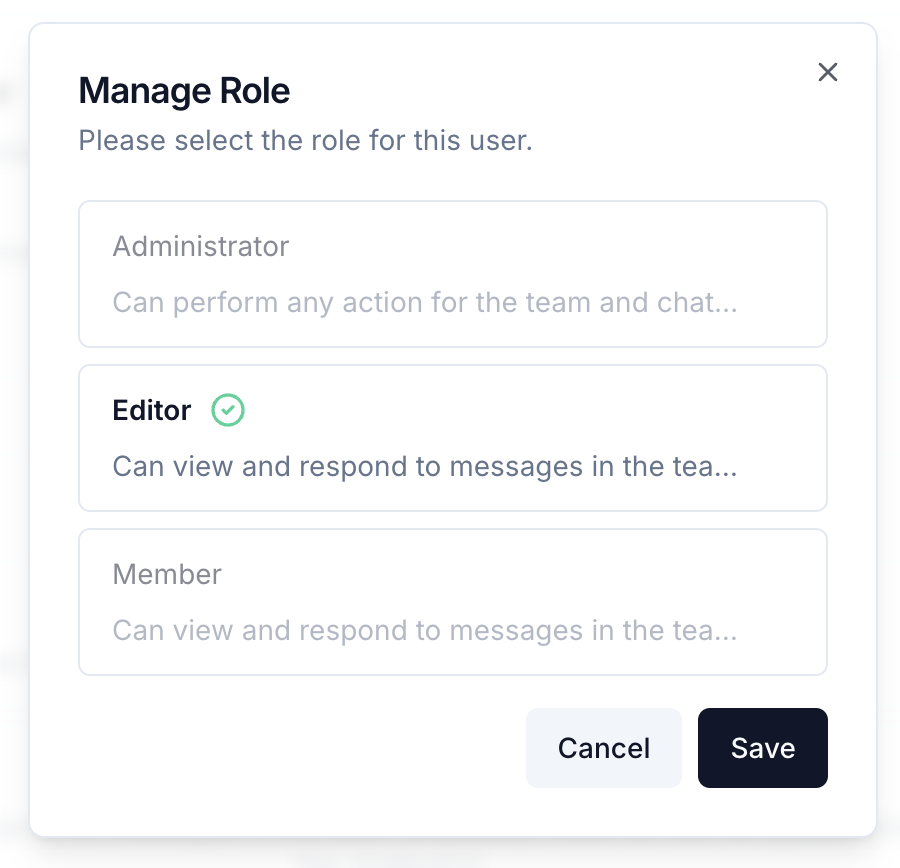
There's a new Editor role available that can be assigned to members of your team to allow them to update and correct answers from your chatbot. To assign this role to a team member, go to Profile -> Team and select the team member you would like to edit. Then change their role to Editor.
You can now include your visitor information in the context used by your chatbot to respond to their queries. This makes it easy to provide up to date information related to order status and more. To get started, check out our help article here: https://sitespeak.ai/help-center/advanced/identifying-your-users-and-customizing-responses
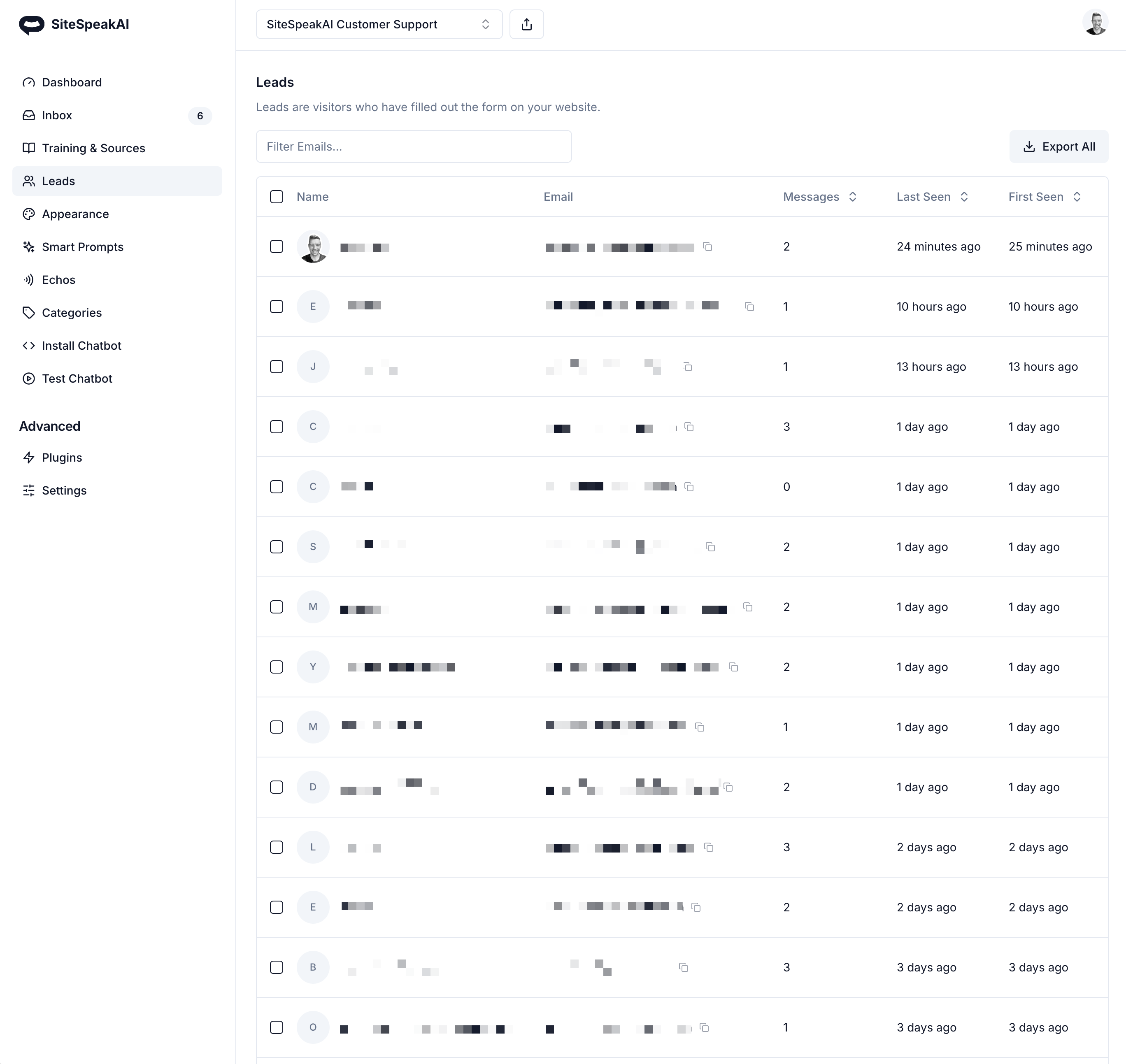
Read moreYou can now view and export all leads captured by your chatbot if you're using the Lead capture or Escalation feature for your chatbot. If you're using custom field data for your Lead capture form, you'll also see these fields included in your export.
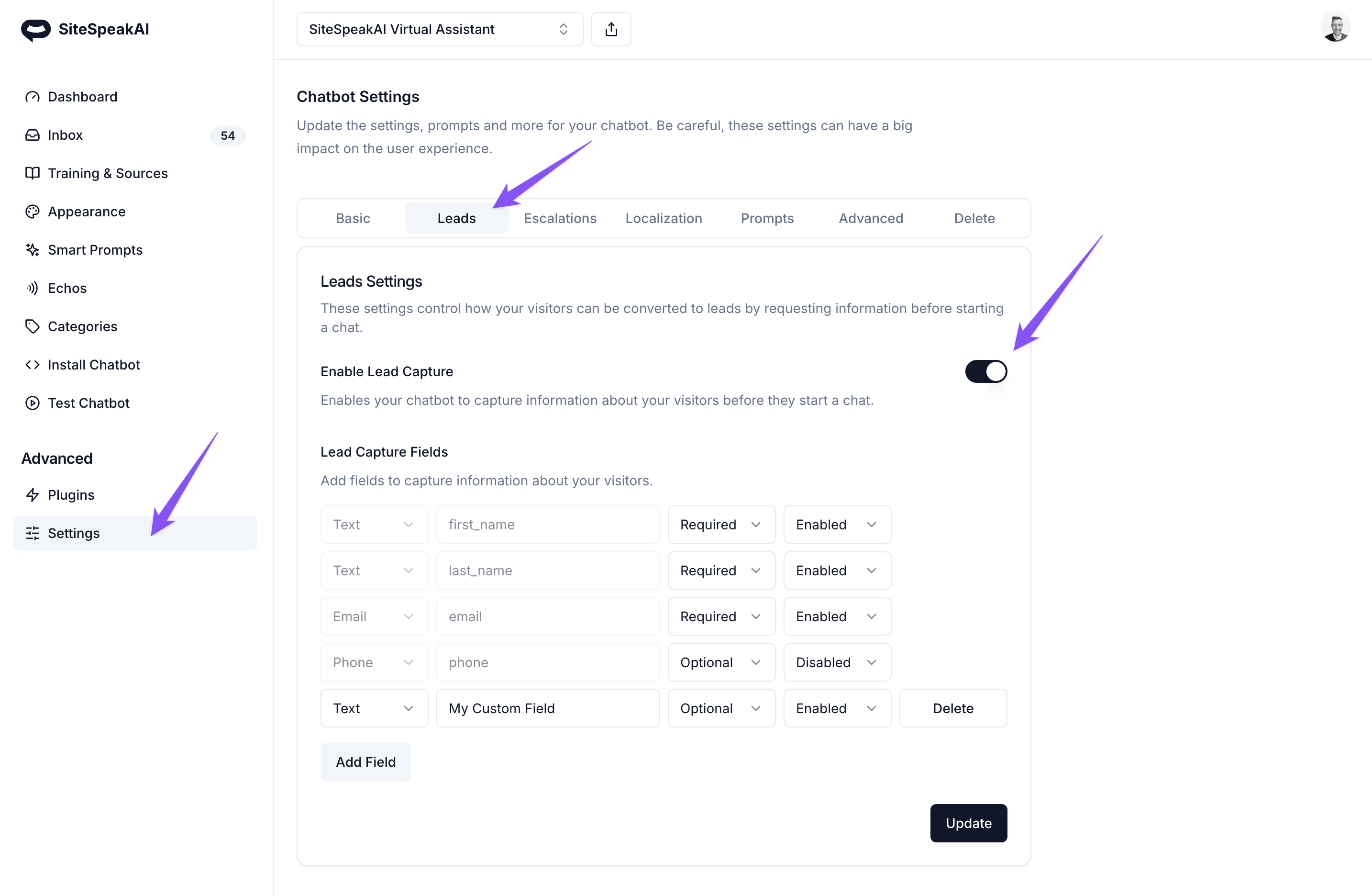
You can now capture leads easily with your SiteSpeakAI chatbot by enabling the Lead Capture feature under Settings -> Leads Once enabled, your chatbot will require your visitors to complete their name, email and more before they start to chat.
Join 1,000+ businesses across SaaS, e‑commerce, and agencies automating their customer service and other tasks with a custom-trained AI agent.
No credit card required