

Website Source
Use the Website option to automatically crawl and discover pages from your website.1
Go to Training & Content
In your chatbot dashboard, click Training & Content in the sidebar.
2
Select Sources
Click on Sources.
3
Click Add Sources
Click the + Add Sources button.
4
Select Website
From the source type dropdown, select Website.
5
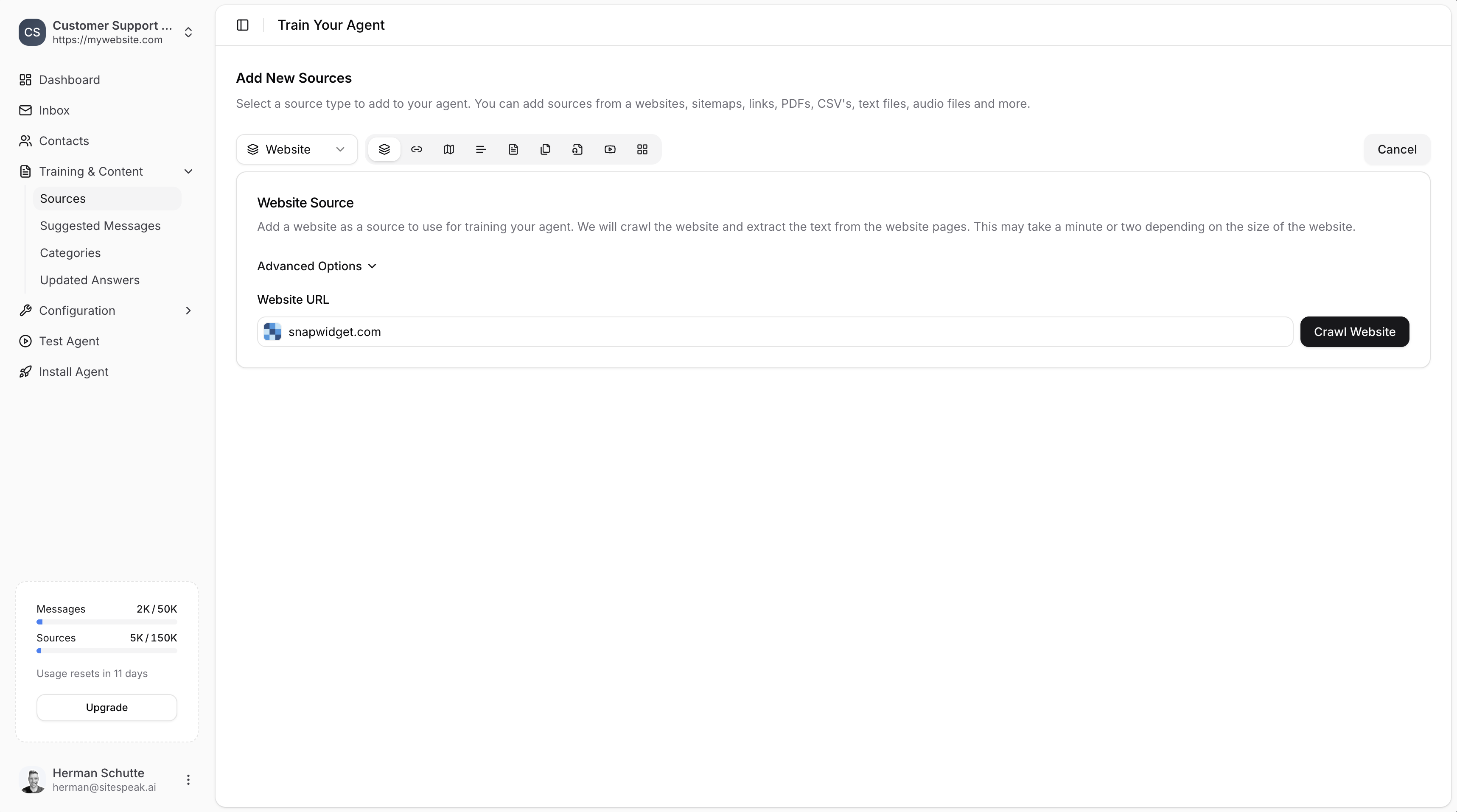
Enter your website URL
Enter your website URL in the Website URL field.
6
Crawl Website
Click the Crawl Website button. SiteSpeakAI will scan your website and discover available pages. This may take a minute or two depending on the size of your website.
Selecting Pages to Train
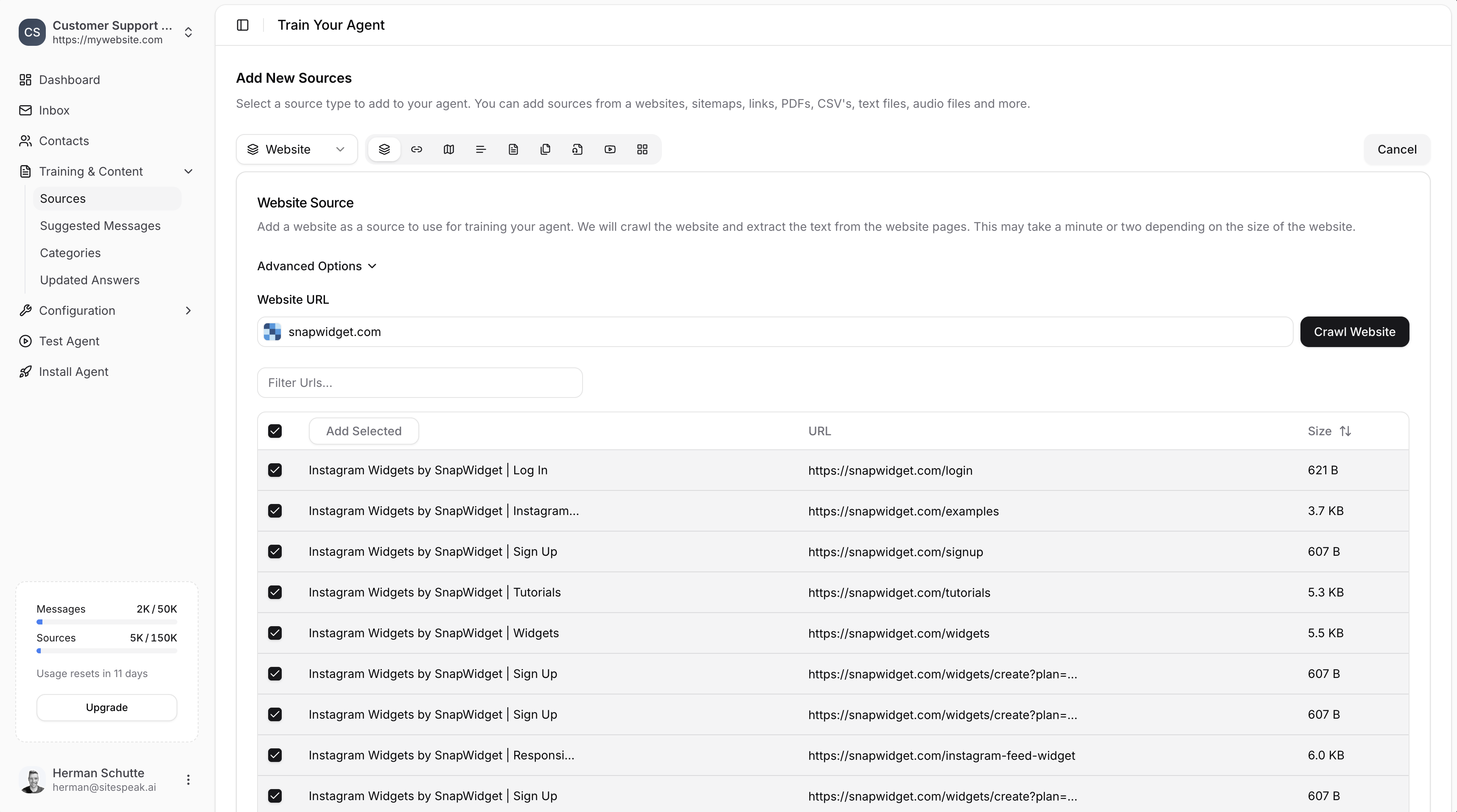
After crawling, you’ll see a list of discovered pages with their URLs and content sizes.1
Review discovered pages
Browse the list of pages found on your website.
2
Select pages
Use the checkboxes to select which pages you want to train your chatbot on. You can select all or choose specific pages.
3
Add Selected
Click the Add Selected button to add the chosen pages as training sources.
Auto-Sync Website
Instead of manually selecting pages, you can set up automatic syncing that crawls your website daily and keeps your training data up to date.1
Enable auto-sync
Before crawling, check the Auto-sync website pages daily checkbox below the URL input field.
2
Set exclusion patterns (optional)
Open Advanced Options to add URL exclusion patterns. Any URLs matching these patterns will be skipped during crawling. For example, you can exclude
/admin/* or /login.3
Create auto-syncing website
Click the Create Auto-Syncing Website button. SiteSpeakAI will crawl your website, discover all pages, and set up daily automatic syncing.
- New pages are automatically discovered and added as training sources
- Removed pages are cleaned up and removed from your training data
- Exclusion patterns are applied on every sync cycle
Auto-sync for websites requires the Pro Plus plan or higher.
Link Sources
Use the Links option to add specific page URLs directly, without crawling an entire website.1
Go to Training & Content
In your chatbot dashboard, click Training & Content in the sidebar.
2
Select Sources
Click on Sources.
3
Click Add Sources
Click the + Add Sources button.
4
Select Links
From the source type dropdown, select Links.
5
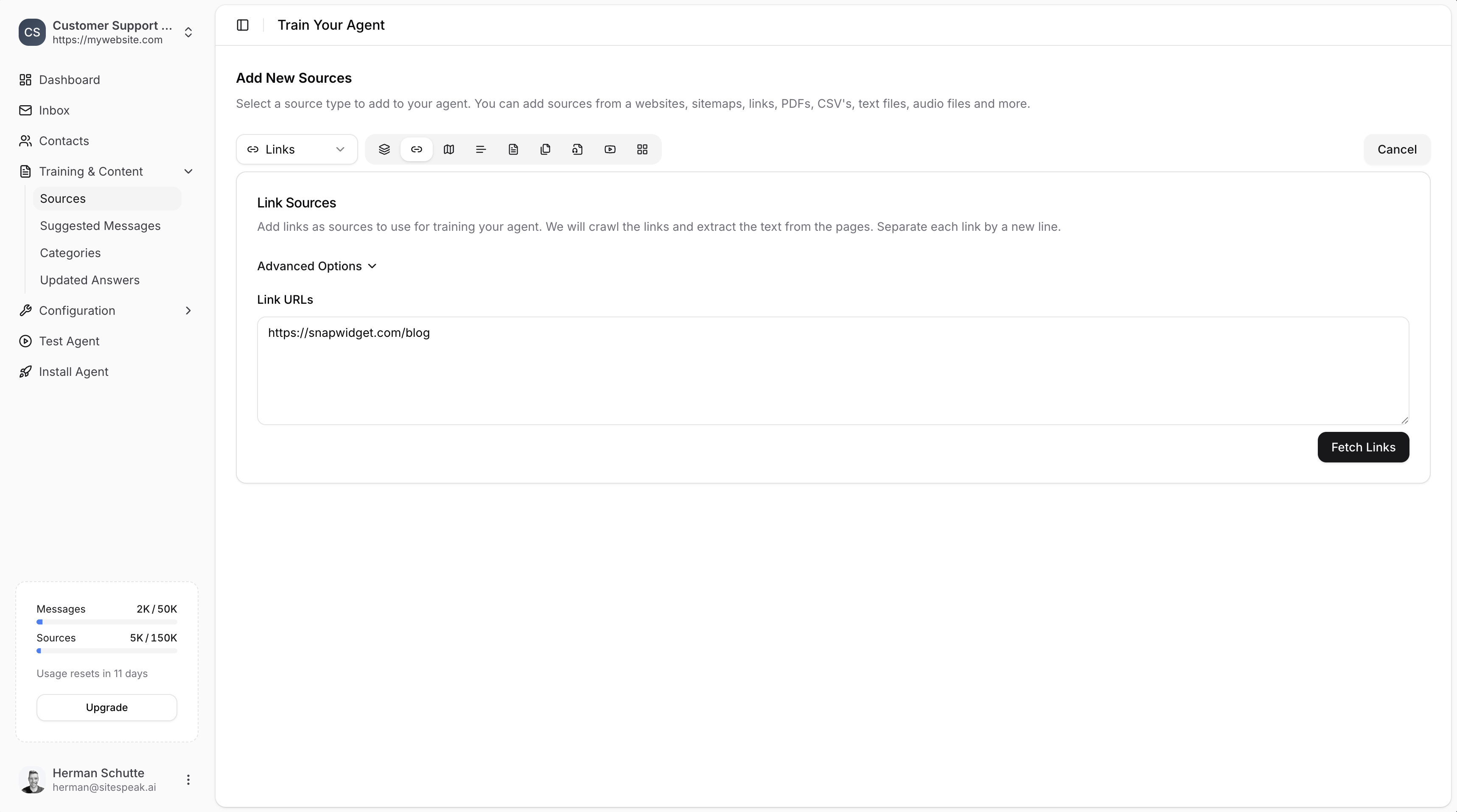
Enter your URLs
Enter the page URLs you want to train on in the Link URLs field. Separate each link by a new line.
6
Fetch Links
Click the Fetch Links button to retrieve the content from each URL.
Selecting Links to Train
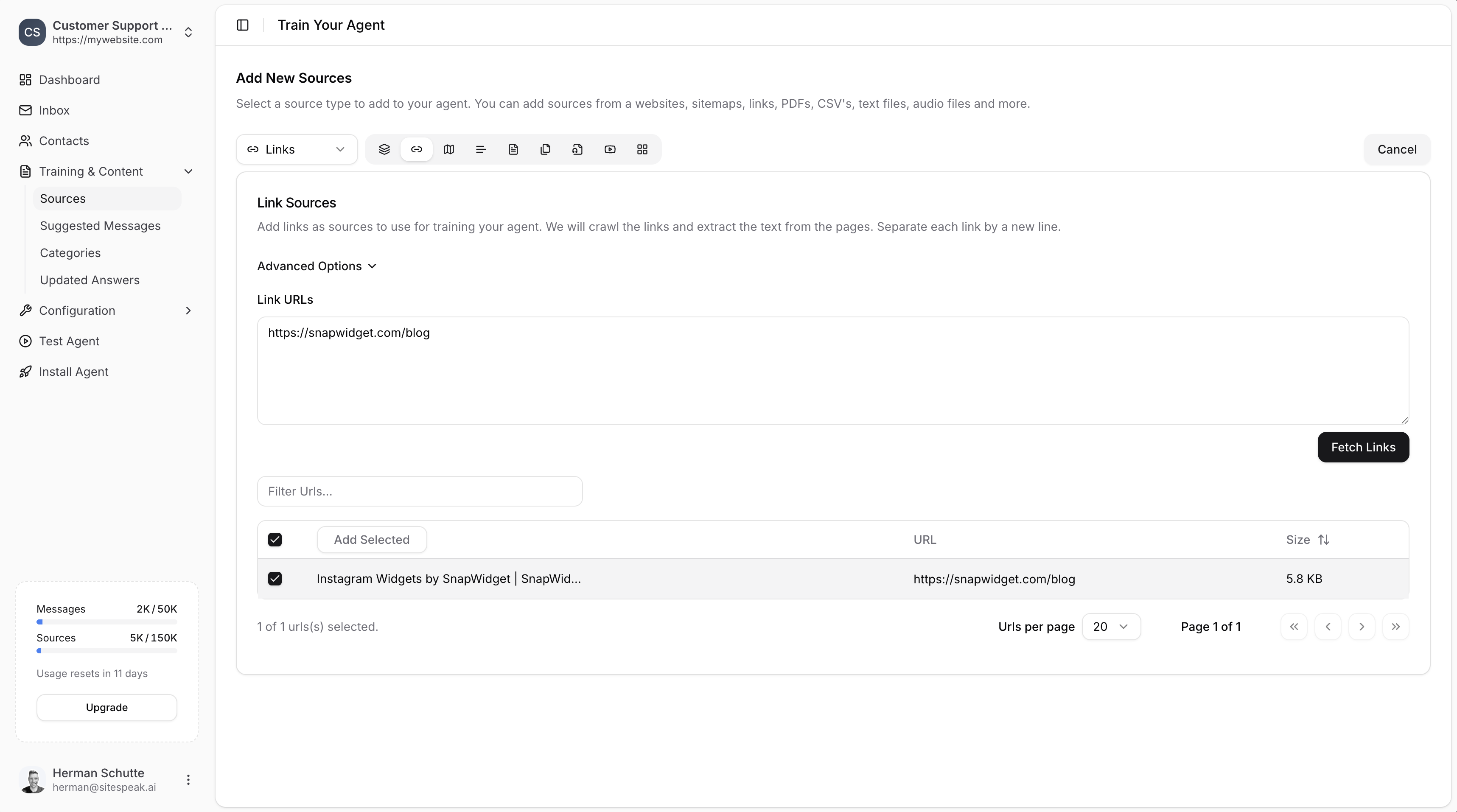
After fetching, you’ll see each URL with its content size.1
Review fetched links
Check the list of URLs and their content sizes.
2
Select links
Use the checkboxes to select which links you want to train on.
3
Add Selected
Click the Add Selected button to add the chosen links as training sources.
Website vs Links: When to Use Each
Managing Your Trained Sources
After adding sources, they’ll appear in your Sources list with their training status.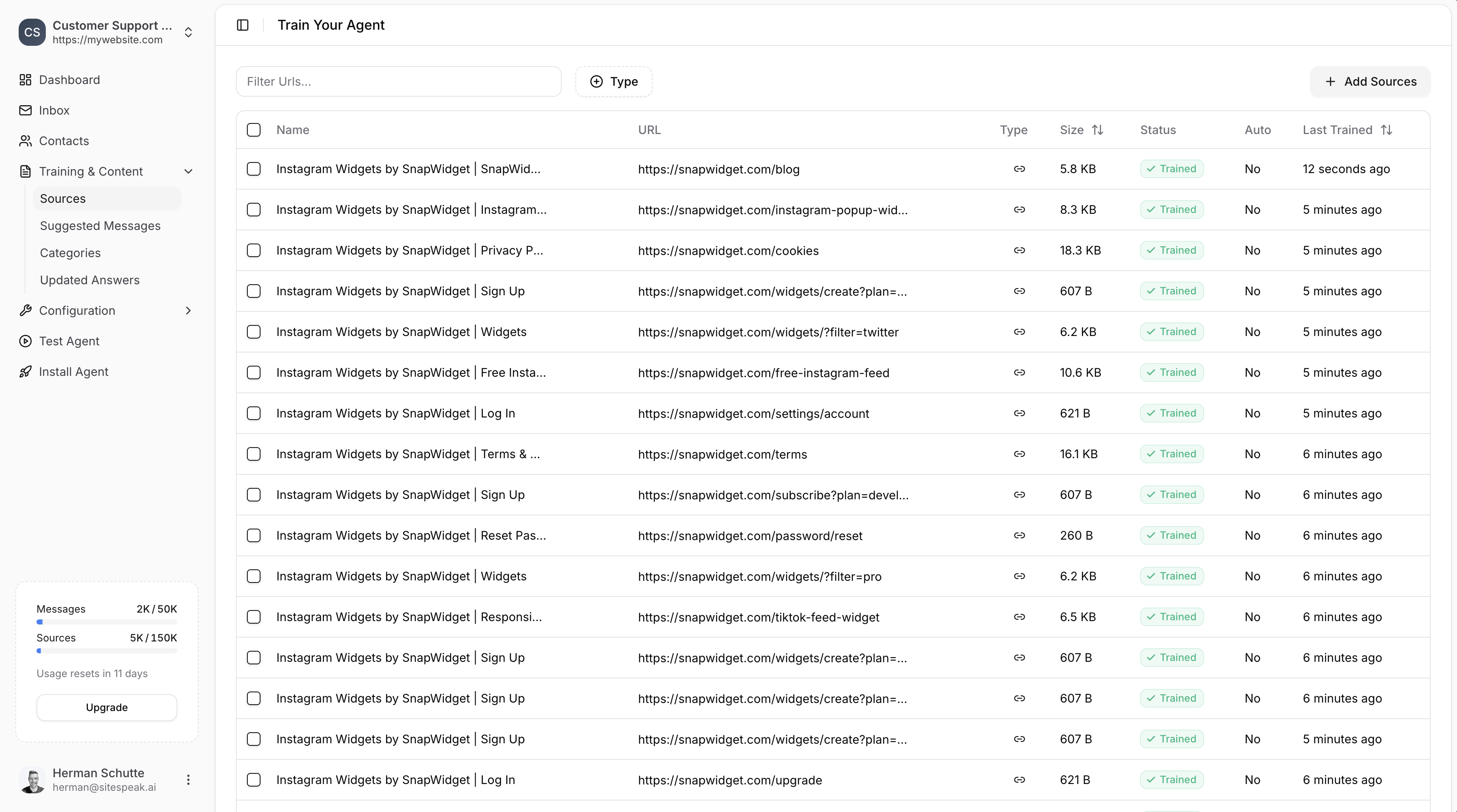
- Name: The page title
- URL: The source URL
- Type: Link icon for web sources
- Size: Content size (e.g., 5.8 KB)
- Status: Training status (Trained, Training, Pending, Error)
- Auto: Whether auto-sync is enabled
- Last Trained: When it was last processed
Keeping Content Updated
To update your trained content when your website changes:1
Select sources
Use the checkboxes to select the sources you want to update.
2
Click Retrain
Click the Retrain button to re-fetch and retrain on the latest content.
Best Practices
- Start with key pages: Train on your most important content first (FAQs, product pages, documentation)
- Review content quality: Ensure pages have meaningful text content, not just images or videos
- Remove duplicates: Avoid training on multiple pages with the same content
- Update regularly: Retrain sources when your website content changes significantly
Ready to automate your customer service with AI?
Join over 1000+ businesses, websites and startups automating their customer service and other tasks with a custom trained AI agent.