

Adding the Paddle Action
1
Go to Tools & Actions
In your chatbot dashboard, go to Configuration → Tools & Actions.
2
Select Paddle
Find Paddle: Get Customer Subscription and click Add.
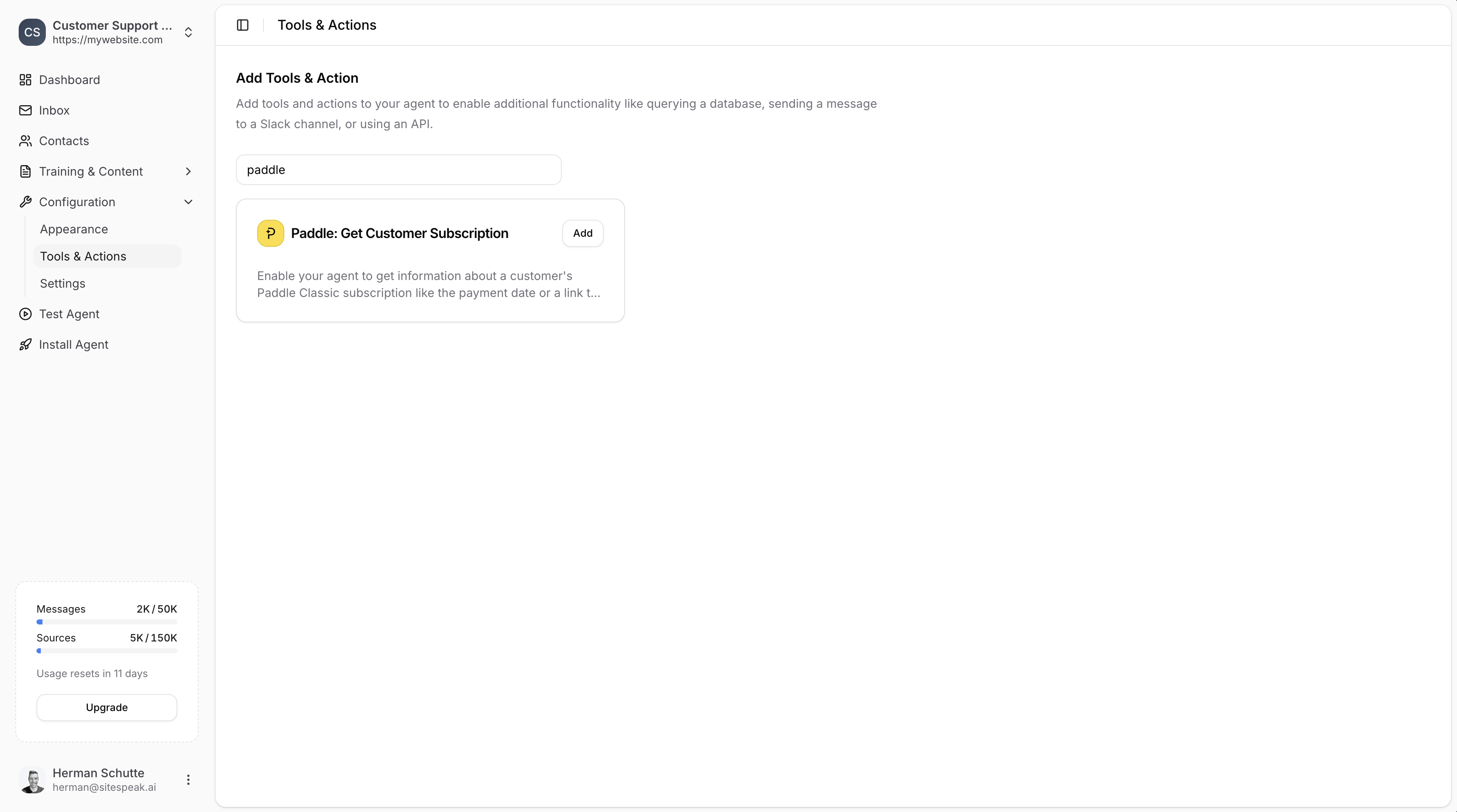
Configuration
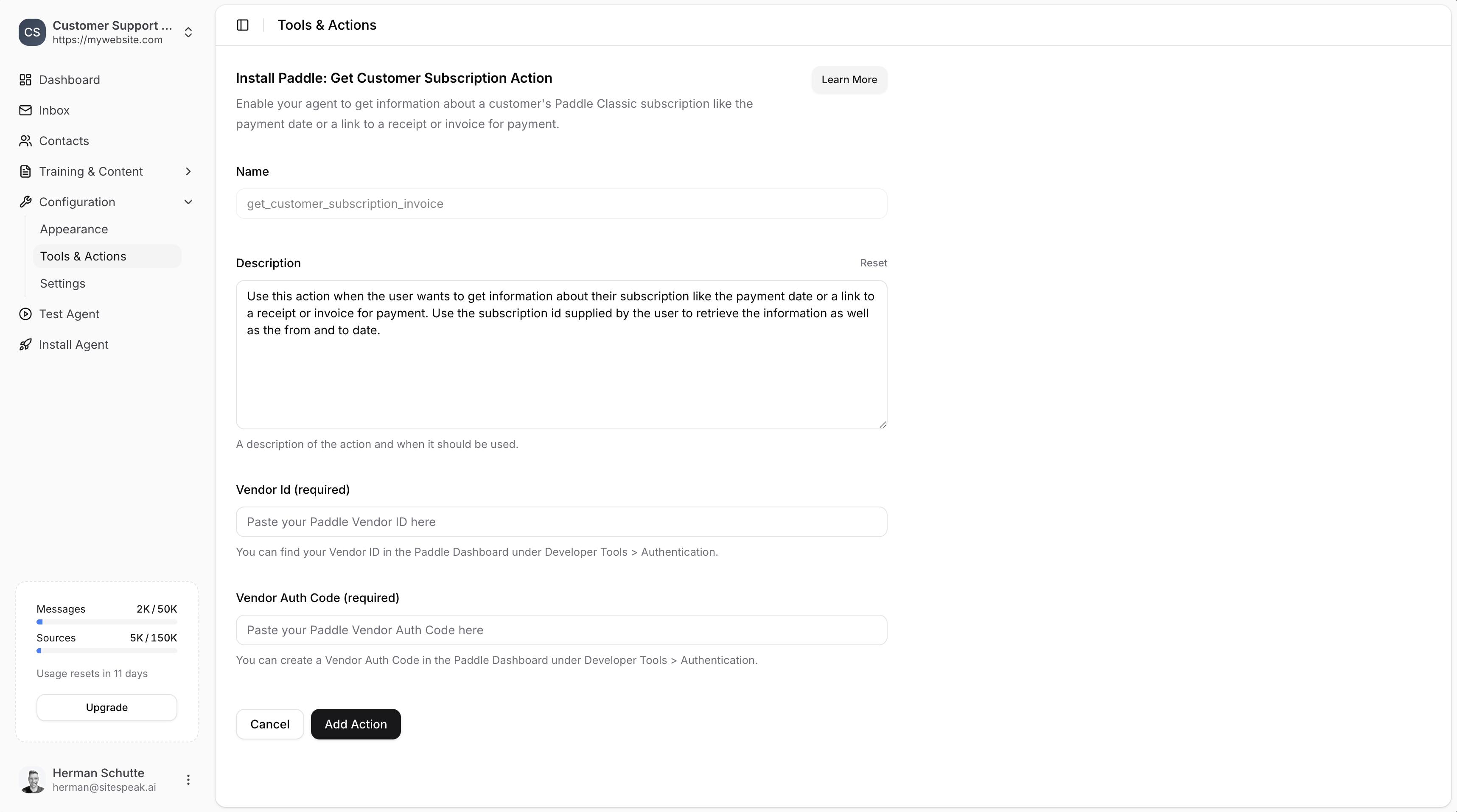
Name
A descriptive name for the action. Default:get_customer_subscription_invoice
Description
A description of the action and when it should be used. You can customize this or use the provided default. Example:Use this action when the user wants to get information about their subscription like the payment date or a link to a receipt or invoice. Use the subscription id supplied by the user to retrieve the information as well as the from and to date.
Vendor Id (required)
Your Paddle Vendor ID. You can find your Vendor ID in the Paddle Dashboard under Developer Tools → Authentication.Vendor Auth Code (required)
Your Paddle Vendor Auth Code. You can create a Vendor Auth Code in the Paddle Dashboard under Developer Tools → Authentication.Getting Your Paddle Credentials
1
Log in to Paddle
Go to your Paddle Dashboard.
2
Open Developer Tools
Navigate to Developer Tools → Authentication.
3
Copy your credentials
Copy your Vendor ID and Vendor Auth Code and paste them into SiteSpeakAI.
Save the Action
Click Add Action to enable the action for your AI agent. Your agent will now be able to assist visitors with information about their latest invoices and how to update their billing information.Providing Customer Information
To look up subscription information for a specific customer, combine this action with the Identify feature so your agent has the required information to retrieve subscriptions.Ready to automate your customer service with AI?
Join over 1000+ businesses, websites and startups automating their customer service and other tasks with a custom trained AI agent.