

How to add template tags
1
Go to Appearance settings
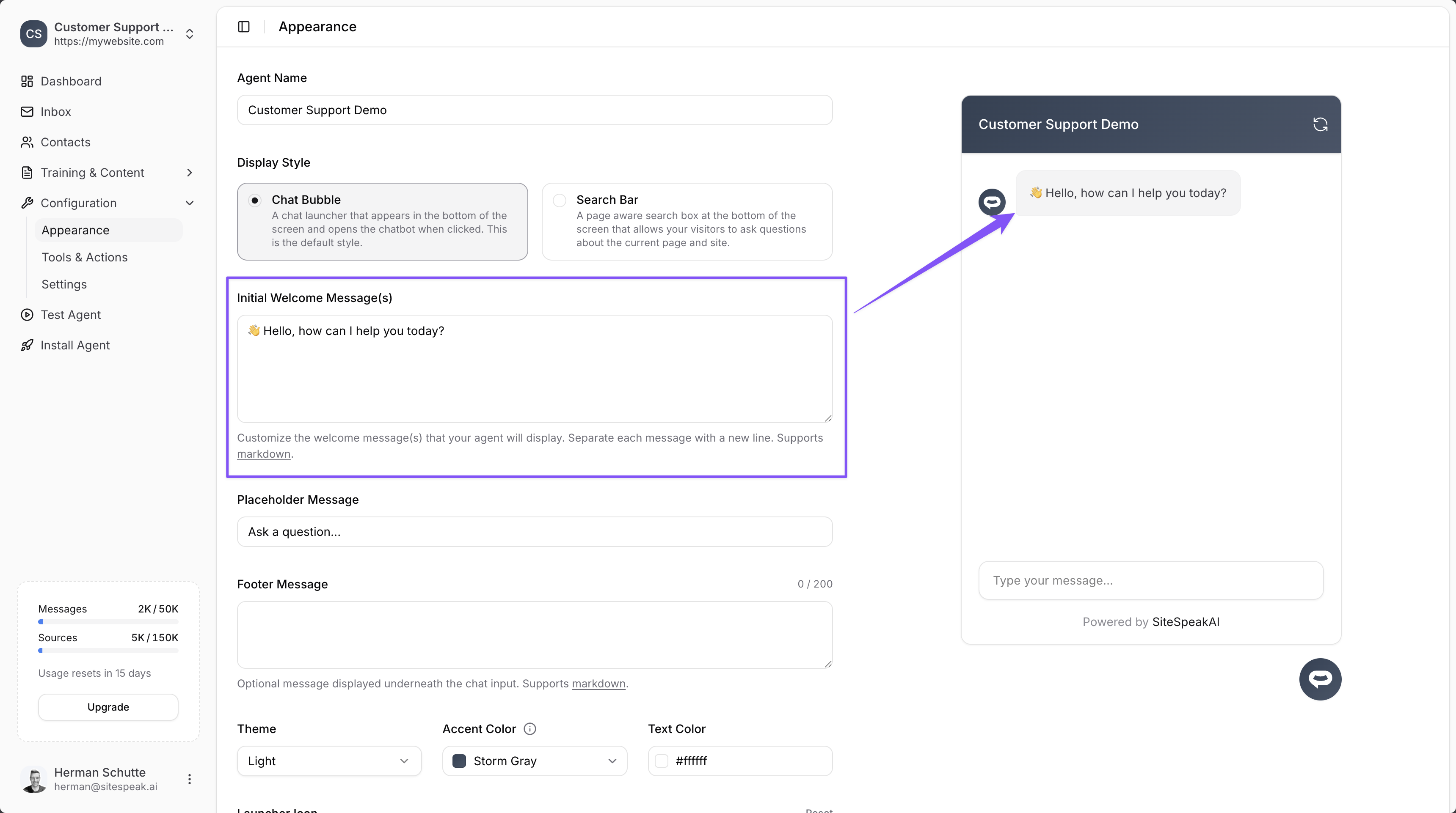
Head over to Appearance → Welcome Message(s) in your chatbot settings.
2
Add template tags
Update your welcome message to include template tags where you’d like to insert visitor information.
Template tag format
Template tags use the following format:field_nameis the name of the field from your lead capture formfallbackis the text to display if the visitor’s information is not known
Example
Hello John! How can I help you today?if the visitor’s name is knownHello there! How can I help you today?if the visitor’s name is not known
Template tags work with any field you’ve added to your lead capture form, not just
first_name.Ready to automate your customer service with AI?
Join over 1000+ businesses, websites and startups automating their customer service and other tasks with a custom trained AI agent.