

Adding the SQLite Database Action
1
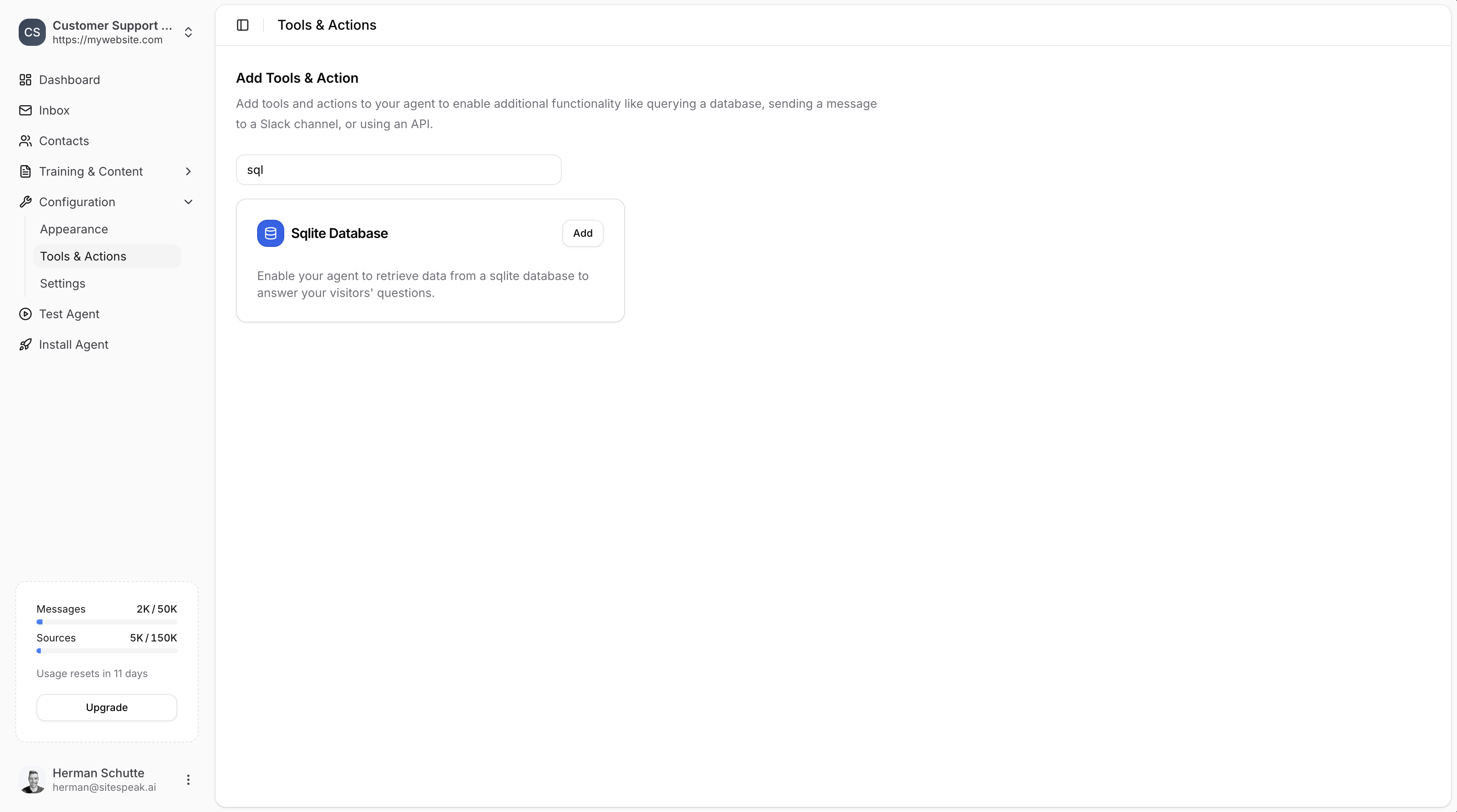
Go to Tools & Actions
In your chatbot dashboard, go to Configuration → Tools & Actions.
2
Select SQLite Database
Find the Sqlite Database card and click Add.
Configuration
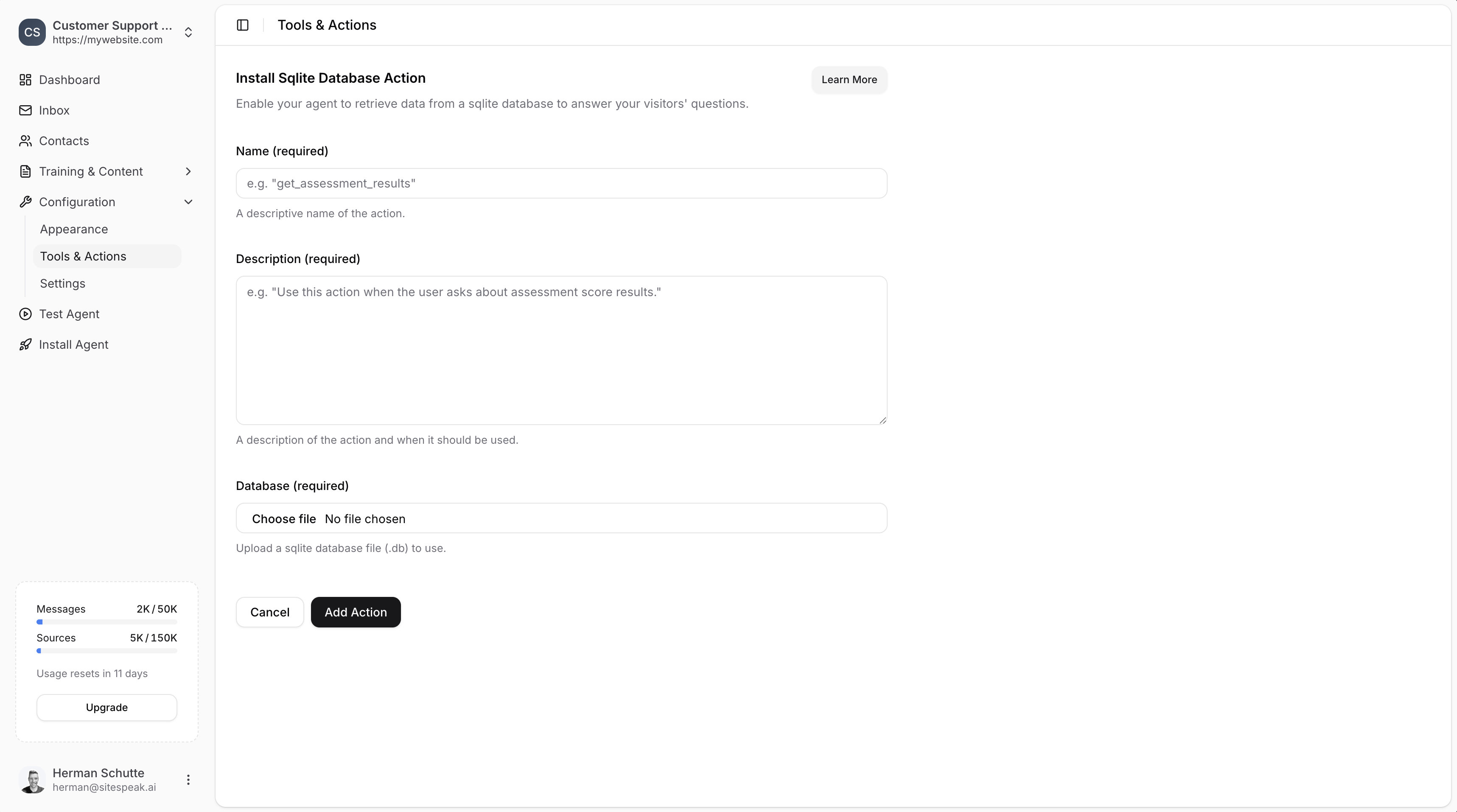
Name (required)
A descriptive name of the action. Example:get_assessment_results
Description (required)
A description of the action and when it should be used. Example:Use this action when the user asks about assessment score results.
Make sure the Name and Description are descriptive so that the agent will know exactly when to use this action.
Database (required)
Upload a SQLite database file (.db) to use. Click Choose file and select your SQLite database file from your computer.Save the Action
Click the Add Action button to add and enable the action for your chatbot. Your chatbot can now use this action to “chat to your database” and retrieve information to answer your visitors’ questions.Example Use Case
Using the Chinook DB (a sample music store database), your chatbot can answer questions like:- “What albums do you have by Led Zeppelin?”
- “How many tracks are in the Rock genre?”
- “What are the top selling artists?”
Ready to automate your customer service with AI?
Join over 1000+ businesses, websites and startups automating their customer service and other tasks with a custom trained AI agent.