

Speech recognition
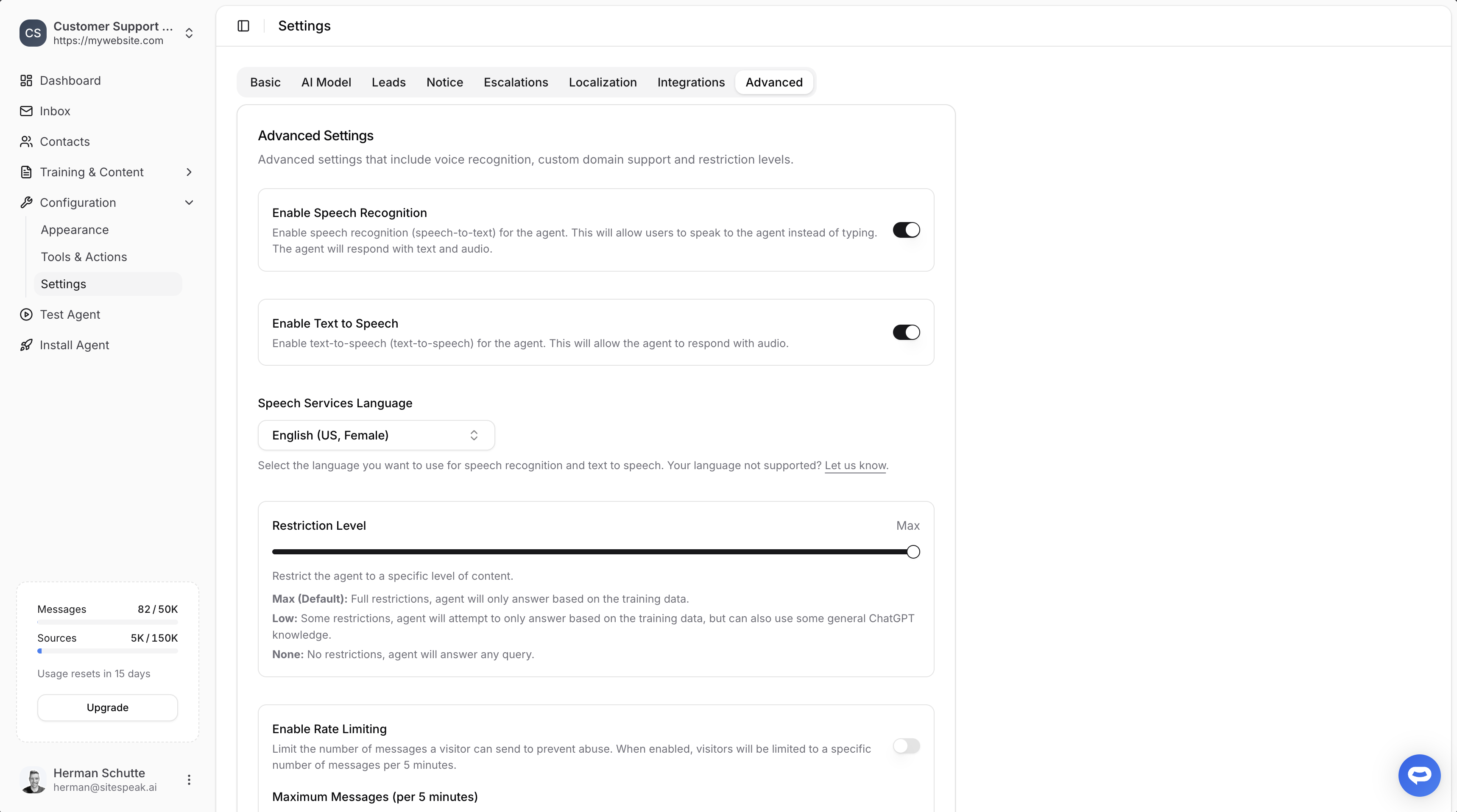
Speech recognition allows visitors to speak their questions instead of typing. When enabled, the agent will respond with both text and audio.Enable speech recognition
1
Go to Configuration
In your chatbot dashboard, click Configuration in the sidebar.
2
Select Settings
Click on Settings.
3
Go to Advanced tab
Click on the Advanced tab.
4
Enable Speech Recognition
Toggle on Enable Speech Recognition.
Text-to-speech
Text-to-speech allows the agent to respond with audio, reading responses aloud to visitors.Enable text-to-speech
In the same Advanced tab:- Toggle on Enable Text to Speech
Speech services language
Select the language and voice you want to use for both speech recognition and text-to-speech:- Find the Speech Services Language dropdown
- Select your preferred language and voice (e.g., “English (US, Female)”)
If your language isn’t supported, you can request it by clicking “Let us know” in the settings.
Use cases
Voice features are especially useful for:- Accessibility: Supporting visitors who have difficulty typing
- Mobile users: Easier input on small screens
- Hands-free scenarios: When visitors can’t type
- Multilingual support: Natural voice interaction in different languages
Ready to automate your customer service with AI?
Join over 1000+ businesses, websites and startups automating their customer service and other tasks with a custom trained AI agent.