

Available Polar Actions
- Polar: Get Checkout Link - Retrieve a checkout link for a product or service
- Polar: Get Customer Subscription - Get information about a customer’s subscription like payment date or a link to a receipt or invoice
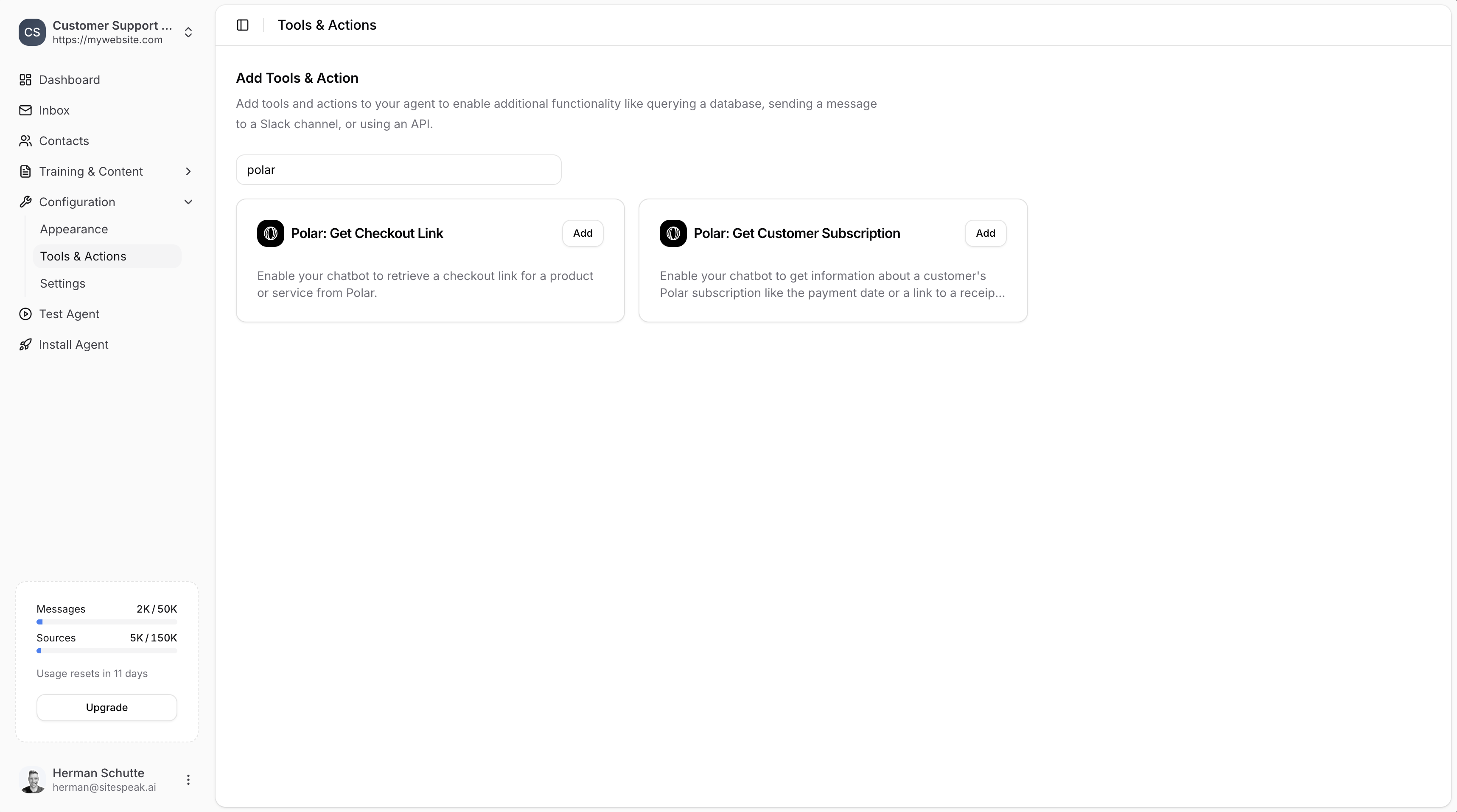
Adding a Polar Action
1
Go to Tools & Actions
In your chatbot dashboard, go to Configuration → Tools & Actions.
2
Select a Polar action
Find Polar: Get Checkout Link or Polar: Get Customer Subscription and click Add.
Configuration
Both Polar actions require the same configuration: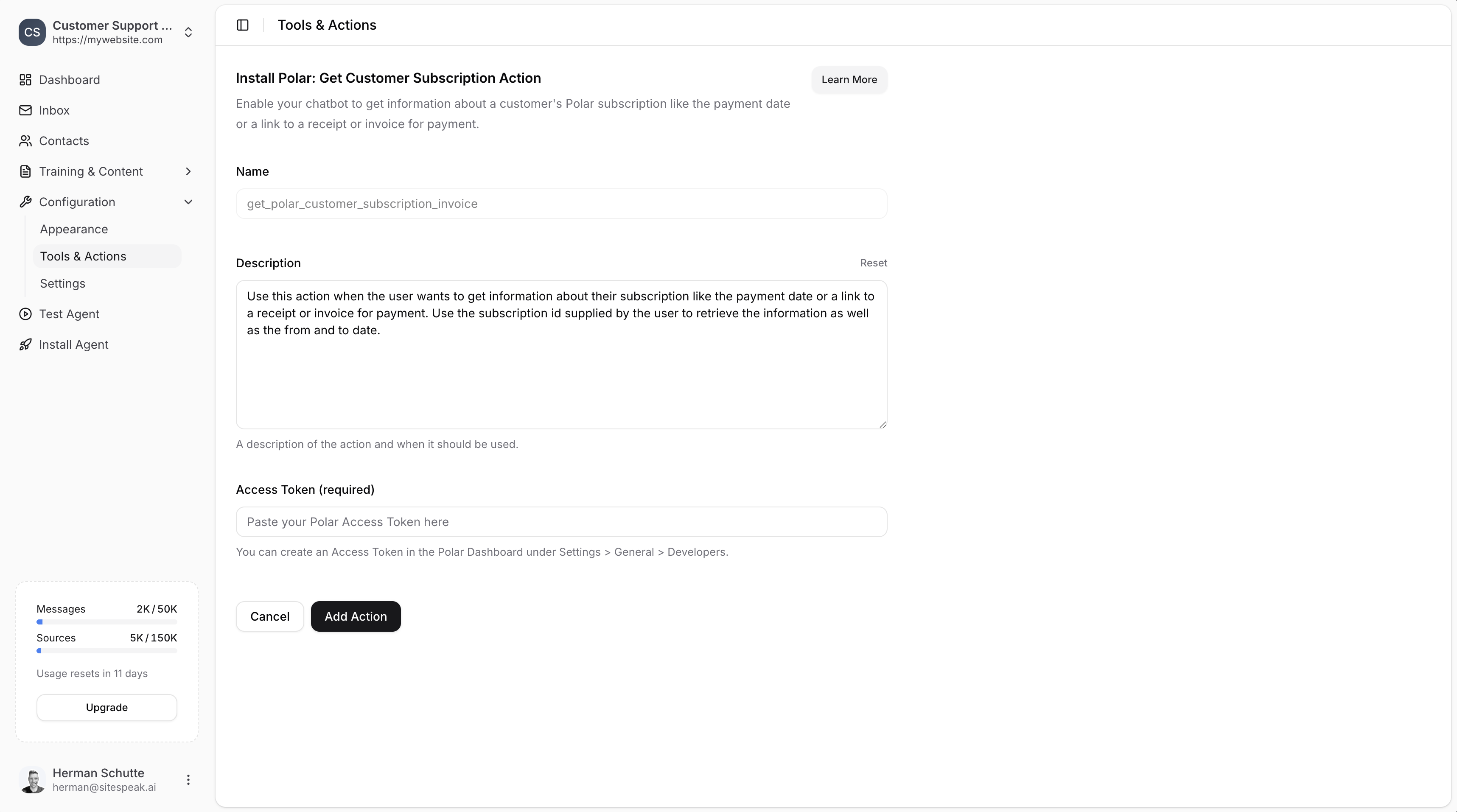
Name
A descriptive name for the action. Default values are provided:get_polar_checkout_linkfor checkout linksget_polar_customer_subscription_invoicefor subscriptions
Description
A description of the action and when it should be used. You can customize this or use the provided default. Example for checkout:Use this action when the user wants to get a checkout link for a product or service. Use the product or service name supplied by the user to retrieve the checkout link to share with the user.Example for subscriptions:
Use this action when the user wants to get information about their subscription like the payment date or a link to a receipt or invoice. Use the subscription id supplied by the user to retrieve the information as well as the from and to date.
Access Token (required)
Your Polar API access token.Creating a Polar Access Token
1
Go to Polar Dashboard
Log in to your Polar account.
2
Open Settings
Go to Settings → General → Developers.
3
Create a new token
Click to create a new access token.
4
Enable permissions
Make sure to enable the following permissions:
checkout_links:readcheckouts:readsubscriptions:readsubscriptions:writecustomers:readorders:read
5
Copy the token
Copy the generated token and paste it into the Access Token field in SiteSpeakAI.
Save the Action
Once you have added your access token, click Add Action to enable the action for your chatbot. Your chatbot will now be able to look up subscription information and provide checkout links to your visitors.Providing Customer Information
To look up subscription information for a specific customer, use the Identify functionality to provide the customer ID to your agent.Ready to automate your customer service with AI?
Join over 1000+ businesses, websites and startups automating their customer service and other tasks with a custom trained AI agent.