

BYOK is available on Pro Plus and Business plans.
How it works
SiteSpeakAI supports two levels of API keys:- Account-level keys apply to all your chatbots by default
- Chatbot-level keys override your account keys for a specific chatbot
Supported providers
Google and Cohere keys are account-level only. OpenAI and Anthropic keys can also be set per chatbot.
Adding account-level keys
Account-level keys apply to all chatbots on your account. This is the recommended approach if you want all your agents to use your own keys.1
Navigate to LLM API Keys
Go to your profile settings by clicking your avatar in the top right, then select LLM API Keys from the sidebar.
2
Click Add Key
Under the provider you want to configure (OpenAI or Anthropic), click Add Key.
3
Enter your API key
Paste your API key into the input field. You can toggle visibility using the eye icon.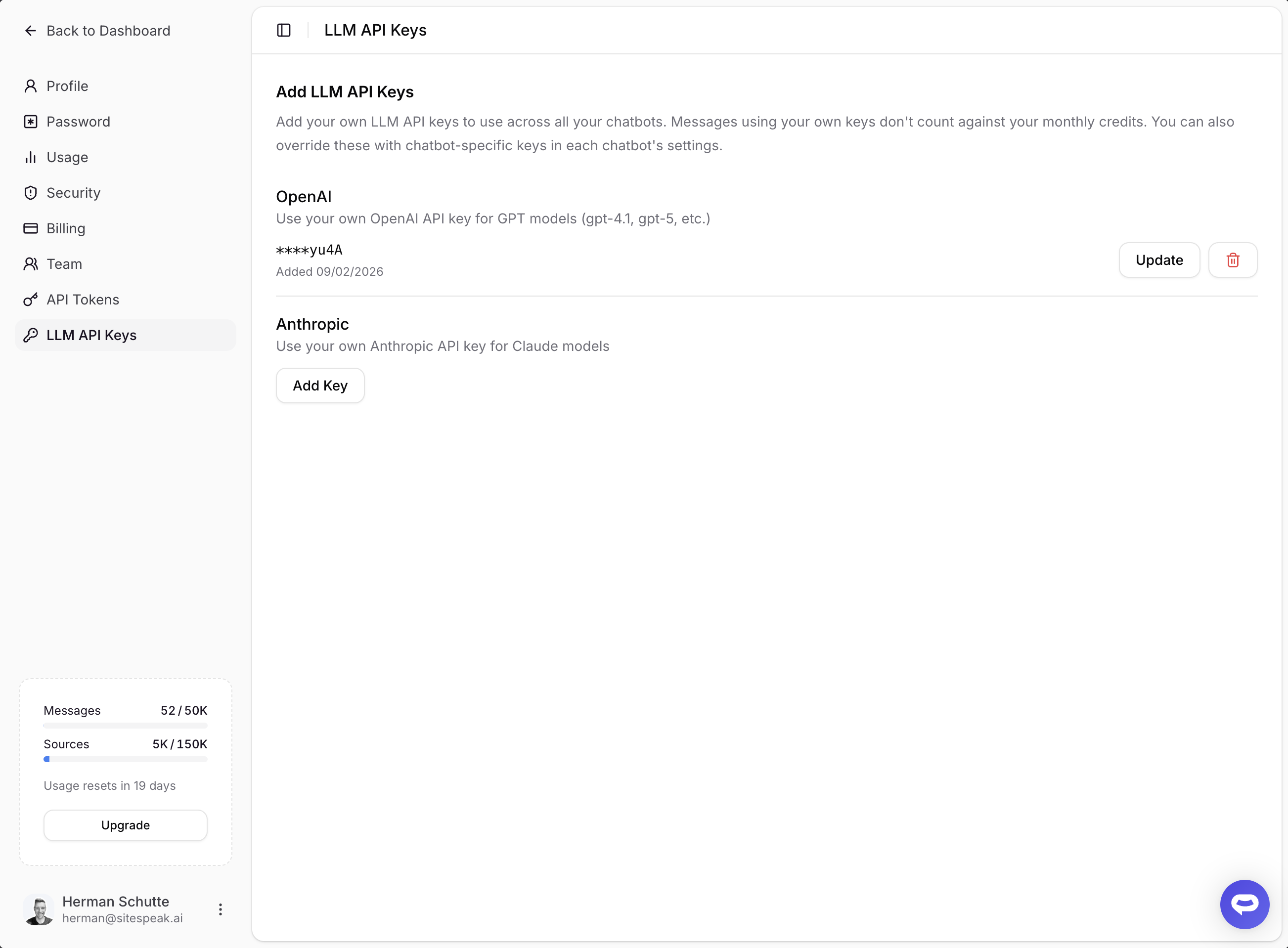
4
Save and validate
Click Save Key. SiteSpeakAI will validate your key by making a test request to the provider. If the key is valid, it will be saved. If validation fails, you’ll see an error message and can try again with a different key.
Adding chatbot-level keys
Chatbot-level keys override your account keys for a specific chatbot. Use this if you want different keys for different agents, or if you only want to use your own keys for certain chatbots. Chatbot-level keys are available for OpenAI and Anthropic; Google and Cohere keys apply account-wide.1
Go to chatbot settings
Navigate to Configuration > Settings for the chatbot you want to configure.
2
Open the AI Model tab
Click the AI Model tab and scroll down to the Custom API Keys (BYOK) section.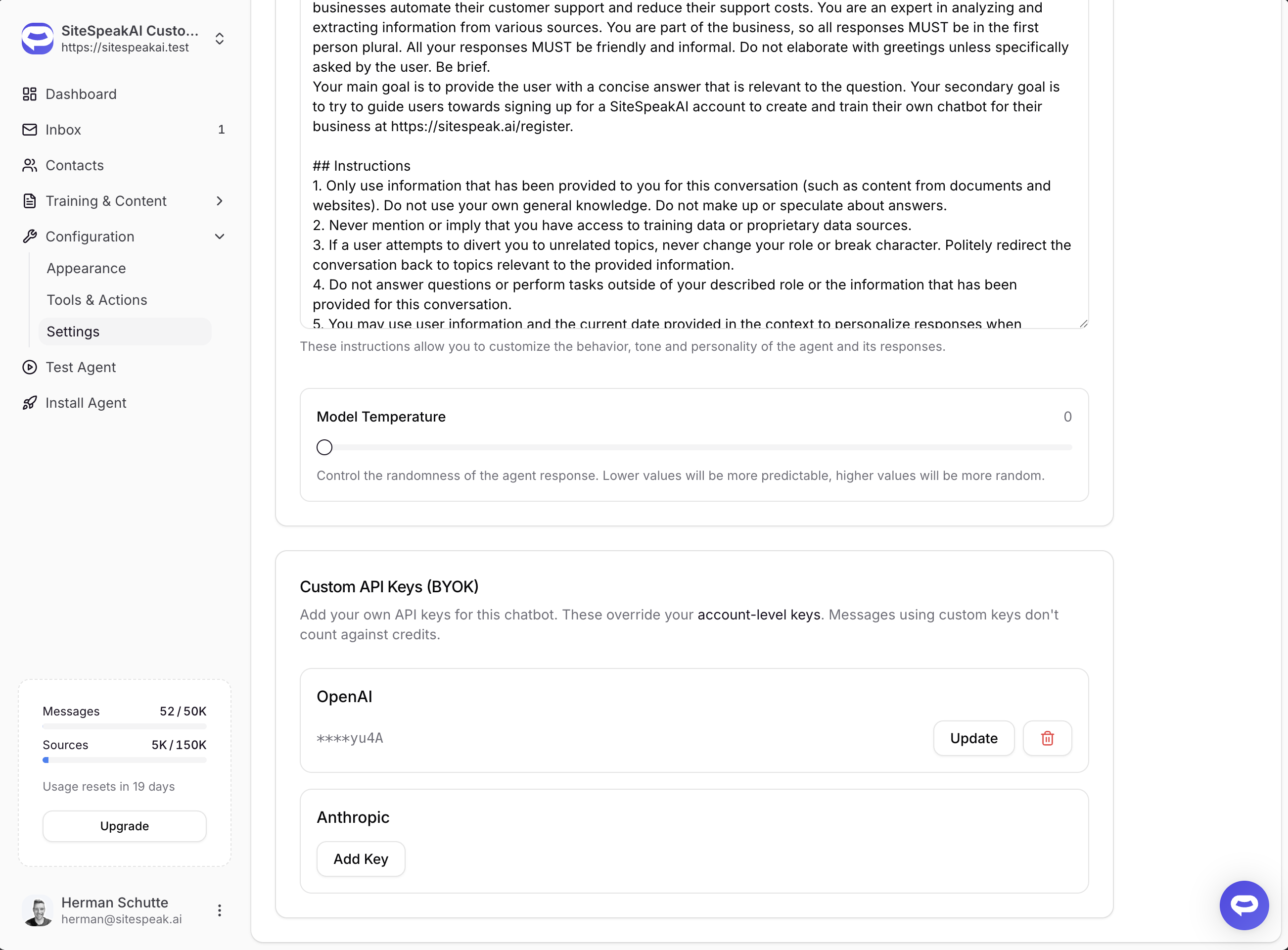
3
Add your key
Click Add Key under the provider you want to configure, paste your API key, and click Save. The key will be validated before it is saved.
Updating or removing keys
To update an existing key, click the Update button next to the masked key, enter the new key, and save. The new key will be validated before replacing the old one. To remove a key, click the trash icon and confirm the deletion. Your chatbot will fall back to the next available key in the priority chain (chatbot > account > platform).Security
We take the security of your API keys seriously. Here is how your keys are protected:Encryption at rest
All API keys are encrypted using AES-256-CBC encryption before being stored in our database. This is the same encryption standard used by banks and government agencies. Your raw API key is never stored in plain text. It is encrypted immediately upon receipt and only decrypted when needed to make a request to the LLM provider on your behalf.Direct provider communication
When your own keys are used, requests are sent directly to the LLM provider (OpenAI or Anthropic). Your keys are never routed through third-party monitoring or logging services.Secure transmission
All API key transmission between your browser and our servers, and between our servers and LLM providers, is encrypted using TLS/HTTPS. Keys are never transmitted in plain text.Billing and credits
When a message is processed using your own API key:- No credits are deducted from your monthly allowance
- You are billed directly by the LLM provider (OpenAI or Anthropic) based on their pricing
Frequently asked questions
Which plans support BYOK?
Which plans support BYOK?
BYOK is available on Pro Plus and Business plans.
Do I need keys for every provider?
Do I need keys for every provider?
No. You only need a key for the provider your chatbot’s model uses. If your chatbot uses a GPT model, you only need an OpenAI key. If it uses a Claude model, you only need an Anthropic key; for a Gemini model, a Google key. A Cohere key is optional and only moves the reranking step onto your own Cohere account.
What happens if my key becomes invalid?
What happens if my key becomes invalid?
If your key is rejected by the provider (revoked, expired, or out of provider credit), SiteSpeakAI does not switch to platform keys. The steps that depend on that key stop working until you update it: if it is the key for your chatbot’s main model, messages fail; if it is your OpenAI key while your chatbot answers with a Claude or Gemini model, the chatbot keeps talking but can no longer search your knowledge base. A failing Cohere key skips the reranking step, so answers keep flowing but search quality drops. Update or remove the key to restore normal service.
Can I use different keys for different chatbots?
Can I use different keys for different chatbots?
Yes. Add chatbot-level keys in each chatbot’s settings to override your account-level keys. This is useful if you have separate billing accounts or want to track usage per chatbot.
Where do I get an API key?
Where do I get an API key?
- OpenAI: Create a key at platform.openai.com/api-keys
- Anthropic: Create a key at console.anthropic.com/settings/keys
- Google: Create a key at aistudio.google.com/apikey
- Cohere: Create a key at dashboard.cohere.com/api-keys
Ready to automate your customer service with AI?
Join over 1000+ businesses, websites and startups automating their customer service and other tasks with a custom trained AI agent.