

How it Works
When a visitor’s query matches the action’s description, your chatbot will display a lead capture form. After submission, their details are saved to your Contacts where you can view and export them. You can add multiple Capture Leads actions with different configurations to collect different information for different scenarios.Add a Capture Leads Action
1
Go to Tools & Actions
In your chatbot dashboard, click Configuration in the sidebar, then select Tools & Actions.
2
Click Add Action
Click the + Add Action button.
3
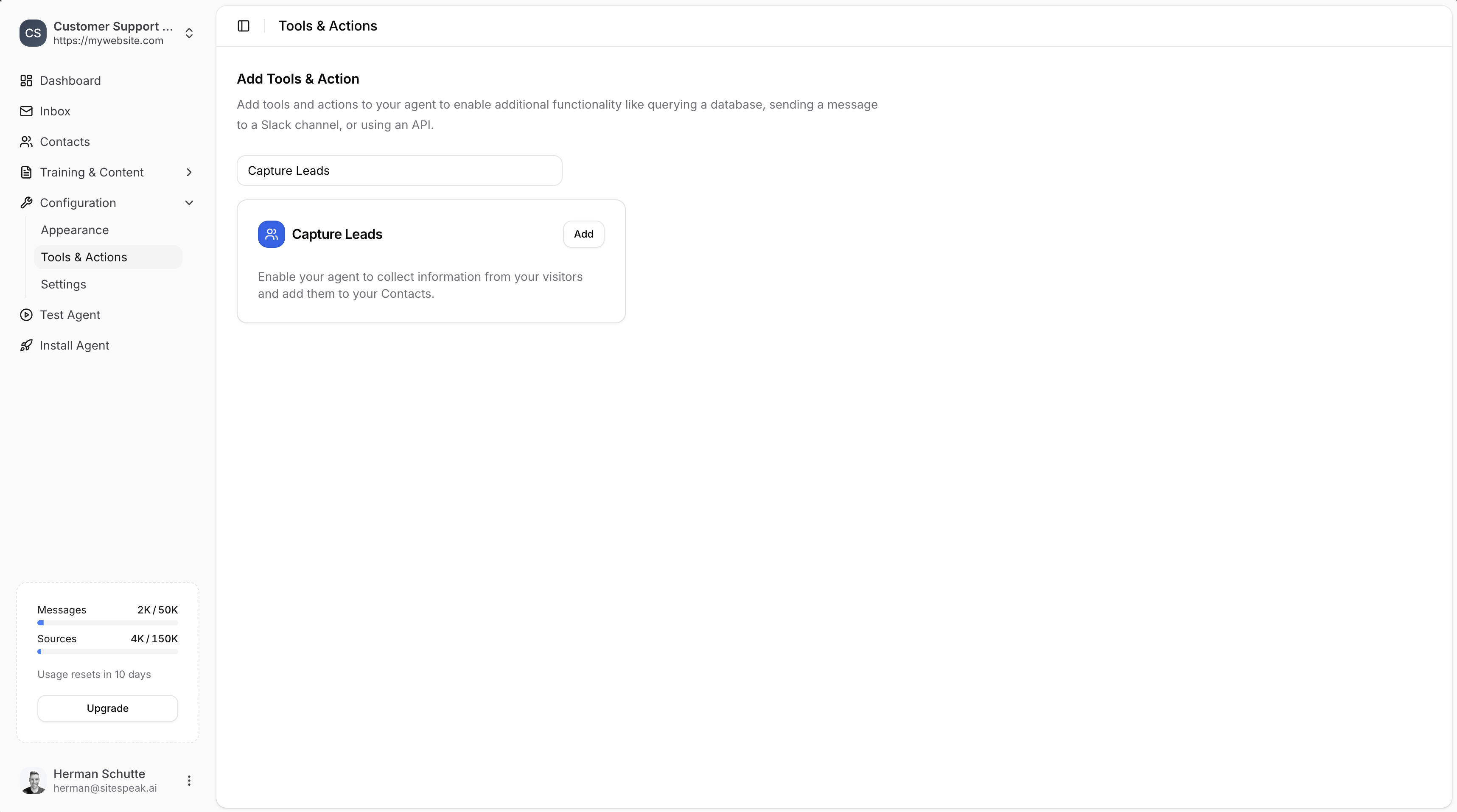
Search for Capture Leads
Type “Capture Leads” in the search field to filter the available actions.
4
Select Capture Leads
Click Add next to Capture Leads.
Configure the Action
1
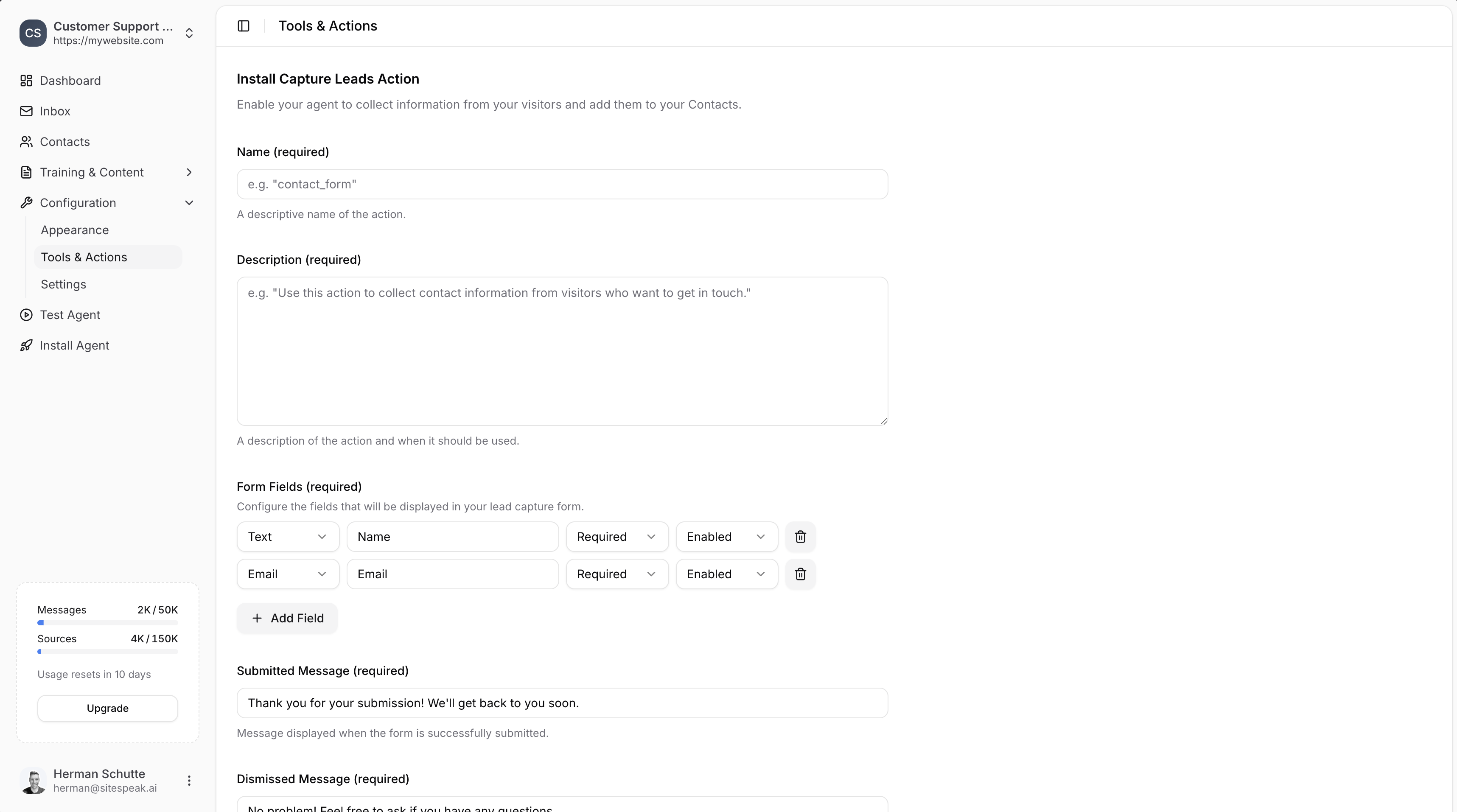
Set Name and Description
- Name: Give your action a descriptive name (e.g.,
contact_form) - Description: Describe when the AI should show this form (e.g., “Use this action to collect contact information from visitors who want to get in touch.”)
2
Configure Form Fields
Set up the fields to display in your lead capture form:
- Type: Select the field type (Text, Email, etc.)
- Label: The field name shown to visitors (e.g., “Name”, “Email”)
- Required/Optional: Whether the field must be filled in
- Enabled/Disabled: Whether the field is shown
3
Set Response Messages
- Submitted Message: Message shown when the form is submitted (e.g., “Thank you for your submission! We’ll get back to you soon.”)
- Dismissed Message: Message shown if the visitor dismisses the form (e.g., “No problem! Feel free to ask if you have any questions.”)
4
Enable Email Notifications (Optional)
Toggle Enable Email Notifications to receive an email every time a visitor submits a form and a lead is captured.By default, notifications are sent to the escalation email addresses configured in your chatbot’s general settings. To send notifications to different recipients, enter one or more email addresses in the Notification Emails field separated by commas.
5
Add Action
Click the Add Action button to save and enable the action.
Viewing Captured Leads
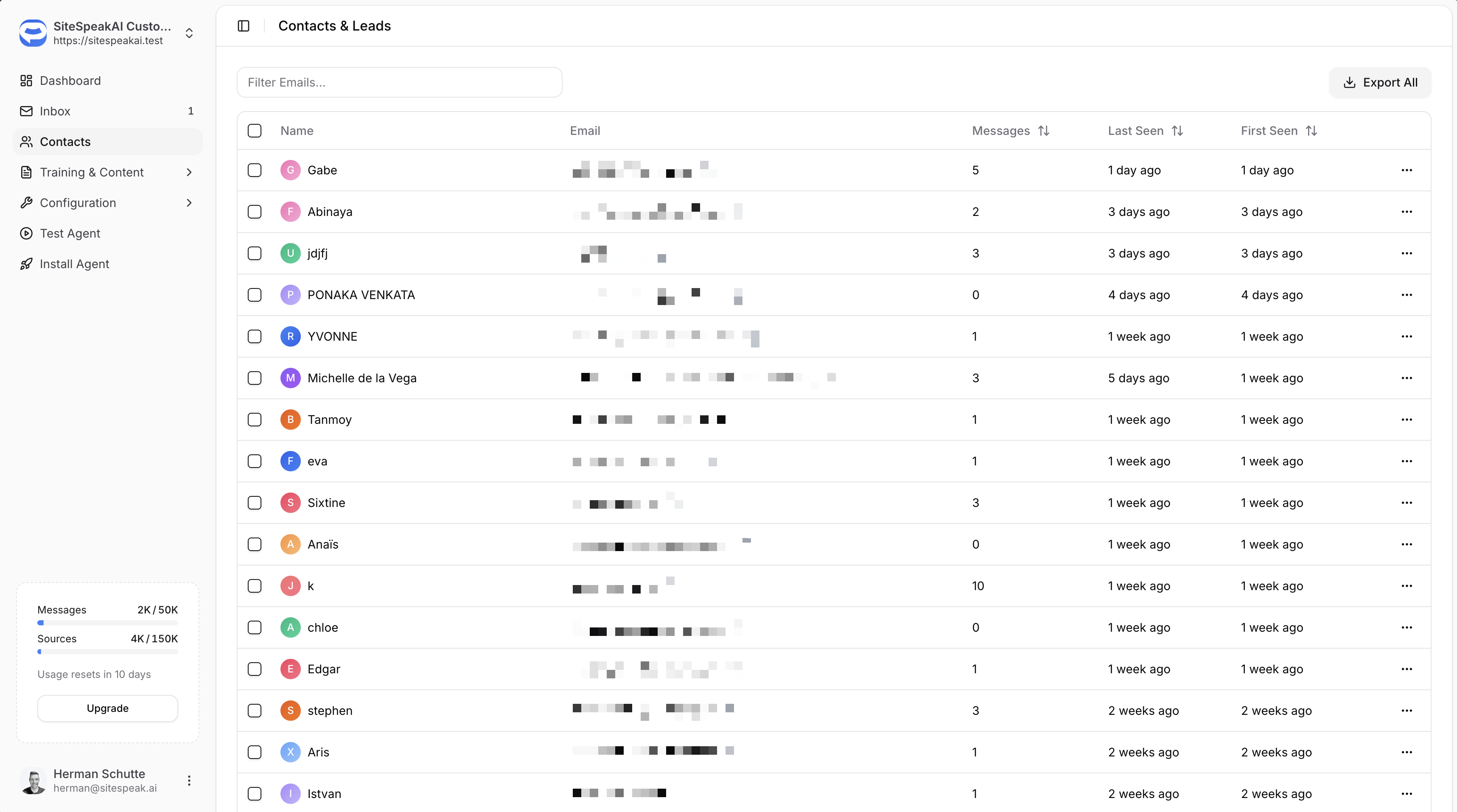
After visitors complete your form, their details appear in the Contacts section of your chatbot dashboard. From there you can:- View all captured leads and their submitted information
- Export your contacts and leads to CSV
Example Use Cases
- Enterprise inquiries: Capture contact details when visitors ask about enterprise pricing or custom solutions
- Support escalation: Collect information when visitors need human assistance for complex issues
- Newsletter signups: Prompt visitors to subscribe when they show interest in updates
- Demo requests: Gather details when visitors want to schedule a product demo
Ready to automate your customer service with AI?
Join over 1000+ businesses, websites and startups automating their customer service and other tasks with a custom trained AI agent.