

Available Integrations
From the Apps source type, you can connect:- Notion - Connect your Notion workspace
- Bookstack - Connect your BookStack wiki (detailed guide)
- OneNote - Connect your Microsoft OneNote notebooks
- Google Drive - Connect your Google Drive documents
- SharePoint - Connect your SharePoint document libraries and site pages
- OneDrive - Connect your OneDrive files and documents
- Confluence - Connect your Confluence spaces and pages
- Discord - Select Discord channels to train on
Intercom integration is coming soon.
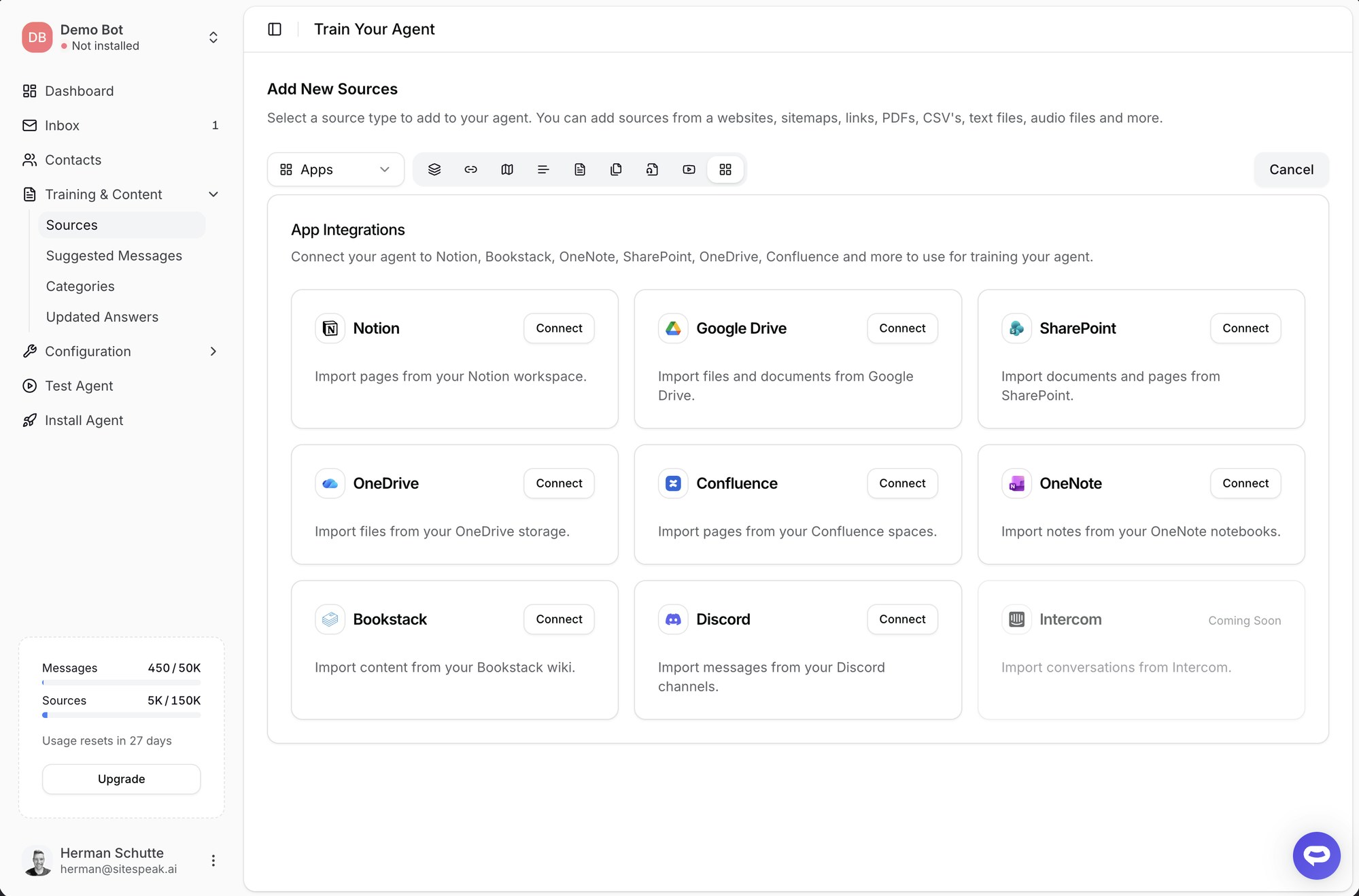
Connecting an App Integration
1
Go to Training & Content
In your chatbot dashboard, click Training & Content in the sidebar.
2
Select Sources
Click on Sources.
3
Click Add Sources
Click the + Add Sources button.
4
Select Apps
Select Apps from the source type dropdown.
5
Choose your integration
Click on the integration you want to connect (e.g., Connect Notion, Connect OneNote).
6
Authorize access
Follow the OAuth prompts to authorize SiteSpeakAI to access your content.
Notion
Click Connect Notion to link your Notion workspace. You’ll be redirected to Notion to log in and authorize access. Once connected, SiteSpeakAI can access your Notion pages to use for training.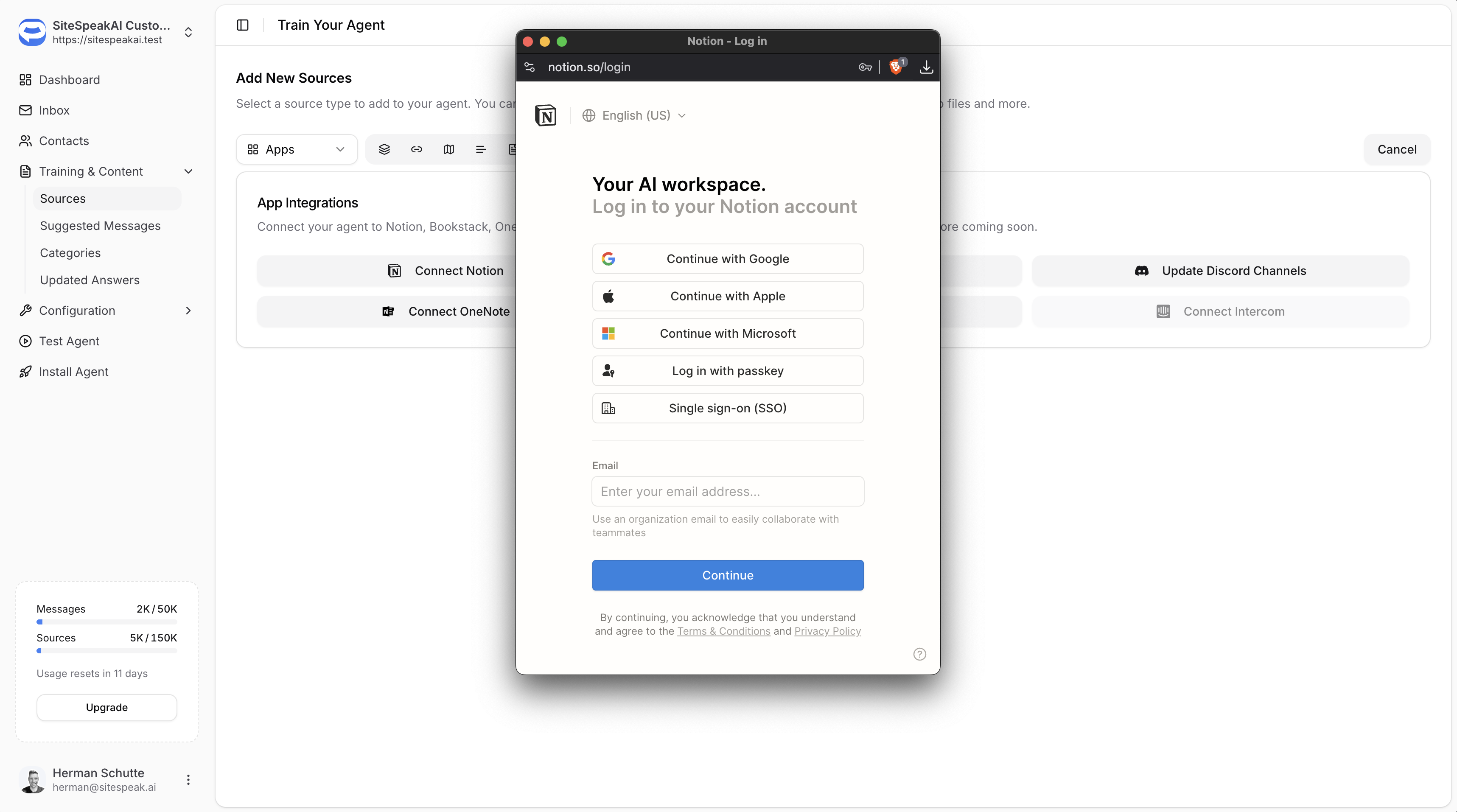
OneNote
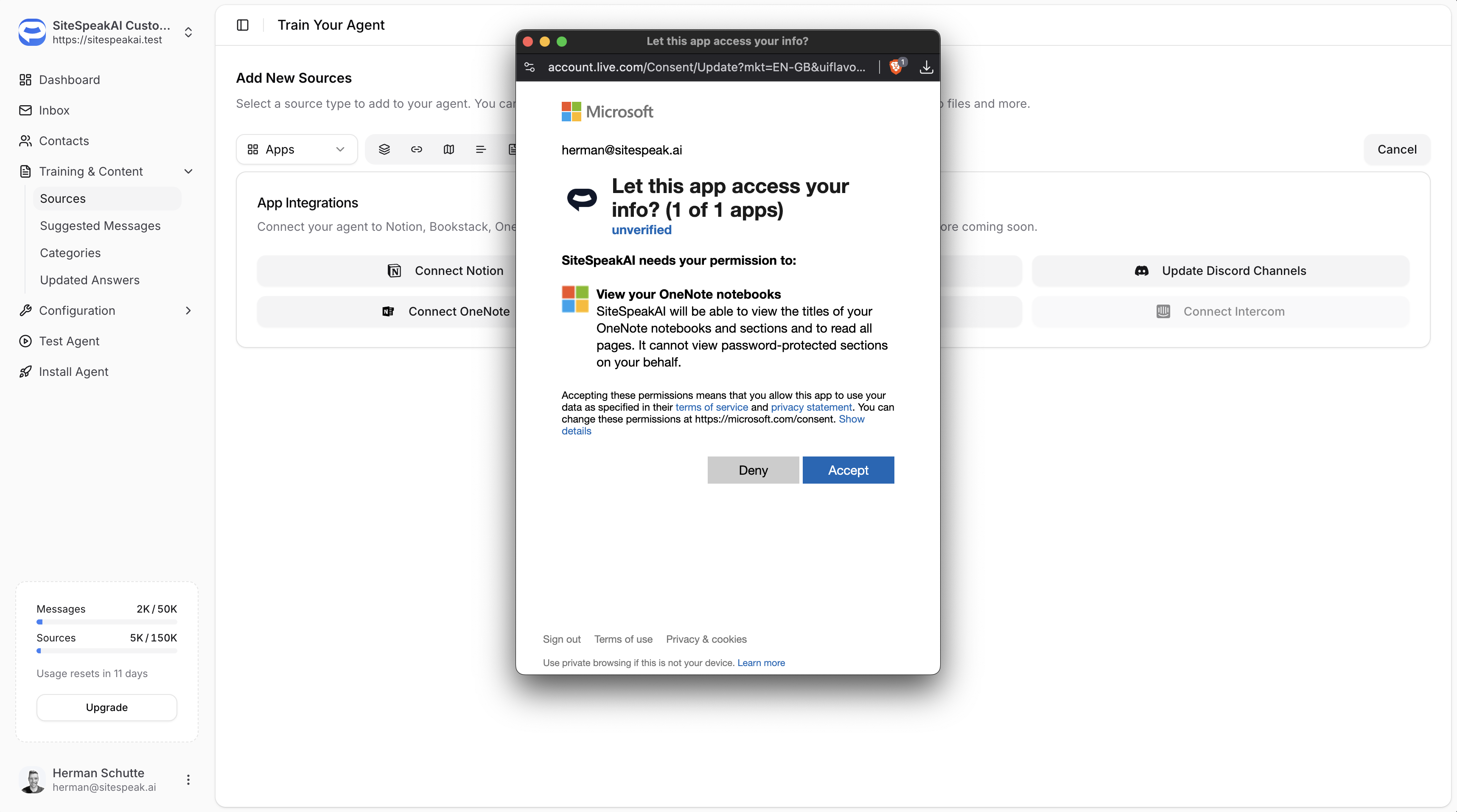
Click Connect OneNote to link your Microsoft OneNote notebooks. You’ll be prompted to sign in with your Microsoft account and grant permission. SiteSpeakAI will be able to:- View the titles of your OneNote notebooks and sections
- Read all pages in your notebooks
Password-protected sections cannot be accessed.
Google Drive
Click Connect Google Drive to link your Google account. You’ll be redirected to Google to choose an account and authorize access to your Drive documents.
SharePoint
Click Connect SharePoint to train your chatbot on documents and pages stored in your SharePoint Online environment. You’ll be prompted to sign in with your Microsoft account and grant permission to read your SharePoint sites and files.Getting started
1
Click Connect SharePoint
From the Apps source type, click Connect SharePoint. If you haven’t connected your Microsoft account yet, you’ll be prompted to sign in and authorize access.
2
Select a SharePoint site
Choose the SharePoint site that contains the content you want to use for training.
3
Choose a content type
Select either Document Libraries or Site Pages depending on the type of content you want to index.
Document Libraries
Use this option to train on files stored in SharePoint document libraries. Supported file types:- Word documents (.docx, .doc)
- PDF files (.pdf)
- PowerPoint presentations (.pptx, .ppt)
- Excel spreadsheets (.xlsx, .xls)
- Text files (.txt, .csv, .md, .rtf)
1
Select a document library
Browse the available document libraries in the selected site.
2
Select individual documents or auto-sync the library
You can browse and select individual documents, or click Auto-sync to automatically discover and index all documents in the library.
3
Add selected
Click Add Selected to start training your chatbot on the selected documents.
Auto-sync for document libraries requires the Pro plan or higher.
Site Pages
Use this option to train on SharePoint wiki pages and modern pages.1
Browse available pages
All wiki and modern pages from the selected site are listed.
2
Select pages or auto-sync all pages
You can select individual pages using the checkboxes, or click Auto-sync All Pages to automatically index every page on the site.
3
Add selected
Click Add Selected to start training your chatbot on the selected pages. Content is extracted from each page’s canvas layout.
Auto-sync for site pages requires the Pro plan or higher.
SharePoint uses the same Microsoft account connection as OneNote. If you’ve already connected OneNote, you may need to reconnect to grant the additional SharePoint permissions.
OneDrive
Click Connect OneDrive to train your chatbot on files stored in your OneDrive account. You’ll be prompted to sign in with your Microsoft account and grant permission to read your files.Getting started
1
Click Connect OneDrive
From the Apps source type, click Connect OneDrive. If you haven’t connected your Microsoft account yet, you’ll be prompted to sign in and authorize access.
2
Browse your files
Navigate through your OneDrive folders to find the files you want to use for training.
3
Select files
Check the boxes next to the files you want to train on.
4
Add selected
Click Add Selected to start training your chatbot on the selected files.
- Word documents (.docx, .doc)
- PDF files (.pdf)
- PowerPoint presentations (.pptx, .ppt)
- Excel spreadsheets (.xlsx, .xls)
- Text files (.txt, .csv, .md, .rtf)
OneDrive uses the same Microsoft account connection as OneNote and SharePoint. If you’ve already connected one of these, you may need to reconnect to grant the additional OneDrive permissions.
Confluence
Click Connect Confluence to train your chatbot on pages from your Confluence workspace. You’ll be redirected to Atlassian to log in and authorize access.Getting started
1
Click Connect Confluence
From the Apps source type, click Connect Confluence. You’ll be redirected to Atlassian to authorize access.
2
Select a Confluence site
If you have multiple Confluence sites, choose the one that contains the content you want to use for training.
3
Select a space
Browse the available spaces and select the one you want to train on.
4
Select pages
Browse the pages in the selected space and check the ones you want to include.
5
Add selected
Click Add Selected to start training your chatbot on the selected pages.
Confluence integration requires your Confluence instance to be accessible via Atlassian Cloud.
Discord
To train your chatbot on Discord channel content, you first need to install the chatbot in your Discord server.Step 1: Install to Discord
1
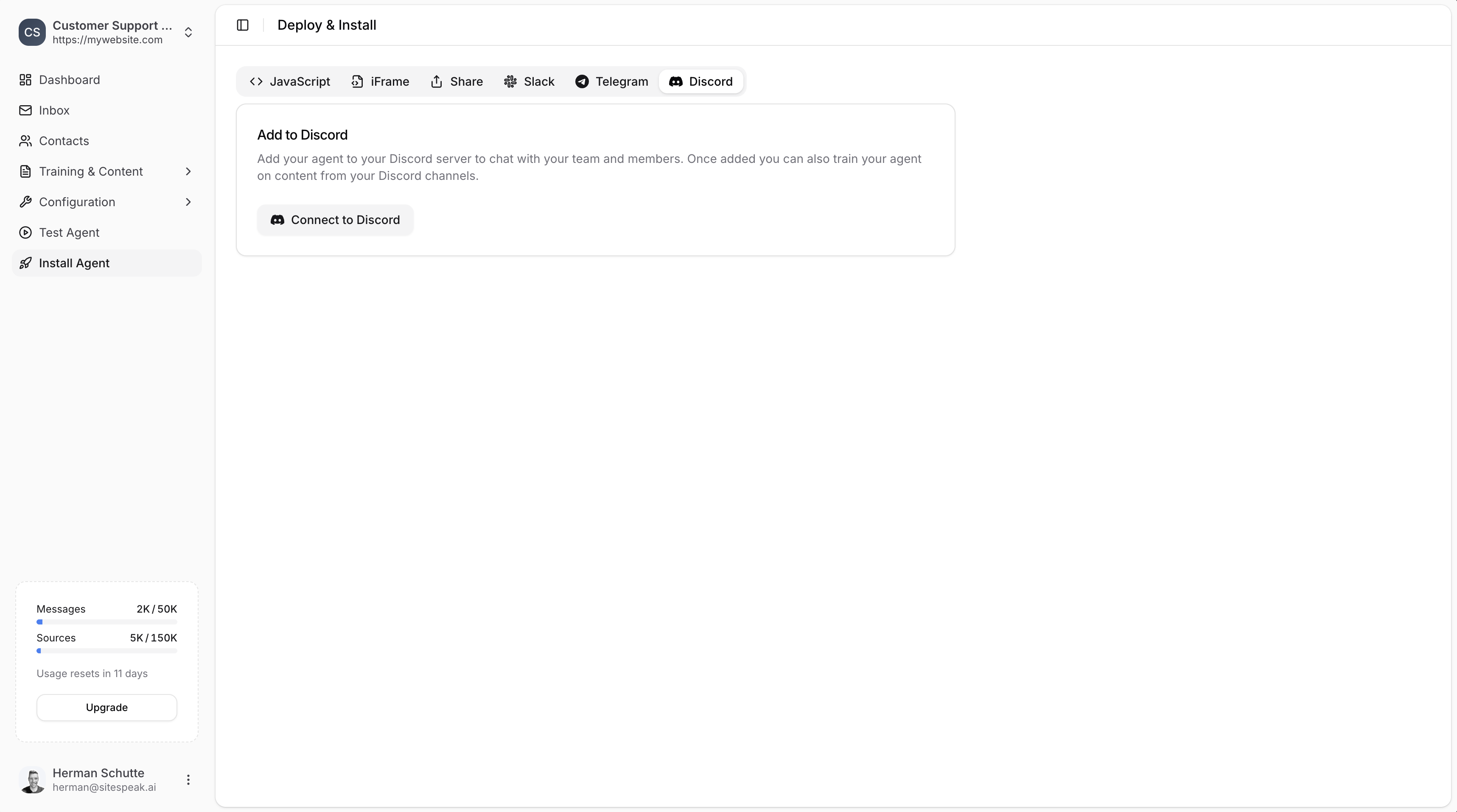
Go to Install Agent
In your chatbot dashboard, click Install Agent in the sidebar.
2
Select the Discord tab
Click on the Discord tab.
3
Connect to Discord
Click the Connect to Discord button.
4
Authorize access
Log in to Discord and authorize SiteSpeakAI to access your server.
Step 2: Select Channels for Training
Once Discord is connected, you can select which channels to train on:1
Go to Training & Content
Click Training & Content → Sources.
2
Click Add Sources
Click + Add Sources and select Apps.
3
Click Connect Discord Channels
Click Connect Discord Channels.
4
Select channels
Check the boxes next to the channels you want to train on (e.g., general, support, feature-requests).
5
Save
Click Save to confirm your selection.
If you see “No channels found”, make sure you have installed the chatbot in your Discord server first.
BookStack
For BookStack, you’ll need to enter your Wiki URL and API credentials instead of using OAuth. See the detailed BookStack guide for step-by-step instructions.Ready to automate your customer service with AI?
Join over 1000+ businesses, websites and startups automating their customer service and other tasks with a custom trained AI agent.