

How it Works
When a visitor asks a question that your chatbot can’t answer from its training data, it will use Brave Search to look up relevant information from the web and include it in the response.Add a Brave: Web Search Action
1
Go to Tools & Actions
In your chatbot dashboard, click Configuration in the sidebar, then select Tools & Actions.
2
Click Add Action
Click the + Add Action button.
3
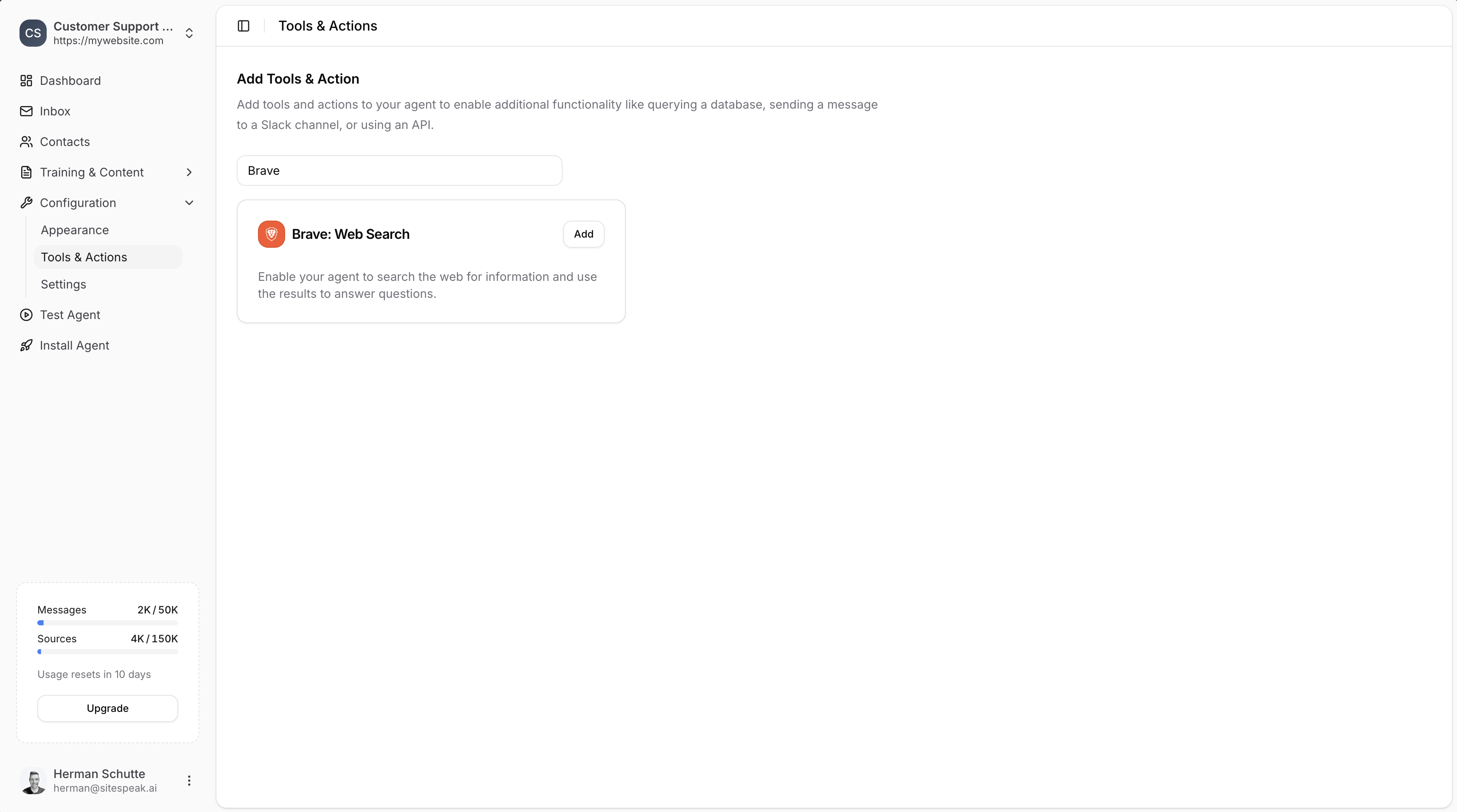
Search for Brave
Type “Brave” in the search field to filter the available actions.
4
Select Brave: Web Search
Click Add next to Brave: Web Search.
Configure the Action
1
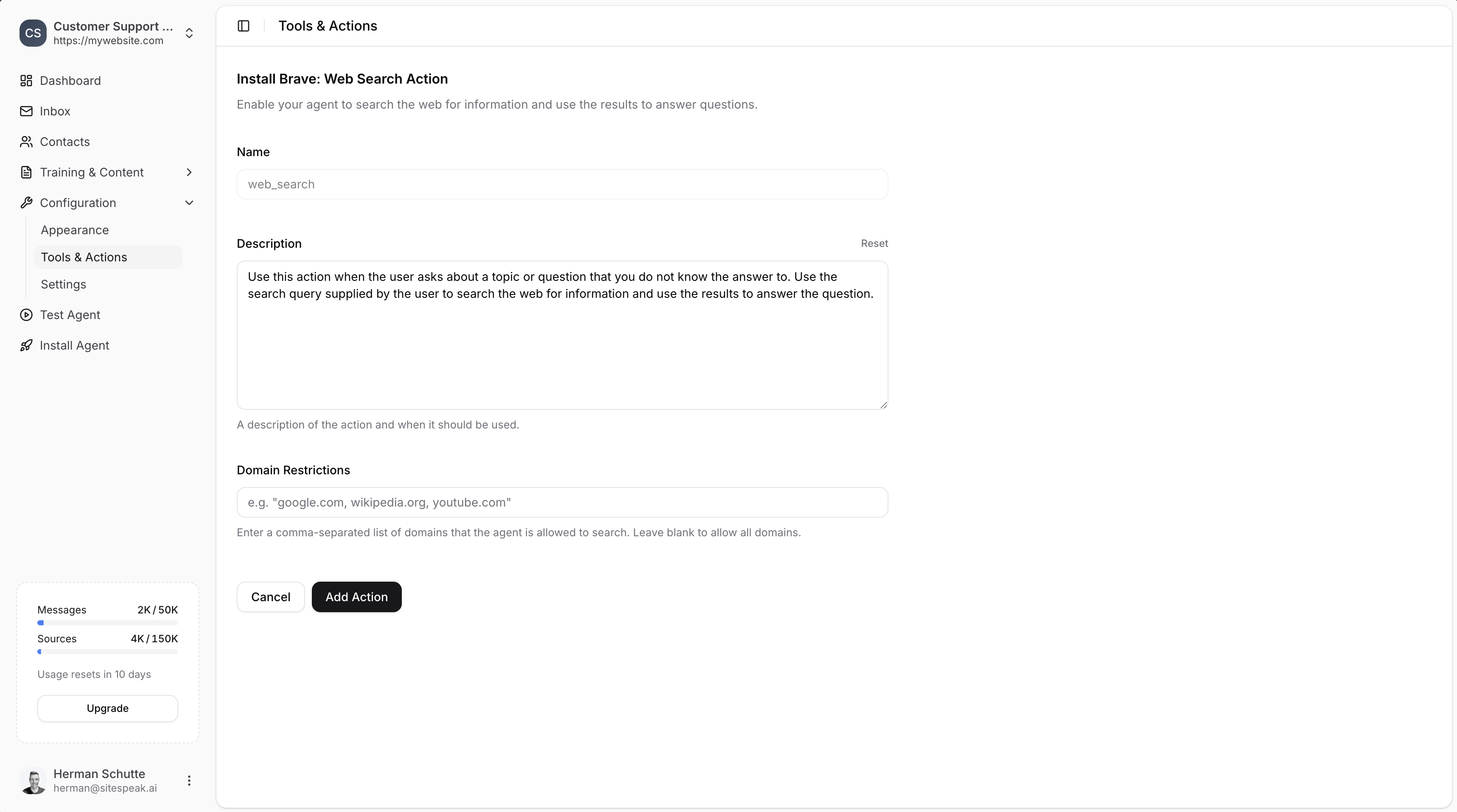
Set Name and Description
- Name: Give your action a descriptive name (e.g.,
web_search) - Description: Describe when the AI should use this action. The default is: “Use this action when the user asks about a topic or question that you do not know the answer to. Use the search query supplied by the user to search the web for information and use the results to answer the question.”
2
Set Domain Restrictions (Optional)
Enter a comma-separated list of domains that the agent is allowed to search (e.g.,
google.com, wikipedia.org, youtube.com).Leave blank to allow all domains.3
Add Action
Click the Add Action button to save and enable the action.
Example Use Cases
- Current events: Answer questions about recent news or events not in your training data
- General knowledge fallback: Provide answers when the chatbot’s knowledge base doesn’t cover a topic
- Price lookups: Find current pricing information from specific websites
- Research assistance: Help visitors find information from trusted sources
Web search results may vary and include content from external sources. Consider using Domain Restrictions to limit searches to trusted domains for your use case.
Ready to automate your customer service with AI?
Join over 1000+ businesses, websites and startups automating their customer service and other tasks with a custom trained AI agent.