

Video transcript
Video transcript
Your customers send you questions on WhatsApp every day. What does this cost? When are you open? Where is my order?A SiteSpeak AI agent can answer these questions on WhatsApp, at any time. This video shows how to make the agent, set up WhatsApp in Meta, and connect them.Step 1. Make the agent. Log in to SiteSpeak. Type a name for your agent. Type the URL of your website. SiteSpeak finds your pages and selects the main pages for you. Click Save and Continue. SiteSpeak trains the agent on these pages. This takes a few minutes.Step 2. Create a Meta app. Go to developers.facebook.com, and log in. Click My Apps, then Create App. Type a name for your app, and click Next. Under Add Use Cases, select Other, and click Next. Select the app type Business, and click Next. Then click Create App. In the app dashboard, find WhatsApp, and click Set up. Select your Meta Business Account, or create one.Step 3. Add a phone number. In WhatsApp, open API Setup. Click Add phone number. Meta sends a code to that number. Type the code. Use a business number. You cannot use a number that already has a personal WhatsApp account. Below the number, Meta shows the Phone Number ID. Copy it.Step 4. Get the access token and the app secret. The token on the API Setup page expires after 24 hours. So make a permanent token. Open Business Settings, and go to System Users. Click Add. Type a name, and select the Admin role. Click Add Assets. Select your app, and turn on Full control. Click Generate new token, and select your app. Select the permissions WhatsApp business messaging and WhatsApp business management. Copy the token. Then, in your app, open App settings, then Basic. Click Show next to App Secret, and copy it.Step 5. Connect WhatsApp to your agent. In SiteSpeak, open Install Agent, and select WhatsApp. Paste the Phone Number ID, the Permanent Access Token, and the App Secret. Click Connect. SiteSpeak shows a Webhook URL and a Verify Token.Step 6. Set the webhook in Meta. In your Meta app, open WhatsApp, then Configuration. Paste the Webhook URL in Callback URL. Paste the Verify Token in Verify token. Click Verify and save. Under Webhook fields, find messages, and click Subscribe.Step 7. Test the agent. Send a message to your WhatsApp business number. The agent answers from your content, in the WhatsApp chat. At first, the agent can only send messages to the test numbers in your Meta app. To answer all customers, complete the business verification in Meta. You can read each WhatsApp conversation in the SiteSpeak Inbox.WhatsApp is available on the Pro plan and higher. You can start with a free plan at sitespeak.ai.
WhatsApp integration is available on Pro Plus and Business plans.
Prerequisites
Before you begin, you’ll need:- A Meta Business account (free to create)
- A phone number that can receive SMS or voice calls for verification
- A SiteSpeakAI Pro Plus or Business plan
Set Up Meta Developer App
1
Create a Meta Developer account
Go to developers.facebook.com and log in with your Facebook account. If you don’t have a developer account, you’ll be prompted to create one.
2
Create a new app
Click My Apps in the top right, then Create App. Give it a name (e.g., “My Business WhatsApp Bot”), and click Next. Under Add Use Cases filter by Others, then select Other. Click Next.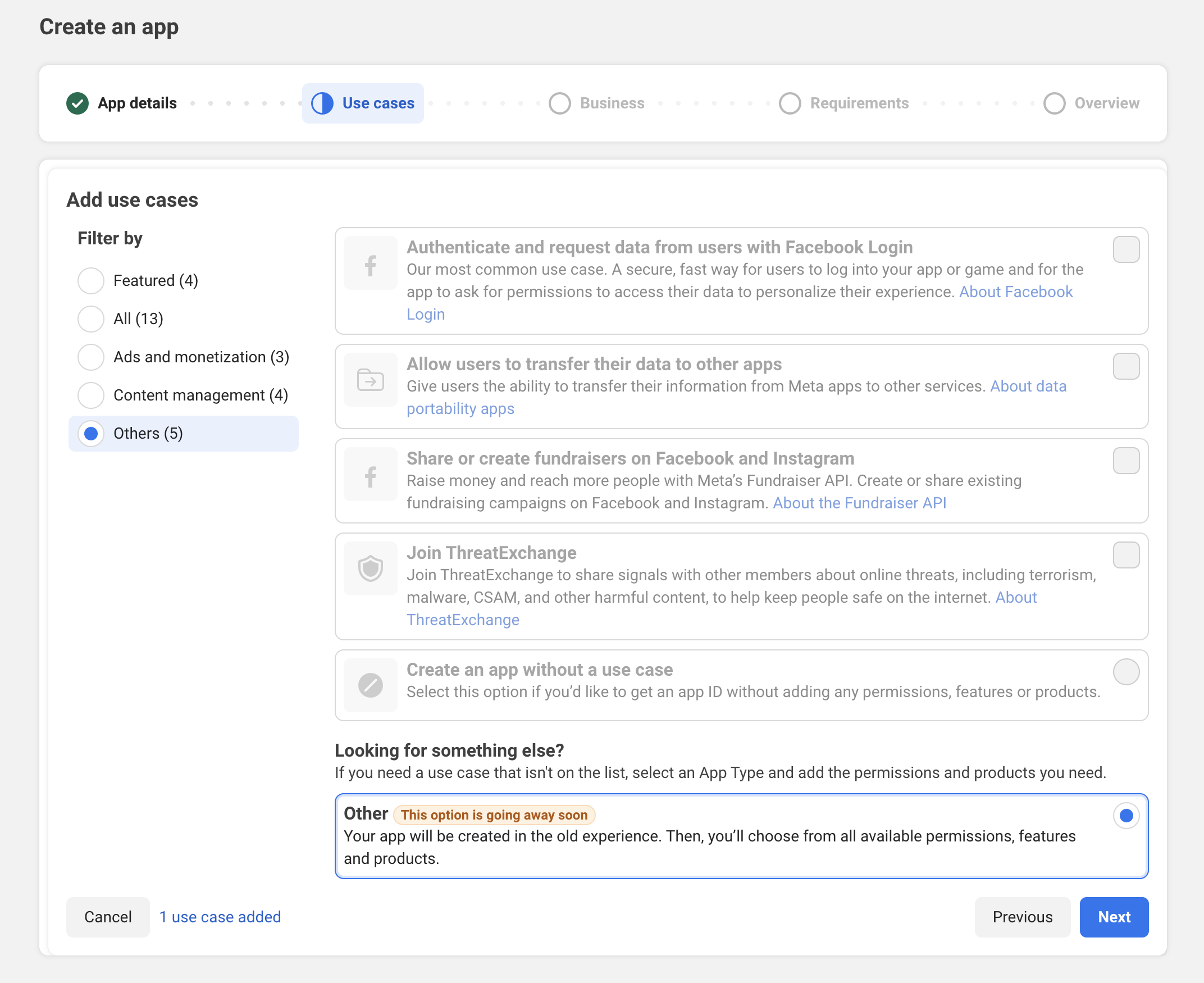
3
Select an app type
Select the Business app type and click Next. Then select Create App on the next screen.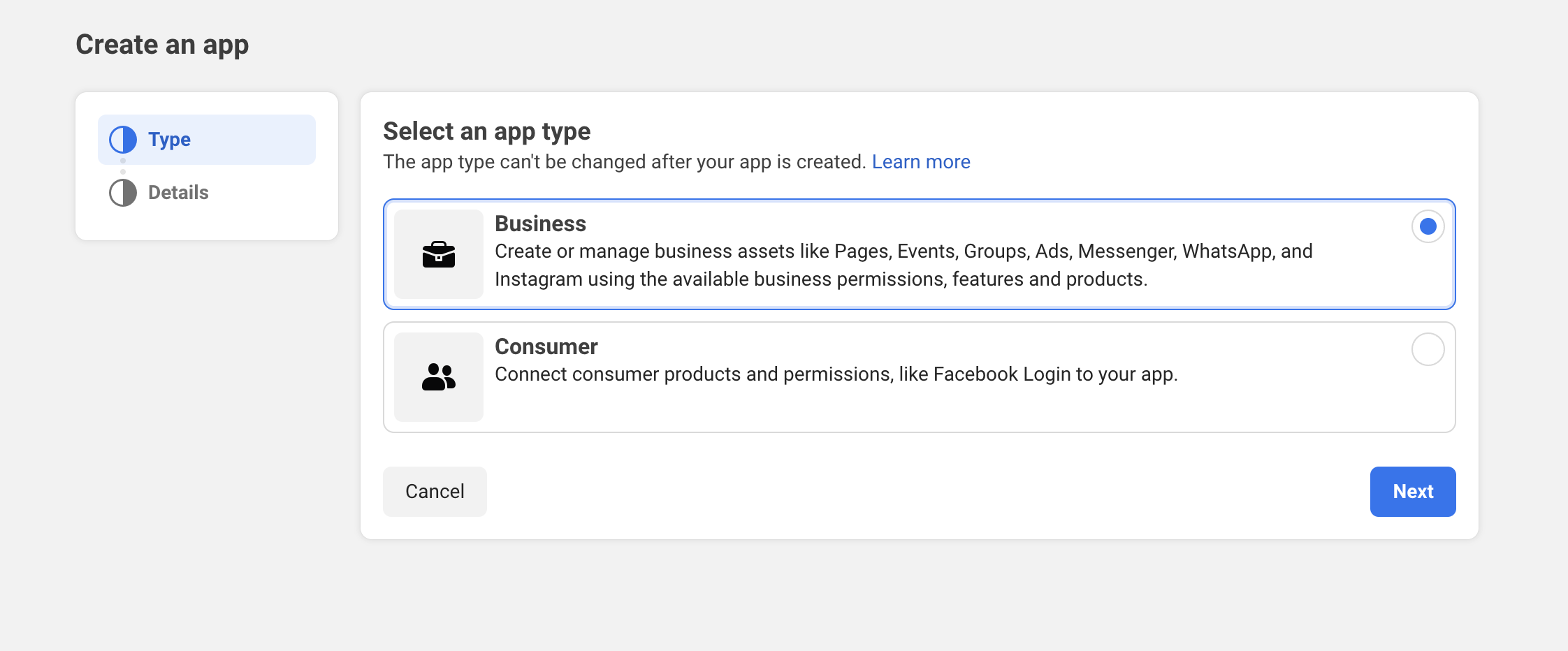
4
Add WhatsApp product
In your app dashboard, scroll down to Add products and click Set up on the WhatsApp card.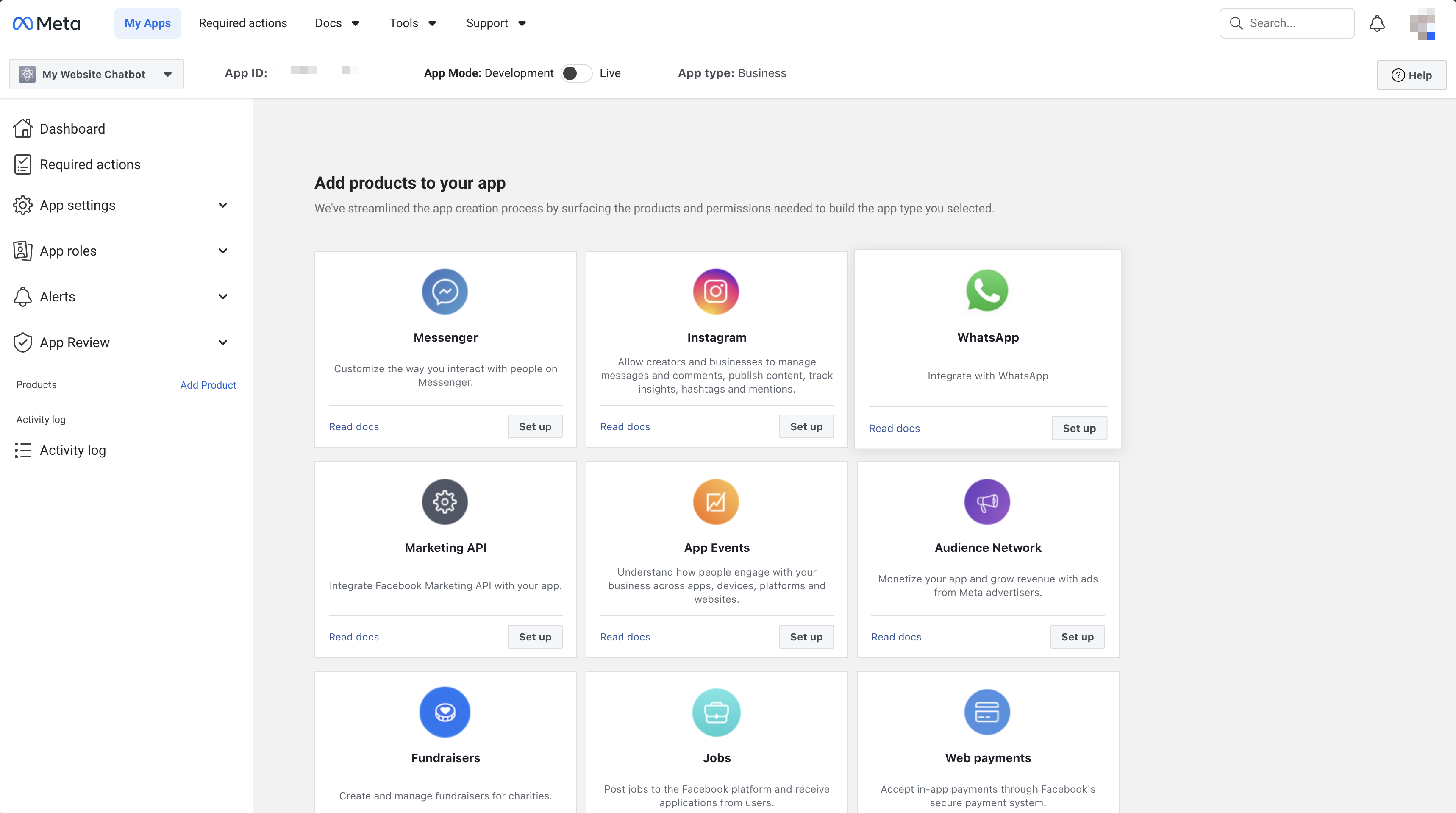
5
Select or create a Meta Business Account
You’ll be prompted to select an existing Meta Business Account or create a new one. This is required to use the WhatsApp Business API.
6
Add a phone number
In the WhatsApp section of your app, go to API Setup. Click Add phone number and follow the verification process. You’ll receive a code via SMS or voice call.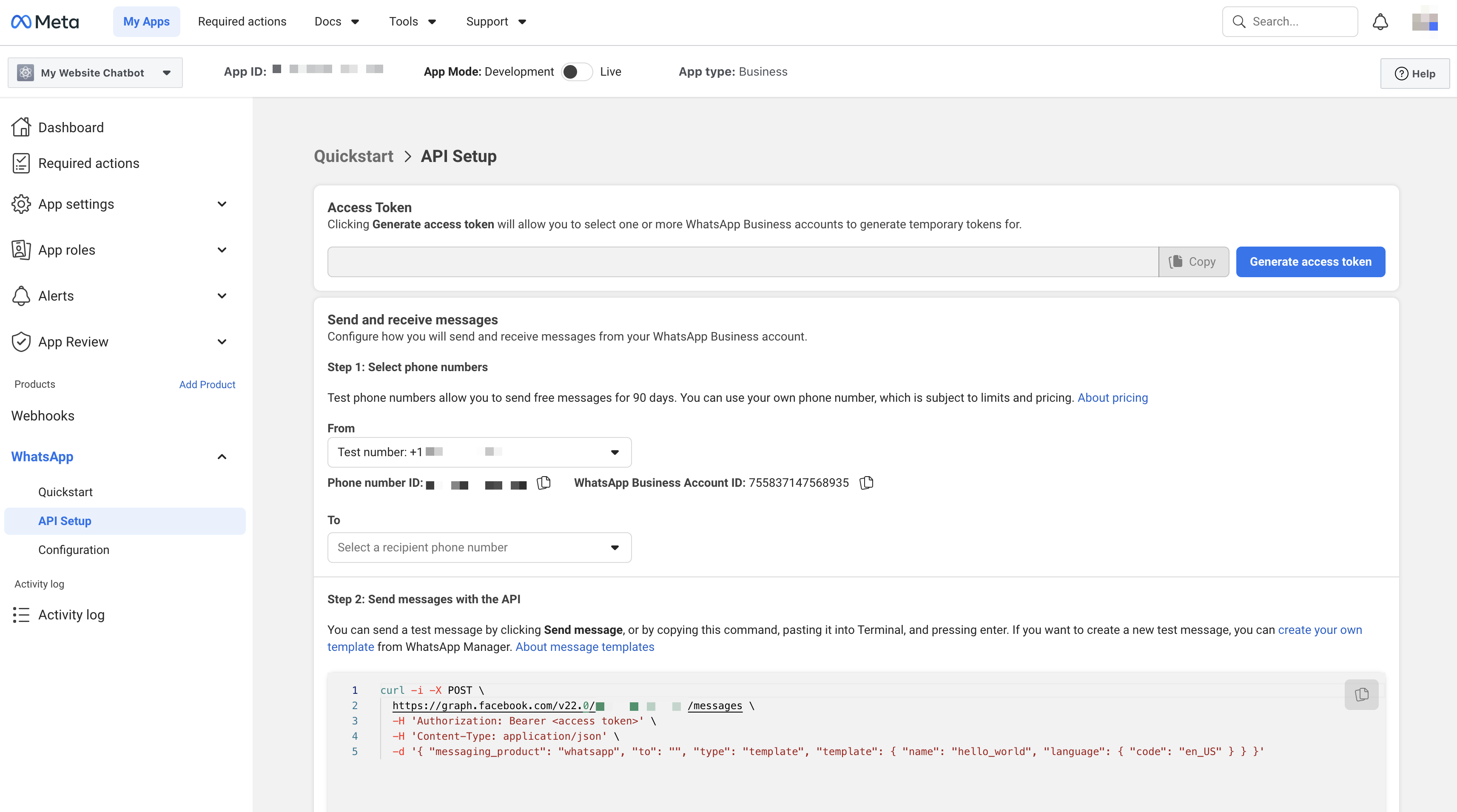
Get Your API Credentials
Once your phone number is verified, you’ll need three pieces of information from the Meta Developer dashboard:1
Get your Phone Number ID
In WhatsApp > API Setup, find your verified phone number. The Phone Number ID is displayed below the number (a long numeric string like
123456789012345).2
Generate a Permanent Access Token
By default, Meta provides a temporary access token that expires in 24 hours. For production use, you need a permanent token:
- Go to Business Settings at business.facebook.com/settings
- Navigate to Users > System Users
- Click Add to create a new system user (if you don’t have one)
- Give it a name like “WhatsApp API” and select Admin role
- Click Add Assets, select your WhatsApp app, and enable Full control
- Click Generate new token, select your app, and check
whatsapp_business_messagingandwhatsapp_business_management - Copy the generated token - this is your permanent access token
3
Get your App Secret
Go back to your app in the Meta Developer Dashboard. Navigate to App settings > Basic. Click Show next to the App Secret field and copy it.
Connect to SiteSpeakAI
1
Go to Deploy & Install
In your SiteSpeakAI dashboard, select your chatbot and go to Deploy & Install.
2
Select WhatsApp
Click on the WhatsApp tab.
3
Enter your credentials
Fill in the three fields: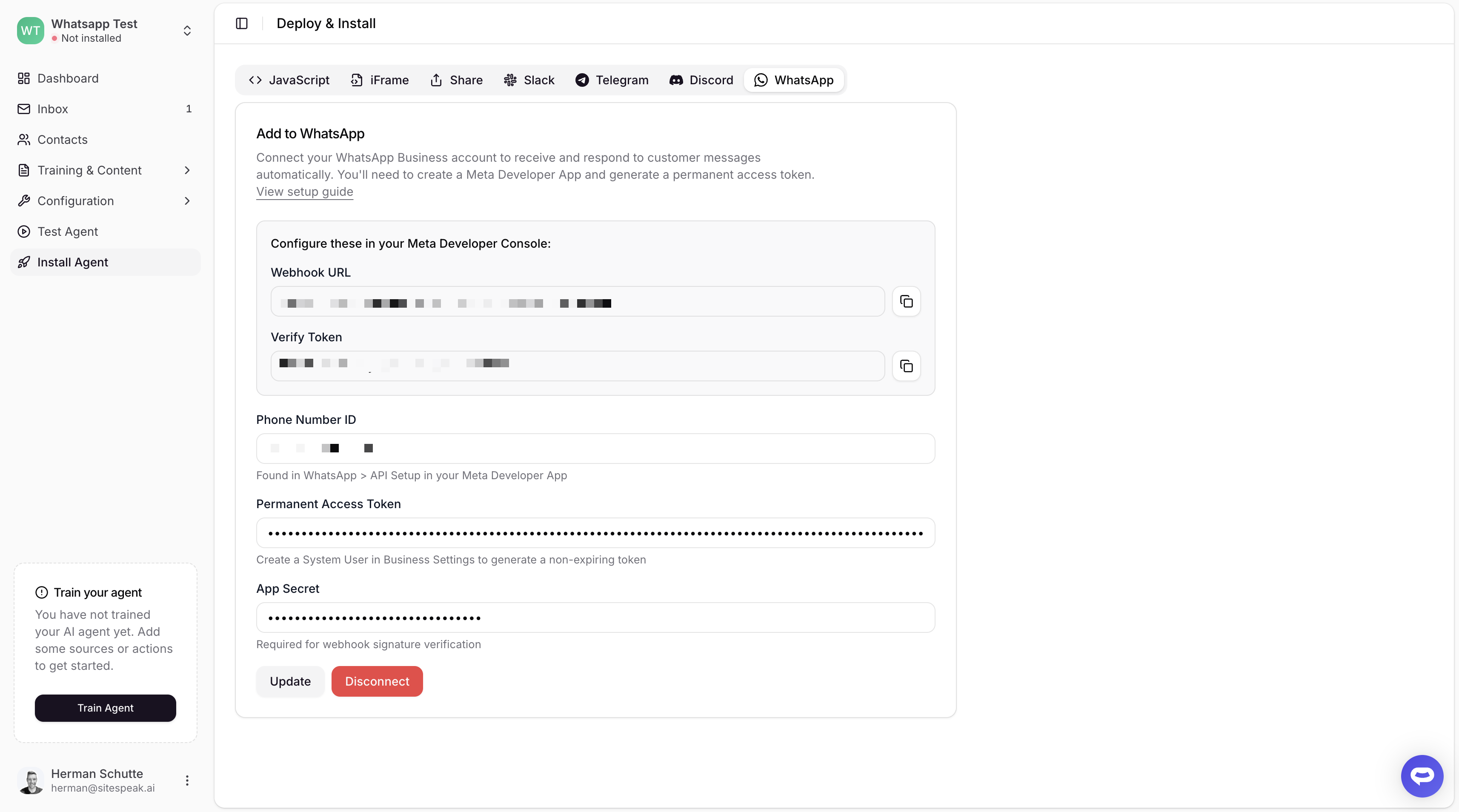
- Phone Number ID - The numeric ID from Meta’s API Setup page
- Access Token - Your permanent access token from the system user
- App Secret - Your app secret from App Settings > Basic
4
Click Connect
Click the Connect button. SiteSpeakAI will generate a Webhook URL and Verify Token for you.
Configure the Webhook in Meta
After connecting in SiteSpeakAI, you need to configure the webhook in your Meta Developer App:1
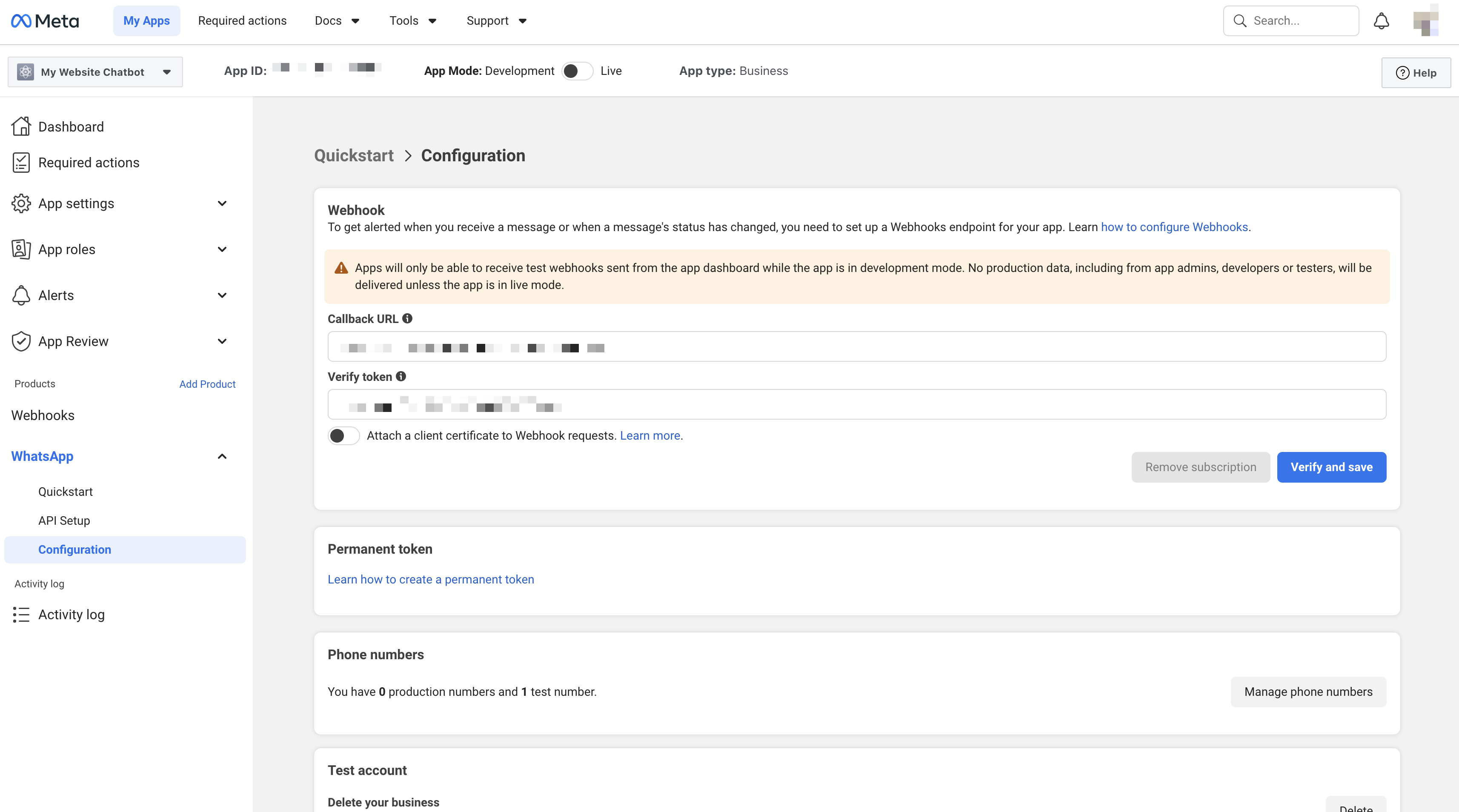
Go to WhatsApp Configuration
In your Meta Developer App, navigate to WhatsApp > Configuration.
2
Enter the webhook details
- Callback URL: Paste the Webhook URL from SiteSpeakAI
- Verify token: Paste the Verify Token from SiteSpeakAI
3
Subscribe to messages
Navigate back to WhatsApp > Configuration. Under Webhook fields, find the 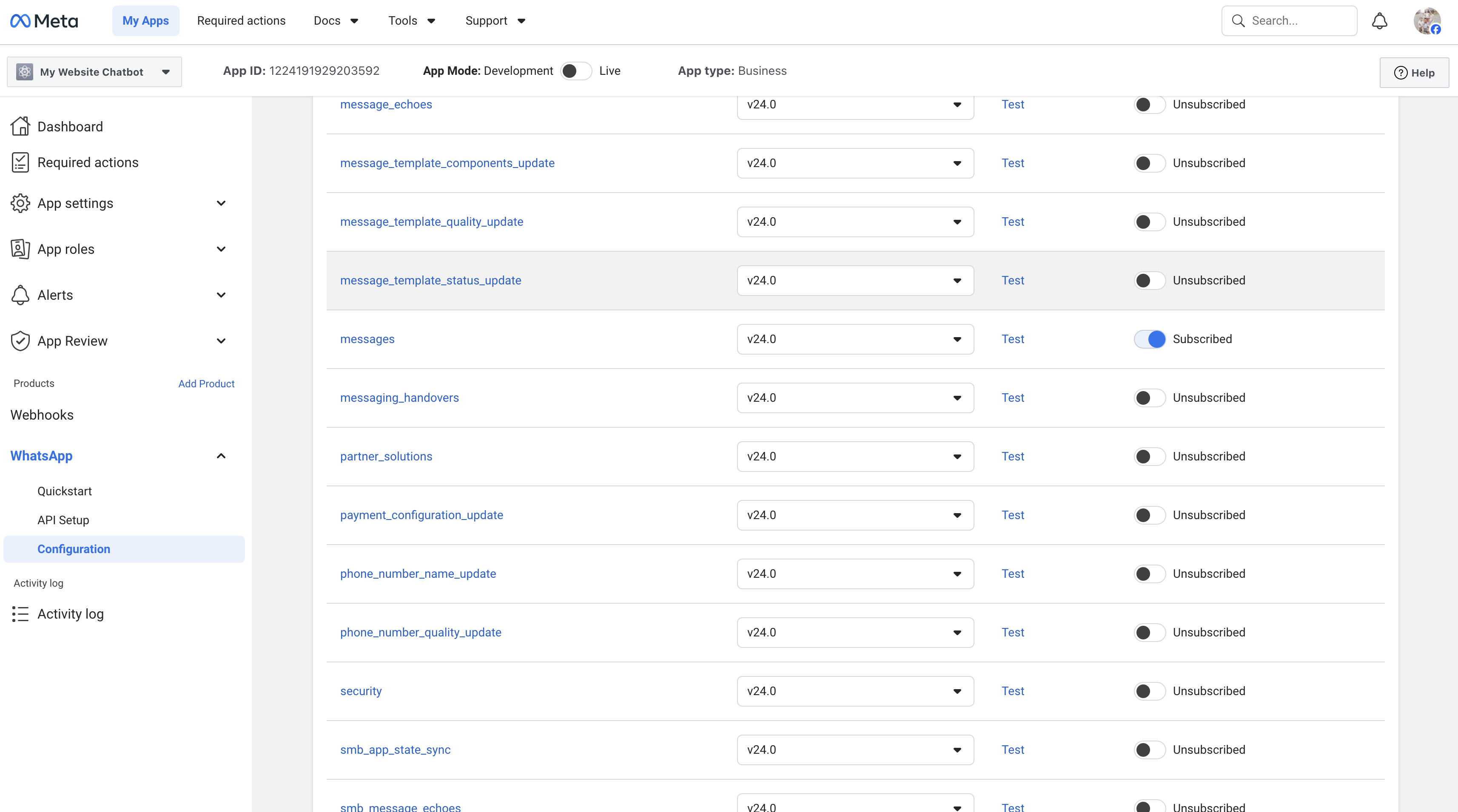
messages field and click Subscribe.Test Your Integration
Send a message to your WhatsApp Business number from any WhatsApp account. Your SiteSpeakAI chatbot should respond automatically.During development, you can only send messages to phone numbers that have been added as test numbers in your Meta app. To message any WhatsApp user, you’ll need to complete Meta’s business verification process.
Troubleshooting
Messages not being received
- Verify that the webhook URL is correctly configured in Meta
- Check that you’ve subscribed to the
messageswebhook field - Ensure your access token hasn’t expired (use a permanent system user token)
Messages not being sent
- Check that your access token has the
whatsapp_business_messagingpermission - Verify the phone number ID is correct
- Check the SiteSpeakAI conversation logs for any error messages
Webhook verification failing
- Make sure the Verify Token in Meta matches exactly what SiteSpeakAI generated
- Ensure there are no extra spaces before or after the values
- Try disconnecting and reconnecting in SiteSpeakAI to generate new credentials
Going Live
To send messages to any WhatsApp user (not just test numbers), you’ll need to:- Complete Business Verification - Verify your business in Meta Business Settings
- Request Production Access - In your app’s WhatsApp settings, request to go live
- Add a Payment Method - WhatsApp Business API charges per conversation (first 1,000 conversations per month are free)
Ready to automate your customer service with AI?
Join over 1000+ businesses, websites and startups automating their customer service and other tasks with a custom trained AI agent.