You want to embed your custom trained AI support agent in your app.dragdropr website page. Here’s how to add an AI support agent to app.dragdropr with SiteSpeakAI. What is app.dragdropr? app.dragdropr is a super-simple website builder that focuses on creating landing pages and basic websites without needing any coding knowledge. It’s built around a drag-and-drop interface, meaning you literally drag elements (text boxes, images, buttons, etc.) onto a page and arrange them however you like. It’s particularly known for its ease of use and speed - you can get a basic website up and running in minutes. It’s designed for very straightforward websites, like promoting a product, collecting email addresses, or showcasing a simple service. Who is it best suited for?
  • Small Businesses & Entrepreneurs: Perfect for those who need a quick online presence without a big investment or technical expertise.
  • Event Organizers: Great for creating event landing pages to sell tickets or provide information.
  • Freelancers & Solopreneurs: Ideal for showcasing their services and attracting clients.
  • Anyone needing a very basic website: If you just need a simple online card or a landing page, this is a good option.
Website URL: https://app.dragdropr.com/

Add your AI support agent to your app.dragdropr website

In SiteSpeakAI

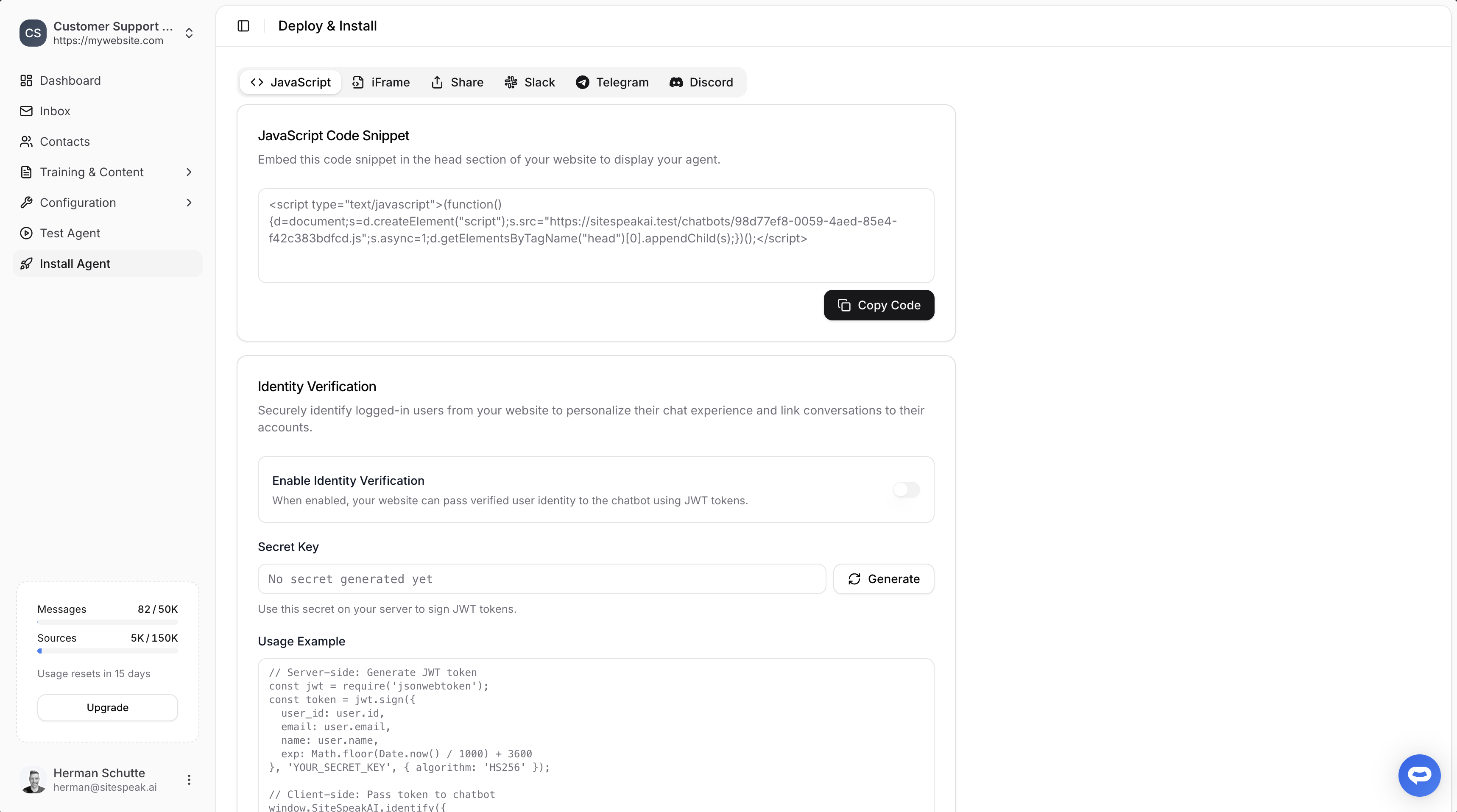
Log into your SiteSpeakAI account and select your agent from the dropdown menu at the top, click on the Install Agent section in the sidebar, select the Javascript tab and then click on the Copy Code button to copy your agent code snippet. Copy Code

In app.dragdropr

  1. Log into your app.dragdropr account and on the dashboard select the project you want to add your custom ChatGPT trained AI support agent to
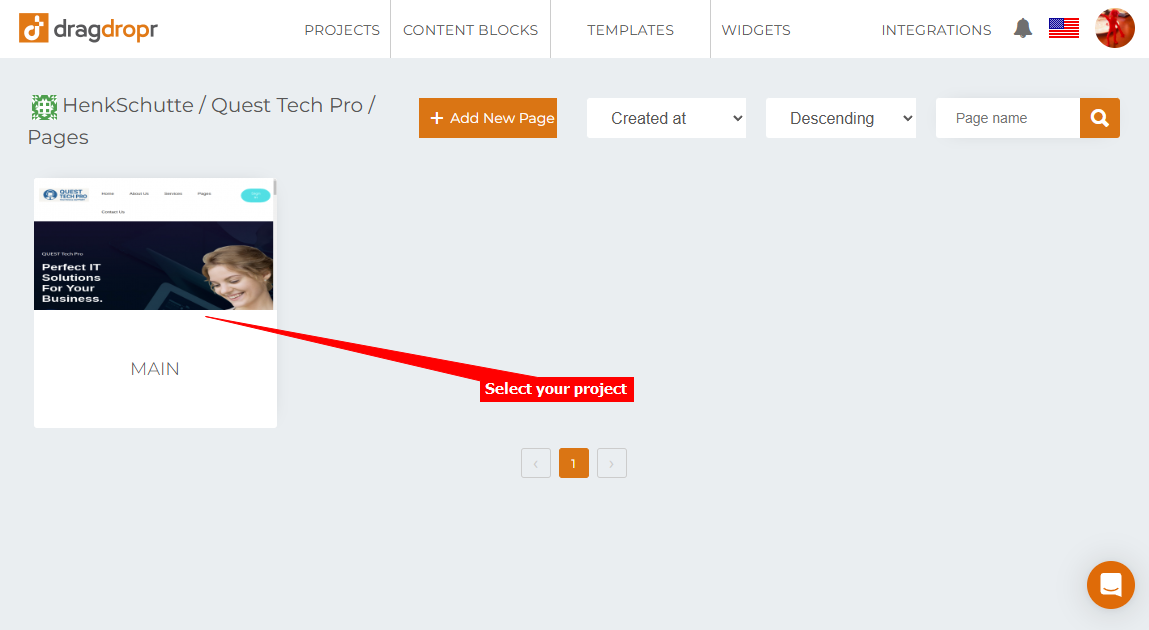
Select project
  1. In the page editor, select Settings in the top right menu
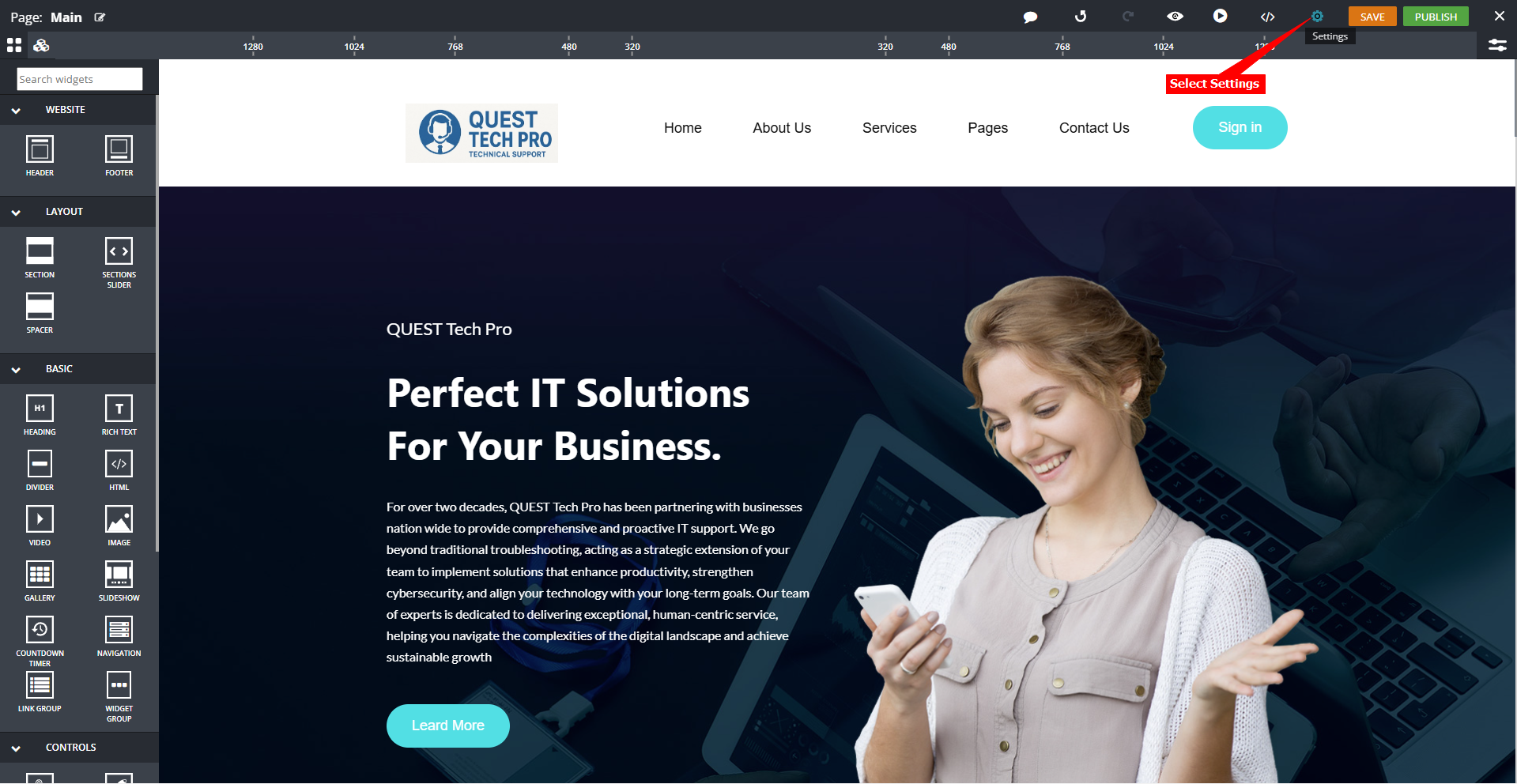
Select Settings
  1. Click on ADD SCRIPTS on the PAGE Settings
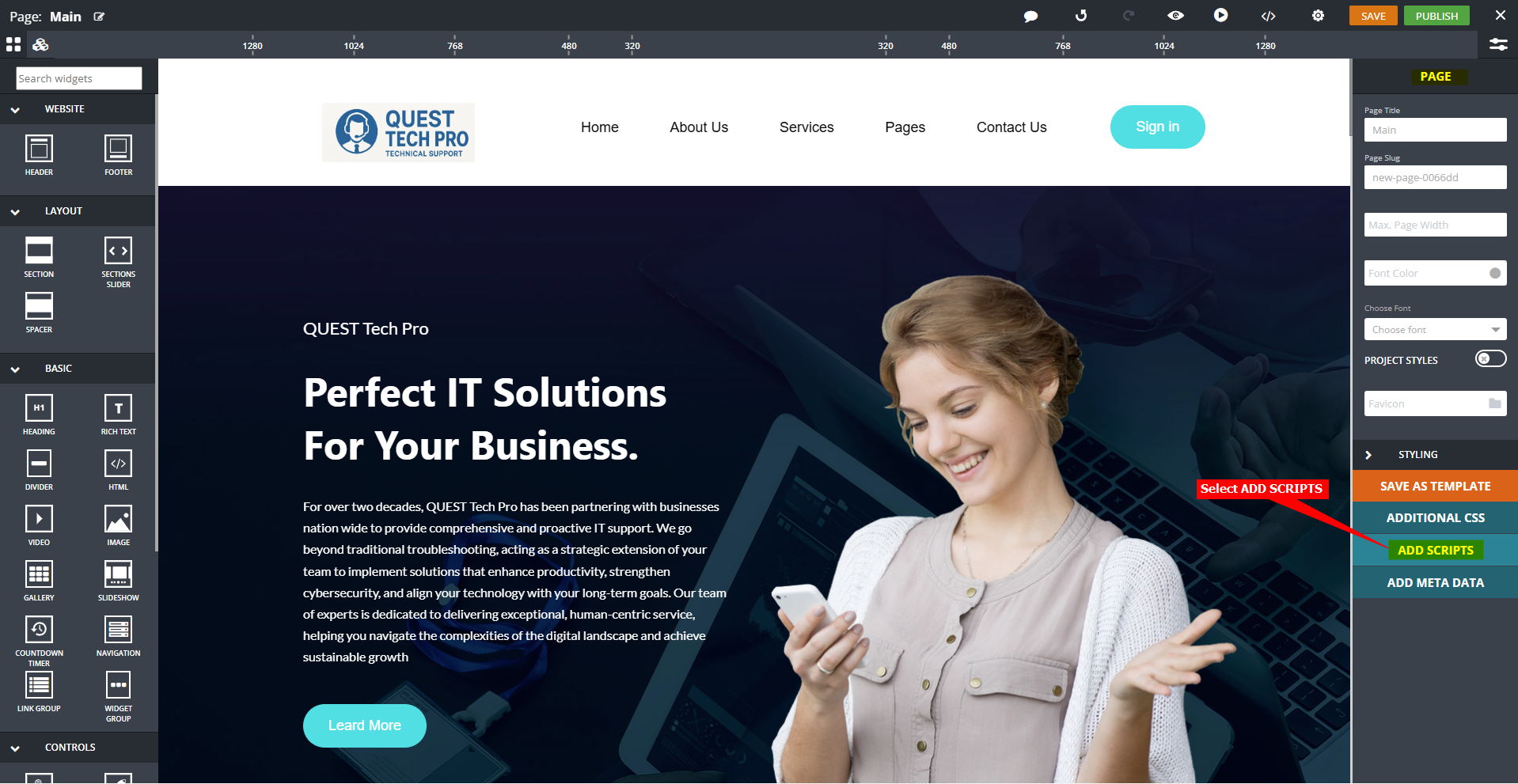
Click on ADD SCRIPTS
  1. In the Javascript Editor, insert your snippet under HEAD, click on SAVE and close the editor
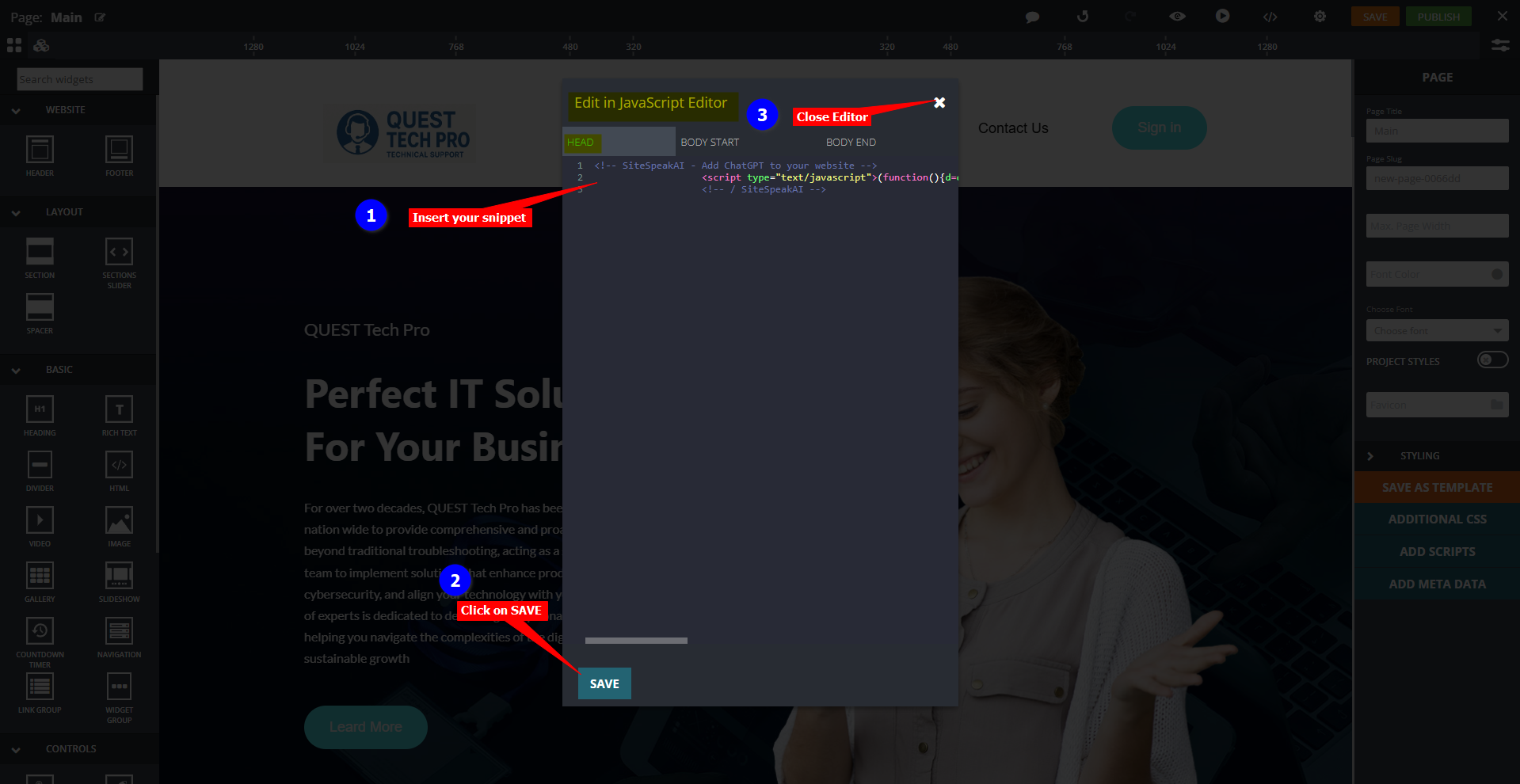
Insert snippet and SAVE
  1. On the main editor page, click on SAVE to save your changes to the page
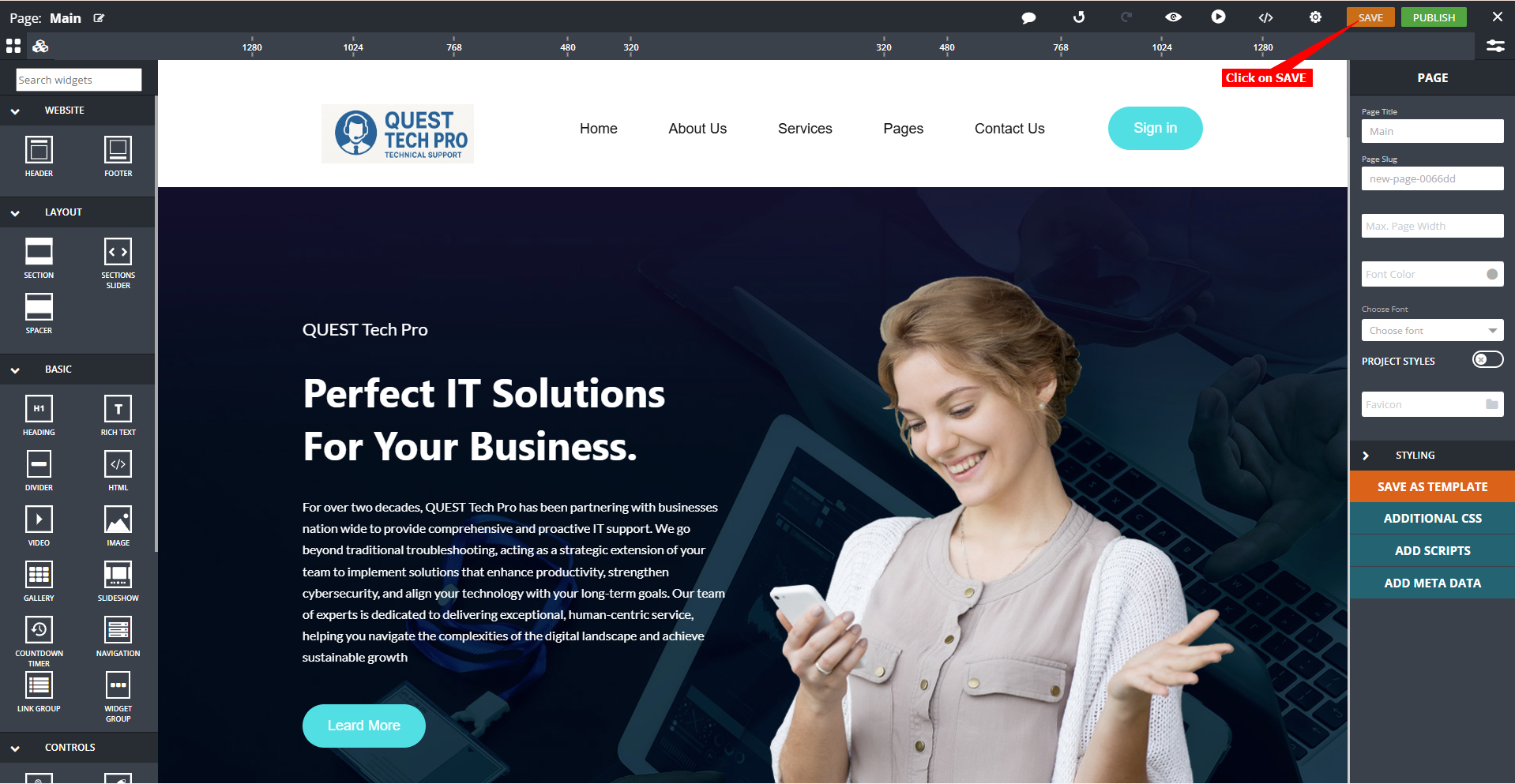
Click on SAVE
  1. Click on Live Preview to see how your AI support agent will be displayed on your live page
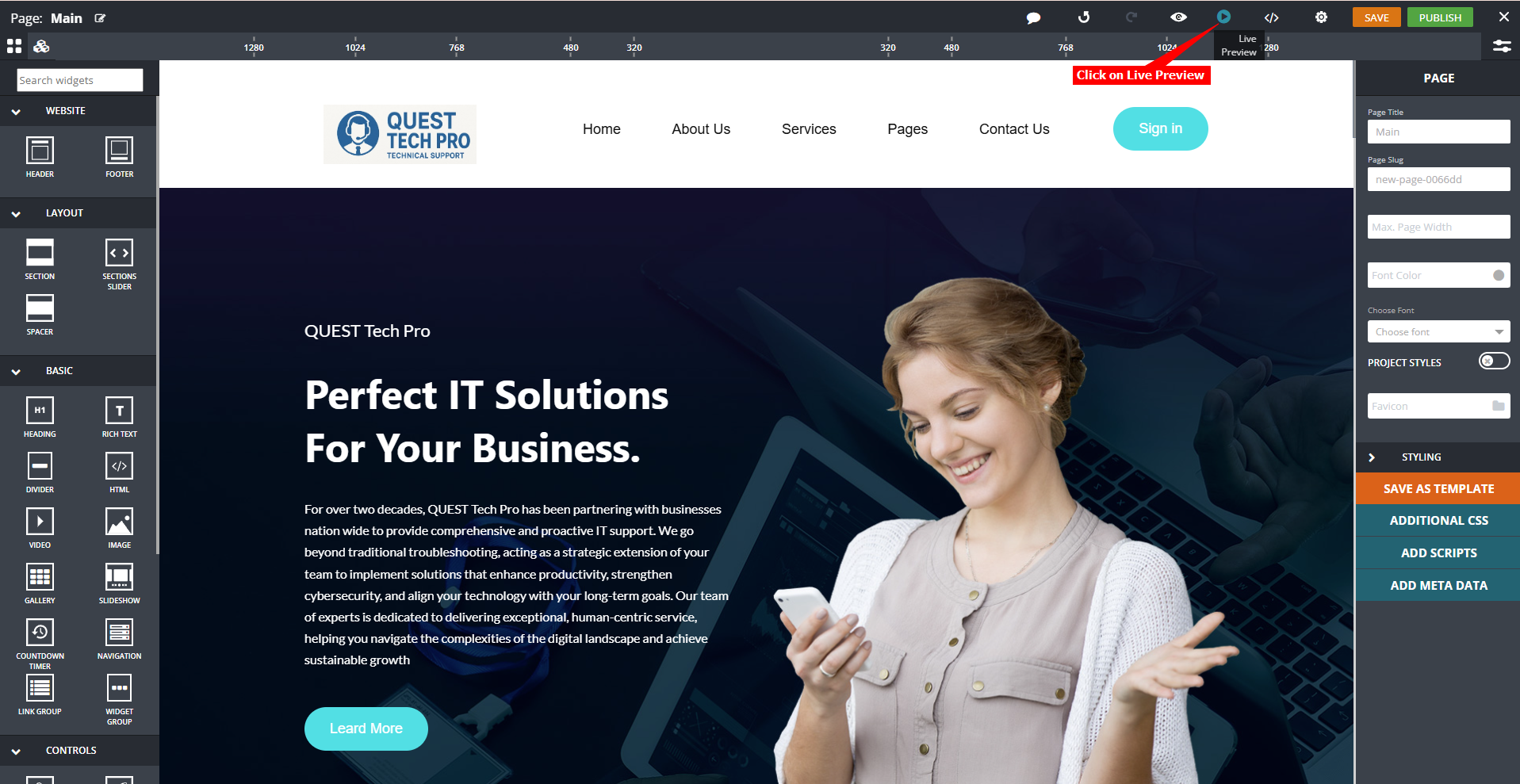
Click on Live Preview
  1. Your AI support agent button will now be displayed on your app.dragdropr website page
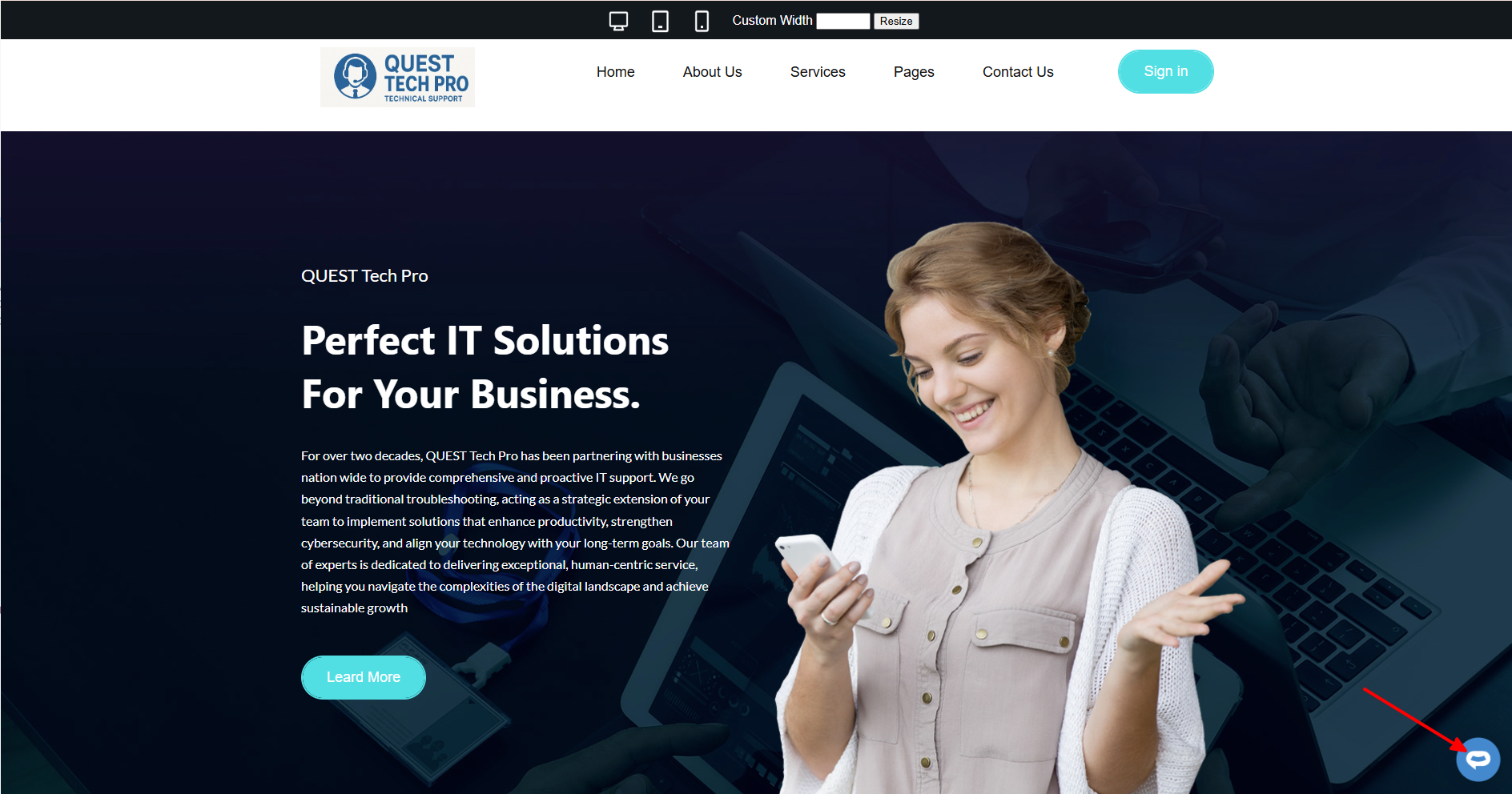
Chatbot button
  1. If you click on the button it will display the AI support agent dialogue
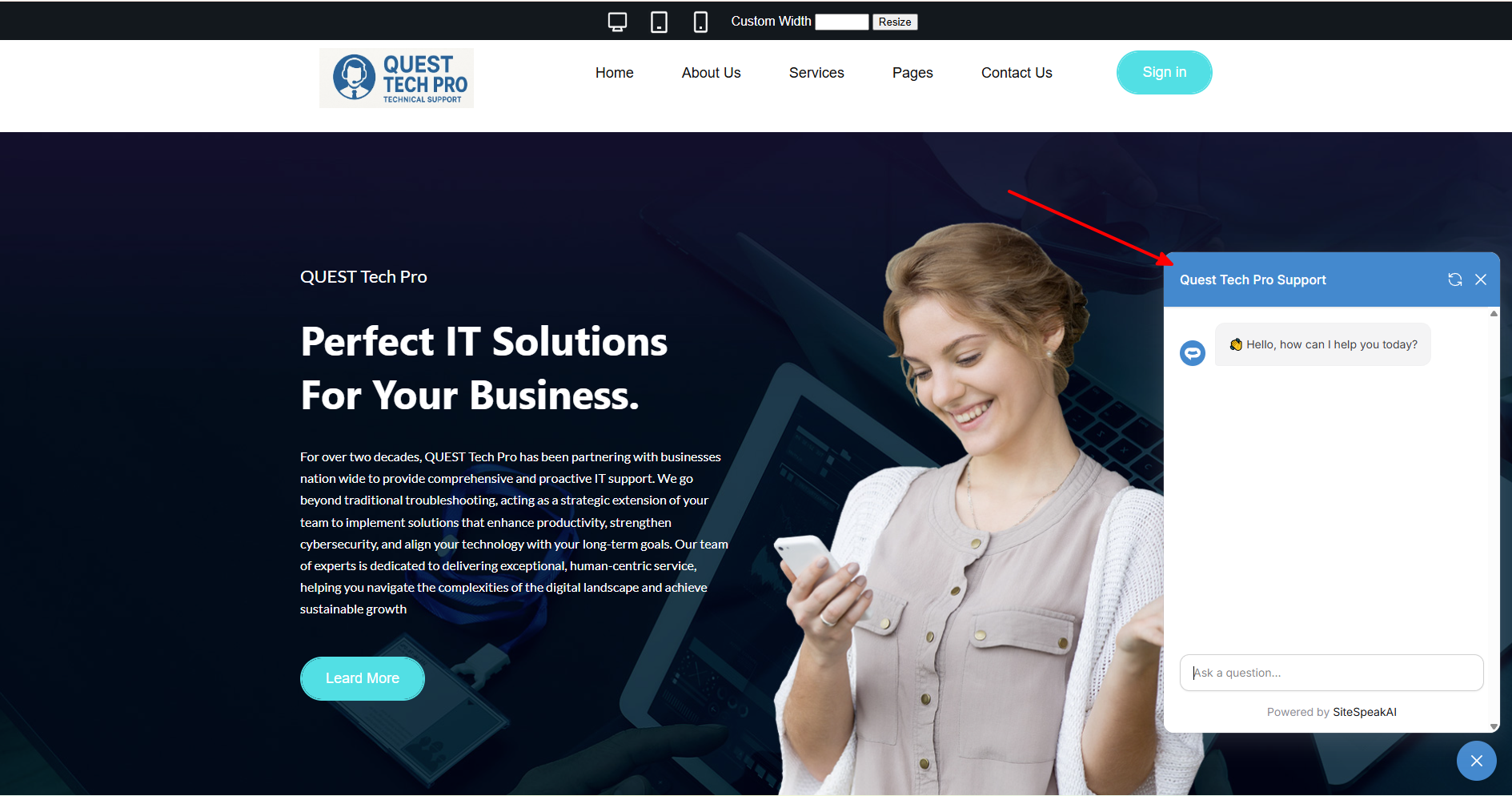
Chatbot dialogue Your AI support agent has now been added to your app.dragdropr website and your visitors/customers can start interacting with it!

Ready to automate your customer service with AI?

Join over 1000+ businesses, websites and startups automating their customer service and other tasks with a custom trained AI agent.
Last modified on January 22, 2026