
Documentation Index

Fetch the complete documentation index at: https://sitespeak.ai/docs/llms.txt

Use this file to discover all available pages before exploring further.

You want to embed your custom trained AI support agent in your Zite web app page. Here’s how to add an AI support agent to Zite with SiteSpeakAI. Zite is an AI‑powered no‑code app builder that lets you quickly create business apps, workflows, and databases without writing code. Website URL: Zite

Add your AI support agent to your Zite web app

In SiteSpeakAI

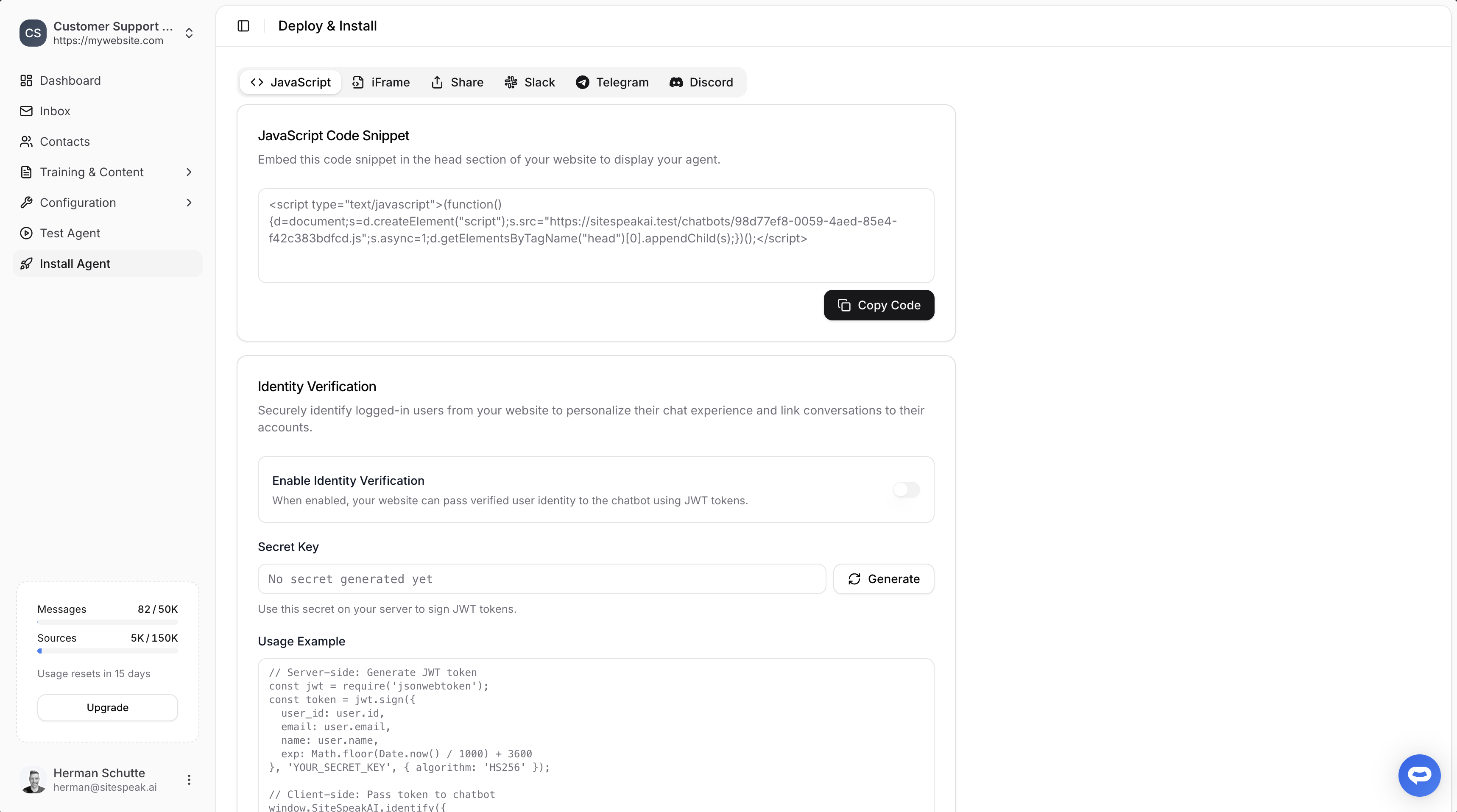
Select your chatbot from the dropdown menu at the top, click on the Install Agent section in the sidebar, then click on the Copy Code button to copy your code snippet. Copy code snippet
In Zite

  1. Log into your Zite account and on the dashboard select the web app you want to edit
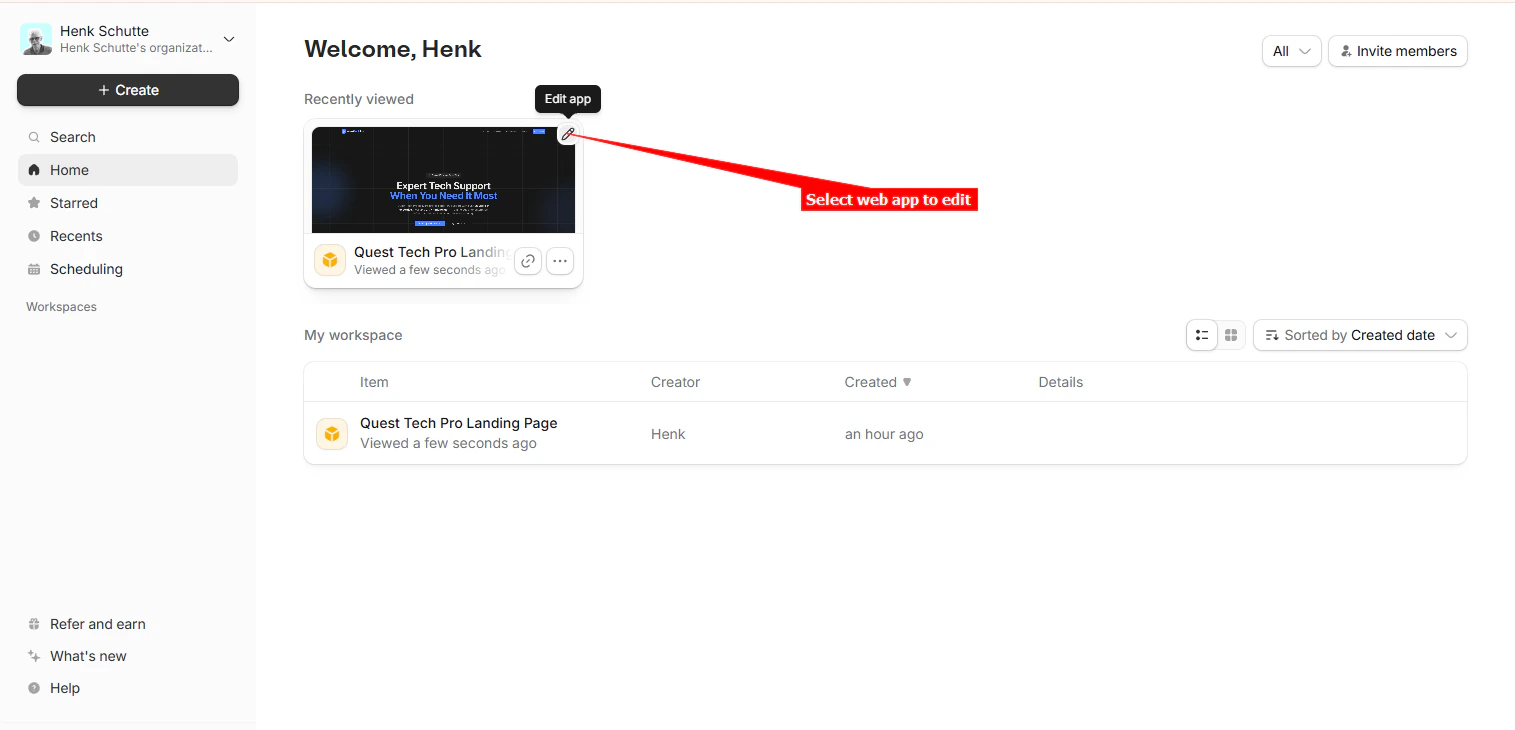
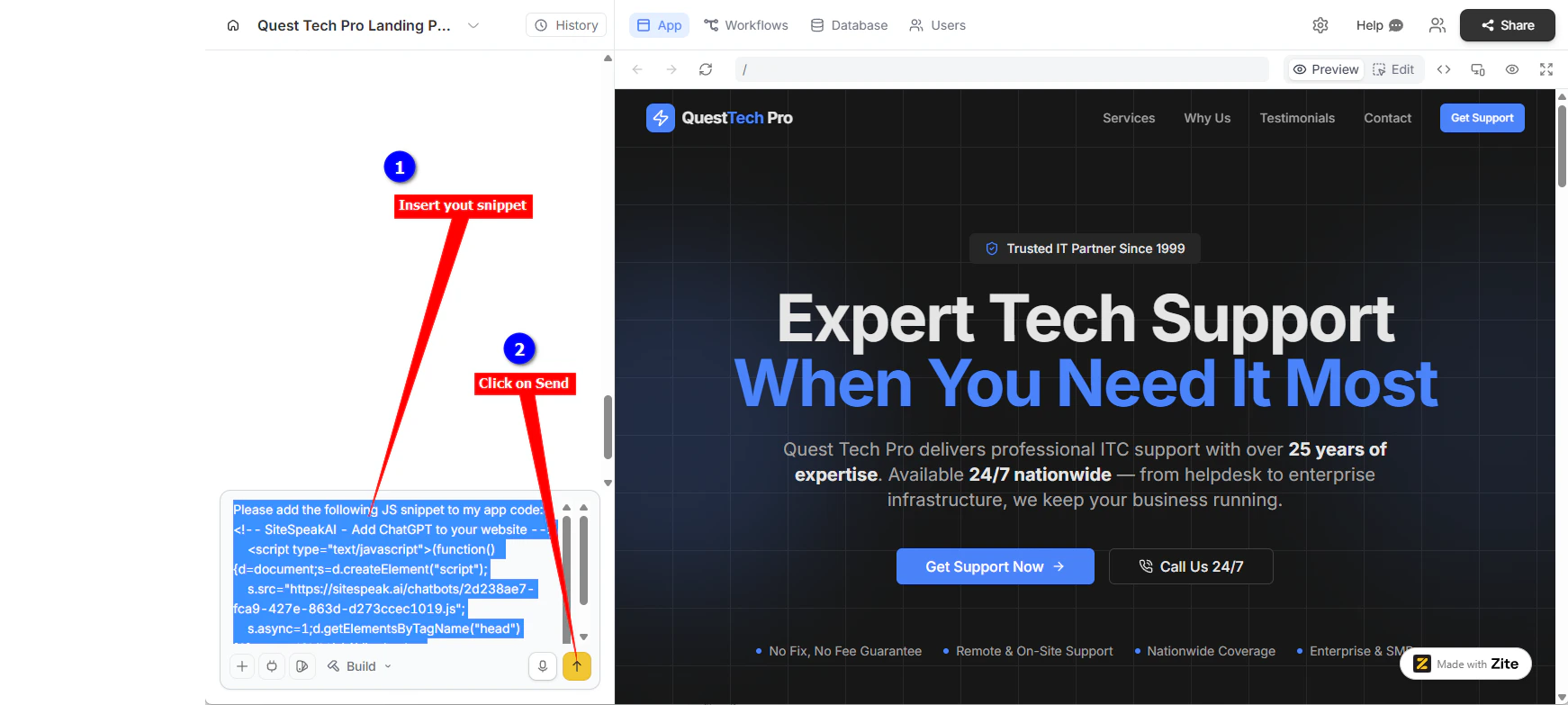
1-Zite-Dashboard-select-web-app-to-edit We are going to use Zite’s AI prompt bar to insert your SiteSpeakAI agent snippet site‑wide. The prompt consists of an instruction, e.g. “Please add the following JS snippet to my app code:” followed by the snippet code as copied at the beginning of this tutorial. Note that the #########################.js part of the JS file URL will be replaced by your specific js script filename (36 characters including the 4 dashes). Tip: Create the complete prompt in a text editor and then paste this into the AI prompt bar.
Please add the following JS snippet to my app code:

<!-- SiteSpeakAI - Add ChatGPT to your website -->
	<script type="text/javascript">(function()	{d=document;s=d.createElement("script");
	s.src="https://sitespeak.ai/chatbots/#########################.js";
	s.async=1;d.getElementsByTagName("head")[0].appendChild(s);})();</script>
<!-- / SiteSpeakAI -->
  1. Insert the prompt in the AI prompt bar and click on Send
2-Zite-Insert-prompt-and-Send
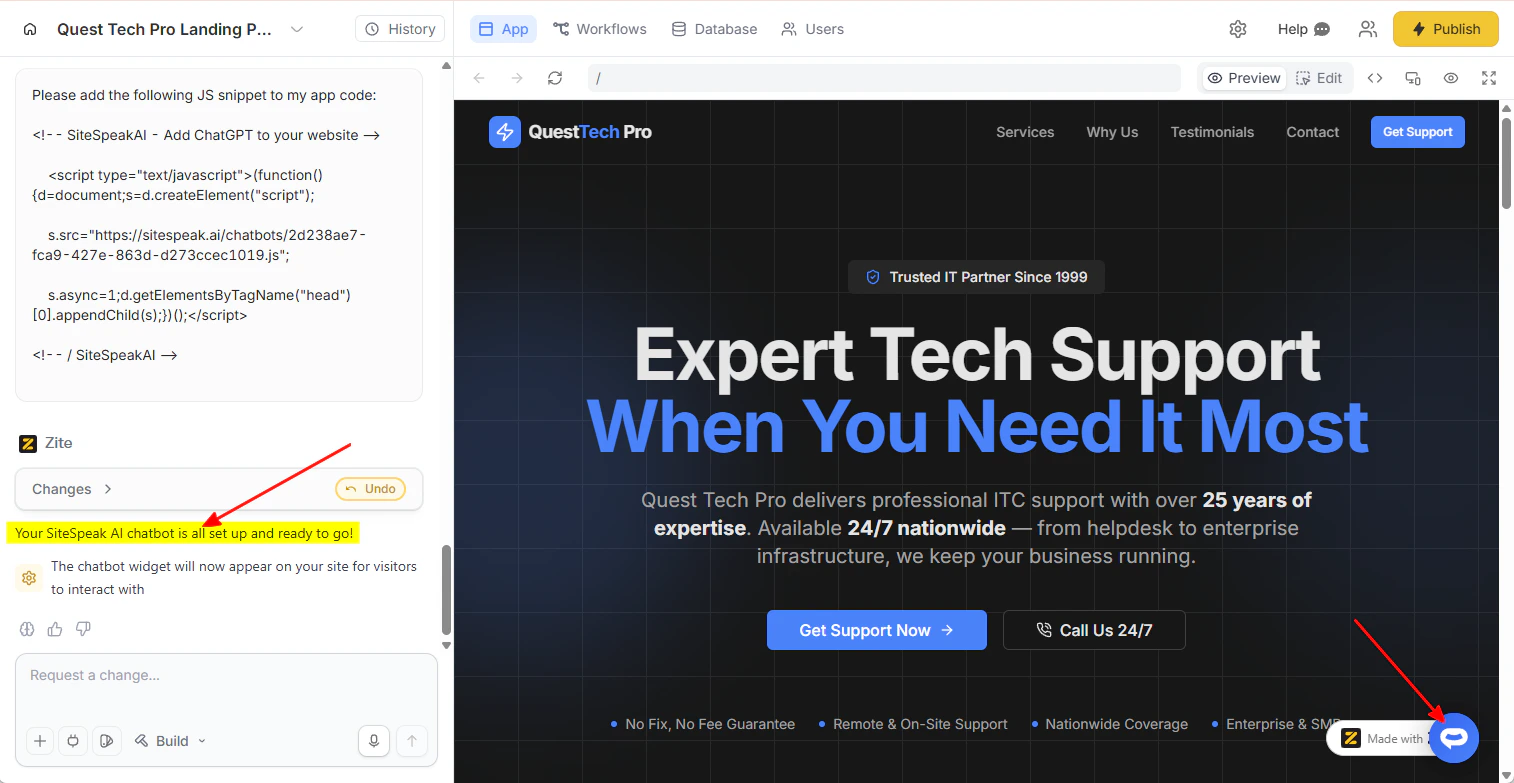
  1. If all goes well, the Zite AI builder will indicate “Your SiteSpeak AI chatbot is all set up and ready to go!” and also display the support agent button preview
3-Zite-Success-msg-and-button-preview
  1. Click on Publish to publish your changes
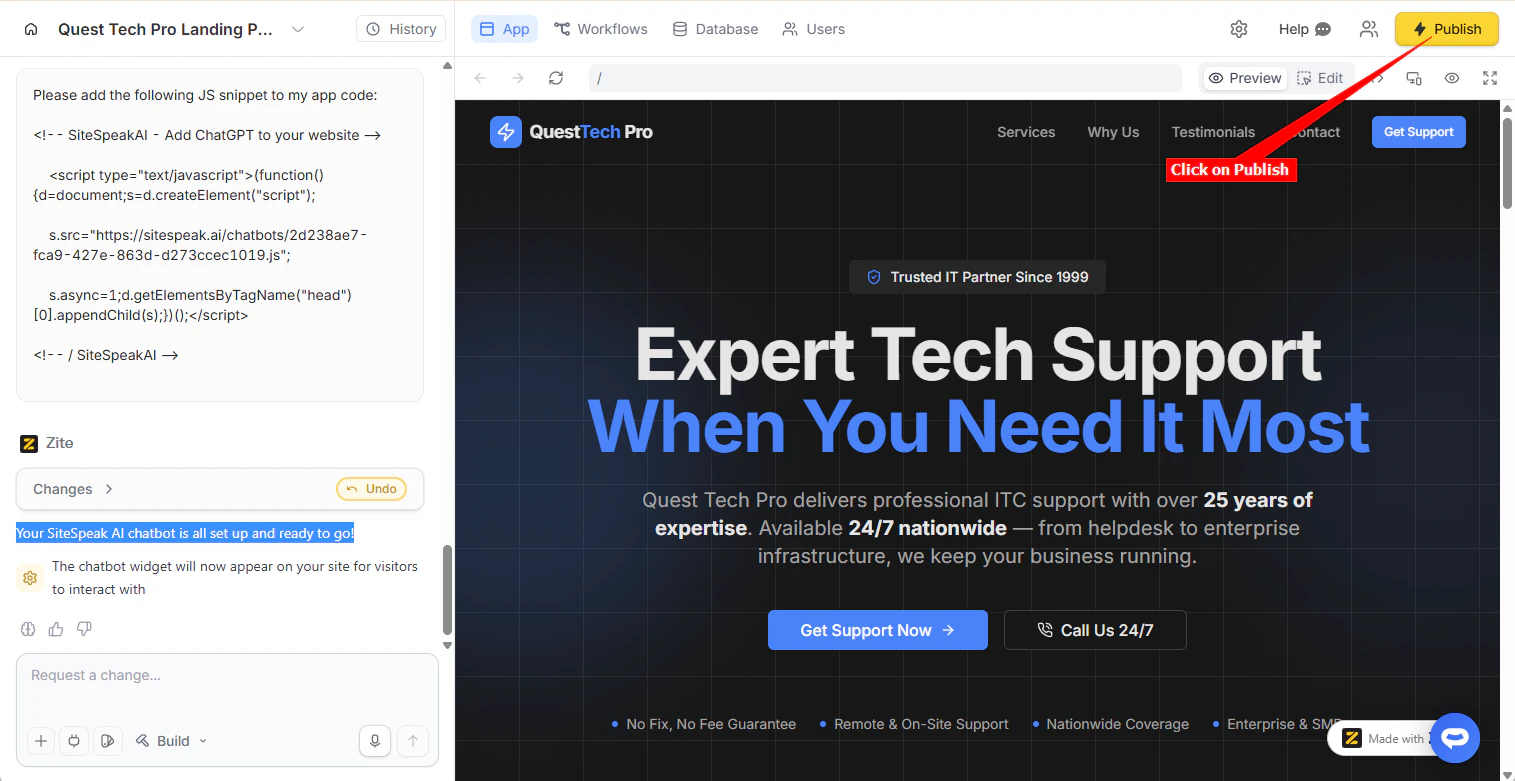
4-Zite-Publish
  1. Your AI support agent button will now be displayed on your Zite web app page
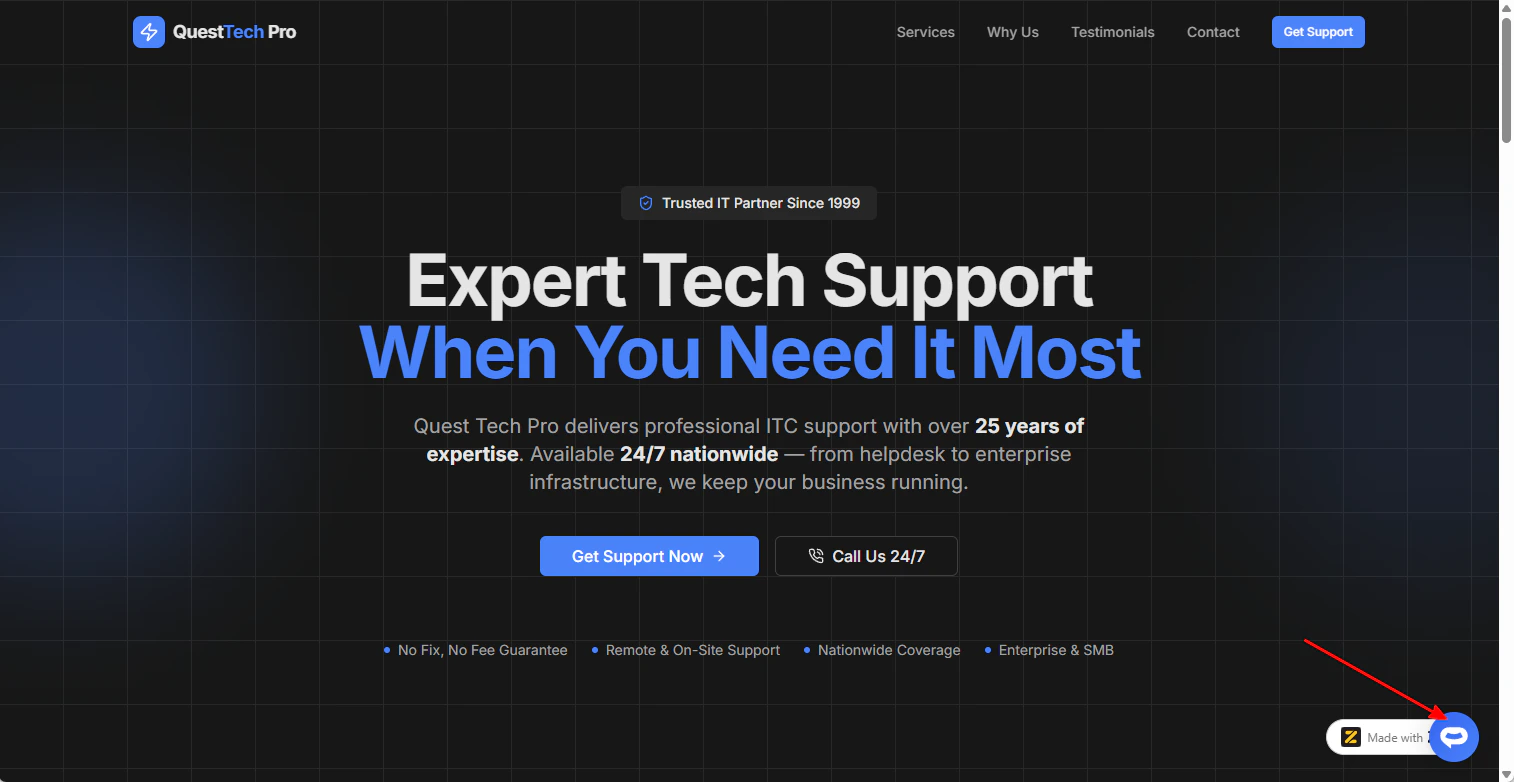
5-Zite-Button
  1. If you click on the button it will display the AI support agent dialogue
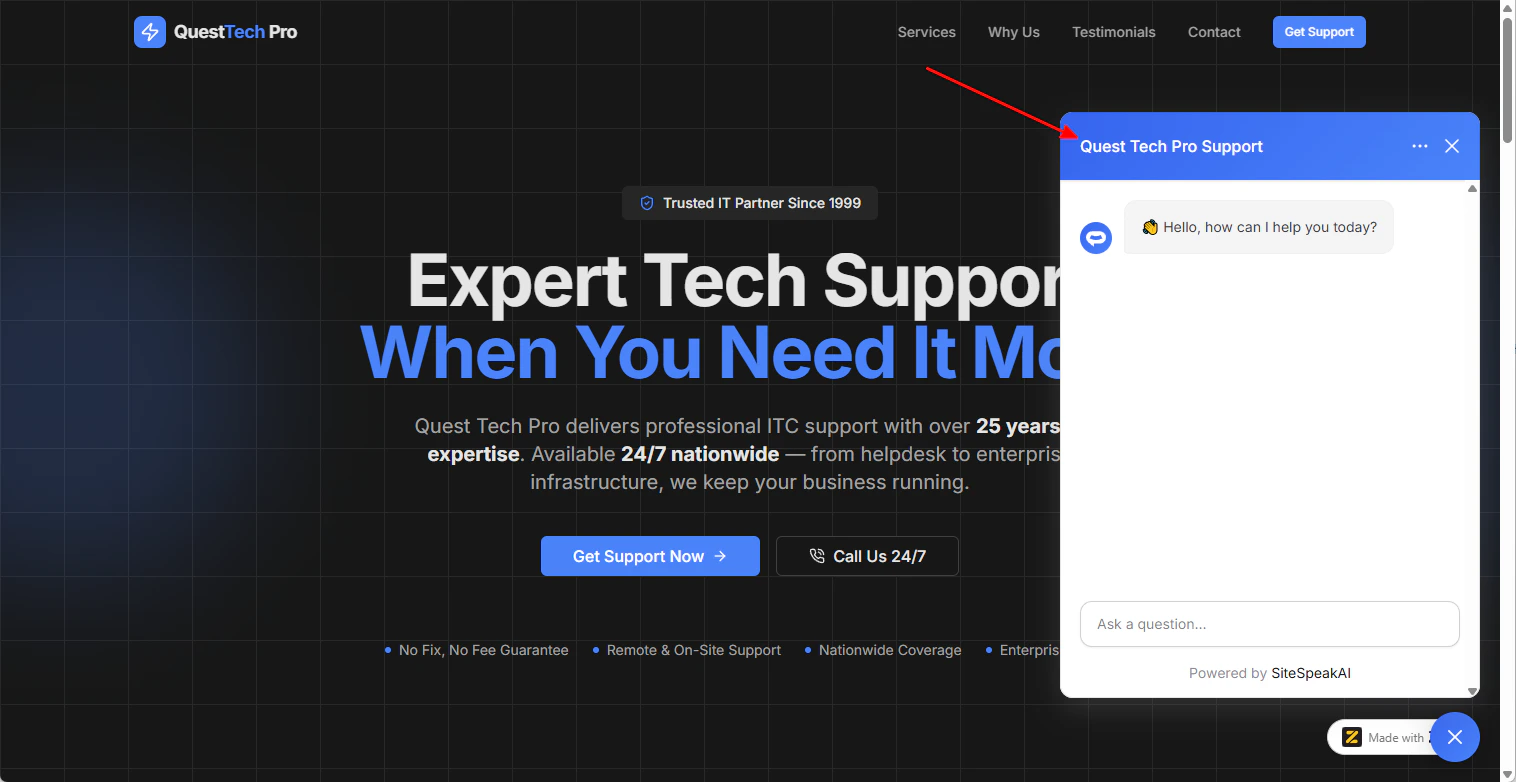
6-Zite-Dialogue Your AI support agent has now been added to your Zite web app page and your visitors/customers can start interacting with it!

Ready to automate your customer service with AI?

Join over 1000+ businesses, websites and startups automating their customer service and other tasks with a custom trained AI agent.
Last modified on June 1, 2026