

- Postcards - A Powerfully Simple Email Template Builder. Postcards is how you design email newsletters that shine, in a fraction of the time, with one-click exports to every ESP Learn more.
- Slides - A No-Code Website Builder for Creating Beautiful and Animated Pages. In Slides, you can tell an unforgettable story. Bring your website vision to life with smooth animations and bold creative. It is a fast, intuitive website builder to generate beautiful, animated websites without a single line of coding. Choose from hundreds of premade UI blocks or use a template, then just drag and drop them into place Learn more.
- Startup - A Drag & Drop Bootstrap Template Builder. With Startup, every developer is more productive. Publish perfect, responsive landing pages faster, with a simple drag-and-drop interface. It is a platform offering a curated collection of website templates and resources specifically geared towards early-stage startups. It provides a marketplace for designers and developers to find and purchase professionally designed website solutions Learn more.
A. Add your AI support agent to your Designmodo website using the Slides App
In SiteSpeakAI
Select your chatbot from the dropdown menu at the top, click on the Install Agent section in the sidebar, then click on the Copy Code button to copy your code snippet.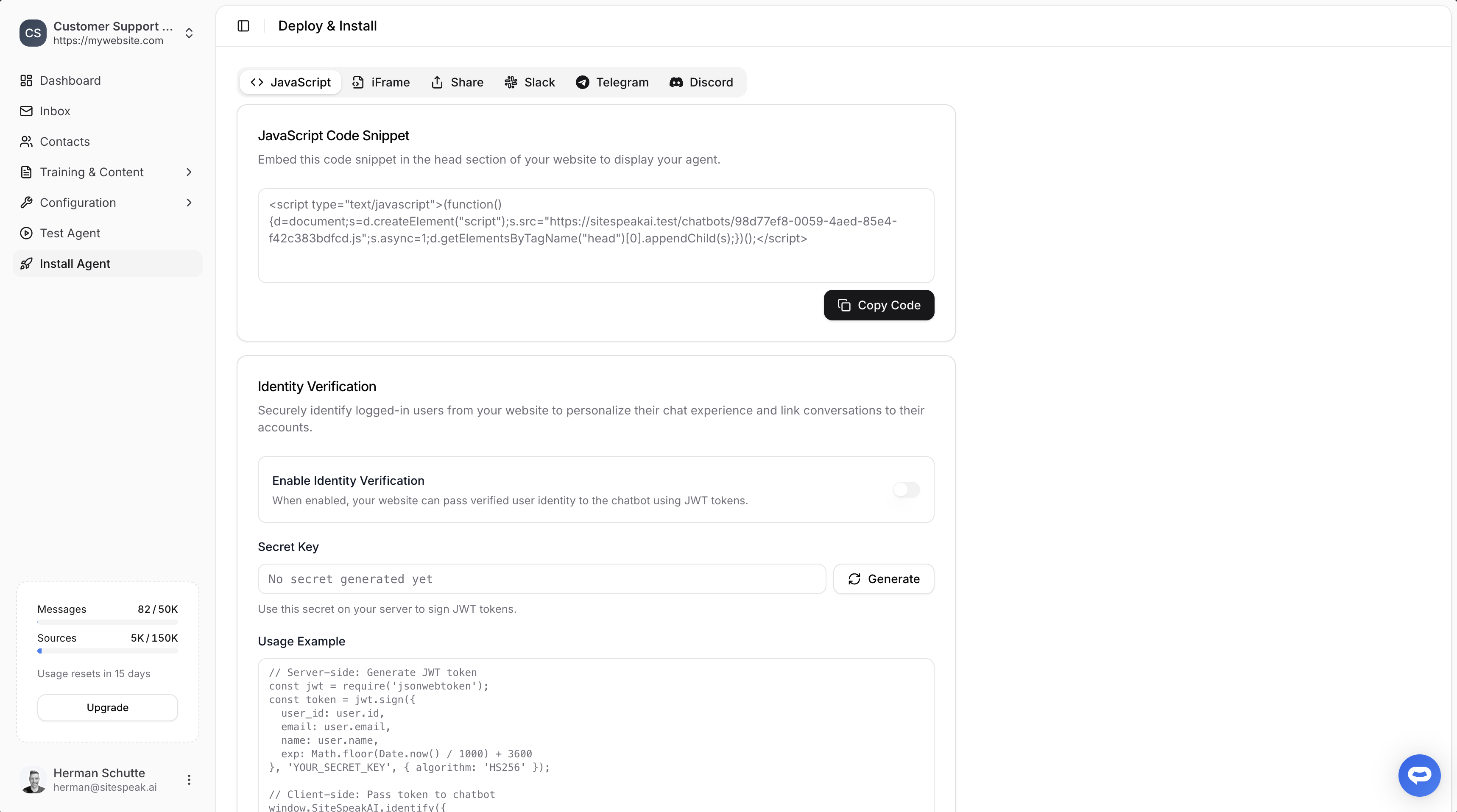
In Designmodo
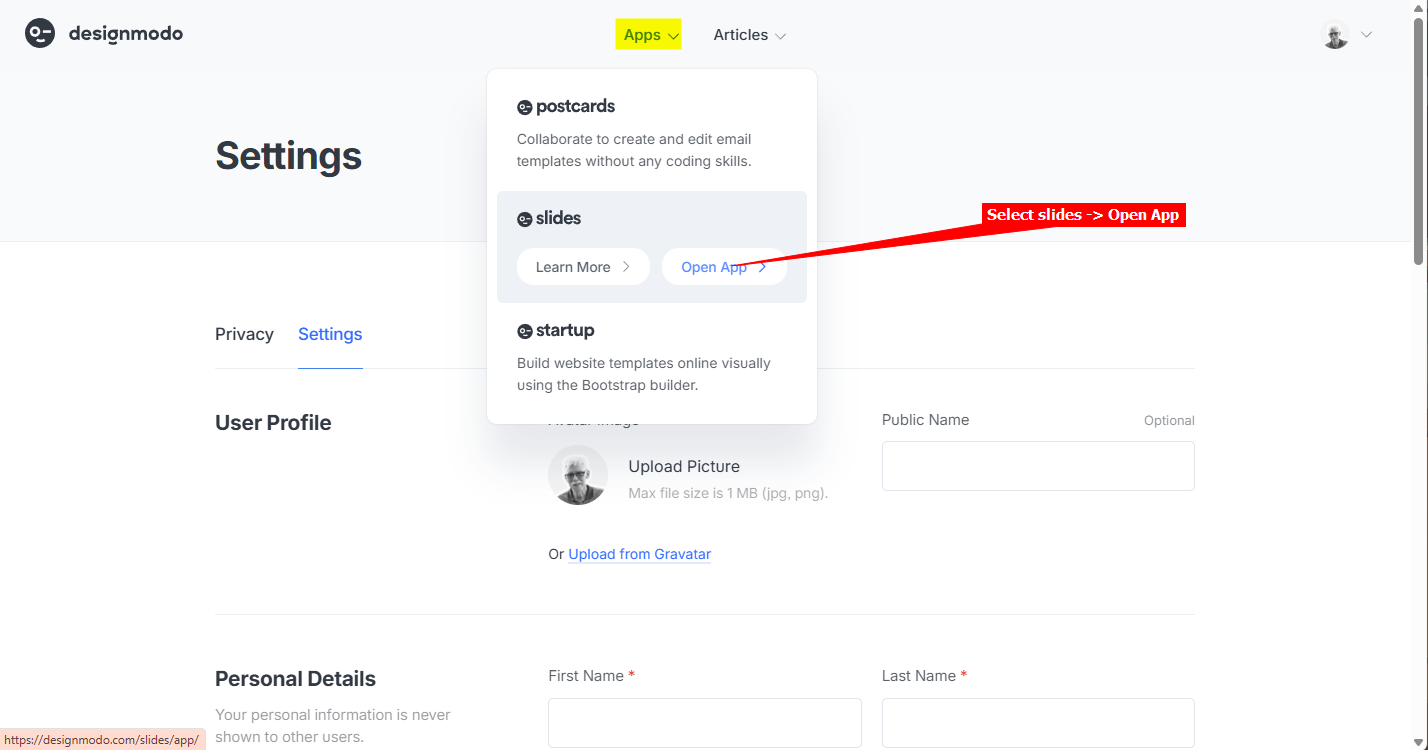
- Log into your Designmodo account and select slides -> Open App on the Apps dropdown
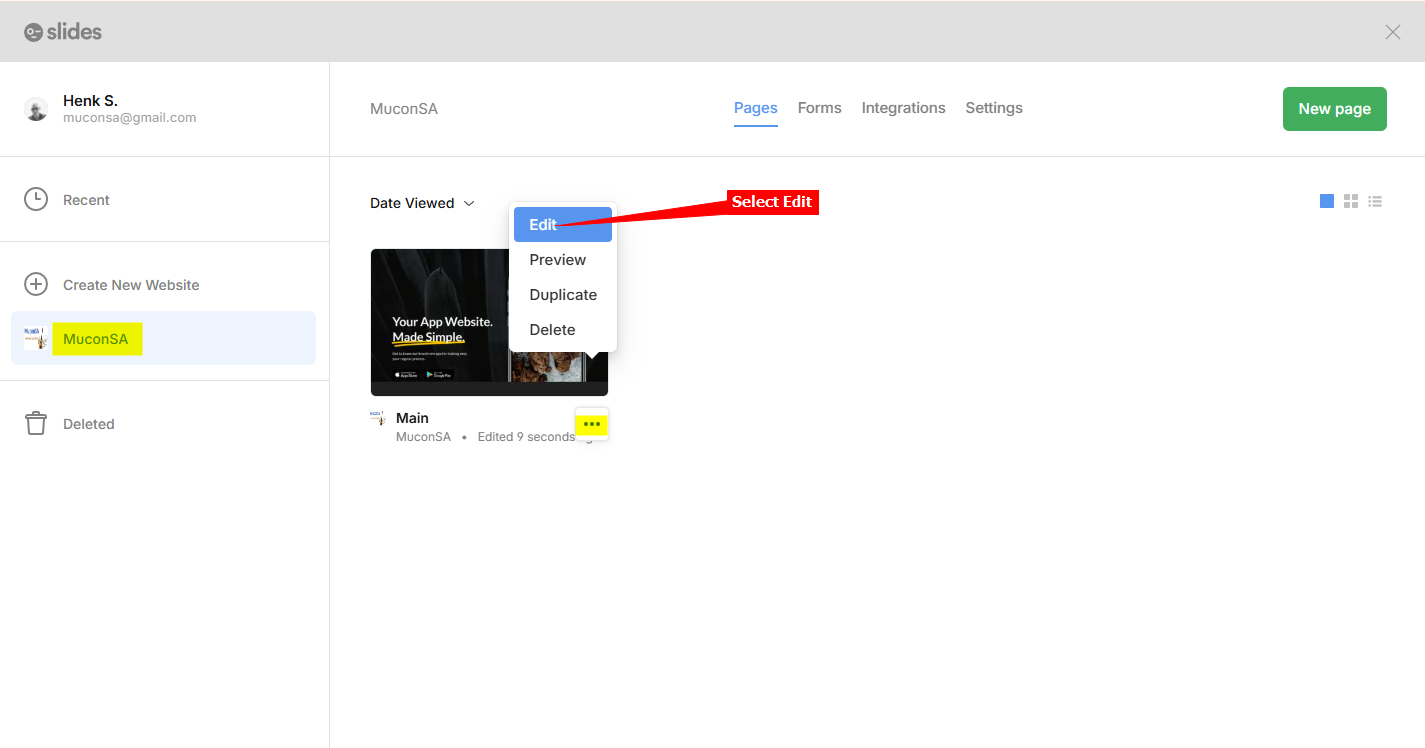
- For the website you want to add your AI support agent to, click on the hamburger menu and select Edit
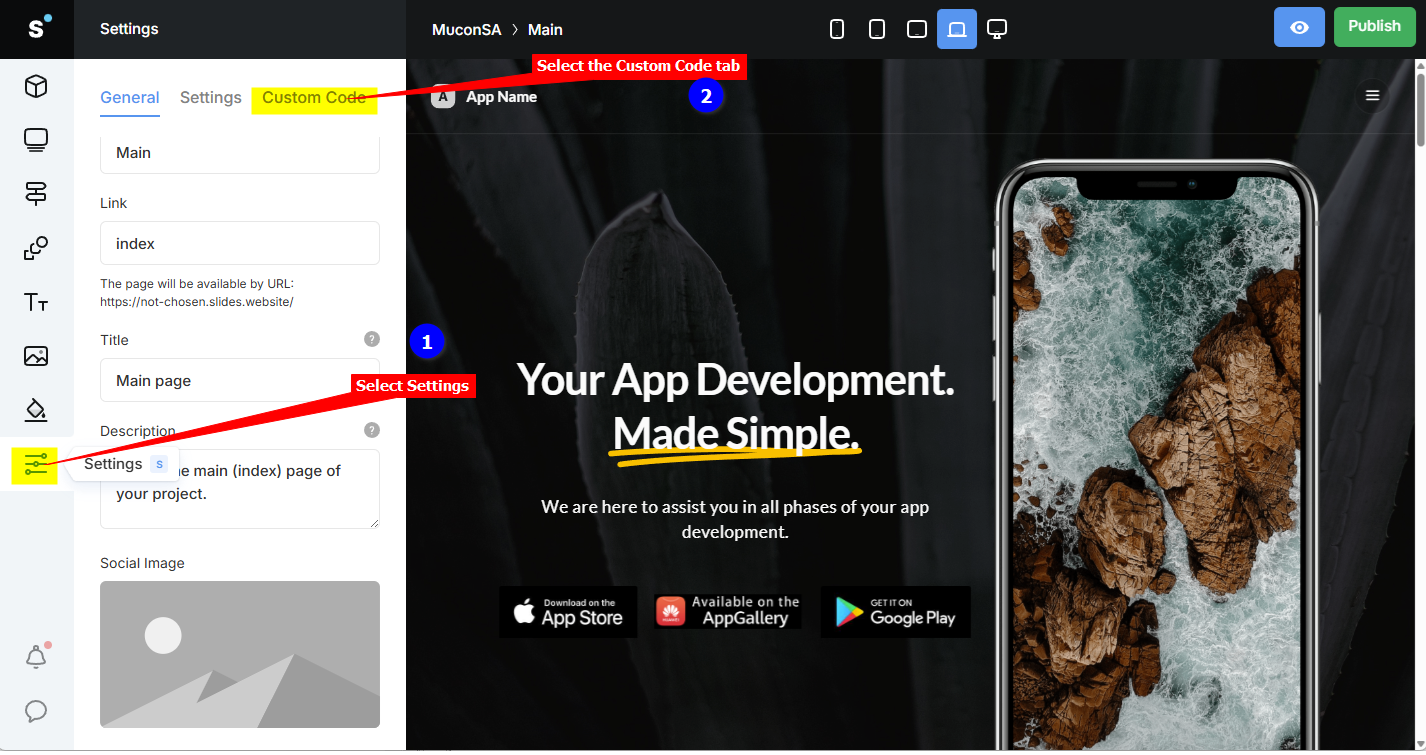
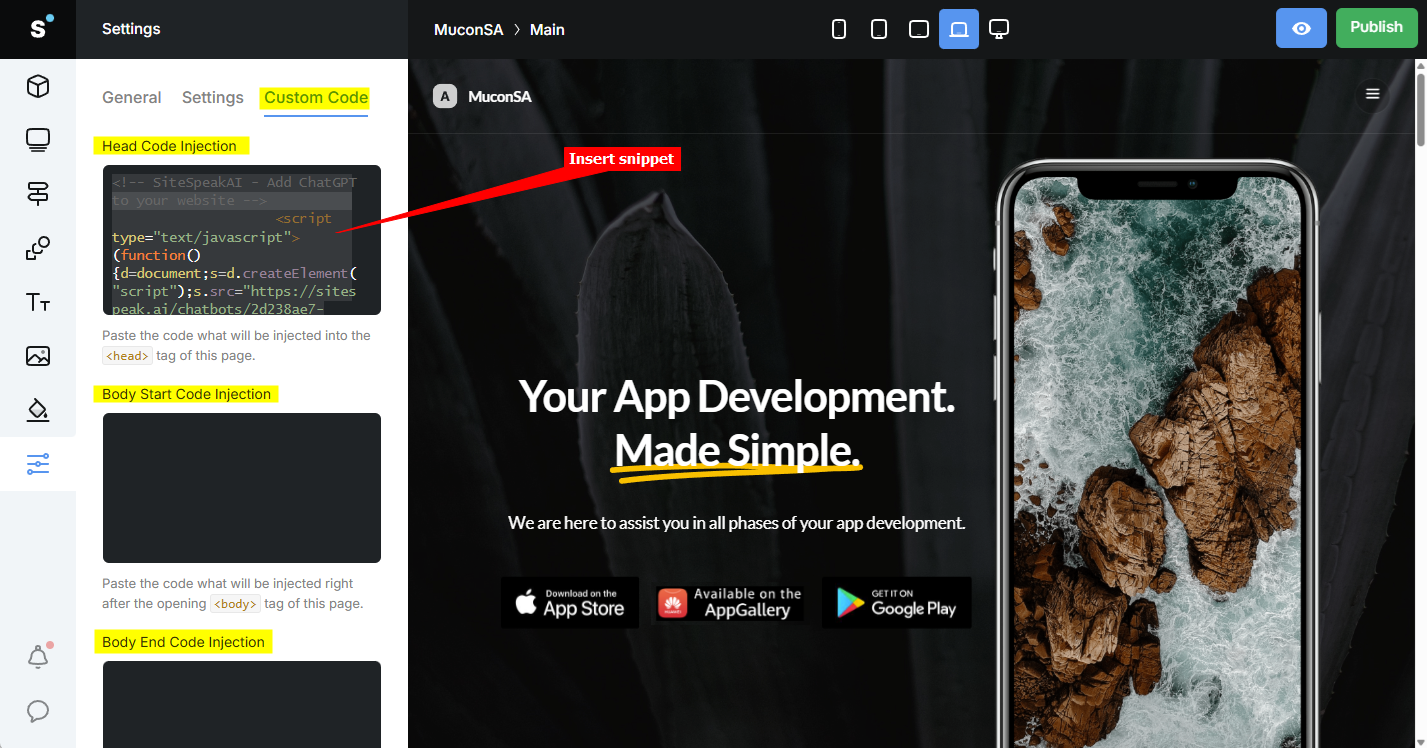
- Select Settings on the left sidebar and select the Custom Code tab
- Under Custom Code insert your AI support agent snippet in anyone of the available Injection areas, i.e. Head Code Injection, Body Start Code Injection or Body End Code Injection
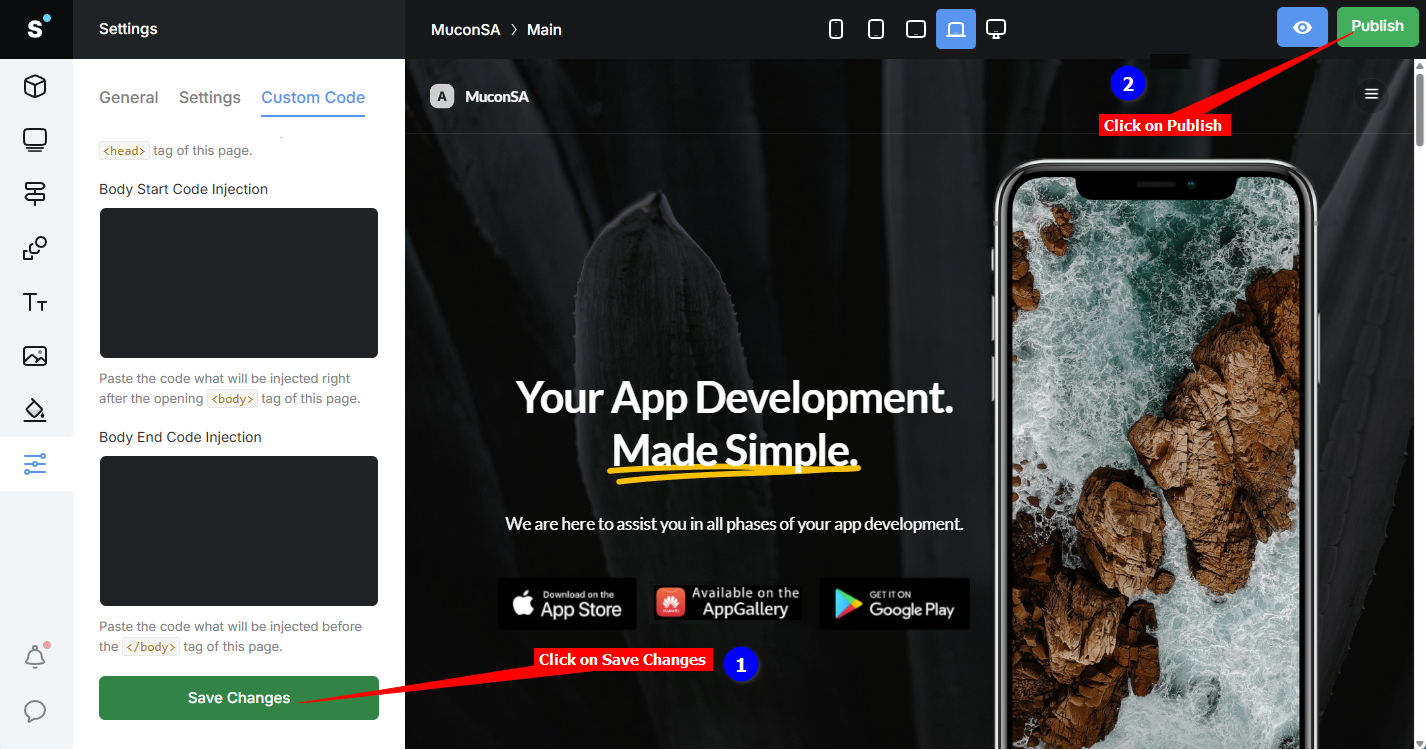
- Click on Save Changes and Publish
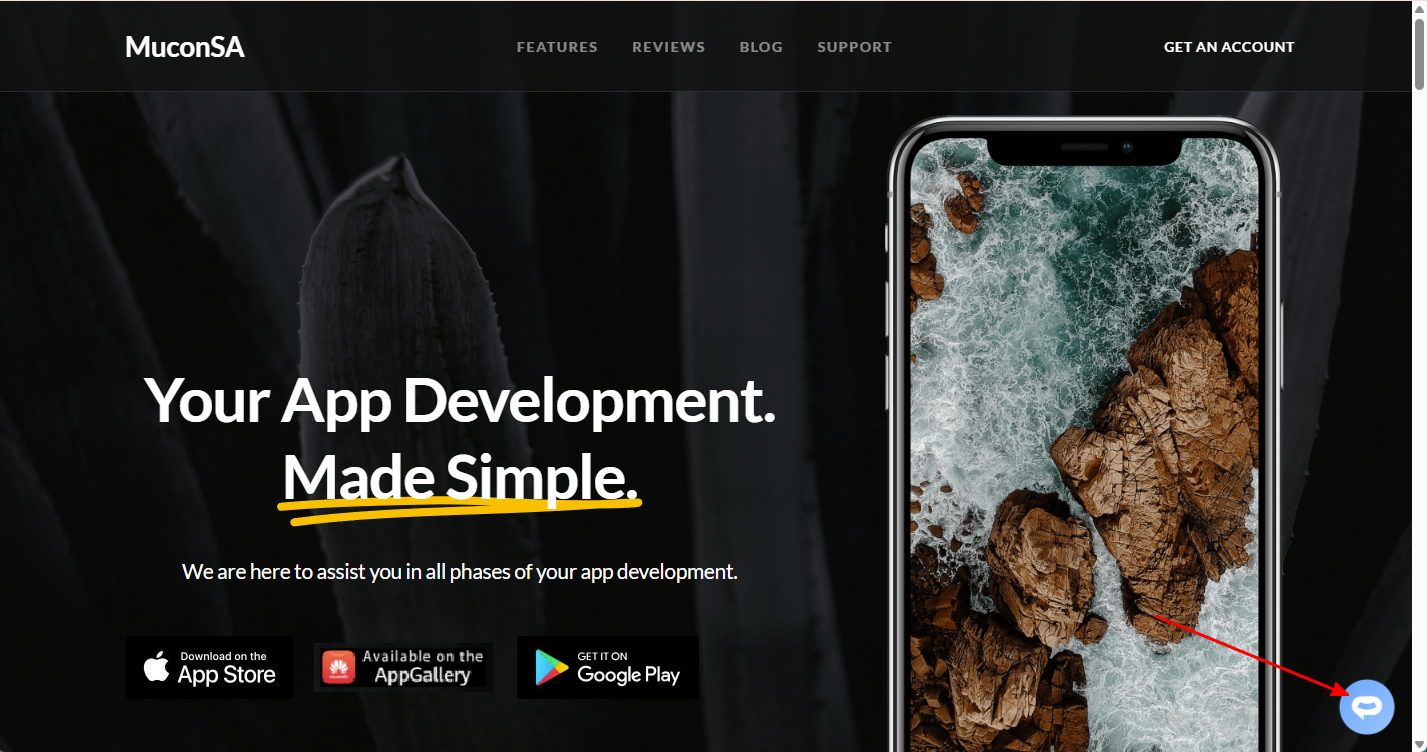
- Your AI support agent button will now be displayed on your Designmodo slides website page
- If you click on the button it will display the AI support agent dialogue
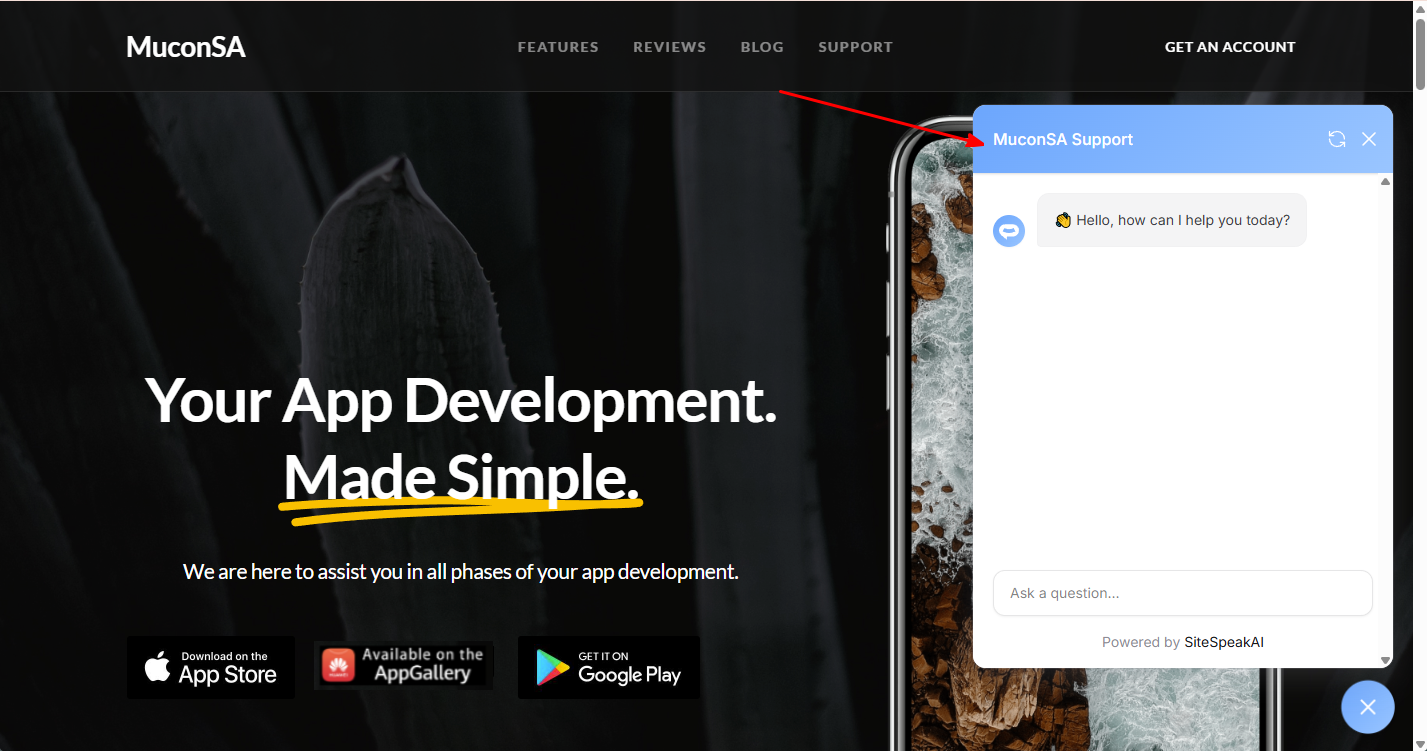 Your AI support agent has now been added to your Designmodo slides website and your visitors/customers can start interacting with it!
B. Add your AI support agent to your Designmodo website using the Startup App
In SiteSpeakAI
Log into your SiteSpeakAI account and select your agent from the dropdown menu at the top, click on the Install Agent section in the sidebar, select the Javascript tab and then click on the Copy Code button to copy your agent code snippet.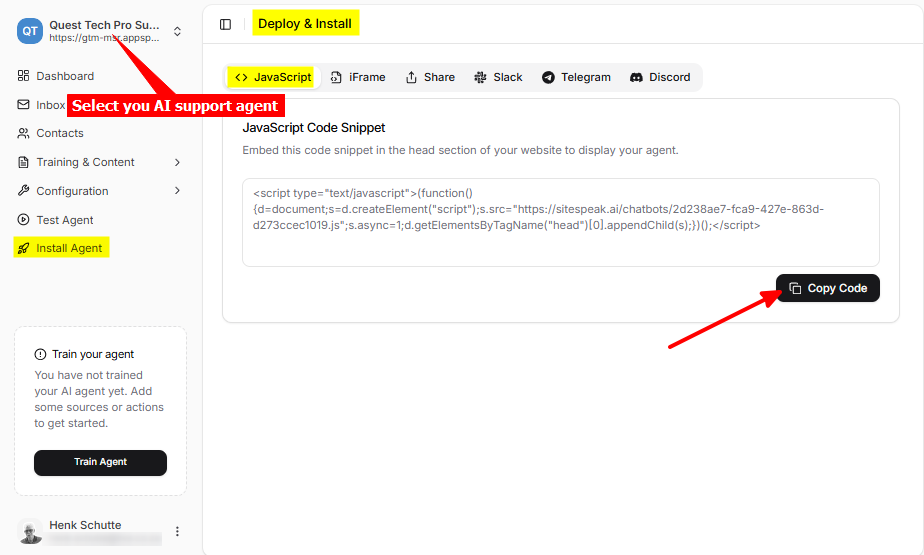
In Designmodo
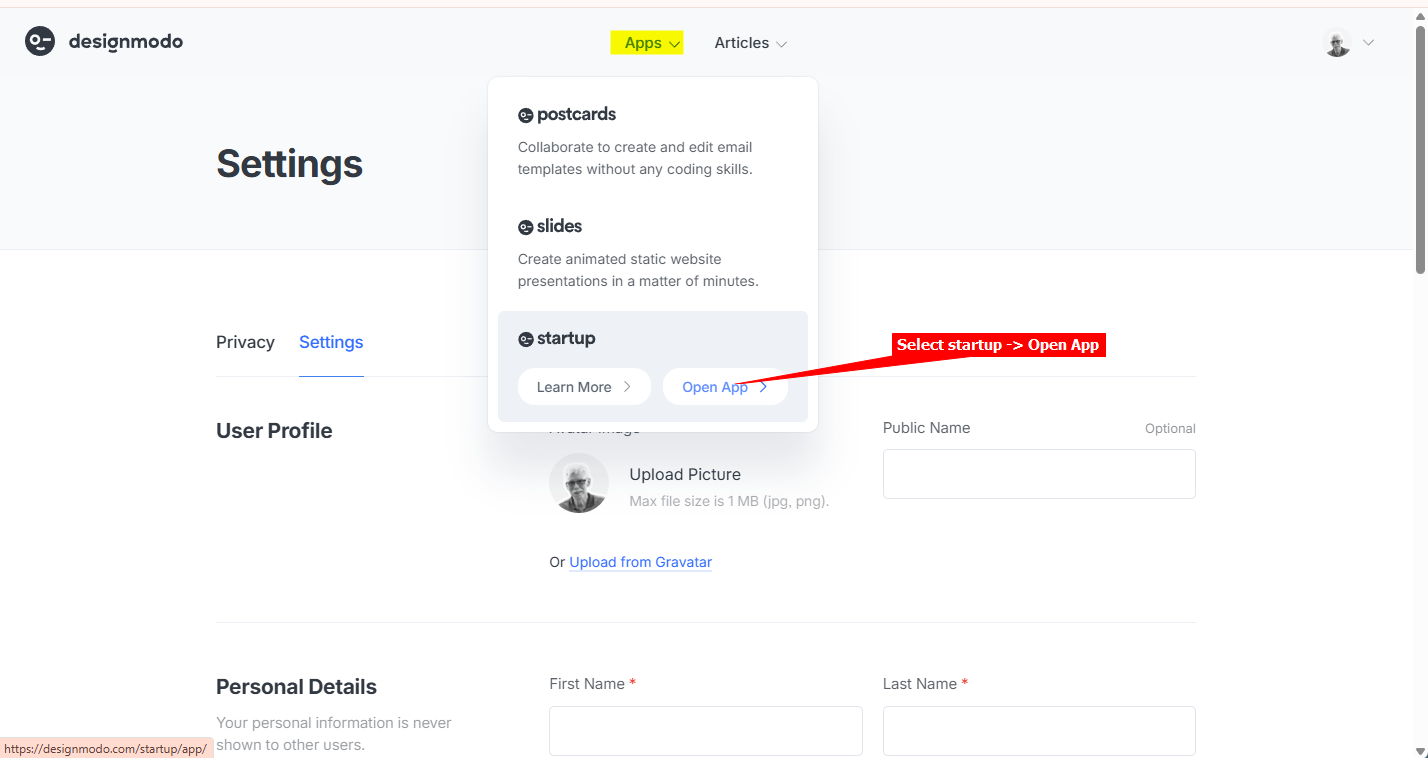
- Log into your Designmodo account and select startup -> Open App on the Apps dropdown
- Make sure your project is selected and on the right sidebar, scroll down to Code injections
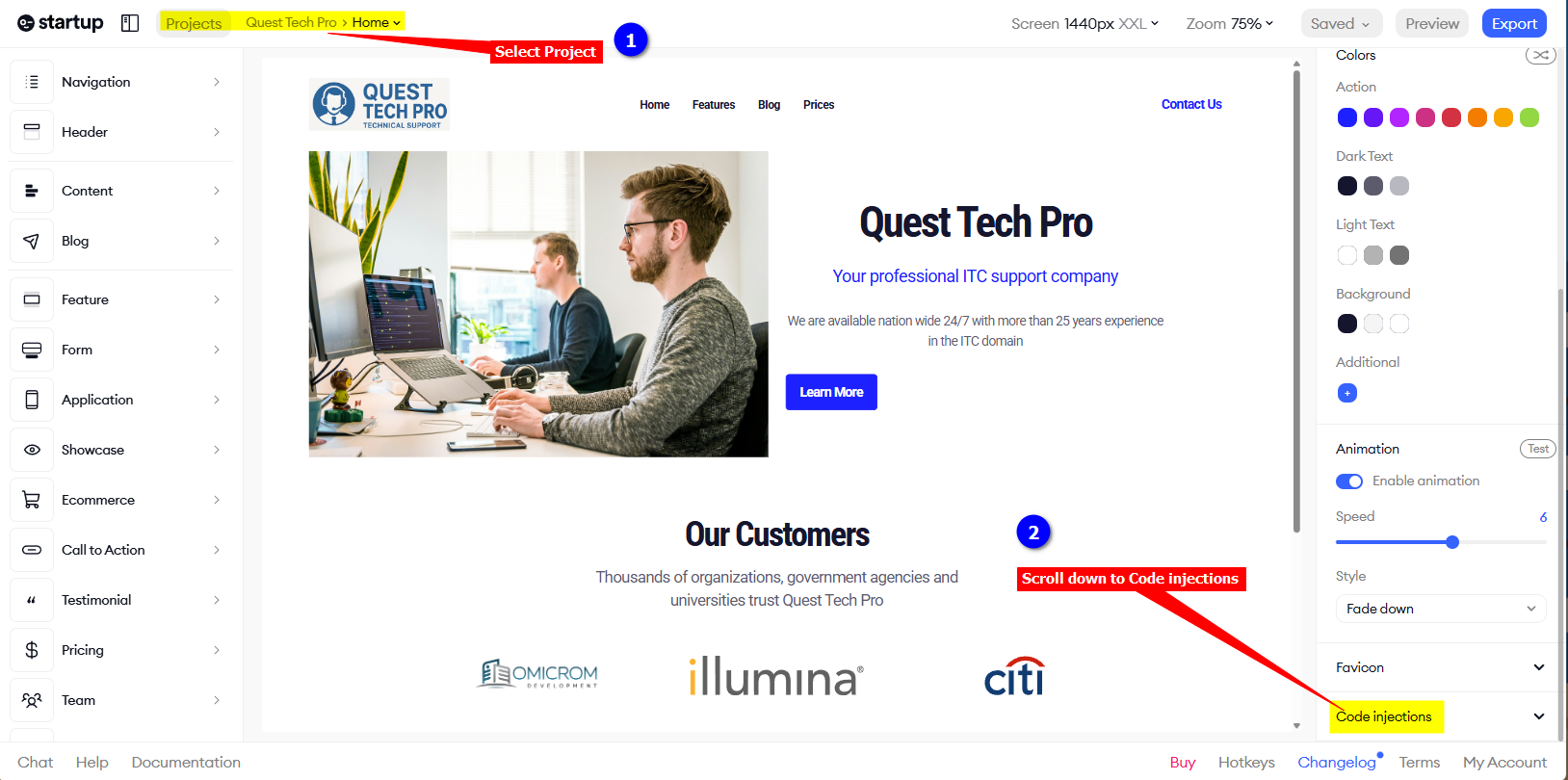
- Under Code injections insert your AI support agent snippet in anyone of the available Injection areas, i.e. Head, Body start or Body end and click on Save (it does an Autosave)
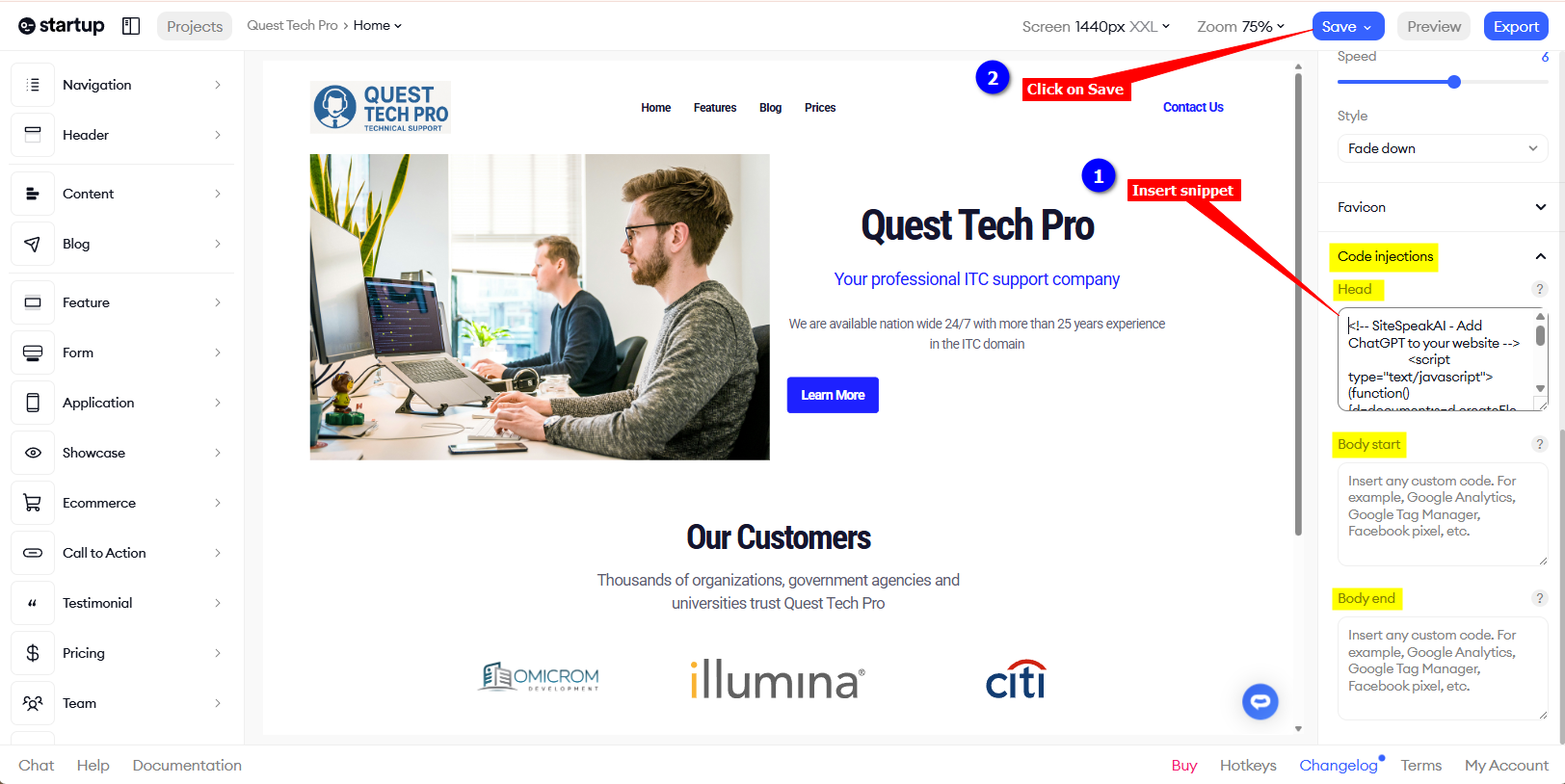
- Your AI support agent button will now be displayed on your Designmodo startup website page
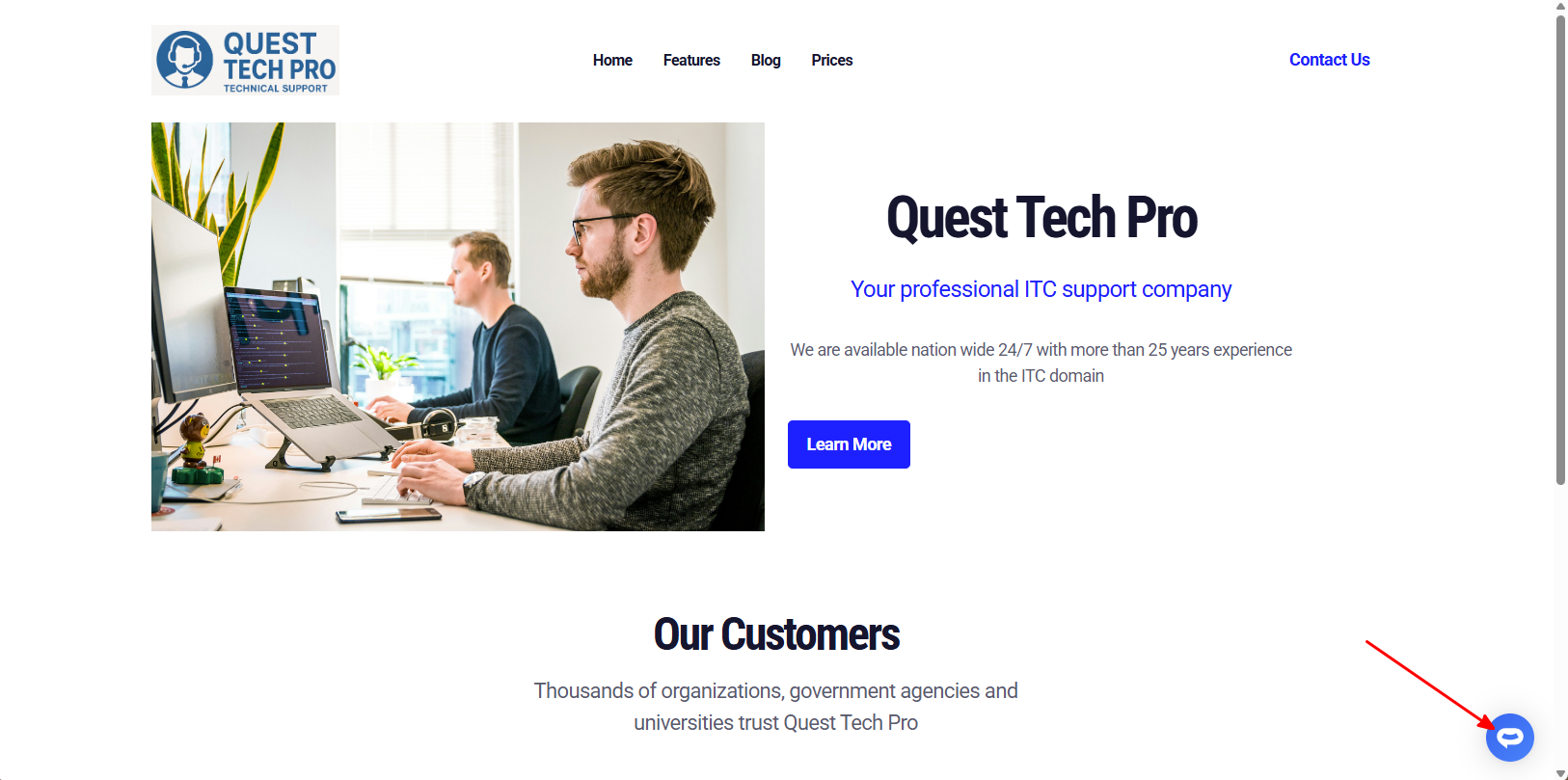
- If you click on the button it will display the AI support agent dialogue
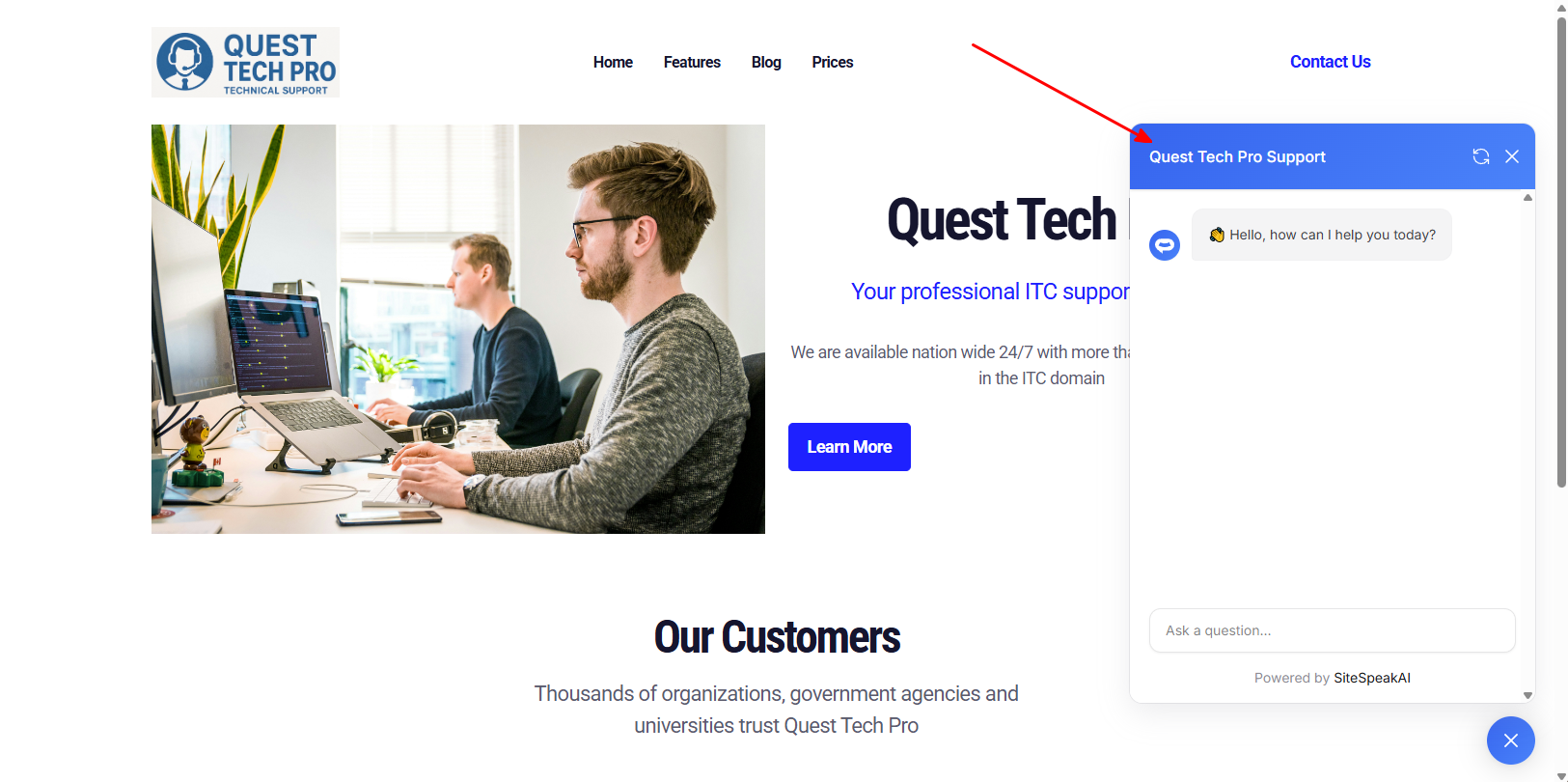 Your AI support agent has now been added to your Designmodo startup website and your visitors/customers can start interacting with it!
Ready to automate your customer service with AI?
Join over 1000+ businesses, websites and startups automating their customer service and other tasks with a custom trained AI agent.